> ## Documentation Index
> Fetch the complete documentation index at: https://docs.aisync.link/llms.txt
> Use this file to discover all available pages before exploring further.
# DND Numbers
> User guide for adding, editing, filtering, and managing Do Not Disturb entries.
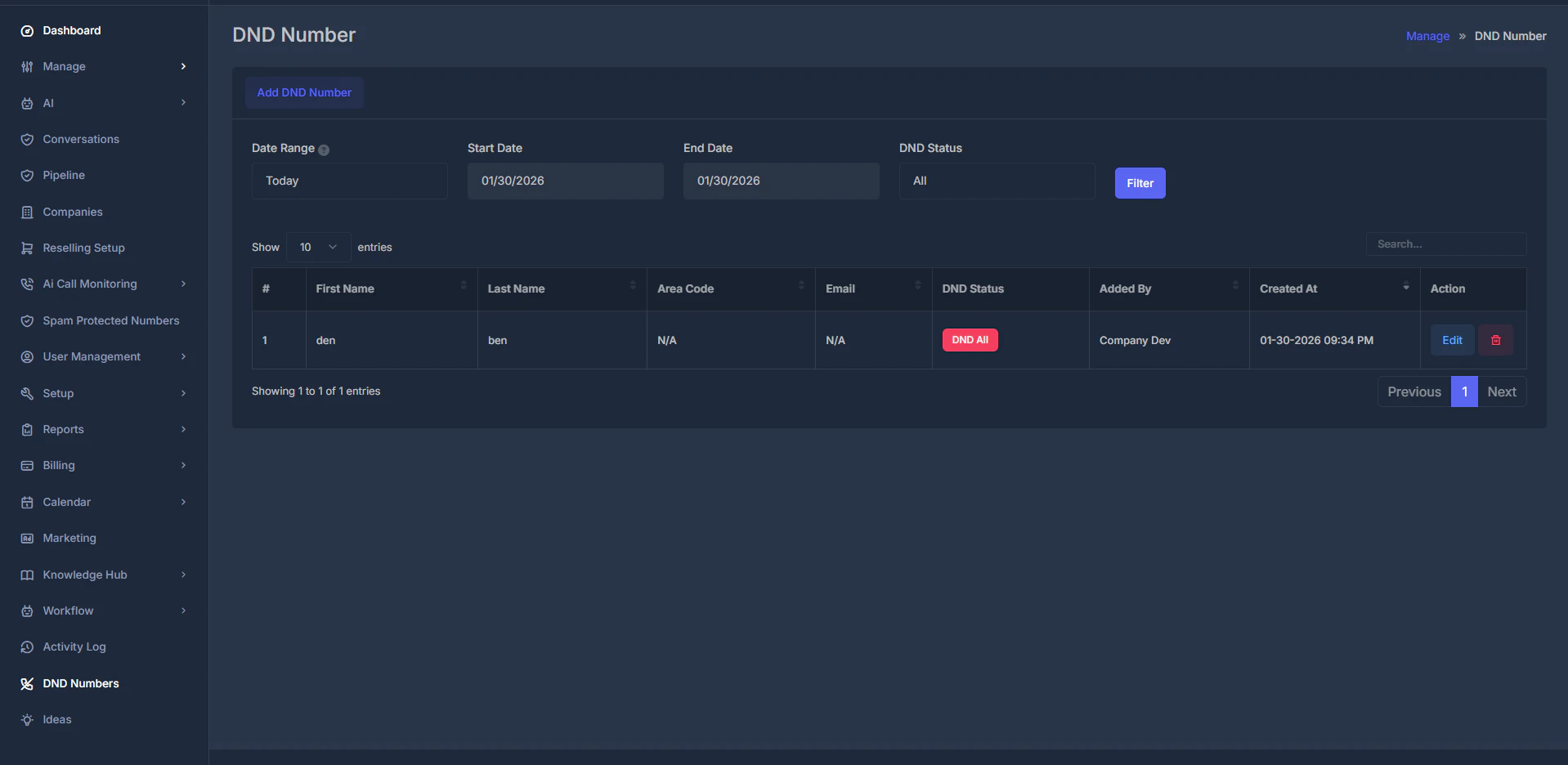
**DND Number** is where you keep a list of phone numbers (and related details) that should be treated as **Do Not Disturb** for your organization. Each entry tells the system which contact channels should be limited.
 ## 📋 Main list
When you open the screen, you will see:
* a table of DND entries
* and an **Add DND Number** button at the top.
### 📝 What each column shows
| Column | Meaning |
| -------------- | ------------------------------------------------ |
| **#** | Row number in the list. |
| **First Name** | First name or label, if provided. |
| **Last Name** | Last name, if provided. |
| **Area Code** | Area code, if provided. |
| **Email** | Related email, if provided. |
| **DND Status** | Which DND channel types are active for this row. |
| **Added By** | User who created this entry. |
| **Created At** | Added date/time in your timezone. |
| **Action** | Row controls to edit or delete. |
If a value was never provided, the table may show **N/A**.
### 🔍 Search and ordering
* Search box above table filters by matching text across searchable columns.
* Typical searchable values include names, area code, email, added-by, and date text.
* Default order is usually newest entries first.
## 🎛️ Filters
Filters narrow results before table refresh.
## 📋 Main list
When you open the screen, you will see:
* a table of DND entries
* and an **Add DND Number** button at the top.
### 📝 What each column shows
| Column | Meaning |
| -------------- | ------------------------------------------------ |
| **#** | Row number in the list. |
| **First Name** | First name or label, if provided. |
| **Last Name** | Last name, if provided. |
| **Area Code** | Area code, if provided. |
| **Email** | Related email, if provided. |
| **DND Status** | Which DND channel types are active for this row. |
| **Added By** | User who created this entry. |
| **Created At** | Added date/time in your timezone. |
| **Action** | Row controls to edit or delete. |
If a value was never provided, the table may show **N/A**.
### 🔍 Search and ordering
* Search box above table filters by matching text across searchable columns.
* Typical searchable values include names, area code, email, added-by, and date text.
* Default order is usually newest entries first.
## 🎛️ Filters
Filters narrow results before table refresh.
 ### 📅 Date range
Filters by **Created At** date.
* Choose a preset (today, yesterday, this week, last month, etc.).
* Or choose **Custom dates** and set **Start Date** + **End Date**.
* Click **Filter** to apply.
For presets, dates are auto-filled. For custom range, both dates should be selected before applying.
### 🚦 DND status filter
Shows rows matching selected status type:
* **All**
* **DND all channels**
* **Emails**
* **Text messages**
* **Calls & voicemails**
* **DND inbound calls and SMS**
Choose one option, then click **Filter**.
## ➕ Adding a DND number
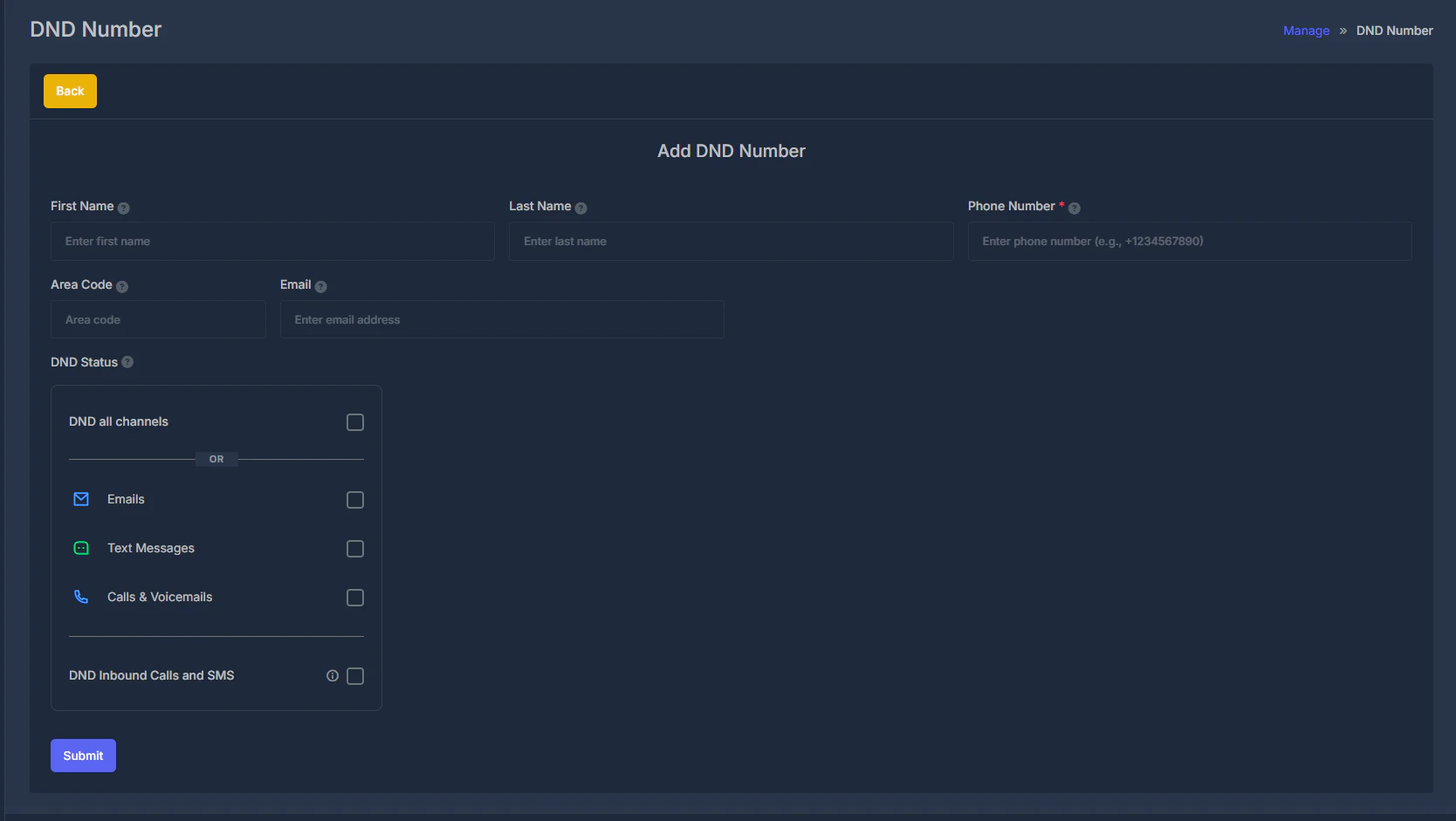
1. Click **Add DND (Do Not Disturb ) Number**.
2. Fill form fields.
3. Click **Submit**.
On success, confirmation appears and list refreshes with the new entry.
Use **Back** to return without saving.
### 📅 Date range
Filters by **Created At** date.
* Choose a preset (today, yesterday, this week, last month, etc.).
* Or choose **Custom dates** and set **Start Date** + **End Date**.
* Click **Filter** to apply.
For presets, dates are auto-filled. For custom range, both dates should be selected before applying.
### 🚦 DND status filter
Shows rows matching selected status type:
* **All**
* **DND all channels**
* **Emails**
* **Text messages**
* **Calls & voicemails**
* **DND inbound calls and SMS**
Choose one option, then click **Filter**.
## ➕ Adding a DND number
1. Click **Add DND (Do Not Disturb ) Number**.
2. Fill form fields.
3. Click **Submit**.
On success, confirmation appears and list refreshes with the new entry.
Use **Back** to return without saving.
 ## ✏️ Editing a DND number
1. Click **Edit** on a row.
2. Update fields.
3. Click **Submit**.
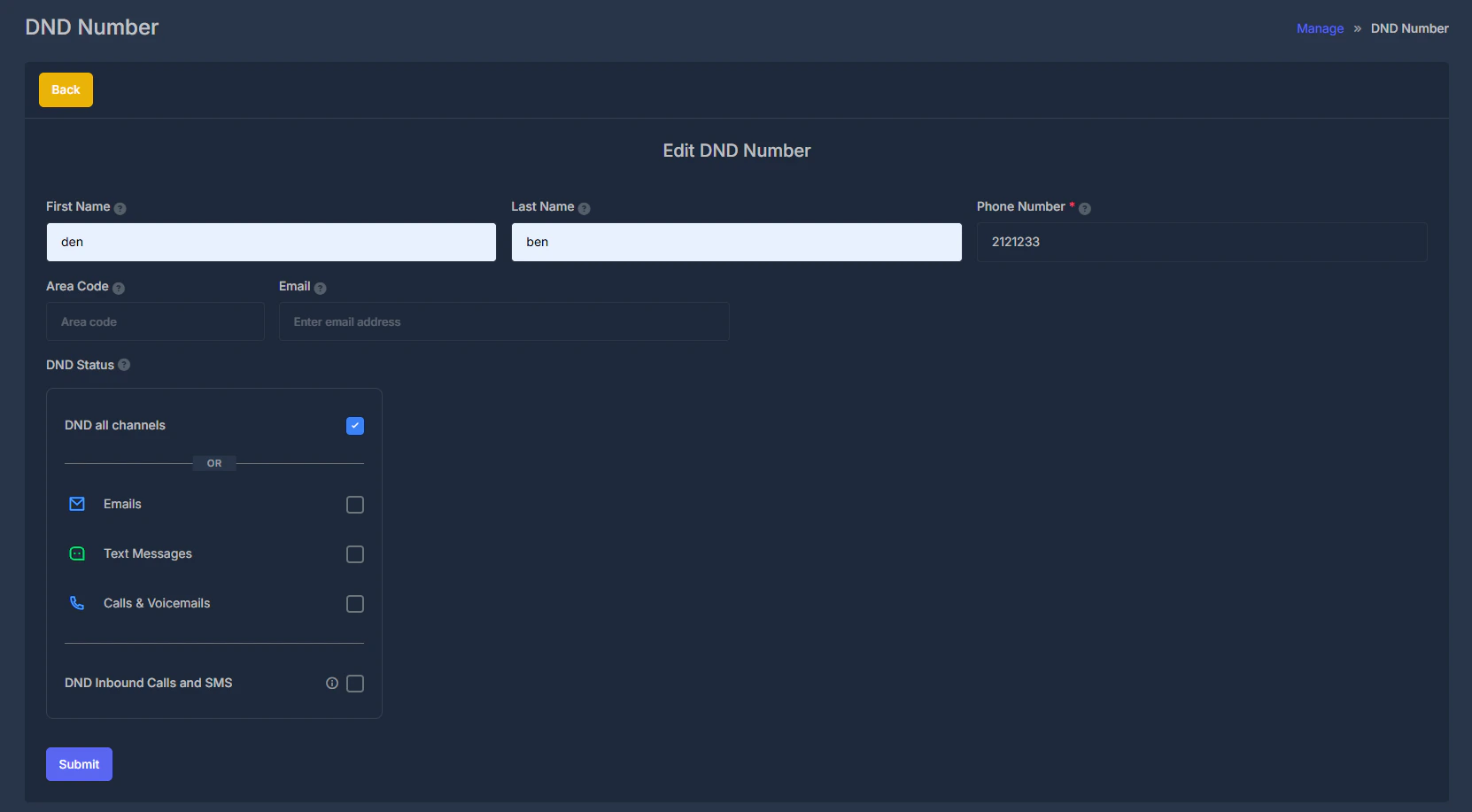
For existing rows, DND checkbox changes may save shortly after toggling. Still click **Submit** when changing text fields (name, phone, area code, email) so all updates are persisted together.
## ✏️ Editing a DND number
1. Click **Edit** on a row.
2. Update fields.
3. Click **Submit**.
For existing rows, DND checkbox changes may save shortly after toggling. Still click **Submit** when changing text fields (name, phone, area code, email) so all updates are persisted together.
 ## 🖊️ Form fields (add and edit)
**🧑 First name**
Optional short text.
**👤 Last name**
Optional short text.
**☎️ Phone number (required)**
Required primary number for this DND entry.
* Must be present before save.
* Input formatting is normalized by system.
**📞 Area code**
Optional short text.
**📧 Email**
Optional email address field.
**🚫 DND status (checkboxes)**
This section defines which channels are limited for this number.
The UI is split as:
* top: **DND all channels**
* middle: individual options (Emails, Text messages, Calls & voicemails)
* bottom: **DND inbound calls and SMS**
**1️⃣ DND all channels**
* Turning this **on** applies broad DND across channel types.
* When turned on, middle individual options are turned off.
**2️⃣ Individual channels**
* **Emails**
* **Text messages**
* **Calls & voicemails**
If any of these turn on, **DND all channels** is turned off.
If one of these turns off in edit logic, **DND inbound calls and SMS** may also turn off to maintain consistency.
**3️⃣ DND inbound calls and SMS**
Separate option shown at bottom with info icon.
* Can be toggled independently in UI behavior.
* May be constrained by broader DND logic based on implementation rules above.
### 🏷️ How status appears in table
Rows show color badges for active DND types (for example DND All, Emails, Text Messages). Badge text is normalized for readability.
## 🗑️ Deleting a DND number
1. Click row **delete** control.
2. Confirm prompt.
If successful, row is removed and success message appears. If not, error message is shown.
Delete is permanent for that entry. To restore it later, add it again as a new DND row.
***
## 🖊️ Form fields (add and edit)
**🧑 First name**
Optional short text.
**👤 Last name**
Optional short text.
**☎️ Phone number (required)**
Required primary number for this DND entry.
* Must be present before save.
* Input formatting is normalized by system.
**📞 Area code**
Optional short text.
**📧 Email**
Optional email address field.
**🚫 DND status (checkboxes)**
This section defines which channels are limited for this number.
The UI is split as:
* top: **DND all channels**
* middle: individual options (Emails, Text messages, Calls & voicemails)
* bottom: **DND inbound calls and SMS**
**1️⃣ DND all channels**
* Turning this **on** applies broad DND across channel types.
* When turned on, middle individual options are turned off.
**2️⃣ Individual channels**
* **Emails**
* **Text messages**
* **Calls & voicemails**
If any of these turn on, **DND all channels** is turned off.
If one of these turns off in edit logic, **DND inbound calls and SMS** may also turn off to maintain consistency.
**3️⃣ DND inbound calls and SMS**
Separate option shown at bottom with info icon.
* Can be toggled independently in UI behavior.
* May be constrained by broader DND logic based on implementation rules above.
### 🏷️ How status appears in table
Rows show color badges for active DND types (for example DND All, Emails, Text Messages). Badge text is normalized for readability.
## 🗑️ Deleting a DND number
1. Click row **delete** control.
2. Confirm prompt.
If successful, row is removed and success message appears. If not, error message is shown.
Delete is permanent for that entry. To restore it later, add it again as a new DND row.
***