> ## Documentation Index
> Fetch the complete documentation index at: https://docs.aisync.link/llms.txt
> Use this file to discover all available pages before exploring further.
# Activity Log
> User guide for filtering, reviewing, and inspecting activity history in your workspace.
The Activity Log is a running record of important actions in your workspace. It helps you see who did what, when it happened, and (when details exist) what changed.
Use it to review recent work, trace updates, or confirm that something was created, updated, or removed.
 ## 🧲 Filters (top of the page)
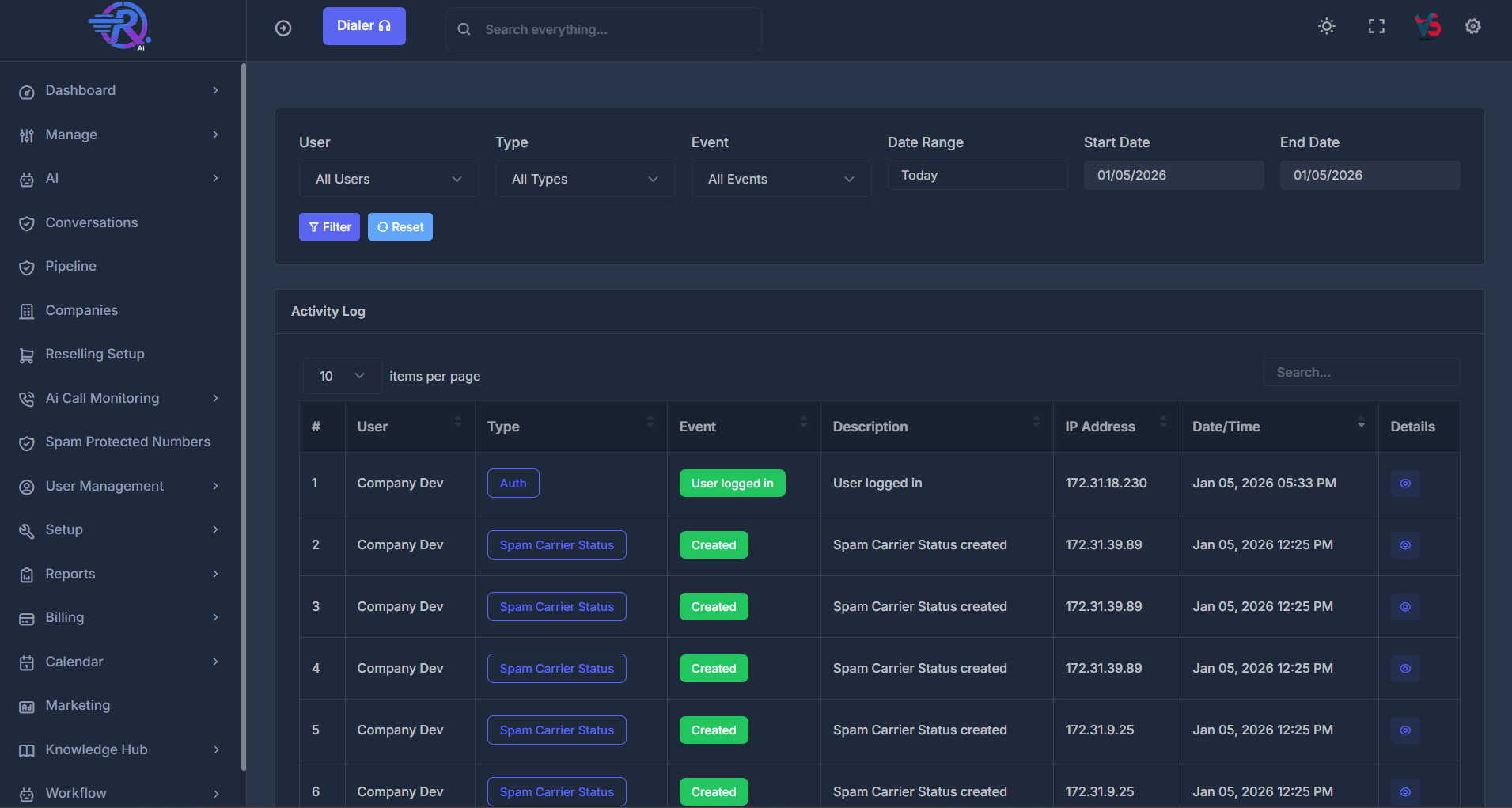
Filters narrow the list so you only see relevant entries.
### 👤 User
If available, choose one user or keep **All Users** to include everyone.
### 🗂️ Type
Choose one activity category (module/area) or **All Types**.
Type options reflect categories present in your logs.
### ⚡ Event
Choose event kind (such as created/updated/deleted) or **All Events**.
### 📅 Date Range
Select time period:
* Today
* Yesterday
* week/month presets
* last 7/14/30 days
* **Custom dates**
If range is not custom, Start/End are auto-filled and locked to preset logic.
Default page load is typically **Today**.
### 🕑 Start Date and End Date
Used with Date Range.
* In **Custom dates**, both are editable.
* In presets, values are auto-managed by selected range.
### 🔎 Filter
Apply date changes (especially for custom range/manual date adjustments).
User/Type/Event selections may auto-refresh without pressing Filter.
### ♻️ Reset
Resets filters to defaults:
* User = all
* Type = all
* Event = all
* Date Range = Today
Then refreshes the list.
## 📋 The Activity Log list
The main table shows one row per activity.
| Column | Meaning |
| --------------- | ------------------------------------------------------- |
| **#** | Row number on current page (not a permanent record ID). |
| **User** | User associated with the activity. |
| **Type** | Activity category/module label. |
| **Event** | Action label or mapped event text. |
| **Description** | Short human-readable explanation of what happened. |
| **IP Address** | Source network address when recorded. |
| **Date/Time** | Activity timestamp in readable format. |
| **Details** | Opens Activity Details panel for that row. |
### 🛠️ Table controls
* **Search** box filters rows by matching text.
* Rows-per-page control changes table density.
* Pagination moves through larger history sets.
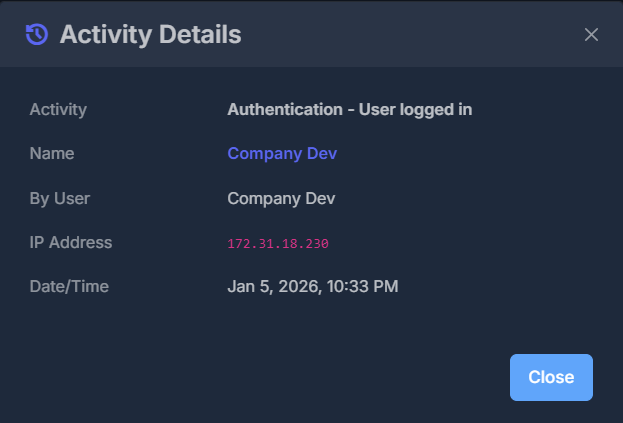
## 🔍 Activity Details
Clicking Details opens **Activity Details** for one row.
This panel usually includes:
* **Activity** (combined title/summary of action)
* **Name** (item name when available)
* **By User**
* **IP Address**
* **Date/Time**
Depending on event type, you may also see:
* **Setting Changed** (specific settings area)
* **Related To** (extra context like pipeline/number/course/etc.)
* **Changes** (old vs new values when change snapshots exist)
If detail payload is unavailable, panel may show a short unavailable message.
Close panel using **Close** or standard window close control.
## 🧲 Filters (top of the page)
Filters narrow the list so you only see relevant entries.
### 👤 User
If available, choose one user or keep **All Users** to include everyone.
### 🗂️ Type
Choose one activity category (module/area) or **All Types**.
Type options reflect categories present in your logs.
### ⚡ Event
Choose event kind (such as created/updated/deleted) or **All Events**.
### 📅 Date Range
Select time period:
* Today
* Yesterday
* week/month presets
* last 7/14/30 days
* **Custom dates**
If range is not custom, Start/End are auto-filled and locked to preset logic.
Default page load is typically **Today**.
### 🕑 Start Date and End Date
Used with Date Range.
* In **Custom dates**, both are editable.
* In presets, values are auto-managed by selected range.
### 🔎 Filter
Apply date changes (especially for custom range/manual date adjustments).
User/Type/Event selections may auto-refresh without pressing Filter.
### ♻️ Reset
Resets filters to defaults:
* User = all
* Type = all
* Event = all
* Date Range = Today
Then refreshes the list.
## 📋 The Activity Log list
The main table shows one row per activity.
| Column | Meaning |
| --------------- | ------------------------------------------------------- |
| **#** | Row number on current page (not a permanent record ID). |
| **User** | User associated with the activity. |
| **Type** | Activity category/module label. |
| **Event** | Action label or mapped event text. |
| **Description** | Short human-readable explanation of what happened. |
| **IP Address** | Source network address when recorded. |
| **Date/Time** | Activity timestamp in readable format. |
| **Details** | Opens Activity Details panel for that row. |
### 🛠️ Table controls
* **Search** box filters rows by matching text.
* Rows-per-page control changes table density.
* Pagination moves through larger history sets.
## 🔍 Activity Details
Clicking Details opens **Activity Details** for one row.
This panel usually includes:
* **Activity** (combined title/summary of action)
* **Name** (item name when available)
* **By User**
* **IP Address**
* **Date/Time**
Depending on event type, you may also see:
* **Setting Changed** (specific settings area)
* **Related To** (extra context like pipeline/number/course/etc.)
* **Changes** (old vs new values when change snapshots exist)
If detail payload is unavailable, panel may show a short unavailable message.
Close panel using **Close** or standard window close control.