> ## Documentation Index
> Fetch the complete documentation index at: https://docs.aisync.link/llms.txt
> Use this file to discover all available pages before exploring further.
# Listing
#### 🤖 User Guide
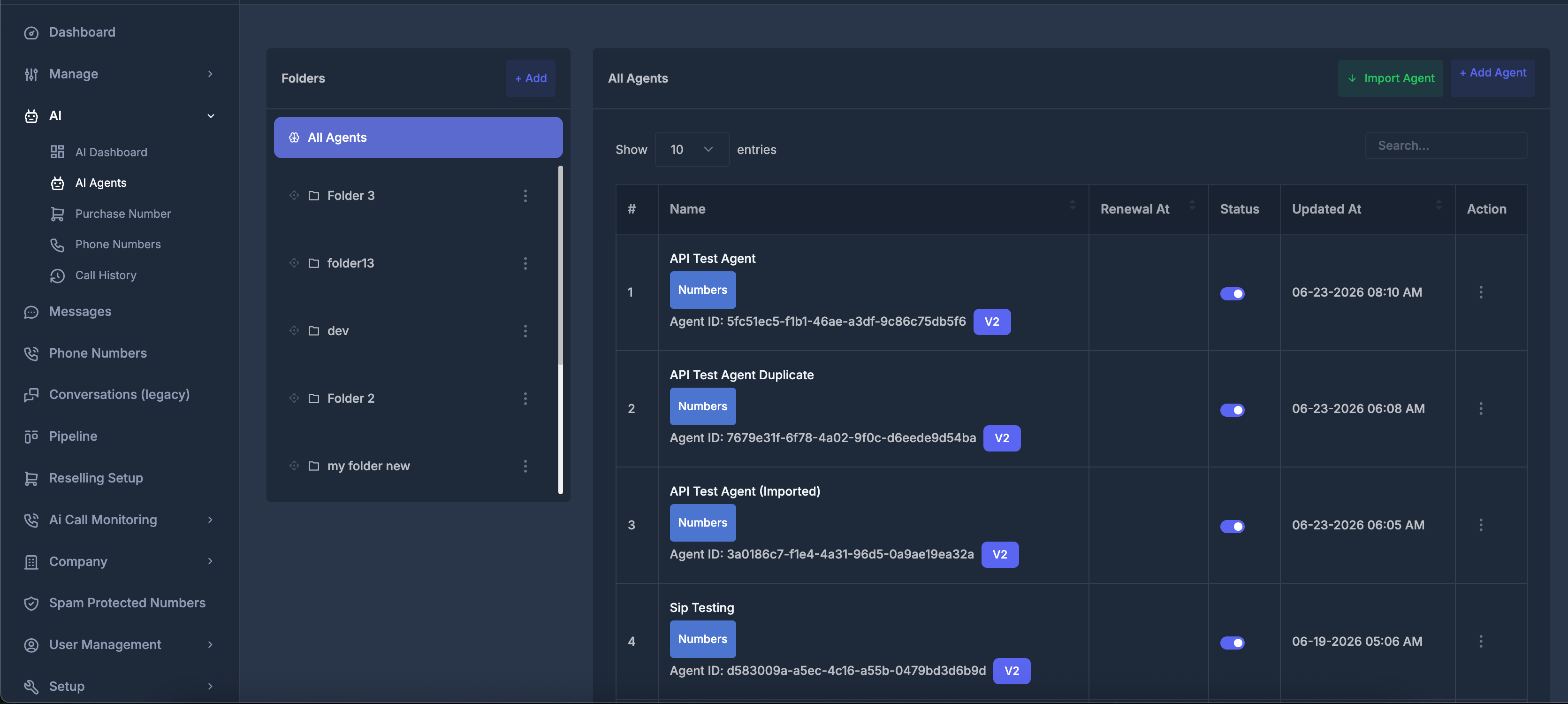
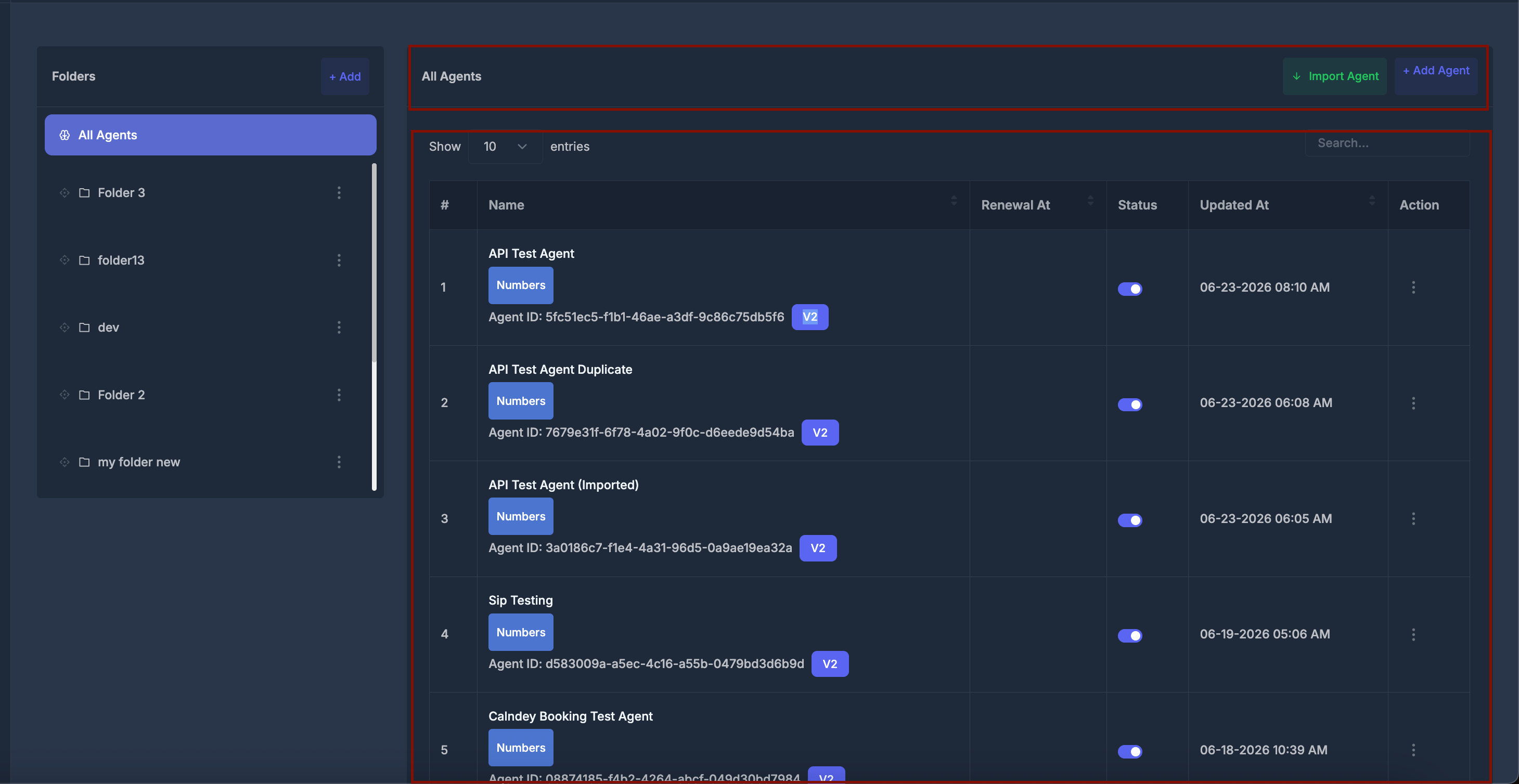
The **AI Agents** page is where you view all of your company’s voice AI agents, organize them, and open the tools needed to manage each one. The left side shows **Folders**; the right side shows the **All Agents** list.
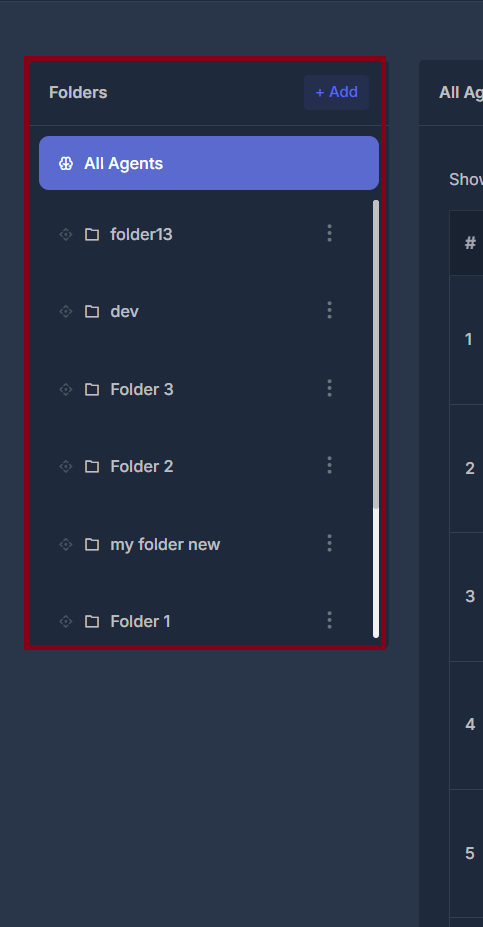
 ## 📁 Left panel: Folders
**📋 “All Agents”**
When it is selected, you see **every agent** (no folder filter).
**📂 Your own folders**
* Each folder has a **name** you chose.
* Using the **grip icon**, you can **drag a folder up or down** to change **order only** (which folder appears higher in the list).
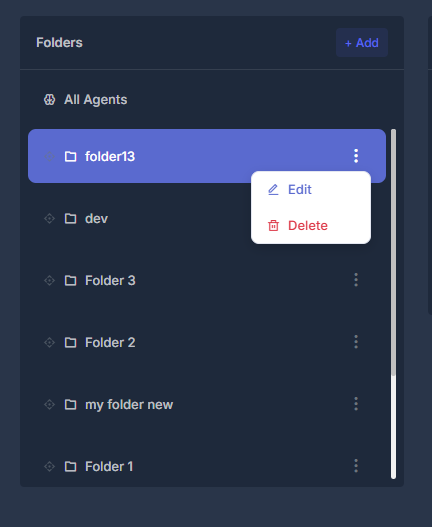
* The **three dots** next to a folder open **Edit** or **Delete**.
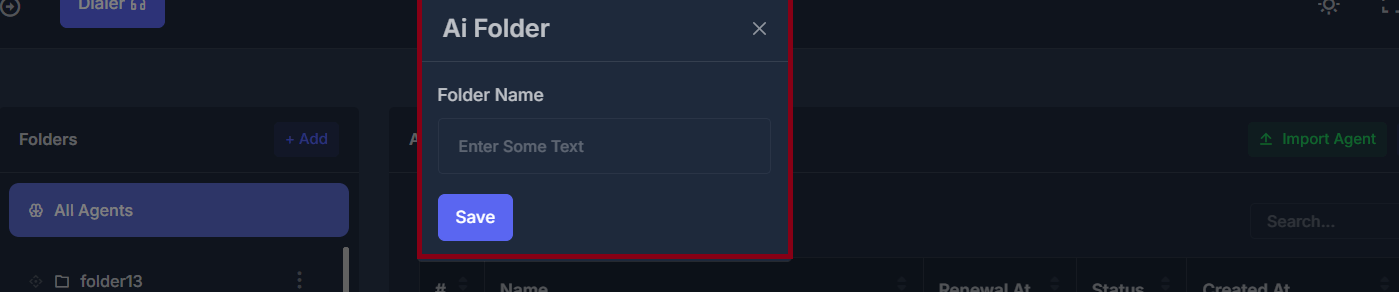
* **+ Add** opens a small window: enter a **Folder Name** and choose **Save** to create a new folder.
## 📁 Left panel: Folders
**📋 “All Agents”**
When it is selected, you see **every agent** (no folder filter).
**📂 Your own folders**
* Each folder has a **name** you chose.
* Using the **grip icon**, you can **drag a folder up or down** to change **order only** (which folder appears higher in the list).
* The **three dots** next to a folder open **Edit** or **Delete**.
* **+ Add** opens a small window: enter a **Folder Name** and choose **Save** to create a new folder.
 **🆕 No folders yet**
If you have not created any folders, you will see a short message encouraging you to create folders so you can organize agents.
**💾 Remembering the selected folder**
The application remembers **which folder you last selected**. The next time you open this page, that same folder is selected again when it still exists. If that folder was removed, you are returned to **All Agents**.
**🗑️ Deleting a folder**
You are asked to **confirm** before a folder is removed. The page may refresh afterward.
**🆕 No folders yet**
If you have not created any folders, you will see a short message encouraging you to create folders so you can organize agents.
**💾 Remembering the selected folder**
The application remembers **which folder you last selected**. The next time you open this page, that same folder is selected again when it still exists. If that folder was removed, you are returned to **All Agents**.
**🗑️ Deleting a folder**
You are asked to **confirm** before a folder is removed. The page may refresh afterward.
 ## 🖥️ Right panel: “All Agents” — top buttons
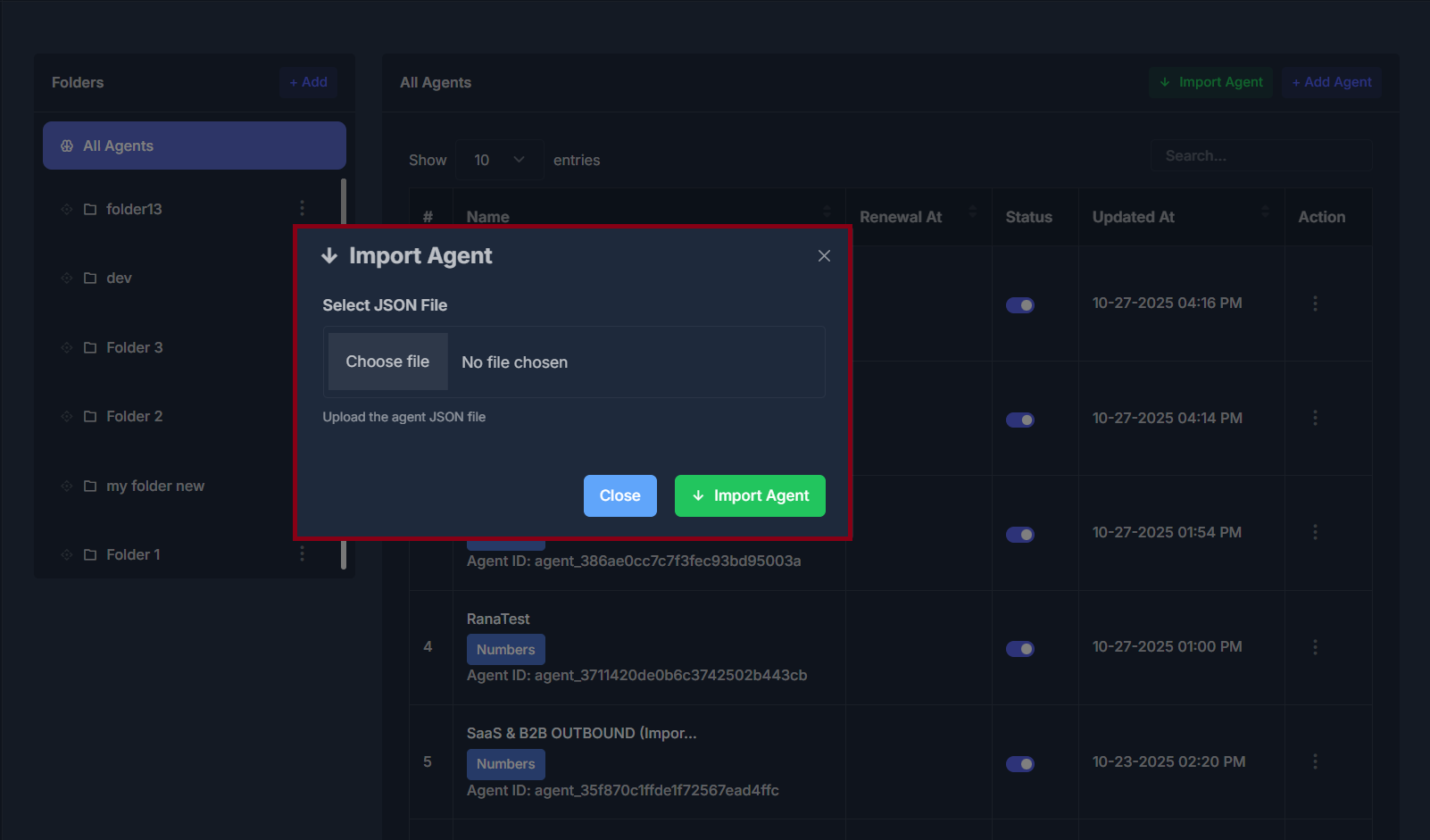
 **📥 Import Agent**
* Use this to bring an agent back into the system using a **file you previously exported** (or a compatible backup file).
* After you pick a file, you may see a short preview such as the **agent name** and **voice identifier** when available.
* Choosing **Import Agent** starts the import; on success, the list refreshes.
* If the file is invalid or incomplete, you will see an error message.
**📥 Import Agent**
* Use this to bring an agent back into the system using a **file you previously exported** (or a compatible backup file).
* After you pick a file, you may see a short preview such as the **agent name** and **voice identifier** when available.
* Choosing **Import Agent** starts the import; on success, the list refreshes.
* If the file is invalid or incomplete, you will see an error message.
 **➕ Add Agent**
This depends on **your plan**:
* If **both** agent types are available, a window asks roughly **how many calls per day** the agent will handle.
* **Under 100 calls per day** is described as higher voice quality and lower delay; **Get Started** takes you to the setup path that matches that choice.
* **100 or more calls per day** is described for higher volume; **Get Started** opens the other matching setup path.
* If your plan only allows **one** agent type, **Add Agent** goes **straight** to the correct “create agent” screen without that two-card window.
## 📊 The Agents table
**🔢 # (Number)**
The **row number** on the current page. Numbers change when you move to another page.
**🏷️ Name**
* The **agent’s name** (very long names may be shortened on screen).
* Clicking the name opens that agent’s **full editing** screen (the right screen depends on the agent type).
* The **Numbers** button opens the **phone numbers** window .
* **Agent ID** is the unique identifier the system uses for that agent everywhere.
**📅 Renewal At**
If the agent is **billable**, this may show the **next renewal date and time** in your timezone. Otherwise it may stay empty.
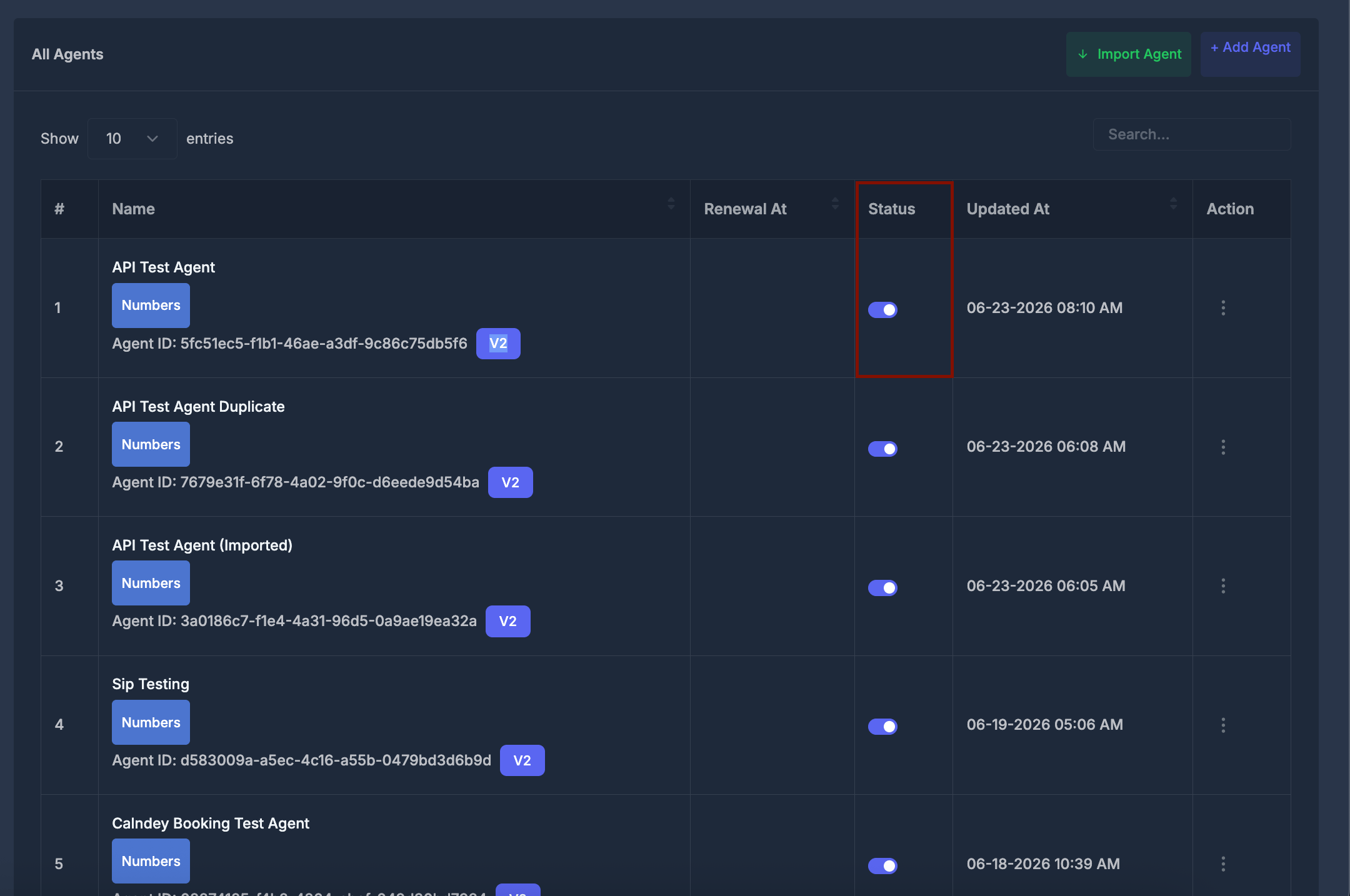
**🔛 Status**
* A switch for **on** or **off**.
* **On** means the agent is treated as **active**.
* **Off** means **inactive**.
* When you change it, you may briefly see a “please wait” style message, then success or failure.
**➕ Add Agent**
This depends on **your plan**:
* If **both** agent types are available, a window asks roughly **how many calls per day** the agent will handle.
* **Under 100 calls per day** is described as higher voice quality and lower delay; **Get Started** takes you to the setup path that matches that choice.
* **100 or more calls per day** is described for higher volume; **Get Started** opens the other matching setup path.
* If your plan only allows **one** agent type, **Add Agent** goes **straight** to the correct “create agent” screen without that two-card window.
## 📊 The Agents table
**🔢 # (Number)**
The **row number** on the current page. Numbers change when you move to another page.
**🏷️ Name**
* The **agent’s name** (very long names may be shortened on screen).
* Clicking the name opens that agent’s **full editing** screen (the right screen depends on the agent type).
* The **Numbers** button opens the **phone numbers** window .
* **Agent ID** is the unique identifier the system uses for that agent everywhere.
**📅 Renewal At**
If the agent is **billable**, this may show the **next renewal date and time** in your timezone. Otherwise it may stay empty.
**🔛 Status**
* A switch for **on** or **off**.
* **On** means the agent is treated as **active**.
* **Off** means **inactive**.
* When you change it, you may briefly see a “please wait” style message, then success or failure.
 **⏰ Updated At**
The **date and time** of the last recorded change to the agent, shown in **your timezone**.
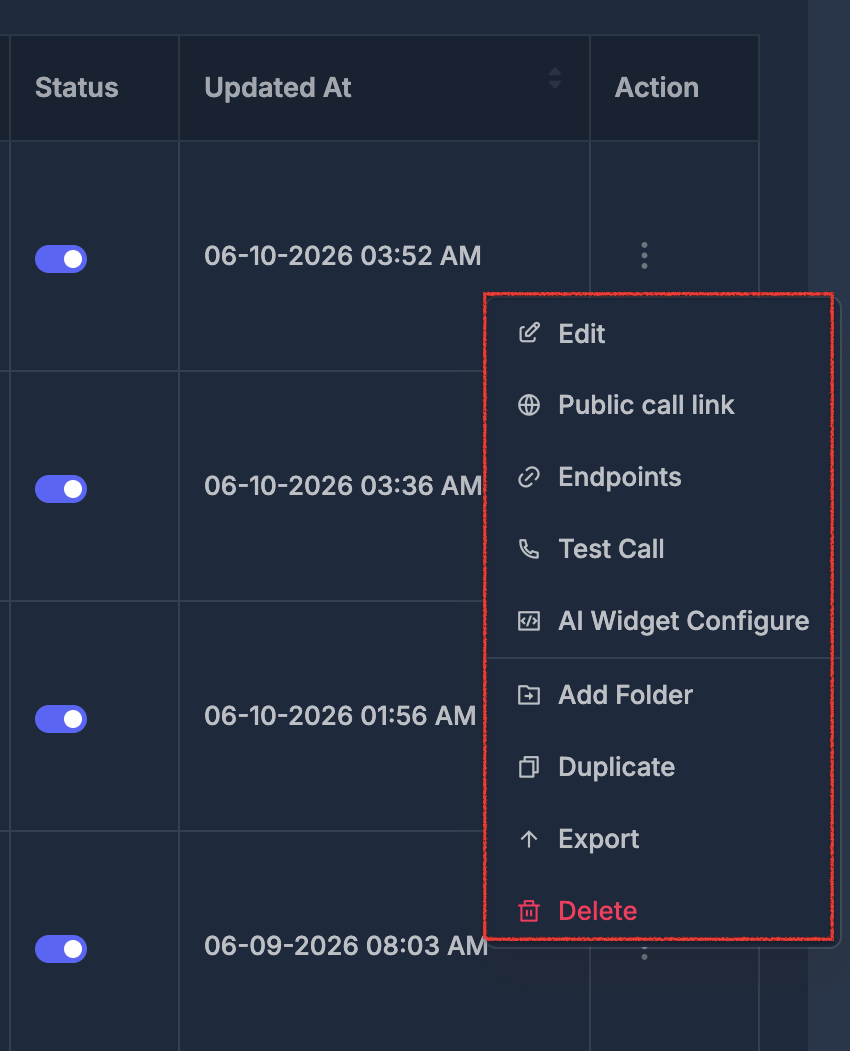
**⚙️ Action**
Opens a **menu** with more choices .
## ⋮ Three-dot menu
The exact wording or destination can differ slightly by agent type, but in general:
| Option | What it does |
| ------------------------------ | ----------------------------------------------------------------------------------------------------------------------------------------------------------------------------------------------------------------------------------------------------------------------------------- |
| **Edit** | Opens the full settings screen for that agent. |
| **Public call link** | Generates and displays a **public-facing link** that anyone can use to initiate a call handled by this agent. This is useful for embedding in web pages or sharing directly with users to let them start a call with your AI agent from anywhere, without requiring authentication. |
| **Endpoints** | Shows the **address**, **method**, and **fields** used to start calls from outside systems, in a dedicated view. |
| **Test Call** | Opens a small window: enter a **phone number** to try a test call. |
| **AI Widget Configure** | Opens the screen for the **website call widget** tied to that agent. |
| **Add Folder / Change Folder** | Puts the agent in a folder or moves it; you can also choose **no folder**. |
| **Duplicate** | Creates a **new copy** based on that agent. Your company’s **agent limits** and **extra charges** may apply. |
| **Export** | Saves the agent’s setup and related details into a **file** for backup or for importing elsewhere. |
| **Delete** | **Permanently** removes the agent after you confirm. **Extra permission** may be required. |
**⏰ Updated At**
The **date and time** of the last recorded change to the agent, shown in **your timezone**.
**⚙️ Action**
Opens a **menu** with more choices .
## ⋮ Three-dot menu
The exact wording or destination can differ slightly by agent type, but in general:
| Option | What it does |
| ------------------------------ | ----------------------------------------------------------------------------------------------------------------------------------------------------------------------------------------------------------------------------------------------------------------------------------- |
| **Edit** | Opens the full settings screen for that agent. |
| **Public call link** | Generates and displays a **public-facing link** that anyone can use to initiate a call handled by this agent. This is useful for embedding in web pages or sharing directly with users to let them start a call with your AI agent from anywhere, without requiring authentication. |
| **Endpoints** | Shows the **address**, **method**, and **fields** used to start calls from outside systems, in a dedicated view. |
| **Test Call** | Opens a small window: enter a **phone number** to try a test call. |
| **AI Widget Configure** | Opens the screen for the **website call widget** tied to that agent. |
| **Add Folder / Change Folder** | Puts the agent in a folder or moves it; you can also choose **no folder**. |
| **Duplicate** | Creates a **new copy** based on that agent. Your company’s **agent limits** and **extra charges** may apply. |
| **Export** | Saves the agent’s setup and related details into a **file** for backup or for importing elsewhere. |
| **Delete** | **Permanently** removes the agent after you confirm. **Extra permission** may be required. |
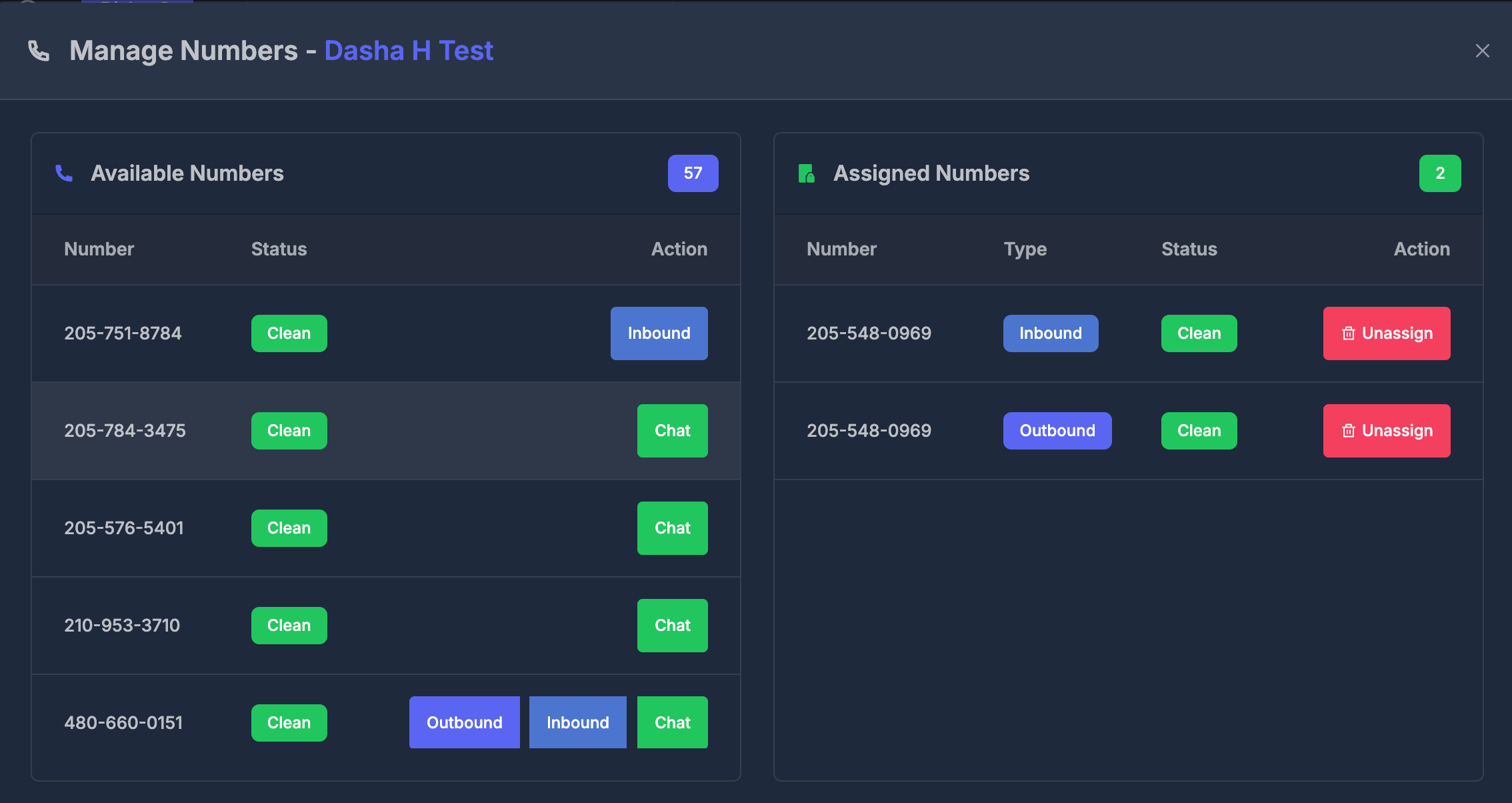
 ## ☎️ Numbers window (Manage Numbers)
When you click **Numbers**, you’ll open the Manage Numbers panel for that agent:
* The **panel title** displays the agent’s name (example: “Dasha H Test”).
* Two columns are shown:
* **Available Numbers** (left): Lists all phone numbers that are not currently assigned to the agent but available for use.
* **Number:** The phone number available for assignment.
* **Status:** Each number shows its current status, such as **Clean** (green label) or another state if flagged.
* **Action:**
* If assignable, you’ll see blue **Inbound** and **Outbound** buttons depending on the features the number supports. Click one to instantly assign the number to the agent for that capability.
* The green **Chat** button will only enabled if the number is an A2P-linked number (i.e., linked for Application-to-Person messaging). Only these numbers can be assigned the chat functionality.
* Some numbers may allow both **Inbound** and **Outbound** assignment at once.
* **Assigned Numbers** (right): Lists all numbers currently tied to the agent.
* **Number:** The assigned phone number.
* **Type:** Each assigned number displays a label such as **Inbound** or **Outbound** depending on its assigned function.
* **Status:** Shows the current state, such as **Clean** (green label).
* **Action:** A red **Unassign** button lets you immediately remove the number from the agent.
If assignment or removal fails, you will see an error message. Some numbers may require extra setup before they can be assigned.
## ☎️ Numbers window (Manage Numbers)
When you click **Numbers**, you’ll open the Manage Numbers panel for that agent:
* The **panel title** displays the agent’s name (example: “Dasha H Test”).
* Two columns are shown:
* **Available Numbers** (left): Lists all phone numbers that are not currently assigned to the agent but available for use.
* **Number:** The phone number available for assignment.
* **Status:** Each number shows its current status, such as **Clean** (green label) or another state if flagged.
* **Action:**
* If assignable, you’ll see blue **Inbound** and **Outbound** buttons depending on the features the number supports. Click one to instantly assign the number to the agent for that capability.
* The green **Chat** button will only enabled if the number is an A2P-linked number (i.e., linked for Application-to-Person messaging). Only these numbers can be assigned the chat functionality.
* Some numbers may allow both **Inbound** and **Outbound** assignment at once.
* **Assigned Numbers** (right): Lists all numbers currently tied to the agent.
* **Number:** The assigned phone number.
* **Type:** Each assigned number displays a label such as **Inbound** or **Outbound** depending on its assigned function.
* **Status:** Shows the current state, such as **Clean** (green label).
* **Action:** A red **Unassign** button lets you immediately remove the number from the agent.
If assignment or removal fails, you will see an error message. Some numbers may require extra setup before they can be assigned.