> ## Documentation Index
> Fetch the complete documentation index at: https://docs.aisync.link/llms.txt
> Use this file to discover all available pages before exploring further.
# Test Call
> Test AI agent performance with quick call functionality
## Test Call Interface
### Access Test Call
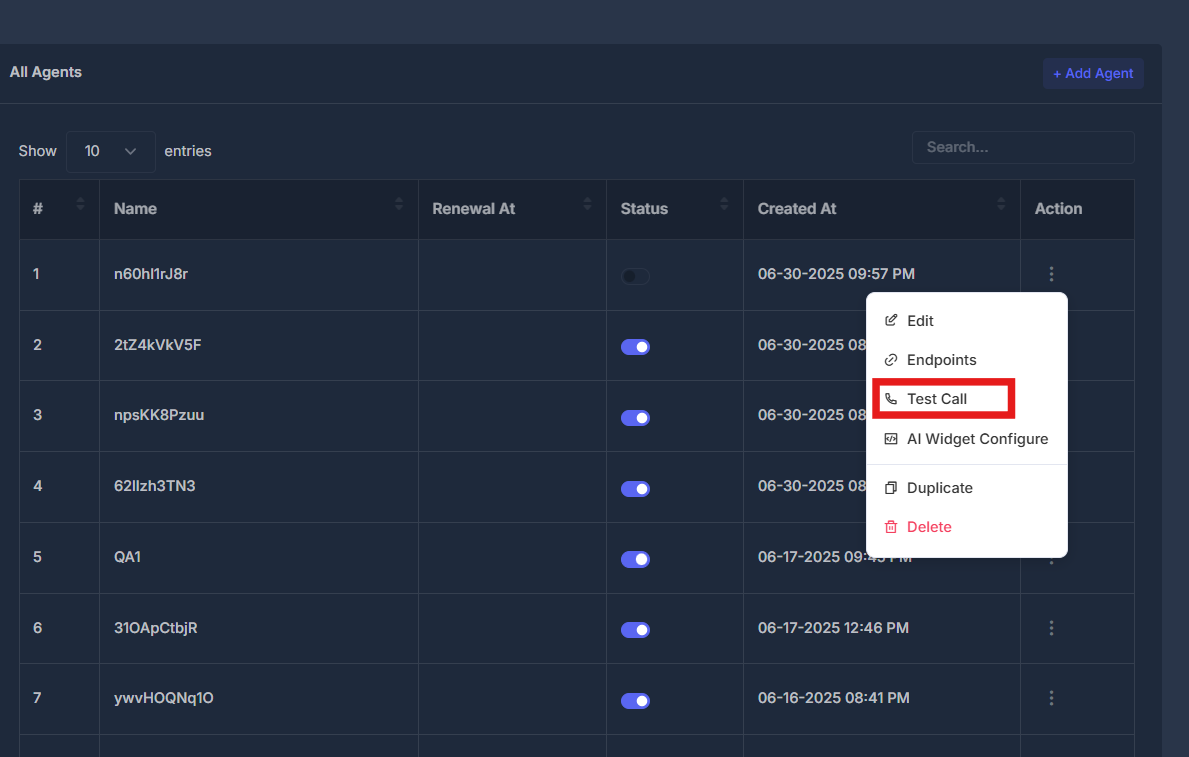
* **Agent Actions Menu** - Click the action button (⋮) next to any agent
* **Select Test Call** - Choose "Test Call" from the dropdown menu
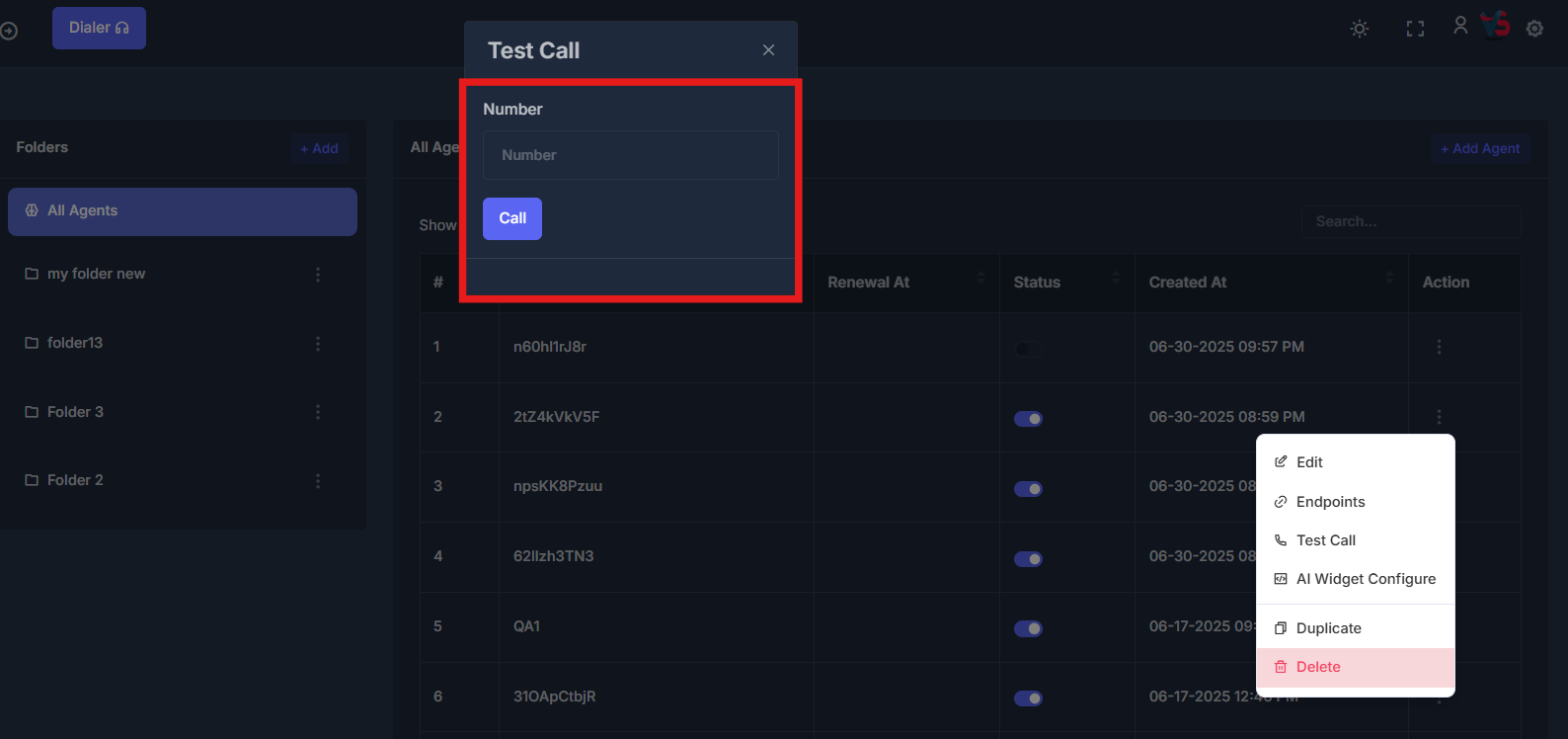
* **Test Call Dialog** - Opens dedicated test call interface
 ## How to Test Call
### Step-by-Step Process
1. **Navigate to Agent List** - Go to the All Agents view
2. **Select Agent** - Find the agent you want to test
3. **Open Actions Menu** - Click the three dots (⋮) in the Action column
4. **Choose Test Call** - Select "Test Call" from the dropdown
5. **Enter Phone Number** - Input the destination phone number
6. **Start Test** - Click the "Call" button to initiate the test call
## How to Test Call
### Step-by-Step Process
1. **Navigate to Agent List** - Go to the All Agents view
2. **Select Agent** - Find the agent you want to test
3. **Open Actions Menu** - Click the three dots (⋮) in the Action column
4. **Choose Test Call** - Select "Test Call" from the dropdown
5. **Enter Phone Number** - Input the destination phone number
6. **Start Test** - Click the "Call" button to initiate the test call
 ## Quick Actions
Open test call dialog and enter phone number to test
Choose which agent to test from the agent list
Monitor call quality and agent performance during test
Evaluate test results and make agent improvements
## Quick Actions
Open test call dialog and enter phone number to test
Choose which agent to test from the agent list
Monitor call quality and agent performance during test
Evaluate test results and make agent improvements