> ## Documentation Index
> Fetch the complete documentation index at: https://docs.aisync.link/llms.txt
> Use this file to discover all available pages before exploring further.
# AI Call History
#### 🧐 Overview
**AI Call History** is where you review past calls handled by your AI agents. You can:
* See when each call happened, which agent was used, phone numbers, how long the call lasted, and how the call ended.
* Narrow the list using filters (dates, agent, duration, direction, and more).
* Open a single call to read the summary, full conversation text, and listen to the recording when one is available.
* Download the same filtered results as a file for your own records or reporting.
Only calls tied to **your organization** appear here (not other customers’ data).
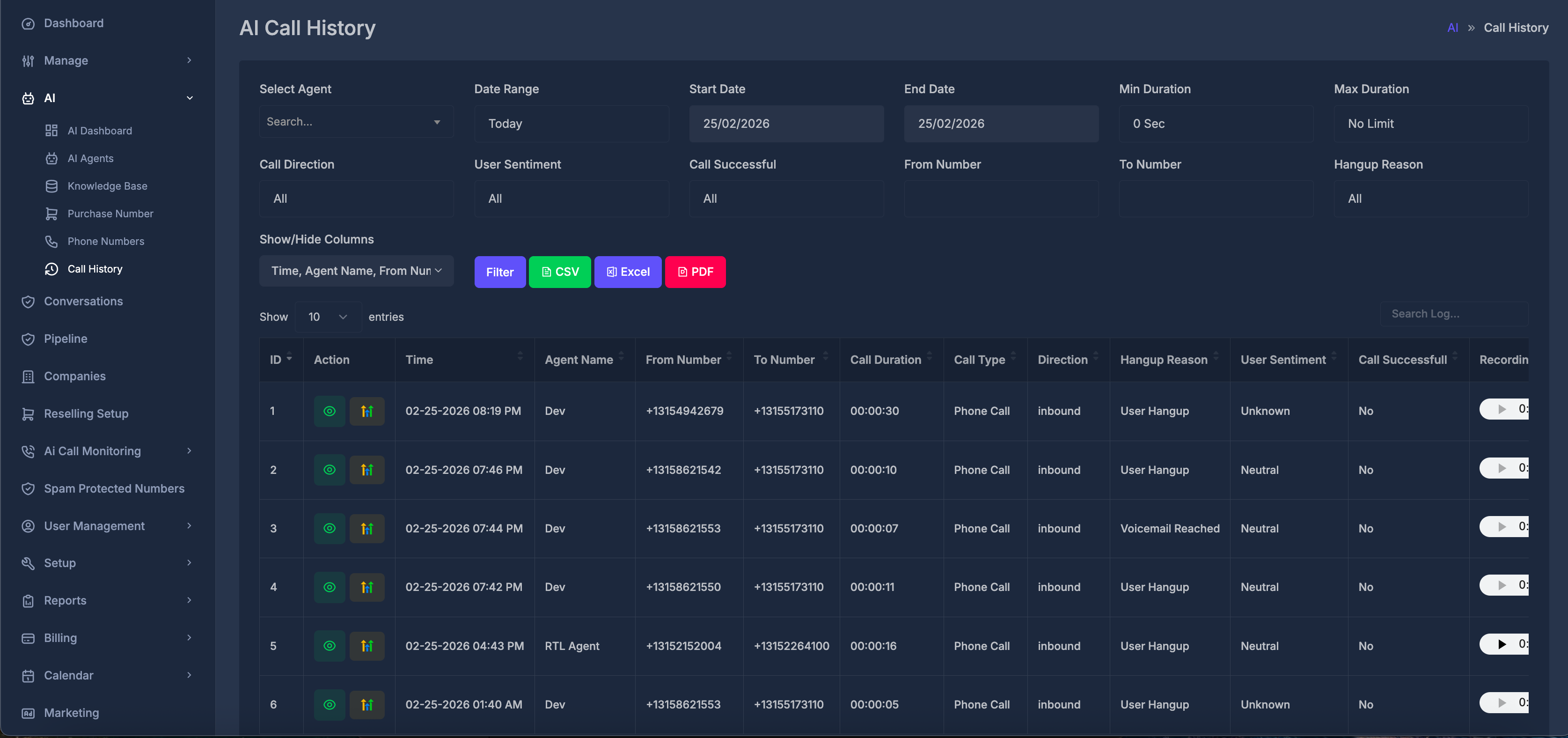 ## 🔎 Filters
Filters work together: only calls that match **all** the conditions you set are shown. If you leave a filter on its default “everything” setting, it does not restrict results.
**👤 Select Agent**
* Choose **one** AI agent to see only that agent’s calls, or leave the placeholder (empty) to see calls from **all** agents in your list.
* You can type in the box to search agent names when the list is long.
* Changing the agent refreshes the list .
**📅 Date Range**
Pick how the time window is defined:
| Choice | Meaning |
| ---------------------------------- | ----------------------------------------------------------------------------------- |
| **Custom dates** | You set **Start Date** and **End Date** yourself. Those two fields become editable. |
| **Today** | From the start of today through now (in your account time zone). |
| **Yesterday** | The full previous calendar day. |
| **This Week (Sun - Today)** | From Sunday of this week through today. |
| **This Week (Mon - Today)** | From Monday of this week through today. |
| **Last 7 Days** | Rolling seven-day window ending today. |
| **Last Week (Sun - Sat)** | The previous full week, Sunday through Saturday. |
| **Last Week (Mon - Sun)** | The previous full week, Monday through Sunday. |
| **Last Business Week (Mon - Fri)** | Monday through Friday of the prior week. |
| **Last 14 Days** | Rolling fourteen-day window ending today. |
| **This Month** | From the first day of the current month through today. |
| **Last 30 Days** | Rolling thirty-day window ending today. |
| **Last Month** | The full previous calendar month. |
When **Custom dates** is **not** selected, **Start Date** and **End Date** are filled automatically for you and cannot be edited (they stay in sync with the range you picked).
When the page first opens, **Today** is usually selected.
**⏰ Start Date and End Date**
* Used to define the beginning and end of the period you care about.
* Only active when **Date Range** is set to **Custom dates**; otherwise they follow the preset range and are read-only.
**⏱️ Min Duration**
Shows only calls whose length is **at least** the time you pick (for example, at least 1 minute).\
**0 Sec** means “no minimum” — calls of any length are allowed from this filter.
**⏲️ Max Duration**
Shows only calls whose length is **no longer than** the time you pick.\
**No Limit** means “no maximum” — this filter does not cut off longer calls.
Min and Max can be used together to target a band (for example, between 30 seconds and 5 minutes).
**🔄 Call Direction**
| Option | Meaning |
| ------------ | --------------------------------------------------------------------------- |
| **All** | Incoming, outgoing, and web calls are all included. |
| **Inbound** | Calls that came in to your system. |
| **Outbound** | Calls placed outward from your system. |
| **Web** | Calls that ran through the web experience rather than a classic phone path. |
**😊 User Sentiment**
Roughly how the conversation mood was classified:
| Option | Meaning |
| ------------ | -------------------------------- |
| **All** | Any sentiment. |
| **Positive** | Treated as positive tone. |
| **Neutral** | Treated as neutral tone. |
| **Negative** | Treated as negative tone. |
| **Unknown** | Could not be classified clearly. |
**✅ Call Successful**
| Option | Meaning |
| ------- | --------------------------------------- |
| **All** | Both successful and unsuccessful calls. |
| **Yes** | Only calls marked as successful. |
| **No** | Only calls marked as not successful. |
**📞 From Number**
Enter the caller’s phone number to show only calls **from** that number.\
The value should match **exactly** how the number is stored (same digits and formatting as in your records).
**☎️ To Number**
Enter the called phone number to show only calls **to** that number.\
Again, match exactly as stored.
**🔚 Hangup Reason**
Limits the list to calls that ended for a specific reason. **All** means every reason is allowed.
The names on the screen are written in everyday language. Examples include:
* **User Hangup** — the person on the other end ended the call.
* **Agent Hangup** — the AI side ended the call.
* **Call Transfer** — the call was transferred elsewhere.
* **Voicemail Reached** — voicemail was detected or reached.
* **Inactivity** — the call ended because nothing happened for too long.
* **Machine Detected** — an answering machine or similar was detected.
* **Max Duration Reached** — the call hit a maximum allowed length.
* **Concurrency Limit Reached** — too many calls were active at once.
* **No Valid Payment** — payment-related validation failed.
* **Scam Detected** — flagged as scam-related.
* **Marked As Spam** — treated as spam.
* **User Declined** — the user refused or declined the call.
Pick **All** unless you are specifically investigating one type of ending.
**👁️ Show / Hide Columns**
This control lets you choose **which columns appear** in the main table (except the first two — see below).
You can turn visibility on or off for:
* Time
* Agent Name
* From Number
* To Number
* Call Duration
* Call Type
* Direction
* Hangup Reason
* User Sentiment
* Call Successful
* Recording
* Call Summary
* Call Transcript
**ID** and **Action** always stay visible so you can identify rows and open details.
Your choices can be **remembered** for about thirty days on the device and browser you use, so the next visit may show the same column layout.
## 🛠️ Action buttons
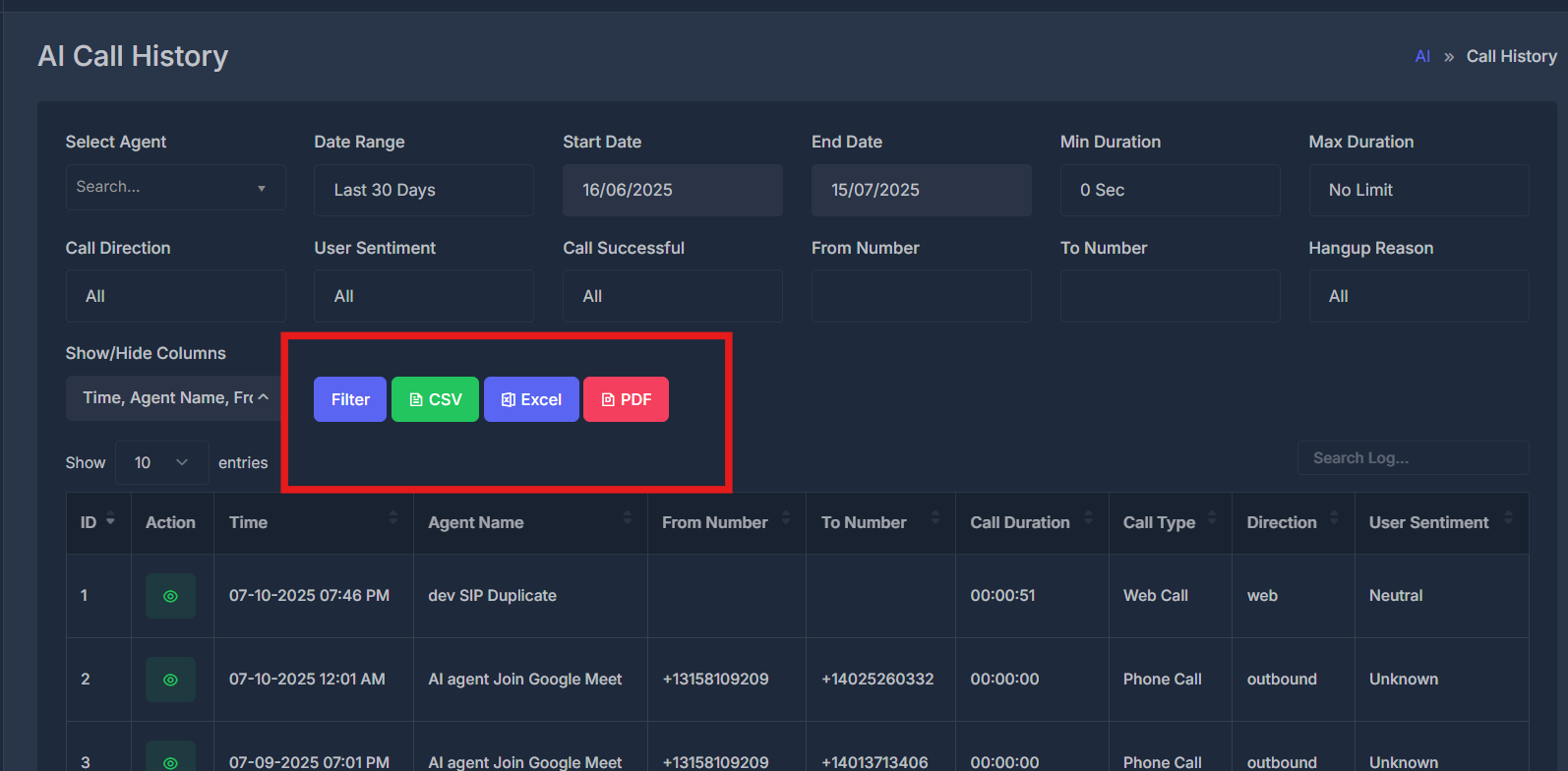
**🔍 Filter**
Applies your current filter choices and **reloads the list**. Use it after changing dates, agent, or other fields (some fields also refresh the list when changed).
**📄 CSV**
Downloads a simple text file that opens in Excel and most spreadsheet programs. The file name starts with **AI\_Call\_History\_** and includes a date and time stamp.
**📊 Excel**
Downloads a spreadsheet file that opens in Microsoft Excel and similar apps. It includes a simple title and “generated on” line above the table.
**📝 PDF**
Downloads a **report file** built as a printable layout. The file name starts with **AI\_Call\_History\_** and includes a date and time stamp. You can open the downloaded file with your usual apps for viewing or printing reports.
While a download is running, the button you clicked may show a short “exporting” state and is temporarily disabled so you do not start duplicate downloads.
## 🔎 Filters
Filters work together: only calls that match **all** the conditions you set are shown. If you leave a filter on its default “everything” setting, it does not restrict results.
**👤 Select Agent**
* Choose **one** AI agent to see only that agent’s calls, or leave the placeholder (empty) to see calls from **all** agents in your list.
* You can type in the box to search agent names when the list is long.
* Changing the agent refreshes the list .
**📅 Date Range**
Pick how the time window is defined:
| Choice | Meaning |
| ---------------------------------- | ----------------------------------------------------------------------------------- |
| **Custom dates** | You set **Start Date** and **End Date** yourself. Those two fields become editable. |
| **Today** | From the start of today through now (in your account time zone). |
| **Yesterday** | The full previous calendar day. |
| **This Week (Sun - Today)** | From Sunday of this week through today. |
| **This Week (Mon - Today)** | From Monday of this week through today. |
| **Last 7 Days** | Rolling seven-day window ending today. |
| **Last Week (Sun - Sat)** | The previous full week, Sunday through Saturday. |
| **Last Week (Mon - Sun)** | The previous full week, Monday through Sunday. |
| **Last Business Week (Mon - Fri)** | Monday through Friday of the prior week. |
| **Last 14 Days** | Rolling fourteen-day window ending today. |
| **This Month** | From the first day of the current month through today. |
| **Last 30 Days** | Rolling thirty-day window ending today. |
| **Last Month** | The full previous calendar month. |
When **Custom dates** is **not** selected, **Start Date** and **End Date** are filled automatically for you and cannot be edited (they stay in sync with the range you picked).
When the page first opens, **Today** is usually selected.
**⏰ Start Date and End Date**
* Used to define the beginning and end of the period you care about.
* Only active when **Date Range** is set to **Custom dates**; otherwise they follow the preset range and are read-only.
**⏱️ Min Duration**
Shows only calls whose length is **at least** the time you pick (for example, at least 1 minute).\
**0 Sec** means “no minimum” — calls of any length are allowed from this filter.
**⏲️ Max Duration**
Shows only calls whose length is **no longer than** the time you pick.\
**No Limit** means “no maximum” — this filter does not cut off longer calls.
Min and Max can be used together to target a band (for example, between 30 seconds and 5 minutes).
**🔄 Call Direction**
| Option | Meaning |
| ------------ | --------------------------------------------------------------------------- |
| **All** | Incoming, outgoing, and web calls are all included. |
| **Inbound** | Calls that came in to your system. |
| **Outbound** | Calls placed outward from your system. |
| **Web** | Calls that ran through the web experience rather than a classic phone path. |
**😊 User Sentiment**
Roughly how the conversation mood was classified:
| Option | Meaning |
| ------------ | -------------------------------- |
| **All** | Any sentiment. |
| **Positive** | Treated as positive tone. |
| **Neutral** | Treated as neutral tone. |
| **Negative** | Treated as negative tone. |
| **Unknown** | Could not be classified clearly. |
**✅ Call Successful**
| Option | Meaning |
| ------- | --------------------------------------- |
| **All** | Both successful and unsuccessful calls. |
| **Yes** | Only calls marked as successful. |
| **No** | Only calls marked as not successful. |
**📞 From Number**
Enter the caller’s phone number to show only calls **from** that number.\
The value should match **exactly** how the number is stored (same digits and formatting as in your records).
**☎️ To Number**
Enter the called phone number to show only calls **to** that number.\
Again, match exactly as stored.
**🔚 Hangup Reason**
Limits the list to calls that ended for a specific reason. **All** means every reason is allowed.
The names on the screen are written in everyday language. Examples include:
* **User Hangup** — the person on the other end ended the call.
* **Agent Hangup** — the AI side ended the call.
* **Call Transfer** — the call was transferred elsewhere.
* **Voicemail Reached** — voicemail was detected or reached.
* **Inactivity** — the call ended because nothing happened for too long.
* **Machine Detected** — an answering machine or similar was detected.
* **Max Duration Reached** — the call hit a maximum allowed length.
* **Concurrency Limit Reached** — too many calls were active at once.
* **No Valid Payment** — payment-related validation failed.
* **Scam Detected** — flagged as scam-related.
* **Marked As Spam** — treated as spam.
* **User Declined** — the user refused or declined the call.
Pick **All** unless you are specifically investigating one type of ending.
**👁️ Show / Hide Columns**
This control lets you choose **which columns appear** in the main table (except the first two — see below).
You can turn visibility on or off for:
* Time
* Agent Name
* From Number
* To Number
* Call Duration
* Call Type
* Direction
* Hangup Reason
* User Sentiment
* Call Successful
* Recording
* Call Summary
* Call Transcript
**ID** and **Action** always stay visible so you can identify rows and open details.
Your choices can be **remembered** for about thirty days on the device and browser you use, so the next visit may show the same column layout.
## 🛠️ Action buttons
**🔍 Filter**
Applies your current filter choices and **reloads the list**. Use it after changing dates, agent, or other fields (some fields also refresh the list when changed).
**📄 CSV**
Downloads a simple text file that opens in Excel and most spreadsheet programs. The file name starts with **AI\_Call\_History\_** and includes a date and time stamp.
**📊 Excel**
Downloads a spreadsheet file that opens in Microsoft Excel and similar apps. It includes a simple title and “generated on” line above the table.
**📝 PDF**
Downloads a **report file** built as a printable layout. The file name starts with **AI\_Call\_History\_** and includes a date and time stamp. You can open the downloaded file with your usual apps for viewing or printing reports.
While a download is running, the button you clicked may show a short “exporting” state and is temporarily disabled so you do not start duplicate downloads.
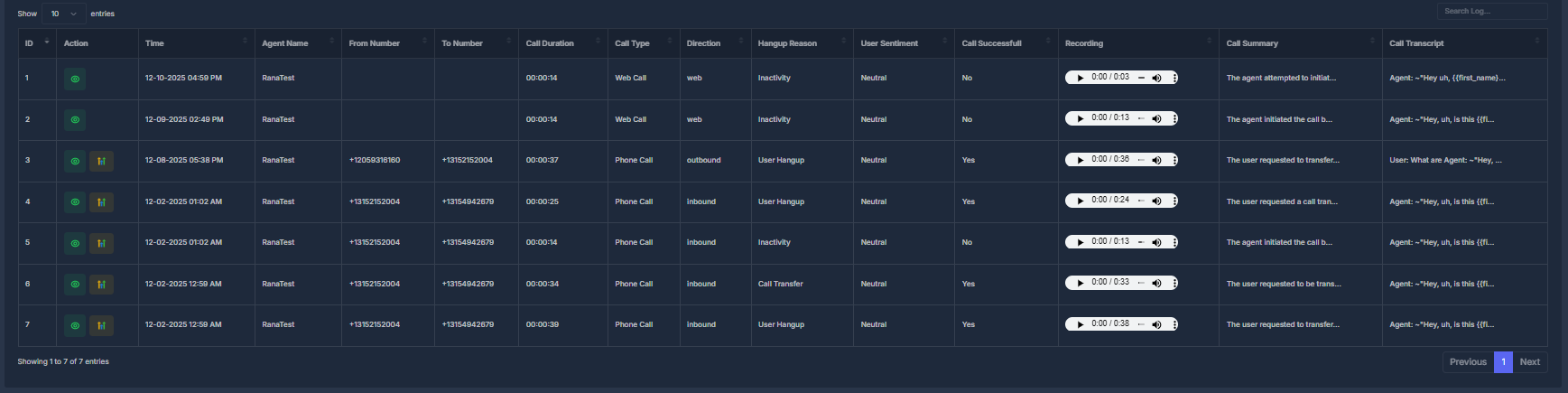
 ## 📋 The main list (table)
The table shows one row per call. By default, newer activity tends to appear toward the top (ordered by the row identifier).
### 📑 Columns explained
| Column | What it shows |
| -------------------- | ---------------------------------------------------------------------------------------------------------- |
| **ID** | A row number for this page of results. |
| **Action** | Action buttons for each row (see below for details). |
| **Time** | When the call occurred, in **your account time zone**. |
| **Agent Name** | The friendly name of the AI agent, or “N/A” if missing. |
| **From Number** | The originating phone number (or equivalent). |
| **To Number** | The destination phone number (or equivalent). |
| **Call Duration** | How long the call lasted (hours, minutes, seconds). |
| **Call Type** | The kind of call (for example, phone vs web); underscores in stored names appear as spaces in plain words. |
| **Direction** | Inbound, outbound, or web-style, depending on the call. |
| **Hangup Reason** | Why the call ended, in readable words. One internal error type is shown as **Error Bot** in this list. |
| **User Sentiment** | The mood label stored for the call. |
| **Call Successfull** | Whether the call was marked successful (note the spelling on screen). |
| **Recording** | A small audio player if a recording link exists; otherwise blank. |
| **Call Summary** | A short preview of the summary (long text is cut off with “…” in the list). |
| **Call Transcript** | A short preview of the conversation text (long text is cut off with “…” in the list). |
**🔎 Search Log**
Above the table, the box labeled **Search Log…** lets you **search within the loaded columns** of the current result set (helpful for finding a number or word without changing the main filters).
## 📋 The main list (table)
The table shows one row per call. By default, newer activity tends to appear toward the top (ordered by the row identifier).
### 📑 Columns explained
| Column | What it shows |
| -------------------- | ---------------------------------------------------------------------------------------------------------- |
| **ID** | A row number for this page of results. |
| **Action** | Action buttons for each row (see below for details). |
| **Time** | When the call occurred, in **your account time zone**. |
| **Agent Name** | The friendly name of the AI agent, or “N/A” if missing. |
| **From Number** | The originating phone number (or equivalent). |
| **To Number** | The destination phone number (or equivalent). |
| **Call Duration** | How long the call lasted (hours, minutes, seconds). |
| **Call Type** | The kind of call (for example, phone vs web); underscores in stored names appear as spaces in plain words. |
| **Direction** | Inbound, outbound, or web-style, depending on the call. |
| **Hangup Reason** | Why the call ended, in readable words. One internal error type is shown as **Error Bot** in this list. |
| **User Sentiment** | The mood label stored for the call. |
| **Call Successfull** | Whether the call was marked successful (note the spelling on screen). |
| **Recording** | A small audio player if a recording link exists; otherwise blank. |
| **Call Summary** | A short preview of the summary (long text is cut off with “…” in the list). |
| **Call Transcript** | A short preview of the conversation text (long text is cut off with “…” in the list). |
**🔎 Search Log**
Above the table, the box labeled **Search Log…** lets you **search within the loaded columns** of the current result set (helpful for finding a number or word without changing the main filters).
 ## 🗂️ Action column: what the buttons do
**👁️ View (green, eye icon)**
Opens the **call detail** view for that row. Only people in your organization who are allowed to use this area can see these calls.
**🚀 Go High Level (optional, logo button)**
If the call is linked to a contact in **Go High Level** and your agent is set up with the right location, a **second button** appears. It opens that contact’s page in Go High Level in a **new browser tab** so you can continue work there.
If there is no link, only the eye button appears.
## 📝 Call detail screen (after you click View)
The main list hides and a **detail** layout appears. Use **Back** to return to the list without losing your filters.
**🔝 Top section**
* **Title line** — shows the date and time of the call (in your time zone).
* **Agent** — name of the AI agent.
* **Duration** — length of the call.
* **Recording** — audio player when a recording is available. If there is no recording URL, the player may still appear but have nothing to play.
**📊 Conversation Analysis**
* **Call Successful** — Yes/No (or stored value) as recorded for that call.
* **Call Type** — type of call.
* **Disconnection Reason** — raw reason the system stored for how the call ended (may match **Hangup Reason** in the list).
* **Voicemail Detected** — shows **true** when the disconnection reason indicates voicemail was reached; otherwise **false**.
**📝 Summary**
A written overview of the conversation when one exists. If there is none, you may see a message that no extra summary is available.
**🗒️ Transcription**
The full conversation text when available. Long text is formatted for reading: line breaks, and labels like “Agent:” and “User:” (or similar) are emphasized so speakers are easier to follow. Letters and symbols from other languages are shown correctly when available.
A default message about opting out may appear if no transcript is available or recordings were opted out of.
## 📤 Exporting Your Call Data
When you export call history, the export file reflects exactly what you see in your filtered table—using all the same filters (like date, agent, call duration, direction, sentiment, success, phone numbers, and hangup reason).
Each exported row will include:
* A unique **ID** (per row, in order)
* **Time** (displayed in your time zone)
* **Agent Name**
* **From Number** and **To Number**
* **Call Duration**
* **Call Type**
* **Direction** (inbound/outbound)
* **Hangup Reason**
* **User Sentiment**
* **Call Successful** (yes/no)
* **Call Summary** (the complete summary, not just a snippet)
* **Call Transcript** (the full conversation, not just a preview)
> **Note:** Audio recordings are *not* included in exported files. To listen to call recordings, use the main list or the detail screen.
## 🗂️ Action column: what the buttons do
**👁️ View (green, eye icon)**
Opens the **call detail** view for that row. Only people in your organization who are allowed to use this area can see these calls.
**🚀 Go High Level (optional, logo button)**
If the call is linked to a contact in **Go High Level** and your agent is set up with the right location, a **second button** appears. It opens that contact’s page in Go High Level in a **new browser tab** so you can continue work there.
If there is no link, only the eye button appears.
## 📝 Call detail screen (after you click View)
The main list hides and a **detail** layout appears. Use **Back** to return to the list without losing your filters.
**🔝 Top section**
* **Title line** — shows the date and time of the call (in your time zone).
* **Agent** — name of the AI agent.
* **Duration** — length of the call.
* **Recording** — audio player when a recording is available. If there is no recording URL, the player may still appear but have nothing to play.
**📊 Conversation Analysis**
* **Call Successful** — Yes/No (or stored value) as recorded for that call.
* **Call Type** — type of call.
* **Disconnection Reason** — raw reason the system stored for how the call ended (may match **Hangup Reason** in the list).
* **Voicemail Detected** — shows **true** when the disconnection reason indicates voicemail was reached; otherwise **false**.
**📝 Summary**
A written overview of the conversation when one exists. If there is none, you may see a message that no extra summary is available.
**🗒️ Transcription**
The full conversation text when available. Long text is formatted for reading: line breaks, and labels like “Agent:” and “User:” (or similar) are emphasized so speakers are easier to follow. Letters and symbols from other languages are shown correctly when available.
A default message about opting out may appear if no transcript is available or recordings were opted out of.
## 📤 Exporting Your Call Data
When you export call history, the export file reflects exactly what you see in your filtered table—using all the same filters (like date, agent, call duration, direction, sentiment, success, phone numbers, and hangup reason).
Each exported row will include:
* A unique **ID** (per row, in order)
* **Time** (displayed in your time zone)
* **Agent Name**
* **From Number** and **To Number**
* **Call Duration**
* **Call Type**
* **Direction** (inbound/outbound)
* **Hangup Reason**
* **User Sentiment**
* **Call Successful** (yes/no)
* **Call Summary** (the complete summary, not just a snippet)
* **Call Transcript** (the full conversation, not just a preview)
> **Note:** Audio recordings are *not* included in exported files. To listen to call recordings, use the main list or the detail screen.