> ## Documentation Index
> Fetch the complete documentation index at: https://docs.aisync.link/llms.txt
> Use this file to discover all available pages before exploring further.
# AI Knowledge Base
The Knowledge Base Module enables you to create and manage organized knowledge repositories for your AI agents. By adding web pages, text documents, and uploaded files, you can provide your AI agents with the context and information they need to answer questions and deliver accurate responses.
 ## 📋 Knowledge Base List View
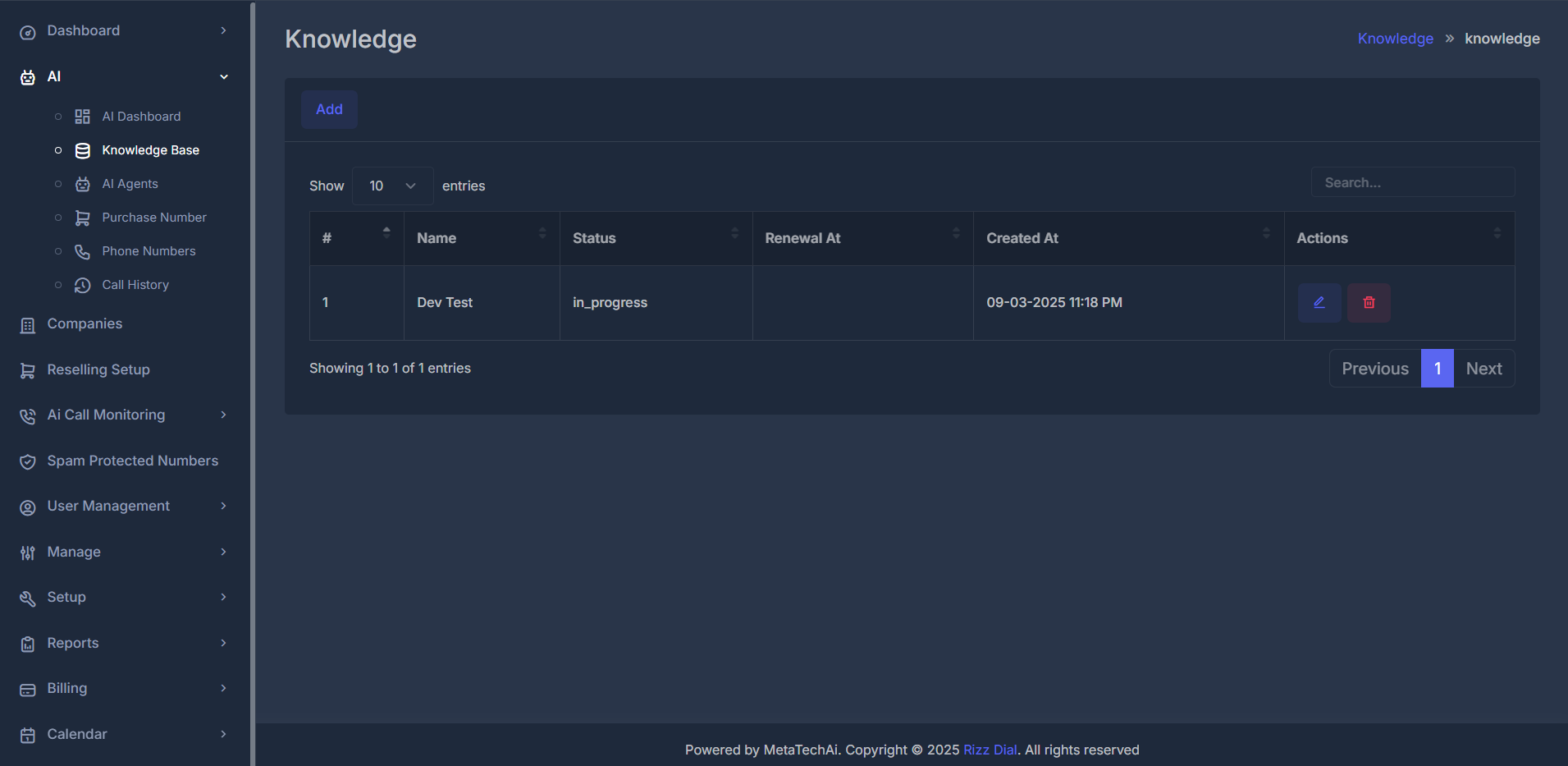
The knowledge base management page displays a table with these columns:
* **Name**: Custom name you’ve assigned to the knowledge base
* **Status**: Current processing status (in progress, completed, etc.)
* **Renewal At**: Renewal or billing date (shows if usage is chargeable)
* **Created At**: Date when the knowledge base was originally created
* **Actions**: Edit and delete controls
### 📝 Access Knowledge Base
* Open the main dashboard.
* Click **Knowledge** in the sidebar navigation.
* Your existing knowledge bases will appear in a table.
### ➕ Create New Knowledge Base
1. Click the **Add** button.
2. Fill in the form:
* **Name**: Enter a unique, descriptive name.
* **Document**: Choose how to add content:
* **Add Web Pages**: Extract content directly from a website URL.
* **Add Text**: Create a custom text document in-app.
* **Upload Files**: Add PDFs, Word documents, TXT, etc.
## 📋 Knowledge Base List View
The knowledge base management page displays a table with these columns:
* **Name**: Custom name you’ve assigned to the knowledge base
* **Status**: Current processing status (in progress, completed, etc.)
* **Renewal At**: Renewal or billing date (shows if usage is chargeable)
* **Created At**: Date when the knowledge base was originally created
* **Actions**: Edit and delete controls
### 📝 Access Knowledge Base
* Open the main dashboard.
* Click **Knowledge** in the sidebar navigation.
* Your existing knowledge bases will appear in a table.
### ➕ Create New Knowledge Base
1. Click the **Add** button.
2. Fill in the form:
* **Name**: Enter a unique, descriptive name.
* **Document**: Choose how to add content:
* **Add Web Pages**: Extract content directly from a website URL.
* **Add Text**: Create a custom text document in-app.
* **Upload Files**: Add PDFs, Word documents, TXT, etc.
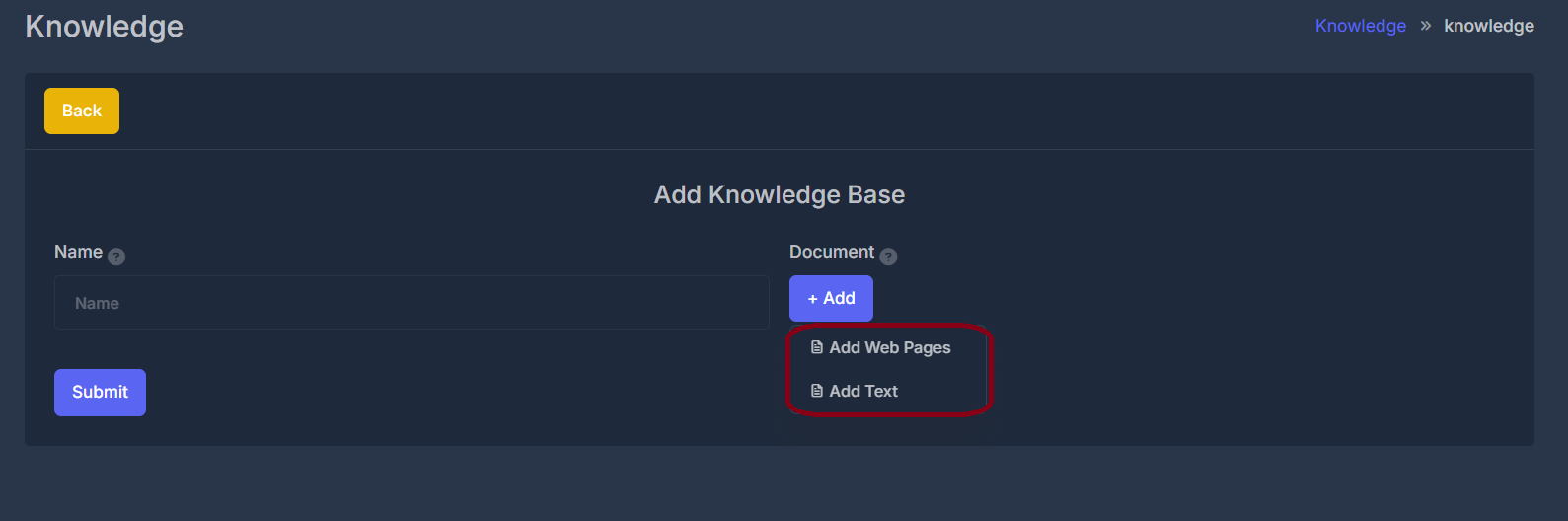 3. Click **Submit** to create the new knowledge base.
### 📄 Add Content to Knowledge Base
#### 🌐 Option 1: Add Web Pages
1. Select **Add Web Pages** from the dropdown.
2. Enter the complete web URL (e.g., [https://www.example.com/](https://www.example.com/)).
3. Click **Submit** to extract and import the content.
3. Click **Submit** to create the new knowledge base.
### 📄 Add Content to Knowledge Base
#### 🌐 Option 1: Add Web Pages
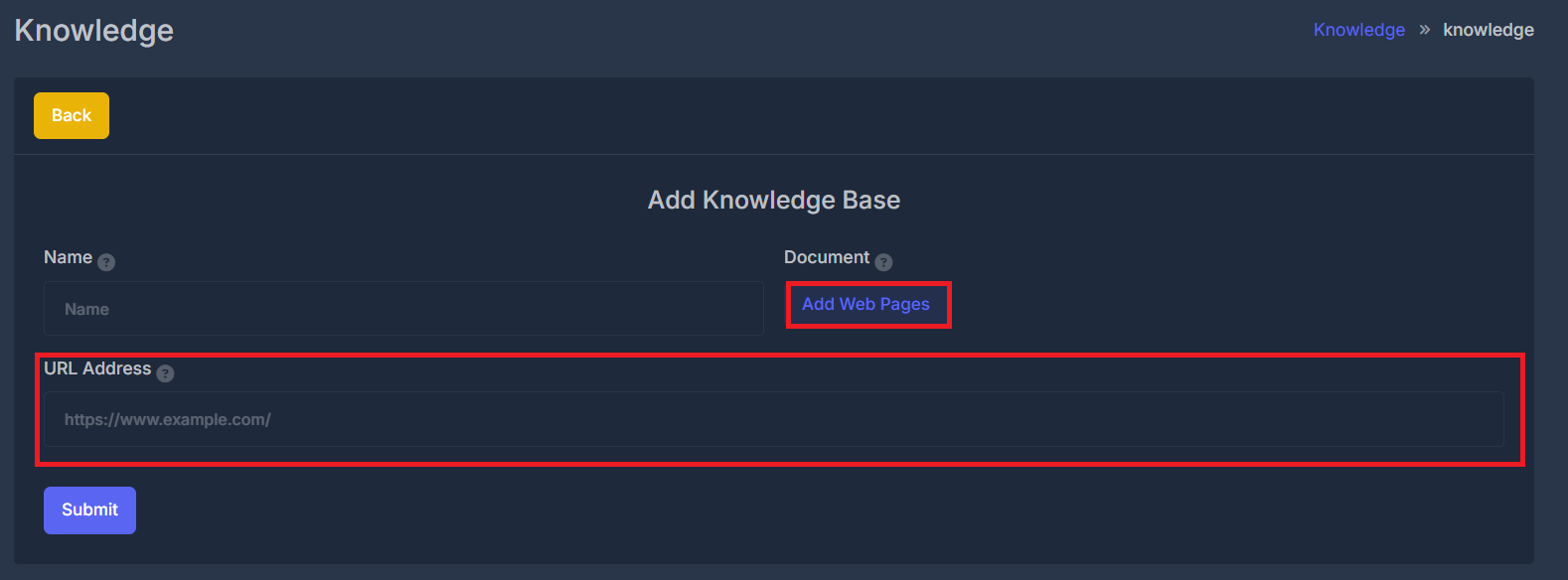
1. Select **Add Web Pages** from the dropdown.
2. Enter the complete web URL (e.g., [https://www.example.com/](https://www.example.com/)).
3. Click **Submit** to extract and import the content.
 #### 📝 Option 2: Add Text Documents
1. Select **Add Text** from the dropdown.
2. Enter a **File Name** as a descriptive title.
3. Enter **Text Content**—the information to store.
4. Click **Submit** to save.
#### 📝 Option 2: Add Text Documents
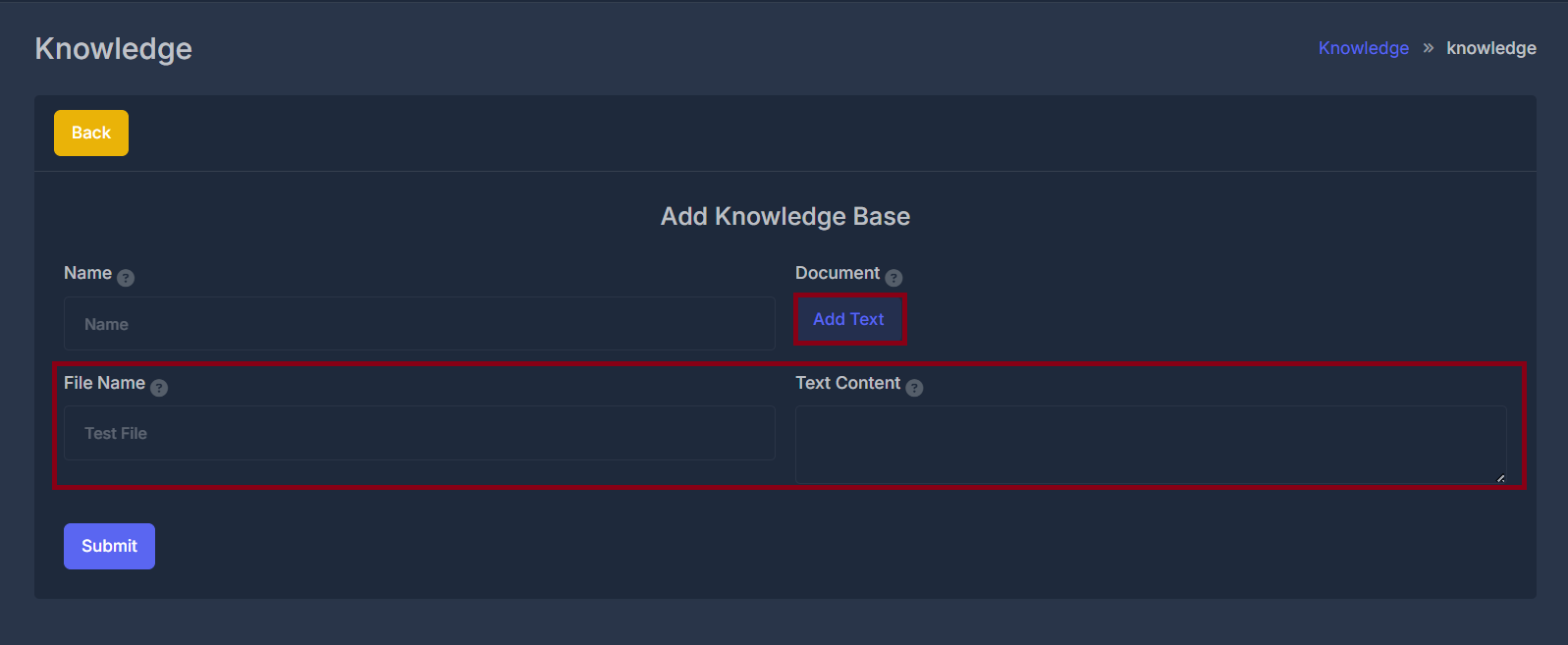
1. Select **Add Text** from the dropdown.
2. Enter a **File Name** as a descriptive title.
3. Enter **Text Content**—the information to store.
4. Click **Submit** to save.
 ## ✏️ Edit Knowledge Base
1. Click the **Edit** (✏️) button next to any existing knowledge base.
2. View the list of current documents, web pages, and uploaded files.
3. Add new content using the methods above.
## ✏️ Edit Knowledge Base
1. Click the **Edit** (✏️) button next to any existing knowledge base.
2. View the list of current documents, web pages, and uploaded files.
3. Add new content using the methods above.
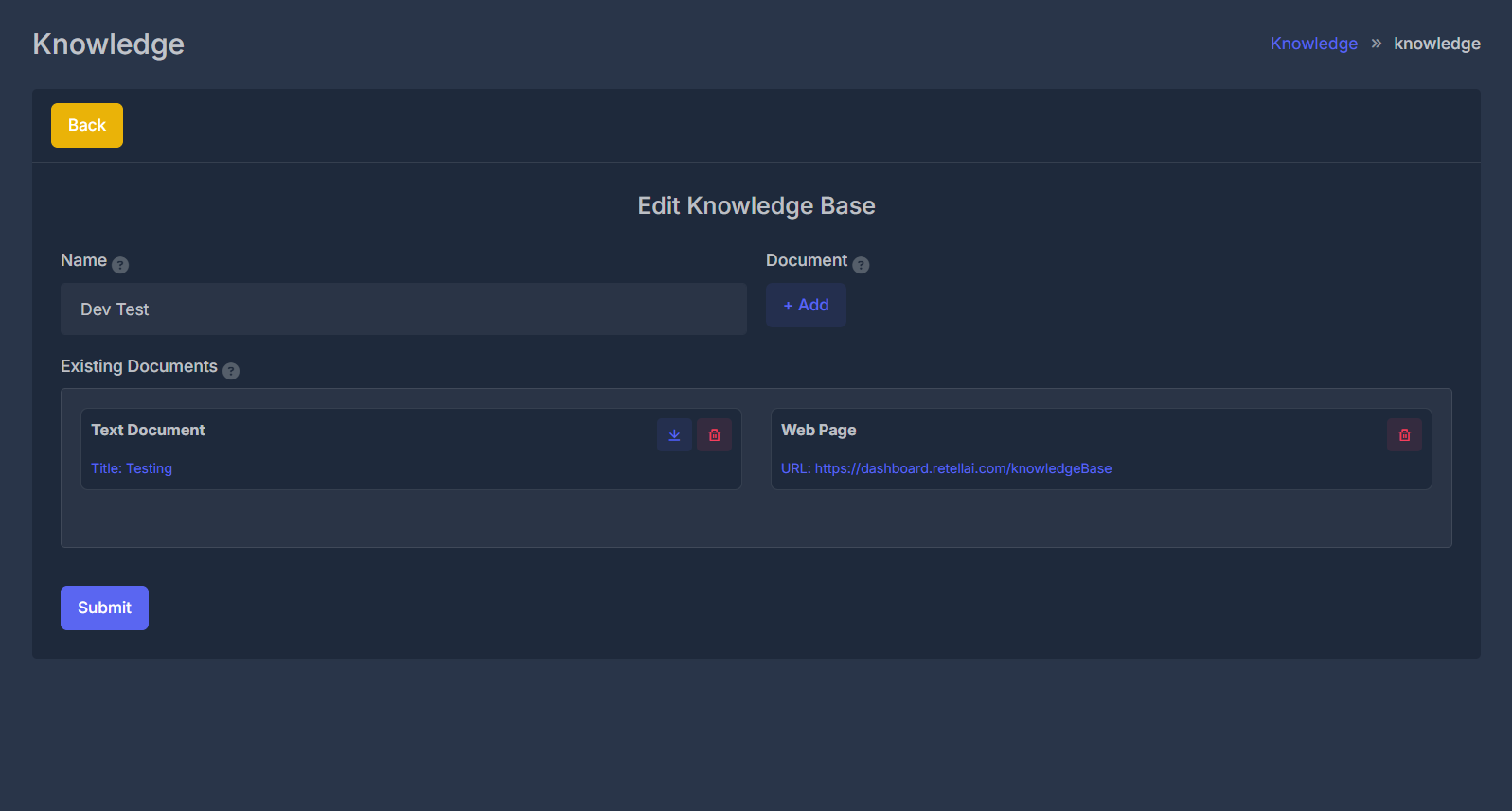 4. Click **Submit** to save changes.
### ⚙️ Document Actions
#### ⬇️ Download Documents
* Click the **Download** button beside a document to export it as a file. Useful for backup or review.
#### 🗑️ Delete Documents
* Click the **Delete** button beside a document and confirm. The document will be removed from the knowledge base.
## 📚 Content Types
### 🌐 Web Pages
* **Purpose**: Pull in up-to-date content directly from specific web pages.
* **Use Case**: Add product documentation, support pages, FAQs, or company info from your website.
* **Auto Refresh**: The extracted content can update automatically when source web pages change.
* **Format**: Extracted text from HTML content.
### 📝 Text Documents
* **Purpose**: Write and store your own knowledge entries.
* **Use Case**: Internal policies, procedures, scripts, and FAQs.
* **Format**: Custom plain text with a filename for searchability.
### 📎 Uploaded Files
* **Purpose**: Add existing documents and knowledge files.
* **Use Case**: Upload guides, presentations, manuals (PDF, DOCX, TXT, etc.).
* **Format**: File is uploaded and its contents become searchable and usable by AI.
4. Click **Submit** to save changes.
### ⚙️ Document Actions
#### ⬇️ Download Documents
* Click the **Download** button beside a document to export it as a file. Useful for backup or review.
#### 🗑️ Delete Documents
* Click the **Delete** button beside a document and confirm. The document will be removed from the knowledge base.
## 📚 Content Types
### 🌐 Web Pages
* **Purpose**: Pull in up-to-date content directly from specific web pages.
* **Use Case**: Add product documentation, support pages, FAQs, or company info from your website.
* **Auto Refresh**: The extracted content can update automatically when source web pages change.
* **Format**: Extracted text from HTML content.
### 📝 Text Documents
* **Purpose**: Write and store your own knowledge entries.
* **Use Case**: Internal policies, procedures, scripts, and FAQs.
* **Format**: Custom plain text with a filename for searchability.
### 📎 Uploaded Files
* **Purpose**: Add existing documents and knowledge files.
* **Use Case**: Upload guides, presentations, manuals (PDF, DOCX, TXT, etc.).
* **Format**: File is uploaded and its contents become searchable and usable by AI.