> ## Documentation Index
> Fetch the complete documentation index at: https://docs.aisync.link/llms.txt
> Use this file to discover all available pages before exploring further.
# Integration
> Configure GHL (GoHighLevel) integration and post-call data sync for call analytics and CRM updates.
# 🔗 GHL Integration & Post-Call Analysis
Easily connect your AI agent with GoHighLevel (GHL) to automate the flow of call records, insights, and tags into your CRM.
 ## 📤 Recording & Transcription
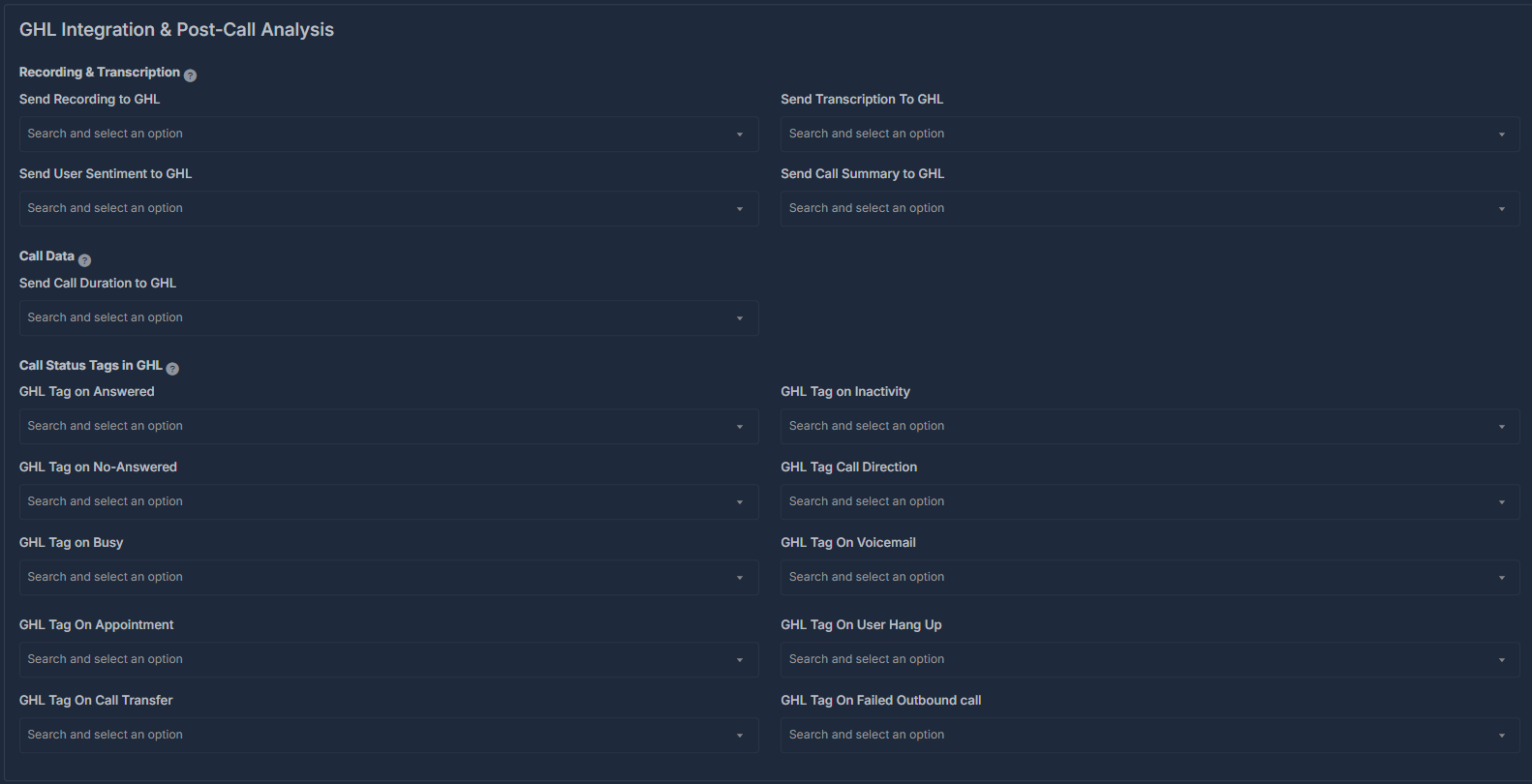
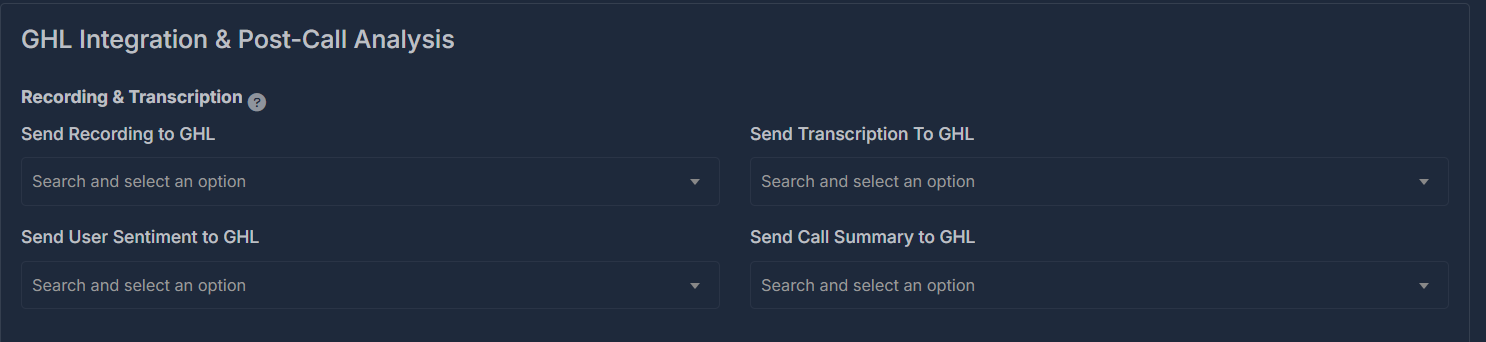
* **Send Recording to GHL**\
Enable or disable automatic transmission of call recordings to GHL.
* **Send Transcription to GHL**\
Toggle sending AI-generated call transcriptions to GHL.
* **Send User Sentiment to GHL**\
Allow GHL to receive AI-assigned sentiment (positive, negative, neutral) for each call.
* **Send Call Summary to GHL**\
Automatically push concise call summaries to GHL custom fields.
*Set up custom fields within your GoHighLevel account (e.g., "Call Recording URL", "Call Transcription", "User Sentiment", "Call Summary"). In your integration dashboard, simply map which AI data field syncs to which GHL custom field—your data will flow automatically!*
## 📤 Recording & Transcription
* **Send Recording to GHL**\
Enable or disable automatic transmission of call recordings to GHL.
* **Send Transcription to GHL**\
Toggle sending AI-generated call transcriptions to GHL.
* **Send User Sentiment to GHL**\
Allow GHL to receive AI-assigned sentiment (positive, negative, neutral) for each call.
* **Send Call Summary to GHL**\
Automatically push concise call summaries to GHL custom fields.
*Set up custom fields within your GoHighLevel account (e.g., "Call Recording URL", "Call Transcription", "User Sentiment", "Call Summary"). In your integration dashboard, simply map which AI data field syncs to which GHL custom field—your data will flow automatically!*
 ## ⏱️ Call Data
* **Send Call Duration to GHL**\
Track and send call duration to a dedicated custom field for analytics and billing.
* **Call Direction**\
Automatically record whether a call was inbound or outbound for every contact.
*For each data point, create the custom field (e.g., "Call Duration") in GHL, then link your agent's analytics in the integration settings.*
## ⏱️ Call Data
* **Send Call Duration to GHL**\
Track and send call duration to a dedicated custom field for analytics and billing.
* **Call Direction**\
Automatically record whether a call was inbound or outbound for every contact.
*For each data point, create the custom field (e.g., "Call Duration") in GHL, then link your agent's analytics in the integration settings.*
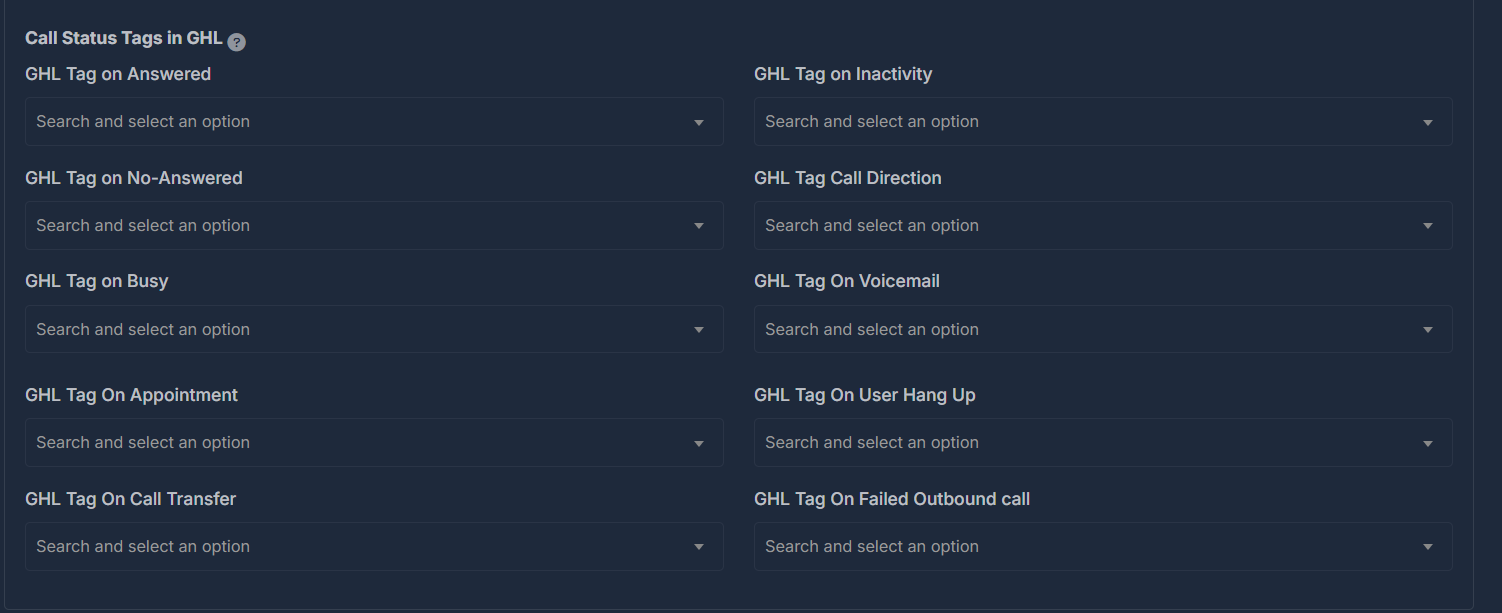
 ## 🏷️ Call Status Tags in GHL
Automatically tag each contact in your GHL account based on the outcome of the call:
* **Tag on Answered**\
Applies a tag like "Answered" to contacts/leads when a call is answered.
* **Tag on No Answered**\
Applies a tag like "No Answered" if the call was not picked up.
* **Tag on Busy**\
Tags with "Busy" if the line was engaged.
* **Tag on Inactivity**\
Marks contacts with an "Inactivity" tag if no engagement is detected on the call.
* **Tag on Appointment**\
Tags contacts/leads as "Appointment Set" when an appointment is booked.
* **Tag on Call Transfer**\
Tags contacts/leads when a call transfer occurs.
* **Tag on Voicemail**\
Assigns a "Voicemail" tag if the call goes to voicemail.
* **Tag on Call Direction**\
Tags contacts/leads with the direction of the call (Inbound/Outbound).
* **Tag on User Hang Up**\
Tags contacts when the user hangs up the call.
* **Tag on Failed Outbound Call**\
Tags contacts/leads when an outbound call attempt fails.
> **Note:** Tags help you filter, track, and automate follow-ups directly inside your GHL CRM. Tagging works instantly—no manual setup required.
## 🏷️ Call Status Tags in GHL
Automatically tag each contact in your GHL account based on the outcome of the call:
* **Tag on Answered**\
Applies a tag like "Answered" to contacts/leads when a call is answered.
* **Tag on No Answered**\
Applies a tag like "No Answered" if the call was not picked up.
* **Tag on Busy**\
Tags with "Busy" if the line was engaged.
* **Tag on Inactivity**\
Marks contacts with an "Inactivity" tag if no engagement is detected on the call.
* **Tag on Appointment**\
Tags contacts/leads as "Appointment Set" when an appointment is booked.
* **Tag on Call Transfer**\
Tags contacts/leads when a call transfer occurs.
* **Tag on Voicemail**\
Assigns a "Voicemail" tag if the call goes to voicemail.
* **Tag on Call Direction**\
Tags contacts/leads with the direction of the call (Inbound/Outbound).
* **Tag on User Hang Up**\
Tags contacts when the user hangs up the call.
* **Tag on Failed Outbound Call**\
Tags contacts/leads when an outbound call attempt fails.
> **Note:** Tags help you filter, track, and automate follow-ups directly inside your GHL CRM. Tagging works instantly—no manual setup required.