> ## Documentation Index
> Fetch the complete documentation index at: https://docs.aisync.link/llms.txt
> Use this file to discover all available pages before exploring further.
# Intelligence
> User guide for Knowledge Base, conversation sliders, pronunciation dictionary, reminders, AutoRizz, Smooth Talk, and boosted keywords.
#### 💡 Intelligence Tab (User Guide)
The **Intelligence** tab controls how your agent listens, how quickly it speaks back, how it says specific words, whether it uses short natural acknowledgements during a call, and how it handles reminders and special word lists.
## 📐 Layout of the screen
* **Main (wider) column:** Knowledge Base, Conversation Settings, Pronunciation Dictionary, Reminder Settings
* **Side (narrow) column:** AutoRizz, Smooth Talk, Boosted Keywords
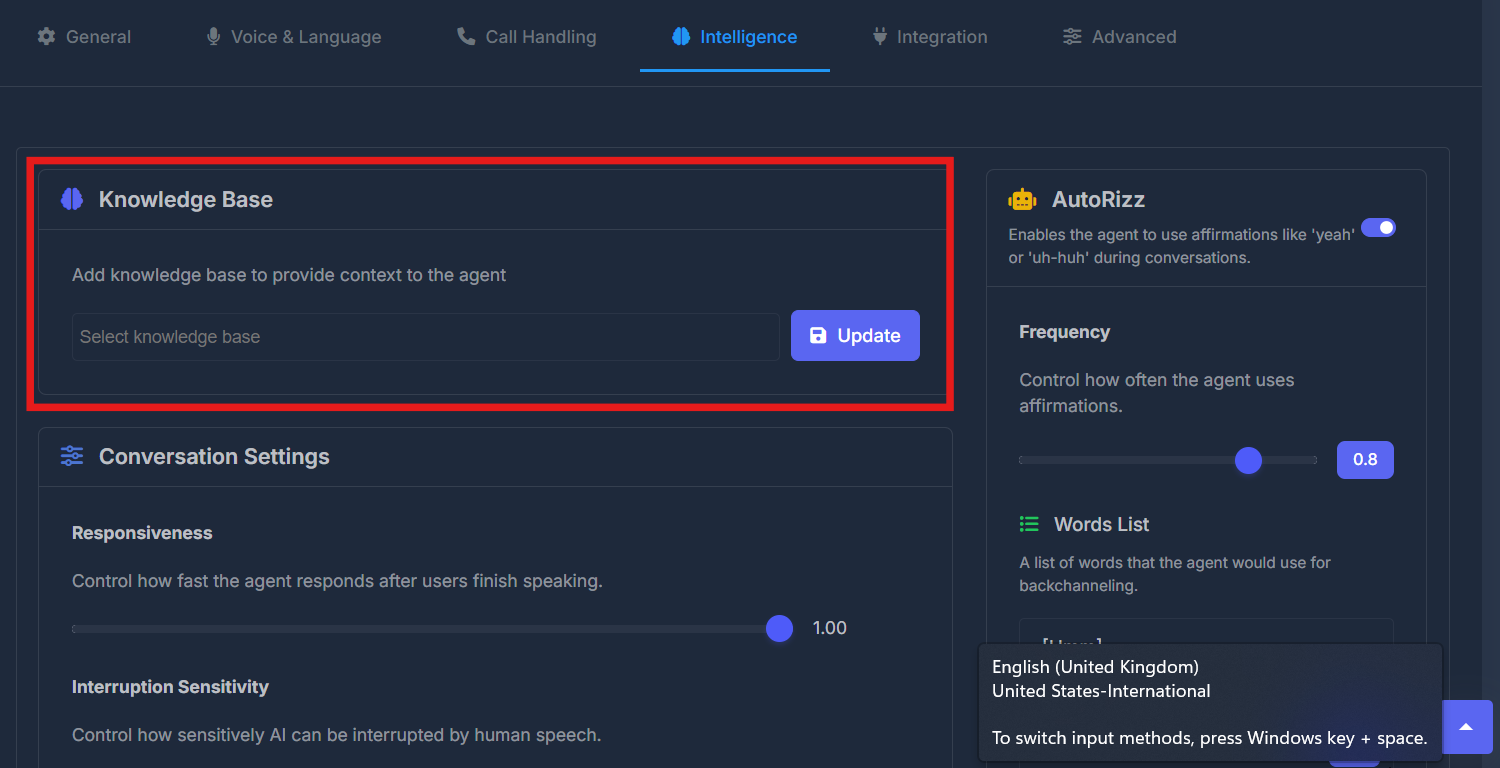
## 📚 Knowledge Base
**Purpose**\
Connect your agent to reference material so it can answer using the right context—your business facts, FAQs, or uploaded knowledge you have already created in your account.
**How to use it**
* Read the short description under the title: it explains that a knowledge base gives the agent context.
* Use the dropdown list to **select one or more** knowledge bases (whatever your organization has already created).
* Click **Update** to apply your selection.
* Nothing is applied to the agent until you click **Update**.
**Note**\
If the list is empty, your team needs to create knowledge bases elsewhere in the product first. Only existing items appear here.
 ## 💬 Conversation Settings
**Purpose**\
Fine-tune how the agent behaves during live conversation: how fast it responds after someone stops talking, and how easily the caller can interrupt or cut in.
The small **?** next to the section title shows a tooltip with extra context when you hover.
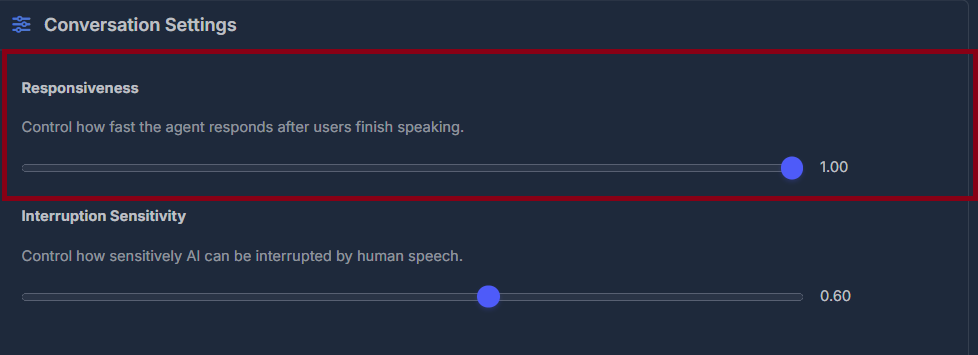
**Responsiveness** controls **how soon** the agent starts speaking after the caller finishes a sentence. Use the slider from low to high; the number next to it shows the current level (two decimal places). When you **release** the slider after moving it, the value saves automatically—there is no separate Save button for this control.
## 💬 Conversation Settings
**Purpose**\
Fine-tune how the agent behaves during live conversation: how fast it responds after someone stops talking, and how easily the caller can interrupt or cut in.
The small **?** next to the section title shows a tooltip with extra context when you hover.
**Responsiveness** controls **how soon** the agent starts speaking after the caller finishes a sentence. Use the slider from low to high; the number next to it shows the current level (two decimal places). When you **release** the slider after moving it, the value saves automatically—there is no separate Save button for this control.
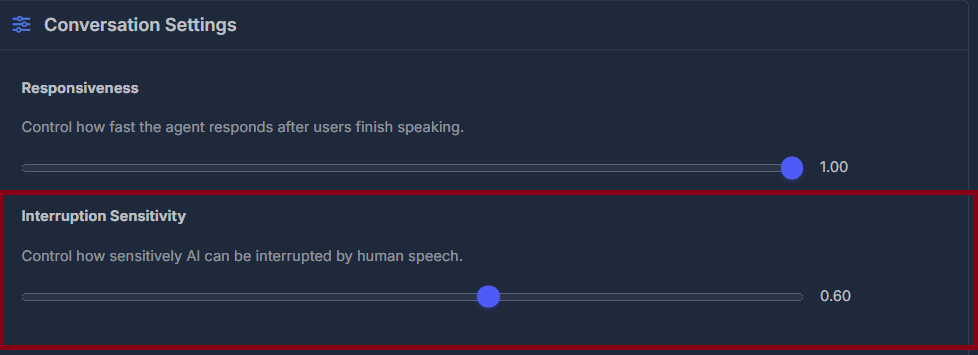
 **Interruption Sensitivity** controls how **sensitive** the agent is when the caller speaks over the agent or jumps in—how strongly the agent reacts to being interrupted. Same kind of slider and on-screen value; saving happens when you **release** the slider after adjusting.
 **Note:** The tooltip may mention other topics (such as ambient sound). In this section, only **Responsiveness** and **Interruption Sensitivity** are configured. Other audio options may live on other tabs.
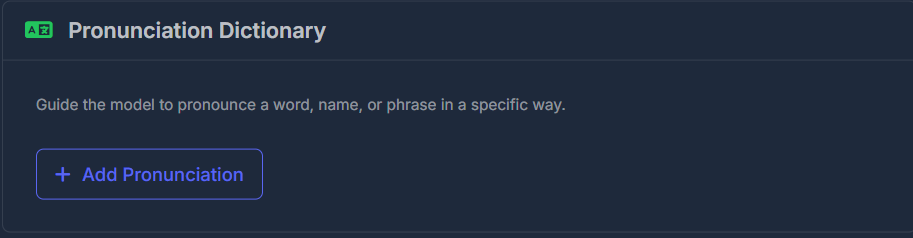
## 🗣️ Pronunciation Dictionary
**Purpose**\
Teach the agent to pronounce **names, brands, or technical terms** the way you want, instead of guessing wrong.
**The list** — Each row is **one word** (or entry). **Edit (pencil)** opens the form with that entry filled in; **Delete (trash)** removes it after you confirm.
Click **Add Pronunciation** to open the form:
| Field | Meaning |
| ----------------- | ------------------------------------------------------------- |
| **Words** | The word or phrase the agent should say correctly |
| **Pronunciation** | Choose **IPA** or **CMU** (two standard ways to write sounds) |
| **Phoneme** | Type the pronunciation using the system you chose |
Use **Save** in the form to add or update, or **Cancel** to close without saving. Editing loads the current values from your agent’s saved settings.
**Note:** The tooltip may mention other topics (such as ambient sound). In this section, only **Responsiveness** and **Interruption Sensitivity** are configured. Other audio options may live on other tabs.
## 🗣️ Pronunciation Dictionary
**Purpose**\
Teach the agent to pronounce **names, brands, or technical terms** the way you want, instead of guessing wrong.
**The list** — Each row is **one word** (or entry). **Edit (pencil)** opens the form with that entry filled in; **Delete (trash)** removes it after you confirm.
Click **Add Pronunciation** to open the form:
| Field | Meaning |
| ----------------- | ------------------------------------------------------------- |
| **Words** | The word or phrase the agent should say correctly |
| **Pronunciation** | Choose **IPA** or **CMU** (two standard ways to write sounds) |
| **Phoneme** | Type the pronunciation using the system you chose |
Use **Save** in the form to add or update, or **Cancel** to close without saving. Editing loads the current values from your agent’s saved settings.
 ## ⏰ Reminder Settings
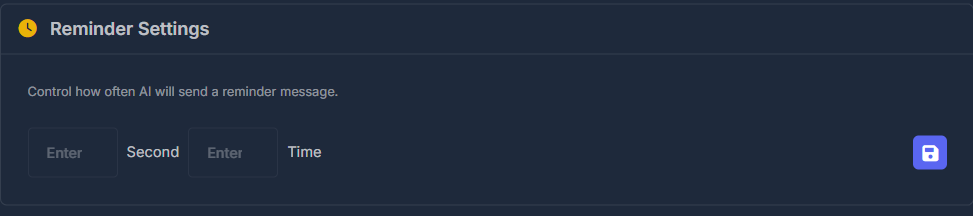
**Purpose**\
Control how the agent sends **reminder messages** during a call when needed—for example, if the caller goes quiet for too long.
**Fields**
* The **first number** with **“Second”** — how many **seconds** to wait before a reminder can be triggered (the gap between reminders).
* The **second number** with **“Time”** — the **maximum number of times** a reminder can be sent (count limit).
Use the small **Save** button (disk icon) on the right after entering both values. Both numbers must be **greater than zero**; otherwise you will see a message asking for valid numbers.
## ⏰ Reminder Settings
**Purpose**\
Control how the agent sends **reminder messages** during a call when needed—for example, if the caller goes quiet for too long.
**Fields**
* The **first number** with **“Second”** — how many **seconds** to wait before a reminder can be triggered (the gap between reminders).
* The **second number** with **“Time”** — the **maximum number of times** a reminder can be sent (count limit).
Use the small **Save** button (disk icon) on the right after entering both values. Both numbers must be **greater than zero**; otherwise you will see a message asking for valid numbers.
 ## ⚡ AutoRizz
**Purpose**\
Lets the agent use short **natural acknowledgements** during a conversation—similar to “yeah,” “uh-huh,” or “hmm” so the call feels more human.
## ⚡ AutoRizz
**Purpose**\
Lets the agent use short **natural acknowledgements** during a conversation—similar to “yeah,” “uh-huh,” or “hmm” so the call feels more human.
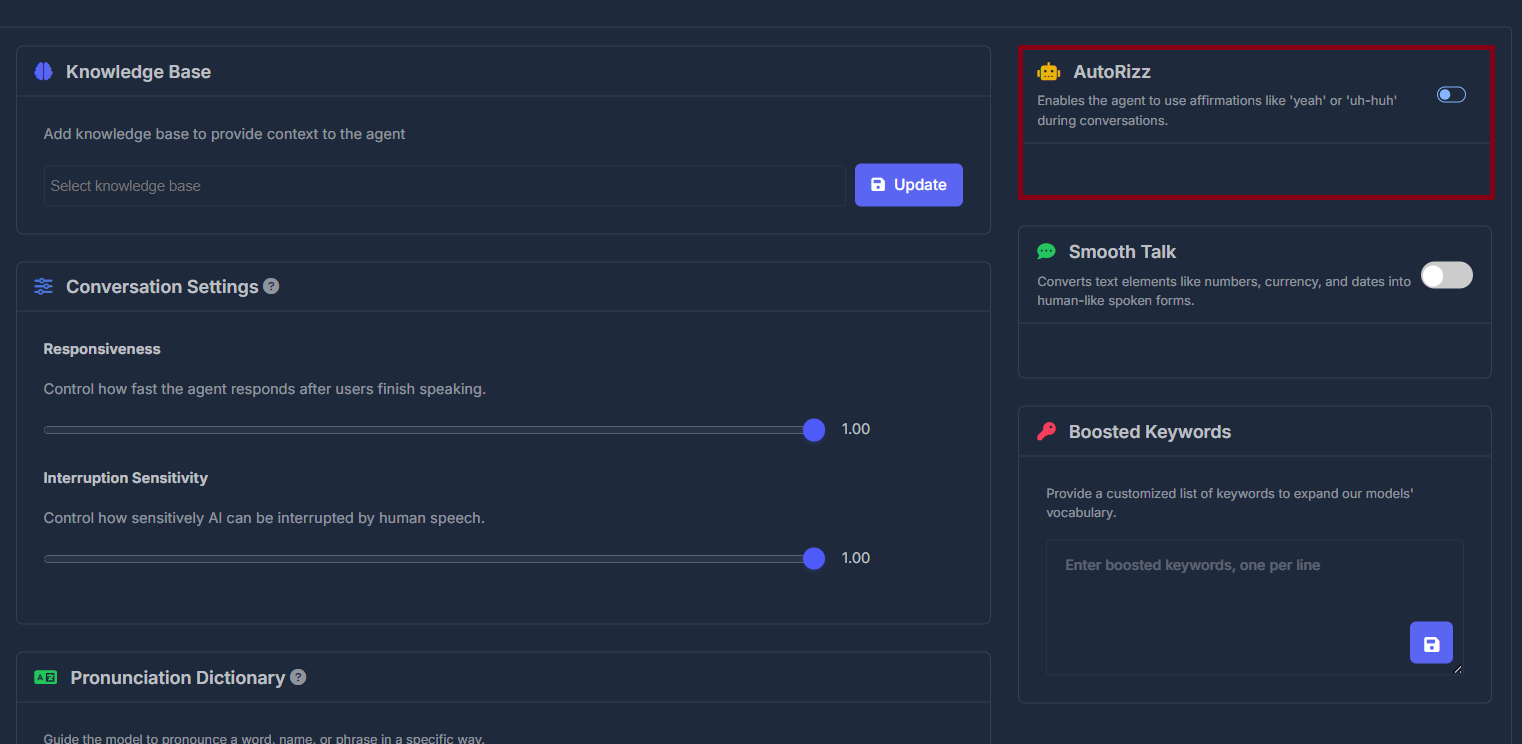 **Main switch** — **On** shows **Frequency** and **Words List** below; **Off** hides those options and turns off this behaviour.
**Frequency** controls **how often** those acknowledgements appear (slider low to high, with a number badge). The value is usually applied when you **release** the mouse after dragging.
**Main switch** — **On** shows **Frequency** and **Words List** below; **Off** hides those options and turns off this behaviour.
**Frequency** controls **how often** those acknowledgements appear (slider low to high, with a number badge). The value is usually applied when you **release** the mouse after dragging.
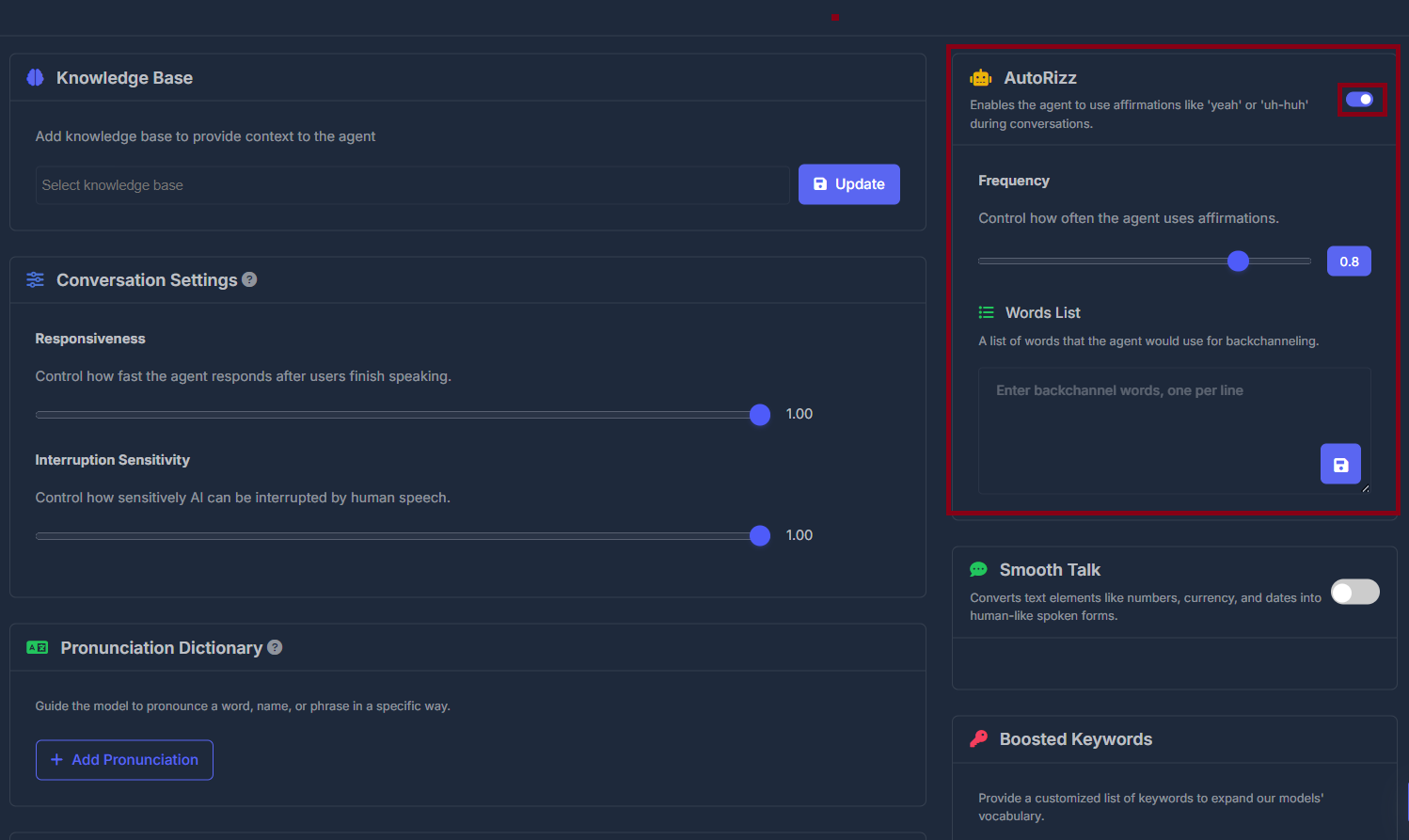 **Words List** is a large box: **one word or short phrase per line**—the phrases the agent may use. Click the **Save** button after editing; until you save, new lines are not applied. You must keep **at least one** non-empty line, or you will see an error.
When you open the page, values may refresh from the agent’s current saved settings so the screen matches what is stored.
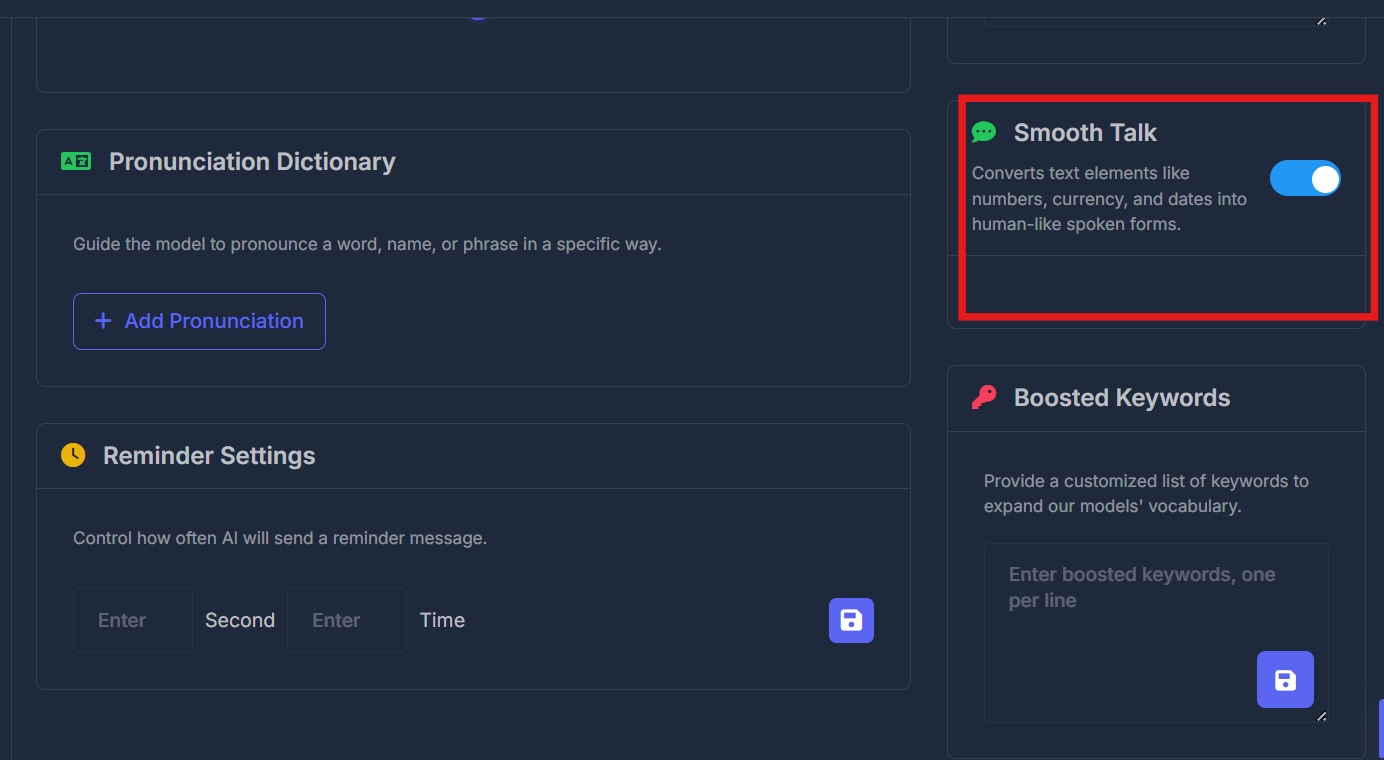
## ✨ Smooth Talk
**Purpose**\
When **on**, the agent converts **numbers, money amounts, and dates** into more **natural spoken form** for read-aloud quality.
Only an **On / Off** switch; changing it applies immediately. The card body below the header is intentionally empty—no extra fields.
**Words List** is a large box: **one word or short phrase per line**—the phrases the agent may use. Click the **Save** button after editing; until you save, new lines are not applied. You must keep **at least one** non-empty line, or you will see an error.
When you open the page, values may refresh from the agent’s current saved settings so the screen matches what is stored.
## ✨ Smooth Talk
**Purpose**\
When **on**, the agent converts **numbers, money amounts, and dates** into more **natural spoken form** for read-aloud quality.
Only an **On / Off** switch; changing it applies immediately. The card body below the header is intentionally empty—no extra fields.
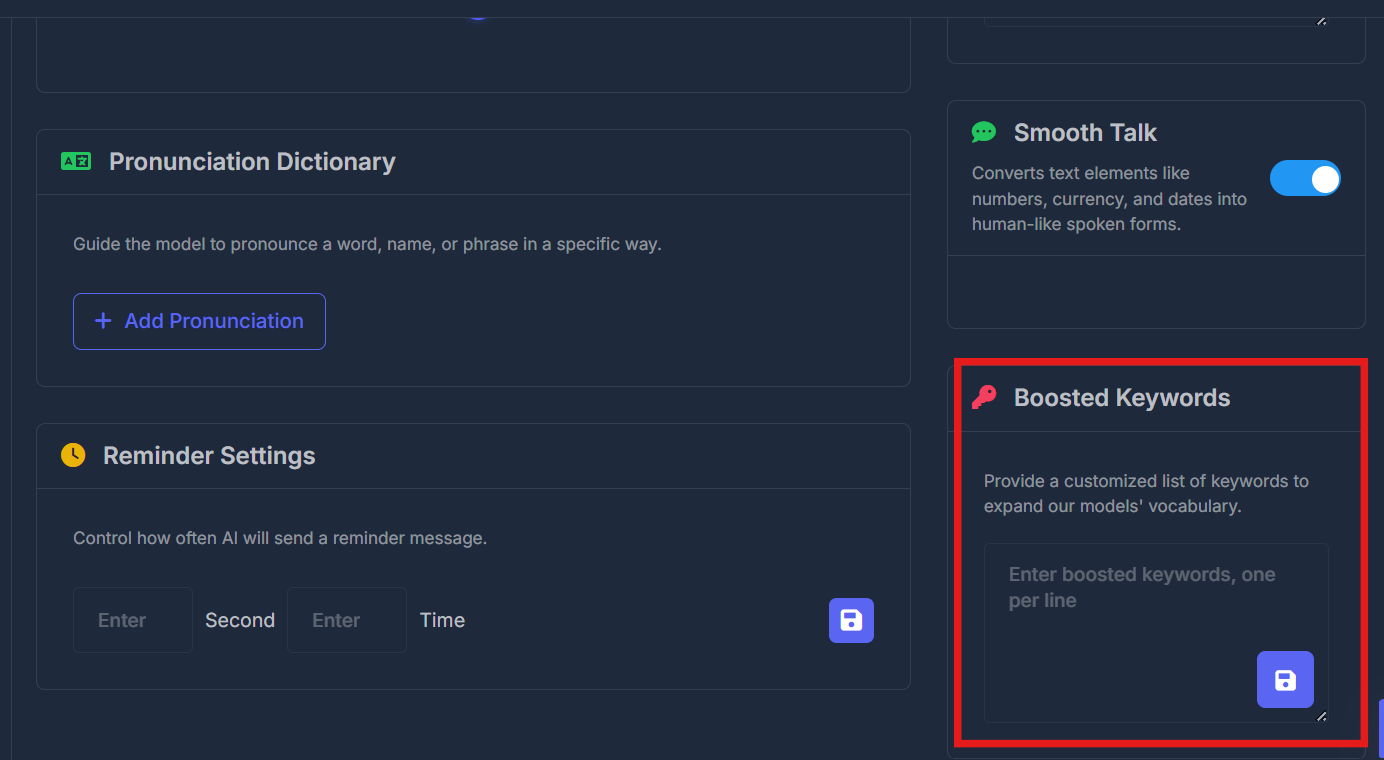
 ## 🔤 Boosted Keywords
**Purpose**\
Give a **custom list of important words** (names, brands, industry terms) so the agent is more likely to recognize and say them correctly.
Type **one keyword per line** in the text area, then click the **Save** button (icon) at the bottom corner. You must enter **at least one** keyword, or saving will show an error.
## 🔤 Boosted Keywords
**Purpose**\
Give a **custom list of important words** (names, brands, industry terms) so the agent is more likely to recognize and say them correctly.
Type **one keyword per line** in the text area, then click the **Save** button (icon) at the bottom corner. You must enter **at least one** keyword, or saving will show an error.