> ## Documentation Index
> Fetch the complete documentation index at: https://docs.aisync.link/llms.txt
> Use this file to discover all available pages before exploring further.
# Purchase Number
### 📱 Overview
**Purchase Number** is where you **find an available phone number**, **choose one**, and **buy it** so it can be used with your AI setup. After a successful purchase, you are taken back to **My Numbers**, where your numbers are listed.
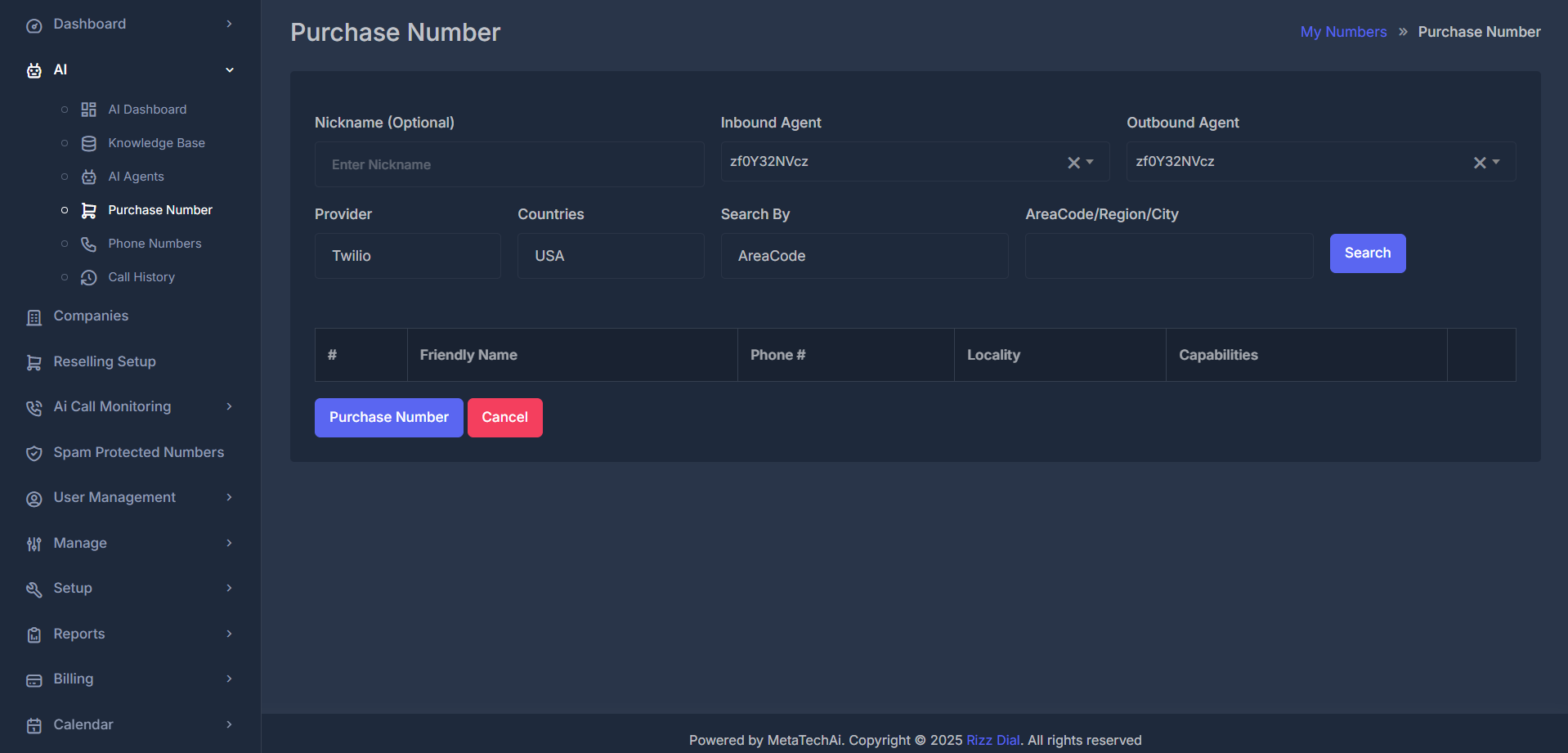 ## 📝 Fields and controls (top row)
**🏷️ Nickname (Optional)**
* This is a **short label** you can give the number so you recognize it later (for example a team or campaign name).
* **Important:** The label says “Optional,” but **when you press Purchase Number**, the system **requires a nickname**. If you leave it blank, you may see a message asking you to **enter a nickname** before the purchase can finish.
**🤖 Inbound Agent**
* Chooses which **AI agent** should handle **calls coming in** to this number.
* The list shows **agent names** from your company. You can **search inside the list** by typing (the box behaves like a searchable list, not only a plain scroll).
* You can also **clear** your choice using the clear option on the control, if your setup allows it.
**🚀 Outbound Agent**
* Chooses which **AI agent** should be used for **outgoing** use associated with this number, according to how your account is set up.
* Same kind of **searchable list** as Inbound Agent, with the same agents available.
**Together:** Inbound and Outbound define **who answers incoming calls** and **which agent profile applies for outbound** behavior for this number after it is purchased and linked.
## 🔍 Fields and controls (search row)
These fields control **where and how** the system looks for **available** numbers **before** you buy. They do **not** complete the purchase by themselves—you still use **Search**, then **Purchase Number**.
## 📝 Fields and controls (top row)
**🏷️ Nickname (Optional)**
* This is a **short label** you can give the number so you recognize it later (for example a team or campaign name).
* **Important:** The label says “Optional,” but **when you press Purchase Number**, the system **requires a nickname**. If you leave it blank, you may see a message asking you to **enter a nickname** before the purchase can finish.
**🤖 Inbound Agent**
* Chooses which **AI agent** should handle **calls coming in** to this number.
* The list shows **agent names** from your company. You can **search inside the list** by typing (the box behaves like a searchable list, not only a plain scroll).
* You can also **clear** your choice using the clear option on the control, if your setup allows it.
**🚀 Outbound Agent**
* Chooses which **AI agent** should be used for **outgoing** use associated with this number, according to how your account is set up.
* Same kind of **searchable list** as Inbound Agent, with the same agents available.
**Together:** Inbound and Outbound define **who answers incoming calls** and **which agent profile applies for outbound** behavior for this number after it is purchased and linked.
## 🔍 Fields and controls (search row)
These fields control **where and how** the system looks for **available** numbers **before** you buy. They do **not** complete the purchase by themselves—you still use **Search**, then **Purchase Number**.
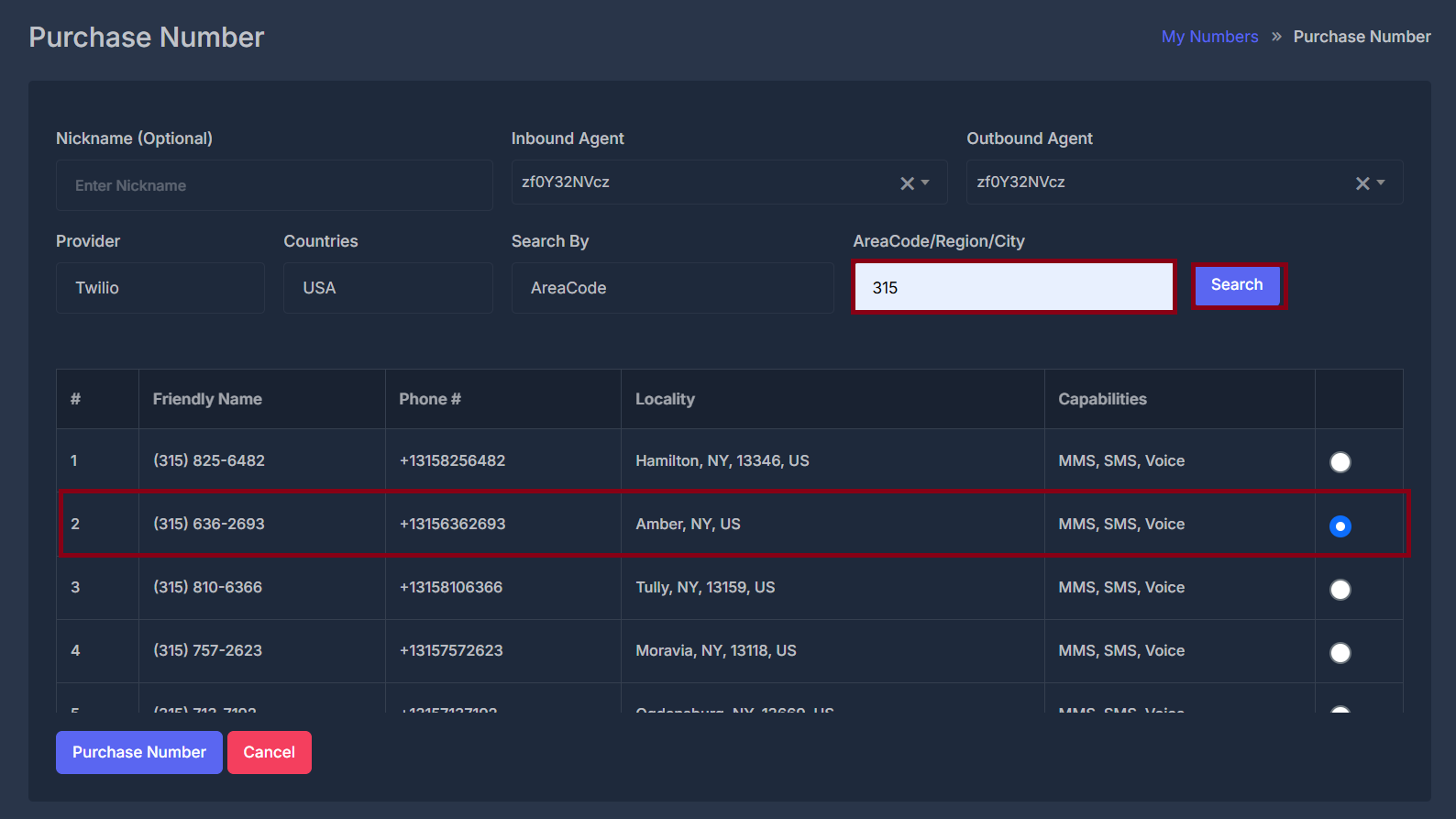 **🛰️ Provider**
* Picks **which phone service connection** to use when **searching** and **buying**:
* **Twilio** — one option.
* The **second option** uses your product’s **branded name** (it is the **AI Sync** option in the system).
**🌐 Countries**
* Limits the search to numbers in:
* **USA**, or
* **Canada**
* Pick the country where you want the number to be located.
**🔠 Search By**
* Tells the system **how to interpret** what you type in the next box:
* **AreaCode** — search by dialing area (for example a three-digit area code where that applies).
* **Region** — search by region.
* **City** — search by city name or label, depending on what the service supports.
**📝 AreaCode / Region / City (single text box)**
* This is the **actual search text** (code, region, or city) matching the option you chose under **Search By**.
* It works together with **Countries** and **Provider** to narrow the list.
**🔎 Search (button)**
* **You must type something** in the AreaCode/Region/City box before Search does anything useful.
* If that box is **empty**, the page shows a short message asking you to **fill the fields** (meaning: enter a search value).
* If you did enter a value, the page first shows a **“please wait”** style message while the lookup runs.
* When the lookup **succeeds**, a **table** fills with rows of numbers.
* When it **fails**, a **message** appears explaining the problem (for example, nothing found, or your account is not set up for that provider).
## 📋 The results table
After a successful search, you see a table with a header row and a scrollable area (the list does not grow endlessly in view—it scrolls inside a fixed height).
Columns:
| Column | Meaning |
| --------------------------- | ---------------------------------------------------------------------------------------------------- |
| **#** | Row number (1, 2, 3, …). |
| **Friendly Name** | A readable label for the number provided by the service. |
| **Phone #** | The actual phone number format you are choosing. |
| **Locality** | Where the number is associated (city, region, postal details, country—whatever the service returns). |
| **Capabilities** | What the number can do (for example text-related features and voice), listed in short form. |
| **(last column, no title)** | A **choice control** so you pick **one** number. Only **one** row should be selected at a time. |
Until you run **Search**, the table body stays **empty**.
## 🛒 Finishing the purchase
**💳 Purchase Number (button)**
When you click **Purchase Number**, the system:
1. Reads your **nickname**, **Inbound Agent**, **Outbound Agent**, **Provider**, and the **one number** you selected in the table.
2. If **no number** is selected, you see a message asking you to **select a number**.
3. If a number **is** selected, a **please wait** style message appears while the system:
* **Acquires** the number through the provider you chose (**Twilio** or the **AI sync** path), and then
* **Links** that number to your **nickname** and **agents** in the way your product is designed (including voice routing setup behind the scenes).
If something goes wrong during acquisition or linking, an **error message** appears in the message area on the page.
If everything **succeeds**, you see a **success message**, and after a **short pause** you are **automatically taken** to **My Numbers** so you can see your number in the list.
**❌ Cancel (button)**
* Takes you **back to My Numbers** **without** buying a number.
* No purchase happens when you use **Cancel**.
**🛰️ Provider**
* Picks **which phone service connection** to use when **searching** and **buying**:
* **Twilio** — one option.
* The **second option** uses your product’s **branded name** (it is the **AI Sync** option in the system).
**🌐 Countries**
* Limits the search to numbers in:
* **USA**, or
* **Canada**
* Pick the country where you want the number to be located.
**🔠 Search By**
* Tells the system **how to interpret** what you type in the next box:
* **AreaCode** — search by dialing area (for example a three-digit area code where that applies).
* **Region** — search by region.
* **City** — search by city name or label, depending on what the service supports.
**📝 AreaCode / Region / City (single text box)**
* This is the **actual search text** (code, region, or city) matching the option you chose under **Search By**.
* It works together with **Countries** and **Provider** to narrow the list.
**🔎 Search (button)**
* **You must type something** in the AreaCode/Region/City box before Search does anything useful.
* If that box is **empty**, the page shows a short message asking you to **fill the fields** (meaning: enter a search value).
* If you did enter a value, the page first shows a **“please wait”** style message while the lookup runs.
* When the lookup **succeeds**, a **table** fills with rows of numbers.
* When it **fails**, a **message** appears explaining the problem (for example, nothing found, or your account is not set up for that provider).
## 📋 The results table
After a successful search, you see a table with a header row and a scrollable area (the list does not grow endlessly in view—it scrolls inside a fixed height).
Columns:
| Column | Meaning |
| --------------------------- | ---------------------------------------------------------------------------------------------------- |
| **#** | Row number (1, 2, 3, …). |
| **Friendly Name** | A readable label for the number provided by the service. |
| **Phone #** | The actual phone number format you are choosing. |
| **Locality** | Where the number is associated (city, region, postal details, country—whatever the service returns). |
| **Capabilities** | What the number can do (for example text-related features and voice), listed in short form. |
| **(last column, no title)** | A **choice control** so you pick **one** number. Only **one** row should be selected at a time. |
Until you run **Search**, the table body stays **empty**.
## 🛒 Finishing the purchase
**💳 Purchase Number (button)**
When you click **Purchase Number**, the system:
1. Reads your **nickname**, **Inbound Agent**, **Outbound Agent**, **Provider**, and the **one number** you selected in the table.
2. If **no number** is selected, you see a message asking you to **select a number**.
3. If a number **is** selected, a **please wait** style message appears while the system:
* **Acquires** the number through the provider you chose (**Twilio** or the **AI sync** path), and then
* **Links** that number to your **nickname** and **agents** in the way your product is designed (including voice routing setup behind the scenes).
If something goes wrong during acquisition or linking, an **error message** appears in the message area on the page.
If everything **succeeds**, you see a **success message**, and after a **short pause** you are **automatically taken** to **My Numbers** so you can see your number in the list.
**❌ Cancel (button)**
* Takes you **back to My Numbers** **without** buying a number.
* No purchase happens when you use **Cancel**.