> ## Documentation Index
> Fetch the complete documentation index at: https://docs.aisync.link/llms.txt
> Use this file to discover all available pages before exploring further.
# Manage Subscription
> Complete guide to managing your AI Sync subscription, billing, and payment methods
 # Manage Subscription
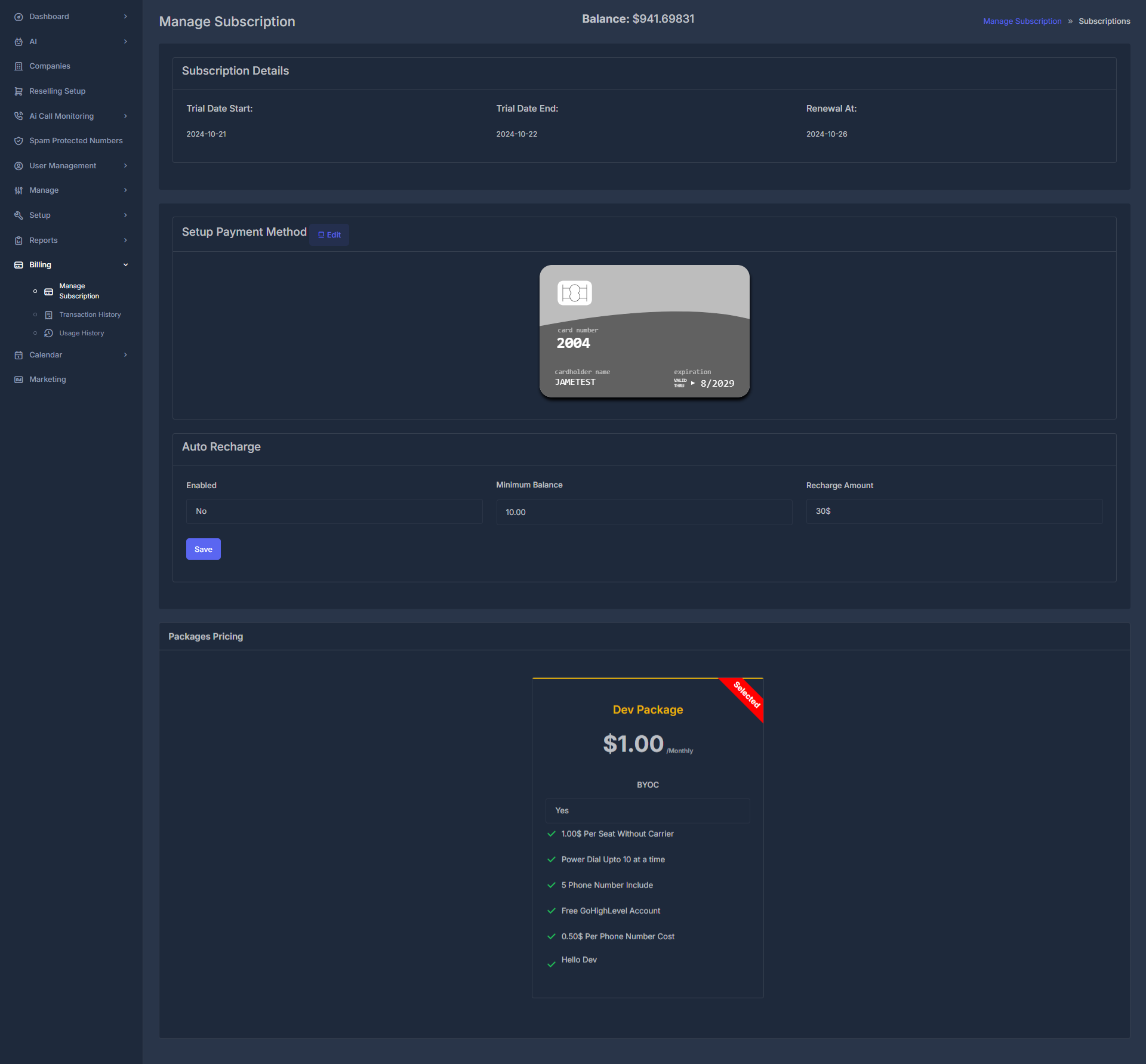
The Manage Subscription page is your central hub for controlling all aspects of your Rizler subscription, from monitoring usage and billing to configuring payment methods and auto-recharge settings.
Monitor trial periods, renewal dates, and subscription status
Configure and manage payment methods securely
Set up automatic balance top-ups for uninterrupted service
View and upgrade to different pricing packages
## 📊 Current Balance & Overview
**Current Balance: \$941.69831** - Your account balance is displayed prominently at the top right of the interface for quick reference.
## 🗓️ Subscription Details
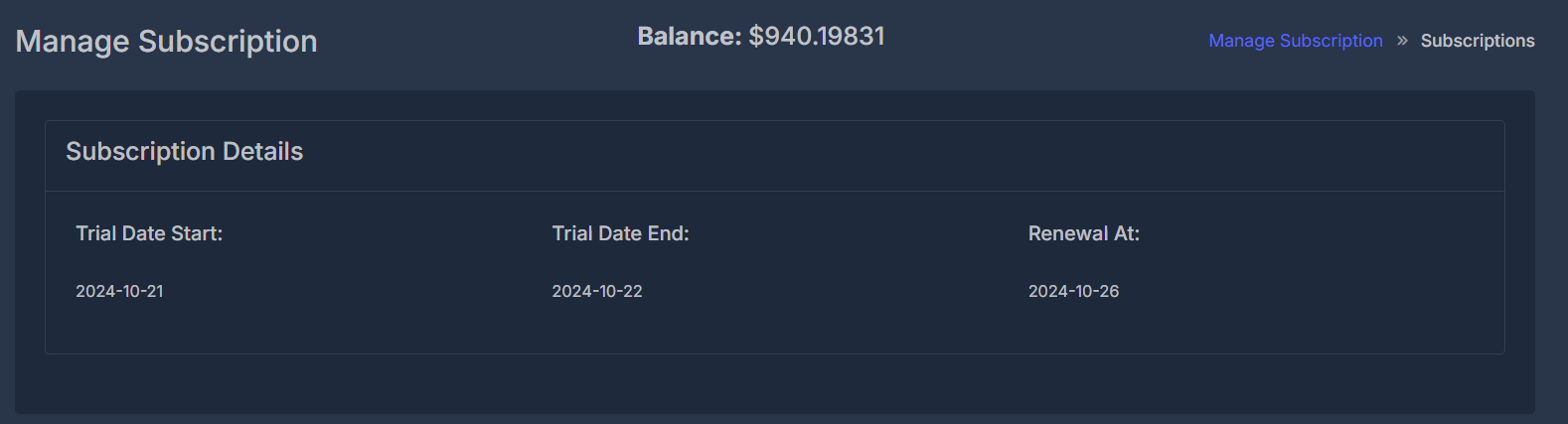
The subscription details section provides crucial information about your current subscription status and important dates.
# Manage Subscription
The Manage Subscription page is your central hub for controlling all aspects of your Rizler subscription, from monitoring usage and billing to configuring payment methods and auto-recharge settings.
Monitor trial periods, renewal dates, and subscription status
Configure and manage payment methods securely
Set up automatic balance top-ups for uninterrupted service
View and upgrade to different pricing packages
## 📊 Current Balance & Overview
**Current Balance: \$941.69831** - Your account balance is displayed prominently at the top right of the interface for quick reference.
## 🗓️ Subscription Details
The subscription details section provides crucial information about your current subscription status and important dates.
 ### Key Fields
**Current Value**: 2024-10-21
The date when your trial period began. This helps track how long you've been using the service and when trial benefits expire.
**Current Value**: 2024-10-22
The date when your trial period ends. After this date, regular subscription pricing applies.
**Current Value**: 2024-10-26
Your next billing cycle date. This is when your subscription will automatically renew and your payment method will be charged.
Keep track of your renewal date to avoid unexpected charges. You can modify or cancel your subscription before the renewal date if needed.
## 💳 Setup Payment Method
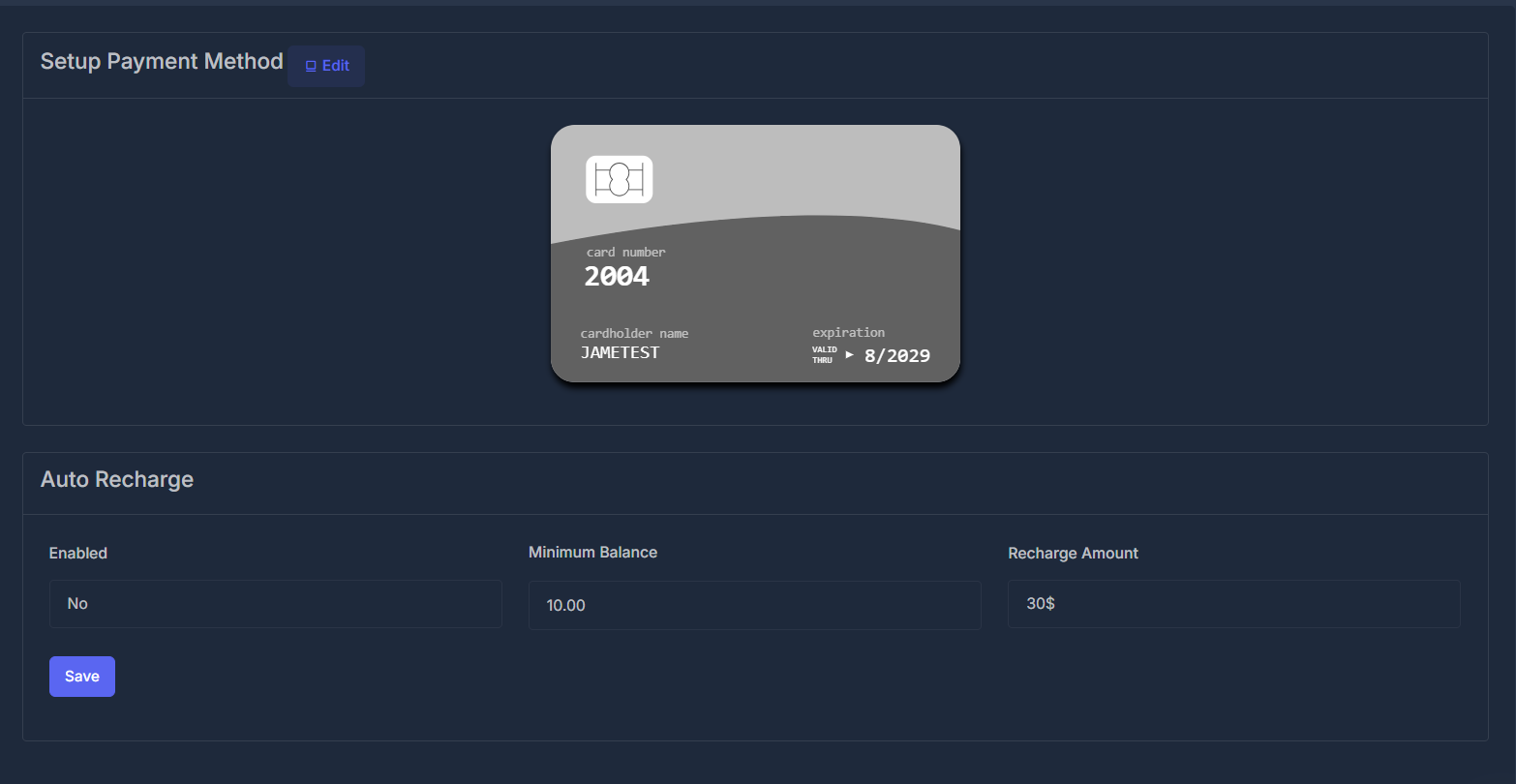
Secure payment processing is essential for maintaining uninterrupted service. The payment method section allows you to configure your preferred payment option.
### Key Fields
**Current Value**: 2024-10-21
The date when your trial period began. This helps track how long you've been using the service and when trial benefits expire.
**Current Value**: 2024-10-22
The date when your trial period ends. After this date, regular subscription pricing applies.
**Current Value**: 2024-10-26
Your next billing cycle date. This is when your subscription will automatically renew and your payment method will be charged.
Keep track of your renewal date to avoid unexpected charges. You can modify or cancel your subscription before the renewal date if needed.
## 💳 Setup Payment Method
Secure payment processing is essential for maintaining uninterrupted service. The payment method section allows you to configure your preferred payment option.
 ### Payment Method Configuration
Click the **Edit** button to add or modify your payment method
Provide your credit card information securely
* Card Number: \*\*\*\*2604
* Cardholder Name: JANE TEST
* Expiration: 8/2029
Complete the verification process to activate your payment method
Ensure your payment method is valid and has sufficient funds to avoid service interruptions. Update your payment information before the card expires.
## 🔄 Auto Recharge Settings
Auto Recharge ensures your account maintains a minimum balance for continuous service without manual intervention.
### Configuration Options
| Setting | Description | Current Value |
| ------------------- | ----------------------------------------- | ------------- |
| **Enabled** | Toggle auto-recharge functionality | No |
| **Minimum Balance** | Balance threshold that triggers recharge | \$10.00 |
| **Recharge Amount** | Amount added when auto-recharge activates | \$30 |
### How Auto Recharge Works
```mermaid theme={null}
graph TD
A[Account Balance] -->|Falls Below| B[Minimum Balance: $10.00]
B --> C{Auto Recharge Enabled?}
C -->|Yes| D[Charge Payment Method]
C -->|No| E[Manual Top-up Required]
D --> F[Add $30 to Balance]
F --> G[Service Continues]
E --> H[Service May Be Interrupted]
```
System continuously monitors your account balance
When balance falls below \$10.00, auto-recharge triggers
\$30 is automatically charged to your configured payment method
Your account balance is immediately updated with the recharged amount
Click **Save** after making any changes to your auto-recharge settings to apply the new configuration.
## 📦 Packages Pricing
The Dev Package offers comprehensive features for development and testing environments.
### Payment Method Configuration
Click the **Edit** button to add or modify your payment method
Provide your credit card information securely
* Card Number: \*\*\*\*2604
* Cardholder Name: JANE TEST
* Expiration: 8/2029
Complete the verification process to activate your payment method
Ensure your payment method is valid and has sufficient funds to avoid service interruptions. Update your payment information before the card expires.
## 🔄 Auto Recharge Settings
Auto Recharge ensures your account maintains a minimum balance for continuous service without manual intervention.
### Configuration Options
| Setting | Description | Current Value |
| ------------------- | ----------------------------------------- | ------------- |
| **Enabled** | Toggle auto-recharge functionality | No |
| **Minimum Balance** | Balance threshold that triggers recharge | \$10.00 |
| **Recharge Amount** | Amount added when auto-recharge activates | \$30 |
### How Auto Recharge Works
```mermaid theme={null}
graph TD
A[Account Balance] -->|Falls Below| B[Minimum Balance: $10.00]
B --> C{Auto Recharge Enabled?}
C -->|Yes| D[Charge Payment Method]
C -->|No| E[Manual Top-up Required]
D --> F[Add $30 to Balance]
F --> G[Service Continues]
E --> H[Service May Be Interrupted]
```
System continuously monitors your account balance
When balance falls below \$10.00, auto-recharge triggers
\$30 is automatically charged to your configured payment method
Your account balance is immediately updated with the recharged amount
Click **Save** after making any changes to your auto-recharge settings to apply the new configuration.
## 📦 Packages Pricing
The Dev Package offers comprehensive features for development and testing environments.
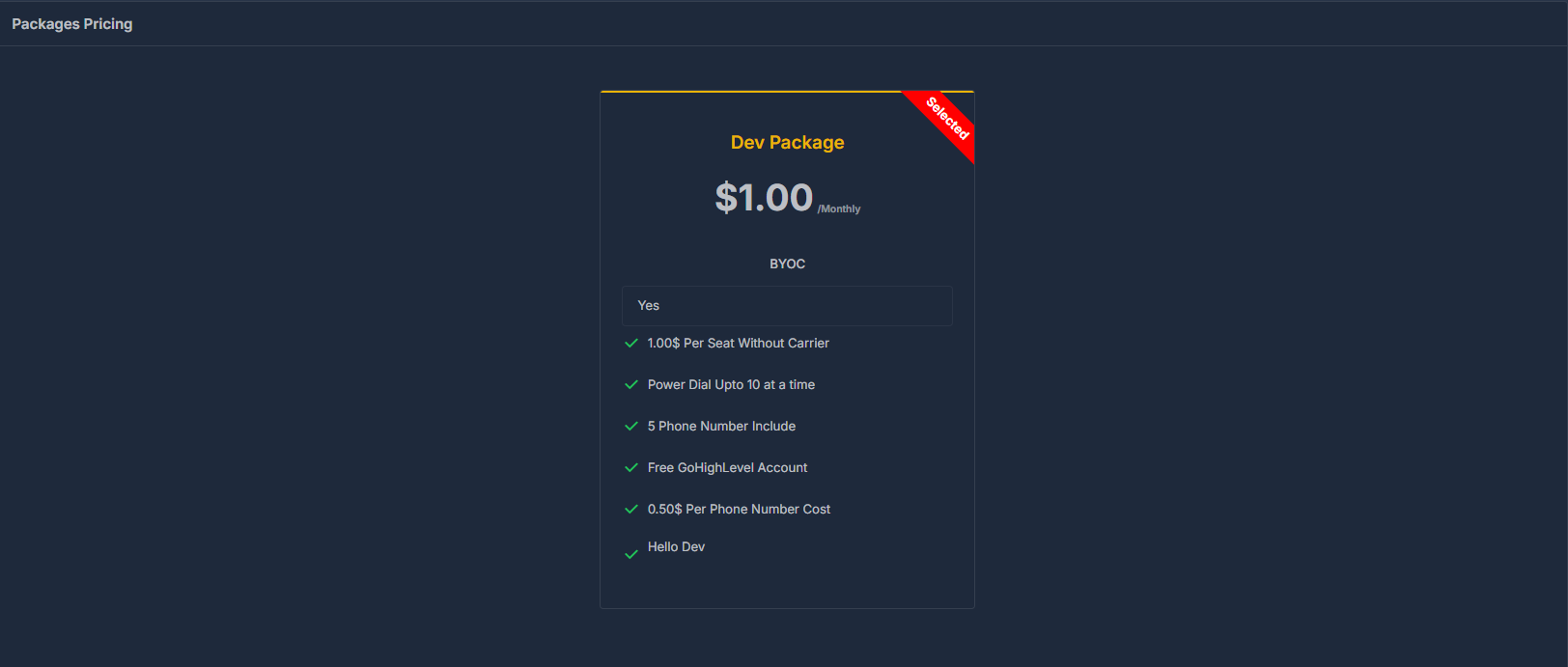 ### Dev Package - \$1.00/Monthly
Perfect for developers and small-scale testing environments
**BYOC (Bring Your Own Carrier)**
✅ **1.00$ Per Seat Without Carrier**
✅ **Power Dial Upto 10 at a time**
✅ **5 Phone Number Include**
✅ **Free GetLogLevel Account**
✅ **0.50$ Per Phone Number Cost**
✅ **Hello Dev**
### Package BenefitsA
At just \$1.00 per seat, the Dev Package provides affordable access to core functionality for development teams.
Bring Your Own Carrier (BYOC) support allows you to use your preferred telecommunications provider while leveraging AISync's platform.
Concurrent dialing capability for up to 10 calls simultaneously, perfect for testing call center operations.
Includes 5 phone numbers in the base package, with additional numbers available at \$0.50 each.
Free access to GetLogLevel account for enhanced logging and monitoring capabilities.
## 🔧 Workflow & Usage Guide
### Daily Operations Workflow
```mermaid theme={null}
flowchart TD
A[Login to Rizler] --> B[Check Account Balance]
B --> C{Balance Sufficient?}
C -->|Yes| D[Continue Operations]
C -->|No| E[Manual Top-up or Wait for Auto-recharge]
E --> F[Add Funds]
F --> D
D --> G[Monitor Usage]
G --> H[Review Subscription Status]
H --> I[Plan for Next Billing Cycle]
```
### Monthly Subscription Management
Check your monthly usage patterns and costs
Determine if your current package meets your needs
Ensure payment information is current and valid
Set appropriate thresholds based on usage patterns
Consider upgrading if you're approaching package limits
## ⚡ Quick Actions
1. Navigate to Auto Recharge section
2. Toggle **Enabled** to "Yes"
3. Set desired minimum balance and recharge amount
4. Click **Save**
1. Click **Edit** in the Setup Payment Method section
2. Enter new payment information
3. Verify card details
4. Save changes
View the **Renewal At** field in Subscription Details to see your next billing date: **2024-10-26**
## 🚨 Troubleshooting
**Common Issues and Solutions**
* **Payment Failed**: Update payment method or contact your bank
* **Service Interrupted**: Check account balance and payment status
* **Auto-recharge Not Working**: Verify payment method and settings
* **Billing Questions**: Contact support with your account details
## 📞 Support & Assistance
For additional help with subscription management:
* **Documentation**: Refer to billing and payment method guides
* **Support Team**: Contact customer support for billing issues
* **Account Management**: Use the settings panel for self-service options
Your subscription status and billing information are updated in real-time. Changes to payment methods or auto-recharge settings take effect immediately upon saving.
### Dev Package - \$1.00/Monthly
Perfect for developers and small-scale testing environments
**BYOC (Bring Your Own Carrier)**
✅ **1.00$ Per Seat Without Carrier**
✅ **Power Dial Upto 10 at a time**
✅ **5 Phone Number Include**
✅ **Free GetLogLevel Account**
✅ **0.50$ Per Phone Number Cost**
✅ **Hello Dev**
### Package BenefitsA
At just \$1.00 per seat, the Dev Package provides affordable access to core functionality for development teams.
Bring Your Own Carrier (BYOC) support allows you to use your preferred telecommunications provider while leveraging AISync's platform.
Concurrent dialing capability for up to 10 calls simultaneously, perfect for testing call center operations.
Includes 5 phone numbers in the base package, with additional numbers available at \$0.50 each.
Free access to GetLogLevel account for enhanced logging and monitoring capabilities.
## 🔧 Workflow & Usage Guide
### Daily Operations Workflow
```mermaid theme={null}
flowchart TD
A[Login to Rizler] --> B[Check Account Balance]
B --> C{Balance Sufficient?}
C -->|Yes| D[Continue Operations]
C -->|No| E[Manual Top-up or Wait for Auto-recharge]
E --> F[Add Funds]
F --> D
D --> G[Monitor Usage]
G --> H[Review Subscription Status]
H --> I[Plan for Next Billing Cycle]
```
### Monthly Subscription Management
Check your monthly usage patterns and costs
Determine if your current package meets your needs
Ensure payment information is current and valid
Set appropriate thresholds based on usage patterns
Consider upgrading if you're approaching package limits
## ⚡ Quick Actions
1. Navigate to Auto Recharge section
2. Toggle **Enabled** to "Yes"
3. Set desired minimum balance and recharge amount
4. Click **Save**
1. Click **Edit** in the Setup Payment Method section
2. Enter new payment information
3. Verify card details
4. Save changes
View the **Renewal At** field in Subscription Details to see your next billing date: **2024-10-26**
## 🚨 Troubleshooting
**Common Issues and Solutions**
* **Payment Failed**: Update payment method or contact your bank
* **Service Interrupted**: Check account balance and payment status
* **Auto-recharge Not Working**: Verify payment method and settings
* **Billing Questions**: Contact support with your account details
## 📞 Support & Assistance
For additional help with subscription management:
* **Documentation**: Refer to billing and payment method guides
* **Support Team**: Contact customer support for billing issues
* **Account Management**: Use the settings panel for self-service options
Your subscription status and billing information are updated in real-time. Changes to payment methods or auto-recharge settings take effect immediately upon saving.