> ## Documentation Index
> Fetch the complete documentation index at: https://docs.aisync.link/llms.txt
> Use this file to discover all available pages before exploring further.
# Calendar
> Manage appointments and scheduling
Easily manage your calendars, appointments, and bookings from a single dashboard.
 ## 📊 Dashboard Overview
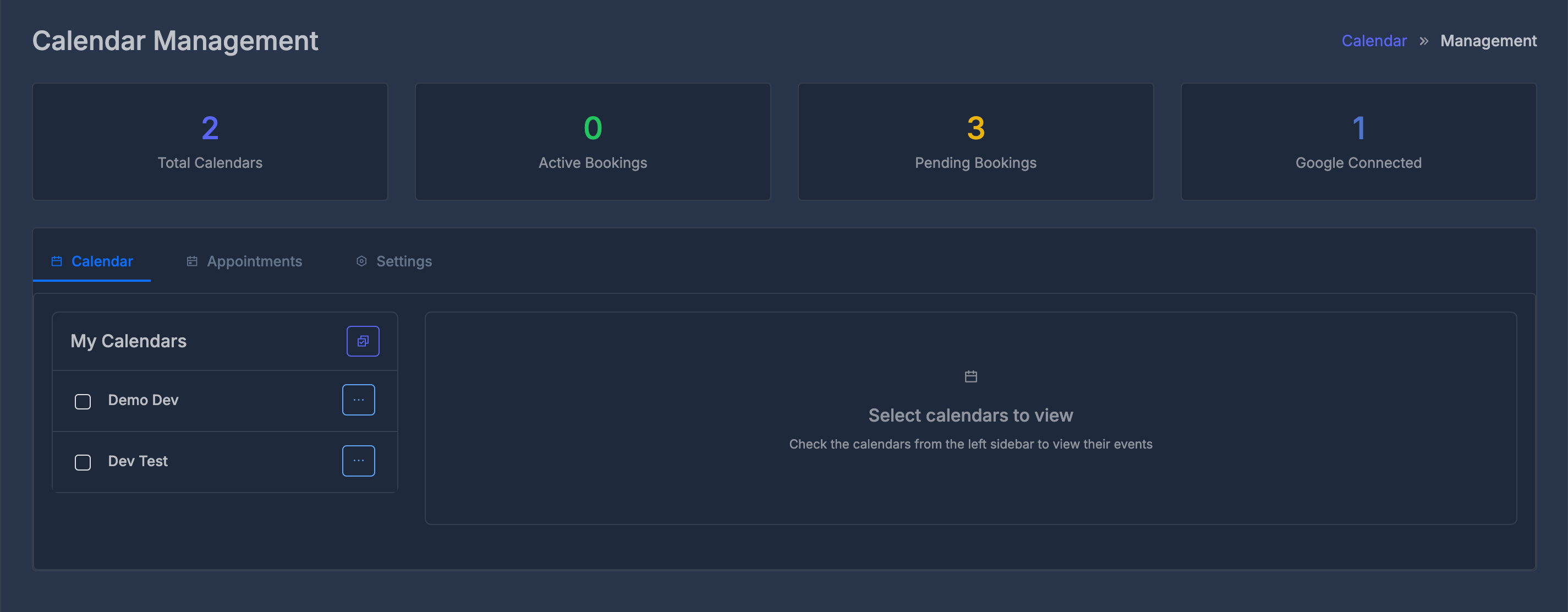
At the top of the Calendar Management page, you'll see four stat cards:
* **Total Calendars**
* **Active Bookings**
* **Pending Bookings**
* **Google Connected**
Each card displays a large number and a label.
## 📊 Dashboard Overview
At the top of the Calendar Management page, you'll see four stat cards:
* **Total Calendars**
* **Active Bookings**
* **Pending Bookings**
* **Google Connected**
Each card displays a large number and a label.
 ***
## 🗂️ Tab Navigation
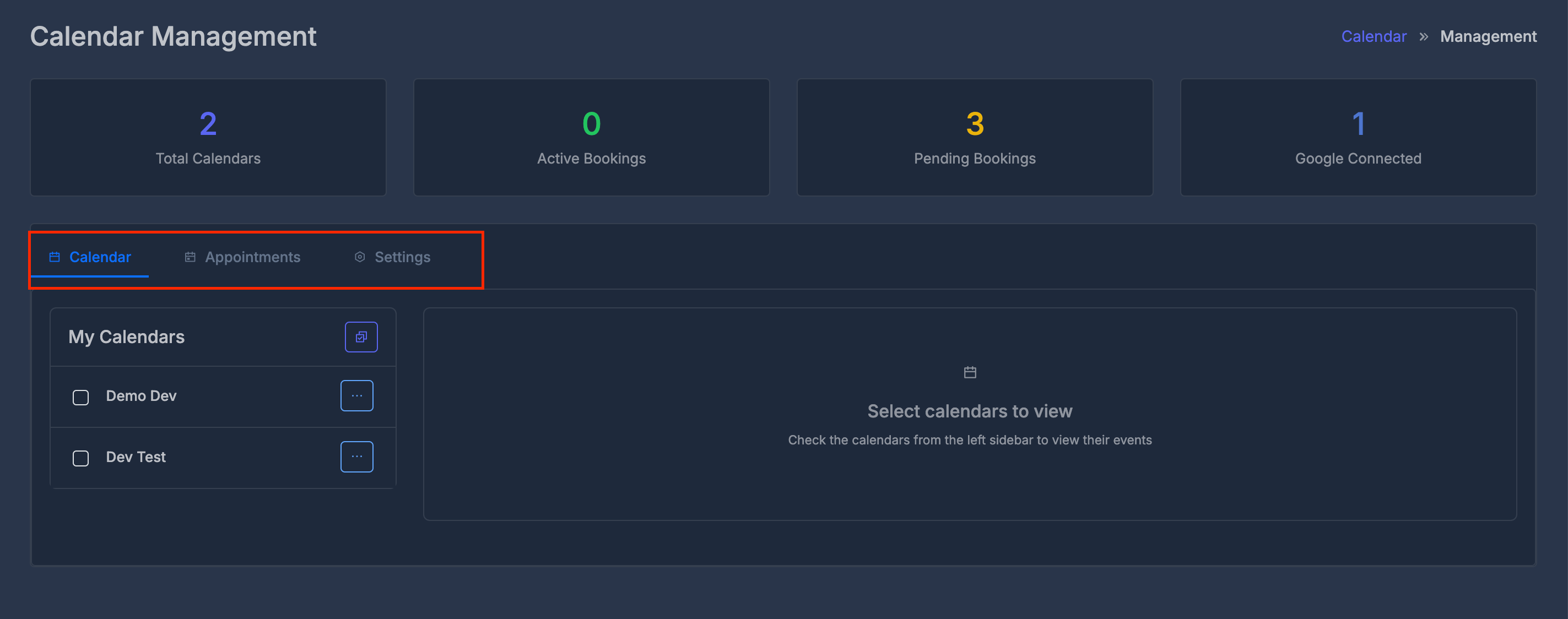
Below the stats, there are three main tabs:
* **Calendar**: View and manage your calendars and events
* **Appointments**: See all appointments and events in a table with filters
* **Settings**: Manage calendar settings and create new calendars
Switching tabs updates the content below.
***
## 🗂️ Tab Navigation
Below the stats, there are three main tabs:
* **Calendar**: View and manage your calendars and events
* **Appointments**: See all appointments and events in a table with filters
* **Settings**: Manage calendar settings and create new calendars
Switching tabs updates the content below.
 ***
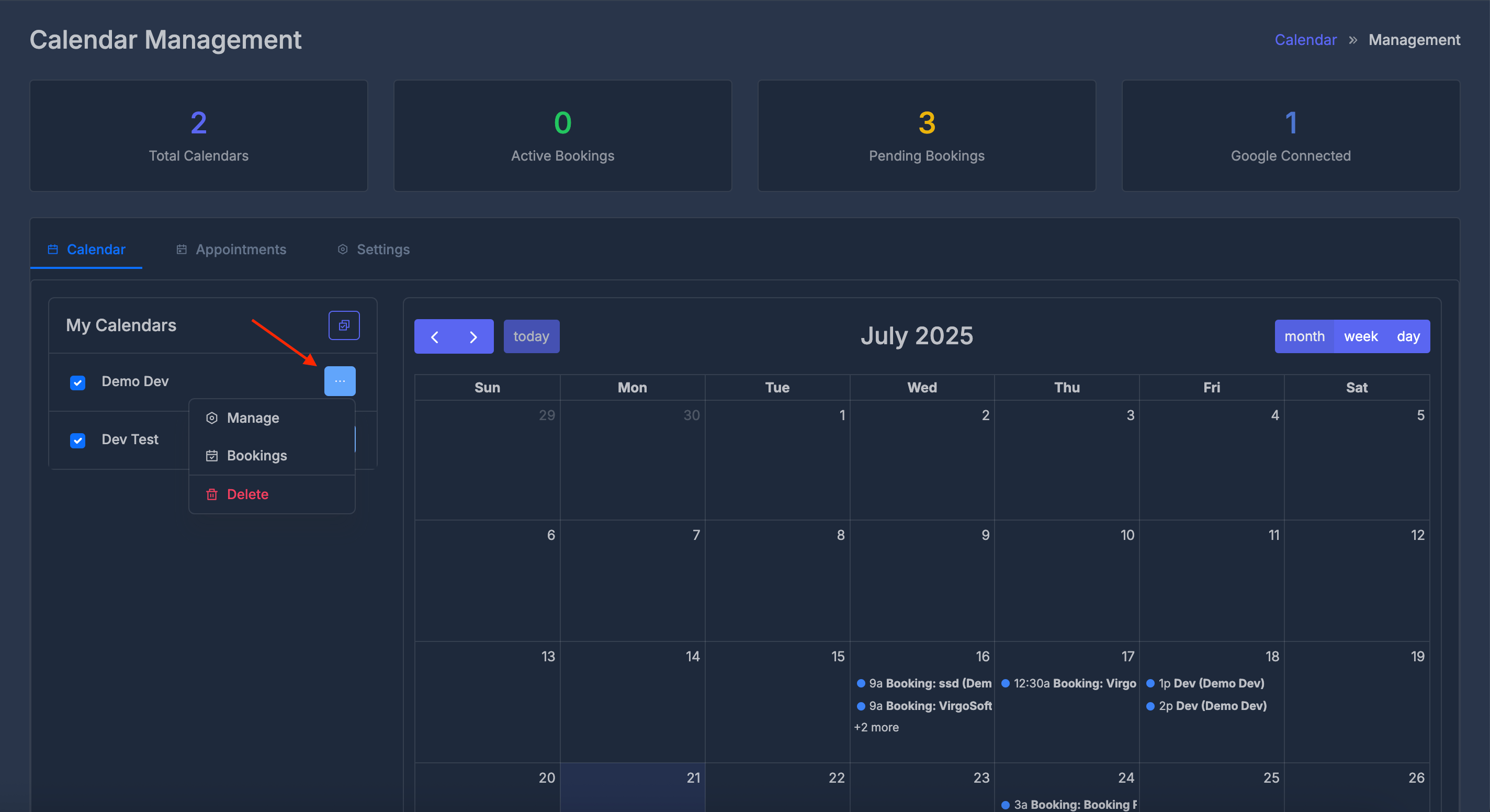
### 📅 My Calendars Sidebar
On the **Calendar** tab, the left sidebar lists "My Calendars":
* Each calendar has a checkbox to select/deselect it for viewing
* A "Select All" button at the top right of the list lets you quickly select or deselect all calendars
* Each calendar has a three-dot menu (**•••**) with these options:
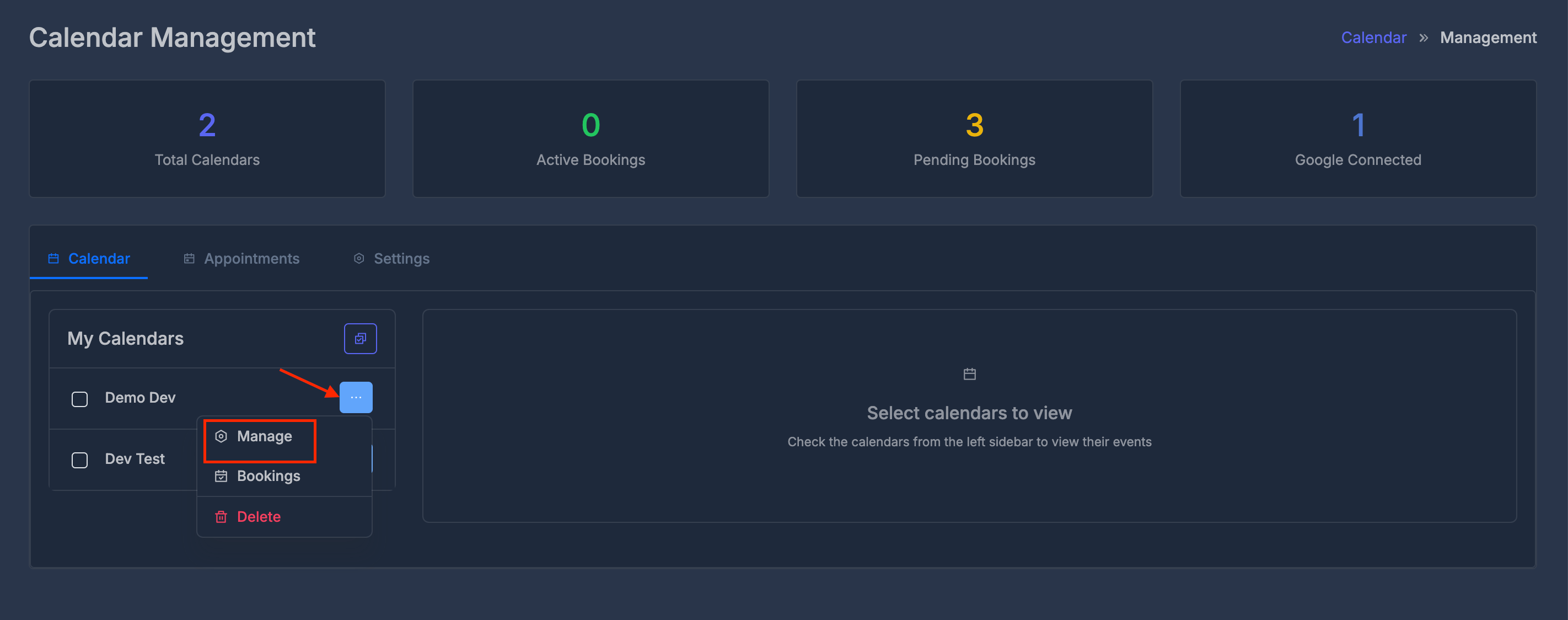
* **Manage**: Open detailed management for the calendar
* **Bookings**: View all bookings for the calendar
* **Delete**: Remove the calendar (confirmation required)
Selecting calendars updates the main calendar view to show events for the selected calendars.
***
### 📅 My Calendars Sidebar
On the **Calendar** tab, the left sidebar lists "My Calendars":
* Each calendar has a checkbox to select/deselect it for viewing
* A "Select All" button at the top right of the list lets you quickly select or deselect all calendars
* Each calendar has a three-dot menu (**•••**) with these options:
* **Manage**: Open detailed management for the calendar
* **Bookings**: View all bookings for the calendar
* **Delete**: Remove the calendar (confirmation required)
Selecting calendars updates the main calendar view to show events for the selected calendars.
 ***
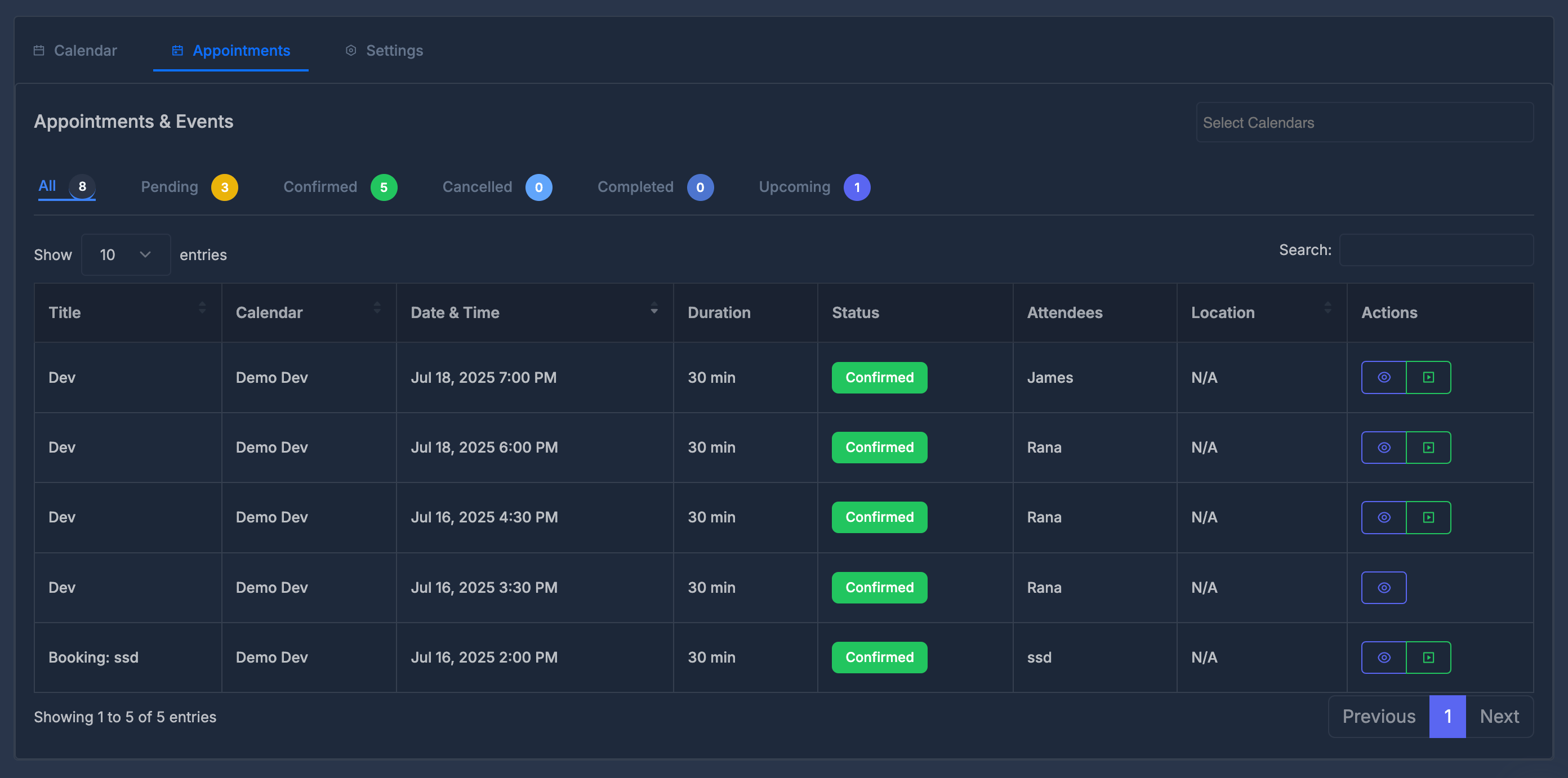
### 📆 Appointments & Events
The **Appointments** tab provides a comprehensive table of all your appointments and events. You can:
* **Filter by status** using colored pills at the top:
* **All** (shows total count)
* **Pending**
* **Confirmed**
* **Cancelled**
* **Completed**
* **Upcoming**
* **Select Calendars**: Filter events by specific calendars using the selector at the top right.
* **Search**: Use the search box to quickly find events by title, attendee, or other details.
* **Title**: Name of the event or appointment
* **Calendar**: The calendar this event belongs to
* **Date & Time**: When the event is scheduled
* **Duration**: Length of the event (e.g., 30 min)
* **Status**: Current status (e.g., Confirmed, Pending)
* **Attendees**: List of participants
* **Location**: Where the event will take place (or N/A)
* **Actions**: View or manage the event (eye icon for view, other icons for additional actions)
***
### 📆 Appointments & Events
The **Appointments** tab provides a comprehensive table of all your appointments and events. You can:
* **Filter by status** using colored pills at the top:
* **All** (shows total count)
* **Pending**
* **Confirmed**
* **Cancelled**
* **Completed**
* **Upcoming**
* **Select Calendars**: Filter events by specific calendars using the selector at the top right.
* **Search**: Use the search box to quickly find events by title, attendee, or other details.
* **Title**: Name of the event or appointment
* **Calendar**: The calendar this event belongs to
* **Date & Time**: When the event is scheduled
* **Duration**: Length of the event (e.g., 30 min)
* **Status**: Current status (e.g., Confirmed, Pending)
* **Attendees**: List of participants
* **Location**: Where the event will take place (or N/A)
* **Actions**: View or manage the event (eye icon for view, other icons for additional actions)
 ***
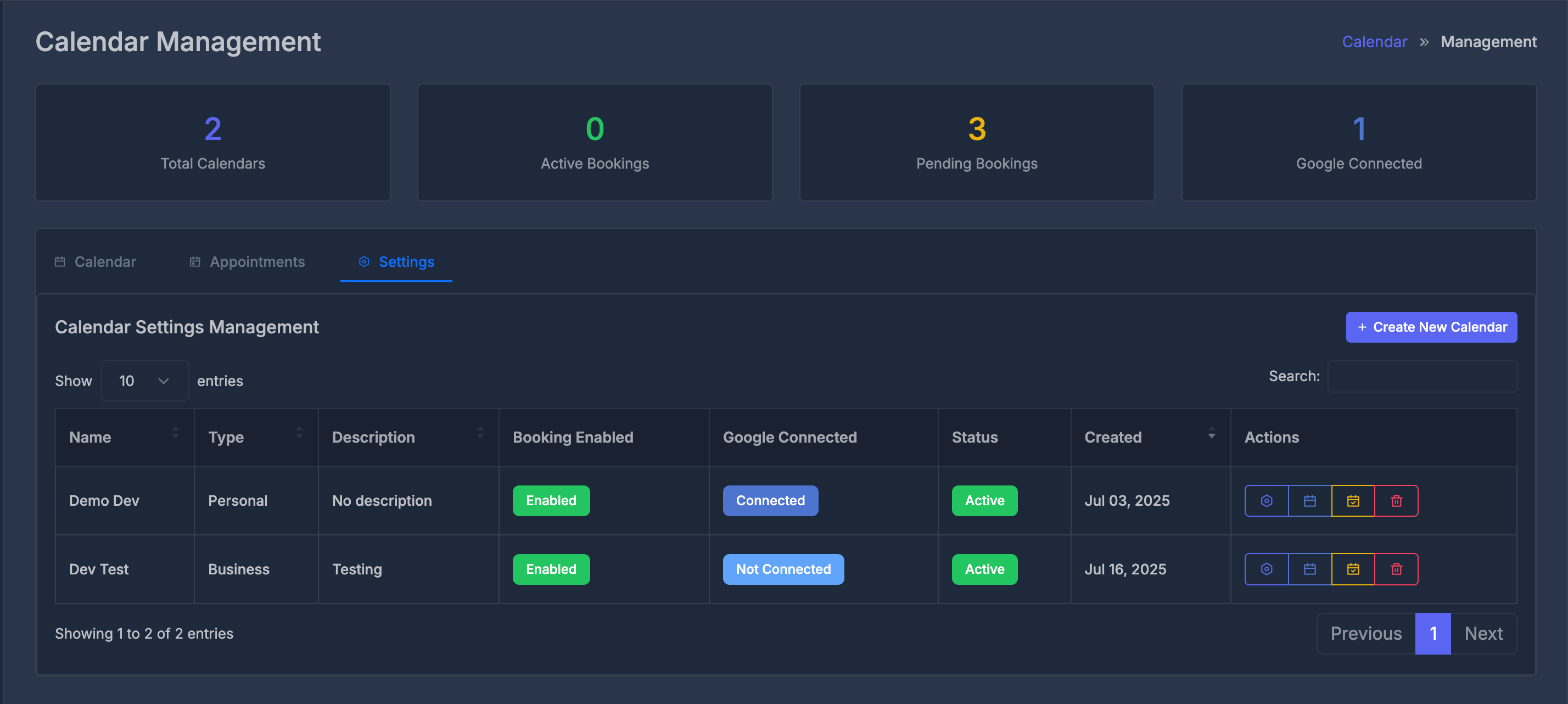
### ⚙️ Settings Tab
The **Settings** tab allows you to manage all your calendars in one place. At the top right, you'll find the **+ Create New Calendar** button to add a new calendar.
Below, the **Calendar Settings Management** table lists all calendars with the following columns:
* **Name**: Calendar name
* **Type**: Personal or Business
* **Description**: Brief details about the calendar
* **Booking Enabled**: Shows if booking is enabled ("Enabled" tag)
* **Google Connected**: Shows if the calendar is connected to Google ("Connected" or "Not Connected" tag)
* **Status**: Current status ("Active" tag)
* **Created**: Date the calendar was created
* **Actions**: Manage, Bookings, Edit , Delete
You can search calendars using the search box, and navigate through pages using the pagination controls at the bottom right.
***
### ⚙️ Settings Tab
The **Settings** tab allows you to manage all your calendars in one place. At the top right, you'll find the **+ Create New Calendar** button to add a new calendar.
Below, the **Calendar Settings Management** table lists all calendars with the following columns:
* **Name**: Calendar name
* **Type**: Personal or Business
* **Description**: Brief details about the calendar
* **Booking Enabled**: Shows if booking is enabled ("Enabled" tag)
* **Google Connected**: Shows if the calendar is connected to Google ("Connected" or "Not Connected" tag)
* **Status**: Current status ("Active" tag)
* **Created**: Date the calendar was created
* **Actions**: Manage, Bookings, Edit , Delete
You can search calendars using the search box, and navigate through pages using the pagination controls at the bottom right.
 ***
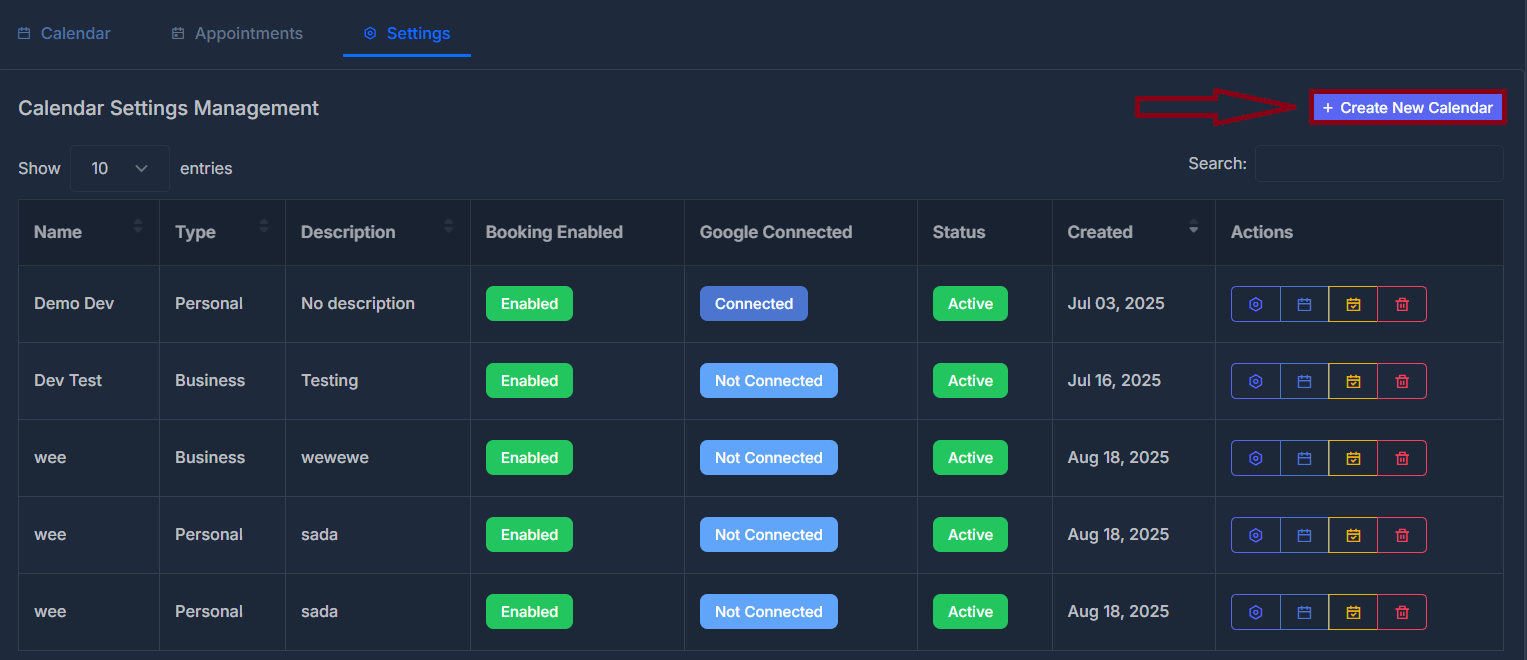
#### 🆕 Creating a New Calendar
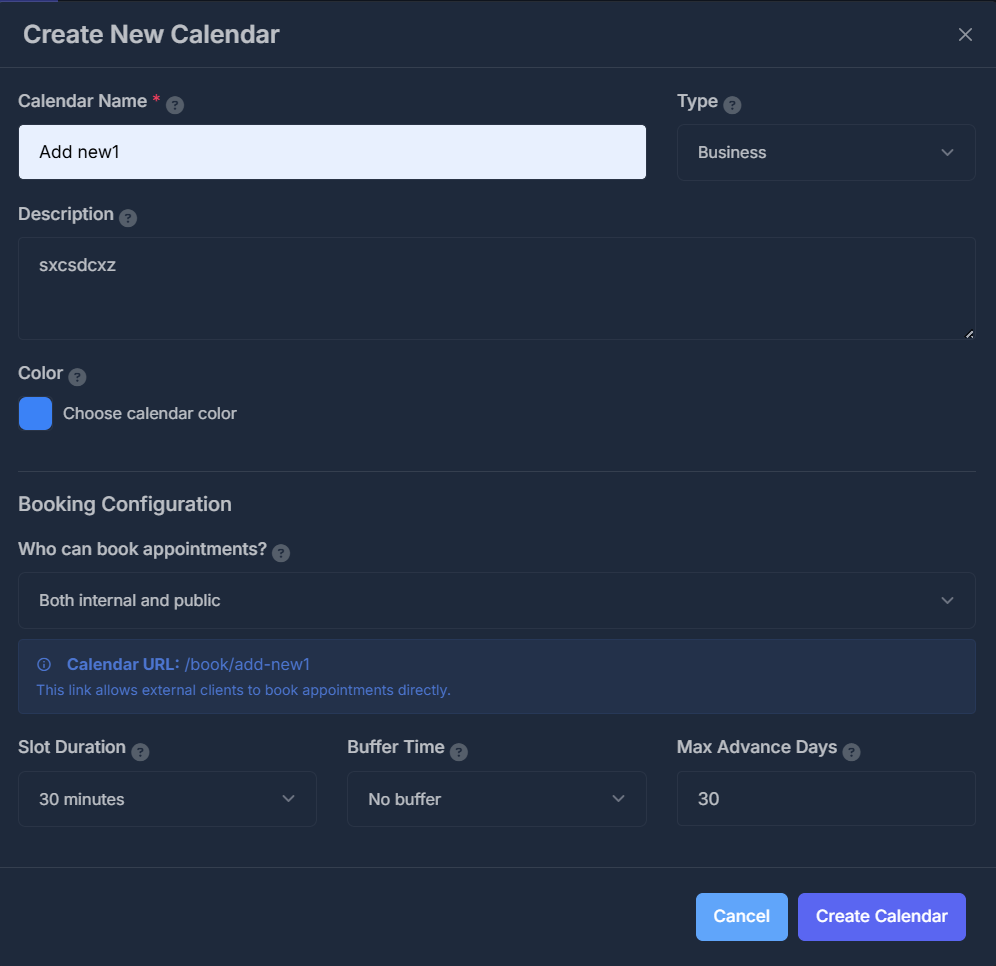
Click the **+ Create New Calendar** button (in the Settings tab) to open a modal with these options:
***
#### 🆕 Creating a New Calendar
Click the **+ Create New Calendar** button (in the Settings tab) to open a modal with these options:
 * **Calendar Name** (required): Enter a name for your calendar.
* **Type**: Select the calendar type (Personal or Business) from the dropdown.
* **Description**: Optionally add details about the calendar's purpose.
* **Color**: Choose a calendar color using the color picker.
* **Who can book appointments?**: Choose who can book appointments (e.g., Internal only/company users, Public, or Both).
* **Calendar URL**: Shows the booking link for your calendar. If set to internal, a note will indicate that only company users can book. Change the booking type to "public" or "both" to enable external bookings.
* **Slot Duration**: Set the default appointment length (e.g., 30 minutes).
* **Buffer Time**: Add buffer time between appointments (e.g., No buffer, 10 min, etc.).
* **Max Advance Days**: Set how many days in advance bookings can be made (e.g., 30).
At the bottom, use **Cancel** to close the modal without saving, or **Create Calendar** to save your new calendar.
* **Calendar Name** (required): Enter a name for your calendar.
* **Type**: Select the calendar type (Personal or Business) from the dropdown.
* **Description**: Optionally add details about the calendar's purpose.
* **Color**: Choose a calendar color using the color picker.
* **Who can book appointments?**: Choose who can book appointments (e.g., Internal only/company users, Public, or Both).
* **Calendar URL**: Shows the booking link for your calendar. If set to internal, a note will indicate that only company users can book. Change the booking type to "public" or "both" to enable external bookings.
* **Slot Duration**: Set the default appointment length (e.g., 30 minutes).
* **Buffer Time**: Add buffer time between appointments (e.g., No buffer, 10 min, etc.).
* **Max Advance Days**: Set how many days in advance bookings can be made (e.g., 30).
At the bottom, use **Cancel** to close the modal without saving, or **Create Calendar** to save your new calendar.
 ## 🛠️ Managing Calendars
To manage an existing calendar, click the menu (•••) on any calendar and select "Manage Calendar". This opens a detailed management interface with five tabs:(Overview, Settings, Availability, Booking, Integration)
## 🛠️ Managing Calendars
To manage an existing calendar, click the menu (•••) on any calendar and select "Manage Calendar". This opens a detailed management interface with five tabs:(Overview, Settings, Availability, Booking, Integration)
 ### 🗒️ Overview
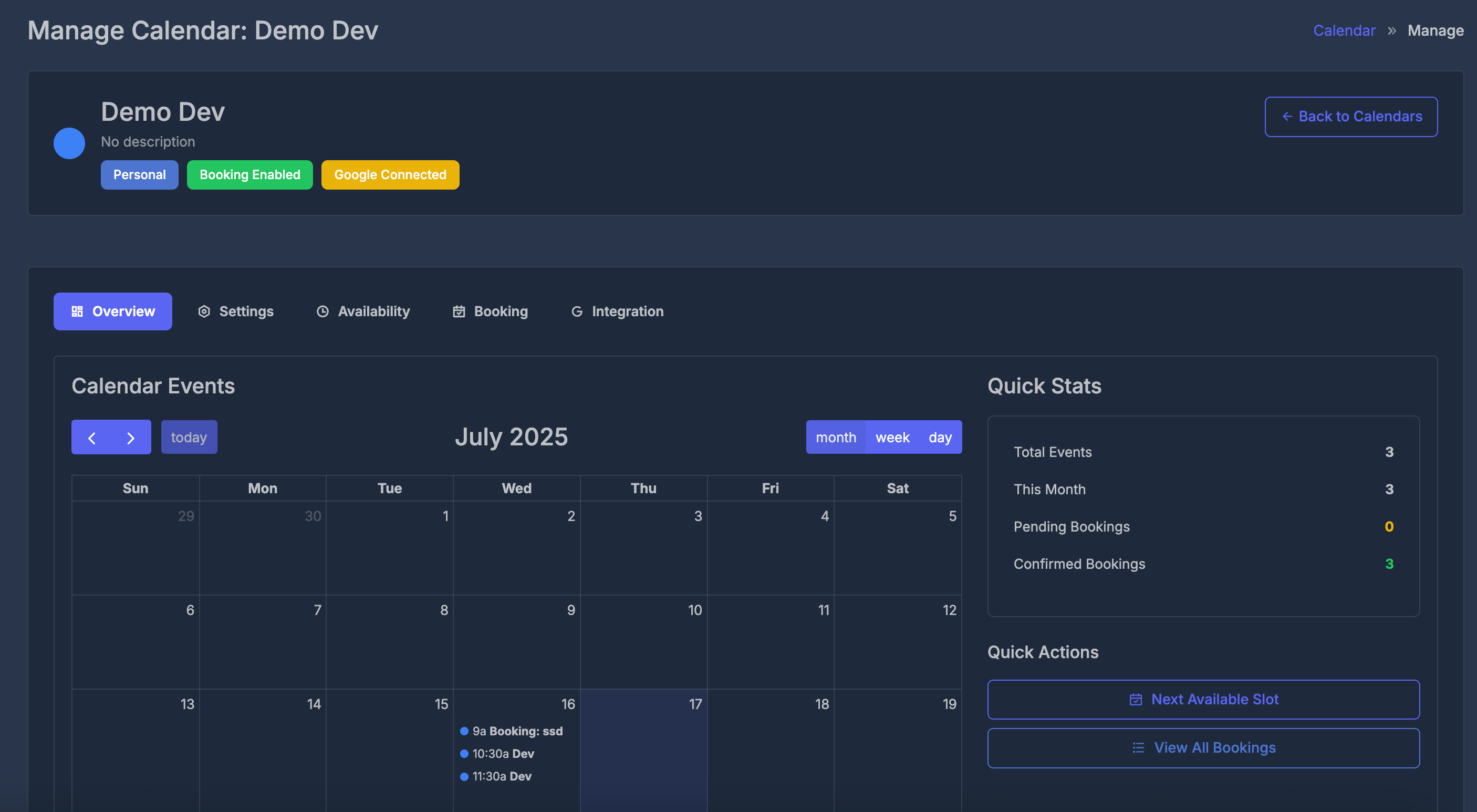
The **Overview** tab provides a comprehensive view of your selected calendar:
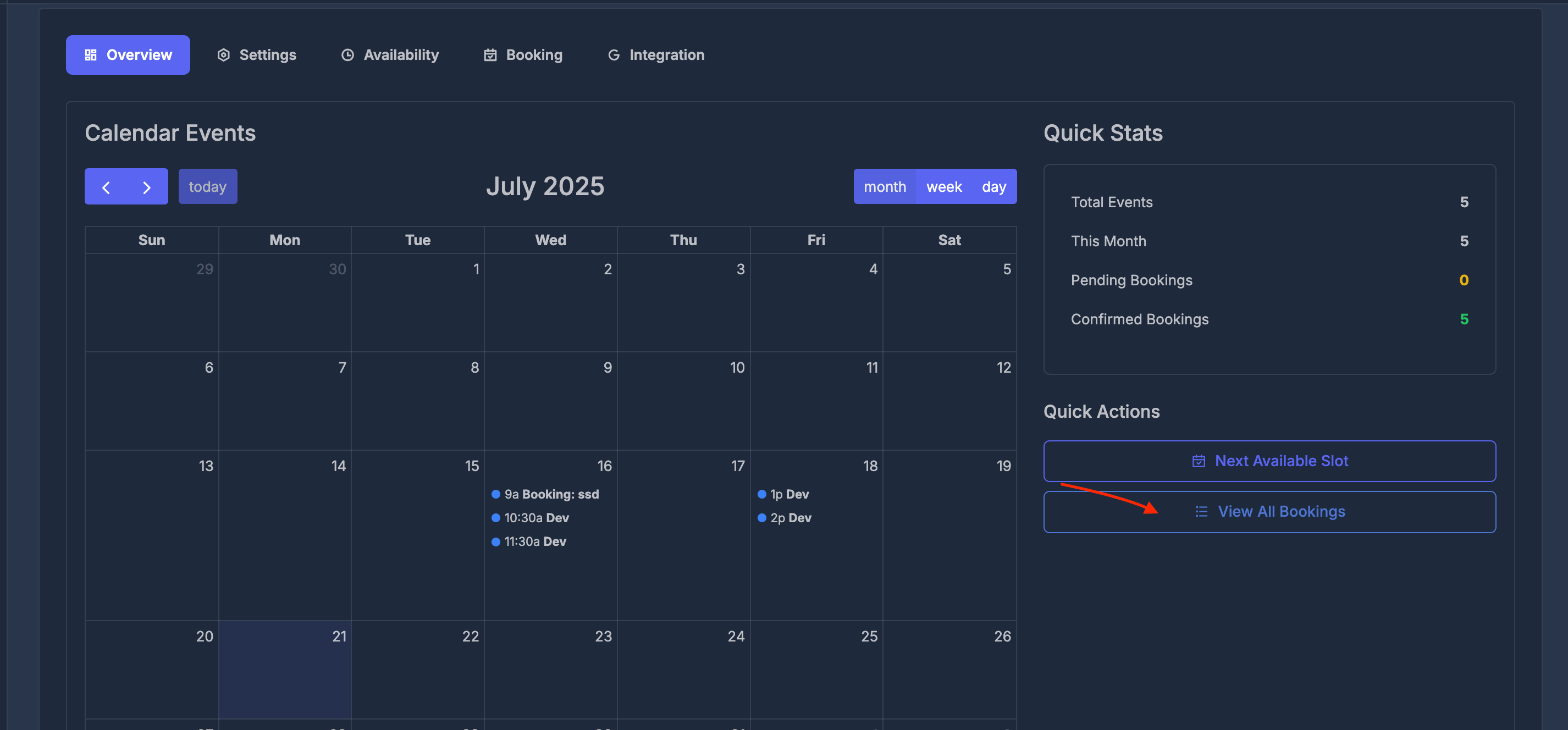
* **Calendar Events**: The main panel displays a calendar grid (month/week/day view) with navigation arrows and a "today" button. Events and bookings are shown as colored dots with titles.
* **Quick Stats**: On the right, see a summary of:
* Total Events
* This Month's Events
* Pending Bookings
* Confirmed Bookings
### 🗒️ Overview
The **Overview** tab provides a comprehensive view of your selected calendar:
* **Calendar Events**: The main panel displays a calendar grid (month/week/day view) with navigation arrows and a "today" button. Events and bookings are shown as colored dots with titles.
* **Quick Stats**: On the right, see a summary of:
* Total Events
* This Month's Events
* Pending Bookings
* Confirmed Bookings
 * **Quick Actions**:
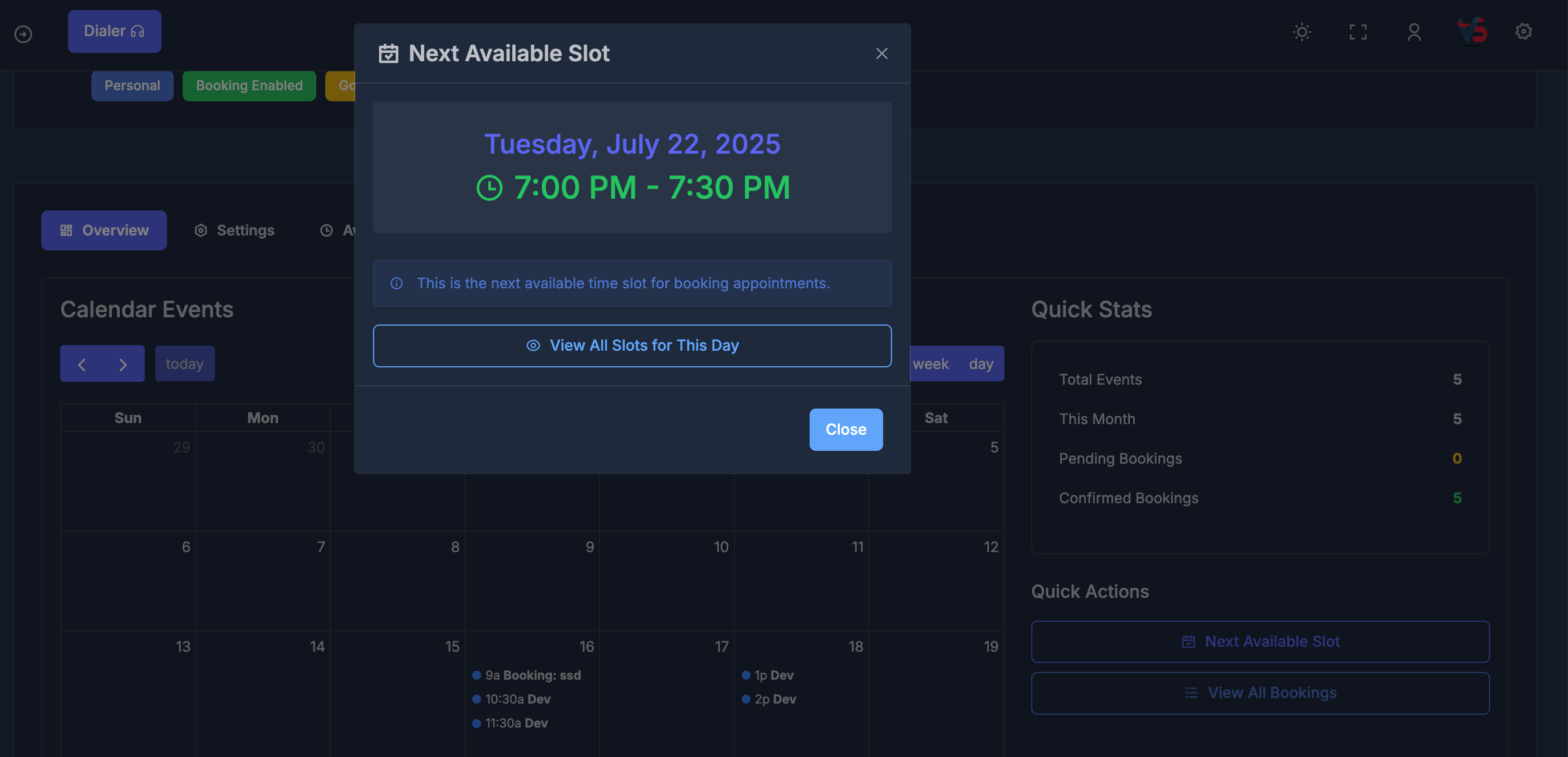
* **Next Available Slot**: Click to instantly find the next open time slot for booking appointments. This opens a modal showing the next available date and time, with an option to view all slots for that day.
* **Quick Actions**:
* **Next Available Slot**: Click to instantly find the next open time slot for booking appointments. This opens a modal showing the next available date and time, with an option to view all slots for that day.
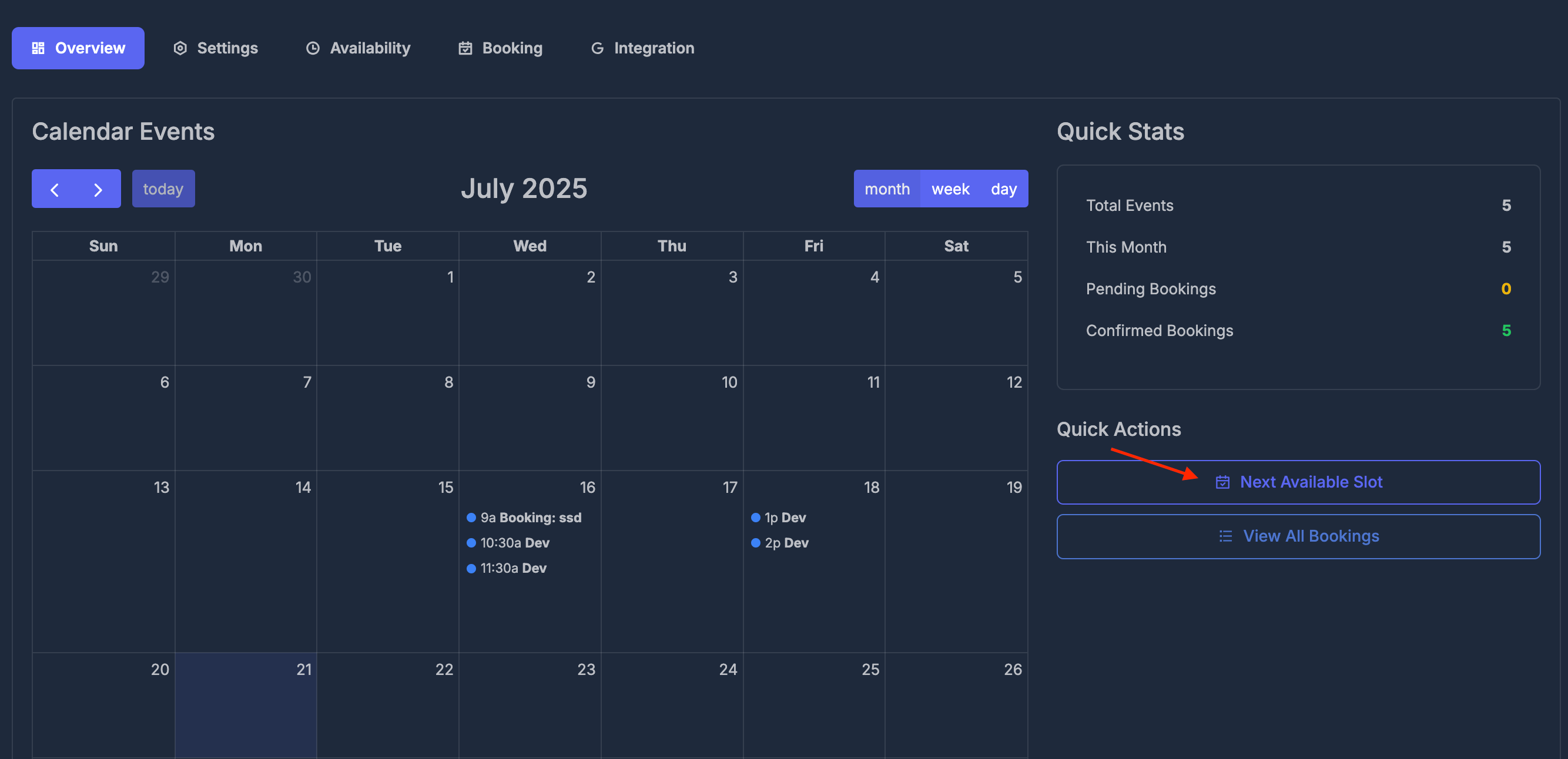
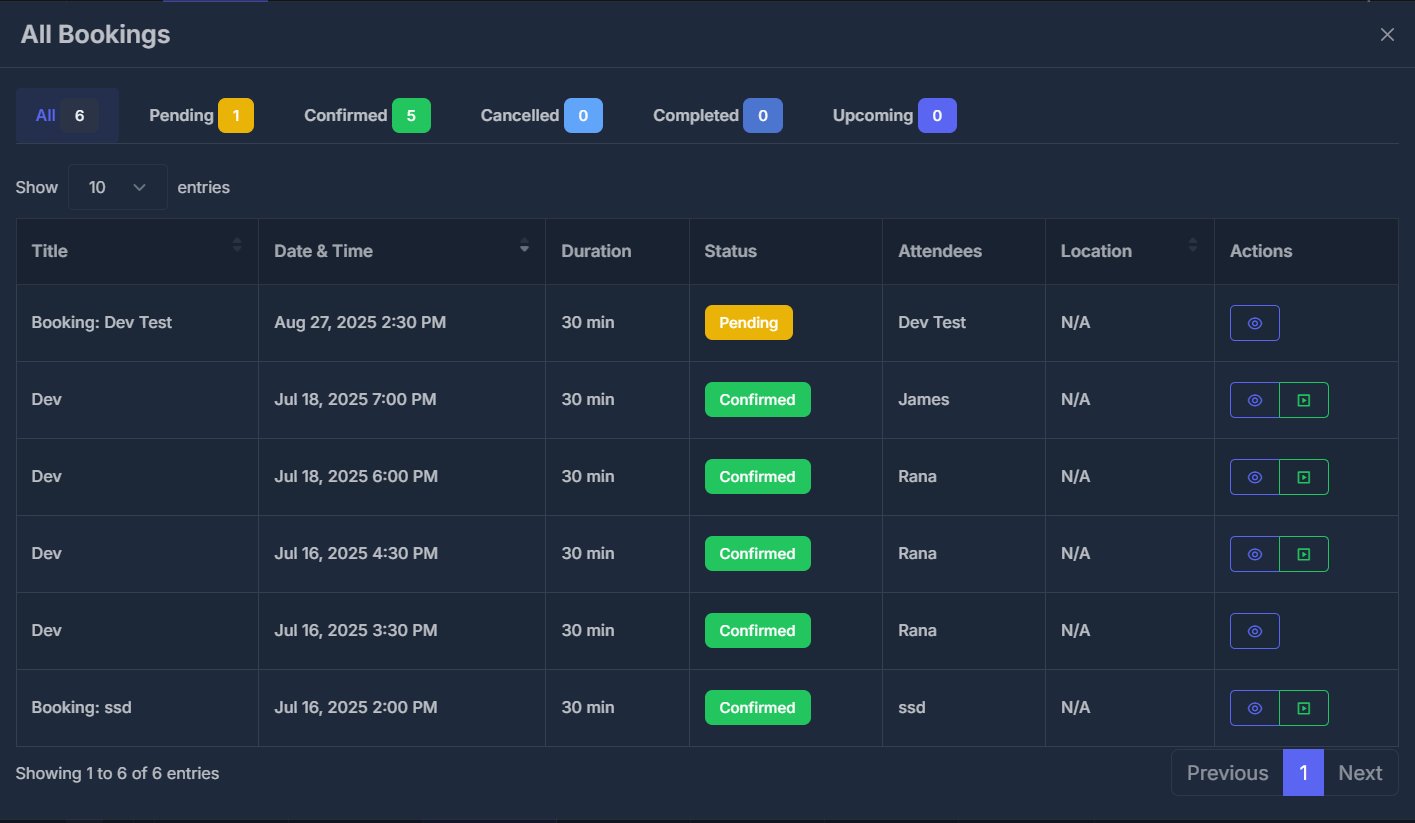
 * **View All Bookings**: Click to see a list of all bookings for the selected calendar.
 ### ⚙️ Settings
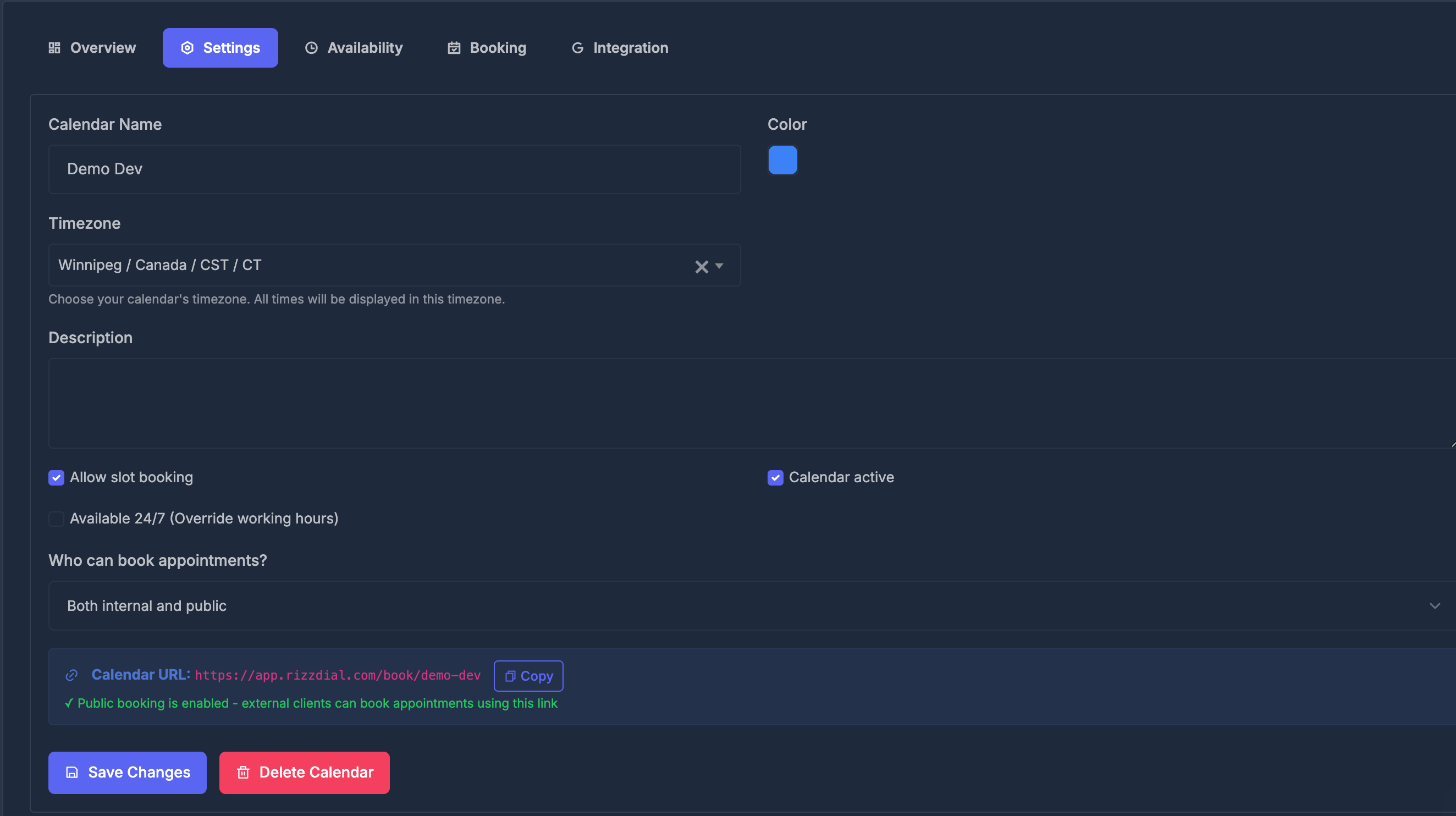
Adjust the main configuration options for your calendar here:
* **Calendar Name & Color**: Update the calendar’s name and select a color for easy identification.
* **Timezone**: Specify the timezone for event scheduling (e.g., Winnipeg, Canada, CST, CT).
* **Description**: Add or modify a brief summary or purpose of the calendar.
* **Booking & Activity Settings**:
* **Allow slot booking**: Toggle to permit or restrict appointment bookings.
* **Calendar active**: Activate or deactivate the calendar as needed.
* **Available 24/7**: Optionally make availability round-the-clock, bypassing standard working hours.
* **Appointment Permissions**: Set who can book appointments (internal users, public, or both).
* **Calendar URL**: Access and copy your calendar’s shareable booking link.
* **Actions**: Save any updates, or delete the calendar if no longer needed.
### ⚙️ Settings
Adjust the main configuration options for your calendar here:
* **Calendar Name & Color**: Update the calendar’s name and select a color for easy identification.
* **Timezone**: Specify the timezone for event scheduling (e.g., Winnipeg, Canada, CST, CT).
* **Description**: Add or modify a brief summary or purpose of the calendar.
* **Booking & Activity Settings**:
* **Allow slot booking**: Toggle to permit or restrict appointment bookings.
* **Calendar active**: Activate or deactivate the calendar as needed.
* **Available 24/7**: Optionally make availability round-the-clock, bypassing standard working hours.
* **Appointment Permissions**: Set who can book appointments (internal users, public, or both).
* **Calendar URL**: Access and copy your calendar’s shareable booking link.
* **Actions**: Save any updates, or delete the calendar if no longer needed.
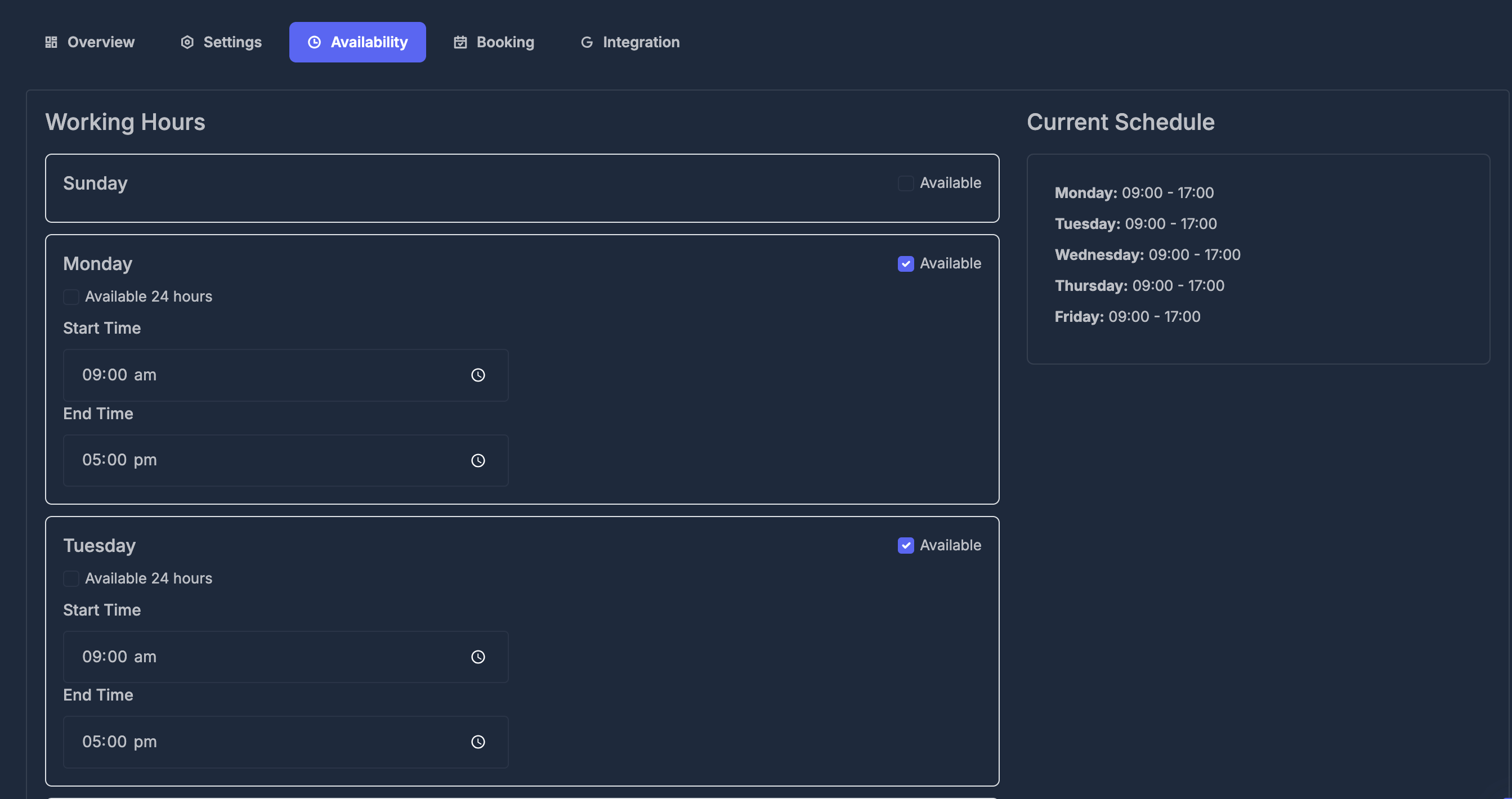
 ### ⏰ Availability
Set your working hours and availability:
* **Working Hours**: Configure availability for each day of the week
* Check "Available" to enable each day
* Set start and end times (e.g., 9:00 AM - 5:00 PM)
* Option to set "Available 24 hours" for specific days
* **Current Schedule**: View a summary of your configured working hours
* **Default Schedule**: Monday-Friday 9:00-17:00, Sunday typically unavailable
### ⏰ Availability
Set your working hours and availability:
* **Working Hours**: Configure availability for each day of the week
* Check "Available" to enable each day
* Set start and end times (e.g., 9:00 AM - 5:00 PM)
* Option to set "Available 24 hours" for specific days
* **Current Schedule**: View a summary of your configured working hours
* **Default Schedule**: Monday-Friday 9:00-17:00, Sunday typically unavailable
 ### 📋 Booking
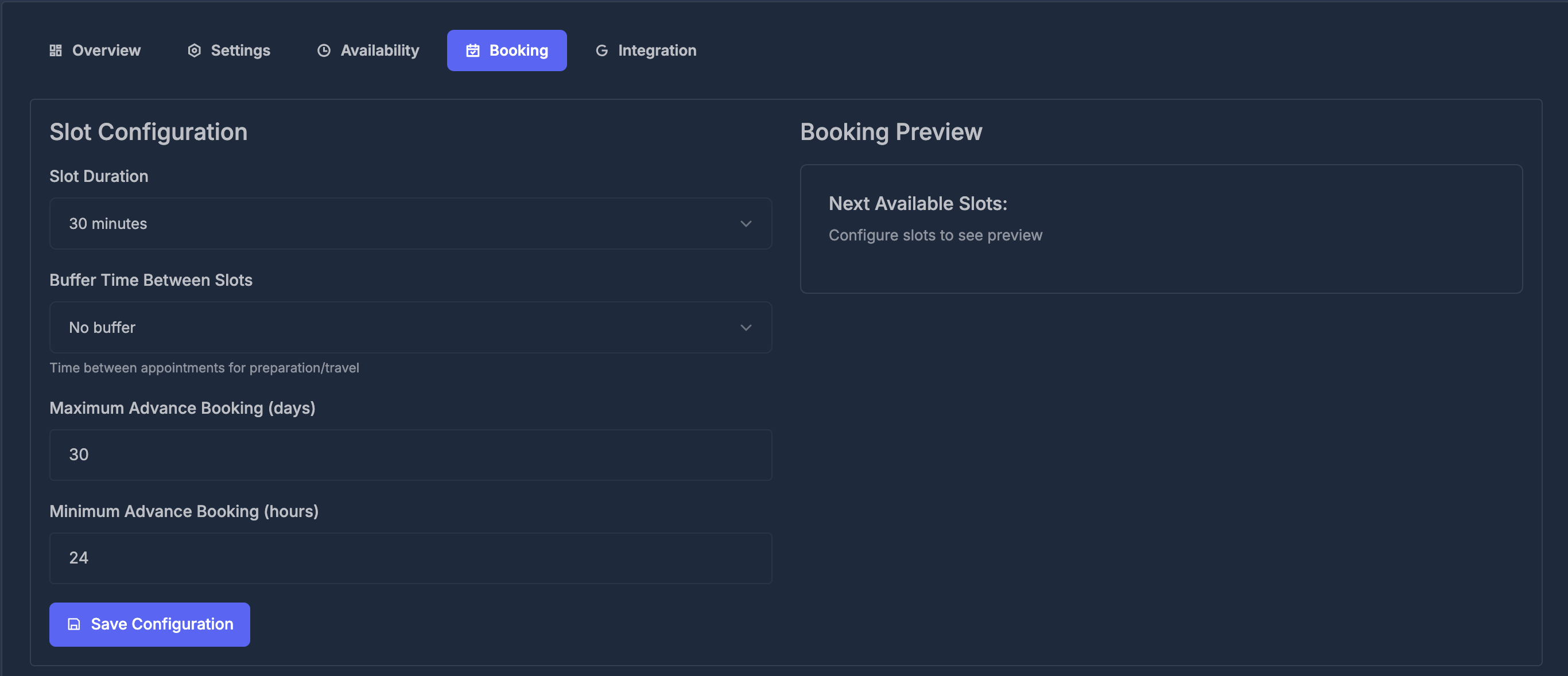
Configure appointment booking settings:
* **Slot Configuration**:
* **Slot Duration**: Set appointment length (e.g., 30 minutes)
* **Buffer Time**: Add time between appointments for preparation/travel
* **Maximum Advance Booking**: Set how many days in advance people can book (e.g., 30 days)
* **Minimum Advance Booking**: Set minimum notice required (e.g., 24 hours)
* **Booking Preview**: See how your configured slots will appear to users
* **Save Configuration**: Apply your booking settings
### 📋 Booking
Configure appointment booking settings:
* **Slot Configuration**:
* **Slot Duration**: Set appointment length (e.g., 30 minutes)
* **Buffer Time**: Add time between appointments for preparation/travel
* **Maximum Advance Booking**: Set how many days in advance people can book (e.g., 30 days)
* **Minimum Advance Booking**: Set minimum notice required (e.g., 24 hours)
* **Booking Preview**: See how your configured slots will appear to users
* **Save Configuration**: Apply your booking settings
 ### 🔗 Integration
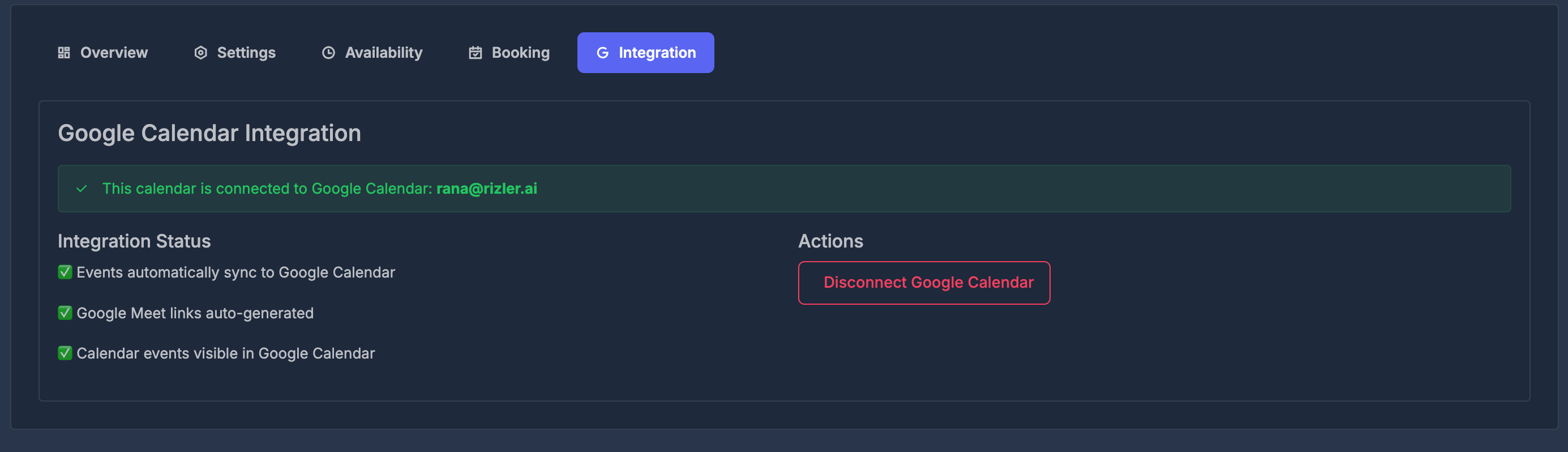
Manage Google Calendar integration:
* **Connection Status**: Shows if connected to Google Calendar with account email
* **Enabled Features**:
* Events automatically sync to Google Calendar
* Google Meet links auto-generated
* Calendar events visible in Google Calendar
* **Actions**: Disconnect from Google Calendar if needed
### 🔗 Integration
Manage Google Calendar integration:
* **Connection Status**: Shows if connected to Google Calendar with account email
* **Enabled Features**:
* Events automatically sync to Google Calendar
* Google Meet links auto-generated
* Calendar events visible in Google Calendar
* **Actions**: Disconnect from Google Calendar if needed
 ## 🤖 AI Agent Appointment Booking
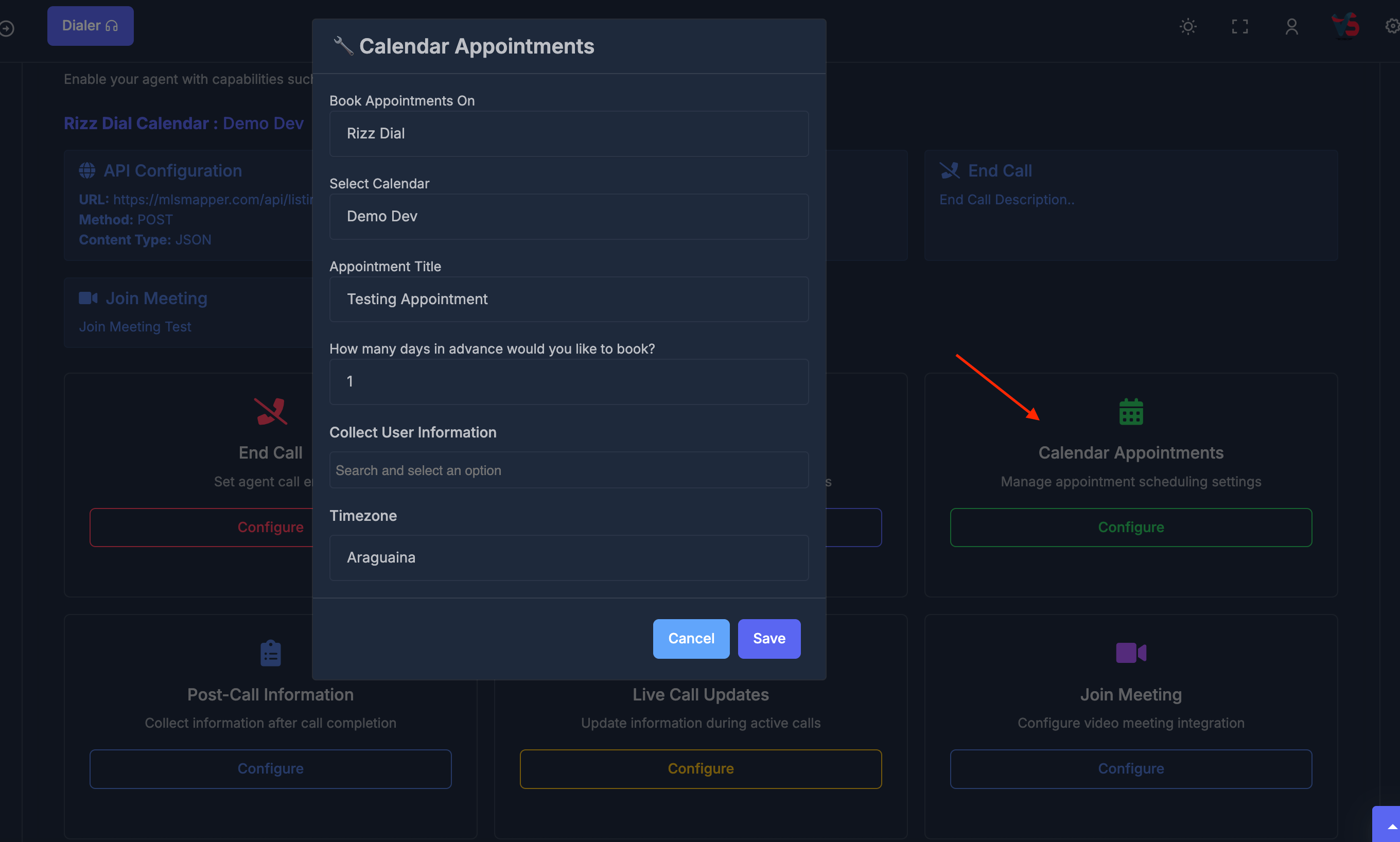
You can setup calendar in AI agent and it will check available slots and book appointment according to your setup availability, You can manage everything inside the Ai sync.
If you have connected Google Calendar then an AI agent schedules an appointment, it will be automatically added to your connected Google Calendar with all details synchronized.
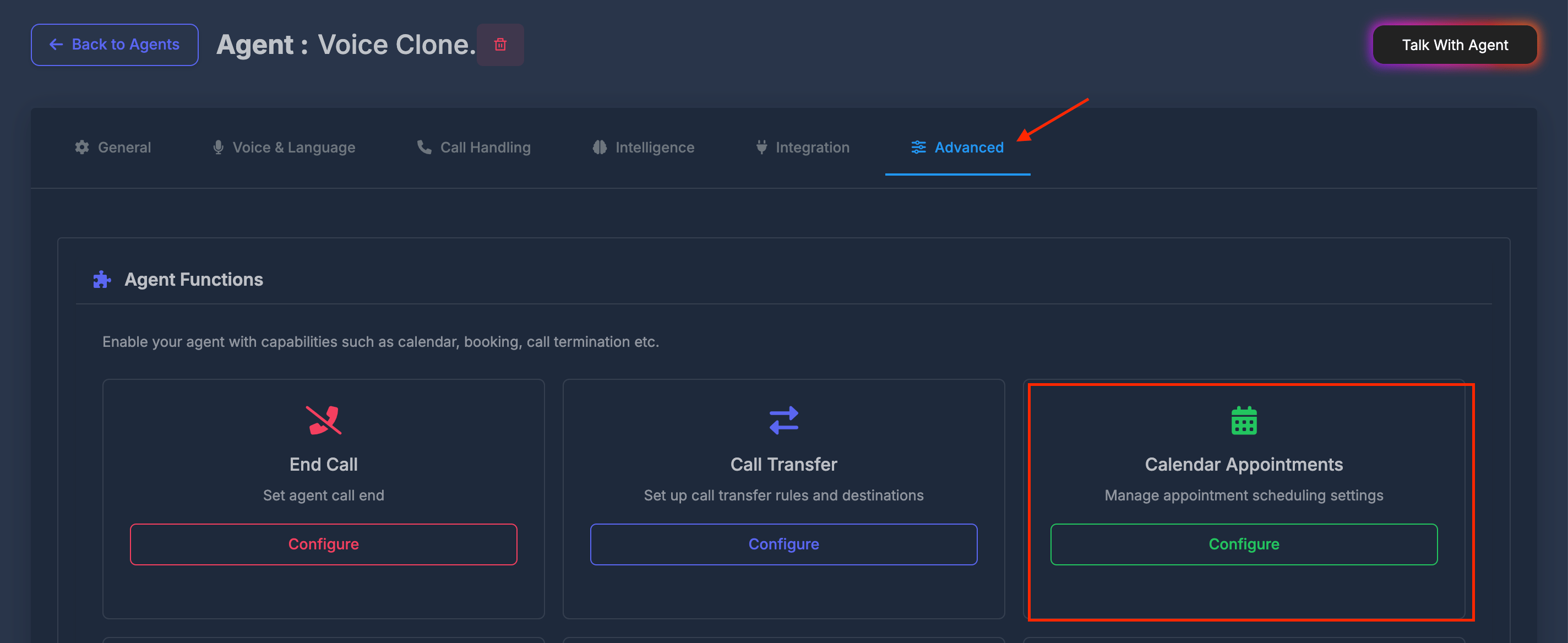
First Click AI Agent then Click Edit in Action:
## 🤖 AI Agent Appointment Booking
You can setup calendar in AI agent and it will check available slots and book appointment according to your setup availability, You can manage everything inside the Ai sync.
If you have connected Google Calendar then an AI agent schedules an appointment, it will be automatically added to your connected Google Calendar with all details synchronized.
First Click AI Agent then Click Edit in Action: