> ## Documentation Index
> Fetch the complete documentation index at: https://docs.aisync.link/llms.txt
> Use this file to discover all available pages before exploring further.
# Google Calendar
> Connect your Ai sync workspace with Google Calendar to effortlessly organize meetings, appointments, and schedules.
## 🗓️ Google Calendar Integration Overview
Seamlessly manage your schedule—view, create, and edit events—from within your Ai sync dashboard with the Google Calendar integration.
## 📅 Calendar Dashboard
 ### Key Dashboard Features
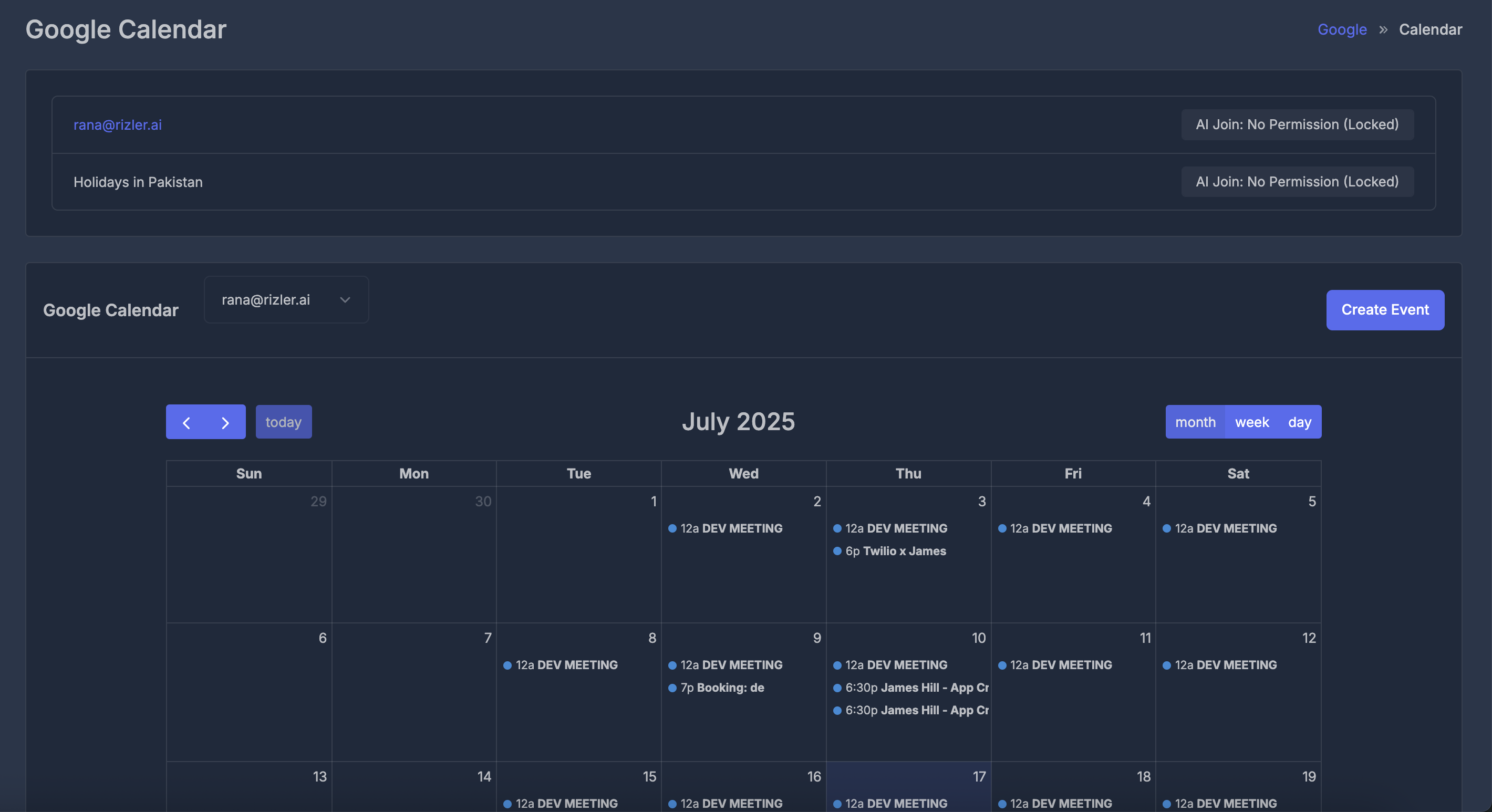
* **Connected Account**: Displays your active Google account
* **Navigation Controls**: Use arrow buttons (`<`, `>`) to switch months or click "Today" to jump to the current date
* **View Modes**: Toggle between Month, Week, or Day views
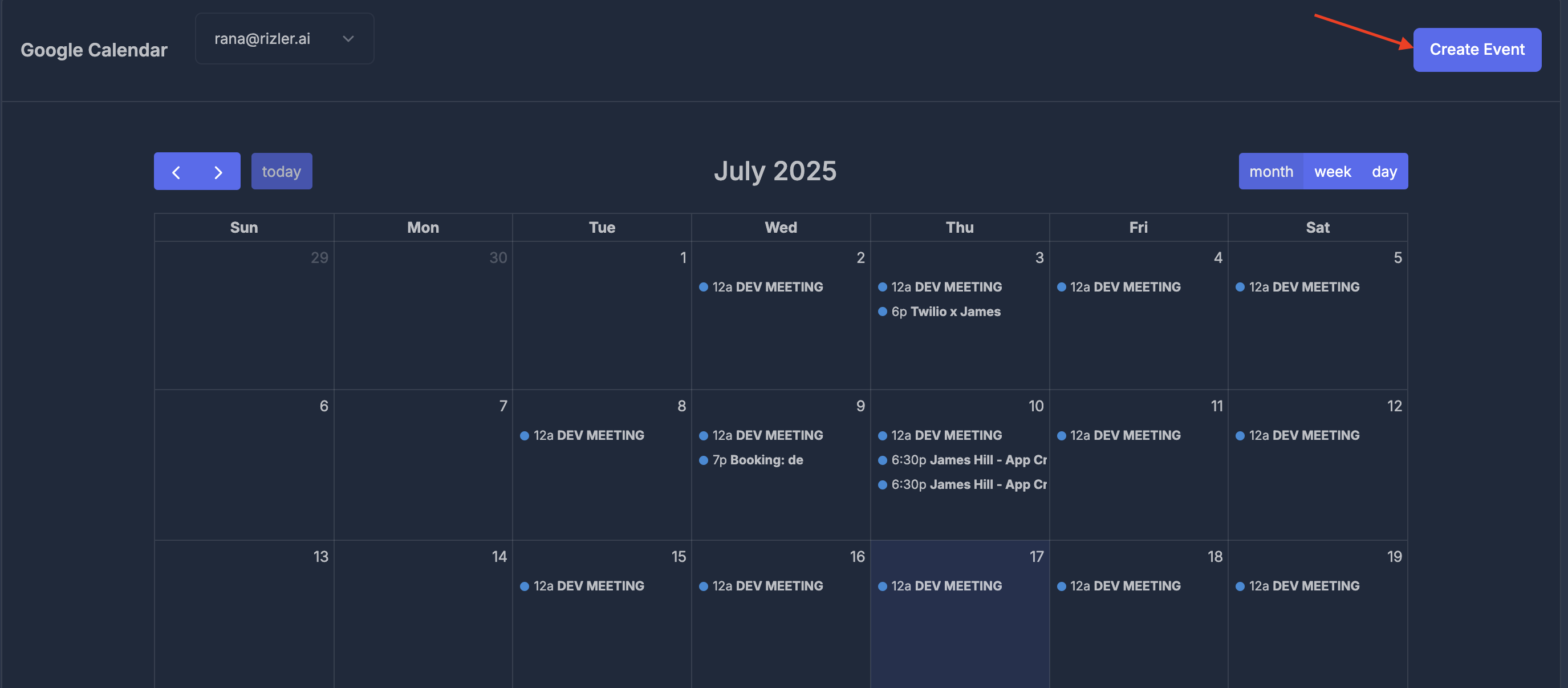
* **Event Creation**: Click the "Create Event" button to schedule new events
## 🤖 AI Join Functionality
This integration offers an AI Join feature, enabling AI agents to join meetings for you:
* Displays "AI Join: No Permission (Locked)" on calendars without access
* Allows AI agents to join meetings automatically when enabled
* Handles multiple subscribed calendars (e.g., regional holidays or secondary calendars)
> **Premium Feature**: AI Join requires a premium subscription. Activate the feature by subscribing to allow AI assistants to automatically participate in your scheduled meetings.
### Key Dashboard Features
* **Connected Account**: Displays your active Google account
* **Navigation Controls**: Use arrow buttons (`<`, `>`) to switch months or click "Today" to jump to the current date
* **View Modes**: Toggle between Month, Week, or Day views
* **Event Creation**: Click the "Create Event" button to schedule new events
## 🤖 AI Join Functionality
This integration offers an AI Join feature, enabling AI agents to join meetings for you:
* Displays "AI Join: No Permission (Locked)" on calendars without access
* Allows AI agents to join meetings automatically when enabled
* Handles multiple subscribed calendars (e.g., regional holidays or secondary calendars)
> **Premium Feature**: AI Join requires a premium subscription. Activate the feature by subscribing to allow AI assistants to automatically participate in your scheduled meetings.
 ## ✍️ Scheduling New Events
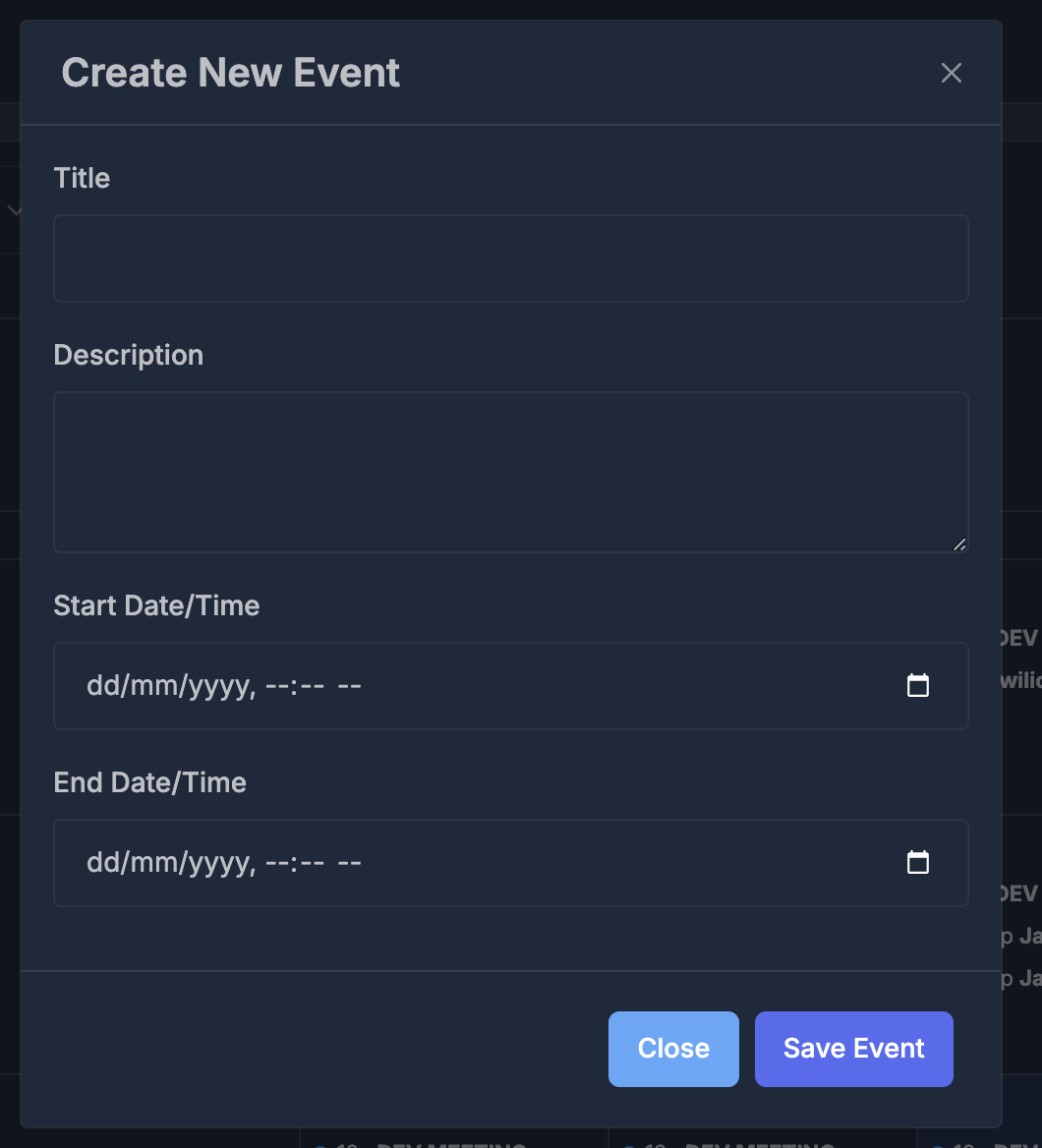
Easily create events by clicking "Create Event." The scheduling modal includes:
## ✍️ Scheduling New Events
Easily create events by clicking "Create Event." The scheduling modal includes:
 **Required Event Details:**
* **Title**: Name your event
* **Description**: Add notes or context (resizable input)
* **Start Date & Time**: Choose the event start (format: dd/mm/yyyy, --:-- --)
* **End Date & Time**: Choose when it ends (format: dd/mm/yyyy, --:-- --)
**Required Event Details:**
* **Title**: Name your event
* **Description**: Add notes or context (resizable input)
* **Start Date & Time**: Choose the event start (format: dd/mm/yyyy, --:-- --)
* **End Date & Time**: Choose when it ends (format: dd/mm/yyyy, --:-- --)
 ## 📂 Managing Multiple Calendars
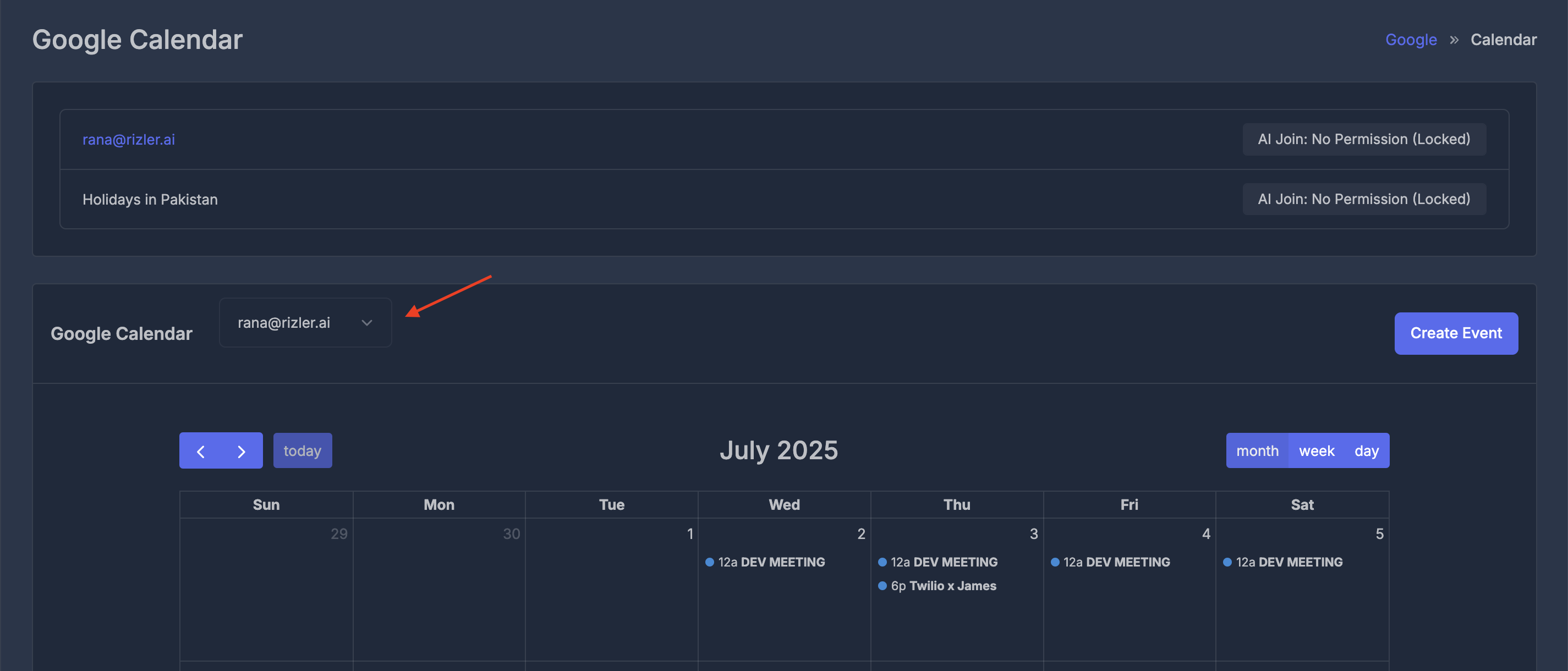
* Quickly switch calendars using the dropdown selector
* View all subscribed calendars alongside your main calendar
* Adjust permissions and AI Join settings per individual calendar
## 📂 Managing Multiple Calendars
* Quickly switch calendars using the dropdown selector
* View all subscribed calendars alongside your main calendar
* Adjust permissions and AI Join settings per individual calendar