> ## Documentation Index
> Fetch the complete documentation index at: https://docs.aisync.link/llms.txt
> Use this file to discover all available pages before exploring further.
# Phone Numbers
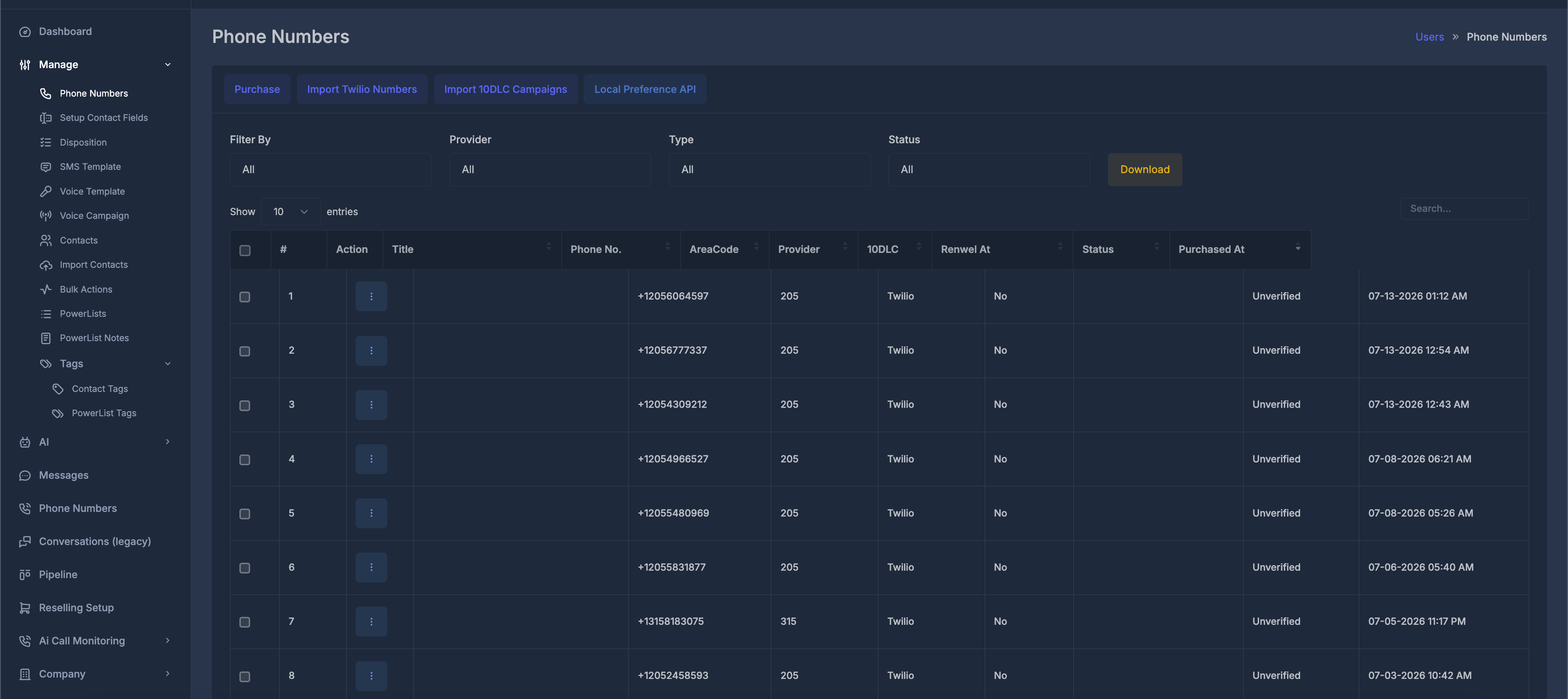
The **Phone Numbers** page is where you view and manage the phone numbers connected to your workspace.
 ## ✨ What you can do
* View all phone numbers available to your workspace.
* Purchase one or more new numbers.
* Import numbers from a connected Twilio account, when enabled.
* Import 10DLC campaigns from Twilio, when enabled.
* Filter numbers by use, provider, type, or status.
* Search, sort, paginate, and download the number list.
* Edit a number or enable it for AI.
* Configure endpoints, 10DLC, spam protection, or chatbot assignment when available.
* Select multiple numbers and apply bulk actions.
| Button | What it does |
| -------------------------- | ------------------------------------------------------------------------------- |
| **Purchase** | Opens the purchase flow for finding and buying new numbers |
| **Import Twilio Numbers** | Shows numbers from your connected Twilio account that can be imported |
| **Import 10DLC Campaigns** | Imports supported 10DLC campaign information from your connected Twilio account |
| **Local Preference API** | Opens local-presence API guidance and endpoint information |
#### 📥 Import Twilio numbers
The **Import Twilio Numbers** button will only appear if you have connected your Twilio account in the workspace settings. If your Twilio account is not attached, this option will not be shown.
Once your Twilio account is connected and the button appears, you can click **Import Twilio Numbers** to open a window displaying all phone numbers associated with your Twilio account.
## ✨ What you can do
* View all phone numbers available to your workspace.
* Purchase one or more new numbers.
* Import numbers from a connected Twilio account, when enabled.
* Import 10DLC campaigns from Twilio, when enabled.
* Filter numbers by use, provider, type, or status.
* Search, sort, paginate, and download the number list.
* Edit a number or enable it for AI.
* Configure endpoints, 10DLC, spam protection, or chatbot assignment when available.
* Select multiple numbers and apply bulk actions.
| Button | What it does |
| -------------------------- | ------------------------------------------------------------------------------- |
| **Purchase** | Opens the purchase flow for finding and buying new numbers |
| **Import Twilio Numbers** | Shows numbers from your connected Twilio account that can be imported |
| **Import 10DLC Campaigns** | Imports supported 10DLC campaign information from your connected Twilio account |
| **Local Preference API** | Opens local-presence API guidance and endpoint information |
#### 📥 Import Twilio numbers
The **Import Twilio Numbers** button will only appear if you have connected your Twilio account in the workspace settings. If your Twilio account is not attached, this option will not be shown.
Once your Twilio account is connected and the button appears, you can click **Import Twilio Numbers** to open a window displaying all phone numbers associated with your Twilio account.
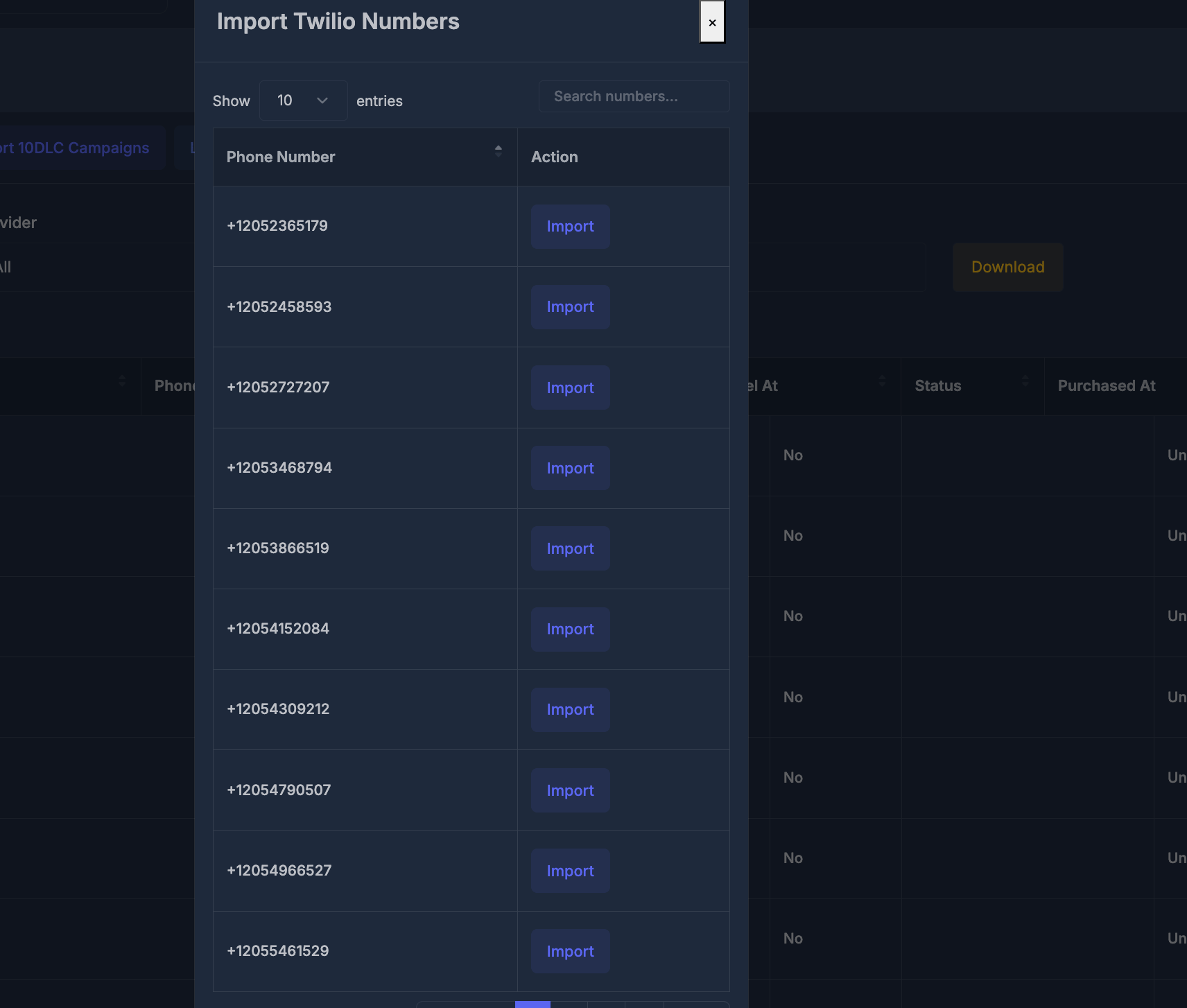 In this window, you can:
* Use **Search numbers...** to find a specific number.
* Change how many entries appear on each page.
* Click **Import** next to the number you want to add.
* Close the window without importing anything.
After you import a number successfully, it will appear on the **Phone Numbers** page. Numbers already imported to your workspace will no longer show up in the import list.
#### 📋 Import 10DLC campaigns
The **Import 10DLC Campaigns** button will only appear if you already have at least one 10DLC campaign set up in your workspace settings. If there are no campaigns configured in your account, you will not see this option.
Once you have a campaign and the button becomes available, clicking **Import 10DLC Campaigns** will show you a list of all 10DLC campaigns currently attached to your connected account.
From this window, you can:
1. View all available 10DLC campaigns linked to your account.
2. Select the campaign(s) you wish to import.
3. Complete the import; the campaign will appear in the platform.
4. Use the available number actions to link or update 10DLC information as required.
## 🔍 Filters, search, and export
Filters can be combined. Changing a filter refreshes the table.
| Control | What it does |
| ------------- | ---------------------------------------------- |
| **Filter By** | Shows All, AI, Dialer, or Both |
| **Provider** | Filters numbers by their carrier or provider |
| **Type** | Shows All, Local, Toll Free, or Mobile numbers |
| **Status** | Shows All, Unverified, or Verified numbers |
Other tools include:
* **Download** — exports the current list.
* **Search** — searches the visible number records.
* **Show entries** — changes how many rows appear on each page.
* **Sorting** — click supported column headings to change the order.
* **Pagination** — moves between pages when the list contains more rows.
## 📑 Table columns
| Column | What it shows |
| ---------------- | ------------------------------------------------------------------------------ |
| **Checkbox** | Selects the row for bulk actions; the header checkbox selects all visible rows |
| **#** | Row number in the current view |
| **Action** | Opens the actions available for the number |
| **Title** | Optional internal label |
| **Phone No.** | Full phone number with country code |
| **AreaCode** | Area or region code |
| **Provider** | Carrier or provider for the number |
| **10DLC** | Messaging campaign or registration information |
| **Renewal At** | Renewal date or availability of renewal information |
| **Status** | Verified or Unverified |
| **Purchased At** | Date and time the number was added |
## ☝️ Single-number actions
Click the **Action** button on a row to open its menu. Available actions depend on the number's provider, status, and enabled workspace features.
In this window, you can:
* Use **Search numbers...** to find a specific number.
* Change how many entries appear on each page.
* Click **Import** next to the number you want to add.
* Close the window without importing anything.
After you import a number successfully, it will appear on the **Phone Numbers** page. Numbers already imported to your workspace will no longer show up in the import list.
#### 📋 Import 10DLC campaigns
The **Import 10DLC Campaigns** button will only appear if you already have at least one 10DLC campaign set up in your workspace settings. If there are no campaigns configured in your account, you will not see this option.
Once you have a campaign and the button becomes available, clicking **Import 10DLC Campaigns** will show you a list of all 10DLC campaigns currently attached to your connected account.
From this window, you can:
1. View all available 10DLC campaigns linked to your account.
2. Select the campaign(s) you wish to import.
3. Complete the import; the campaign will appear in the platform.
4. Use the available number actions to link or update 10DLC information as required.
## 🔍 Filters, search, and export
Filters can be combined. Changing a filter refreshes the table.
| Control | What it does |
| ------------- | ---------------------------------------------- |
| **Filter By** | Shows All, AI, Dialer, or Both |
| **Provider** | Filters numbers by their carrier or provider |
| **Type** | Shows All, Local, Toll Free, or Mobile numbers |
| **Status** | Shows All, Unverified, or Verified numbers |
Other tools include:
* **Download** — exports the current list.
* **Search** — searches the visible number records.
* **Show entries** — changes how many rows appear on each page.
* **Sorting** — click supported column headings to change the order.
* **Pagination** — moves between pages when the list contains more rows.
## 📑 Table columns
| Column | What it shows |
| ---------------- | ------------------------------------------------------------------------------ |
| **Checkbox** | Selects the row for bulk actions; the header checkbox selects all visible rows |
| **#** | Row number in the current view |
| **Action** | Opens the actions available for the number |
| **Title** | Optional internal label |
| **Phone No.** | Full phone number with country code |
| **AreaCode** | Area or region code |
| **Provider** | Carrier or provider for the number |
| **10DLC** | Messaging campaign or registration information |
| **Renewal At** | Renewal date or availability of renewal information |
| **Status** | Verified or Unverified |
| **Purchased At** | Date and time the number was added |
## ☝️ Single-number actions
Click the **Action** button on a row to open its menu. Available actions depend on the number's provider, status, and enabled workspace features.
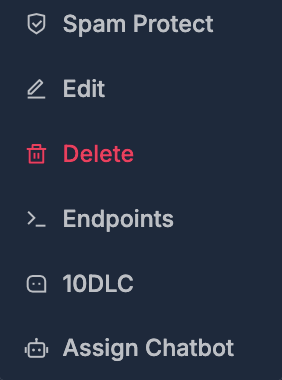 | Action | What it does |
| ------------------- | ---------------------------------------------------------------- |
| **Spam Protect** | Enables spam-protection monitoring when supported |
| **Edit** | Changes the title, status, 10DLC setting, or intended use |
| **Activate for AI** | Enables supported AI calling and routing features |
| **Delete** | Removes or releases the number after confirmation |
| **Endpoints** | Shows inbound API endpoint and integration details |
| **10DLC** | Assigns or updates a messaging campaign |
| **Assign Chatbot** | Connects an available chatbot to messages received by the number |
Once a chatbot is assigned, it can respond to supported incoming messages and continue conversations with contacts using that number.
## ⚡ Activate numbers for AI
**Activate one number**
1. Open **Users → Phone Numbers**.
2. Open the relevant number's **Action** menu.
3. Select **Activate for AI**.
4. Confirm the action.
5. Wait for the success message.
The option may disappear after the number has been activated.
**Activate multiple numbers**
1. Select the numbers you want using the checkboxes.
2. Open the **Bulk Action** bar.
3. Choose **Activate For AI**.
4. Confirm the action.
If required provider credentials or workspace settings are missing, the platform displays an error message.
## 🛒 Purchase phone numbers
Click the **Purchase** button to start the buying process.
To find a number:
1. Choose a **Provider**.
2. Select a **Country**.
3. Choose a number **Type** — Local, Toll Free, or Mobile.
4. Choose how to search — for example AreaCode, Region, or City.
5. Enter a search value.
6. Click **Search**.
Search results can include:
| Column | What it shows |
| ----------------- | ---------------------------------------------- |
| **Friendly Name** | Provider-supplied label |
| **Phone #** | Available phone number |
| **Locality** | Geographic information, when available |
| **Capabilities** | Whether the number supports Voice, SMS, or MMS |
| **Checkbox** | Selects the number for a multi-number purchase |
| **Action** | Purchases one number directly |
You can purchase one number from its action button or select multiple numbers and confirm a bulk purchase. Billing and provider setup may be required.
## ✏️ Edit a number
Open **Action → Edit** on a row.
| Field | What it controls |
| ---------------- | ---------------------------------- |
| **Title** | Internal label for the number |
| **Status** | Verified or Unverified |
| **10DLC Enable** | Whether 10DLC features are enabled |
| **Use For** | AI, Dialer, or Both |
Click **Submit** to save your changes.
## 📦 Bulk actions
Select one or more rows to show the bulk action controls.
| Action | What it does |
| ------------------- | ---------------------------------------------------------------- |
| **Spam Protect** | Enables spam-protection monitoring when supported |
| **Edit** | Changes the title, status, 10DLC setting, or intended use |
| **Activate for AI** | Enables supported AI calling and routing features |
| **Delete** | Removes or releases the number after confirmation |
| **Endpoints** | Shows inbound API endpoint and integration details |
| **10DLC** | Assigns or updates a messaging campaign |
| **Assign Chatbot** | Connects an available chatbot to messages received by the number |
Once a chatbot is assigned, it can respond to supported incoming messages and continue conversations with contacts using that number.
## ⚡ Activate numbers for AI
**Activate one number**
1. Open **Users → Phone Numbers**.
2. Open the relevant number's **Action** menu.
3. Select **Activate for AI**.
4. Confirm the action.
5. Wait for the success message.
The option may disappear after the number has been activated.
**Activate multiple numbers**
1. Select the numbers you want using the checkboxes.
2. Open the **Bulk Action** bar.
3. Choose **Activate For AI**.
4. Confirm the action.
If required provider credentials or workspace settings are missing, the platform displays an error message.
## 🛒 Purchase phone numbers
Click the **Purchase** button to start the buying process.
To find a number:
1. Choose a **Provider**.
2. Select a **Country**.
3. Choose a number **Type** — Local, Toll Free, or Mobile.
4. Choose how to search — for example AreaCode, Region, or City.
5. Enter a search value.
6. Click **Search**.
Search results can include:
| Column | What it shows |
| ----------------- | ---------------------------------------------- |
| **Friendly Name** | Provider-supplied label |
| **Phone #** | Available phone number |
| **Locality** | Geographic information, when available |
| **Capabilities** | Whether the number supports Voice, SMS, or MMS |
| **Checkbox** | Selects the number for a multi-number purchase |
| **Action** | Purchases one number directly |
You can purchase one number from its action button or select multiple numbers and confirm a bulk purchase. Billing and provider setup may be required.
## ✏️ Edit a number
Open **Action → Edit** on a row.
| Field | What it controls |
| ---------------- | ---------------------------------- |
| **Title** | Internal label for the number |
| **Status** | Verified or Unverified |
| **10DLC Enable** | Whether 10DLC features are enabled |
| **Use For** | AI, Dialer, or Both |
Click **Submit** to save your changes.
## 📦 Bulk actions
Select one or more rows to show the bulk action controls.
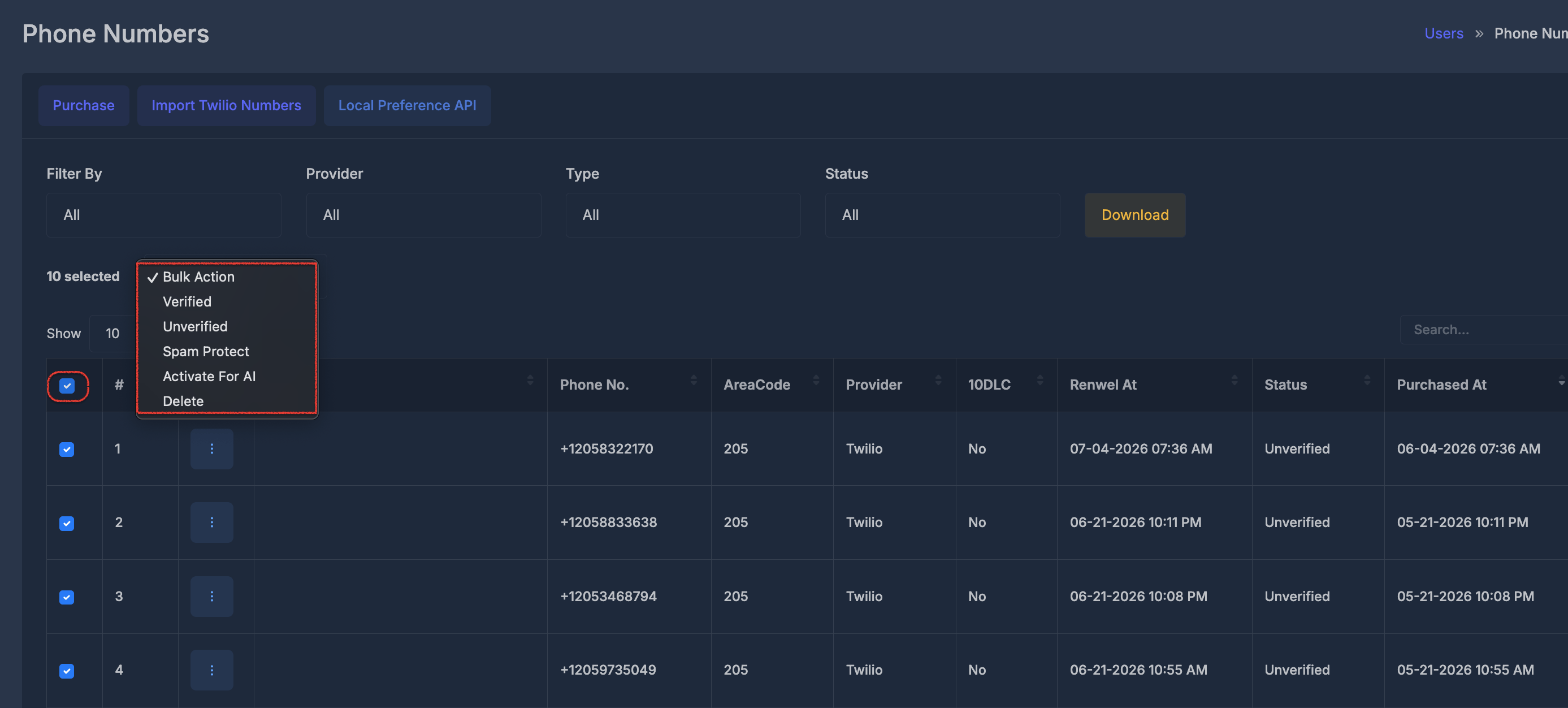 Available actions can include:
* **Verified / Unverified** — changes the selected numbers' status.
* **Spam Protect** — enables spam protection where supported.
* **Activate For AI** — activates supported numbers for AI.
* **Delete** — removes selected numbers after confirmation.
Some rows may succeed while others fail because providers and number states can differ. Review the result message after the action finishes.
Available actions can include:
* **Verified / Unverified** — changes the selected numbers' status.
* **Spam Protect** — enables spam protection where supported.
* **Activate For AI** — activates supported numbers for AI.
* **Delete** — removes selected numbers after confirmation.
Some rows may succeed while others fail because providers and number states can differ. Review the result message after the action finishes.