> ## Documentation Index
> Fetch the complete documentation index at: https://docs.aisync.link/llms.txt
> Use this file to discover all available pages before exploring further.
# PowerList Notes
This guide explains **PowerList Notes** what this screen is for, how the table works, how to add/edit templates, and how saving/deleting behaves.
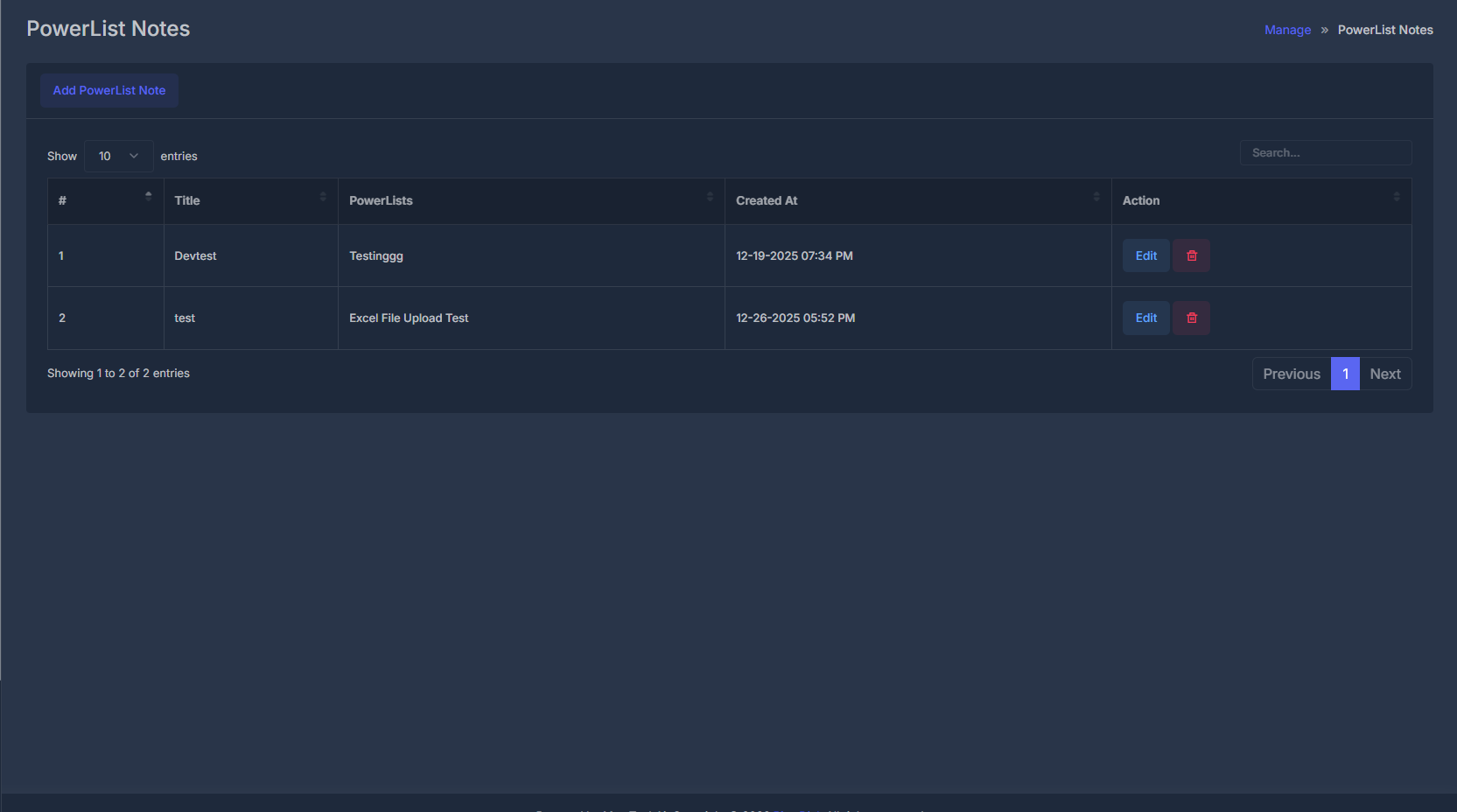 **PowerList Notes** is where you create and manage reusable note templates tied to your PowerLists.
Each template includes:
* a **Title**,
* one or more linked **PowerLists**,
* and formatted **Notes** content.
You can also use placeholders in the note body (double curly-brace format) so contact values and current date/time can be inserted later when templates are used in other parts of the product.
Repeated for clarity: one row in this module is one reusable **note template**, not a one-time note entry.
## 📋 Main list view
When the page opens, you see your organization’s PowerList note templates in a table.
### ➕ Add PowerList Note
Click **Add PowerList Note** to open the create form. The list view hides while the form is open.
### 📑 Table columns
| What you see | What it means |
| -------------- | ------------------------------------------------------ |
| **#** | Row number in current list page. |
| **Title** | Template name. |
| **PowerLists** | Linked list names (comma-separated when multiple). |
| **Created At** | First saved date/time in your account timezone. |
| **Action** | **Edit** opens form; trash deletes after confirmation. |
**🔎 Finding entries**
* Use **Search** above the table to filter rows.
* Change rows-per-page when needed.
* Use paging controls (**Previous**, **Next**, page numbers) for longer lists.
## ✏️ Add or edit a template
* **Add**: click **Add PowerList Note**.
**PowerList Notes** is where you create and manage reusable note templates tied to your PowerLists.
Each template includes:
* a **Title**,
* one or more linked **PowerLists**,
* and formatted **Notes** content.
You can also use placeholders in the note body (double curly-brace format) so contact values and current date/time can be inserted later when templates are used in other parts of the product.
Repeated for clarity: one row in this module is one reusable **note template**, not a one-time note entry.
## 📋 Main list view
When the page opens, you see your organization’s PowerList note templates in a table.
### ➕ Add PowerList Note
Click **Add PowerList Note** to open the create form. The list view hides while the form is open.
### 📑 Table columns
| What you see | What it means |
| -------------- | ------------------------------------------------------ |
| **#** | Row number in current list page. |
| **Title** | Template name. |
| **PowerLists** | Linked list names (comma-separated when multiple). |
| **Created At** | First saved date/time in your account timezone. |
| **Action** | **Edit** opens form; trash deletes after confirmation. |
**🔎 Finding entries**
* Use **Search** above the table to filter rows.
* Change rows-per-page when needed.
* Use paging controls (**Previous**, **Next**, page numbers) for longer lists.
## ✏️ Add or edit a template
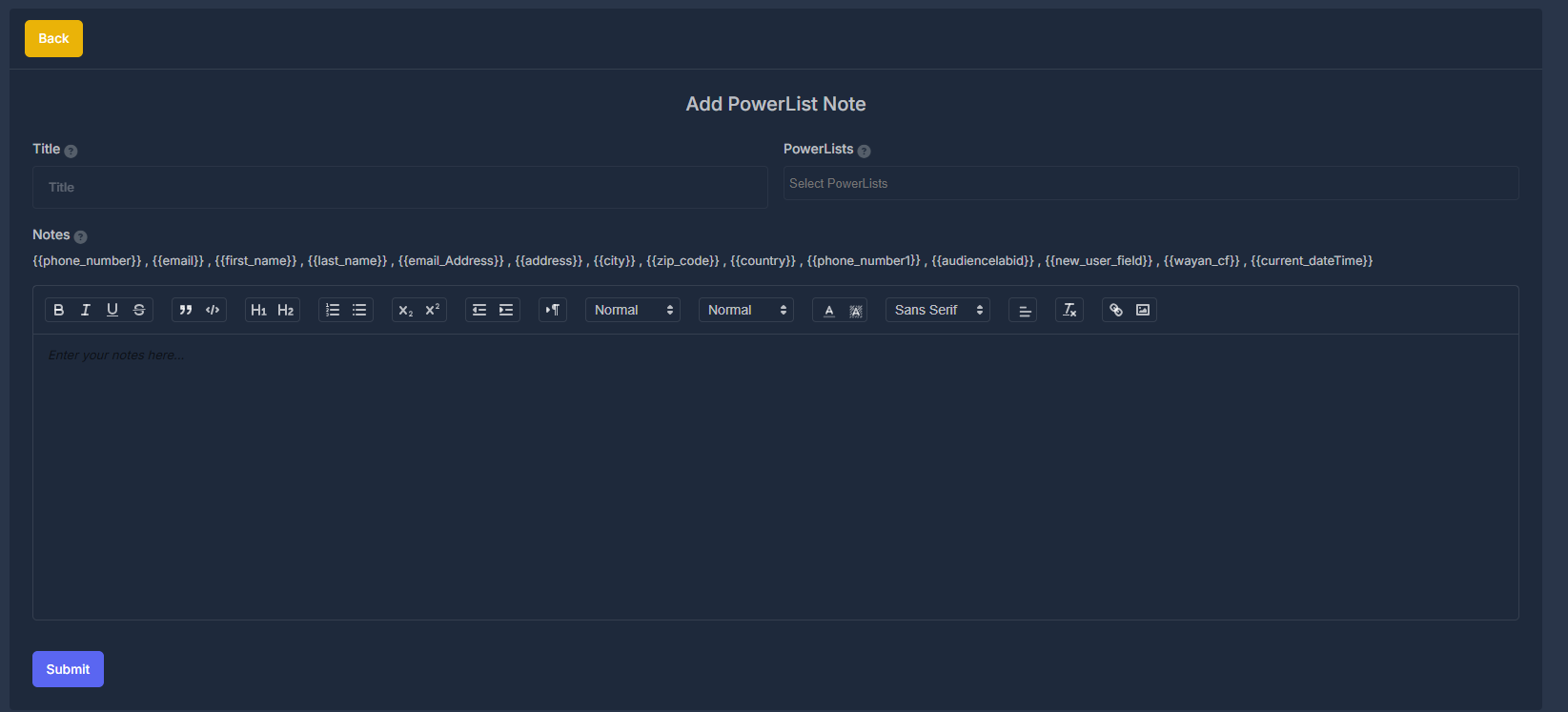
* **Add**: click **Add PowerList Note**.
 * **Edit**: click **Edit** on a row.
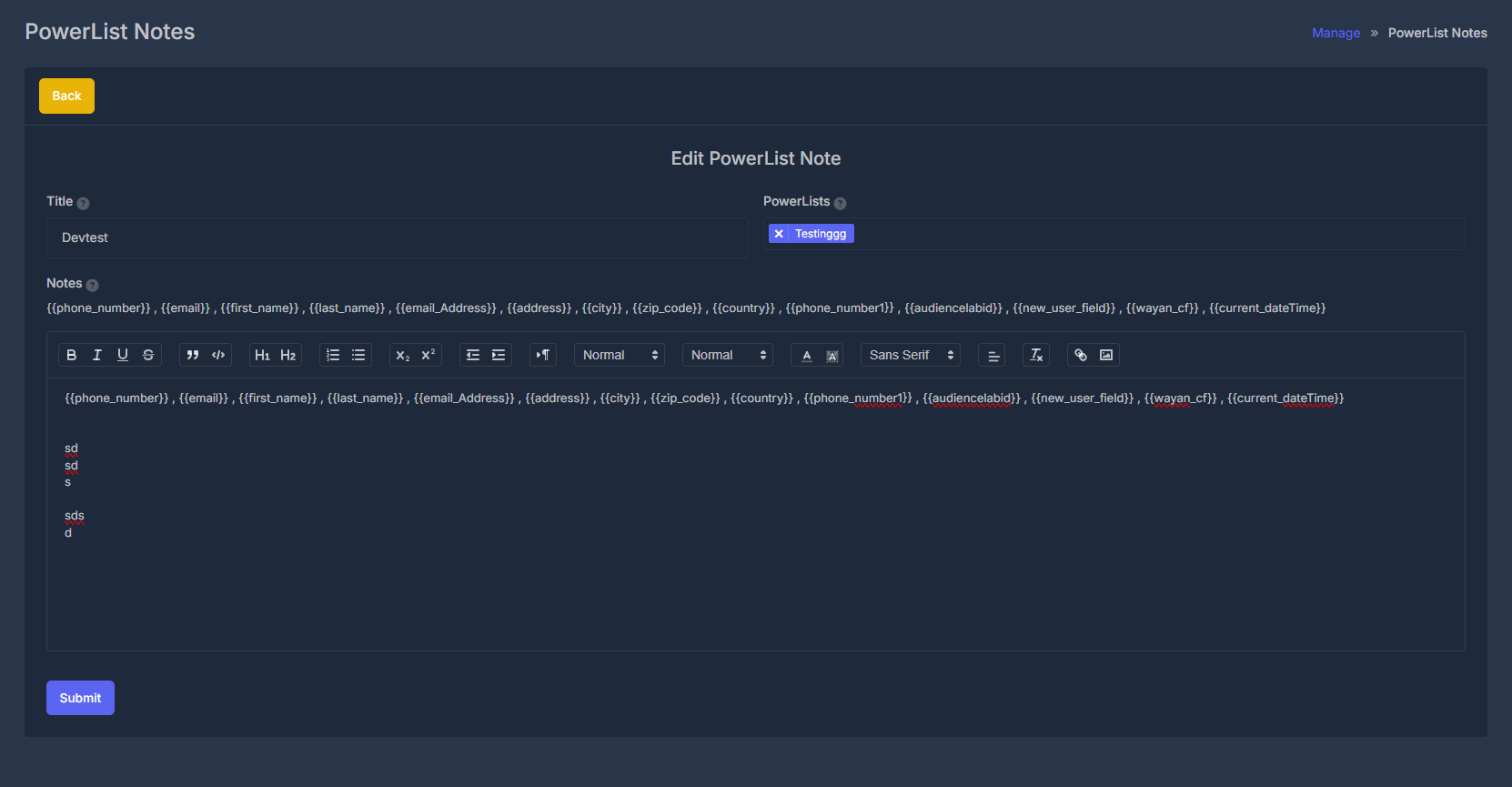 Both actions open the same form. In edit mode, the heading is typically **Edit PowerList Note** and existing values are prefilled.
**🔙 Back**
Click **Back** to return to the list without saving.
Important repeat: **Back** discards unsaved form changes.
## 📝 Form fields
**🏷️ Title**
A short, clear template name (for example, "Follow-up call summary").
* Required before save.
* Should be unique within your organization.
**⚠️ Duplicate titles**
If a title already exists, save fails and an error message appears until you use a different title.
### 🗂️ PowerLists
Choose where this template should be available.
* You can select **one or many** PowerLists.
* List usually shows active PowerLists available for your organization.
* Help icons beside labels explain expected usage.
### 📝 Notes
This is the main body of your template.
* Rich-text editor supports standard formatting (headings, lists, bold, links, etc.).
* Content is saved exactly as entered when you submit.
**🪄 Placeholders**
Above the editor, you may see placeholders in `{{double_curly}}` format (including date/time placeholder such as `{{current_dateTime}}`).
* Use exact spelling shown on screen.
* When supported in downstream workflow, placeholders are replaced with actual contact values and current date/time.
Repeated for clarity: placeholder text must match exactly, including brackets.
**💾 Saving (Submit)**
Click **Submit** to save template changes.
* While saving, short wait message may appear.
* On success, confirmation appears and screen returns to list.
* On failure, error message explains what to fix.
* If required fields (like Title) are missing, validation prompts appear before save.
**🗑️ Deleting a template**
Click the row trash icon and confirm.
* After confirmation, template is removed.
* You stay in the same module and get a success/error notice.
Deleted templates cannot be recovered. Confirm before deleting shared templates used by your team.
Both actions open the same form. In edit mode, the heading is typically **Edit PowerList Note** and existing values are prefilled.
**🔙 Back**
Click **Back** to return to the list without saving.
Important repeat: **Back** discards unsaved form changes.
## 📝 Form fields
**🏷️ Title**
A short, clear template name (for example, "Follow-up call summary").
* Required before save.
* Should be unique within your organization.
**⚠️ Duplicate titles**
If a title already exists, save fails and an error message appears until you use a different title.
### 🗂️ PowerLists
Choose where this template should be available.
* You can select **one or many** PowerLists.
* List usually shows active PowerLists available for your organization.
* Help icons beside labels explain expected usage.
### 📝 Notes
This is the main body of your template.
* Rich-text editor supports standard formatting (headings, lists, bold, links, etc.).
* Content is saved exactly as entered when you submit.
**🪄 Placeholders**
Above the editor, you may see placeholders in `{{double_curly}}` format (including date/time placeholder such as `{{current_dateTime}}`).
* Use exact spelling shown on screen.
* When supported in downstream workflow, placeholders are replaced with actual contact values and current date/time.
Repeated for clarity: placeholder text must match exactly, including brackets.
**💾 Saving (Submit)**
Click **Submit** to save template changes.
* While saving, short wait message may appear.
* On success, confirmation appears and screen returns to list.
* On failure, error message explains what to fix.
* If required fields (like Title) are missing, validation prompts appear before save.
**🗑️ Deleting a template**
Click the row trash icon and confirm.
* After confirmation, template is removed.
* You stay in the same module and get a success/error notice.
Deleted templates cannot be recovered. Confirm before deleting shared templates used by your team.