> ## Documentation Index
> Fetch the complete documentation index at: https://docs.aisync.link/llms.txt
> Use this file to discover all available pages before exploring further.
# Setup Contact Fields
This guide explains **Setup Contact Fields** in simple language. It focuses on what users do day to day: manage field cards, add new fields, map them to GHL, and understand delete behavior.
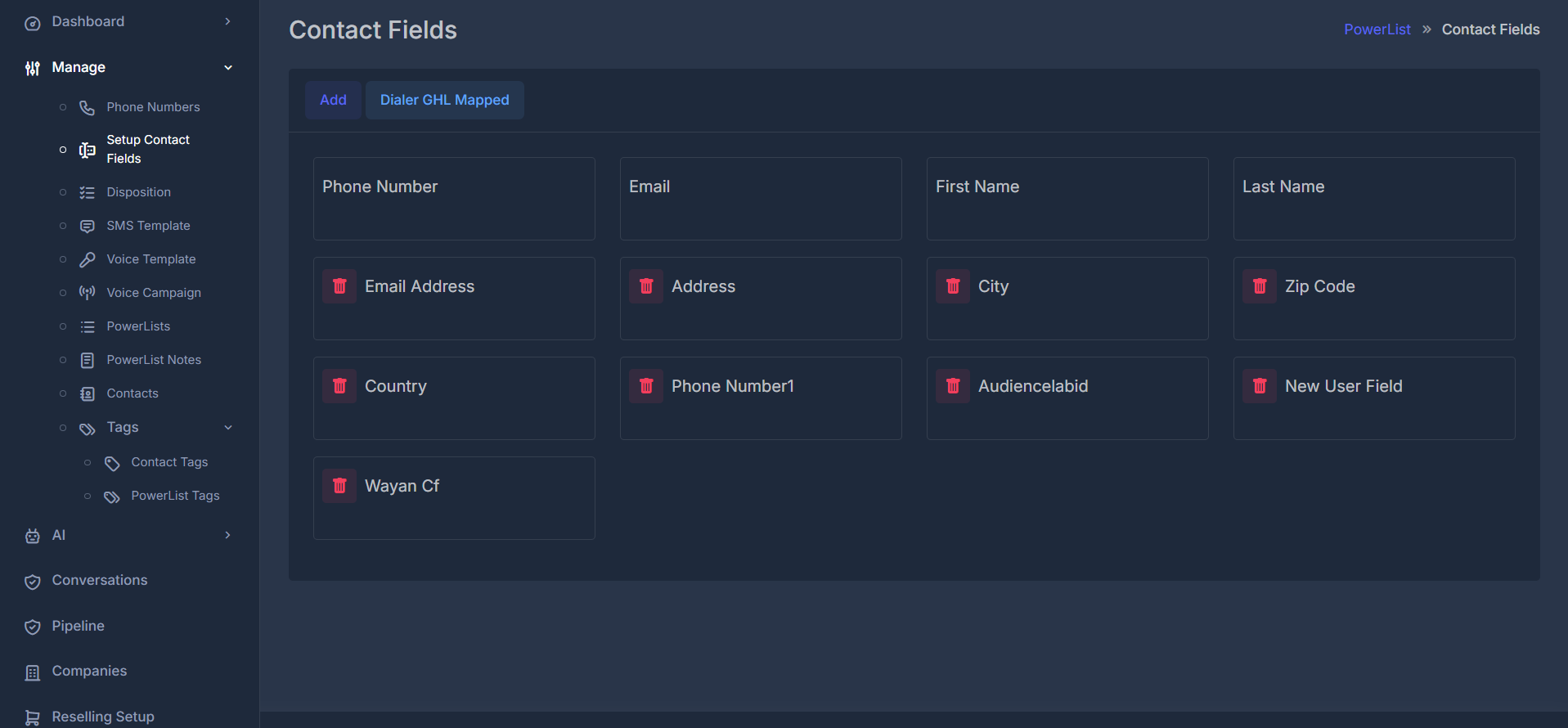 **Contact Fields** decide what information can be stored on contacts in your workspace (for example name, email, address, and custom details).
`Manage -> Setup Contact Fields`
## 🗃️ Field cards
All fields appear as cards in a grid.
On each card:
* Field name is shown in readable format.
* Internal underscores are displayed as spaces.
* Words are capitalized (for example `zip_code` displays as **Zip Code**).
* Delete (trash) appears only for fields that can be removed.
### 🔒 Core fields that cannot be deleted
* **Phone Number**
* **Email**
* **First Name**
* **Last Name**
These are treated as required core identity fields and remain fixed.
**🗑️ Deletable fields**
Other custom fields can be deleted. Deletion asks for confirmation before removing.
## ➕ Creating a new field
Click **Add** to open the create form. Use **Back** to return to card list without saving.
**Contact Fields** decide what information can be stored on contacts in your workspace (for example name, email, address, and custom details).
`Manage -> Setup Contact Fields`
## 🗃️ Field cards
All fields appear as cards in a grid.
On each card:
* Field name is shown in readable format.
* Internal underscores are displayed as spaces.
* Words are capitalized (for example `zip_code` displays as **Zip Code**).
* Delete (trash) appears only for fields that can be removed.
### 🔒 Core fields that cannot be deleted
* **Phone Number**
* **Email**
* **First Name**
* **Last Name**
These are treated as required core identity fields and remain fixed.
**🗑️ Deletable fields**
Other custom fields can be deleted. Deletion asks for confirmation before removing.
## ➕ Creating a new field
Click **Add** to open the create form. Use **Back** to return to card list without saving.
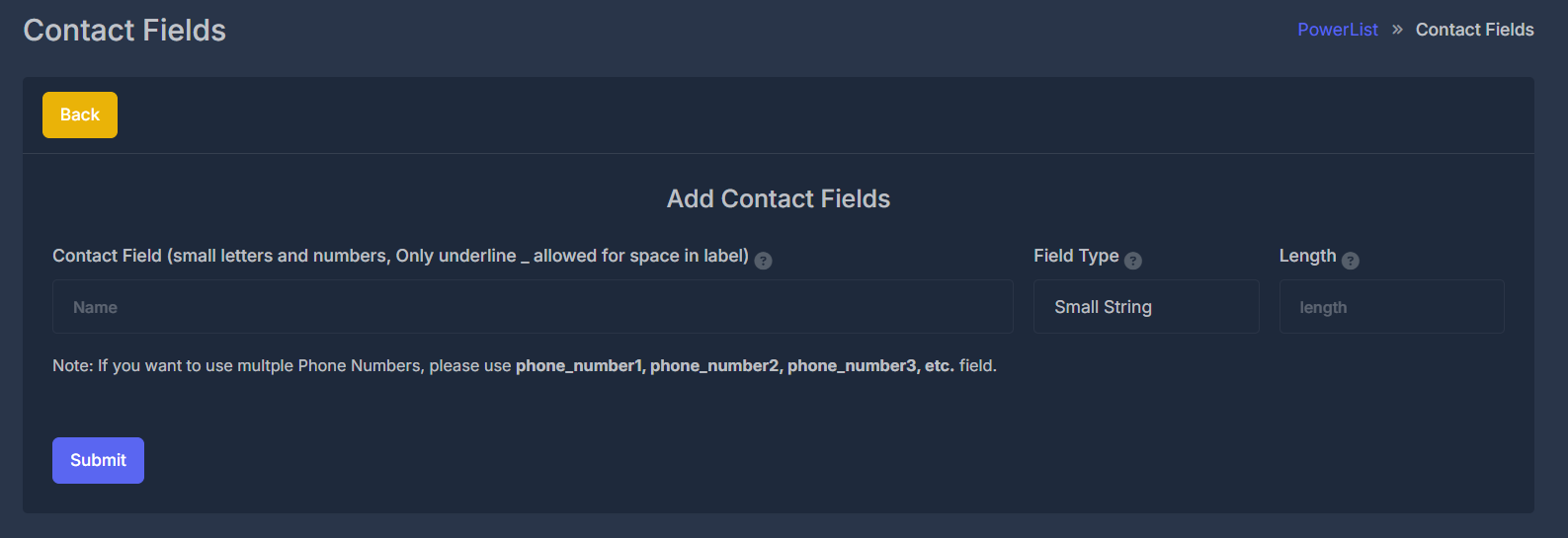 ### 🏷️ Contact Field (name)
Use naming rules:
* Lowercase letters
* Numbers
* Underscores for spaces
Examples:
* `company_name`
* `date_of_birth`
* `preferred_language`
As you type, a preview label shows how the field will appear in readable UI form.
If a name is numeric-only, system normalizes it to a safe format so processing does not break.
Help icons next to labels show short tooltips when hovered.
### 🔠 Field Type
Choose one:
1. **Small String** (short text)
2. **Text** (medium text)
3. **Long Text** (long content, notes)
If **Small String** is selected, a **Length** input appears:
* Sets max character length.
* If left empty, default length is used.
### 📞 Extra phone numbers
If you need multiple phone numbers, use this naming pattern:
* `phone_number1`
* `phone_number2`
* `phone_number3`
For these extra phone fields, the system also creates companion area-code metadata used by dialer logic.
**✅ Submit**
Click **Submit** to create the field.
* On success: confirmation appears, then page reloads with new field.
* On validation/error: message explains what to fix.
## 🔗 GoHighLevel Mapping
Click **Dialer GHL Mapped** to open **Field Mappings** modal.
This is where you map your internal contact fields to **GoHighLevel (GHL)** fields so syncing, dialer flows, and personalization tokens use the right data.
### 🏷️ Contact Field (name)
Use naming rules:
* Lowercase letters
* Numbers
* Underscores for spaces
Examples:
* `company_name`
* `date_of_birth`
* `preferred_language`
As you type, a preview label shows how the field will appear in readable UI form.
If a name is numeric-only, system normalizes it to a safe format so processing does not break.
Help icons next to labels show short tooltips when hovered.
### 🔠 Field Type
Choose one:
1. **Small String** (short text)
2. **Text** (medium text)
3. **Long Text** (long content, notes)
If **Small String** is selected, a **Length** input appears:
* Sets max character length.
* If left empty, default length is used.
### 📞 Extra phone numbers
If you need multiple phone numbers, use this naming pattern:
* `phone_number1`
* `phone_number2`
* `phone_number3`
For these extra phone fields, the system also creates companion area-code metadata used by dialer logic.
**✅ Submit**
Click **Submit** to create the field.
* On success: confirmation appears, then page reloads with new field.
* On validation/error: message explains what to fix.
## 🔗 GoHighLevel Mapping
Click **Dialer GHL Mapped** to open **Field Mappings** modal.
This is where you map your internal contact fields to **GoHighLevel (GHL)** fields so syncing, dialer flows, and personalization tokens use the right data.
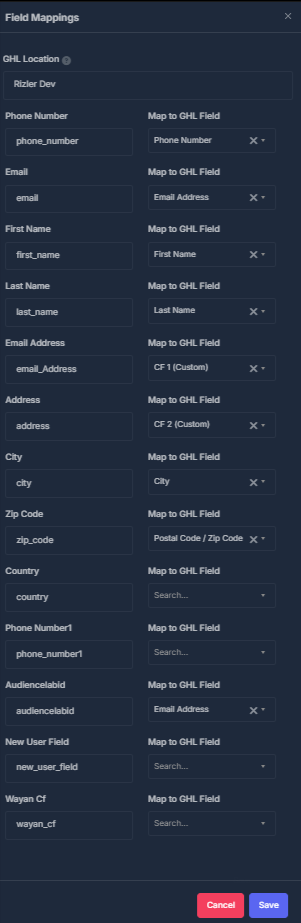 ### 📍 GHL Location
Choose the target GHL location first.
* Field options are location-dependent.
* Changing location reloads available GHL fields.
* You may see loading or error messages while options fetch.
### 🗂️ Mapping rows
Each internal contact field appears as one row:
* **Left side:** readable label + internal key (read-only).
* **Right side:** **Map to GHL Field** selector.
Selector includes standard + custom GHL fields for selected location and usually supports search.
Saved mappings can rehydrate when location reloads.
**💾 Save / ❌ Cancel**
* **Save**: stores mappings and applies changes.
* **Cancel**: closes modal without saving.
Important behavior:
* Save replaces previous mapping set for your organization.
* Rows left empty are treated as unlinked.
### 📍 GHL Location
Choose the target GHL location first.
* Field options are location-dependent.
* Changing location reloads available GHL fields.
* You may see loading or error messages while options fetch.
### 🗂️ Mapping rows
Each internal contact field appears as one row:
* **Left side:** readable label + internal key (read-only).
* **Right side:** **Map to GHL Field** selector.
Selector includes standard + custom GHL fields for selected location and usually supports search.
Saved mappings can rehydrate when location reloads.
**💾 Save / ❌ Cancel**
* **Save**: stores mappings and applies changes.
* **Cancel**: closes modal without saving.
Important behavior:
* Save replaces previous mapping set for your organization.
* Rows left empty are treated as unlinked.