> ## Documentation Index
> Fetch the complete documentation index at: https://docs.aisync.link/llms.txt
> Use this file to discover all available pages before exploring further.
# Contact Tags
> User guide for creating, editing, and deleting contact tags with role-based visibility.
**Contact Tag** lets you create and manage short labels used to group or describe contacts (for example, **VIP** or **Hot lead**). Tags belong to your organization and can be restricted by role, so only selected roles can view/use them.
 ## 📋 The tag list
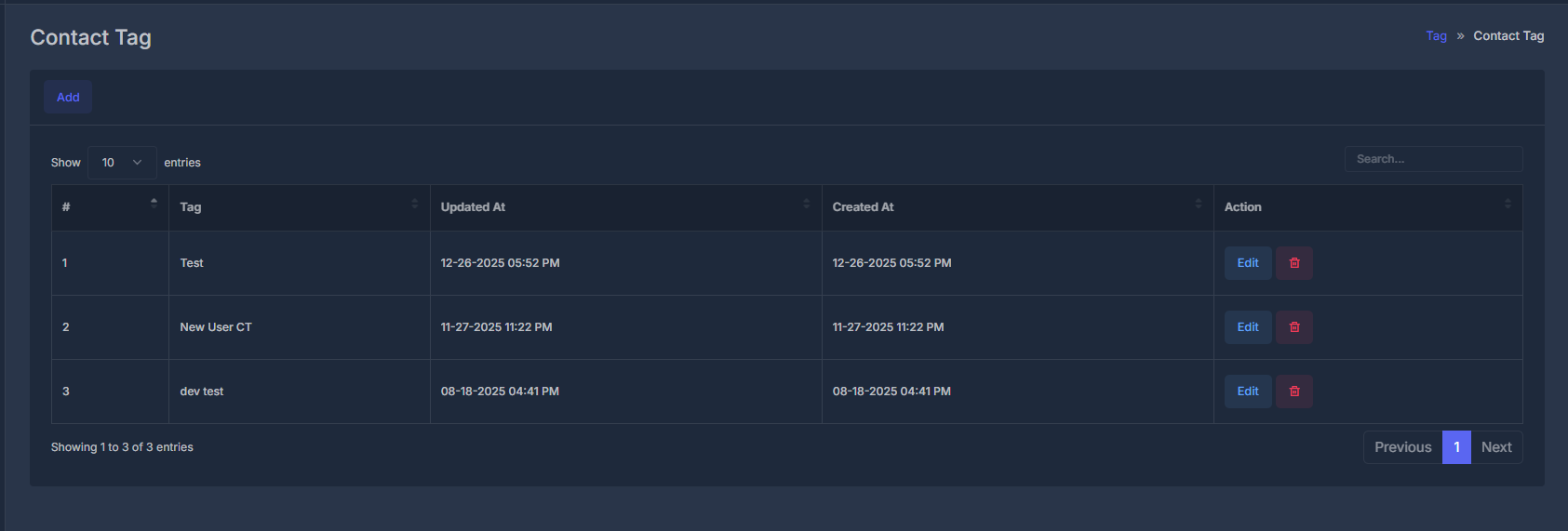
When you open this screen, you see a table of contact tags.
| What you see | What it means |
| -------------- | ----------------------------------------- |
| **#** | Row number in the current list view. |
| **Tag** | Tag name. |
| **Updated At** | Last changed date/time in your timezone. |
| **Created At** | First created date/time in your timezone. |
| **Action** | Controls to edit or delete the tag. |
### ⚙️ List controls
* **Add** opens the create form.
* **Search** filters table rows (placeholder usually `Search...`).
* Pagination keeps long lists manageable (commonly 10 rows per page by default).
## ➕ Adding a new tag
1. Click **Add**.
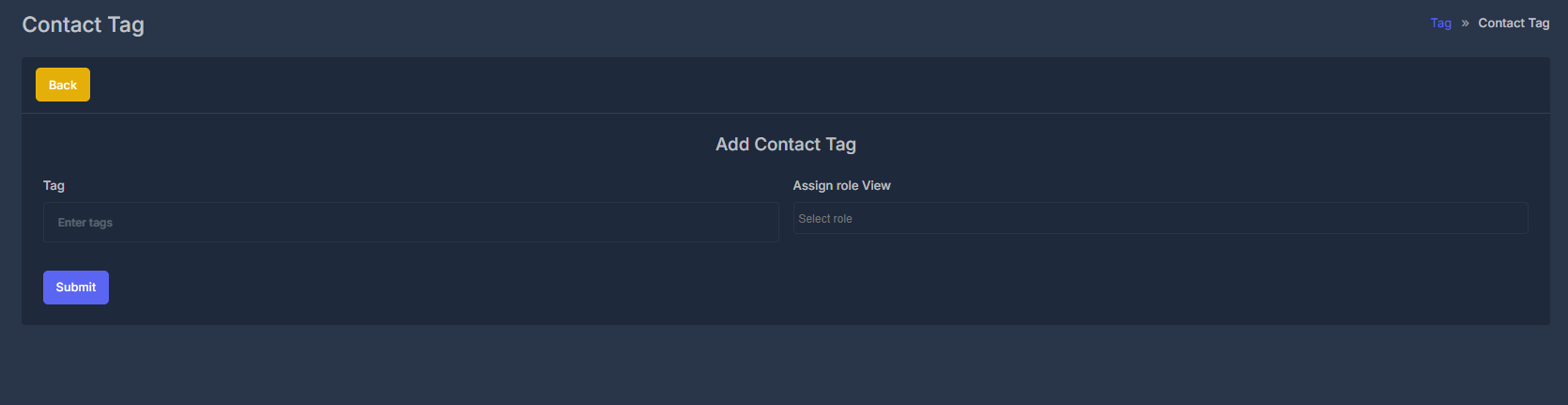
2. The list hides and **Add Contact Tag** form opens.
3. Fill required fields.
4. Click **Submit**.
5. On success, confirmation appears and list reloads with new tag.
Use **Back** to return without saving.
## 📋 The tag list
When you open this screen, you see a table of contact tags.
| What you see | What it means |
| -------------- | ----------------------------------------- |
| **#** | Row number in the current list view. |
| **Tag** | Tag name. |
| **Updated At** | Last changed date/time in your timezone. |
| **Created At** | First created date/time in your timezone. |
| **Action** | Controls to edit or delete the tag. |
### ⚙️ List controls
* **Add** opens the create form.
* **Search** filters table rows (placeholder usually `Search...`).
* Pagination keeps long lists manageable (commonly 10 rows per page by default).
## ➕ Adding a new tag
1. Click **Add**.
2. The list hides and **Add Contact Tag** form opens.
3. Fill required fields.
4. Click **Submit**.
5. On success, confirmation appears and list reloads with new tag.
Use **Back** to return without saving.
 ## ✏️ Editing a tag
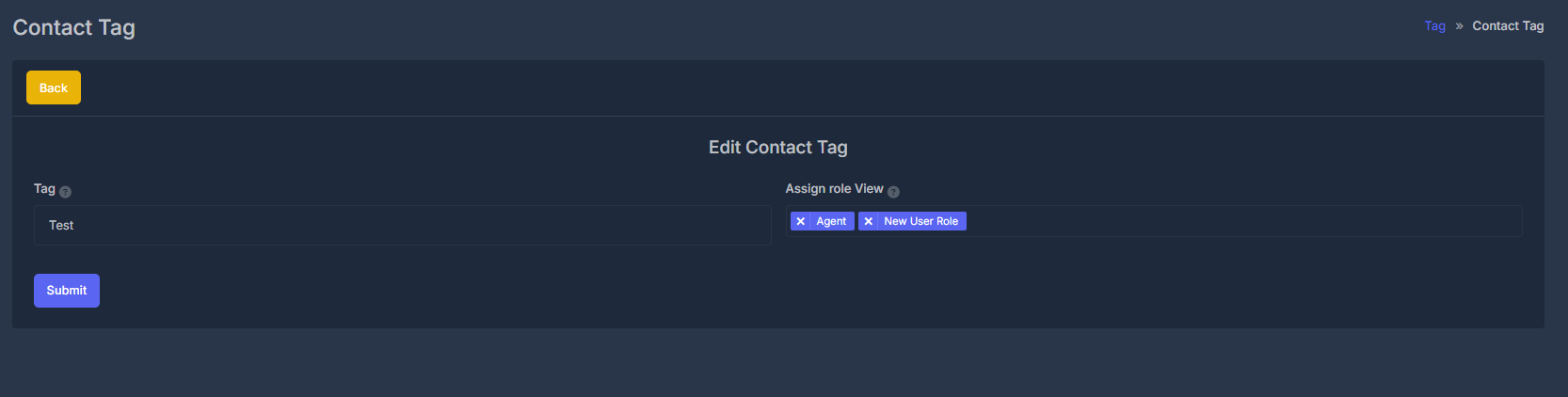
1. Click **Edit** in the row’s Action column.
2. **Edit Contact Tag** form opens with existing values prefilled.
3. Update fields and click **Submit**.
Save flow is the same as Add: wait message -> success message -> list refresh.
## ✏️ Editing a tag
1. Click **Edit** in the row’s Action column.
2. **Edit Contact Tag** form opens with existing values prefilled.
3. Update fields and click **Submit**.
Save flow is the same as Add: wait message -> success message -> list refresh.
 ## 🗑️ Deleting a tag
1. Click the row’s trash icon.
2. Confirm when prompted.
3. Tag is removed and a result message appears.
If that tag had role links only tied to that tag, those links are removed along with it.
Delete is permanent for that tag record. Confirm before deleting tags used by active workflows.
## 📝 Form fields (Add and Edit)
**🏷️ Tag (required)**
* **Purpose:** User-facing tag name.
* **Required:** Yes.
* **Placeholder:** Usually `Enter tags`.
* **Help text:** Suggests using clear names like VIP, Prospects, Hot Leads.
You cannot submit with an empty Tag field.
**👥 Assign role View**
* **Purpose:** Select which roles can view/use this tag.
* **Selection:** One or many roles.
* **Control type:** Searchable dropdown.
* **Placeholder:** Usually `Select role`.
Use this field when tag visibility should be limited by role.
**💾 Submit**
Saves tag and role assignments.
* On success: confirmation + return to list.
* On failure: error explains what to fix.
## 🗑️ Deleting a tag
1. Click the row’s trash icon.
2. Confirm when prompted.
3. Tag is removed and a result message appears.
If that tag had role links only tied to that tag, those links are removed along with it.
Delete is permanent for that tag record. Confirm before deleting tags used by active workflows.
## 📝 Form fields (Add and Edit)
**🏷️ Tag (required)**
* **Purpose:** User-facing tag name.
* **Required:** Yes.
* **Placeholder:** Usually `Enter tags`.
* **Help text:** Suggests using clear names like VIP, Prospects, Hot Leads.
You cannot submit with an empty Tag field.
**👥 Assign role View**
* **Purpose:** Select which roles can view/use this tag.
* **Selection:** One or many roles.
* **Control type:** Searchable dropdown.
* **Placeholder:** Usually `Select role`.
Use this field when tag visibility should be limited by role.
**💾 Submit**
Saves tag and role assignments.
* On success: confirmation + return to list.
* On failure: error explains what to fix.