> ## Documentation Index
> Fetch the complete documentation index at: https://docs.aisync.link/llms.txt
> Use this file to discover all available pages before exploring further.
# Voice Campaigns
The **Voice Campaigns** page helps you create and manage outbound calling campaigns from one place. Choose an audience, assign an AI voice agent, control call volume, start or pause campaigns, and review performance when calls are running or finished.
 ## ✨ What you can do
* Create new **AI voice campaigns**.
* View all existing campaigns in a searchable list.
* Edit campaigns that are not completed.
* Start **Pending** or **Paused** campaigns.
* Pause campaigns that are currently running.
* Open campaign reports to review performance.
* Delete campaigns when your account has permission.
## 📋 Campaign list
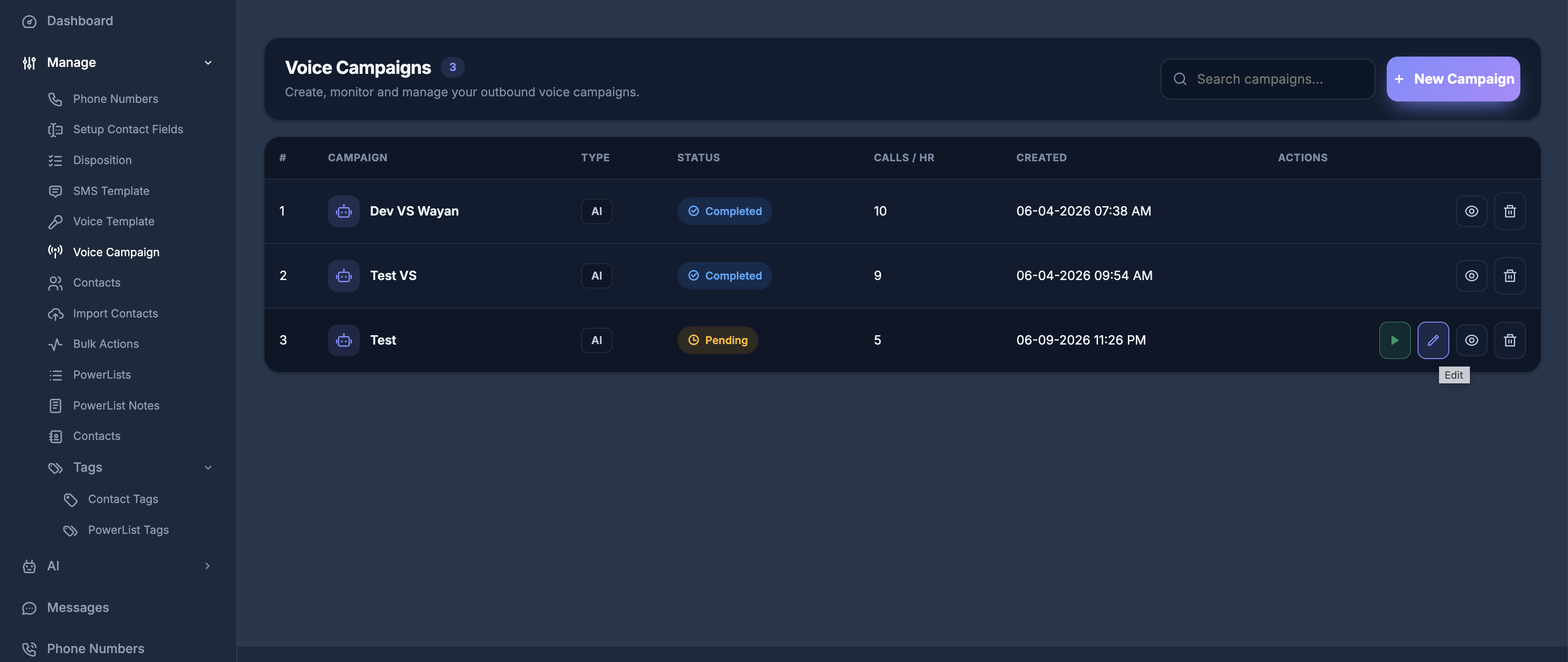
The main screen shows your campaigns in a table. Each row is one campaign.
**🏁 Top actions**
* **Search campaigns…** — find campaigns by name, type, or status.
* **+ New Campaign** — open the campaign builder to create a new campaign.
If you have many campaigns, the list is split into pages so it stays easy to browse.
### 🗃️ Columns in the table
| What you see | What it means |
| -------------- | ---------------------------------------------------------------------------- |
| **#** | Row number in the table. |
| **Campaign** | Campaign name. AI campaigns show a robot icon next to the title. |
| **Type** | Campaign engine — for example **AI** or **Dialer**. |
| **Status** | Current state — Pending, In Progress, Paused, or Completed. |
| **Calls / HR** | Target calls per hour (mainly used for AI campaigns). |
| **Created** | Date and time the campaign was created, in your timezone. |
| **Actions** | Row controls such as view report, edit, start, pause, delete, or speed dial. |
## 🚦 Campaign statuses
| Status | Meaning |
| --------------- | ------------------------------------------------------------------------ |
| **Pending** | The campaign has been created but has not started yet. |
| **In Progress** | The campaign is currently running and placing calls. |
| **Paused** | Dialing has been stopped temporarily and can be started again. |
| **Completed** | The campaign has finished. Completed campaigns usually cannot be edited. |
## ➕ Creating an AI campaign
Select **+ New Campaign** from the campaign list to open the campaign builder.
## ✨ What you can do
* Create new **AI voice campaigns**.
* View all existing campaigns in a searchable list.
* Edit campaigns that are not completed.
* Start **Pending** or **Paused** campaigns.
* Pause campaigns that are currently running.
* Open campaign reports to review performance.
* Delete campaigns when your account has permission.
## 📋 Campaign list
The main screen shows your campaigns in a table. Each row is one campaign.
**🏁 Top actions**
* **Search campaigns…** — find campaigns by name, type, or status.
* **+ New Campaign** — open the campaign builder to create a new campaign.
If you have many campaigns, the list is split into pages so it stays easy to browse.
### 🗃️ Columns in the table
| What you see | What it means |
| -------------- | ---------------------------------------------------------------------------- |
| **#** | Row number in the table. |
| **Campaign** | Campaign name. AI campaigns show a robot icon next to the title. |
| **Type** | Campaign engine — for example **AI** or **Dialer**. |
| **Status** | Current state — Pending, In Progress, Paused, or Completed. |
| **Calls / HR** | Target calls per hour (mainly used for AI campaigns). |
| **Created** | Date and time the campaign was created, in your timezone. |
| **Actions** | Row controls such as view report, edit, start, pause, delete, or speed dial. |
## 🚦 Campaign statuses
| Status | Meaning |
| --------------- | ------------------------------------------------------------------------ |
| **Pending** | The campaign has been created but has not started yet. |
| **In Progress** | The campaign is currently running and placing calls. |
| **Paused** | Dialing has been stopped temporarily and can be started again. |
| **Completed** | The campaign has finished. Completed campaigns usually cannot be edited. |
## ➕ Creating an AI campaign
Select **+ New Campaign** from the campaign list to open the campaign builder.
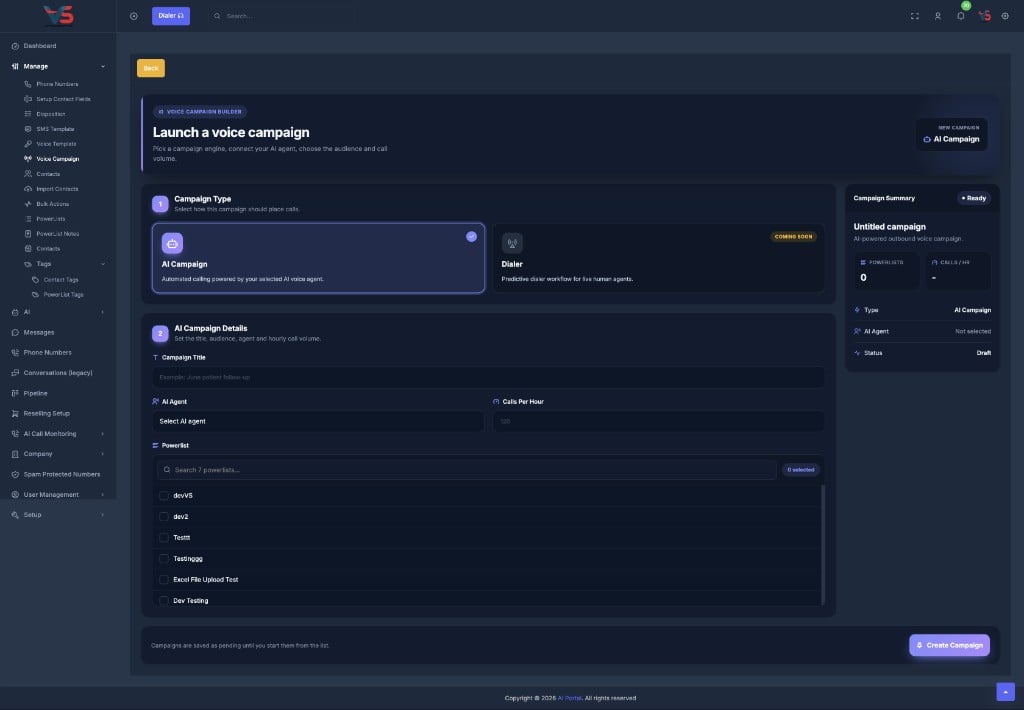 ### 1️⃣ Step 1 — Campaign type
Choose the campaign engine:
* **AI Campaign** — automated calling powered by your selected AI voice agent. This is the option available for new campaigns today.
* **Dialer** — predictive dialer workflow for live human agents. Shown as **Coming Soon** for new campaign creation.
### 2️⃣ Step 2 — AI campaign details
Fill in the required fields:
| Field | What to enter |
| ------------------ | -------------------------------------------------------------------------- |
| **Campaign Title** | A clear, unique name — for example, `June patient follow-up`. |
| **AI Agent** | The voice agent that will handle or place the calls. |
| **Calls Per Hour** | How many calls the campaign should attempt each hour — for example, `120`. |
| **Powerlist** | One or more contact lists that define who will be called. |
Select **Create Campaign** when you are ready. The campaign is saved as **Pending** and does not start automatically. Start it from the campaign list when you are ready to dial.
## ▶️ Starting a campaign
Campaigns with **Pending** or **Paused** status can be started from the campaign list.
1. Find the campaign in the list.
2. Select **Start**.
3. Confirm when prompted.
After confirmation, the status changes to **In Progress** and outbound dialing begins according to your settings.
## ⏸️ Pausing a campaign
Campaigns with **In Progress** status can be paused from the campaign list.
1. Find the running campaign.
2. Select **Pause**.
3. Confirm when prompted.
After confirmation, the status changes to **Paused**. You can start the campaign again later without recreating it.
## ✏️ Editing a campaign
Campaigns that are **not completed** can be edited if your account has permission.
You can update:
* Campaign title
* AI agent
* Calls per hour
* Selected powerlists
After saving, the campaign remains in the list with its current status. **Completed** campaigns cannot be edited.
## 📊 Viewing reports
Open a report with the **eye icon** on a campaign row.
### 1️⃣ Step 1 — Campaign type
Choose the campaign engine:
* **AI Campaign** — automated calling powered by your selected AI voice agent. This is the option available for new campaigns today.
* **Dialer** — predictive dialer workflow for live human agents. Shown as **Coming Soon** for new campaign creation.
### 2️⃣ Step 2 — AI campaign details
Fill in the required fields:
| Field | What to enter |
| ------------------ | -------------------------------------------------------------------------- |
| **Campaign Title** | A clear, unique name — for example, `June patient follow-up`. |
| **AI Agent** | The voice agent that will handle or place the calls. |
| **Calls Per Hour** | How many calls the campaign should attempt each hour — for example, `120`. |
| **Powerlist** | One or more contact lists that define who will be called. |
Select **Create Campaign** when you are ready. The campaign is saved as **Pending** and does not start automatically. Start it from the campaign list when you are ready to dial.
## ▶️ Starting a campaign
Campaigns with **Pending** or **Paused** status can be started from the campaign list.
1. Find the campaign in the list.
2. Select **Start**.
3. Confirm when prompted.
After confirmation, the status changes to **In Progress** and outbound dialing begins according to your settings.
## ⏸️ Pausing a campaign
Campaigns with **In Progress** status can be paused from the campaign list.
1. Find the running campaign.
2. Select **Pause**.
3. Confirm when prompted.
After confirmation, the status changes to **Paused**. You can start the campaign again later without recreating it.
## ✏️ Editing a campaign
Campaigns that are **not completed** can be edited if your account has permission.
You can update:
* Campaign title
* AI agent
* Calls per hour
* Selected powerlists
After saving, the campaign remains in the list with its current status. **Completed** campaigns cannot be edited.
## 📊 Viewing reports
Open a report with the **eye icon** on a campaign row.
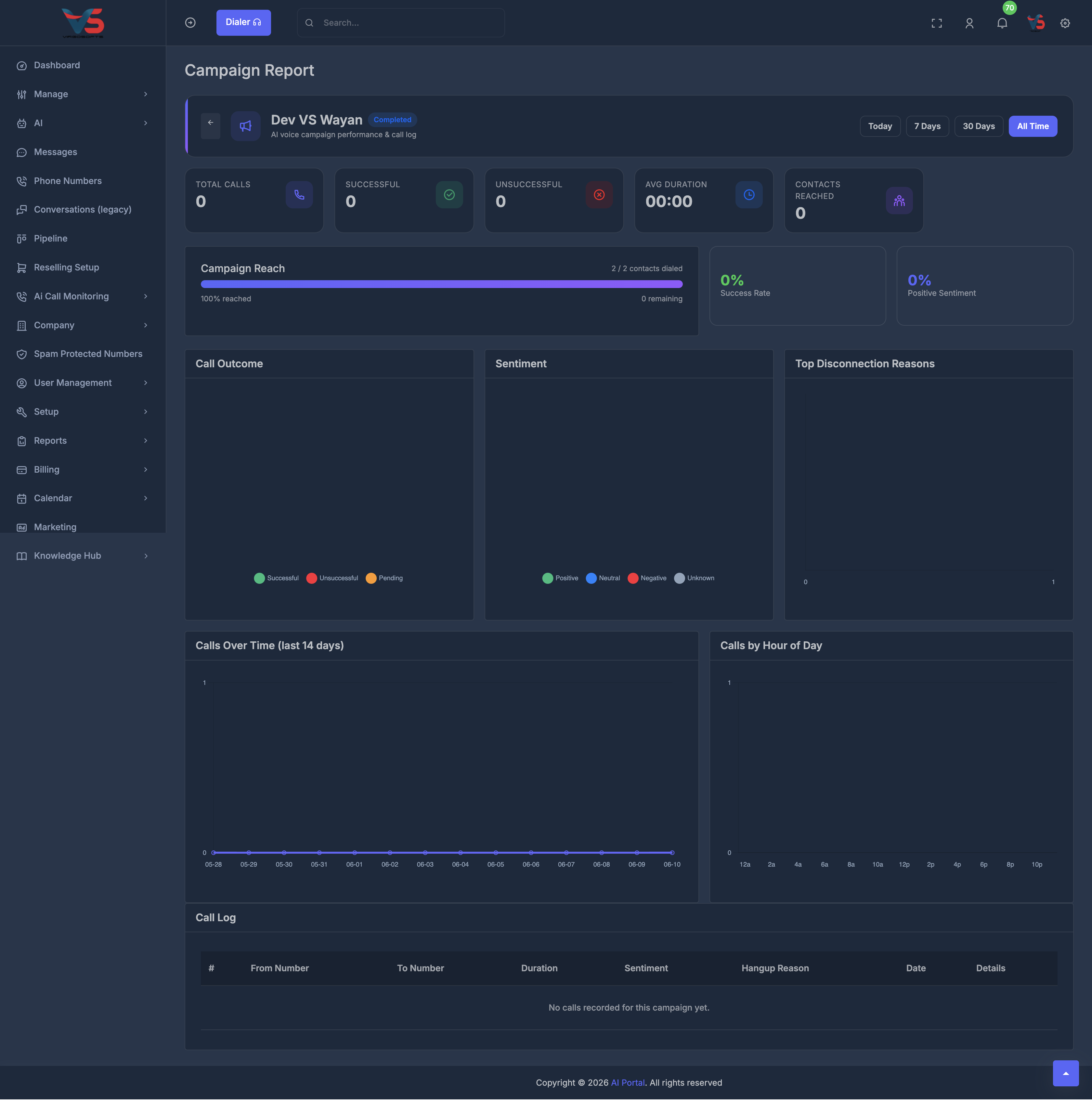 The report page is specific to that campaign and helps you understand how calls are performing. Depending on your setup, reports may include:
**📈 Summary metrics**
* Total calls made
* Successful and unsuccessful calls
* Contacts reached
* Average call duration
* Campaign reach across the selected audience
* Success rate and positive sentiment rate
**📉 Breakdowns and activity**
* Call outcome
* Sentiment breakdown
* Top Disconnection Reasons
* Call over time (last 14 days)
* Call by hour of day
* Call log
### 🔎 Filters
Use filters at the top to narrow what appears in summary tiles and the call log:
| Filter | Purpose |
| ------------------------- | -------------------------------------------------------------------------------------------------- |
| **Date Range** | Presets such as today, yesterday, this week, last 7 days, this month, last month, or custom. |
| **Start Date / End Date** | Used when a custom date range is selected. |
| **Call Status** | All, Answered, Completed, Busy, No-answer, Failed, Missed Call, Cancel — labels may vary by setup. |
| **Min Duration** | Lower bound in seconds. |
| **Max Duration** | Upper bound, or No Limit. |
| **Call Direction** | All, Inbound, or Outbound. |
| **Agents** | All agents or a specific agent. |
| **Filter** | Applies all selected criteria. |
**📈 Summary cards**
After filters are applied, quick counters typically show:
* **Answered**
* **No Answer**
* **Busy**
* **Voicemail**
* **Dropped**
These update when you apply filters and the report reloads.
## 🗑️ Deleting a campaign
If your account has delete permission, you can remove a campaign from the list using the **trash icon**.
The report page is specific to that campaign and helps you understand how calls are performing. Depending on your setup, reports may include:
**📈 Summary metrics**
* Total calls made
* Successful and unsuccessful calls
* Contacts reached
* Average call duration
* Campaign reach across the selected audience
* Success rate and positive sentiment rate
**📉 Breakdowns and activity**
* Call outcome
* Sentiment breakdown
* Top Disconnection Reasons
* Call over time (last 14 days)
* Call by hour of day
* Call log
### 🔎 Filters
Use filters at the top to narrow what appears in summary tiles and the call log:
| Filter | Purpose |
| ------------------------- | -------------------------------------------------------------------------------------------------- |
| **Date Range** | Presets such as today, yesterday, this week, last 7 days, this month, last month, or custom. |
| **Start Date / End Date** | Used when a custom date range is selected. |
| **Call Status** | All, Answered, Completed, Busy, No-answer, Failed, Missed Call, Cancel — labels may vary by setup. |
| **Min Duration** | Lower bound in seconds. |
| **Max Duration** | Upper bound, or No Limit. |
| **Call Direction** | All, Inbound, or Outbound. |
| **Agents** | All agents or a specific agent. |
| **Filter** | Applies all selected criteria. |
**📈 Summary cards**
After filters are applied, quick counters typically show:
* **Answered**
* **No Answer**
* **Busy**
* **Voicemail**
* **Dropped**
These update when you apply filters and the report reloads.
## 🗑️ Deleting a campaign
If your account has delete permission, you can remove a campaign from the list using the **trash icon**.