> ## Documentation Index
> Fetch the complete documentation index at: https://docs.aisync.link/llms.txt
> Use this file to discover all available pages before exploring further.
# Voice Templates
> User guide for creating, editing, and managing reusable voice templates using TTS, audio upload, or microphone recording.
## 📝 Overview
**Voice Templates** lets you save reusable voice messages for calling workflows.
You can create a template in three ways:
1. **Text To Speech** (type words, system reads them aloud).
2. **Audio File** (upload an existing MP3/WAV file).
3. **Record Voice** (record from your microphone in the browser).
After saving, templates can be selected anywhere your product uses company voice templates (for example campaigns or call-flow steps).
 ## 📄 Main list
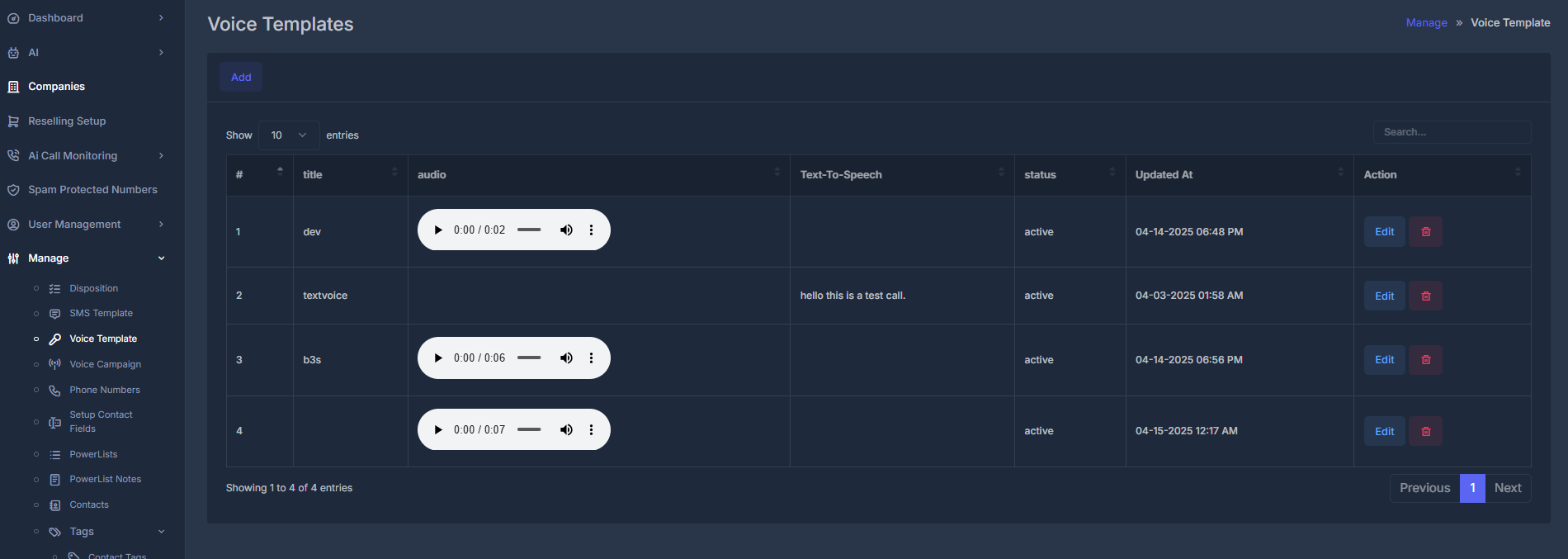
When you open Voice Templates, you see a table with one row per template.
**➕ Add**
Click **Add** to start a new template. The form opens and the list is hidden until you return.
**🔍 Search**
A search field above the table filters rows as you type. Matching is based on table content.
### 🗂️ Columns
| What you see | What it means |
| ------------------ | --------------------------------------------------------------------------- |
| **#** | Row number (1, 2, 3...). |
| **Title** | Template name used for identifying it later. |
| **Audio** | Mini player for uploaded/recorded audio templates. |
| **Text-To-Speech** | Script text for templates saved as TTS. |
| **Status** | Whether the template is active/inactive. |
| **Updated At** | Last modified time (your timezone). |
| **Action** | **Edit** updates the row; **Delete** (trash) removes it after confirmation. |
If a template is file-based, TTS text may be empty. If it is TTS-based, audio may be empty in the list until generated/available by your setup.
## ✏️ Create or edit a template
* Click **Add** for a new template.
* Click **Edit** on an existing row to update it.
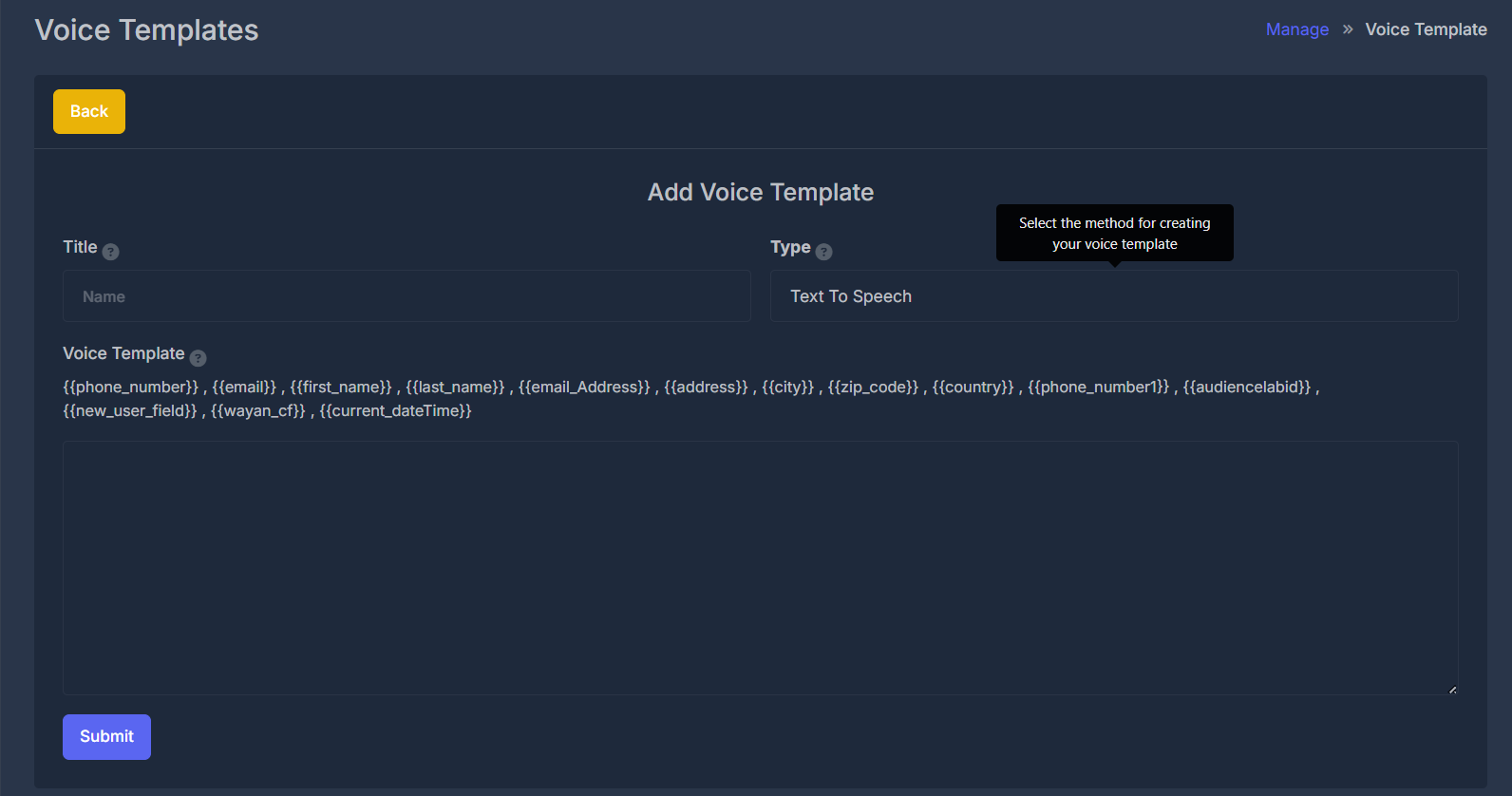
The heading usually shows **Add Voice Template** or **Edit Voice Template** based on what you chose.
**🔙 Back**
Use **Back** at the top of the form to return to the list without browser navigation.
Important repeat: **Back** closes the form, it does not save changes.
## 📄 Main list
When you open Voice Templates, you see a table with one row per template.
**➕ Add**
Click **Add** to start a new template. The form opens and the list is hidden until you return.
**🔍 Search**
A search field above the table filters rows as you type. Matching is based on table content.
### 🗂️ Columns
| What you see | What it means |
| ------------------ | --------------------------------------------------------------------------- |
| **#** | Row number (1, 2, 3...). |
| **Title** | Template name used for identifying it later. |
| **Audio** | Mini player for uploaded/recorded audio templates. |
| **Text-To-Speech** | Script text for templates saved as TTS. |
| **Status** | Whether the template is active/inactive. |
| **Updated At** | Last modified time (your timezone). |
| **Action** | **Edit** updates the row; **Delete** (trash) removes it after confirmation. |
If a template is file-based, TTS text may be empty. If it is TTS-based, audio may be empty in the list until generated/available by your setup.
## ✏️ Create or edit a template
* Click **Add** for a new template.
* Click **Edit** on an existing row to update it.
The heading usually shows **Add Voice Template** or **Edit Voice Template** based on what you chose.
**🔙 Back**
Use **Back** at the top of the form to return to the list without browser navigation.
Important repeat: **Back** closes the form, it does not save changes.
 ## 📝 Form fields
**🏷️ Title**
Give the template a short, clear name (for example "Opening Greeting" or "Voicemail Follow-up").
* Helps your team identify the right template quickly.
* Should be filled for every template.
* Should be unique in your workspace (see rules section below).
## 🎚️ Type
Choose how this template is produced:
1. **Text To Speech**
2. **Audio File**
3. **Record Voice**
Changing **Type** shows only the matching input section, so the form stays focused on the selected method.
### 🗣️ Type: Text To Speech
## 📝 Form fields
**🏷️ Title**
Give the template a short, clear name (for example "Opening Greeting" or "Voicemail Follow-up").
* Helps your team identify the right template quickly.
* Should be filled for every template.
* Should be unique in your workspace (see rules section below).
## 🎚️ Type
Choose how this template is produced:
1. **Text To Speech**
2. **Audio File**
3. **Record Voice**
Changing **Type** shows only the matching input section, so the form stays focused on the selected method.
### 🗣️ Type: Text To Speech
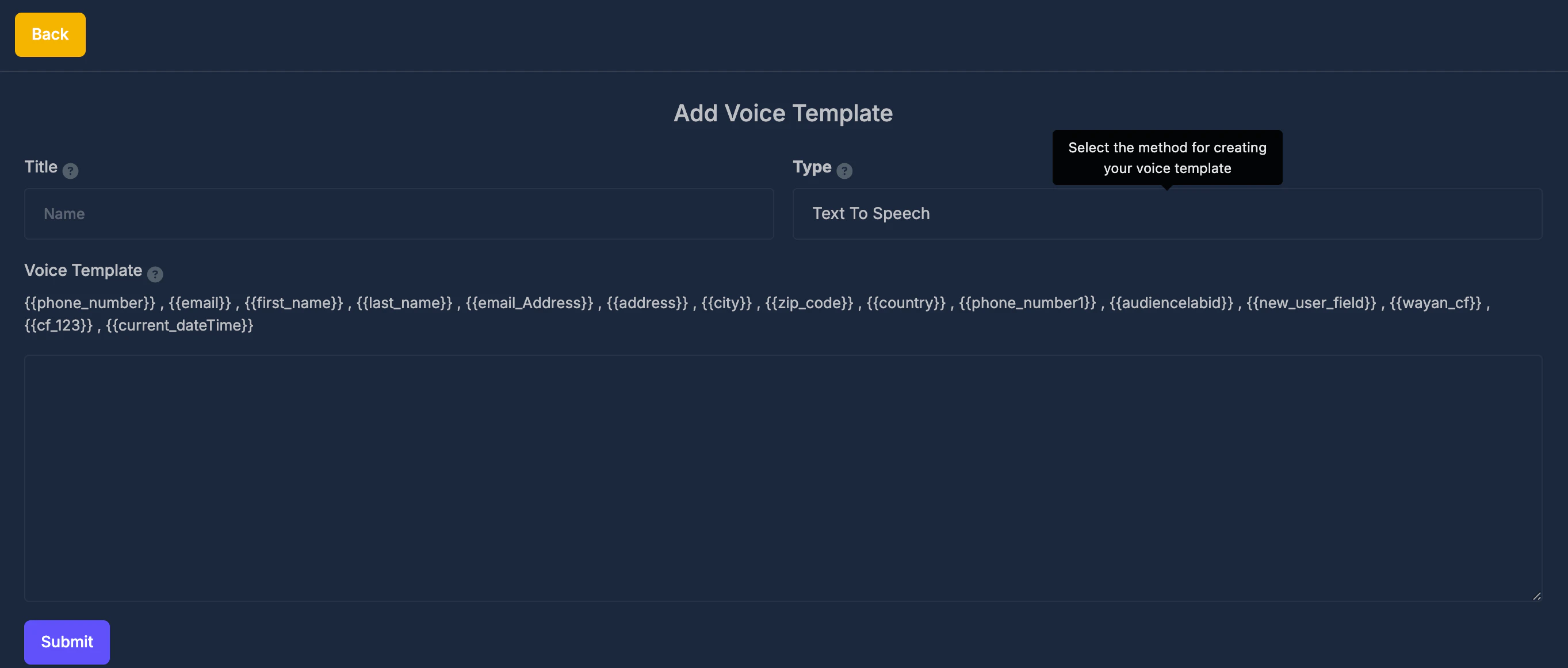 **💬 Voice Template (script box)**
Type the full script that should be spoken.
You may see variable hints using double curly brackets. Where your setup supports it, these are replaced with real values at runtime (for example contact fields, date, or time). Use variable text exactly as shown, including brackets.
Examples of possible variable style:
* `{{customer_name}}`
* `{{appointment_date}}`
* `{{appointment_time}}`
* `{{current_date}}`
**✅ Submit**
Click **Submit** to save TTS templates.
* While saving: a short wait message may appear.
* On success: confirmation appears, then list reloads.
* On failure: error appears on the form.
### 🎵 Type: Audio File
**💬 Voice Template (script box)**
Type the full script that should be spoken.
You may see variable hints using double curly brackets. Where your setup supports it, these are replaced with real values at runtime (for example contact fields, date, or time). Use variable text exactly as shown, including brackets.
Examples of possible variable style:
* `{{customer_name}}`
* `{{appointment_date}}`
* `{{appointment_time}}`
* `{{current_date}}`
**✅ Submit**
Click **Submit** to save TTS templates.
* While saving: a short wait message may appear.
* On success: confirmation appears, then list reloads.
* On failure: error appears on the form.
### 🎵 Type: Audio File
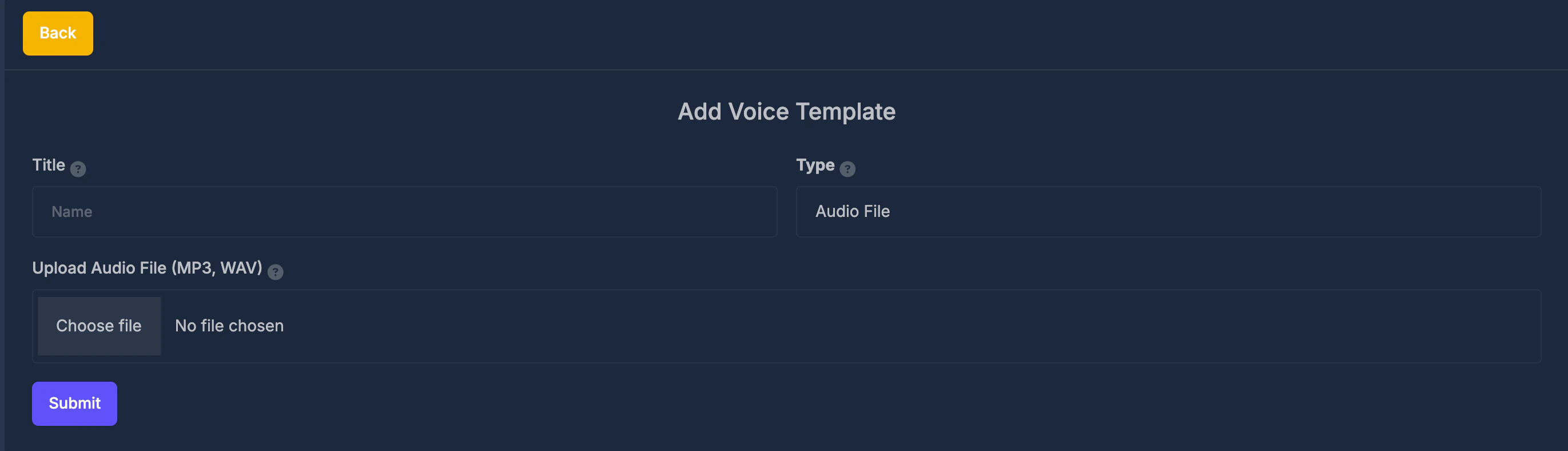 **📤 Upload Audio File**
Choose one audio file from your device.
* Accepted formats: **MP3** and **WAV**.
* Unsupported types are rejected with an error message.
**✅ Submit**
Click **Submit** to save, with the same success/error behavior as TTS saving.
### 🎙️ Type: Record Voice
**📤 Upload Audio File**
Choose one audio file from your device.
* Accepted formats: **MP3** and **WAV**.
* Unsupported types are rejected with an error message.
**✅ Submit**
Click **Submit** to save, with the same success/error behavior as TTS saving.
### 🎙️ Type: Record Voice
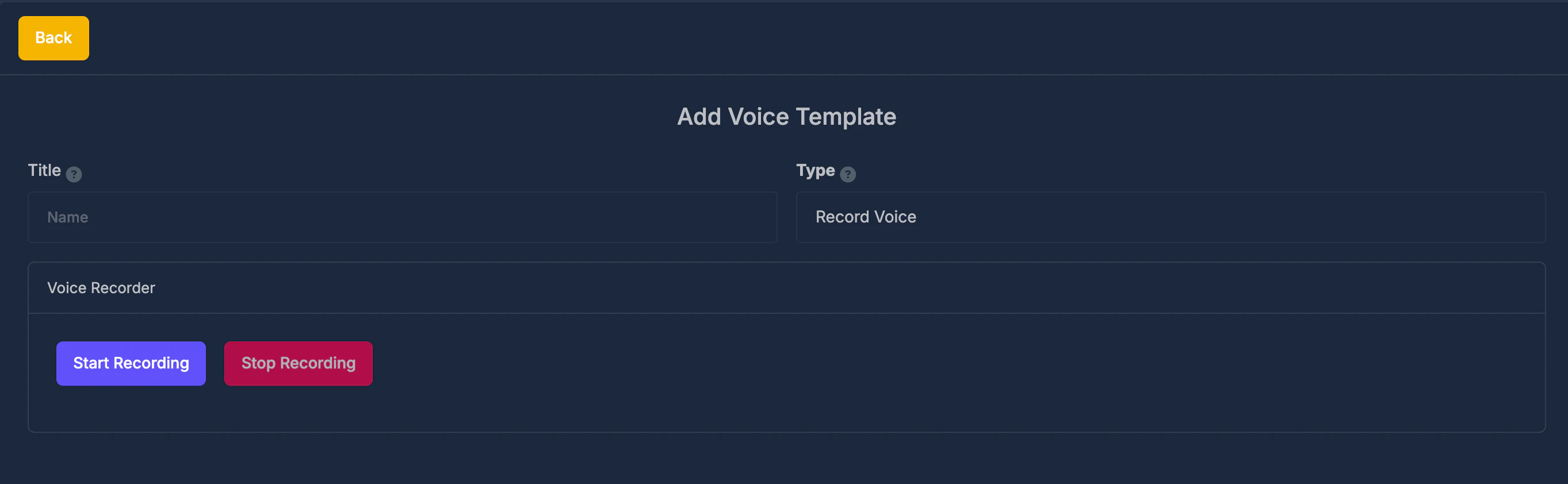 This mode uses recording controls instead of the standard text/file input flow.
1. Click **Start Recording**.
2. Allow microphone permission when the browser asks.
3. Click **Stop Recording** to end the take.
4. Review preview playback.
5. Choose one of:
* **Upload Recording** to save and return to the list.
* **Discard & Record Again** to clear and retake.
A timer usually shows recording duration while recording is active.
If microphone access fails, the page shows an error that explains the issue.
**📋 Rules that affect saving**
* **Title required:** Fill title before saving.
* **Title uniqueness:** Titles should be unique in your workspace. If duplicated, save fails and you must rename.
* **Edit replacement:** Uploading a new file while editing replaces the previous stored audio.
* **Delete cleanup:** Deleting a template removes the row and associated stored audio file.
This mode uses recording controls instead of the standard text/file input flow.
1. Click **Start Recording**.
2. Allow microphone permission when the browser asks.
3. Click **Stop Recording** to end the take.
4. Review preview playback.
5. Choose one of:
* **Upload Recording** to save and return to the list.
* **Discard & Record Again** to clear and retake.
A timer usually shows recording duration while recording is active.
If microphone access fails, the page shows an error that explains the issue.
**📋 Rules that affect saving**
* **Title required:** Fill title before saving.
* **Title uniqueness:** Titles should be unique in your workspace. If duplicated, save fails and you must rename.
* **Edit replacement:** Uploading a new file while editing replaces the previous stored audio.
* **Delete cleanup:** Deleting a template removes the row and associated stored audio file.