> ## Documentation Index
> Fetch the complete documentation index at: https://docs.aisync.link/llms.txt
> Use this file to discover all available pages before exploring further.
# Messages
The **Messages** module is your main **SMS inbox**. Use it to see recent conversations, search for a contact, start a new chat, send replies, review a contact's wider activity, and update contact details — all from one screen.
## ✨ What this module is for
Use **Messages** when you want to:
* View all recent SMS conversations in a single inbox.
* Search conversations by contact name or phone number.
* Open a contact's message history.
* Send a new SMS reply to a selected contact.
* Start a conversation with an existing contact.
* Review the contact's full activity — messages, calls, emails, notes, tag changes, and workflow steps.
* Update contact info, tags, notes, appointments, pipeline stage, SMS settings, and DND preferences without leaving the inbox.
* Jump from the conversation straight to the contact's full record.
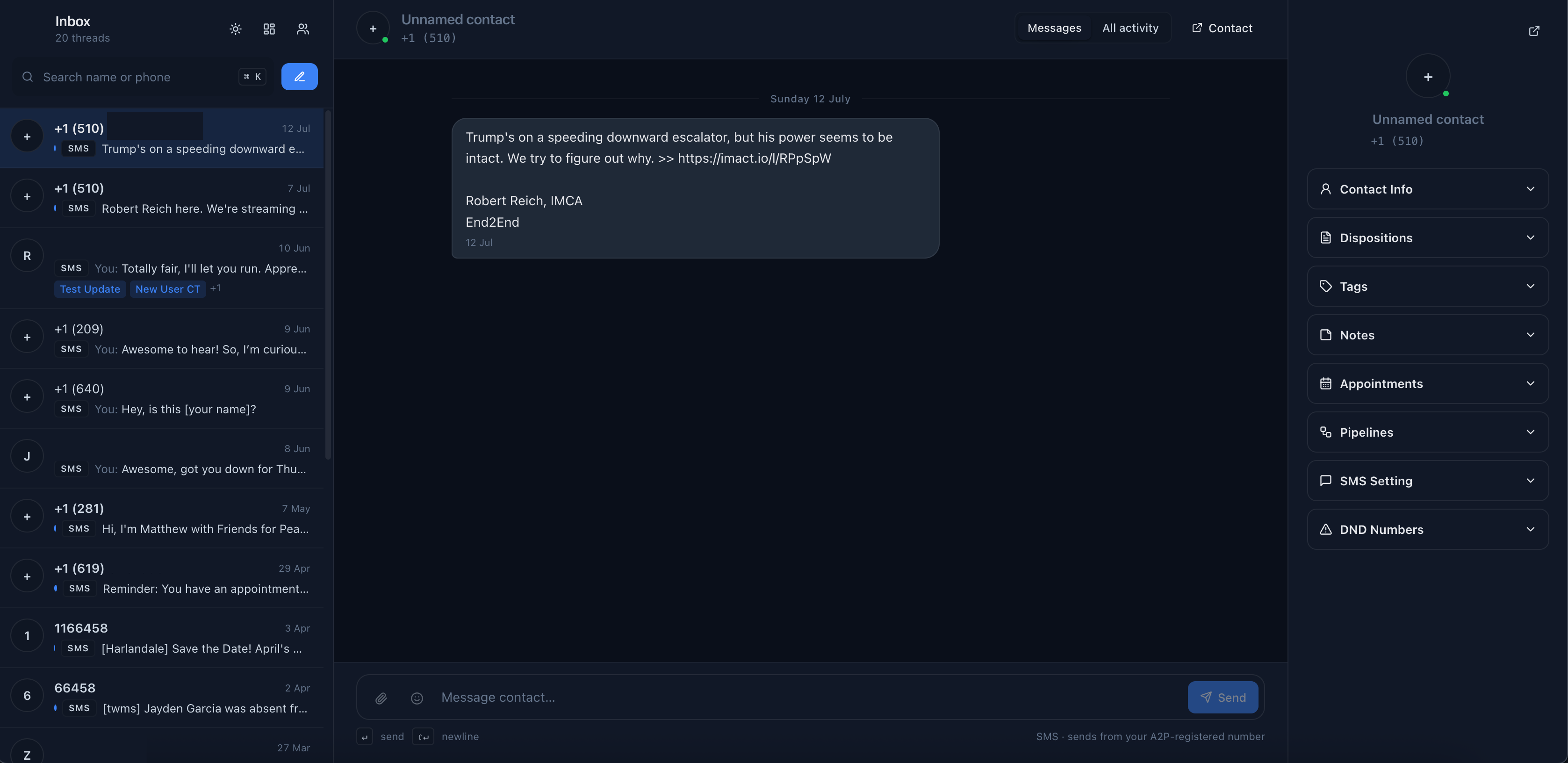
The Messages screen has three main areas.
 ### 📥 Inbox sidebar (left)
The left side is the **inbox list**. It shows recent message threads, with the newest conversations near the top.
The header shows **Inbox** and the current **thread count** — for example, *20 threads*.
Each conversation row can show:
| Item | What it means |
| -------------------------- | ------------------------------------------------------------ |
| **Contact name** | The person's name, or their phone number if no name is saved |
| **Latest message preview** | A short snippet of the most recent text |
| **Direction** | Whether the latest message came from the contact or from you |
| **Channel** | The message type, such as SMS |
| **Time** | When the latest message was sent or received |
| **Tags** | Contact tags, when available |
| **Unread indicator** | Shown when the latest message is inbound and not yet read |
At the top of the sidebar, you also have quick buttons for:
* Switching between **light** and **dark** mode.
* Going back to the **dashboard**.
* Opening the **contacts** area.
* **Composing** a new conversation with the **Compose** button.
**🔍 Searching conversations**
Use the **search box** in the inbox sidebar to find a conversation by contact name or phone number.
Search updates automatically as you type. The inbox also refreshes in the background, so new or updated conversations can appear without manually reloading the page.
**Keyboard shortcut**
| Platform | Shortcut |
| -------- | ------------- |
| Windows | `Ctrl + K` |
| Mac | `Command + K` |
Press the shortcut to jump straight to the search box.
### 💬 Conversation Panel (middle)
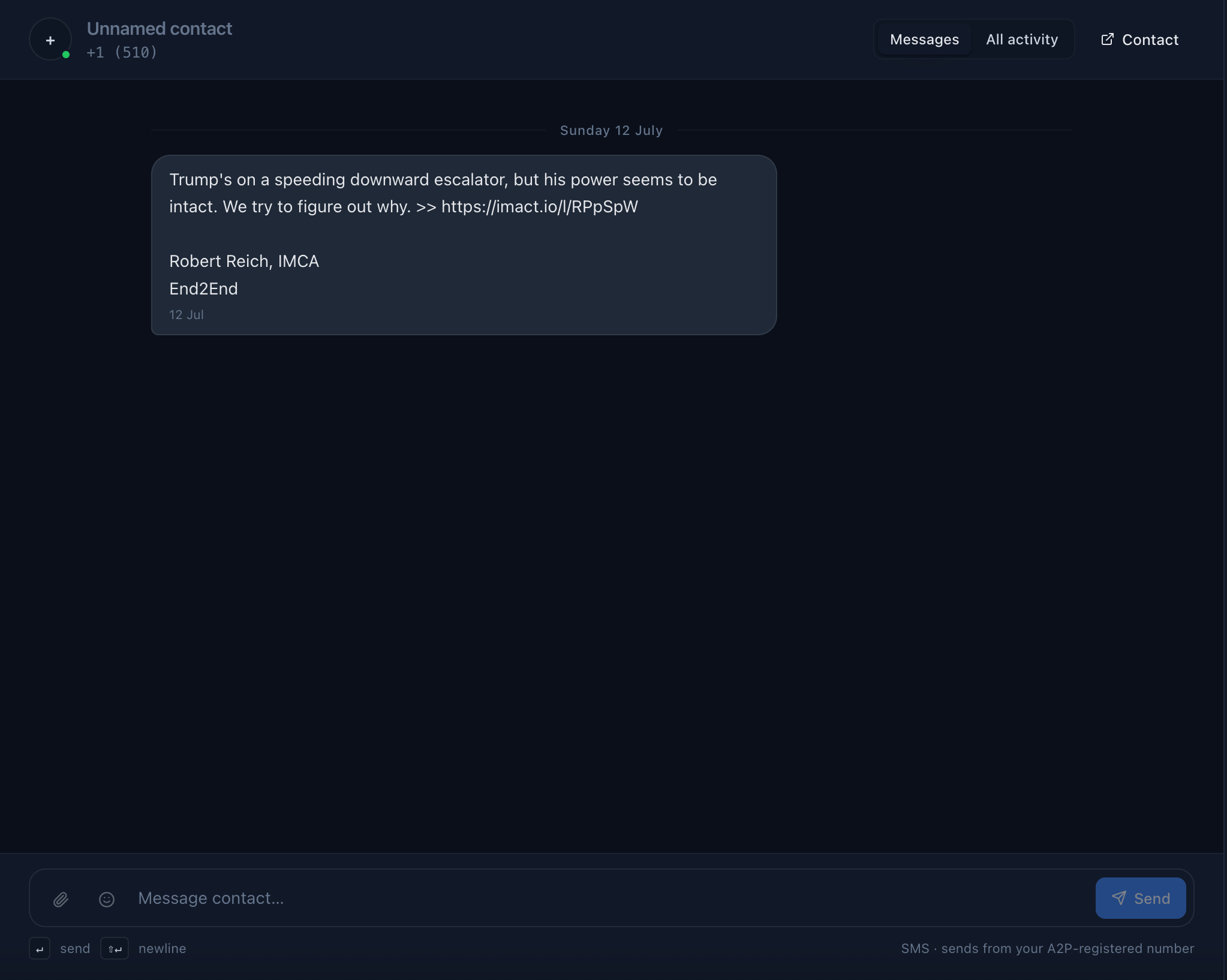
Step into the **heart** of your Messages experience — the Conversation Panel! Here, your entire conversation comes alive: see, respond, and take action all in one seamless space.
### 📥 Inbox sidebar (left)
The left side is the **inbox list**. It shows recent message threads, with the newest conversations near the top.
The header shows **Inbox** and the current **thread count** — for example, *20 threads*.
Each conversation row can show:
| Item | What it means |
| -------------------------- | ------------------------------------------------------------ |
| **Contact name** | The person's name, or their phone number if no name is saved |
| **Latest message preview** | A short snippet of the most recent text |
| **Direction** | Whether the latest message came from the contact or from you |
| **Channel** | The message type, such as SMS |
| **Time** | When the latest message was sent or received |
| **Tags** | Contact tags, when available |
| **Unread indicator** | Shown when the latest message is inbound and not yet read |
At the top of the sidebar, you also have quick buttons for:
* Switching between **light** and **dark** mode.
* Going back to the **dashboard**.
* Opening the **contacts** area.
* **Composing** a new conversation with the **Compose** button.
**🔍 Searching conversations**
Use the **search box** in the inbox sidebar to find a conversation by contact name or phone number.
Search updates automatically as you type. The inbox also refreshes in the background, so new or updated conversations can appear without manually reloading the page.
**Keyboard shortcut**
| Platform | Shortcut |
| -------- | ------------- |
| Windows | `Ctrl + K` |
| Mac | `Command + K` |
Press the shortcut to jump straight to the search box.
### 💬 Conversation Panel (middle)
Step into the **heart** of your Messages experience — the Conversation Panel! Here, your entire conversation comes alive: see, respond, and take action all in one seamless space.
 **🌟 Dynamic Header**
* **Contact Name** (or phone number): Beautifully displayed up top so you always know who you're chatting with.
* **Primary Number:** Instantly visible for quick reference and zero confusion.
* **Contact Button:** Jump straight to the full contact record — no hunting required.
**🗂️ Effortless Tab Navigation**
To the right, swap between:
* **Messages:** Dive into the real-time chat thread, with clear color-coded bubbles to distinguish inbound and outbound messages at a glance. Each entry shines with a timestamp and clear sender/receiver labels.
* **All Activity:** Effortlessly scan every update, status change, note, or SMS related to this contact — all organized in a crisp, scrollable feed.
**💡 Intuitive Message Window**
Relish the clarity of a neatly arranged, chronological timeline — every message, link, or special format is displayed just like you’d expect. The design makes it easy to spot new replies and track the conversation flow.
**📨 Smart Reply Bar**
Ready to respond? The conversation panel’s sleek input box is always at your fingertips:
* **Type your message** and hit the bold, easy-to-spot **Send** button for instant delivery.
* Attach files, save drafts, and — in select versions — access templates for lightning-fast replies.
### 👤 Contact sidebar (right)
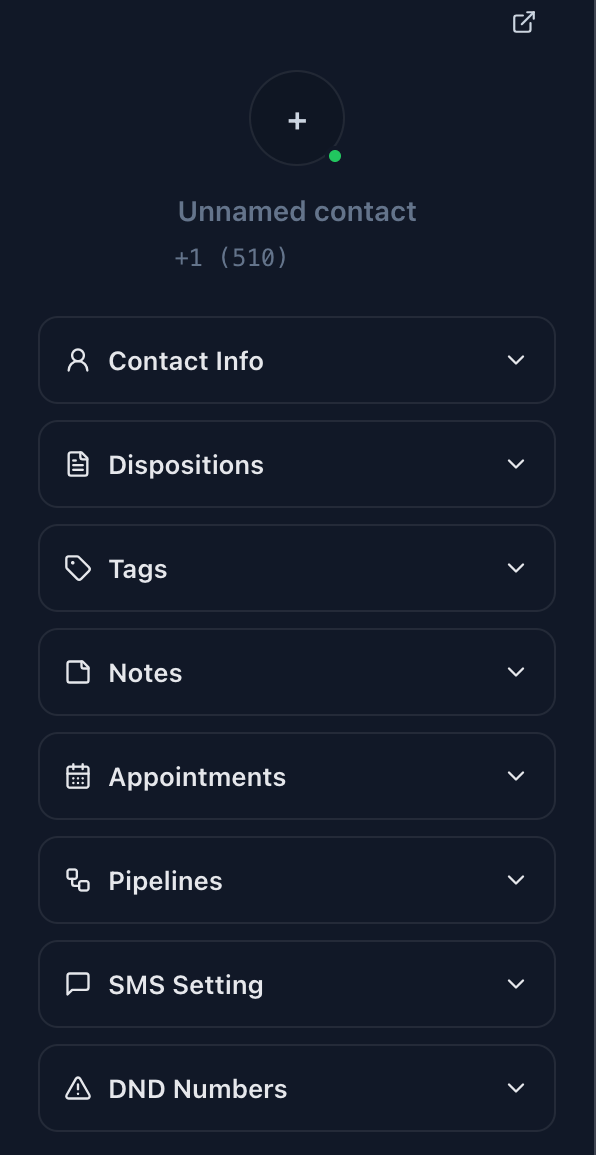
The right side is the **contact sidebar**. It shows details and settings for the currently selected contact. Each section can be expanded or collapsed.
At the top of the sidebar you see the contact's **avatar**, **name**, and **phone number**. Use the **external link** icon to open the contact's full record in a separate view.
**🌟 Dynamic Header**
* **Contact Name** (or phone number): Beautifully displayed up top so you always know who you're chatting with.
* **Primary Number:** Instantly visible for quick reference and zero confusion.
* **Contact Button:** Jump straight to the full contact record — no hunting required.
**🗂️ Effortless Tab Navigation**
To the right, swap between:
* **Messages:** Dive into the real-time chat thread, with clear color-coded bubbles to distinguish inbound and outbound messages at a glance. Each entry shines with a timestamp and clear sender/receiver labels.
* **All Activity:** Effortlessly scan every update, status change, note, or SMS related to this contact — all organized in a crisp, scrollable feed.
**💡 Intuitive Message Window**
Relish the clarity of a neatly arranged, chronological timeline — every message, link, or special format is displayed just like you’d expect. The design makes it easy to spot new replies and track the conversation flow.
**📨 Smart Reply Bar**
Ready to respond? The conversation panel’s sleek input box is always at your fingertips:
* **Type your message** and hit the bold, easy-to-spot **Send** button for instant delivery.
* Attach files, save drafts, and — in select versions — access templates for lightning-fast replies.
### 👤 Contact sidebar (right)
The right side is the **contact sidebar**. It shows details and settings for the currently selected contact. Each section can be expanded or collapsed.
At the top of the sidebar you see the contact's **avatar**, **name**, and **phone number**. Use the **external link** icon to open the contact's full record in a separate view.
 **📋 Contact Info**
Shows the core fields your company stores for this person — for example first name, last name, phone, email, and custom fields. Edit what you are allowed to change and click **Save Changes**. After a successful save, the name and phone shown in the conversation header update to match.
**🏅 Dispositions**
**Dispositions** are outcome labels your company defines — for example *Not Interested*, *Callback Needed*, or *Sold*. Pick the one that matches the latest interaction. Selections often save immediately when changed.
**🔖 Tags**
**Tags** act as flexible labels like *VIP* or *High Priority*. Add or remove tags with the multi-select control and click **Save Tags** so changes are stored.
**🗒️ Notes**
Notes are **internal** — they are not sent to the contact. View existing notes, add new ones, or edit notes that are already saved. After saving, the list refreshes with the newest notes first.
**📅 Appointments**
Shows appointments connected to this contact — for example date, time, calendar, duration, and status. Use **Add** to book new appointments when calendar integration is active.
**🏗️ Pipelines**
The **Pipelines** section links this contact to a **pipeline** and **stage** — for example New → Qualified → Won. Choose a pipeline, pick the right stage, and save.
**📲 SMS Setting**
SMS settings control which number you use when sending texts from Messages.
* **From** — choose a **business number** that is registered and approved for outbound SMS.
* **To** — shows the contact's phone number as read-only. If it is wrong, edit it under **Contact Info**, not here.
**🚫 DND Numbers**
**DND Numbers** (Do Not Disturb) settings let you respect contact preferences and regulations.
* **DND all channels** — blocks all supported outbound channels for this contact.
* Or choose specific channels: **Emails**, **Text messages**, **Calls & voicemails**.
* **DND Inbound Calls and SMS** — an extra setting for how the system handles incoming calls and texts.
Many DND options save as soon as you click them. If sending is blocked by DND, you see a warning until an allowed user changes those settings.
**👤 Contact button**
The **Contact** button in the conversation header also opens the selected contact's full record and timeline.
Use it when you need deeper contact history or actions that are not available inside the Messages inbox.
The Messages module is for **quick conversation handling and inline contact updates**. The full contact record is for **complete contact management**.
**🌓 Theme toggle**
The theme button lets you switch the inbox between **dark mode** and **light mode**.
This affects the Messages screen display only. Use whichever view is easier for you to read.
If no conversation is selected, the screen asks you to pick a conversation or start a new one.
## ✏️ How to start a new conversation
You can begin a new conversation in one of two ways:
1. Click **Compose** at the top of the inbox list, **or**
2. Use the keyboard shortcut: press **`N`**.
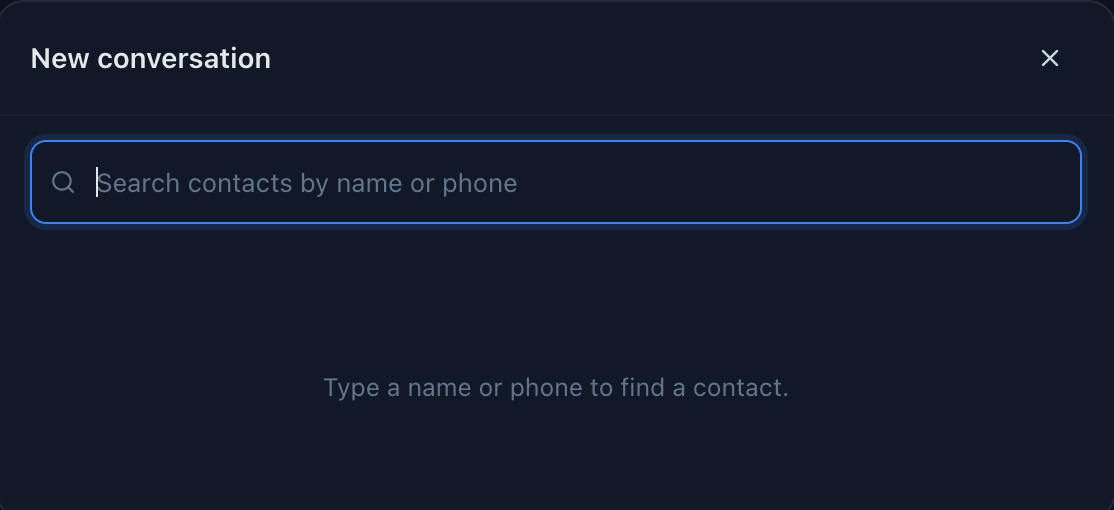
This opens the **New conversation** popup. In the popup:
1. Enter a contact name or phone number into the search field.
2. Choose the correct contact from the search results.
3. The conversation view appears in the middle panel.
4. Type your message and send.
**📋 Contact Info**
Shows the core fields your company stores for this person — for example first name, last name, phone, email, and custom fields. Edit what you are allowed to change and click **Save Changes**. After a successful save, the name and phone shown in the conversation header update to match.
**🏅 Dispositions**
**Dispositions** are outcome labels your company defines — for example *Not Interested*, *Callback Needed*, or *Sold*. Pick the one that matches the latest interaction. Selections often save immediately when changed.
**🔖 Tags**
**Tags** act as flexible labels like *VIP* or *High Priority*. Add or remove tags with the multi-select control and click **Save Tags** so changes are stored.
**🗒️ Notes**
Notes are **internal** — they are not sent to the contact. View existing notes, add new ones, or edit notes that are already saved. After saving, the list refreshes with the newest notes first.
**📅 Appointments**
Shows appointments connected to this contact — for example date, time, calendar, duration, and status. Use **Add** to book new appointments when calendar integration is active.
**🏗️ Pipelines**
The **Pipelines** section links this contact to a **pipeline** and **stage** — for example New → Qualified → Won. Choose a pipeline, pick the right stage, and save.
**📲 SMS Setting**
SMS settings control which number you use when sending texts from Messages.
* **From** — choose a **business number** that is registered and approved for outbound SMS.
* **To** — shows the contact's phone number as read-only. If it is wrong, edit it under **Contact Info**, not here.
**🚫 DND Numbers**
**DND Numbers** (Do Not Disturb) settings let you respect contact preferences and regulations.
* **DND all channels** — blocks all supported outbound channels for this contact.
* Or choose specific channels: **Emails**, **Text messages**, **Calls & voicemails**.
* **DND Inbound Calls and SMS** — an extra setting for how the system handles incoming calls and texts.
Many DND options save as soon as you click them. If sending is blocked by DND, you see a warning until an allowed user changes those settings.
**👤 Contact button**
The **Contact** button in the conversation header also opens the selected contact's full record and timeline.
Use it when you need deeper contact history or actions that are not available inside the Messages inbox.
The Messages module is for **quick conversation handling and inline contact updates**. The full contact record is for **complete contact management**.
**🌓 Theme toggle**
The theme button lets you switch the inbox between **dark mode** and **light mode**.
This affects the Messages screen display only. Use whichever view is easier for you to read.
If no conversation is selected, the screen asks you to pick a conversation or start a new one.
## ✏️ How to start a new conversation
You can begin a new conversation in one of two ways:
1. Click **Compose** at the top of the inbox list, **or**
2. Use the keyboard shortcut: press **`N`**.
This opens the **New conversation** popup. In the popup:
1. Enter a contact name or phone number into the search field.
2. Choose the correct contact from the search results.
3. The conversation view appears in the middle panel.
4. Type your message and send.
 **💬 Messages tab**
The **Messages** tab shows the SMS conversation with the selected contact.
Messages appear as chat bubbles:
* Messages **from the contact** appear on the **left**.
* Messages **sent by you** appear on the **right**.
* Messages are **grouped by day** — for example, *Today* or *Yesterday*.
* Recent messages show the **time** they were sent or received.
If there are no messages yet, the module shows an empty state and prompts you to send the first message.
**✉️ Sending a message**
To send a message:
1. Select a conversation or start a new one.
2. Type your message in the message box at the bottom.
3. Click **Send**, or press **`Enter`**.
The message box also includes:
* An **attachment** icon for adding files, when supported.
* An **emoji** picker for inserting symbols into your message.
**Typing shortcuts**
| Action | Shortcut |
| ---------------- | --------------- |
| Send the message | `Enter` |
| Add a new line | `Shift + Enter` |
The module sends SMS from your available **A2P-registered number**. If no registered sending number is available, the message cannot be sent until your account has a valid SMS number ready.
While a message is being sent, the module may briefly show it in the conversation right away. If the send fails, you see an error message and the failed message is marked.
## 📋 All activity tab
The **All activity** tab shows a wider timeline for the selected contact.
**💬 Messages tab**
The **Messages** tab shows the SMS conversation with the selected contact.
Messages appear as chat bubbles:
* Messages **from the contact** appear on the **left**.
* Messages **sent by you** appear on the **right**.
* Messages are **grouped by day** — for example, *Today* or *Yesterday*.
* Recent messages show the **time** they were sent or received.
If there are no messages yet, the module shows an empty state and prompts you to send the first message.
**✉️ Sending a message**
To send a message:
1. Select a conversation or start a new one.
2. Type your message in the message box at the bottom.
3. Click **Send**, or press **`Enter`**.
The message box also includes:
* An **attachment** icon for adding files, when supported.
* An **emoji** picker for inserting symbols into your message.
**Typing shortcuts**
| Action | Shortcut |
| ---------------- | --------------- |
| Send the message | `Enter` |
| Add a new line | `Shift + Enter` |
The module sends SMS from your available **A2P-registered number**. If no registered sending number is available, the message cannot be sent until your account has a valid SMS number ready.
While a message is being sent, the module may briefly show it in the conversation right away. If the send fails, you see an error message and the failed message is marked.
## 📋 All activity tab
The **All activity** tab shows a wider timeline for the selected contact.
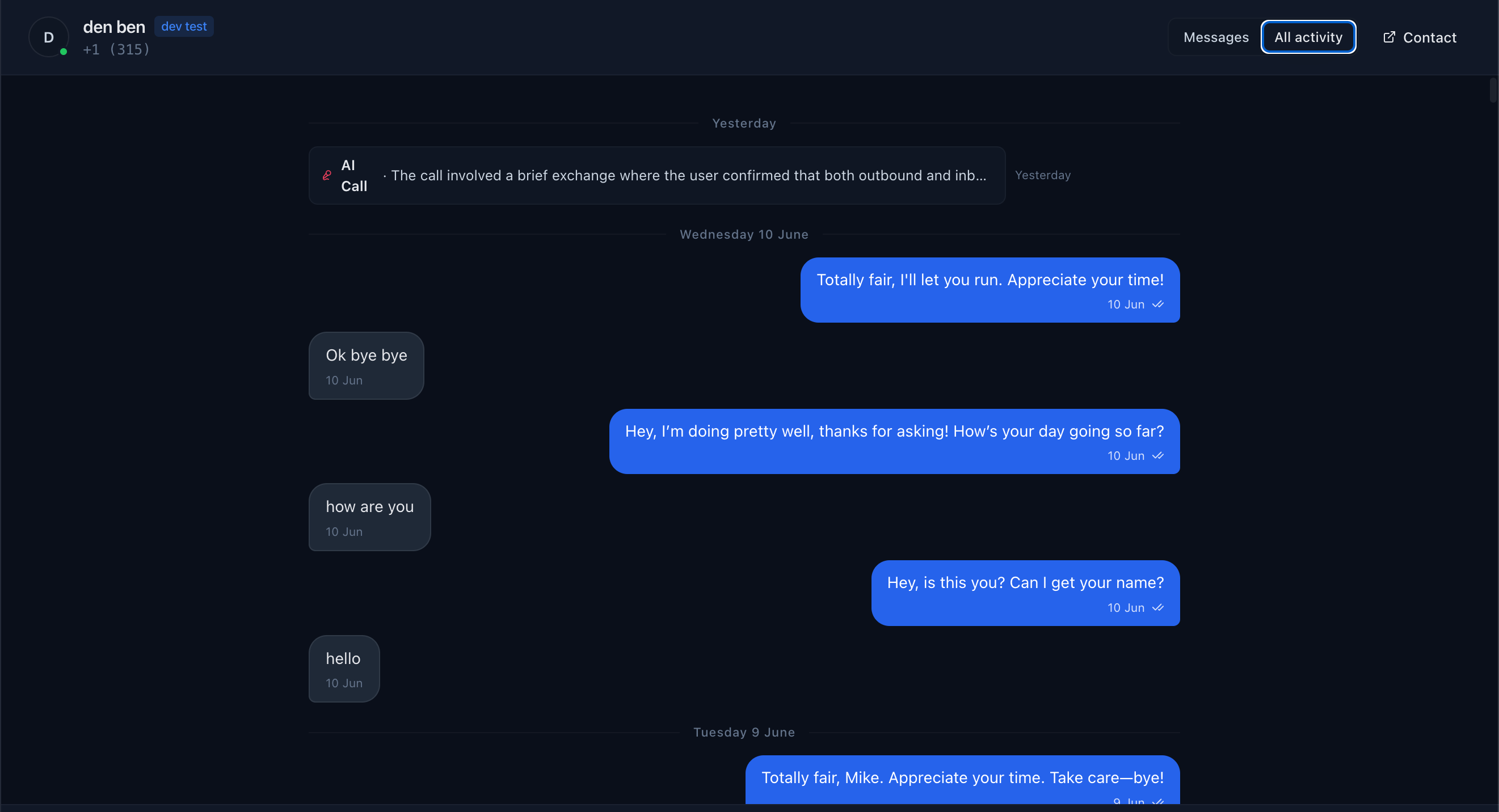 This can include:
* SMS messages
* Calls
* AI calls
* Voicemails
* Emails
* Notes
* Tag changes
* Workflow activity
Use this tab when you need more context before replying. For example, you can check whether the contact recently received an email, completed a workflow step, had a call, or had a tag changed.
## 📭 Empty states
You may see different empty states depending on the situation:
| Empty state | What it means | What to do next |
| ------------------------ | ---------------------------------------- | ---------------------------------------------- |
| **No conversations yet** | No SMS conversations are in the inbox | Start a conversation or wait for inbound texts |
| **Pick a conversation** | No contact thread is selected yet | Click a row in the inbox sidebar |
| **No messages yet** | The selected contact has no SMS messages | Send the first message |
| **No activity yet** | No activity to show in the timeline | Activity will appear as events are logged |
| **No contact matches** | New conversation search found no match | Add or import the contact, then search again |
These messages guide you toward the next action.
This can include:
* SMS messages
* Calls
* AI calls
* Voicemails
* Emails
* Notes
* Tag changes
* Workflow activity
Use this tab when you need more context before replying. For example, you can check whether the contact recently received an email, completed a workflow step, had a call, or had a tag changed.
## 📭 Empty states
You may see different empty states depending on the situation:
| Empty state | What it means | What to do next |
| ------------------------ | ---------------------------------------- | ---------------------------------------------- |
| **No conversations yet** | No SMS conversations are in the inbox | Start a conversation or wait for inbound texts |
| **Pick a conversation** | No contact thread is selected yet | Click a row in the inbox sidebar |
| **No messages yet** | The selected contact has no SMS messages | Send the first message |
| **No activity yet** | No activity to show in the timeline | Activity will appear as events are logged |
| **No contact matches** | New conversation search found no match | Add or import the contact, then search again |
These messages guide you toward the next action.