> ## Documentation Index
> Fetch the complete documentation index at: https://docs.aisync.link/llms.txt
> Use this file to discover all available pages before exploring further.
# AI Settings
> The AI Settings page allows you to configure various artificial intelligence features and manage AI agent behavior limits to optimize performance and control costs.
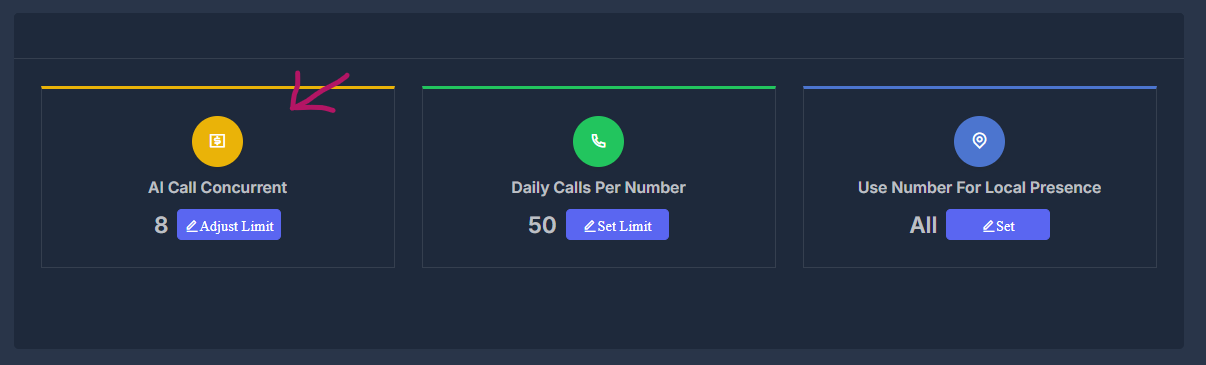
 # 🔄 AI Call Concurrent Limits
Control how many AI calls can run simultaneously to manage system resources and costs.
# 🔄 AI Call Concurrent Limits
Control how many AI calls can run simultaneously to manage system resources and costs.
 #### 📊 Base Limit
Your base concurrent call limit is determined by your subscription plan. This represents the number of simultaneous AI calls included in your plan.
#### ➕ Additional Limit
You can purchase additional concurrent call capacity beyond your base limit:
#### 📊 Base Limit
Your base concurrent call limit is determined by your subscription plan. This represents the number of simultaneous AI calls included in your plan.
#### ➕ Additional Limit
You can purchase additional concurrent call capacity beyond your base limit:
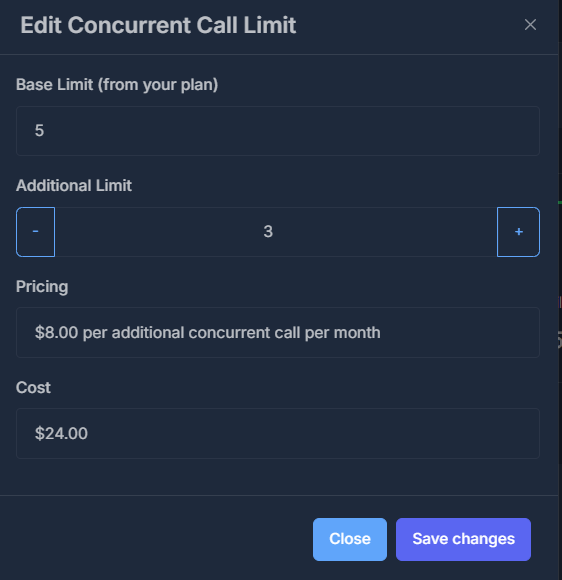 * **Pricing**: \$8.00 per additional concurrent call per month
* **Adjustment**: Use the `-` and `+` buttons to adjust your additional limit
* **Cost Calculation**: The total cost is automatically calculated based on your additional limit
#### ⚙️ Managing Concurrent Limits
1. Click the **Adjust Limit** button on the AI Call Concurrent card
2. Review your current base limit from your plan
3. Set your desired additional limit using the adjustment controls
4. Review the pricing and total cost
5. Click **Save changes** to apply the new limit
* **Pricing**: \$8.00 per additional concurrent call per month
* **Adjustment**: Use the `-` and `+` buttons to adjust your additional limit
* **Cost Calculation**: The total cost is automatically calculated based on your additional limit
#### ⚙️ Managing Concurrent Limits
1. Click the **Adjust Limit** button on the AI Call Concurrent card
2. Review your current base limit from your plan
3. Set your desired additional limit using the adjustment controls
4. Review the pricing and total cost
5. Click **Save changes** to apply the new limit
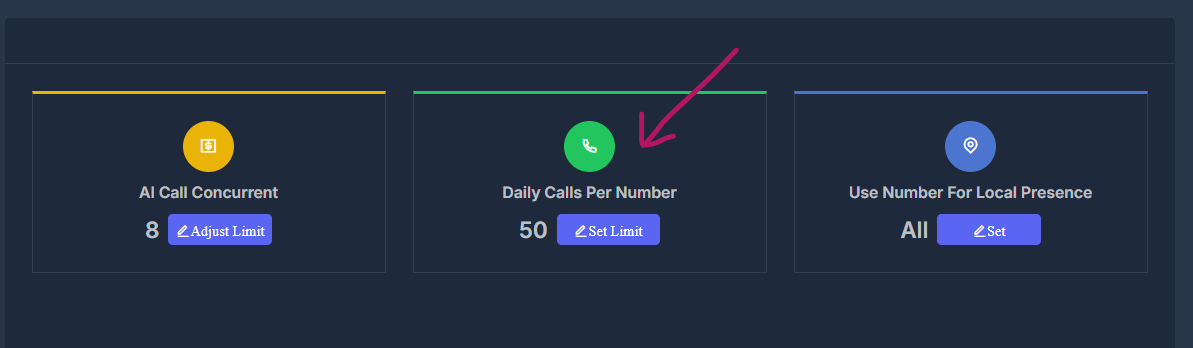 # 📅 Daily Calls Per Number
Set limits on how many calls each phone number can make per day to prevent overuse and manage costs.
# 📅 Daily Calls Per Number
Set limits on how many calls each phone number can make per day to prevent overuse and manage costs.
 #### ⚙️ Setting Daily Limits
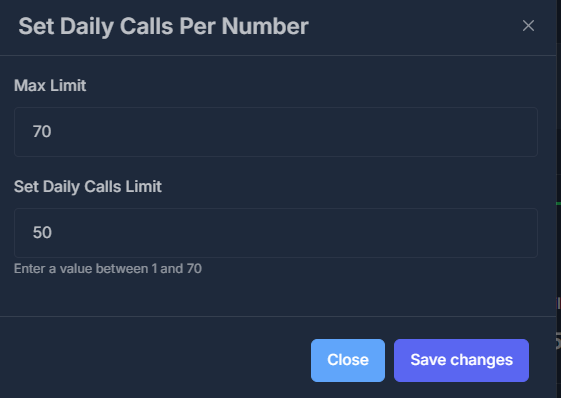 1. Click the **Set Limit** button on the Daily Calls Per Number card
2. Enter your desired daily call limit (between 1 and the maximum allowed)
3. The system will validate that your limit is within acceptable ranges
4. Click **Save changes** to apply the new daily
# 🌎 Use Number For Local Presence
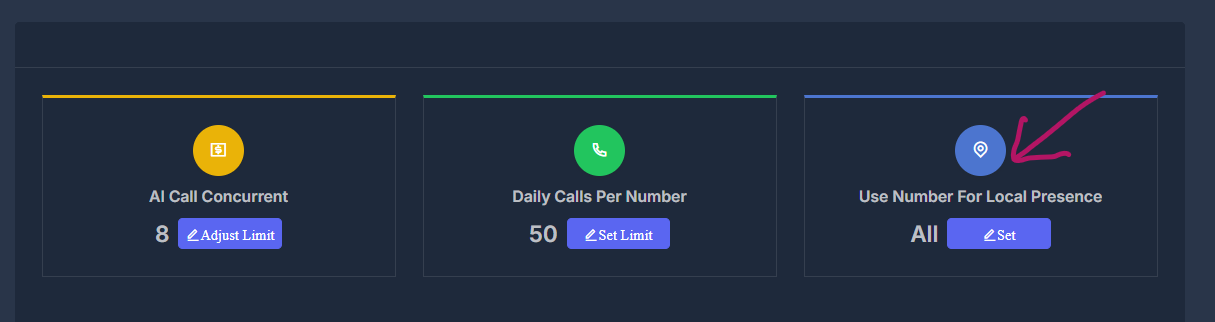
Leverage local presence to improve answer rates and reach by automatically selecting an outgoing number that matches the area code of the person being called.
Local presence ensures calls appear to come from a local number, increasing trust and the likelihood contacts will answer.
#### ⚙️ How to Configure
1. Click the **Edit** button on the "Use Number For Local Presence" card (as shown above)
2. Choose which of your available numbers the AI should use for each area code or region
3. You can assign multiple numbers to cover different locations
4. Optionally, set specific rules for fallback behavior if no matching local number is available (e.g. default to main number)
*Local presence settings help optimize answer rates and support tailored outreach across different geographies.*
1. Click the **Set Limit** button on the Daily Calls Per Number card
2. Enter your desired daily call limit (between 1 and the maximum allowed)
3. The system will validate that your limit is within acceptable ranges
4. Click **Save changes** to apply the new daily
# 🌎 Use Number For Local Presence
Leverage local presence to improve answer rates and reach by automatically selecting an outgoing number that matches the area code of the person being called.
Local presence ensures calls appear to come from a local number, increasing trust and the likelihood contacts will answer.
#### ⚙️ How to Configure
1. Click the **Edit** button on the "Use Number For Local Presence" card (as shown above)
2. Choose which of your available numbers the AI should use for each area code or region
3. You can assign multiple numbers to cover different locations
4. Optionally, set specific rules for fallback behavior if no matching local number is available (e.g. default to main number)
*Local presence settings help optimize answer rates and support tailored outreach across different geographies.*
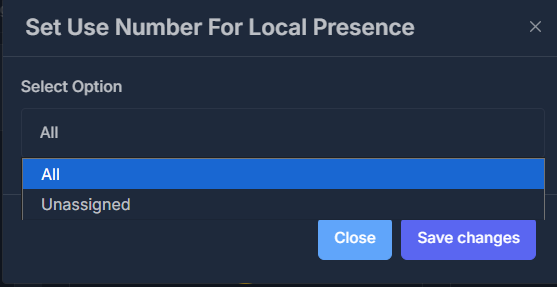 > **Note:** In AI Settings, a new tab named **"Use Number For Local Presence"** has been added with two options: **"All"** and **"Unassigned"** (by default, "All" is selected). When you click the **Set** button in this tab, a modal titled **"Set Use Number For Local Presence"** opens, where you can select between the same two values from a dropdown. After changing the value and clicking **Save changes**, the selected value is updated and reflected in the tab. This lets you easily control which numbers are used for local presence through a simple, clear interface.