> ## Documentation Index
> Fetch the complete documentation index at: https://docs.aisync.link/llms.txt
> Use this file to discover all available pages before exploring further.
# Send From Your Own Domain
> Emails to leads go out as your rep, from your business address, and replies go straight to them. About ten minutes, once.
When a rep emails a lead from the dialer, the Inbox or an automation, the lead
should see a real person at your company, not a platform address. Set up your
domain once and every email goes out like this:
> **Maria Gomez** \<[maria@harbordental.com](mailto:maria@harbordental.com)>
and when the lead replies, it lands in **Maria's own inbox**.
```mermaid theme={null}
graph LR
A[🌐 Enter your domain] --> B[📋 Copy 3 records
into your DNS]
B --> C[✅ Check DNS
Verified]
C --> D[✉️ Emails go out
as each rep]
```
## ✅ Before you start
* You're the **account owner** in AI Sync.
* You can sign in to wherever your domain is managed: GoDaddy, Cloudflare,
Namecheap, Google, Squarespace or similar. If someone else manages it,
send them the three records from step 2.
* Your domain is a business domain. Gmail, Yahoo, Outlook and other free
addresses can't be used.
***
## 🧭 Set it up
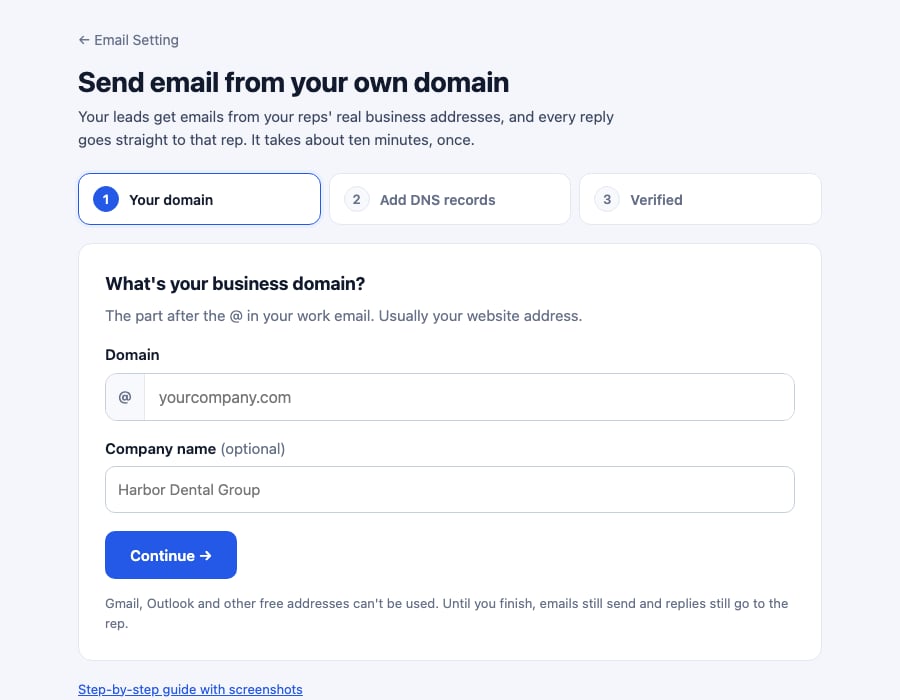
Go to **Settings → Email Setting** and click **Set up your domain** on the
*Send from your own domain* card. Type your domain, like `harbordental.com`,
and click **Continue →**.
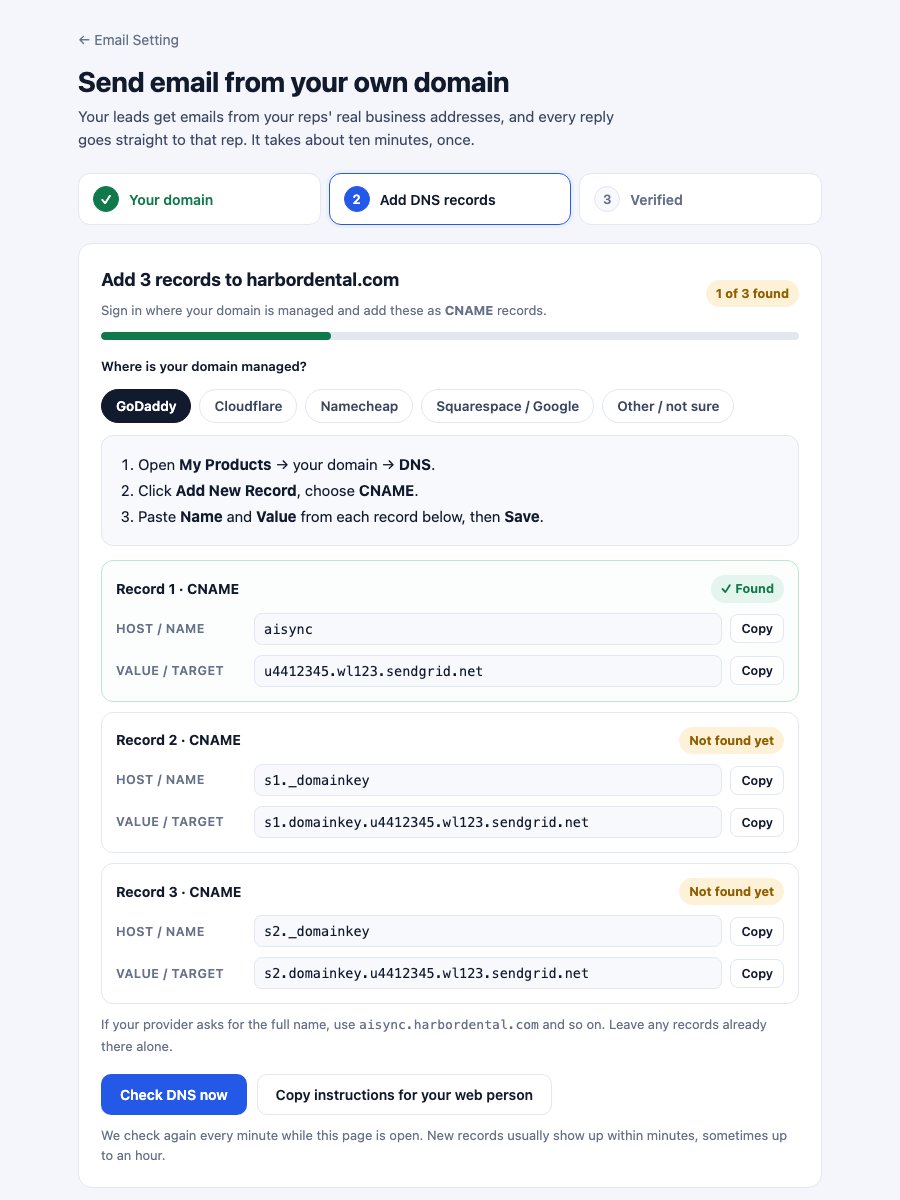
 AI Sync shows three **CNAME** records. Pick where your domain is managed and
the page shows exactly where to click there. Add each record with the **Copy**
buttons so nothing is mistyped.
Someone else runs your website? Click **Copy instructions for your web
person** and paste it into an email to them.
AI Sync shows three **CNAME** records. Pick where your domain is managed and
the page shows exactly where to click there. Add each record with the **Copy**
buttons so nothing is mistyped.
Someone else runs your website? Click **Copy instructions for your web
person** and paste it into an email to them.
 | Provider | Where | Host / Name field | Value field | Watch out |
| - | - | - | - | - |
| GoDaddy | My Products → domain → **DNS** → Add New Record | **Name**: `aisync` | **Value** | |
| Cloudflare | domain → **DNS → Records** → Add record | **Name**: `aisync` | **Target** | Set **Proxy status** to **DNS only** (grey cloud) |
| Namecheap | Domain List → Manage → **Advanced DNS** | **Host**: `aisync` | **Value** | Click the green ✓ to save |
| Squarespace / Google | Domains → domain → **DNS** | **Host**: `aisync` | **Data** | |
| Other | DNS settings where the domain is registered or hosted | The short name | The value | If it asks for the full name, use `aisync.yourdomain.com` |
The table shows record 1. Records 2 and 3 work the same way with
`s1._domainkey` and `s2._domainkey`. Don't change or delete any records that
are already there.
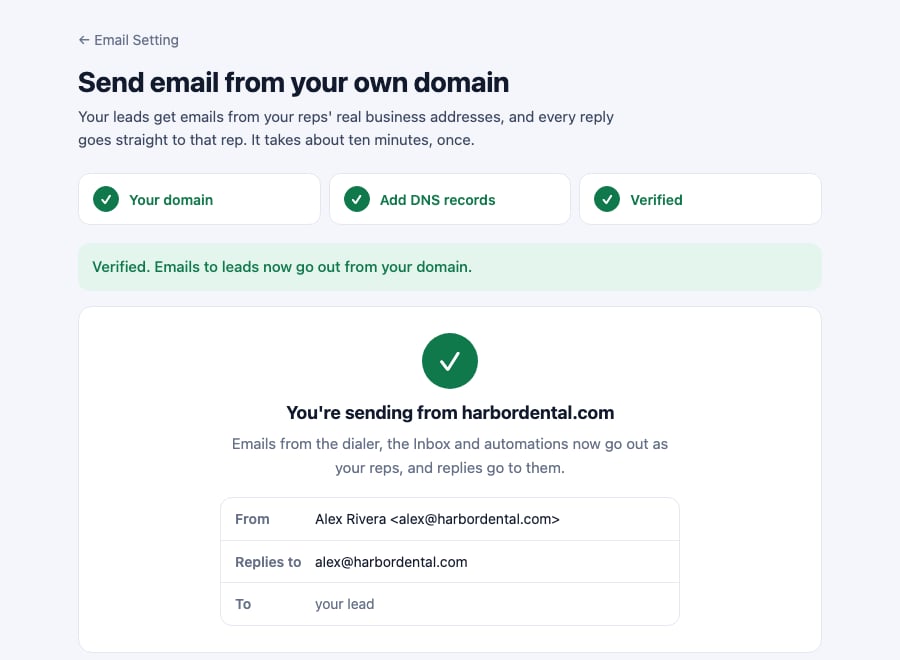
Click **Check DNS now**. Leave the page open and it checks again every minute
by itself. New records usually show up within a few minutes, sometimes up to
an hour. When all three say **✓ Found**, you land on **Verified**, with a
preview of exactly what your leads will see.
| Provider | Where | Host / Name field | Value field | Watch out |
| - | - | - | - | - |
| GoDaddy | My Products → domain → **DNS** → Add New Record | **Name**: `aisync` | **Value** | |
| Cloudflare | domain → **DNS → Records** → Add record | **Name**: `aisync` | **Target** | Set **Proxy status** to **DNS only** (grey cloud) |
| Namecheap | Domain List → Manage → **Advanced DNS** | **Host**: `aisync` | **Value** | Click the green ✓ to save |
| Squarespace / Google | Domains → domain → **DNS** | **Host**: `aisync` | **Data** | |
| Other | DNS settings where the domain is registered or hosted | The short name | The value | If it asks for the full name, use `aisync.yourdomain.com` |
The table shows record 1. Records 2 and 3 work the same way with
`s1._domainkey` and `s2._domainkey`. Don't change or delete any records that
are already there.
Click **Check DNS now**. Leave the page open and it checks again every minute
by itself. New records usually show up within a few minutes, sometimes up to
an hour. When all three say **✓ Found**, you land on **Verified**, with a
preview of exactly what your leads will see.
 Under **Who emails come from**, set the company address (for example `hello`)
and your company name. Click **Save**.
***
## 🤖 Or let your AI assistant do it
With Claude, ChatGPT or Codex connected to AI Sync (see
[Connect MCP](/connect-mcp)), paste this:
```text theme={null}
Set up my business email domain in AI Sync so emails to leads go out from my
own domain. Use my AI Sync connection: look up the email domain setup, add my
domain if it isn't there yet, and show me the three DNS records in a simple
table with exactly what to type for my DNS provider. If you can reach my DNS
provider, add them for me (Cloudflare: proxy off). Then check DNS until it's
verified, and tell me in one line when it's done.
```
The same prompt is on the setup page, with a **Copy prompt** button.
* **Your assistant can reach your DNS** (for example Cloudflare's own
connector): it adds the records itself, and you just approve.
* **It can't:** it gives you a table of exactly what to type, then checks for
you.
| Tool | What it does |
| - | - |
| `email_domain_get` | Status (`not_set_up`, `pending`, `verified`), the 3 records and a plain `next_step` |
| `email_domain_setup` | Add the domain; returns the records. Safe to repeat. |
| `email_domain_check` | Check DNS now. Wait a minute between checks. |
| `email_domain_sender` | Set the company address (e.g. `hello`) and name |
| `email_domain_remove` | Remove it. Confirm with the user first. |
Each record has `host` (full name) and `host_short` (what most providers
want). Only the account owner can use these. The API behind them is
`/api/settings/email-domain`.
***
## ✉️ Who each email comes from
| The rep's AI Sync login | Email goes out as | Replies go to |
| - | - | - |
| On your domain, e.g. [maria@harbordental.com](mailto:maria@harbordental.com) | **Maria Gomez** \<[maria@harbordental.com](mailto:maria@harbordental.com)> | Maria |
| Somewhere else, e.g. [sam@gmail.com](mailto:sam@gmail.com) | **Sam Patel** \<[hello@harbordental.com](mailto:hello@harbordental.com)> | Sam's own address |
| No rep involved | The **account owner**, the same way | The account owner |
This covers the dialer's **Email** tab, the **Inbox** and **Send Email** steps
in automations and workflows. For automations, "the rep" is whoever saved the
disposition.
**Before your domain is verified,** emails still send, from the AI Sync
address, and replies still go to the rep. Nothing breaks while you wait for
DNS.
**Already using your own SendGrid account** under Email Setting? That keeps
working exactly as before. A workflow step that names its own From address
also keeps it.
***
## 📋 SOP: onboarding a client
1. ☐ Client's **account owner** is signed in to AI Sync.
2. ☐ **Settings → Email Setting → Set up your domain**, enter the domain.
3. ☐ The three CNAME records are added in the client's DNS (by them, or whoever runs their website).
4. ☐ **Check DNS** shows **Verified**.
5. ☐ Company address and name saved under **Who emails come from**.
6. ☐ Test: from the dialer, email a contact with **your own** email address. It arrives from the rep's address, and replying goes to the rep.
7. ☐ Tell reps: "Your emails now go out from your work address, and replies come to you."
***
## 🧯 If something is off
Check each record's **Host** in your provider. The most common mistake is the
domain added twice, like `aisync.harbordental.com.harbordental.com`: enter
only the short name. On **Cloudflare**, the proxy must be off (grey cloud,
"DNS only").
Free addresses like Gmail or Outlook can't be set up. Use the domain your
business email and website are on.
Another account already added it. Contact support to move it.
Their AI Sync login email isn't on your domain. Change their login email to
their work address in **User Management**, or leave it: replies still go to
them.
Make sure all three records say **✓ Found**. Keep emails personal and short;
long promotional emails to people who didn't ask for them get filtered
whatever the setup.
Click **Remove domain**. Emails go out from the AI Sync address again at once,
with replies to the rep. You can delete the three records from your DNS
afterwards.
**Lead replies don't come into the dialer's Inbox yet.** They go to the rep's
own email inbox. See [Inbox](/dialer/inbox).
Under **Who emails come from**, set the company address (for example `hello`)
and your company name. Click **Save**.
***
## 🤖 Or let your AI assistant do it
With Claude, ChatGPT or Codex connected to AI Sync (see
[Connect MCP](/connect-mcp)), paste this:
```text theme={null}
Set up my business email domain in AI Sync so emails to leads go out from my
own domain. Use my AI Sync connection: look up the email domain setup, add my
domain if it isn't there yet, and show me the three DNS records in a simple
table with exactly what to type for my DNS provider. If you can reach my DNS
provider, add them for me (Cloudflare: proxy off). Then check DNS until it's
verified, and tell me in one line when it's done.
```
The same prompt is on the setup page, with a **Copy prompt** button.
* **Your assistant can reach your DNS** (for example Cloudflare's own
connector): it adds the records itself, and you just approve.
* **It can't:** it gives you a table of exactly what to type, then checks for
you.
| Tool | What it does |
| - | - |
| `email_domain_get` | Status (`not_set_up`, `pending`, `verified`), the 3 records and a plain `next_step` |
| `email_domain_setup` | Add the domain; returns the records. Safe to repeat. |
| `email_domain_check` | Check DNS now. Wait a minute between checks. |
| `email_domain_sender` | Set the company address (e.g. `hello`) and name |
| `email_domain_remove` | Remove it. Confirm with the user first. |
Each record has `host` (full name) and `host_short` (what most providers
want). Only the account owner can use these. The API behind them is
`/api/settings/email-domain`.
***
## ✉️ Who each email comes from
| The rep's AI Sync login | Email goes out as | Replies go to |
| - | - | - |
| On your domain, e.g. [maria@harbordental.com](mailto:maria@harbordental.com) | **Maria Gomez** \<[maria@harbordental.com](mailto:maria@harbordental.com)> | Maria |
| Somewhere else, e.g. [sam@gmail.com](mailto:sam@gmail.com) | **Sam Patel** \<[hello@harbordental.com](mailto:hello@harbordental.com)> | Sam's own address |
| No rep involved | The **account owner**, the same way | The account owner |
This covers the dialer's **Email** tab, the **Inbox** and **Send Email** steps
in automations and workflows. For automations, "the rep" is whoever saved the
disposition.
**Before your domain is verified,** emails still send, from the AI Sync
address, and replies still go to the rep. Nothing breaks while you wait for
DNS.
**Already using your own SendGrid account** under Email Setting? That keeps
working exactly as before. A workflow step that names its own From address
also keeps it.
***
## 📋 SOP: onboarding a client
1. ☐ Client's **account owner** is signed in to AI Sync.
2. ☐ **Settings → Email Setting → Set up your domain**, enter the domain.
3. ☐ The three CNAME records are added in the client's DNS (by them, or whoever runs their website).
4. ☐ **Check DNS** shows **Verified**.
5. ☐ Company address and name saved under **Who emails come from**.
6. ☐ Test: from the dialer, email a contact with **your own** email address. It arrives from the rep's address, and replying goes to the rep.
7. ☐ Tell reps: "Your emails now go out from your work address, and replies come to you."
***
## 🧯 If something is off
Check each record's **Host** in your provider. The most common mistake is the
domain added twice, like `aisync.harbordental.com.harbordental.com`: enter
only the short name. On **Cloudflare**, the proxy must be off (grey cloud,
"DNS only").
Free addresses like Gmail or Outlook can't be set up. Use the domain your
business email and website are on.
Another account already added it. Contact support to move it.
Their AI Sync login email isn't on your domain. Change their login email to
their work address in **User Management**, or leave it: replies still go to
them.
Make sure all three records say **✓ Found**. Keep emails personal and short;
long promotional emails to people who didn't ask for them get filtered
whatever the setup.
Click **Remove domain**. Emails go out from the AI Sync address again at once,
with replies to the rep. You can delete the three records from your DNS
afterwards.
**Lead replies don't come into the dialer's Inbox yet.** They go to the rep's
own email inbox. See [Inbox](/dialer/inbox).