> ## Documentation Index
> Fetch the complete documentation index at: https://docs.aisync.link/llms.txt
> Use this file to discover all available pages before exploring further.
# S3 Storage
**S3 Storage** lets your company connect an external cloud storage bucket to RizzDial. Once configured, uploaded files can be saved in that bucket instead of keeping everything only on the application server.
## ☁️ Why use S3 Storage?
S3 Storage makes file storage more **reliable**, **scalable**, and **easier to manage**.
| Benefit | What it means for you |
| -------------------------------- | ------------------------------------------------------------------------- |
| **One secure location** | Uploaded files live in your cloud bucket, not scattered on the app server |
| **Stable file links** | Files can be opened through consistent public or controlled URLs |
| **Less risk during maintenance** | Server updates or deployments are less likely to affect stored files |
| **Organized by company** | Files are separated by company and feature area |
| **Room to grow** | Supports larger file usage as your account expands |
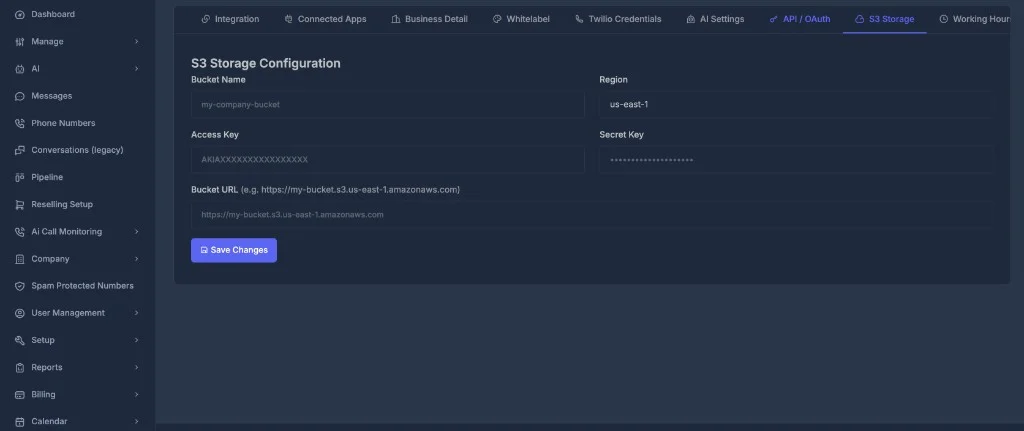
Inside this tab, you will see the **S3 Storage Configuration** form with fields for your bucket name, region, access key, secret key, and bucket URL.
 ## 📝 What you need before setup
Before saving S3 Storage in RizzDial, make sure you already have:
* A cloud storage bucket created in **Amazon S3** or an **S3-compatible** storage provider
* The **bucket name**
* The **bucket region**
* An **access key**
* A **secret key**
* The **bucket URL**
* Permission for the access key to **upload**, **read**, and **delete** files in the bucket
If your company uses Amazon AWS, these details are usually created inside the AWS account. If you use another S3-compatible provider, the same type of information is normally available in that provider's storage dashboard.
## 📄 Field guide
**🗂️ Bucket Name**
The name of your storage bucket.
**Example:** if your company created a bucket named `my-company-files`, enter that name here. This tells RizzDial where files should be stored.
**🌎 Region**
The region where the bucket is hosted — for example, a US, Europe, or Asia region.
The region **must match** the bucket's real region. If it is wrong, uploads may fail. When unsure, check your storage provider dashboard.
**🗝️ Access Key**
Like a **username** for the storage bucket. RizzDial uses it to identify the storage account when uploading or deleting files.
**🔒 Secret Key**
Like a **password** for the storage bucket.
**🔗 Bucket URL**
The web address used to open files after they are uploaded — for example, `https://my-bucket.s3.us-east-1.amazonaws.com`.
If this URL is incorrect, files may upload but links may not open correctly.
## 📝 What you need before setup
Before saving S3 Storage in RizzDial, make sure you already have:
* A cloud storage bucket created in **Amazon S3** or an **S3-compatible** storage provider
* The **bucket name**
* The **bucket region**
* An **access key**
* A **secret key**
* The **bucket URL**
* Permission for the access key to **upload**, **read**, and **delete** files in the bucket
If your company uses Amazon AWS, these details are usually created inside the AWS account. If you use another S3-compatible provider, the same type of information is normally available in that provider's storage dashboard.
## 📄 Field guide
**🗂️ Bucket Name**
The name of your storage bucket.
**Example:** if your company created a bucket named `my-company-files`, enter that name here. This tells RizzDial where files should be stored.
**🌎 Region**
The region where the bucket is hosted — for example, a US, Europe, or Asia region.
The region **must match** the bucket's real region. If it is wrong, uploads may fail. When unsure, check your storage provider dashboard.
**🗝️ Access Key**
Like a **username** for the storage bucket. RizzDial uses it to identify the storage account when uploading or deleting files.
**🔒 Secret Key**
Like a **password** for the storage bucket.
**🔗 Bucket URL**
The web address used to open files after they are uploaded — for example, `https://my-bucket.s3.us-east-1.amazonaws.com`.
If this URL is incorrect, files may upload but links may not open correctly.