> ## Documentation Index
> Fetch the complete documentation index at: https://docs.aisync.link/llms.txt
> Use this file to discover all available pages before exploring further.
# Integrations
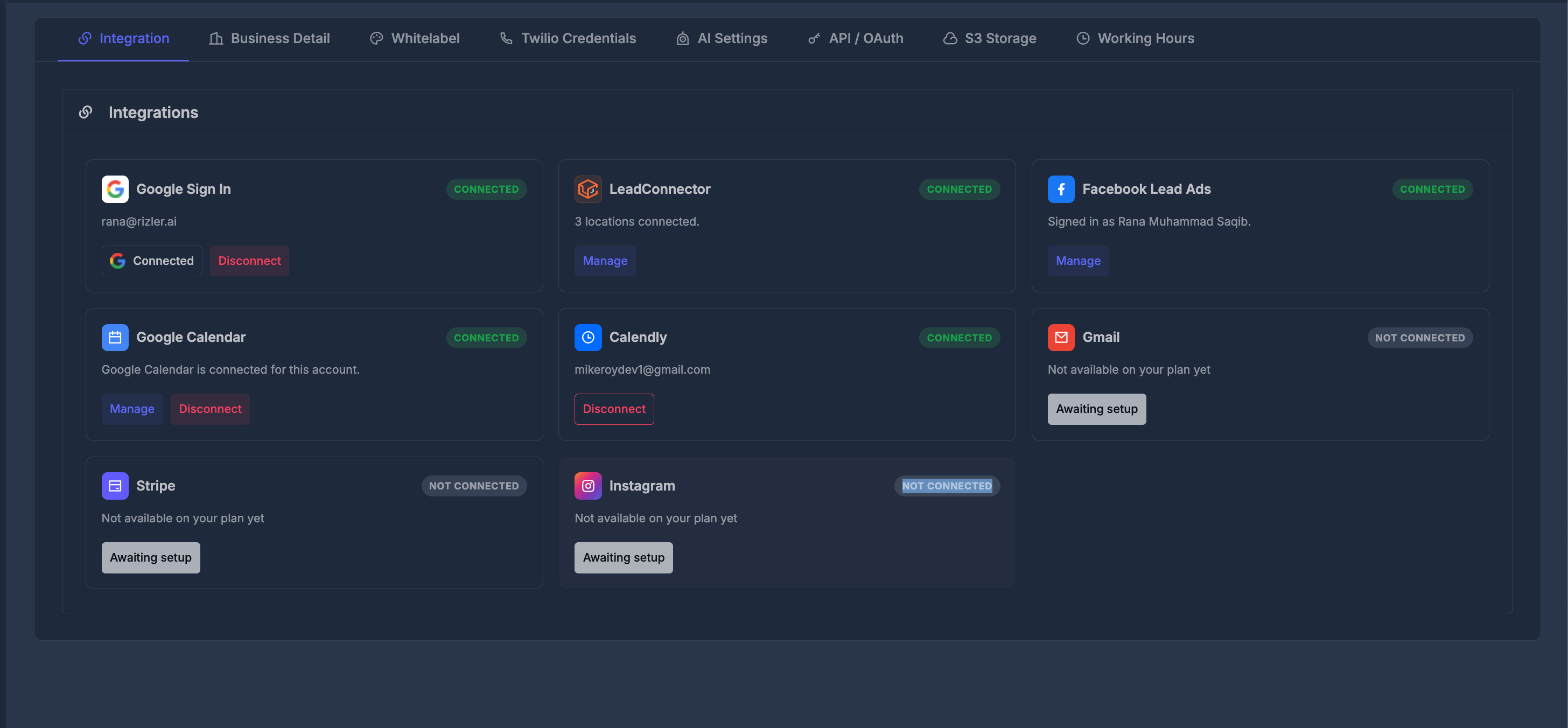
The **Integrations** tab is where you connect RizzDial with outside apps and services. These connections help you sign in faster, sync contacts and leads, connect calendars, and prepare other tools for automation.
 ## 🎯 What This Tab Is Used For
Use the Integrations tab when you want to:
* Connect Google Sign In to your account
* Manage LeadConnector locations
* Connect Facebook Lead Ads and sync leads from Facebook Pages
* Choose which Facebook Pages should send leads into RizzDial
* Assign Facebook Lead Forms to PowerLists
* Map Facebook form questions to RizzDial contact fields
* Check whether calendar, email, payment, or social integrations are available
* Disconnect an integration when it is no longer needed
The Integrations tab shows a group of integration cards. Each card represents one app or service.
Each card normally shows:
* App name
* App icon
* Connection status
* A short note about the connection
* A button such as **Connect**, **Manage**, **Disconnect**, or **Awaiting setup**
Status labels help you quickly understand what is ready:
| Status | Meaning |
| ------------------ | ------------------------------------------------------------------------------- |
| **Connected** | The app is already linked |
| **Not Connected** | The app is available but not linked yet |
| **Awaiting setup** | The app is shown, but it is not ready to connect on the current account or plan |
## 🔌 Available Integration Cards
### 🔐 Google Sign In
Google Sign In lets you connect your Google account for login access.
When it is not connected, the card shows a **Sign in with Google** button. After connection, the card shows **Connected** and may display the connected Google email address.
Use this when you want easier account access through Google.
### 🔗 Managing LeadConnector
Click **Manage** on the LeadConnector card to open the LeadConnector Integration window.
## 🎯 What This Tab Is Used For
Use the Integrations tab when you want to:
* Connect Google Sign In to your account
* Manage LeadConnector locations
* Connect Facebook Lead Ads and sync leads from Facebook Pages
* Choose which Facebook Pages should send leads into RizzDial
* Assign Facebook Lead Forms to PowerLists
* Map Facebook form questions to RizzDial contact fields
* Check whether calendar, email, payment, or social integrations are available
* Disconnect an integration when it is no longer needed
The Integrations tab shows a group of integration cards. Each card represents one app or service.
Each card normally shows:
* App name
* App icon
* Connection status
* A short note about the connection
* A button such as **Connect**, **Manage**, **Disconnect**, or **Awaiting setup**
Status labels help you quickly understand what is ready:
| Status | Meaning |
| ------------------ | ------------------------------------------------------------------------------- |
| **Connected** | The app is already linked |
| **Not Connected** | The app is available but not linked yet |
| **Awaiting setup** | The app is shown, but it is not ready to connect on the current account or plan |
## 🔌 Available Integration Cards
### 🔐 Google Sign In
Google Sign In lets you connect your Google account for login access.
When it is not connected, the card shows a **Sign in with Google** button. After connection, the card shows **Connected** and may display the connected Google email address.
Use this when you want easier account access through Google.
### 🔗 Managing LeadConnector
Click **Manage** on the LeadConnector card to open the LeadConnector Integration window.
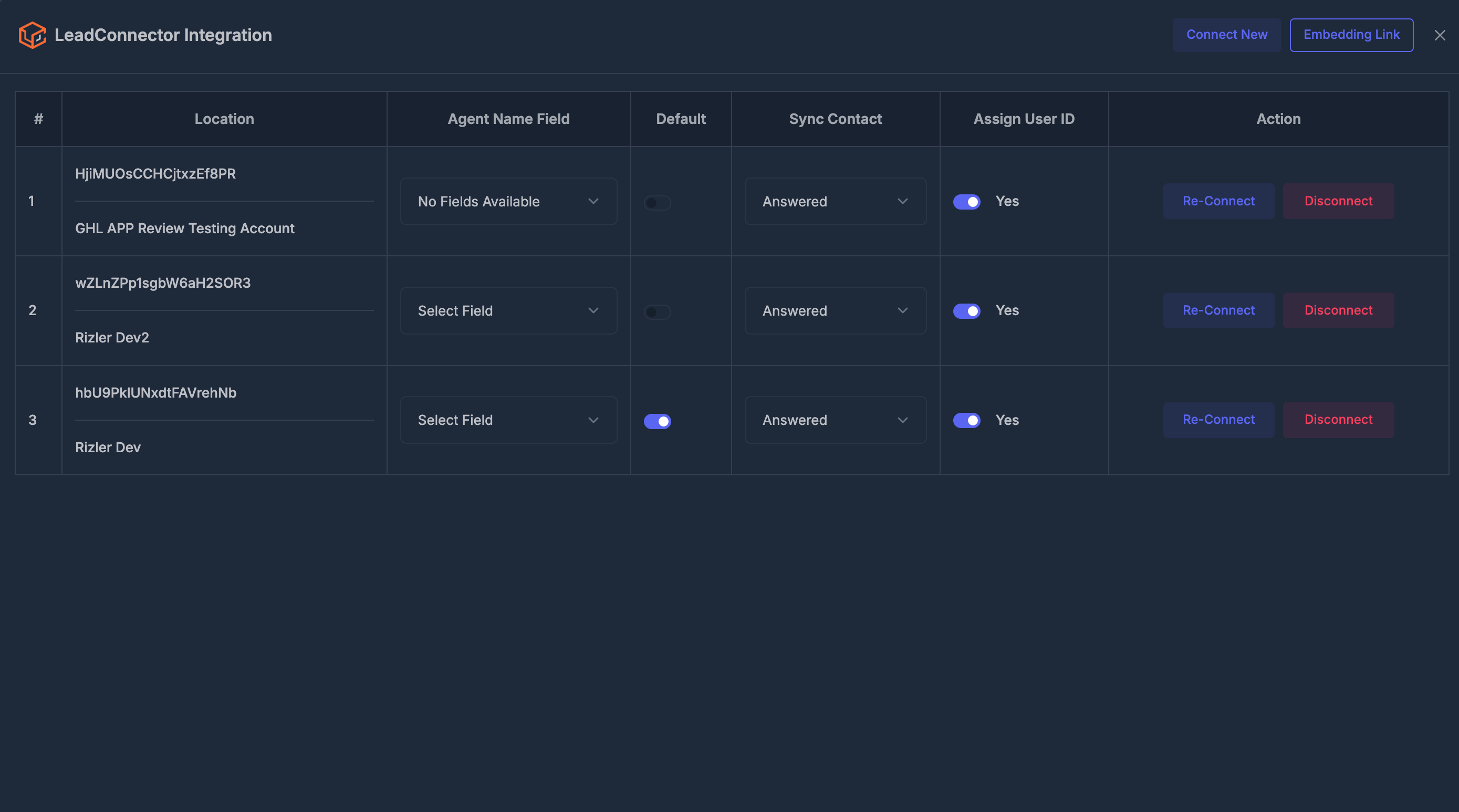 **➕ Connect New**
Use **Connect New** when you want to add another LeadConnector location.
After clicking it, you are taken through the connection process. Once completed, the location appears in the LeadConnector table.
**🔄 Re-Connect**
Use **Re-Connect** when an existing location needs to be refreshed or authorized again.
This is useful if:
* The connection expired
* Permissions changed
* The location is not syncing correctly
**❌ Disconnect**
Use **Disconnect** when a location should no longer be linked to RizzDial.
Before disconnecting, make sure the location is not needed for active workflows or contact syncing.
#### **🌐 Embedding Link**
The **Embedding Link** button copies a special link to the clipboard.
Use this when you need to place or share the embedded RizzDial experience inside a connected LeadConnector environment.
**🧑💼 Agent Name Field**
The **Agent Name Field** dropdown lets you choose which connected-location custom field should store or receive the agent name.
The list loads available custom fields from the connected location. After selecting a field, the choice saves automatically.
**⭐ Default Location**
The **Default** switch marks which connected LeadConnector location should be treated as the main location.
Only one location should be default at a time. If there is only one connected location, the system does not allow you to turn off the default setting because at least one default is needed.
**🔄 Sync Contact**
The **Sync Contact** dropdown controls which contacts should sync.
Available choices:
* **All** — sync all eligible contacts
* **Answered** — sync contacts based on answered activity
* **No** — do not sync contacts for that location
The setting saves automatically after you change it.
**🆔 Assign User ID**
The **Assign User ID** switch controls whether user assignment information should be included for that connected location.
When turned on, the setting shows **Yes**. When turned off, it shows **No**. The change saves automatically.
### 📘 Facebook Lead Ads
Click **Connect Facebook** or **Manage** on the Facebook Lead Ads card.
**➕ Connect New**
Use **Connect New** when you want to add another LeadConnector location.
After clicking it, you are taken through the connection process. Once completed, the location appears in the LeadConnector table.
**🔄 Re-Connect**
Use **Re-Connect** when an existing location needs to be refreshed or authorized again.
This is useful if:
* The connection expired
* Permissions changed
* The location is not syncing correctly
**❌ Disconnect**
Use **Disconnect** when a location should no longer be linked to RizzDial.
Before disconnecting, make sure the location is not needed for active workflows or contact syncing.
#### **🌐 Embedding Link**
The **Embedding Link** button copies a special link to the clipboard.
Use this when you need to place or share the embedded RizzDial experience inside a connected LeadConnector environment.
**🧑💼 Agent Name Field**
The **Agent Name Field** dropdown lets you choose which connected-location custom field should store or receive the agent name.
The list loads available custom fields from the connected location. After selecting a field, the choice saves automatically.
**⭐ Default Location**
The **Default** switch marks which connected LeadConnector location should be treated as the main location.
Only one location should be default at a time. If there is only one connected location, the system does not allow you to turn off the default setting because at least one default is needed.
**🔄 Sync Contact**
The **Sync Contact** dropdown controls which contacts should sync.
Available choices:
* **All** — sync all eligible contacts
* **Answered** — sync contacts based on answered activity
* **No** — do not sync contacts for that location
The setting saves automatically after you change it.
**🆔 Assign User ID**
The **Assign User ID** switch controls whether user assignment information should be included for that connected location.
When turned on, the setting shows **Yes**. When turned off, it shows **No**. The change saves automatically.
### 📘 Facebook Lead Ads
Click **Connect Facebook** or **Manage** on the Facebook Lead Ads card.
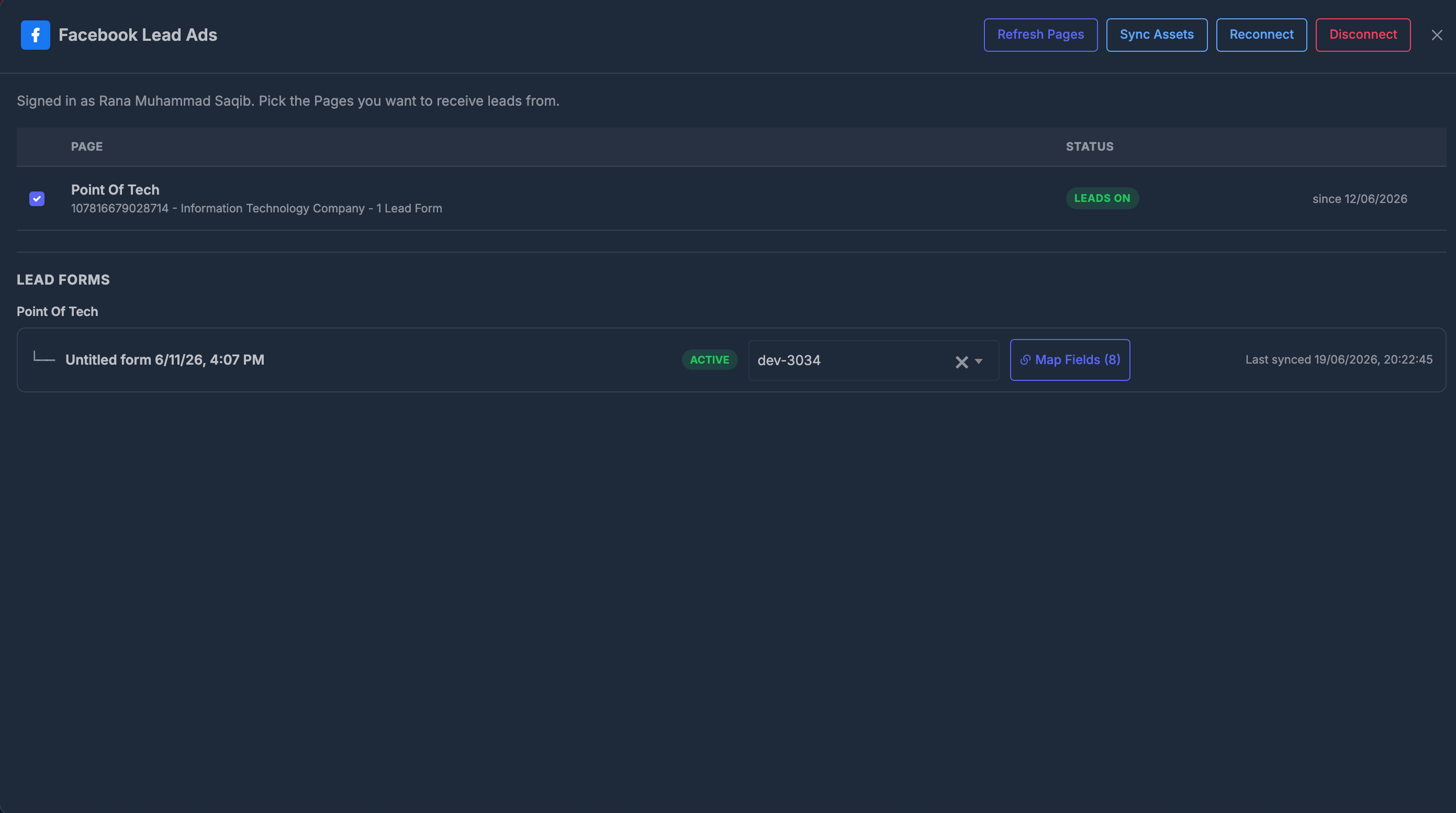 #### 🔗 Connect Facebook
If Facebook is not connected, click **Connect Facebook** and sign in with a Facebook account that has access to the business Pages you want to use.
The connected Facebook account must have the correct Page permissions. If no Pages appear after connecting, confirm that the Facebook user is an admin or has lead access for the Page.
**🔄 Refresh Pages**
**Refresh Pages** reloads the current Facebook Pages and connection information.
Use it when:
* A Page was added recently
* Permissions were changed
* The list looks outdated
**📥 Sync Assets**
**Sync Assets** pulls the latest Facebook Pages, Lead Forms, and form fields into RizzDial.
Use it after:
* Connecting Facebook for the first time
* Creating a new Facebook Lead Form
* Editing form questions in Facebook
* Changing Page access
After syncing, the module shows how many Pages, Lead Forms, and fields were synced.
**🔛 Turn Lead Delivery On or Off**
Each Facebook Page can be switched on or off for lead delivery.
* **Leads On** means RizzDial should receive leads from that Page
* **Off** means the Page is connected but not sending leads into RizzDial
Turn on only the Pages that should send leads to your account.
**📋 Assign Lead Forms to PowerLists**
After syncing assets, Facebook Lead Forms appear under their Page.
Each form can be assigned to a PowerList. This tells RizzDial where new leads from that form should go.
If a form is not assigned to a PowerList, new leads may not be organized the way you expect.
**🗺️ Map Fields**
Click the **Map Fields** button to match each Facebook form question to a RizzDial contact field.
For every question from Facebook, select the RizzDial field where its answer should be stored. If you don’t want to import a particular question, either leave it unassigned or select **Do not import**.
Accurate mapping keeps your contact information organized and useful.
| Facebook Question | Choose RizzDial Field |
| ----------------- | ----------------------------- |
| Full Name | First Name / Last Name / Name |
| Phone Number | Phone Number |
| Email | Email |
| City | City |
Once you’ve made your selections, click **Save Mapping** to apply your changes.
**🔄 Reconnect Facebook**
Click **Reconnect** if you need to refresh Facebook permissions.
You might need to do this if:
* Page access has changed
* Lead forms are not syncing
* The connected Facebook user’s role was updated
* Facebook requests a new authorization
**❌ Disconnect Facebook**
Use **Disconnect** when Facebook Lead Ads should no longer send leads into RizzDial.
Disconnecting can stop active Page lead subscriptions, so confirm this action carefully.
### **📆 Connect Google Calendar**
You can also integrate Google Calendar to automatically create and manage events from RizzDial.
To connect your Google Calendar:
1. Click the **Connect Google Calendar** button in your Integrations settings.
2. Sign in with your Google account and grant the necessary permissions.
3. Once connected, you’ll see your calendar appear in the integration list.
#### 🔗 Connect Facebook
If Facebook is not connected, click **Connect Facebook** and sign in with a Facebook account that has access to the business Pages you want to use.
The connected Facebook account must have the correct Page permissions. If no Pages appear after connecting, confirm that the Facebook user is an admin or has lead access for the Page.
**🔄 Refresh Pages**
**Refresh Pages** reloads the current Facebook Pages and connection information.
Use it when:
* A Page was added recently
* Permissions were changed
* The list looks outdated
**📥 Sync Assets**
**Sync Assets** pulls the latest Facebook Pages, Lead Forms, and form fields into RizzDial.
Use it after:
* Connecting Facebook for the first time
* Creating a new Facebook Lead Form
* Editing form questions in Facebook
* Changing Page access
After syncing, the module shows how many Pages, Lead Forms, and fields were synced.
**🔛 Turn Lead Delivery On or Off**
Each Facebook Page can be switched on or off for lead delivery.
* **Leads On** means RizzDial should receive leads from that Page
* **Off** means the Page is connected but not sending leads into RizzDial
Turn on only the Pages that should send leads to your account.
**📋 Assign Lead Forms to PowerLists**
After syncing assets, Facebook Lead Forms appear under their Page.
Each form can be assigned to a PowerList. This tells RizzDial where new leads from that form should go.
If a form is not assigned to a PowerList, new leads may not be organized the way you expect.
**🗺️ Map Fields**
Click the **Map Fields** button to match each Facebook form question to a RizzDial contact field.
For every question from Facebook, select the RizzDial field where its answer should be stored. If you don’t want to import a particular question, either leave it unassigned or select **Do not import**.
Accurate mapping keeps your contact information organized and useful.
| Facebook Question | Choose RizzDial Field |
| ----------------- | ----------------------------- |
| Full Name | First Name / Last Name / Name |
| Phone Number | Phone Number |
| Email | Email |
| City | City |
Once you’ve made your selections, click **Save Mapping** to apply your changes.
**🔄 Reconnect Facebook**
Click **Reconnect** if you need to refresh Facebook permissions.
You might need to do this if:
* Page access has changed
* Lead forms are not syncing
* The connected Facebook user’s role was updated
* Facebook requests a new authorization
**❌ Disconnect Facebook**
Use **Disconnect** when Facebook Lead Ads should no longer send leads into RizzDial.
Disconnecting can stop active Page lead subscriptions, so confirm this action carefully.
### **📆 Connect Google Calendar**
You can also integrate Google Calendar to automatically create and manage events from RizzDial.
To connect your Google Calendar:
1. Click the **Connect Google Calendar** button in your Integrations settings.
2. Sign in with your Google account and grant the necessary permissions.
3. Once connected, you’ll see your calendar appear in the integration list.
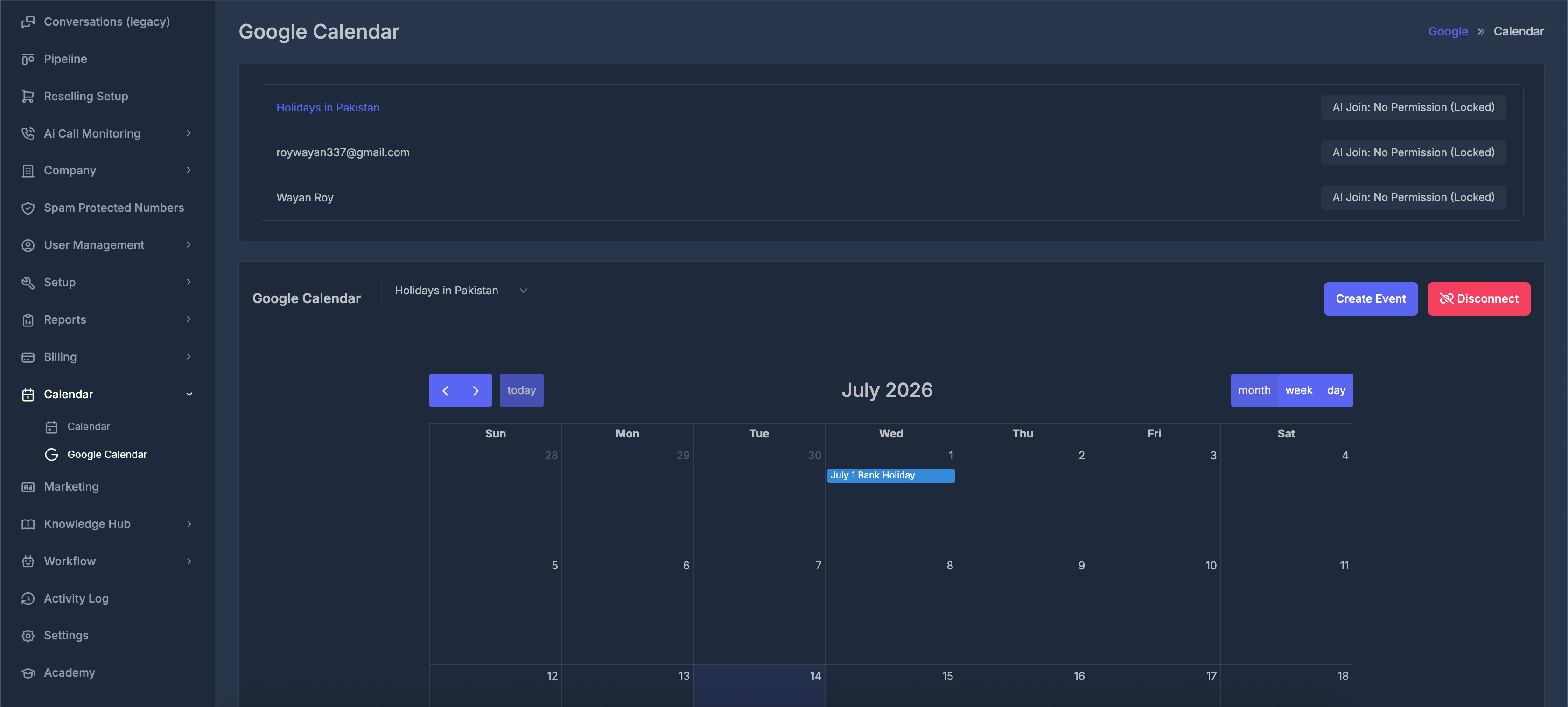 Once connected, RizzDial will sync events automatically based on your settings.
* You can choose which calendars are used for scheduling.
* Any meetings or appointments added via RizzDial will appear on your Google Calendar.
* Changes you make in Google Calendar will stay in sync with RizzDial, keeping everything up to date.
Disconnect or reconnect at any time from the Integrations page.
Once connected, RizzDial will sync events automatically based on your settings.
* You can choose which calendars are used for scheduling.
* Any meetings or appointments added via RizzDial will appear on your Google Calendar.
* Changes you make in Google Calendar will stay in sync with RizzDial, keeping everything up to date.
Disconnect or reconnect at any time from the Integrations page.