> ## Documentation Index
> Fetch the complete documentation index at: https://docs.aisync.link/llms.txt
> Use this file to discover all available pages before exploring further.
# Twilio Brand Registration
> Complete guide to registering brands directly in Twilio console and retrieving Brand Registration SID and Trust Hub A2P Bundle SID
# 🟦 Twilio Brand Registration
**Important:** If you are using your own Twilio account, you need to register your brand directly in the Twilio console and retrieve the necessary SIDs for integration. This process ensures proper 10DLC compliance and optimal message deliverability.
Register brands directly in Twilio console for customers using their own Twilio accounts
Extract Brand Registration SID and Trust Hub A2P Bundle SID for system integration
## 🎯 When to Use Twilio Brand Registration
**You must use this method when:**
* **You are using your own Twilio account** - This is mandatory for customers with their own Twilio accounts
* Customer prefers to manage their own 10DLC compliance
* Customer needs direct control over brand registration process
* Integration requires specific Twilio SIDs
**Mandatory Requirement:** If you are using your own Twilio account, you MUST register your brand in the Twilio console. This process requires administrative access to your Twilio console and you must complete the brand registration yourself.
## 📋 Prerequisites
**Before You Begin:** This guide is specifically for customers who are using their own Twilio account. If you are using our managed Twilio service, please refer to the standard [Brand Registration](/setup/10dlc/brand) documentation instead.
Before starting the Twilio brand registration process, ensure:
* Customer has an active Twilio account
* Customer has administrative permissions in Twilio console
* Customer has completed their Twilio Trust Hub profile
* Customer has all required business documentation ready
* Customer understands 10DLC compliance requirements
## 🚀 Step-by-Step Registration Process
### 🖥️ Access Twilio Console
1. **Navigate to Twilio Console**
* Go to [console.twilio.com](https://console.twilio.com)
* Log in with customer's Twilio credentials
* Ensure you're in the correct account
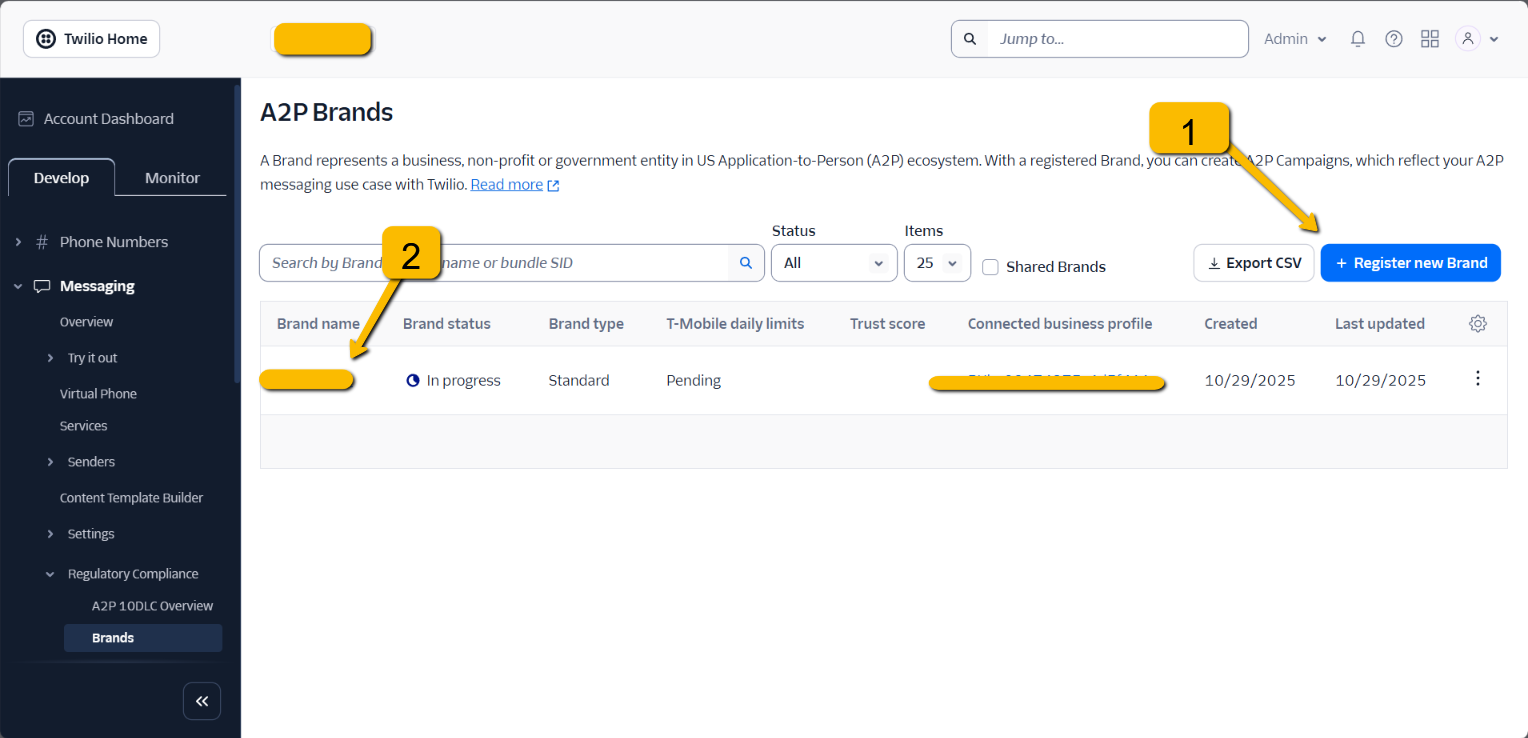
2. **Locate A2P Brand Registration**
* In the left sidebar, expand **"Develop"**
* Under **"Messaging"**, expand **"Regulatory Compliance"**
* Click on **"Brands"**
 ### 📝 Step 1: Register New Brand
1. **Click "Register new Brand"**
* On the A2P Brands page, click the blue **"+ Register new Brand"** button
* This will open the brand registration form
2. **Complete Brand Information**
* Fill in all required business details
* Ensure information matches official business registration
* Upload any required documentation
3. **Submit for Review**
* Review all information for accuracy
* Submit the brand registration
* Note the registration status will show as "In progress"
### ⏳ Monitor Registration Status
**Status Indicators:**
| Status | Description | Next Steps |
| --------------- | ---------------------------- | -------------------------------- |
| **In Progress** | Brand is under review by TCR | Wait for approval (up to 7 days) |
| **Approved** | Brand is approved and active | Proceed to retrieve SIDs |
| **Rejected** | Brand was rejected | Review feedback and resubmit |
| **Pending** | Awaiting initial review | Monitor for status updates |
**Review Timeline:** Brand registration typically takes 2-7 business days. If status hasn't changed within 7 days, contact Twilio support.
**Trust Hub Customer Profile (TCR) Review:**
The TCR reviews the information provided in the customer profile before registering the brand. This process includes:
* Business information verification
* Address validation
* Contact details confirmation
* Compliance checks
**Important:** Ensure all business information is accurate and matches official documentation. Inaccurate information will result in rejection.
### 🔍 Step 2: Retrieve Required SIDs
Once the brand is approved, you need to retrieve two critical SIDs:
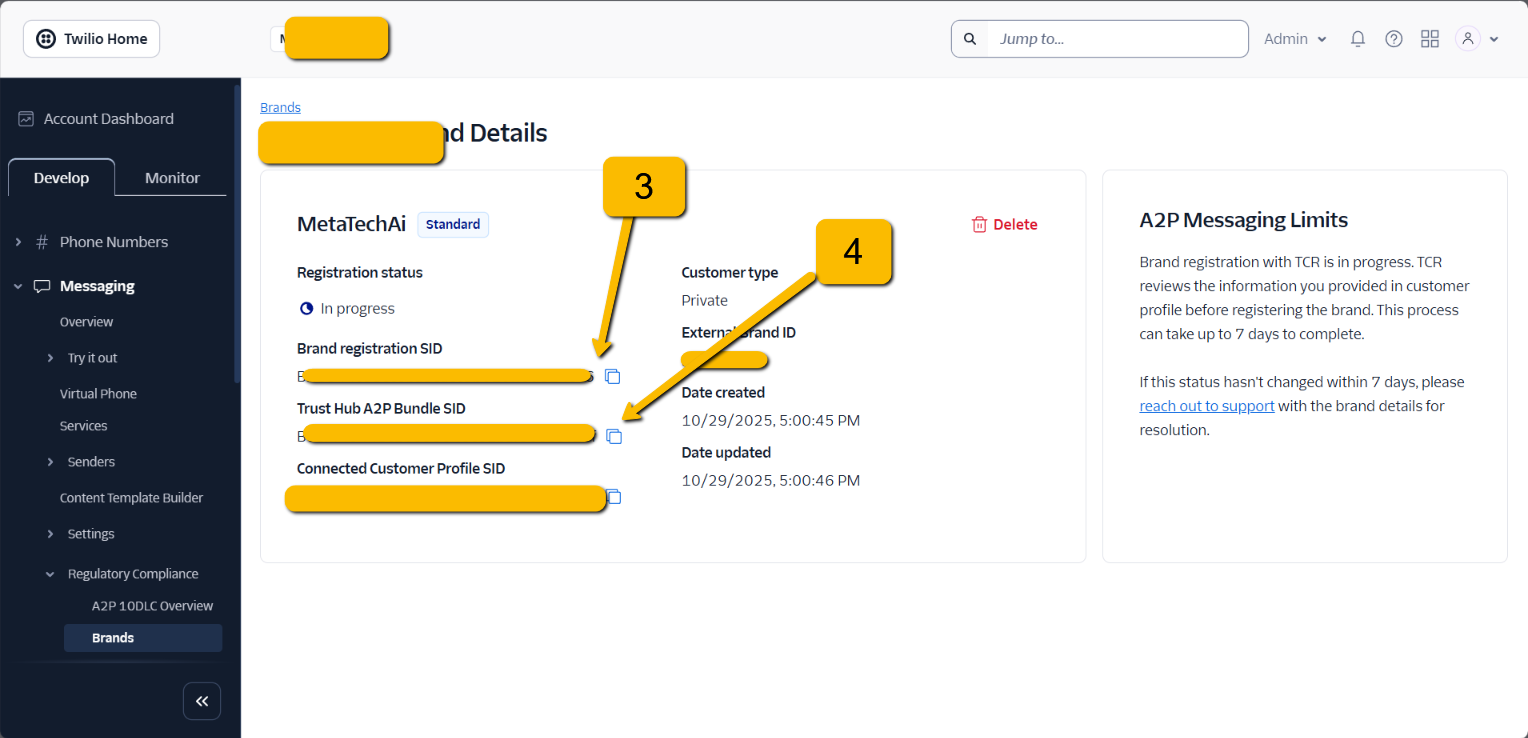
**Navigate to Brand Details**
* Click on the approved brand name in the brands list
* This opens the Brand Details page
### 🆔 Step 3: Brand Registration SID
**Locate Brand Registration SID**
* In the Brand Details section, find **"Brand registration SID"**
* Copy the SID using the copy icon next to it
### 📦 Step 4: Trust Hub A2P Bundle SID
**Find Trust Hub A2P Bundle SID**
* On the same Brand Details page
* Locate **"Trust Hub A2P Bundle SID"**
* Copy the SID using the copy icon
### 📝 Step 1: Register New Brand
1. **Click "Register new Brand"**
* On the A2P Brands page, click the blue **"+ Register new Brand"** button
* This will open the brand registration form
2. **Complete Brand Information**
* Fill in all required business details
* Ensure information matches official business registration
* Upload any required documentation
3. **Submit for Review**
* Review all information for accuracy
* Submit the brand registration
* Note the registration status will show as "In progress"
### ⏳ Monitor Registration Status
**Status Indicators:**
| Status | Description | Next Steps |
| --------------- | ---------------------------- | -------------------------------- |
| **In Progress** | Brand is under review by TCR | Wait for approval (up to 7 days) |
| **Approved** | Brand is approved and active | Proceed to retrieve SIDs |
| **Rejected** | Brand was rejected | Review feedback and resubmit |
| **Pending** | Awaiting initial review | Monitor for status updates |
**Review Timeline:** Brand registration typically takes 2-7 business days. If status hasn't changed within 7 days, contact Twilio support.
**Trust Hub Customer Profile (TCR) Review:**
The TCR reviews the information provided in the customer profile before registering the brand. This process includes:
* Business information verification
* Address validation
* Contact details confirmation
* Compliance checks
**Important:** Ensure all business information is accurate and matches official documentation. Inaccurate information will result in rejection.
### 🔍 Step 2: Retrieve Required SIDs
Once the brand is approved, you need to retrieve two critical SIDs:
**Navigate to Brand Details**
* Click on the approved brand name in the brands list
* This opens the Brand Details page
### 🆔 Step 3: Brand Registration SID
**Locate Brand Registration SID**
* In the Brand Details section, find **"Brand registration SID"**
* Copy the SID using the copy icon next to it
### 📦 Step 4: Trust Hub A2P Bundle SID
**Find Trust Hub A2P Bundle SID**
* On the same Brand Details page
* Locate **"Trust Hub A2P Bundle SID"**
* Copy the SID using the copy icon
 ## 📊 Brand Details Overview
The Brand Details page provides comprehensive information about the registered brand:
| Field | Description | Usage |
| ---------------------------------- | ------------------------------- | ------------------------------ |
| **Brand Registration SID** | Unique identifier for the brand | Required for campaign creation |
| **Trust Hub A2P Bundle SID** | Bundle identifier for messaging | Used for message routing |
| **Connected Customer Profile SID** | Links to customer profile | System integration reference |
| **Registration Status** | Current approval status | Monitor for changes |
| **Brand Type** | Standard, Premium, etc. | Affects messaging capabilities |
| **External Brand ID** | Custom brand identifier | Optional reference field |
## 🔧 Integration Steps
### For System Integration
1. **Collect Required SIDs**
```
Brand Registration SID: [Retrieved from Twilio console]
Trust Hub A2P Bundle SID: [Retrieved from Twilio console]
```
2. **Configure in Your System**
* Add SIDs to customer's account settings
* Configure messaging provider settings
* Test message delivery
3. **Verify Integration**
* Send test messages
* Monitor delivery rates
* Check for any error messages
### 🪧 For Campaign Creation
Once SIDs are retrieved, customers can:
* Create 10DLC campaigns using their brand
* Set up message templates
* Configure delivery settings
* Monitor campaign performance
## ⚠️ Important Considerations
**Critical Requirements:**
* Brand registration must be completed before creating campaigns
* SIDs are required for all messaging operations
* Keep SIDs secure and don't share them publicly
* Monitor brand status regularly for any changes
**Best Practices:**
* Document all SIDs in a secure location
* Set up monitoring for brand status changes
* Keep business information up to date
* Maintain compliance with carrier requirements
## 🆘 Troubleshooting
### 🛑 Common Issues
**Brand Registration Stuck "In Progress"**
* Wait up to 7 business days
* Contact Twilio support if no change
* Verify all information is accurate
**SIDs Not Visible**
* Ensure brand is fully approved
* Check user permissions in Twilio console
* Verify you're in the correct account
**Integration Errors**
* Double-check SID accuracy
* Verify brand status is "Approved"
* Ensure proper API configuration
### 💬 Getting Help
If you encounter issues:
1. Check Twilio documentation
2. Contact Twilio support with brand details
3. Verify account permissions
4. Review business information accuracy
Contact Twilio support for brand registration issues
Review Twilio's 10DLC documentation for detailed guidance
## 📊 Brand Details Overview
The Brand Details page provides comprehensive information about the registered brand:
| Field | Description | Usage |
| ---------------------------------- | ------------------------------- | ------------------------------ |
| **Brand Registration SID** | Unique identifier for the brand | Required for campaign creation |
| **Trust Hub A2P Bundle SID** | Bundle identifier for messaging | Used for message routing |
| **Connected Customer Profile SID** | Links to customer profile | System integration reference |
| **Registration Status** | Current approval status | Monitor for changes |
| **Brand Type** | Standard, Premium, etc. | Affects messaging capabilities |
| **External Brand ID** | Custom brand identifier | Optional reference field |
## 🔧 Integration Steps
### For System Integration
1. **Collect Required SIDs**
```
Brand Registration SID: [Retrieved from Twilio console]
Trust Hub A2P Bundle SID: [Retrieved from Twilio console]
```
2. **Configure in Your System**
* Add SIDs to customer's account settings
* Configure messaging provider settings
* Test message delivery
3. **Verify Integration**
* Send test messages
* Monitor delivery rates
* Check for any error messages
### 🪧 For Campaign Creation
Once SIDs are retrieved, customers can:
* Create 10DLC campaigns using their brand
* Set up message templates
* Configure delivery settings
* Monitor campaign performance
## ⚠️ Important Considerations
**Critical Requirements:**
* Brand registration must be completed before creating campaigns
* SIDs are required for all messaging operations
* Keep SIDs secure and don't share them publicly
* Monitor brand status regularly for any changes
**Best Practices:**
* Document all SIDs in a secure location
* Set up monitoring for brand status changes
* Keep business information up to date
* Maintain compliance with carrier requirements
## 🆘 Troubleshooting
### 🛑 Common Issues
**Brand Registration Stuck "In Progress"**
* Wait up to 7 business days
* Contact Twilio support if no change
* Verify all information is accurate
**SIDs Not Visible**
* Ensure brand is fully approved
* Check user permissions in Twilio console
* Verify you're in the correct account
**Integration Errors**
* Double-check SID accuracy
* Verify brand status is "Approved"
* Ensure proper API configuration
### 💬 Getting Help
If you encounter issues:
1. Check Twilio documentation
2. Contact Twilio support with brand details
3. Verify account permissions
4. Review business information accuracy
Contact Twilio support for brand registration issues
Review Twilio's 10DLC documentation for detailed guidance