> ## Documentation Index
> Fetch the complete documentation index at: https://docs.aisync.link/llms.txt
> Use this file to discover all available pages before exploring further.
# Trigger Hooks
> Advanced automation system for triggering custom actions based on AI Sync events and conditions
# ⚡ Trigger Hooks
Trigger Hooks provide a powerful automation framework that executes custom actions when specific events occur in your AI Sync system. Unlike webhooks that send data to external endpoints, trigger hooks perform internal actions and workflows within your AI Sync environment.
## 🔄 Trigger Hook Workflow
System monitors for specified events (calls, agent actions, campaigns)
Trigger conditions are evaluated against event data and context
Qualifying events trigger the configured hook actions
Multiple actions can be executed sequentially or in parallel
Execution results and outcomes are logged for monitoring
## 📊 Trigger Hook vs Webhooks Comparison
| Feature | Webhooks | Trigger Hooks |
| --------------- | ------------------------------ | -------------------------------------- |
| **Purpose** | Send data to external systems | Execute internal actions |
| **Direction** | Outbound HTTP requests | Internal processing |
| **Response** | Depends on external endpoint | Immediate internal execution |
| **Actions** | Limited to HTTP calls | Multiple action types available |
| **Latency** | Network dependent | Minimal internal latency |
| **Reliability** | External system dependent | Internal system controlled |
| **Use Cases** | CRM integration, notifications | Automation, data processing, workflows |
## 📋 Trigger Hook Management
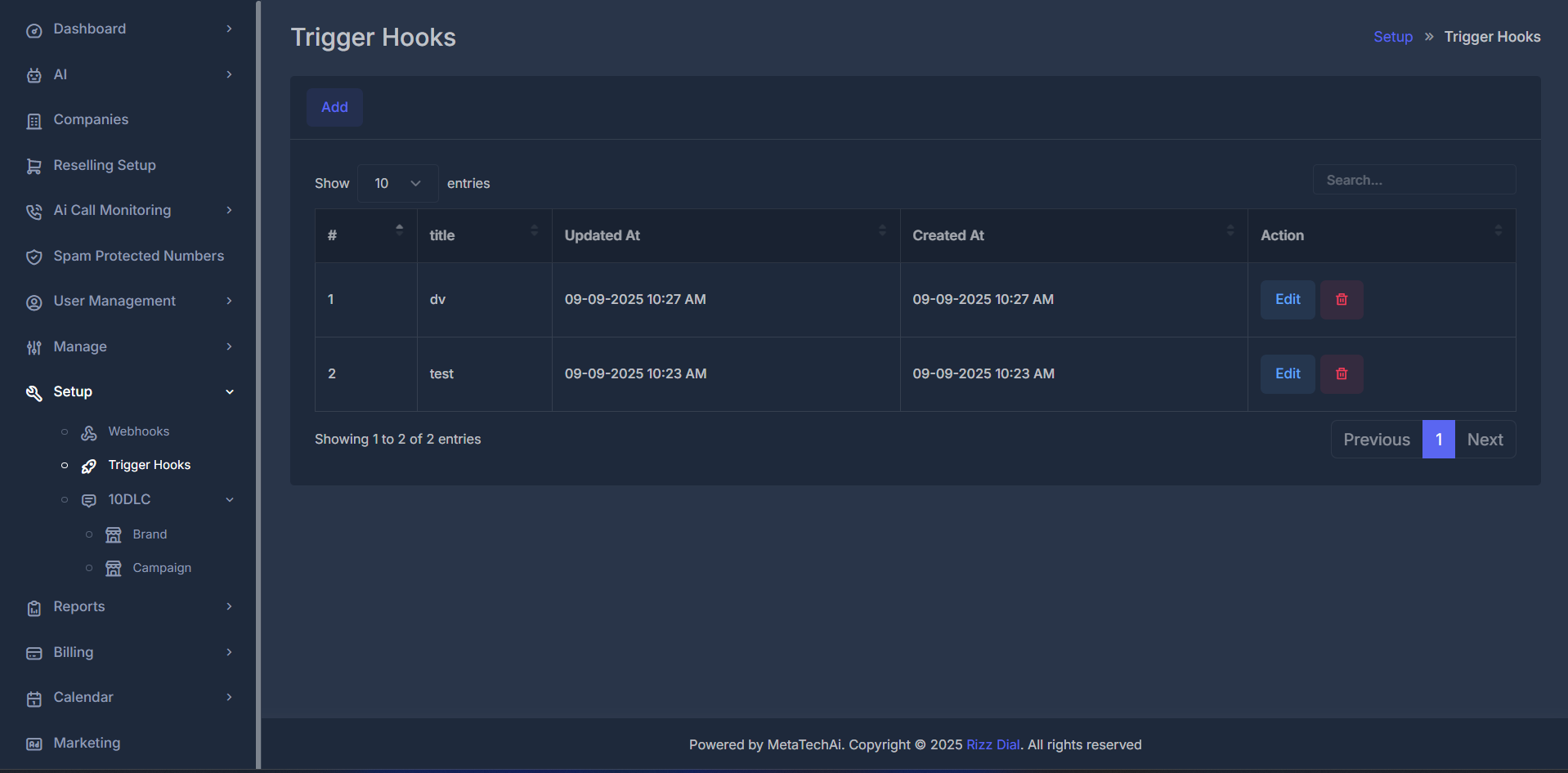
Navigate to **Setup > Trigger Hooks** to manage your automation configurations.
 ### 📑 Trigger Hook Table Overview
| Column | Description | Example |
| -------------- | --------------------------- | ------------------------------------------- |
| **#** | Sequential hook ID | `1`, `2`, `3` |
| **Title** | Hook name/identifier | `Lead Qualification`, `Follow-up Scheduler` |
| **Updated At** | Last modification timestamp | `09-09-2025 10:27 AM` |
| **Created At** | Hook creation timestamp | `09-09-2025 10:23 AM` |
| **Action** | Management options | Edit, Delete, Duplicate, Test |
### ⚡ Quick Actions
Create new trigger hooks for your automation needs
Modify existing hook settings and conditions
## 🎛️ Trigger Hook Configuration
### 🆕 Creating a New Trigger Hook
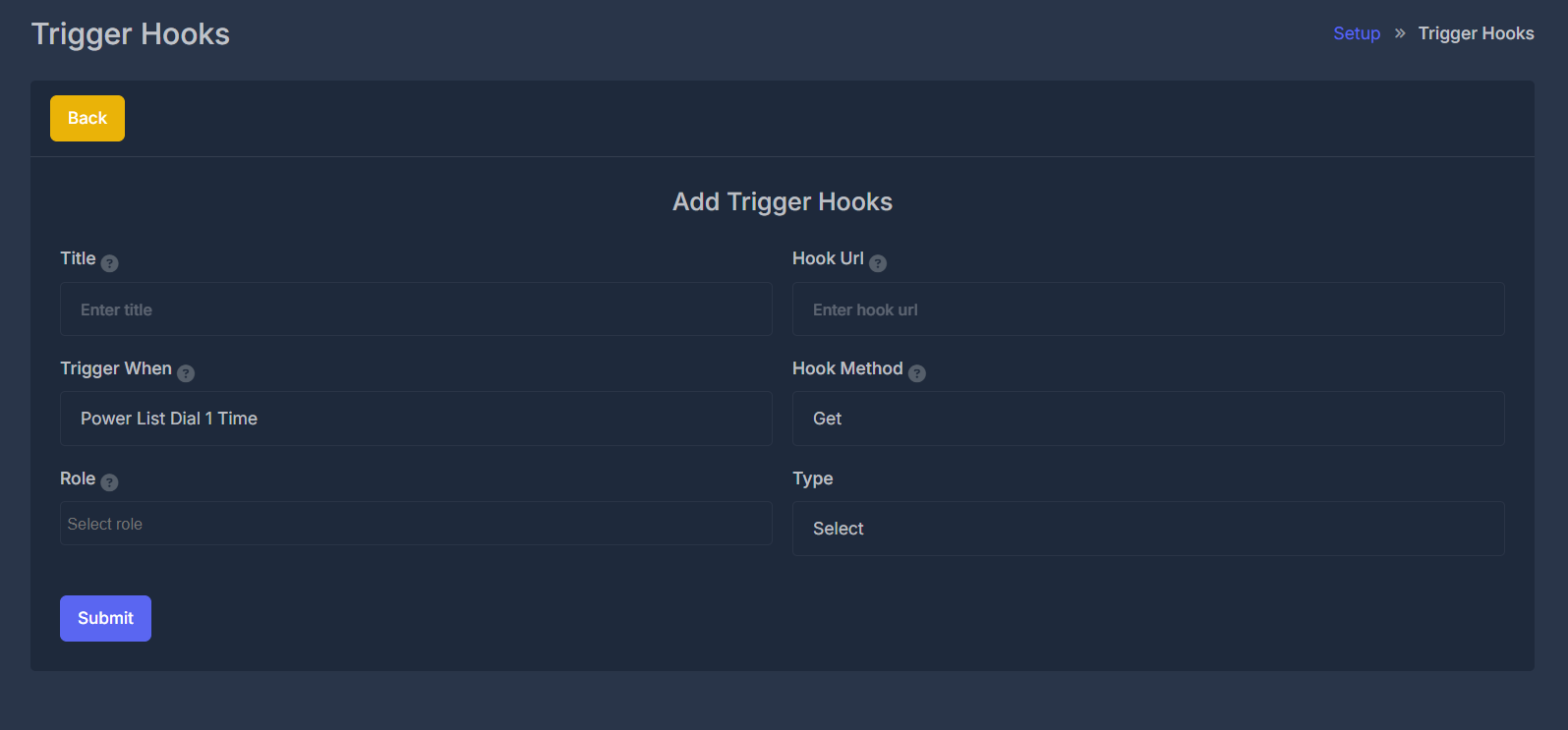
Navigate to Setup > Trigger Hooks and click "Add"
* **Title**: Descriptive name for the trigger hook
* **Description**: Optional detailed description of the hook's purpose
* **Status**: Enable/disable the hook
* **Trigger When**: Select the event type that activates the hook
* **Conditions**: Set up conditional logic for when the hook should execute
* **Filters**: Apply additional filters based on data attributes
* **Hook URL**: Internal or external endpoint to call
* **Hook Method**: HTTP method (GET, POST, PUT, DELETE)
* **Type**: Define the hook type and processing method
* **Role**: Specify user role requirements for execution
Test the trigger hook with sample data and activate for live events
### 📑 Trigger Hook Table Overview
| Column | Description | Example |
| -------------- | --------------------------- | ------------------------------------------- |
| **#** | Sequential hook ID | `1`, `2`, `3` |
| **Title** | Hook name/identifier | `Lead Qualification`, `Follow-up Scheduler` |
| **Updated At** | Last modification timestamp | `09-09-2025 10:27 AM` |
| **Created At** | Hook creation timestamp | `09-09-2025 10:23 AM` |
| **Action** | Management options | Edit, Delete, Duplicate, Test |
### ⚡ Quick Actions
Create new trigger hooks for your automation needs
Modify existing hook settings and conditions
## 🎛️ Trigger Hook Configuration
### 🆕 Creating a New Trigger Hook
Navigate to Setup > Trigger Hooks and click "Add"
* **Title**: Descriptive name for the trigger hook
* **Description**: Optional detailed description of the hook's purpose
* **Status**: Enable/disable the hook
* **Trigger When**: Select the event type that activates the hook
* **Conditions**: Set up conditional logic for when the hook should execute
* **Filters**: Apply additional filters based on data attributes
* **Hook URL**: Internal or external endpoint to call
* **Hook Method**: HTTP method (GET, POST, PUT, DELETE)
* **Type**: Define the hook type and processing method
* **Role**: Specify user role requirements for execution
Test the trigger hook with sample data and activate for live events
 ### 🏷️ Field Definitions
**Title**
* Purpose: Human-readable identifier for the trigger hook
* Format: Text string (max 255 characters)
* Example: "Lead Qualification Hook", "Follow-up Scheduler"
**Description**
* Purpose: Detailed explanation of hook functionality
* Format: Text area (optional)
* Example: "Automatically qualifies leads based on call sentiment and duration"
**Trigger When**
* Purpose: Defines the event that activates the hook
* Options:
* `Power List Dial 1 Time` - After first dial attempt
* `Power List Dial 2 Times` - After second dial attempt
* `Power List Dial 3 Times` - After third dial attempt
* `Call Ended` - When any call completes
* `Call Answered` - When call is answered
* `Agent Response` - When AI agent responds
* `Lead Generated` - When new lead is created
* `Appointment Scheduled` - When appointment is booked
* `SMS Sent/Received` - SMS events
* `Campaign Started/Ended` - Campaign lifecycle events
**Conditions**
* Purpose: Additional logic to filter when hook executes
* Format: Conditional expressions
* Examples:
* `call_duration > 60` (calls longer than 1 minute)
* `sentiment == "positive"` (positive sentiment only)
* `lead_score >= 80` (high-quality leads only)
**Hook URL**
* Purpose: Endpoint URL to send hook data
* Format: Valid HTTP/HTTPS URL
* Examples:
* `https://api.yourcrm.com/webhook/leads`
* `https://app.hookk.com/webhook`
* `https://internal.ai-sync.com/process-lead`
**Hook Method**
* Purpose: HTTP method for the hook request
* Options: `GET`, `POST`, `PUT`, `DELETE`, `PATCH`
* Default: `POST`
* Usage: POST for creating data, PUT for updates, GET for queries
**Type**
* Purpose: Categorizes the hook for processing and organization
* Options:
* `Lead Processing` - Lead qualification and routing
* `CRM Integration` - Customer relationship management
* `Analytics` - Data analysis and reporting
* `Notification` - Alerts and notifications
* `Workflow` - Business process automation
* `Other` - Custom or miscellaneous hooks
**Role**
* Purpose: Defines which user roles can trigger this hook
* Options:
* `Agent` - AI agents can trigger the hook
* `Admin` - Administrator users only
* `Manager` - Manager level and above
* `User` - Any authenticated user
* `System` - System-level automated triggers
* Security: Ensures proper access control for sensitive operations
### 📝 Edit Trigger Hook
### 🏷️ Field Definitions
**Title**
* Purpose: Human-readable identifier for the trigger hook
* Format: Text string (max 255 characters)
* Example: "Lead Qualification Hook", "Follow-up Scheduler"
**Description**
* Purpose: Detailed explanation of hook functionality
* Format: Text area (optional)
* Example: "Automatically qualifies leads based on call sentiment and duration"
**Trigger When**
* Purpose: Defines the event that activates the hook
* Options:
* `Power List Dial 1 Time` - After first dial attempt
* `Power List Dial 2 Times` - After second dial attempt
* `Power List Dial 3 Times` - After third dial attempt
* `Call Ended` - When any call completes
* `Call Answered` - When call is answered
* `Agent Response` - When AI agent responds
* `Lead Generated` - When new lead is created
* `Appointment Scheduled` - When appointment is booked
* `SMS Sent/Received` - SMS events
* `Campaign Started/Ended` - Campaign lifecycle events
**Conditions**
* Purpose: Additional logic to filter when hook executes
* Format: Conditional expressions
* Examples:
* `call_duration > 60` (calls longer than 1 minute)
* `sentiment == "positive"` (positive sentiment only)
* `lead_score >= 80` (high-quality leads only)
**Hook URL**
* Purpose: Endpoint URL to send hook data
* Format: Valid HTTP/HTTPS URL
* Examples:
* `https://api.yourcrm.com/webhook/leads`
* `https://app.hookk.com/webhook`
* `https://internal.ai-sync.com/process-lead`
**Hook Method**
* Purpose: HTTP method for the hook request
* Options: `GET`, `POST`, `PUT`, `DELETE`, `PATCH`
* Default: `POST`
* Usage: POST for creating data, PUT for updates, GET for queries
**Type**
* Purpose: Categorizes the hook for processing and organization
* Options:
* `Lead Processing` - Lead qualification and routing
* `CRM Integration` - Customer relationship management
* `Analytics` - Data analysis and reporting
* `Notification` - Alerts and notifications
* `Workflow` - Business process automation
* `Other` - Custom or miscellaneous hooks
**Role**
* Purpose: Defines which user roles can trigger this hook
* Options:
* `Agent` - AI agents can trigger the hook
* `Admin` - Administrator users only
* `Manager` - Manager level and above
* `User` - Any authenticated user
* `System` - System-level automated triggers
* Security: Ensures proper access control for sensitive operations
### 📝 Edit Trigger Hook
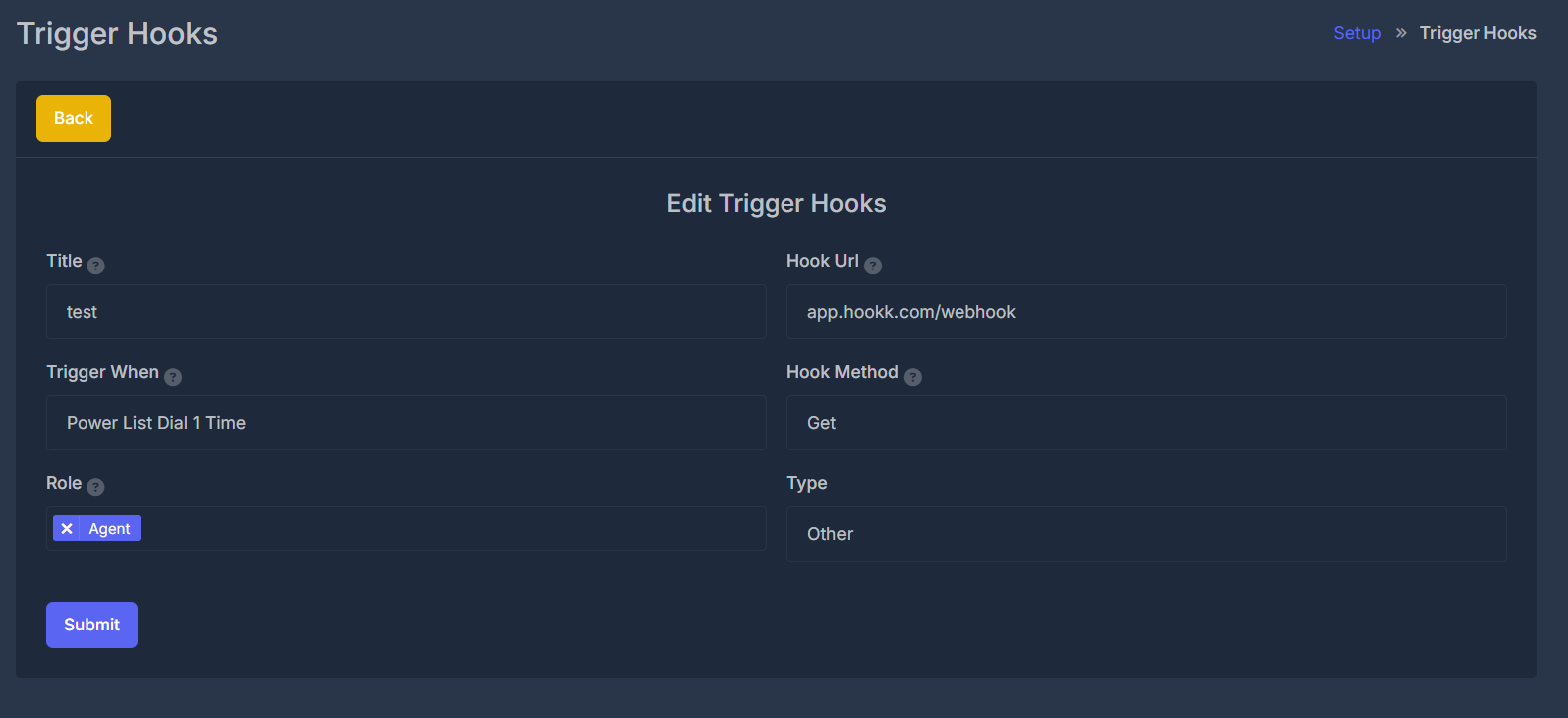 When editing existing trigger hooks, you can modify all configuration parameters while maintaining execution history and performance metrics.
## 🎪 Available Trigger Events
**Triggers**:
* `Call Started/Ended/Answered`
* `Power List Dial Attempts`
* `Call Transferred`
**Use Cases**:
* Real-time monitoring
* Progressive lead nurturing
* CRM updates
**Data**: Call status, duration, participant info, recordings
**Triggers**:
* `Agent Response Generated`
* `Escalation Required`
* `Performance Threshold`
**Use Cases**:
* Quality monitoring
* Performance optimization
* Training triggers
**Data**: Agent metrics, response content, conversation context
**Triggers**:
* `Lead Generated/Qualified`
* `Status/Score Changed`
**Use Cases**:
* CRM synchronization
* Lead routing
* Sales notifications
**Data**: Demographics, qualification scores, interaction history
**Triggers**:
* `Campaign Started/Completed`
* `Milestone Reached`
* `Performance Alert`
**Use Cases**:
* Performance monitoring
* Budget management
* Result processing
**Data**: Campaign metrics, progress, ROI statistics
**Triggers**:
* `Scheduled/Confirmed/Cancelled`
* `Rescheduled`
**Use Cases**:
* Calendar integration
* Reminder automation
* No-show prevention
**Data**: Appointment details, participant info, availability
**Triggers**:
* `Follow-up Due`
* `Task Created`
* `Deadline Approaching`
**Use Cases**:
* Task automation
* Deadline management
* Customer retention
**Data**: Task details, assigned members, due dates
When editing existing trigger hooks, you can modify all configuration parameters while maintaining execution history and performance metrics.
## 🎪 Available Trigger Events
**Triggers**:
* `Call Started/Ended/Answered`
* `Power List Dial Attempts`
* `Call Transferred`
**Use Cases**:
* Real-time monitoring
* Progressive lead nurturing
* CRM updates
**Data**: Call status, duration, participant info, recordings
**Triggers**:
* `Agent Response Generated`
* `Escalation Required`
* `Performance Threshold`
**Use Cases**:
* Quality monitoring
* Performance optimization
* Training triggers
**Data**: Agent metrics, response content, conversation context
**Triggers**:
* `Lead Generated/Qualified`
* `Status/Score Changed`
**Use Cases**:
* CRM synchronization
* Lead routing
* Sales notifications
**Data**: Demographics, qualification scores, interaction history
**Triggers**:
* `Campaign Started/Completed`
* `Milestone Reached`
* `Performance Alert`
**Use Cases**:
* Performance monitoring
* Budget management
* Result processing
**Data**: Campaign metrics, progress, ROI statistics
**Triggers**:
* `Scheduled/Confirmed/Cancelled`
* `Rescheduled`
**Use Cases**:
* Calendar integration
* Reminder automation
* No-show prevention
**Data**: Appointment details, participant info, availability
**Triggers**:
* `Follow-up Due`
* `Task Created`
* `Deadline Approaching`
**Use Cases**:
* Task automation
* Deadline management
* Customer retention
**Data**: Task details, assigned members, due dates