Connect your AI assistant (ChatGPT, Claude and others) to your agency login once. Then name any of your clients in a chat and the assistant works inside that client's account: build agents, fix numbers, check calls, set up workflows, without opening the client yourself.
🔌 Connect once#
Use the same Connect window as any account: Settings → Integrations → AI assistant → Connect, and sign in with your own agency login. Every team member connects with their own login, not the owner's.
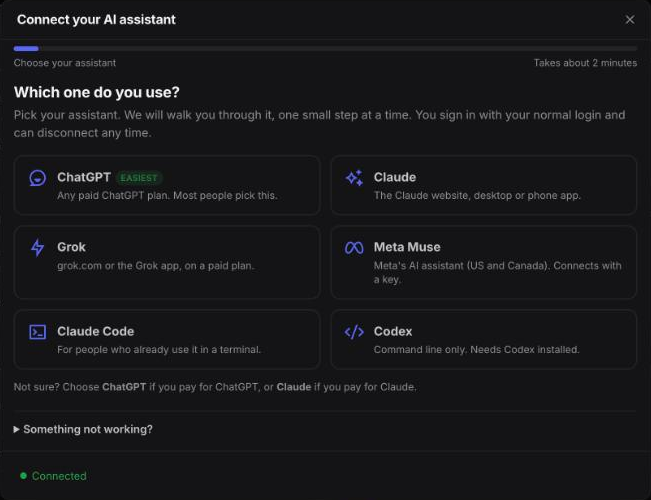
The full steps for each assistant are on Connect your AI assistant.
💬 Pick a client and work inside it#
Start with:
- "List my clients."
Then name the client in what you ask:
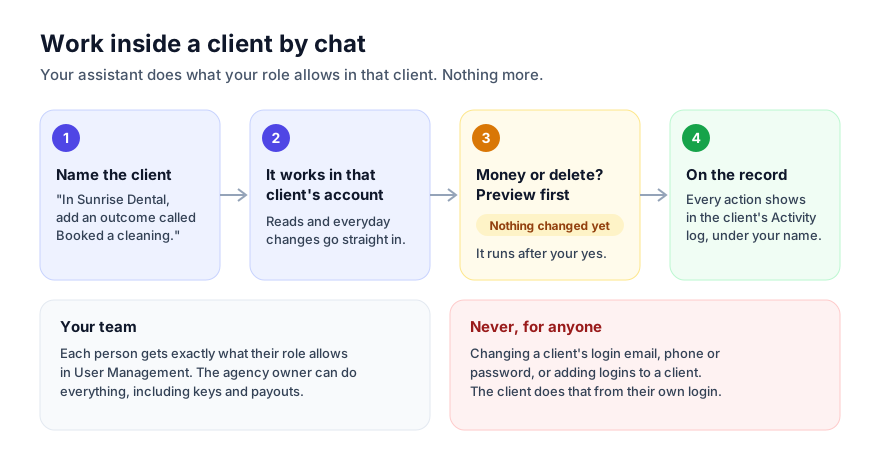
- "In Sunrise Dental, show me this week's calls."
- "In Sunrise Dental, add a call outcome called Booked a cleaning."
- "In Peak Roofing, build an inbound agent that books estimates."
Without a client name, the assistant works in your agency's own account, as usual.
The assistant says which client it is working in before it changes anything. Texts, notes and call transcripts inside a client were written by the client or their contacts. Your assistant treats them as information, never as instructions.
👥 Your team: their role decides#
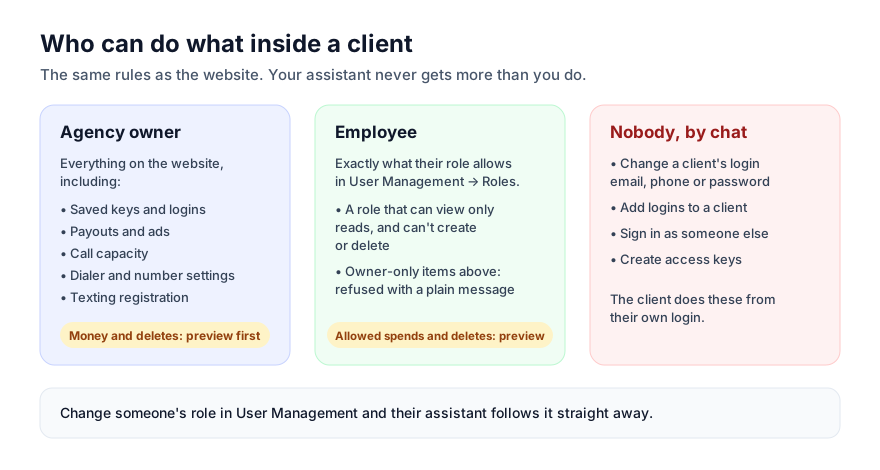
Inside a client, each person's assistant can do exactly what their role allows in User Management → Roles. The agency owner can do everything.
- To work in a client at all, their role needs to let them open the agency's clients.
- Then each action follows their role: for example, a role with View Disposition but not Add Disposition can see a client's outcomes but not create one.
- Some things have no role permission on the website and stay with the agency owner: saved keys and logins, payouts, ads, lead forms, call capacity, phone number and dialer settings, email sending setup, transfer lines, AI texting and its memory, a list's contact layout, the setup checklist, and texting registration.
Change someone's role in User Management and their assistant follows it straight away.
✋ Money and deletes: a preview first#
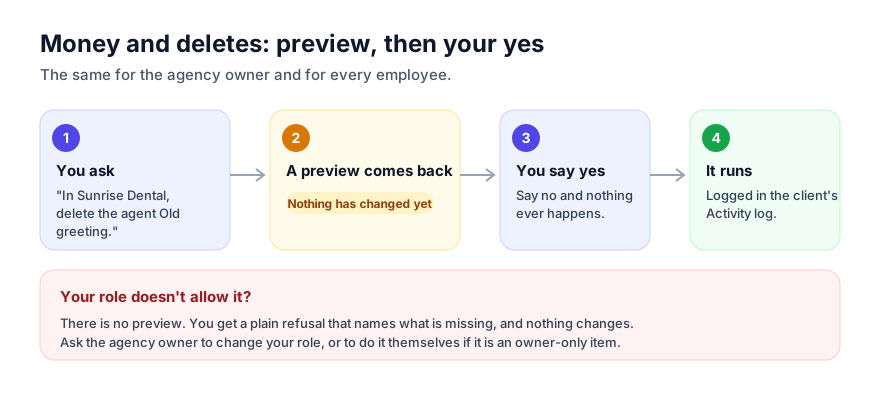
Anything that costs money or deletes something inside a client, and that your role allows, comes back as a preview first. Examples: buying a number, raising call capacity, submitting a texting registration, launching ads, deleting a contact or an agent.
- The assistant shows what would happen. Nothing has changed yet.
- You say yes.
- Only then does it run.
This is the same for everyone, including the agency owner. If your role doesn't allow it, you get a plain refusal instead, and nothing changes.
🚫 Never allowed#
Nobody in the agency can, by chat:
- Change a client's login email, phone number or password
- Add logins to a client's account
- Sign in as someone else or create access keys inside a client
The client does these from their own login.
Keys and passwords saved in a client's settings come back hidden (only the last 4 characters show), so they never land in a chat.
📋 Everything is on the record#
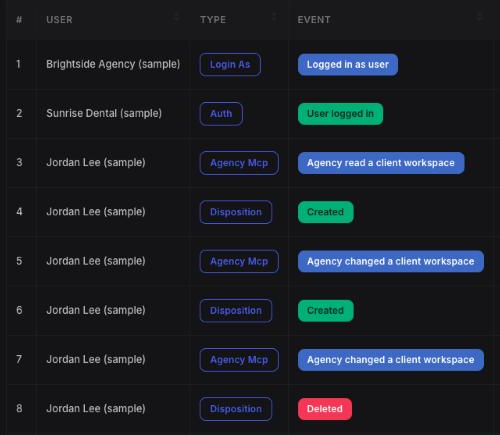
Every action your assistant takes inside a client shows in that client's Activity Log, under the name of the person who asked. The client sees it too, just as when you open their account.
🛠️ If something goes wrong#
| Problem | What to try |
|---|---|
| "Your role doesn't allow this (…)" | The message names what's missing. Ask the agency owner to add it to your role in User Management. |
| "Only the agency owner can do this" | No role covers it on the website (keys, payouts, ads, dialer settings…). Ask the agency owner. |
| "That action is not available for this client" | Check you can open that client on the website. Client logins can only be changed by the client. |
| The assistant can't find a client | Ask "List my clients" and use the name exactly as it shows there. |
| A preview came back and nothing changed | That is expected for money and deletes. Read it, then say yes if it is right. |
| It worked in your own account instead | Start the request with the client's name ("In Sunrise Dental, …"). |