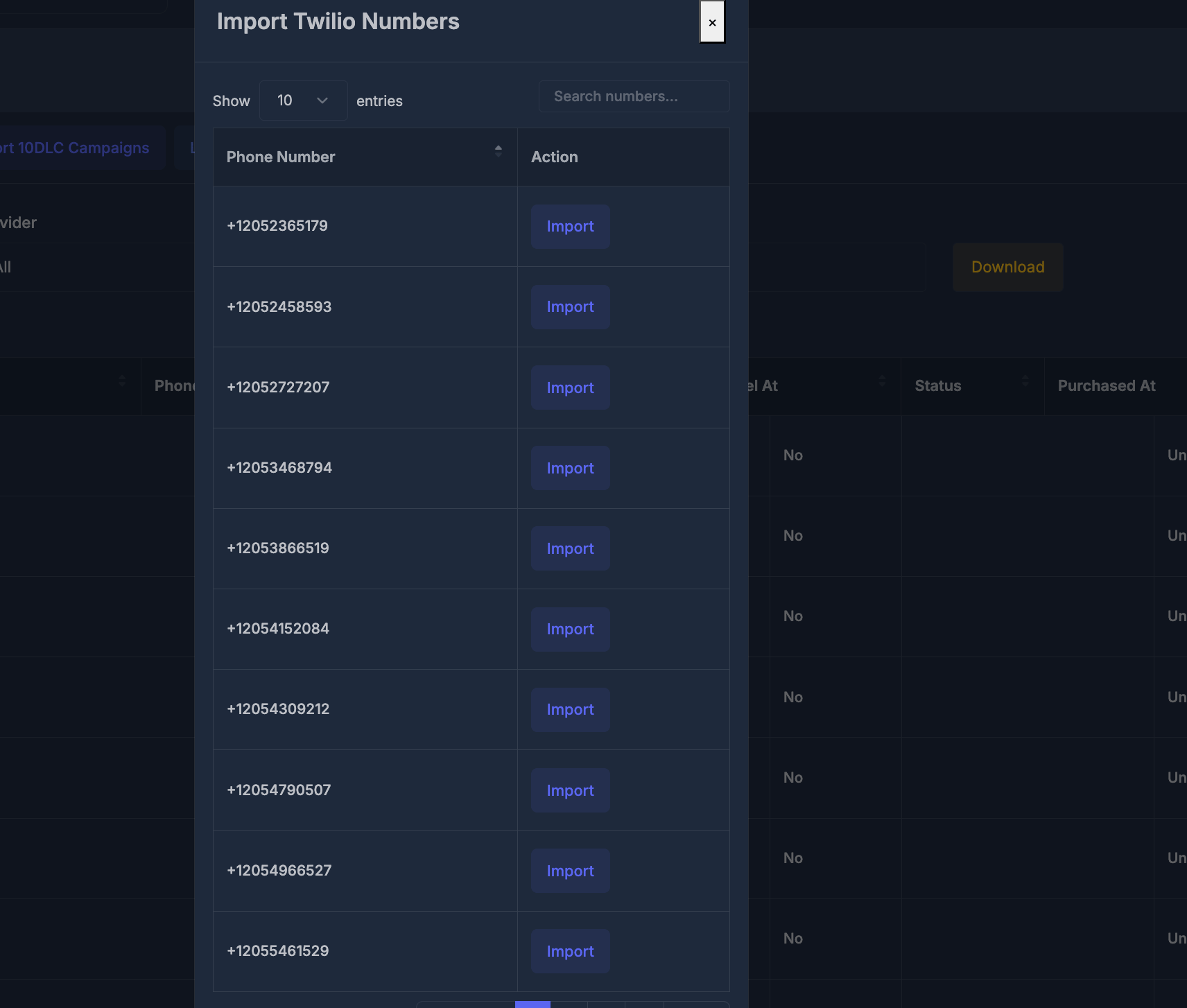
📞 Phone Numbers Management

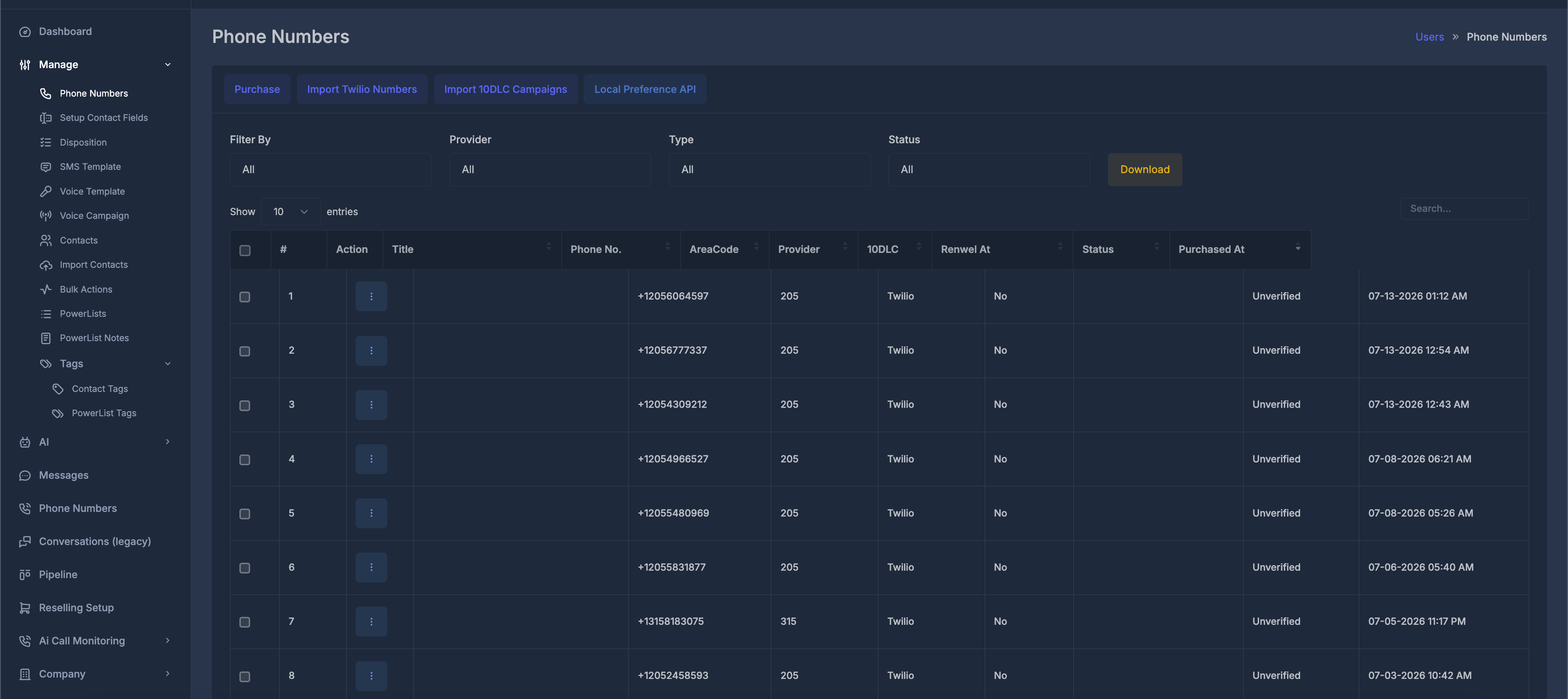
Easily manage your phone number inventory for AI campaigns and business communications using precise filters and export tools. Phone Numbers Interface

🔎 Filters

Filter your purchased phone numbers using:
  • Filter By:
    • All: Show all phone numbers.
    • AI: Only numbers used for AI.
    • Dialer: Only numbers used for Dialer.
    • Both: Numbers used for both.
  • Provider:
    • All
    • Ai Sync
    • Twilio
    • Ai Sync v2
  • Type:
    • All
    • Local
    • Toll Free
    • Mobile
  • Status:
    • All
    • Verified
    • Unverified
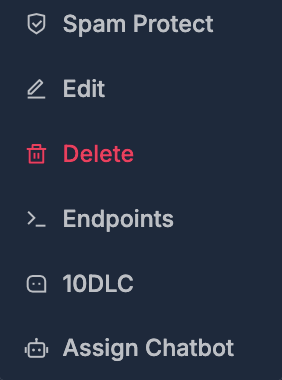
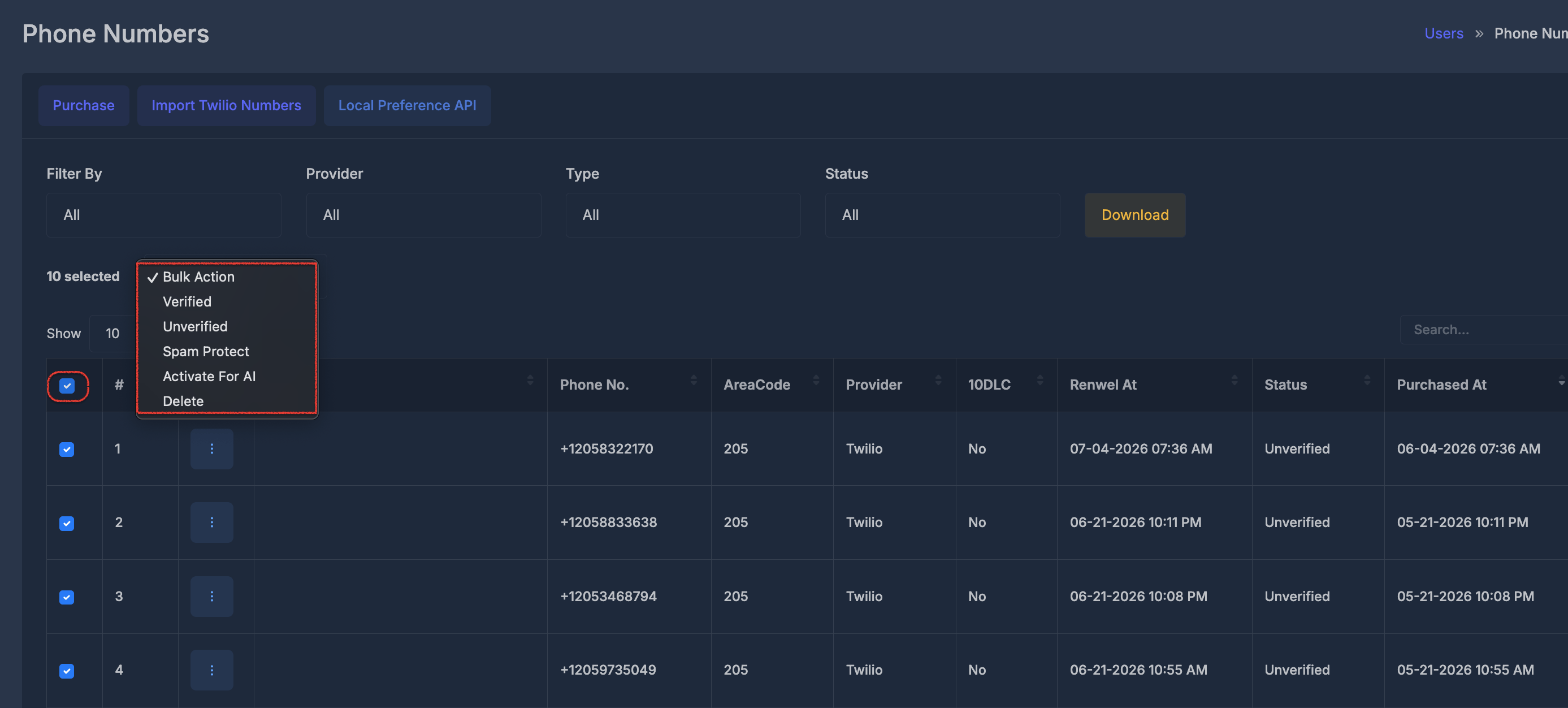
Bulk Actions on Phone Numbers Table You can perform bulk actions directly on the table. Select multiple numbers and use bulk options (such as verify, delete , Active for AI) to efficiently manage many records at once. All filters work together—update any filter and the table updates instantly.

⬇️ Download

Click the Download button to export your filtered phone numbers as an Excel file. Only the currently filtered records are included in the download.

📊 Phone Number Fields

FieldDescriptionExample
#Sequential row number1, 2, 3, …
TitleNumber label or custom nameBackLine-Caller, (blank)
Phone No.Full phone number+13154942679, +12058823206
AreaCodeArea code extracted from phone315, 205
ProviderCurrent service providerAi Sync, Twilio
10DLC10DLC registration (A2P compliance)No, Yes ,In Progress
Renewal AtNext renewal/billing date09-14-2025 12:40 PM, 10-02-2024 1:00 PM
StatusVerification stateVerified, Unverified
Field Notes:
  • The Title is optional and may be blank.
  • 10DLC compliance is shown for eligible providers only.

➕ Acquiring Phone Numbers

Purchase phone numbers instantly and connect them to your business with simple, guided setup.
Phone Numbers Purchase Table
Getting Started To purchase a new phone number, click the Purchase button from the Phone Numbers page.

Phone Numbers Purchase Table

Purchase Number Form

📡 1. Provider

Select your telecommunications provider:
  • Ai Sync – Primary carrier option
  • Twilio – Alternative carrier option
  • Ai Sync V2 – Additional carrier option (USA only)

🌎 2. Countries

Select the country for phone number:
  • USA (Default)
  • Canada
Note: Ai Sync V2 only supports USA.

☎️ 3. Type

Select the type of phone number:
  • Local – Standard local phone numbers
  • Toll Free – 800, 833, 844, 855, 866, 877, 888 numbers
  • Mobile – Mobile phone numbers
Provider Limitations:
  • Ai Sync V2: Does not support Mobile numbers
  • Twilio: Mobile not available for USA and Canada (available for UK, Australia)
  • Ai Sync: All types available for all countries

🔍 4. Search By

Choose how to search for available numbers:
  • AreaCode – Search by specific area code (e.g., 212, 415)
  • Region – Search by geographic region (e.g., NY, CA)
  • City – Search by city name (e.g., New York, Los Angeles)

🏙️ 5. AreaCode/Region/City

Enter the value based on your Search By selection:
  • For AreaCode: Enter 3-digit area code
  • For Region: Enter state code or region name
  • For City: Enter city name

📋 6. Search Results

After clicking Search, available numbers display in a table:
#Friendly NamePhone #LocalityCapabilitiesAction
Example315-238-9306Tully, New York, UNITED STATESMMS, SMS, Voice[x]Purchase
  • Friendly Name — Display name of the number
  • Phone # — The phone number
  • Locality — Geographic location
  • Capabilities — Supported features (Voice, SMS, MMS)
  • Checkbox — Select for bulk purchase
  • Action — Purchase button

Purchase Options 🛒 Single Purchase:
  • Click the purchase button next to the desired number.
Buy Multiple:
  1. Check the numbers you want to purchase
  2. Click Buy Multiple button
  3. All selected numbers will be purchased at

🌍 Local Preference API Configuration

The Local Preference API provides advanced configuration options for managing phone number preferences, routing, and geographic targeting to optimize call delivery and compliance. 📊 API Configuration Interface
Local Preference API Configuration
This interface allows you to configure:
  • API Endpoints: Set up connection points for local preference management
  • Authentication: Configure API keys and security credentials
  • Rate Limits: Set call frequency and volume restrictions
  • Geographic Rules: Define area code and region-specific preferences
🎛️ Local Preference Settings
Local Preference Settings

✅ Pre-check Functionality

Before purchasing a phone number, I use the Local Preference API’s pre-check system to ensure the number and its configuration are valid and ready for use. Pre-check for Number Purchase
  • Number Availability: Confirms the number is available for purchase from the selected provider.
  • Carrier Compatibility: Checks if the number meets carrier and campaign requirements.
  • Configuration Validation: Verifies that all required parameters and settings are correct before proceeding.
  • Error Detection: Identifies any issues that could prevent successful acquisition or use.
Testing and Validation
  • Dry Run: Simulates the purchase and configuration process without making changes, so I can see if everything will work as expected.
  • Simulation: Previews how the number will behave in routing and campaign scenarios.
  • Validation Reports: Provides detailed feedback on any issues or confirms readiness for purchase.
Why Use Pre-check?
  • Avoid Failed Purchases: Prevents buying numbers that won’t work for your needs.
  • Saves Time and Money: Reduces troubleshooting and unnecessary costs.
  • Ensures Compliance: Makes sure all regulatory and carrier requirements are met before you buy.
  • Confidence in Deployment: Lets you proceed with number acquisition knowing everything is set up correctly.

🔢 Assign 10 DLC Numbers to Campaigns

Assigning 10 DLC (10-Digit Long Code) Numbers to campaigns links your purchased phone numbers to a specific campaign for A2P (Application-to-Person) messaging. This keeps your traffic compliant with carrier requirements and improves deliverability. Use the steps below to assign numbers to your 10 DLC campaign in Aisync.
Note:
To assign 10DLC numbers to your campaign in Aisync, follow the steps above. The assignment process may take up to 24 hours to complete. You can assign a maximum of 49 numbers to a single campaign.

✅ Verification Status Management

🔍 Verification Process

Verified Numbers

Status: Ready for campaigns
Capabilities: Full calling features enabled
Trust Level: High deliverability and success rates

Unverified Numbers

Status: Pending verification
Limitations: Restricted calling capabilities
Action Required: Complete verification process

10DLC Registration

Purpose: A2P 10DLC compliance
Status: “Yes” or “No” indicator
Benefits: Higher throughput and deliverability
Requirement: Mandatory for US business messaging

Verification Benefits

Higher Success Rates: Better call connection
Reduced Filtering: Avoid spam filters
Carrier Trust: Improved carrier relationships
Compliance: Meet regulatory requirements

📤 SMS Sending – “From Number” Routing In Workflow

When sending SMS, the system chooses the “From” number using a defined order. Below are the options and fallbacks. 1️⃣ Same as dial The system uses the contact’s last call or conversation and picks the last used number for that contact. That number is used for sending if it’s still valid (see fallbacks below). 2️⃣ Assigned user The system finds the user assigned to this contact, then uses that user’s assigned number for sending. 3️⃣ Select any number The user picks a specific number; the system uses that dedicated number for sending. 🛡️ Fallback when the chosen number is not 10DLC linked If the number from (1), (2), or (3) does not have a 10DLC campaign linked (or isn’t valid):
🧭 FallbackBehavior
Area-code matchSystem uses the contact’s area code, finds a company number with that area code that is 10DLC linked, and uses it for SMS sending.
Final fallbackIf no area-code match is found, the system picks any 10DLC linked number for the company and uses it for SMS sending.
📝 Summary
OptionBehavior
Same as dialLast call/conversation → last used number
Assigned userUser assigned to contact → that user’s number
Select any numberUser-selected dedicated number
Fallback 1Chosen number not 10DLC linked → use contact area code + 10DLC linked number
Fallback 2No area-code match → use any 10DLC linked number

📥 Incoming SMS Routing Flow

When an incoming SMS is received, the system determines which user should be notified and assigned to the message using this prioritized process:
  1. Check caller in logs (previously dialed?)
    • The system checks if the sender’s number appears in recent call or conversation logs.
    • If found:
      • The last user who communicated with this number is attached to the message.
      • That user receives an in-app notification for the new SMS.
  2. Not dialed, but contact exists
    • If the number was not found in logs, but a contact profile exists with that phone number:
      • The system checks if the contact has an assigned user.
      • If assigned: The message is attached to that user.
  3. Nothing found yet – check “from” number assignment
    • Still no user assigned after prior steps:
      • The system checks the number (DID — the number the SMS was received on).
      • If that company number is assigned to a user, the message is assigned to that user.
  4. Final fallback
    • If no user is found through any prior logic:
      • The message is assigned to the company’s default user (such as the company owner or admin).
📊 Flow Summary
StepConditionAction
1Caller in logs (previously dialed)Attach to last conversation user; that user gets in-app notifications
2Contact exists, not in logsAssign to contact’s assigned user (if any)
3Still no userCheck received-on number → assign to user that number is assigned to
4ElseAssign to company user (owner/default)
Note:
This routing process ensures that incoming messages are assigned to the most contextually relevant user, helping maintain continuity and quick response for each conversation.

🔄 Renewal & Billing Management

📅 Renewal Tracking

Automatic Renewals

Next Renewal: Track upcoming renewal dates
Example: 09-14-2025 12:40 PM
Notifications: Automatic renewal reminders
Billing: Seamless payment processing

Renewal Management

Payment Methods: Manage billing preferences
Notifications: Email alerts before renewal
History: View renewal and payment history
Controls: Enable/disable auto-renewal

Cost Optimization

Usage Analysis: Review number utilization
Right-sizing: Optimize number inventory
Provider Comparison: Compare costs across providers
Bulk Discounts: Leverage volume pricing

Billing Analytics

Cost Tracking: Monitor spending per number
ROI Analysis: Calculate return on investment
Budget Planning: Forecast future costs
Reports: Detailed billing reports