Company name, logo and accent#
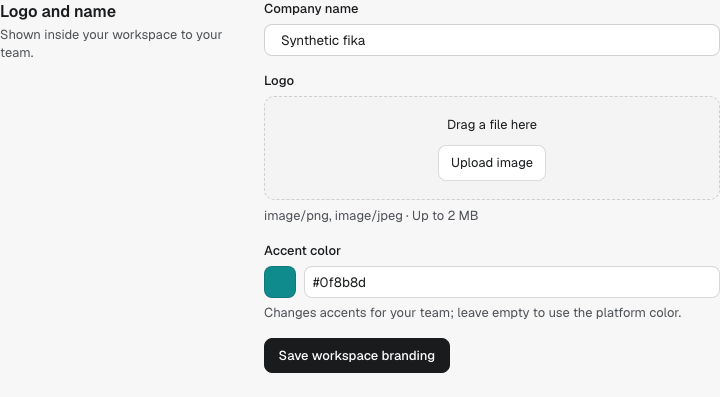
Open Settings → Business and find Logo and name. A company owner can:
- Enter the Company name shown on the company card.
- Choose a Logo in PNG or JPG format, up to 2 MB.
- Set an Accent color using the swatch picker or a six-digit hex value such as
#315F45. Leave it empty to use the platform color. - Choose Save workspace branding.
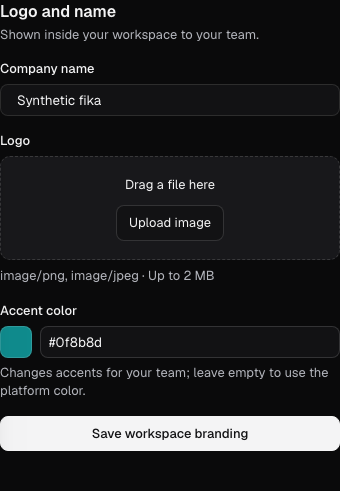
Company branding on a phone in dark mode
To stop using a saved logo, select Remove logo and save again.
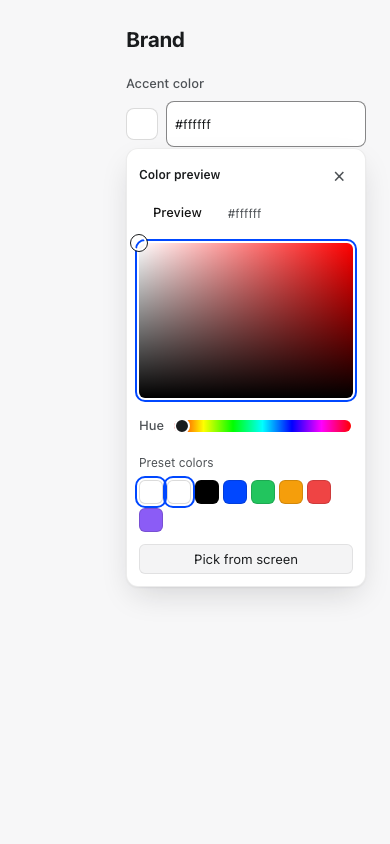
The company name and logo identify your workspace. The accent changes your team's workspace accents. A saved company accent takes precedence over the agency's inherited accent. Clearing it restores the inherited color.
These company choices are also available to agency clients. There is no agency lock over company customization; your account's existing owner and team permissions still apply. Team members can see the workspace identity; the company owner edits it.
The agency/platform wordmark, sign-in page, domain and browser-tab icon keep their existing branding. Resizing grips stay neutral. Your personal Light or Dark choice is separate.
Through your connected assistant#
When your connected assistant offers workspace branding, ask it to show the current company name, logo and accent before changing them. It asks for confirmation before removing a saved logo. If the tools are not available in your connection yet, use the page steps above.
🏢 Basic Information#
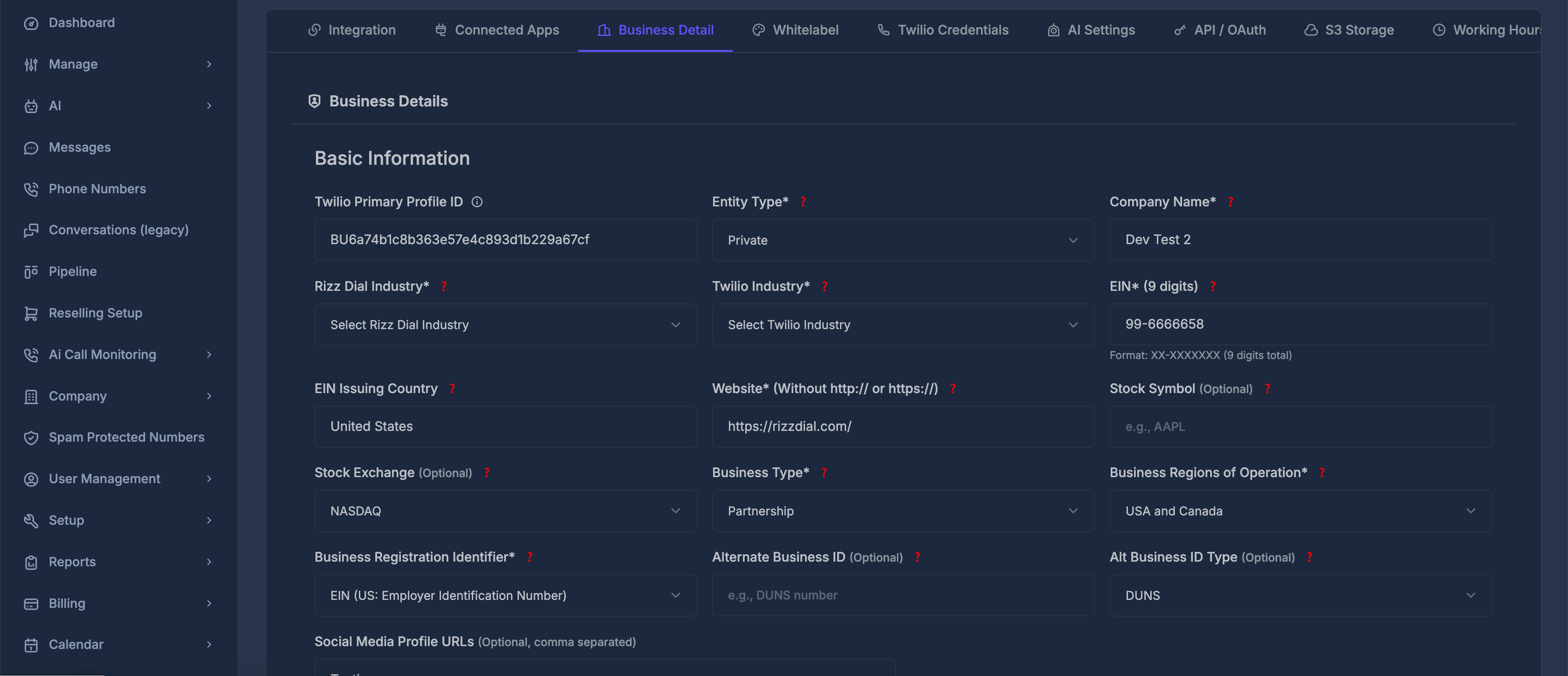
Update and complete your company details for compliance and platform requirements:
- Entity Type: Select the legal structure of your business (e.g., Private, Public, LLC, Nonprofit, Partnership)
- Company Name: Enter your full legal company name as registered
- Industry: Choose the industry your business operates in (e.g., Professional, Engineering, Technology)
- Twilio Industry: Select your industry classification as required by Twilio
- EIN: Enter your 9-digit Employer Identification Number (EIN)
- EIN Issuing Country: Select the country that issued your EIN (e.g., US)
- Website: Enter your company website (without http:// or https://)
- Stock Symbol (Optional): Enter your stock ticker symbol (e.g., AAPL), if applicable
- Stock Exchange (Optional): Select the relevant stock exchange (e.g., NASDAQ), if applicable
- Business Type: Specify your business type (e.g., Partnership)
- Business Regions of Operation: Indicate areas where your business operates (e.g., USA and Canada)
- Business Registration Identifier: Enter your business registration ID (e.g., EIN, DUNS, etc.)
- Alternate Business ID (Optional): Provide an additional business identifier (e.g., DUNS number)
- Alt Business ID Type (Optional): Choose the type for your alternate business ID (e.g., DUNS)
- Social Media Profile URLs (Optional): Add social media links (comma separated)
- Testing: (Field in use for internal/testing purposes or notes)
🏠 Address Details#
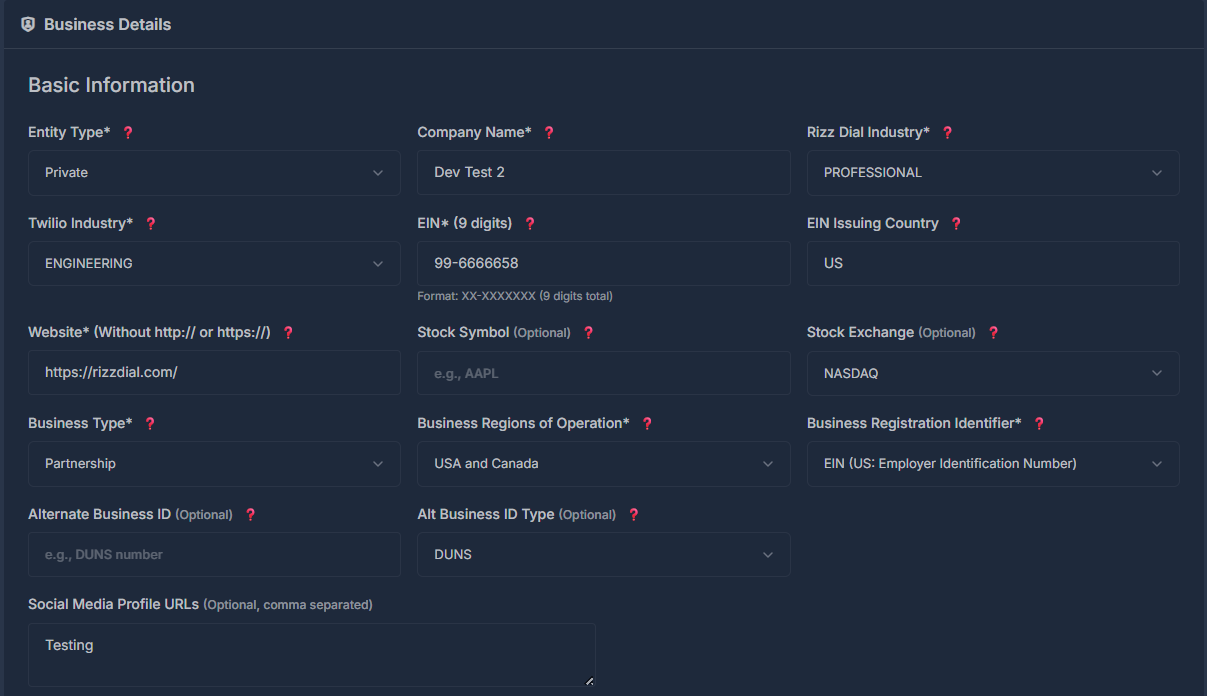
Complete business address information:
- Customer Name: Name of the customer or business entity at this address
- Street: Primary business address (required)
- Street Secondary (Optional): Secondary or suite/apartment details
- City: Business location city (required)
- State: Select from dropdown menu (required)
- Postal Code: ZIP/postal code (required)
- Country: Select your country (required)
👤 Authorized Contact Details#
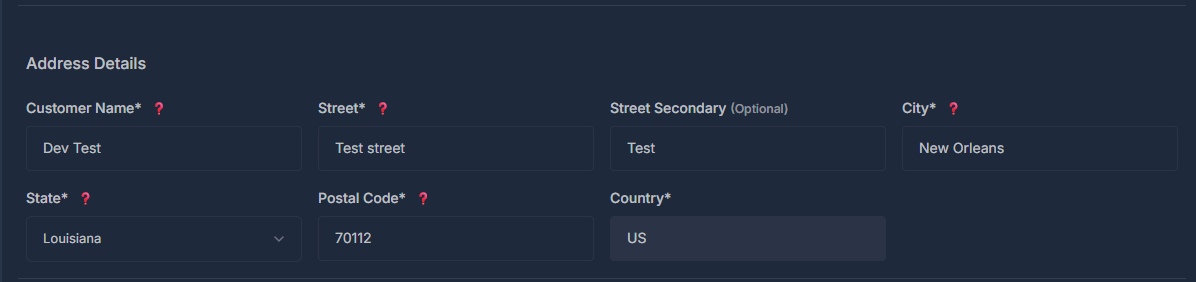
Primary contact information for business verification:
- First Name: Contact person's first name (required)
- Last Name: Contact person's last name (required)
- Email: Official contact email address (required)
- Title: Contact person's title (required)
Example: "Master" - Job Title: Contact person's specific role or position (select from options, required)
Example: "DIRECTOR" - Phone: Direct contact phone number (required, include country code)
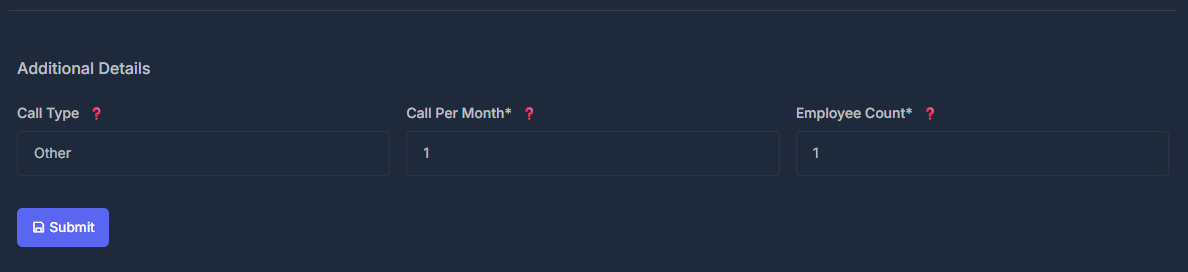
📋 Additional Details#
- Call Type: Select the nature of calls (e.g., Other, Marketing, Customer Service, etc.) *
- Call Per Month: Enter the expected number of calls per month *
- Employee Count: Specify your organization's total employee count *
Click Submit to save your business profile information.