

🎙️ User Guide
The Voice & Language tab is where you choose how your agent thinks (in text), how it sounds, which language it uses, and optional background sound on calls. Small information icons next to labels give short hints when you point at them.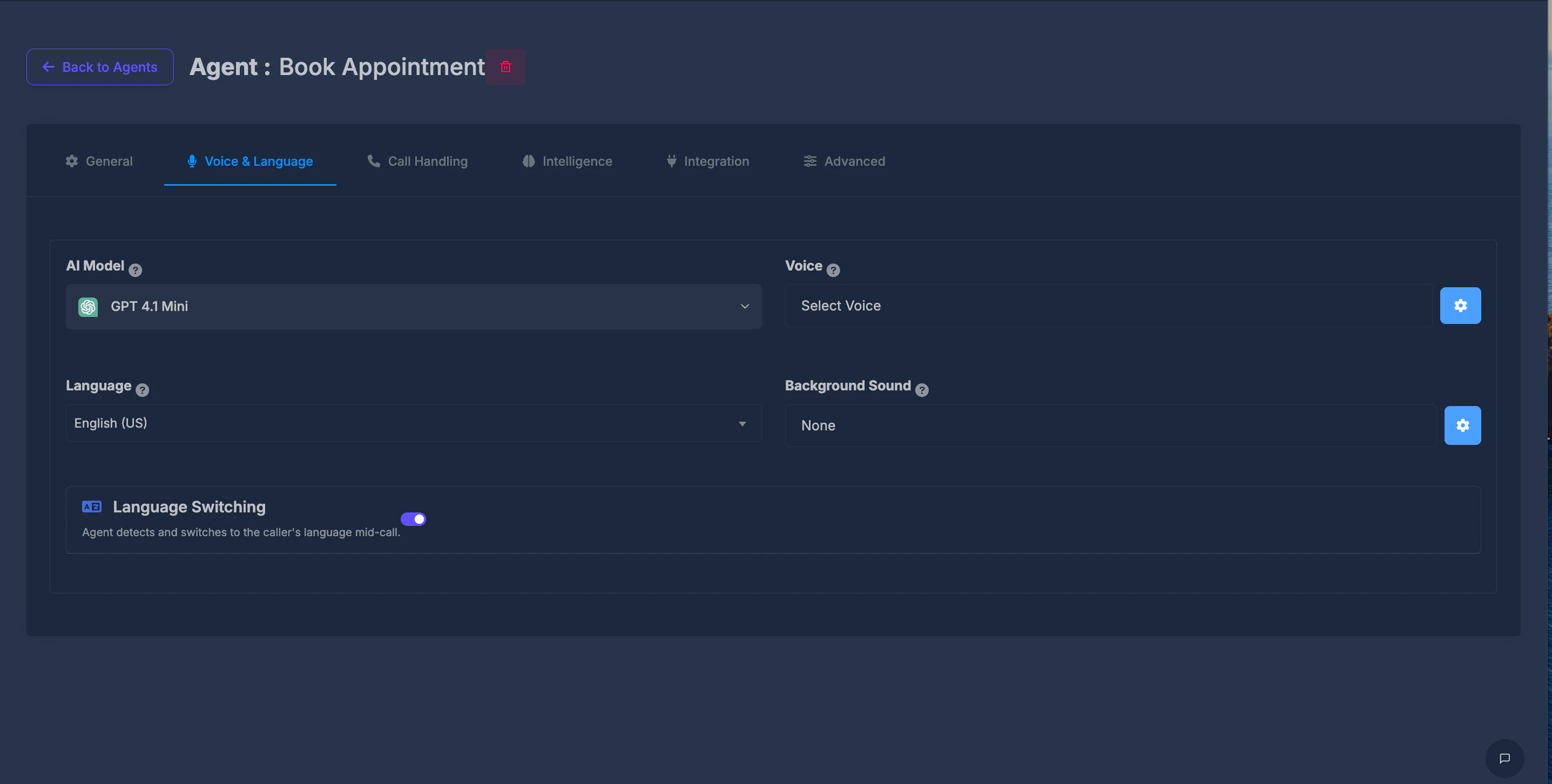
🗂️ Opening the tab
Select Voice & Language in the row of tabs at the top of the agent settings. The screen is laid out in two columns: model and voice on the first row; language and background sound on the second.🤖 AI Model
What it doesThis is the “brain” behind your agent’s replies. Different options can differ in quality, speed, and cost per minute (shown next to each name). How to use it
Open the list, then pick one option. The top of the box updates to show your choice (including a small brand-style icon where shown). Your selection is saved when you pick it.
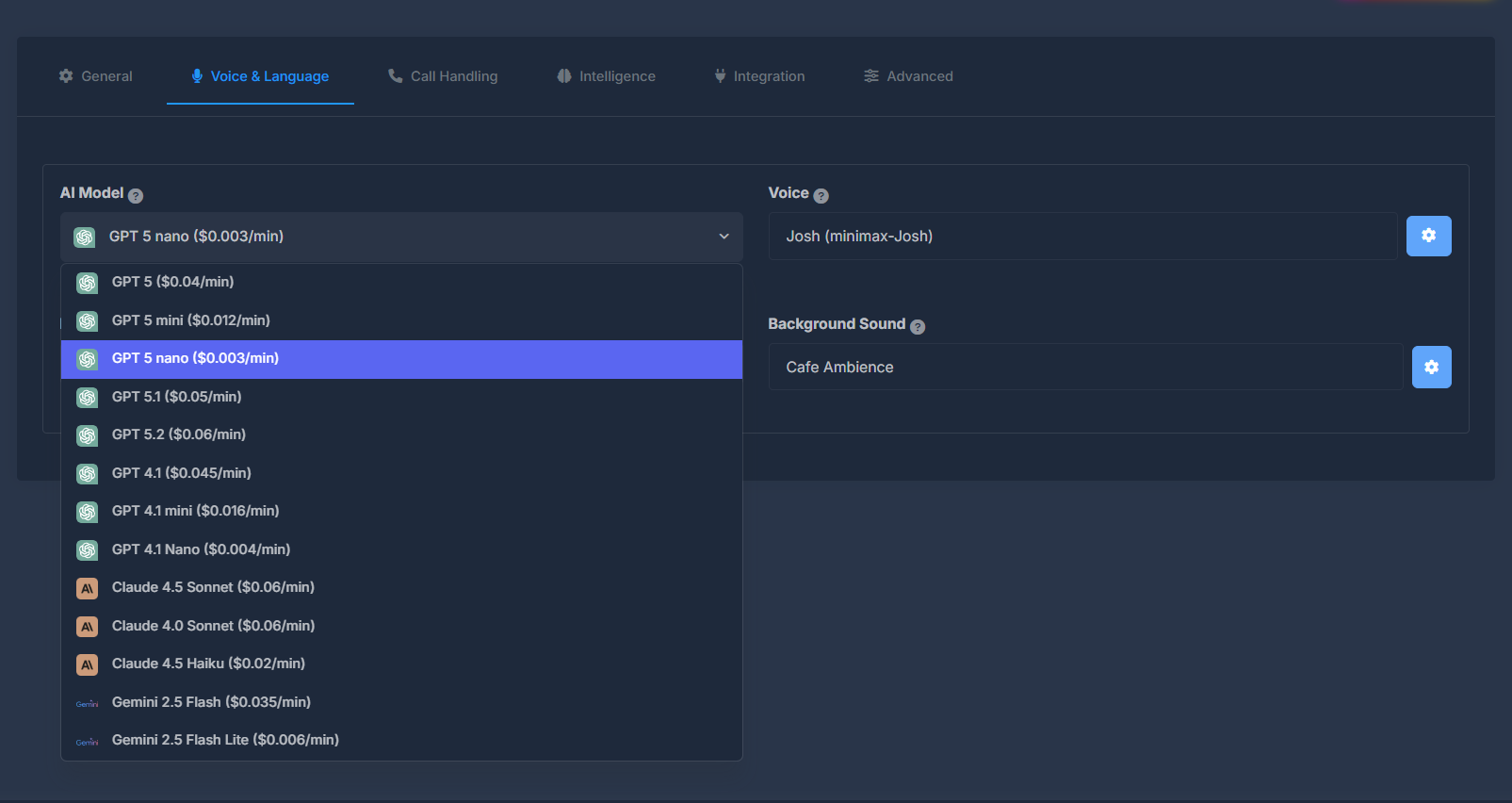
Each line includes an approximate per-minute price in parentheses.
- GPT 5 ($0.04/min)
- GPT 5 mini ($0.012/min)
- GPT 5 nano ($0.003/min)
- GPT 5.1 ($0.05/min)
- GPT 5.2 ($0.06/min)
- GPT 4.1 ($0.045/min)
- GPT 4.1 mini ($0.016/min)
- GPT 4.1 Nano ($0.004/min)
- Claude 4.5 Sonnet ($0.06/min)
- Claude 4.0 Sonnet ($0.06/min)
- Claude 4.5 Haiku (0.011/min for the same model depending on how the page was loaded)
- Gemini 2.5 Flash ($0.035/min)
- Gemini 2.5 Flash Lite ($0.006/min)
Explains that this controls the model powering responses, and that options differ in intelligence, speed, and cost.
🎤 Voice
What it doesSets the spoken voice your agent uses on calls—tone and style depend on the voice you pick. What you see on the tab
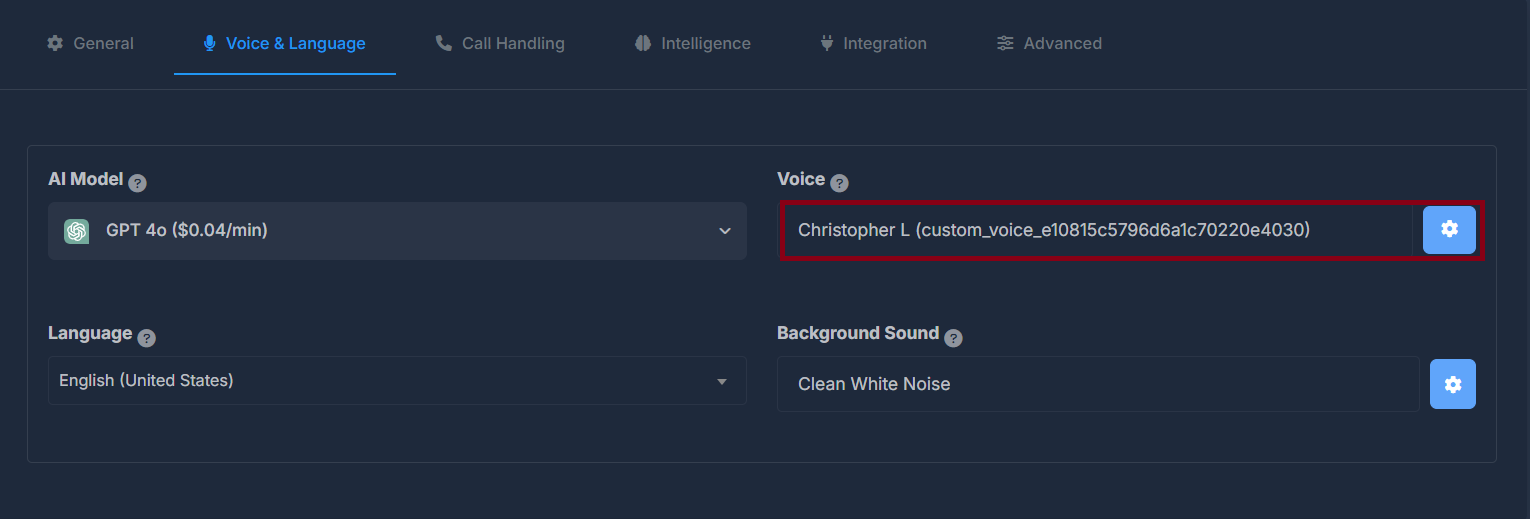
A field shows your current voice as a name and an identifier in parentheses. Next to it is a settings (gear) button (see ⚙️ Voice Settings window). How to pick or change a voice
The main catalog opens in a large Voice List window (scrollable). There you can hear samples, filter, search, and confirm a voice with Use This. Tooltip
Explains that different voices have different tones and speaking styles.
📋 Voice List window (voice catalog)
This window helps you browse all voices that are available for your agent.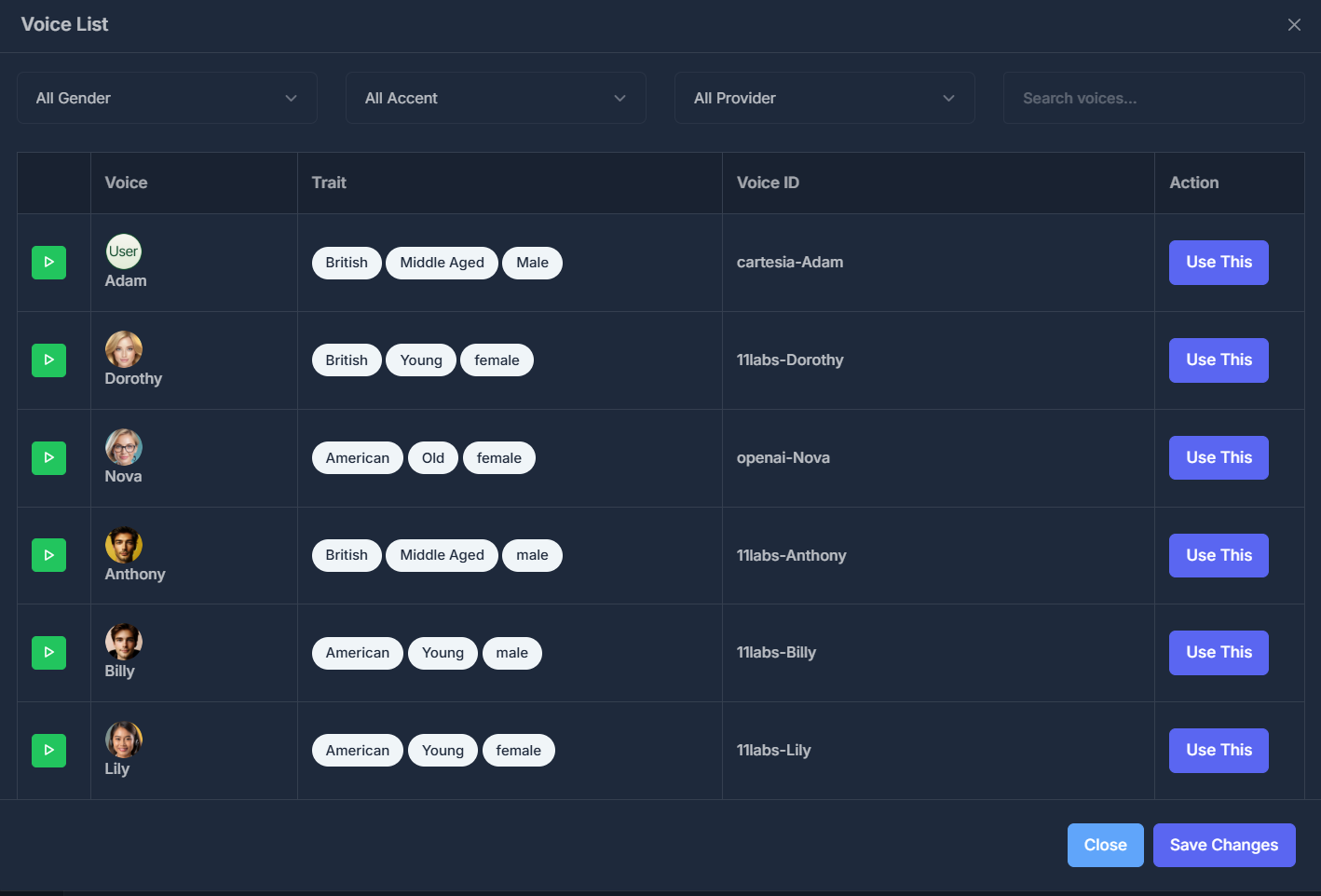
- Gender: All, Male, or Female
- Accent: All, American, or British
- Provider: All, Eleven Labs, Deepgram, Open AI, or Custom Voice
- Search: Type to narrow the list by text you see in the table
- Play: Hear a short sample (play / pause behavior).
- Voice: Picture and display name.
- Trait: Badges for accent, age, and gender when that information exists.
- Voice ID: The label used to identify that voice in the system.
- Action: Use This — selects that voice for your agent and applies it in line with the rest of the page.
- Close — exits without applying a new voice via Use This.
- Save Changes — appears in the footer; the main way to apply a voice is Use This on a row.
⚙️ Voice Settings window (gear button next to Voice)
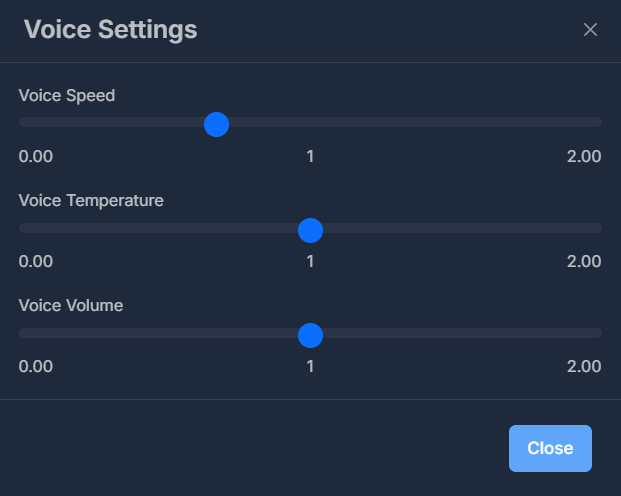
What it doesFine-tunes how the agent’s voice behaves, separate from which voice you chose.
-
Voice Speed
Adjusts how quickly the agent speaks, using a slider that ranges (approximately) from 0.00 (slowest) to 2.00 (fastest).
As you move the slider, the displayed value updates. The new speed is saved automatically when you let go of the slider. -
Voice Temperature
Controls how expressive or dynamic the agent’s voice sounds.
Higher values typically allow for more natural variation in speech.
Adjust using the same style of slider; value is saved when you release it. -
Voice Volume
Sets how loud the agent’s voice is.
Use the slider to increase or decrease loudness; value is saved automatically upon release.
- Close: Closes the settings window.
- Changes for speed, temperature, and volume are saved the moment you finish adjusting each slider—there’s no separate “Save” button for these controls in the footer.
If no previous settings exist, all three fields (speed, temperature, and volume) start at approximately 1.
🌐 Language
What it doesSets the main language for the agent. This affects understanding what callers say and how replies are formed. How to use it
Open the list and choose one language. When your choice changes, the system tries to save it right away. If nothing is selected
If the list is left on Select Language, the product may warn you to choose a language first and will not treat that as a valid save.
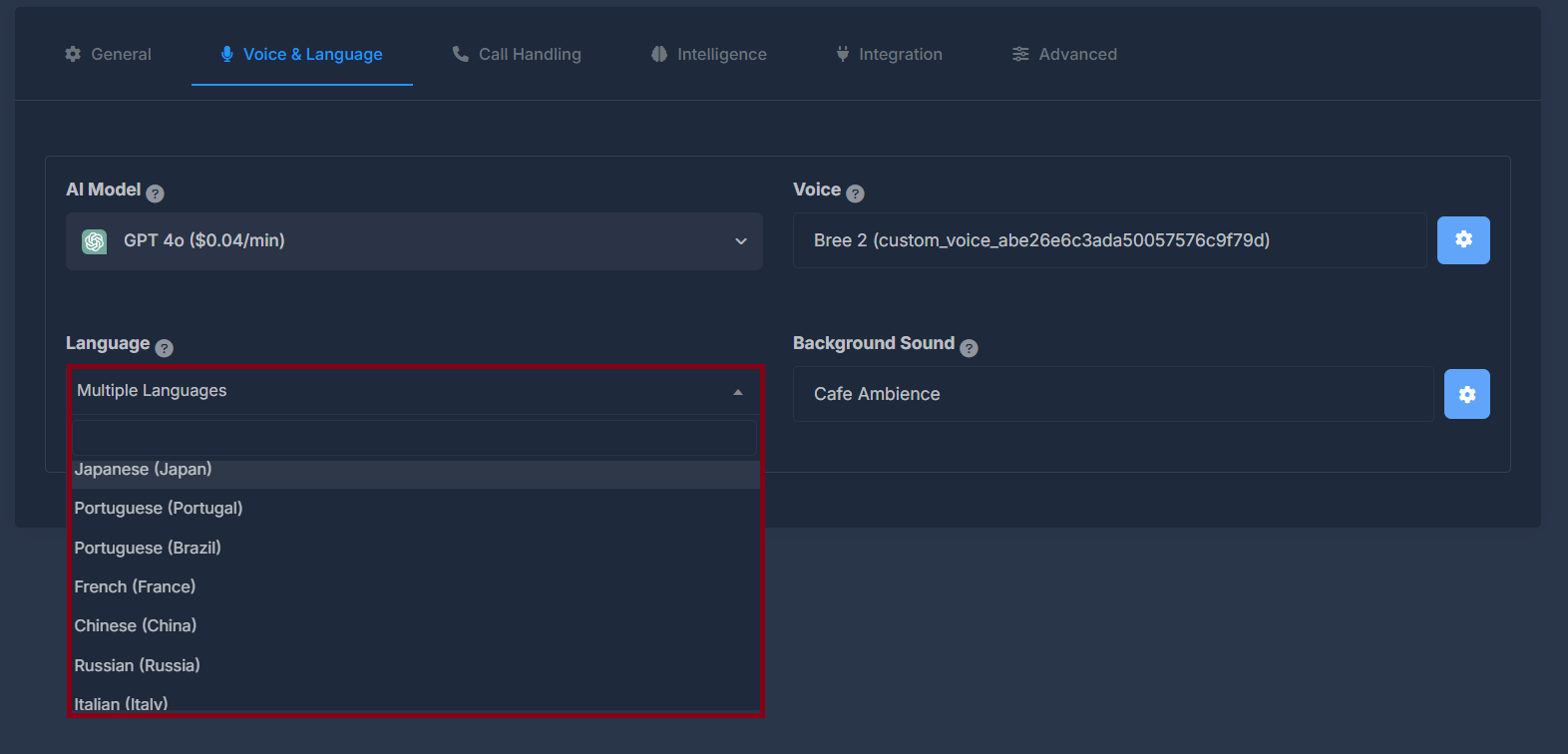
- Select Language (empty)
- English (United States)
- English (India)
- English (United Kingdom)
- German (Germany)
- Spanish (Spain)
- Spanish (Latin America)
- Hindi (India)
- Japanese (Japan)
- Portuguese (Portugal)
- Portuguese (Brazil)
- French (France)
- Chinese (China)
- Russian (Russia)
- Italian (Italy)
- Korean (South Korea)
- Dutch (Netherlands)
- Polish (Poland)
- Turkish (Turkey)
- Vietnamese (Vietnam)
- Multiple Languages — use when the agent should work across more than one language rather than a single fixed one
States that this affects both recognition of speech and generation of responses.
🎵 Background Sound
What it doesAdds a soft ambient sound behind the call so the call can feel more natural or help mask noise.
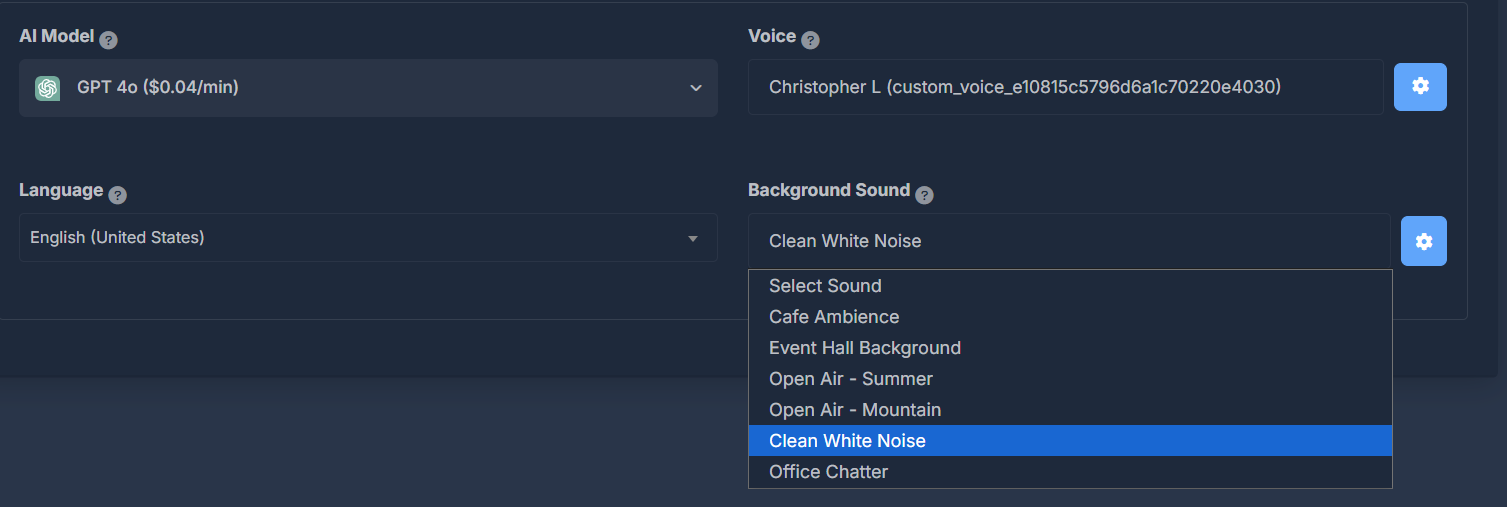
- Select Sound — means no background sound (same as turning it off).
- Cafe Ambience
- Event Hall Background
- Open Air - Summer
- Open Air - Mountain
- Clean White Noise
- Office Chatter
Opens Background Sound Volume (see 🔊 Background Sound Volume window). Tooltip
Explains using ambient sound for a more professional feel or to mask background noise.
🔊 Background Sound Volume window (gear next to Background Sound)
What it doesSets how strong the background sound is—not the agent’s voice volume (that is under Voice Settings).
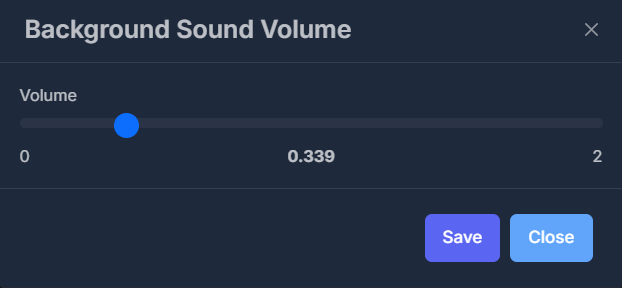
A Volume bar from 0 to 2, with the current level shown in the middle as you move it. Save
Press Save to store the volume. You must have a real background sound selected (not “Select Sound” / off); otherwise you may get a message asking you to pick a background sound first. Close
Closes the window without using Save for that visit (your last saved volume remains whatever was saved successfully before).