

📖 User Guide
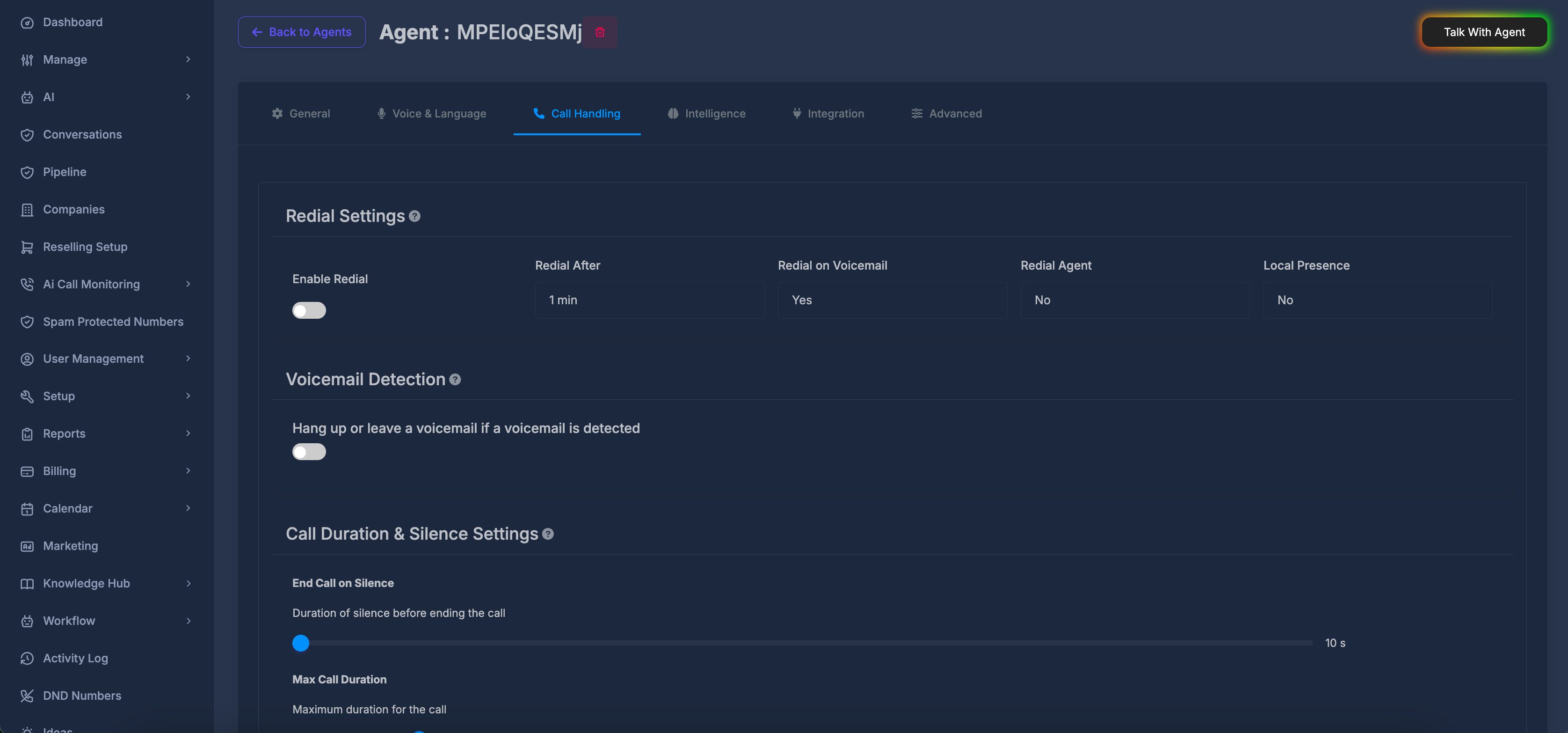
The Call Handling tab controls what happens when calls do not connect as hoped, when a voicemail is detected, how long calls may run or stay quiet before ending, and whether the agent remembers callers across calls. It is grouped into four areas:- 🔄 Redial Settings — automatic follow-up dialing behavior
- 📧 Voicemail Detection — what the agent does when it reaches voicemail
- ⏱️ Call Duration & Silence Settings — time limits and silence rules
- 🧠 Caller Memory — remember callers across calls (optional cost)
🗂️ Opening the tab
Select Call Handling in the row of tabs on the agent settings page. 🔄 Redial Settings This block decides whether the system should try the number again after a failed attempt, how long to wait between tries, whether voicemail counts as a reason to redial, which agent should place the redial, and whether local presence is used.
Turns automatic redial on or off.
- On — follow-up attempts may be made according to your other choices in this block.
- Off — no automatic redial from these settings.
When you change the switch, your choice is saved. Changing Redial After at the same time also saves together with this setting. ⏳ Redial After What it does
Sets how long to wait before placing the next attempt when redial is enabled. Choices
- Instantly
- 1, 2, 3, 4, 5, 10, 15, 20, 25, 30, 45, or 60 minutes
Each time you change this list, the new wait time is saved (together with the current Enable Redial on/off state). 📥 Redial on Voicemail What it does
Sets whether a call that reaches voicemail should be treated in a way that allows redial behavior according to your rules. Choices
- Yes
- No
When you change this, the new choice is saved on its own. 👤 Redial Agent What it does
Lets you choose another agent (from your available agents) to handle the redial call, or leave redial agent unset. Choices
- No — no specific redial agent selected.
- Any named agent you pick from the searchable list — that agent is used for the redial when this setting applies.
Click the field, type to search by name if needed, then pick an agent. Clearing the selection returns to No. Changes save when your selection changes. 🌎 Local Presence What it does
Turns local presence on or off for this agent’s calling behavior (for example, whether outbound calls use a local-style caller identity where your service supports it). Choices
- No
- Yes
When you change this, the new choice is saved. ℹ️ Help text for Redial Settings (information icon) Explains that you are configuring automatic redial after failed calls, including how many kinds of conditions apply, delays between attempts, and when redialing is allowed.
📧 Voicemail Detection
This block sets whether voicemail detection is used at all, and if so, whether the agent should hang up or leave a message.
Turns voicemail handling on or off.
- On — you can choose hang up or leave a message below.
- Off — the extra choices are hidden; voicemail handling for this agent is turned off.
When you turn it on, the system first enables detection, then applies a hang up style rule as the starting point; you can change to leave a message afterward.
When you turn it off, voicemail handling is cleared.

If voicemail is detected, the call ends without leaving a message. How it works
Selecting this option saves that behavior. The message box for leaving voicemail is not used while this is selected. 📝 Leave a message if reaching voicemail What it does
If voicemail is detected, the agent can leave a message instead of hanging up immediately. How it works
When you select this, the message area and message style controls appear. You type what should be said (or guided), then save with the save button next to the style list. 🎭 Message style (Static / Prompt) What it does
Chooses how the voicemail message is formed.
- Static — the agent follows the exact wording you provide in the box.
- Prompt — the agent follows the instructions or wording you provide in a more flexible, spoken style (as your platform interprets “prompt” for voicemail).
Pick Static or Prompt, enter text in the box, then press the save button (disk icon) to store the message. If you change the style and already have text, the product may try to save again when that makes sense. 🗒️ Message text box What it does
Holds the words or instructions for the voicemail message. When it is active
It is only editable when Leave a message is selected and voicemail handling is on. If you chose Hang up, the box is not used. ℹ️ Help text for Voicemail Detection (information icon) Explains that you can hang up right away or leave a message when voicemail is detected. ⏲️ Note on detection timing The product may track how long to listen for voicemail in the background. Some timing values are prepared for display in older layouts; only the controls you actually see on the page need to be set by you. If you do not see a separate “timeout” control, rely on the main switch and the hang-up / message choices above.
🧠 Caller Memory
This block controls whether the agent remembers callers across calls, so later conversations can continue with prior context instead of starting from scratch every time.
Turns caller memory on or off for this agent.
- On — the agent remembers callers across calls.
- Off — each call is treated without shared caller memory from previous conversations.
While memory is ON, AI call cost increases by approximately $0.02 / minute.
⏱️ Call Duration & Silence Settings
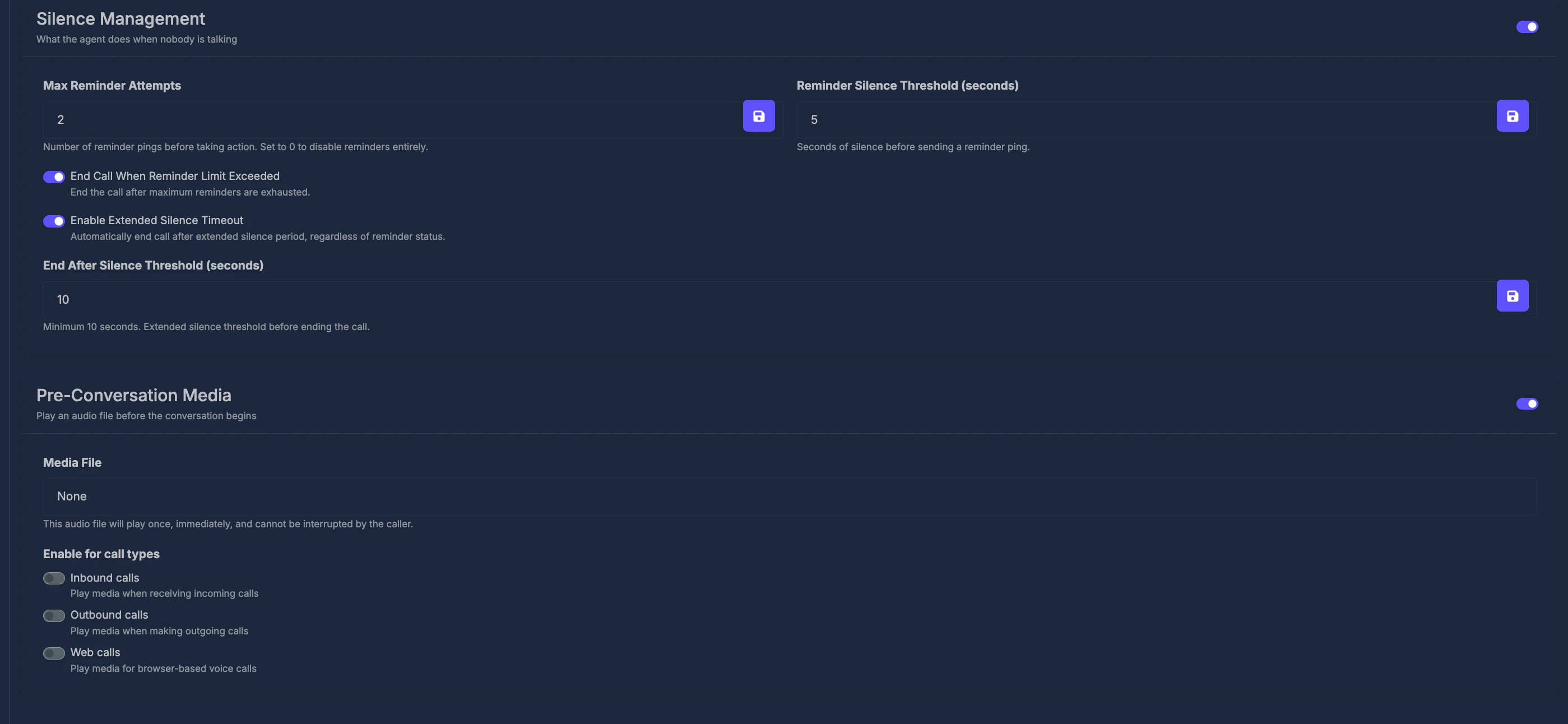
This block sets how long the caller may stay silent before the call ends, the maximum length of a call, and a short pause before the agent starts speaking.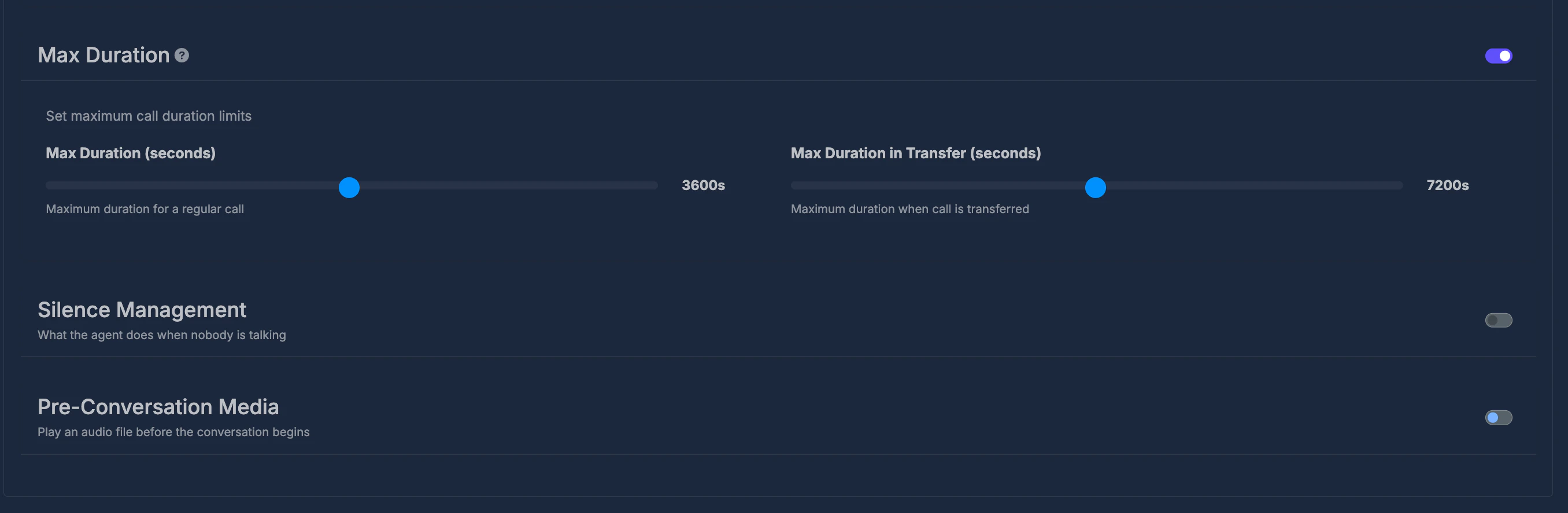
Sets how much continuous silence is allowed before the call ends automatically. Range (on the control)
From 10 seconds up to 30 minutes (shown as seconds or minutes while you move the control). How it works
Move the control to choose the length. When you release the control after moving it, the new value is saved. A short confirmation message may appear when the save succeeds.
Sets the longest a single call may last before it ends automatically. Range (on the control)
From 1 minute up to 2 hours (the screen may show minutes or hours for longer times). Rules
The product expects at least one minute. The control’s minimum is set so you normally cannot go below that. How it works
Move the control; the label updates to show minutes or hours. The value is saved after you finish adjusting (including when you release the mouse after dragging). ⏸️ Pause Before Speaking What it does
Sets how long the agent waits after the call connects before starting to speak. Range (on the control)
From 0 seconds up to 5 seconds. How it works
Move the control; the label shows seconds. The value saves after you finish adjusting (including when you release the mouse after dragging).