🤖 User Guide
The AI Agents page is where you view all of your company’s voice AI agents, organize them, and open the tools needed to manage each one. The left side shows Folders; the right side shows the All Agents list.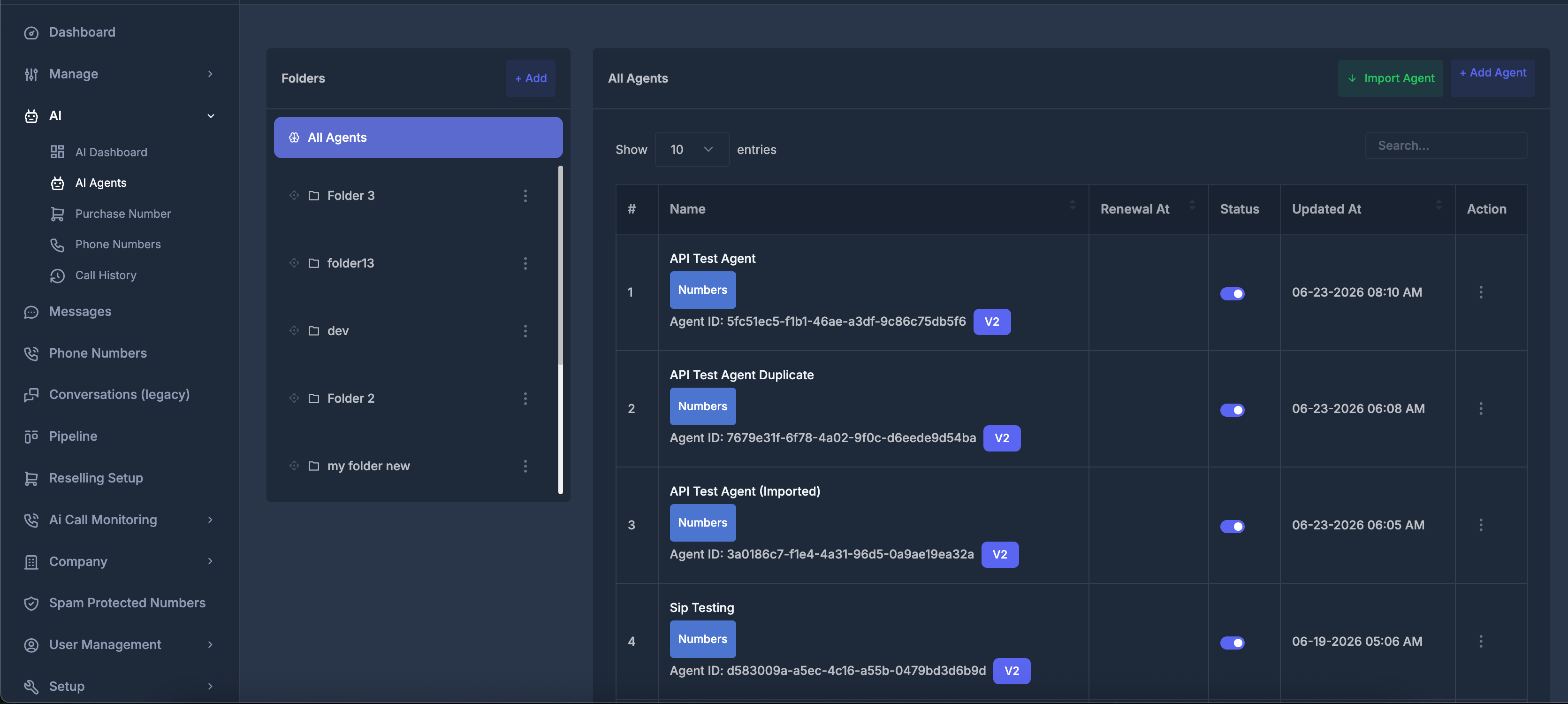
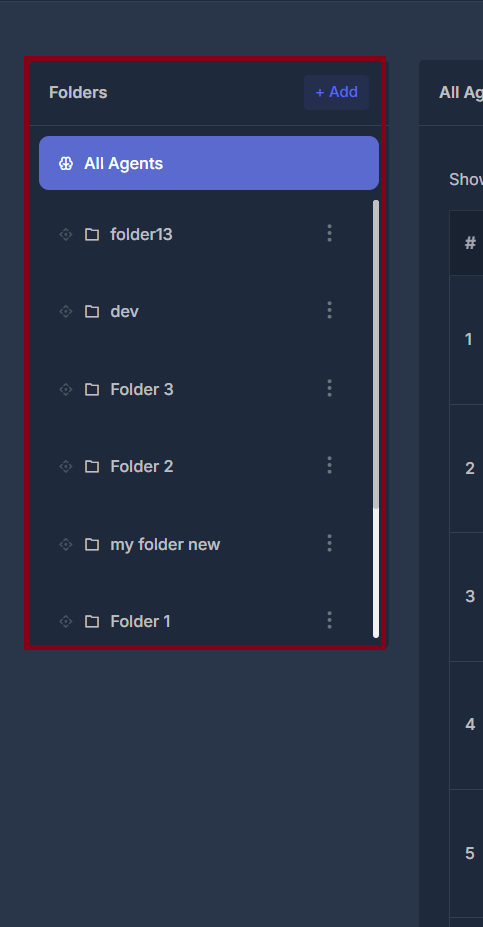
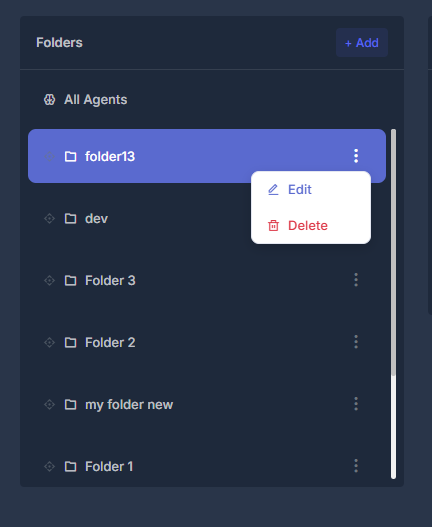
📁 Left panel: Folders
📋 “All Agents” When it is selected, you see every agent (no folder filter). 📂 Your own folders- Each folder has a name you chose.
- Using the grip icon, you can drag a folder up or down to change order only (which folder appears higher in the list).
- The three dots next to a folder open Edit or Delete.
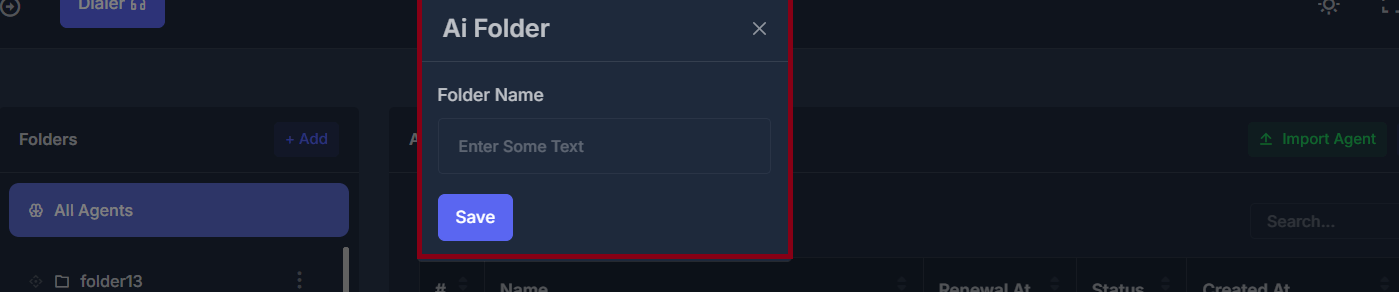
- + Add opens a small window: enter a Folder Name and choose Save to create a new folder.
🖥️ Right panel: “All Agents” — top buttons
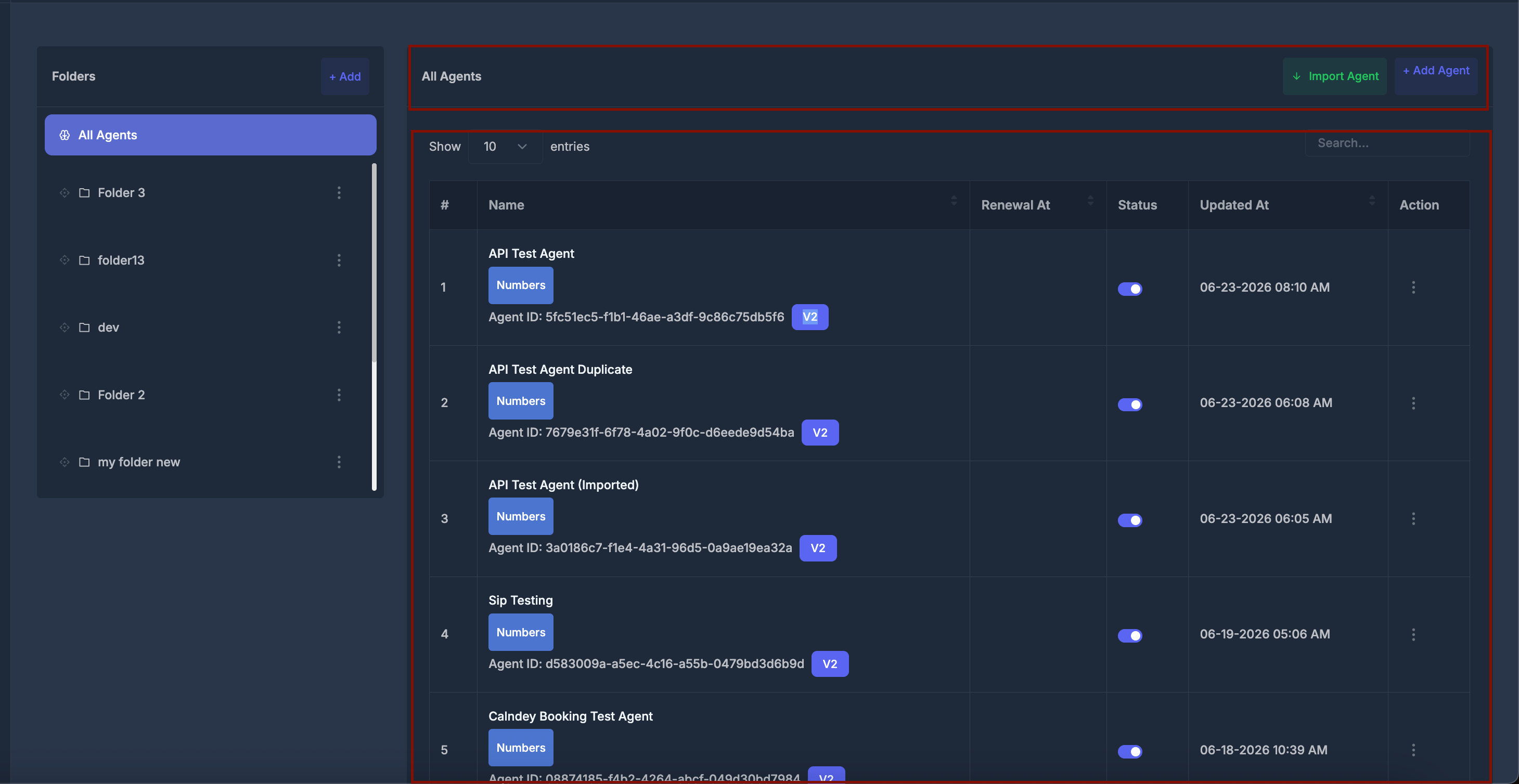
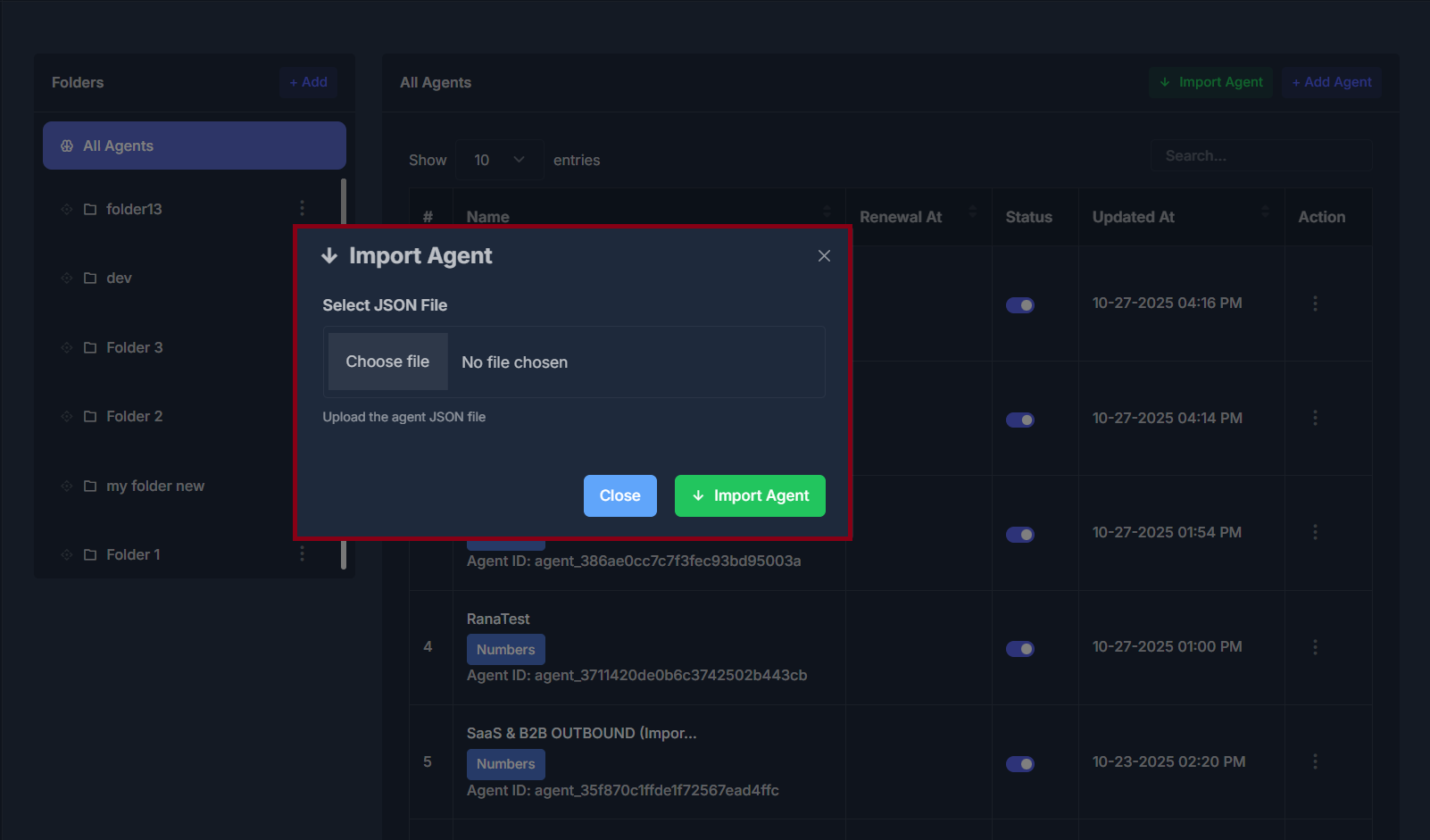
- Use this to bring an agent back into the system using a file you previously exported (or a compatible backup file).
- After you pick a file, you may see a short preview such as the agent name and voice identifier when available.
- Choosing Import Agent starts the import; on success, the list refreshes.
- If the file is invalid or incomplete, you will see an error message.
- If both agent types are available, a window asks roughly how many calls per day the agent will handle.
- Under 100 calls per day is described as higher voice quality and lower delay; Get Started takes you to the setup path that matches that choice.
- 100 or more calls per day is described for higher volume; Get Started opens the other matching setup path.
- If your plan only allows one agent type, Add Agent goes straight to the correct “create agent” screen without that two-card window.
📊 The Agents table
🔢 # (Number) The row number on the current page. Numbers change when you move to another page. 🏷️ Name- The agent’s name (very long names may be shortened on screen).
- Clicking the name opens that agent’s full editing screen (the right screen depends on the agent type).
- The Numbers button opens the phone numbers window .
- Agent ID is the unique identifier the system uses for that agent everywhere.
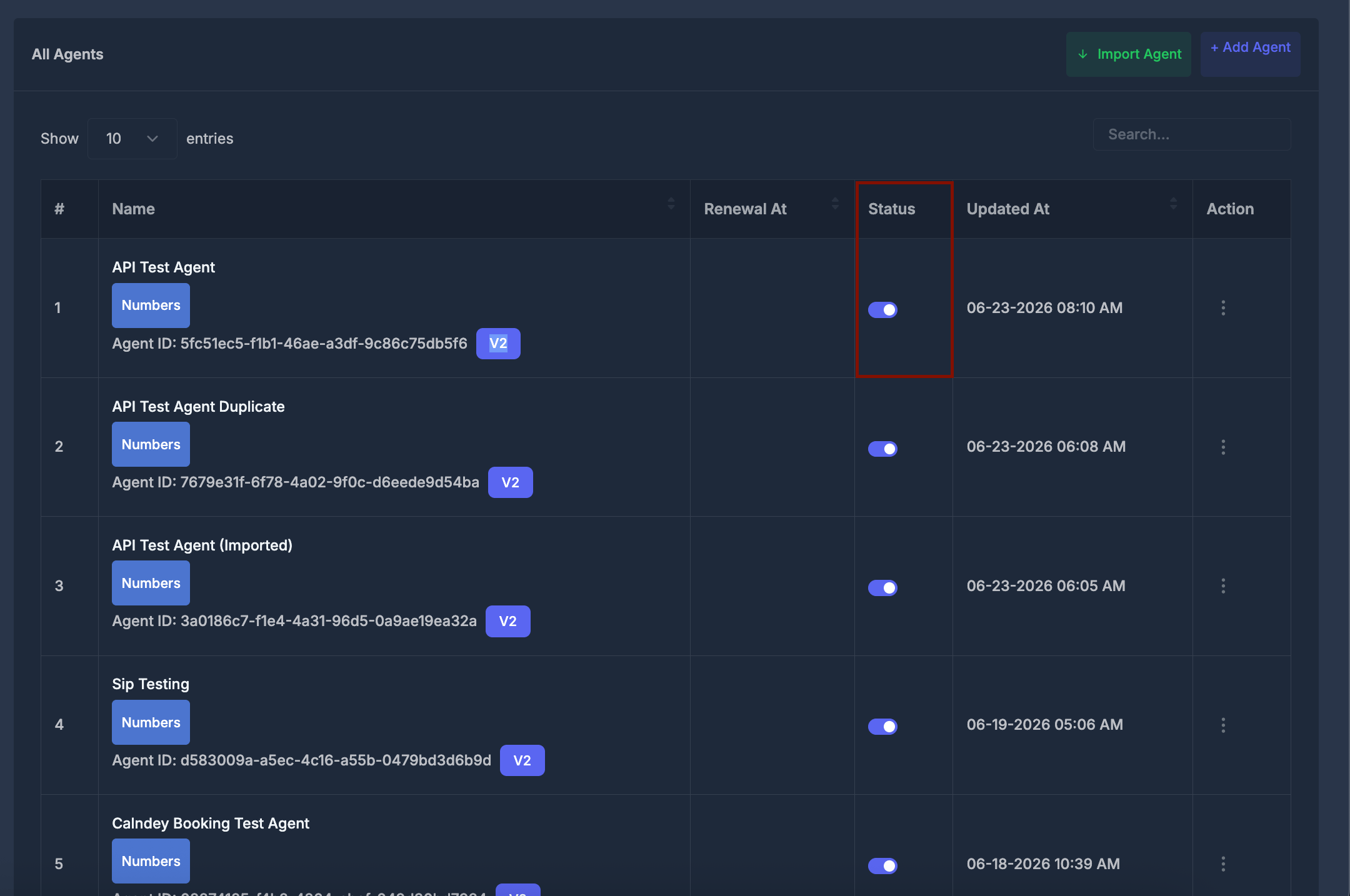
- A switch for on or off.
- On means the agent is treated as active.
- Off means inactive.
- When you change it, you may briefly see a “please wait” style message, then success or failure.
⋮ Three-dot menu
The exact wording or destination can differ slightly by agent type, but in general: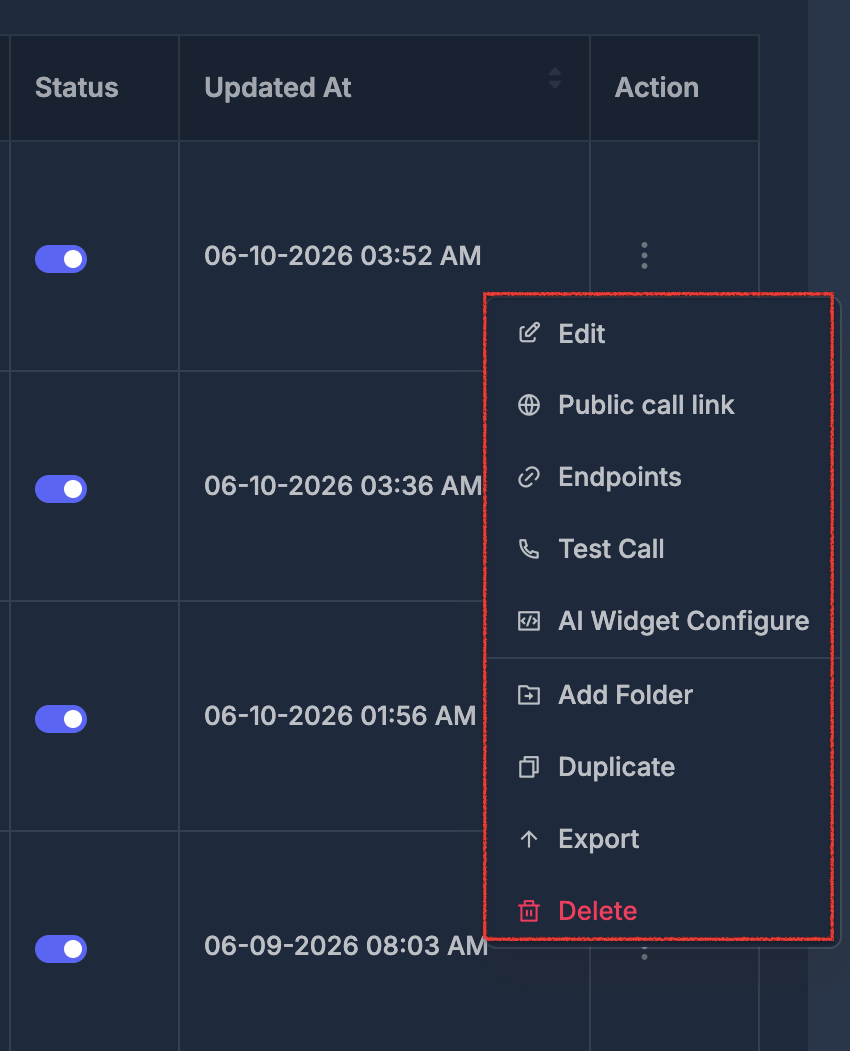
☎️ Numbers window (Manage Numbers)
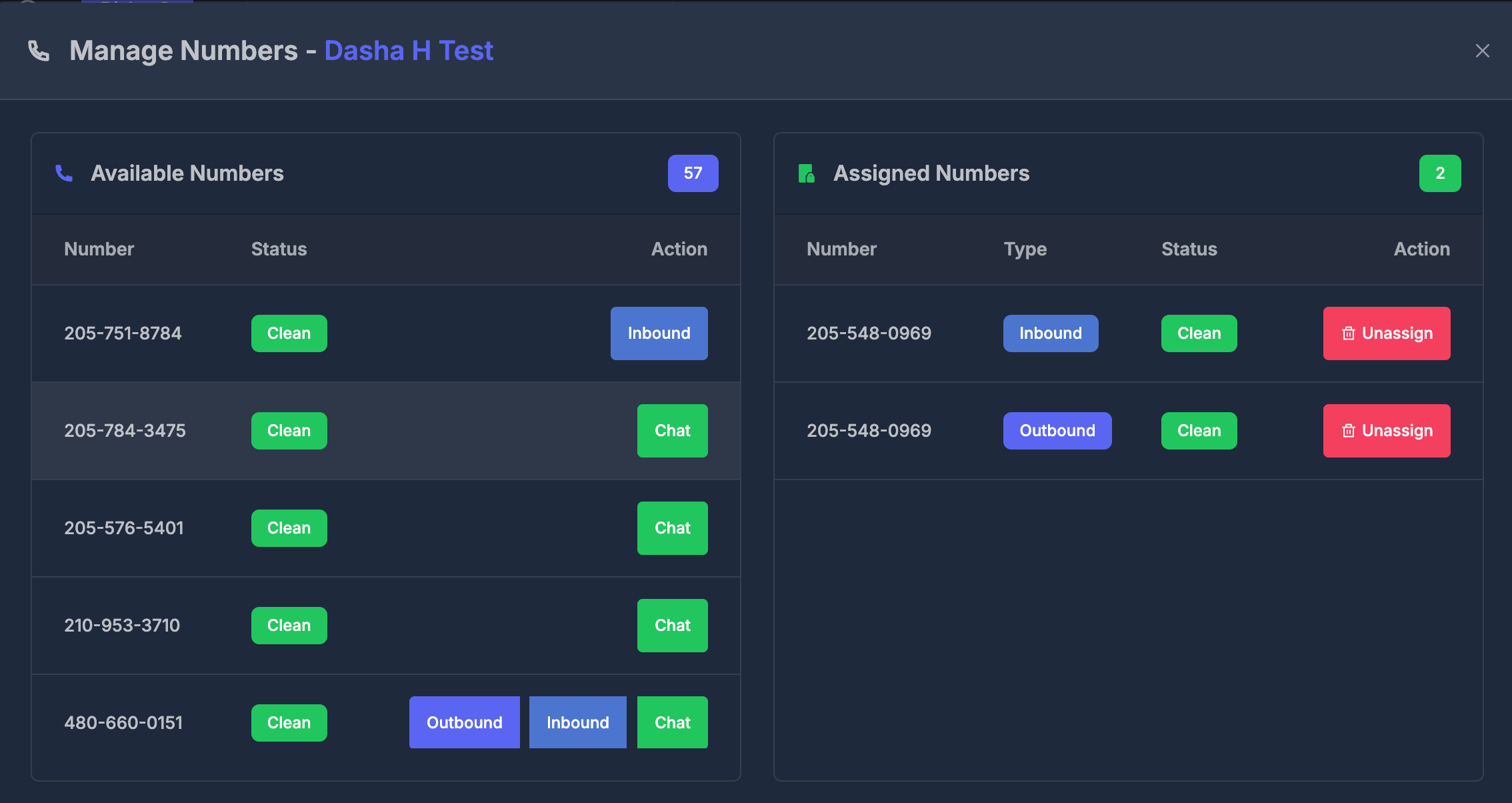
When you click Numbers, you’ll open the Manage Numbers panel for that agent:- The panel title displays the agent’s name (example: “Dasha H Test”).
- Two columns are shown:
-
Available Numbers (left): Lists all phone numbers that are not currently assigned to the agent but available for use.
- Number: The phone number available for assignment.
- Status: Each number shows its current status, such as Clean (green label) or another state if flagged.
- Action:
- If assignable, you’ll see blue Inbound and Outbound buttons depending on the features the number supports. Click one to instantly assign the number to the agent for that capability.
- The green Chat button will only enabled if the number is an A2P-linked number (i.e., linked for Application-to-Person messaging). Only these numbers can be assigned the chat functionality.
- Some numbers may allow both Inbound and Outbound assignment at once.
-
Assigned Numbers (right): Lists all numbers currently tied to the agent.
- Number: The assigned phone number.
- Type: Each assigned number displays a label such as Inbound or Outbound depending on its assigned function.
- Status: Shows the current state, such as Clean (green label).
- Action: A red Unassign button lets you immediately remove the number from the agent.
-
Available Numbers (left): Lists all phone numbers that are not currently assigned to the agent but available for use.