

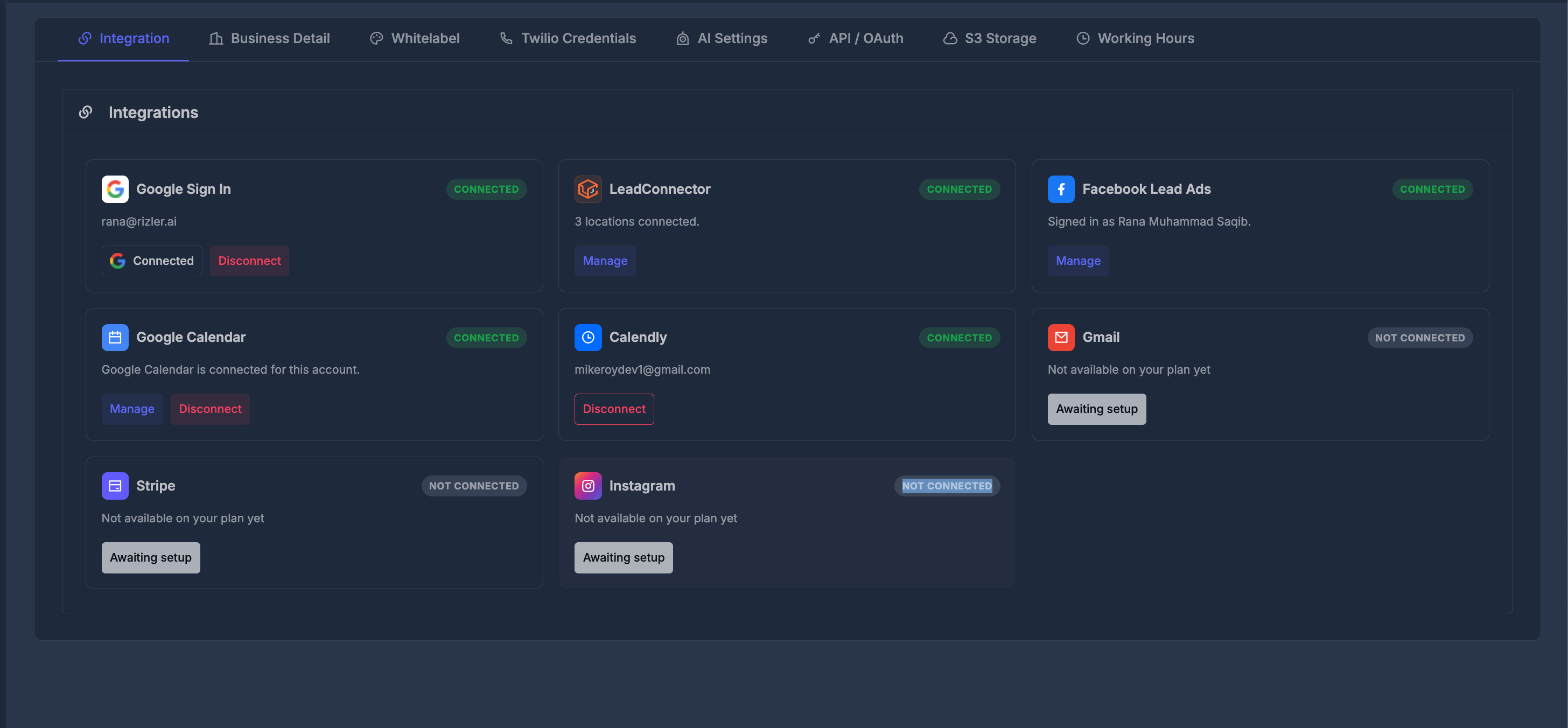
🎯 What This Tab Is Used For
Use the Integrations tab when you want to:- Connect Google Sign In to your account
- Manage LeadConnector locations
- Connect Facebook Lead Ads and sync leads from Facebook Pages
- Choose which Facebook Pages should send leads into RizzDial
- Assign Facebook Lead Forms to PowerLists
- Map Facebook form questions to RizzDial contact fields
- Check whether calendar, email, payment, or social integrations are available
- Disconnect an integration when it is no longer needed
- App name
- App icon
- Connection status
- A short note about the connection
- A button such as Connect, Manage, Disconnect, or Awaiting setup
🔌 Available Integration Cards
🔐 Google Sign In
Google Sign In lets you connect your Google account for login access. When it is not connected, the card shows a Sign in with Google button. After connection, the card shows Connected and may display the connected Google email address. Use this when you want easier account access through Google.🔗 Managing LeadConnector
Click Manage on the LeadConnector card to open the LeadConnector Integration window.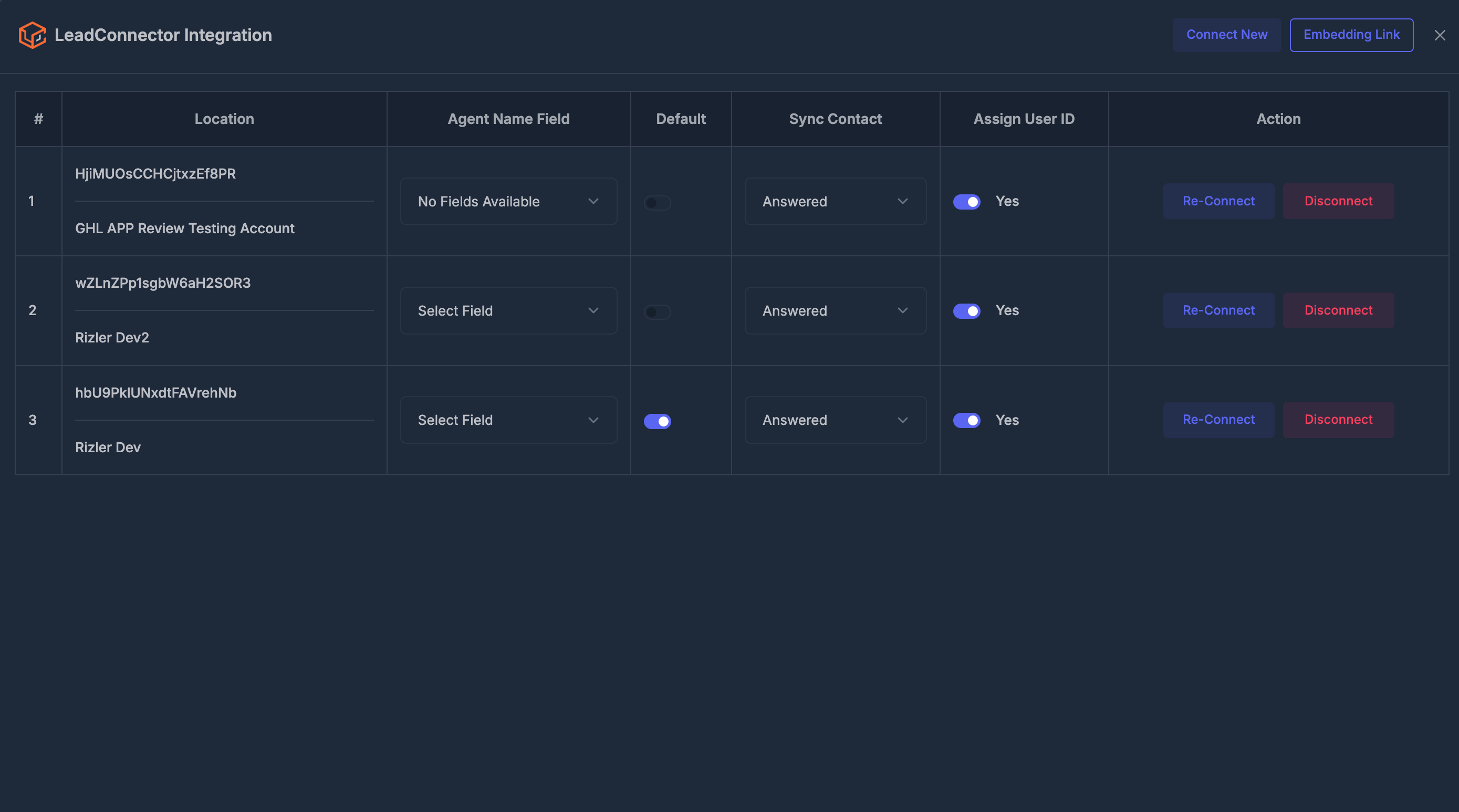
- The connection expired
- Permissions changed
- The location is not syncing correctly
🌐 Embedding Link
The Embedding Link button copies a special link to the clipboard. Use this when you need to place or share the embedded RizzDial experience inside a connected LeadConnector environment. 🧑💼 Agent Name Field The Agent Name Field dropdown lets you choose which connected-location custom field should store or receive the agent name. The list loads available custom fields from the connected location. After selecting a field, the choice saves automatically. ⭐ Default Location The Default switch marks which connected LeadConnector location should be treated as the main location. Only one location should be default at a time. If there is only one connected location, the system does not allow you to turn off the default setting because at least one default is needed. 🔄 Sync Contact The Sync Contact dropdown controls which contacts should sync. Available choices:- All — sync all eligible contacts
- Answered — sync contacts based on answered activity
- No — do not sync contacts for that location
📘 Facebook Lead Ads
Click Connect Facebook or Manage on the Facebook Lead Ads card.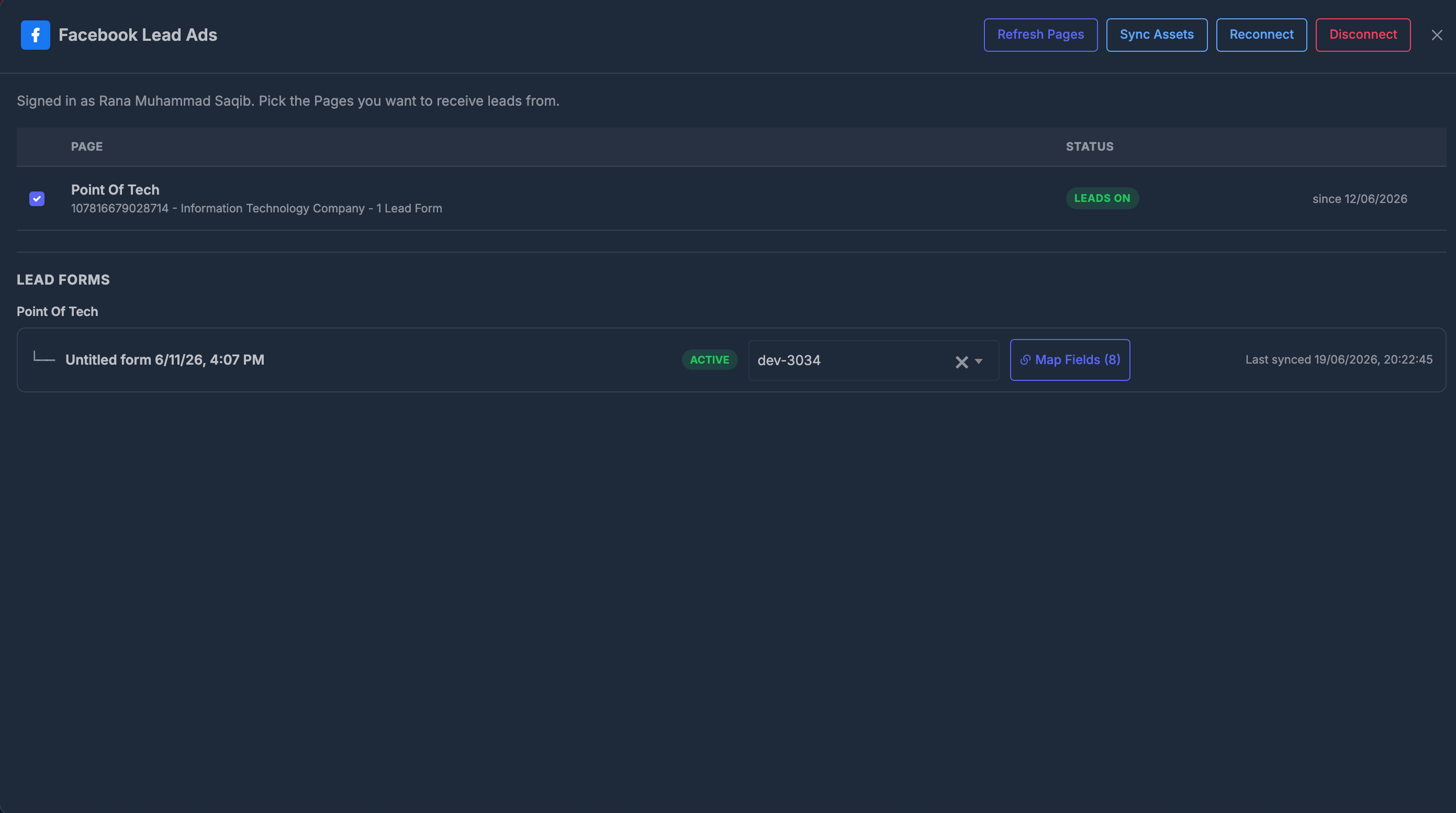
🔗 Connect Facebook
If Facebook is not connected, click Connect Facebook and sign in with a Facebook account that has access to the business Pages you want to use. The connected Facebook account must have the correct Page permissions. If no Pages appear after connecting, confirm that the Facebook user is an admin or has lead access for the Page. 🔄 Refresh Pages Refresh Pages reloads the current Facebook Pages and connection information. Use it when:- A Page was added recently
- Permissions were changed
- The list looks outdated
- Connecting Facebook for the first time
- Creating a new Facebook Lead Form
- Editing form questions in Facebook
- Changing Page access
- Leads On means RizzDial should receive leads from that Page
- Off means the Page is connected but not sending leads into RizzDial
Once you’ve made your selections, click Save Mapping to apply your changes.
🔄 Reconnect Facebook
Click Reconnect if you need to refresh Facebook permissions.
You might need to do this if:
- Page access has changed
- Lead forms are not syncing
- The connected Facebook user’s role was updated
- Facebook requests a new authorization
📆 Connect Google Calendar
You can also integrate Google Calendar to automatically create and manage events from RizzDial. To connect your Google Calendar:- Click the Connect Google Calendar button in your Integrations settings.
- Sign in with your Google account and grant the necessary permissions.
- Once connected, you’ll see your calendar appear in the integration list.
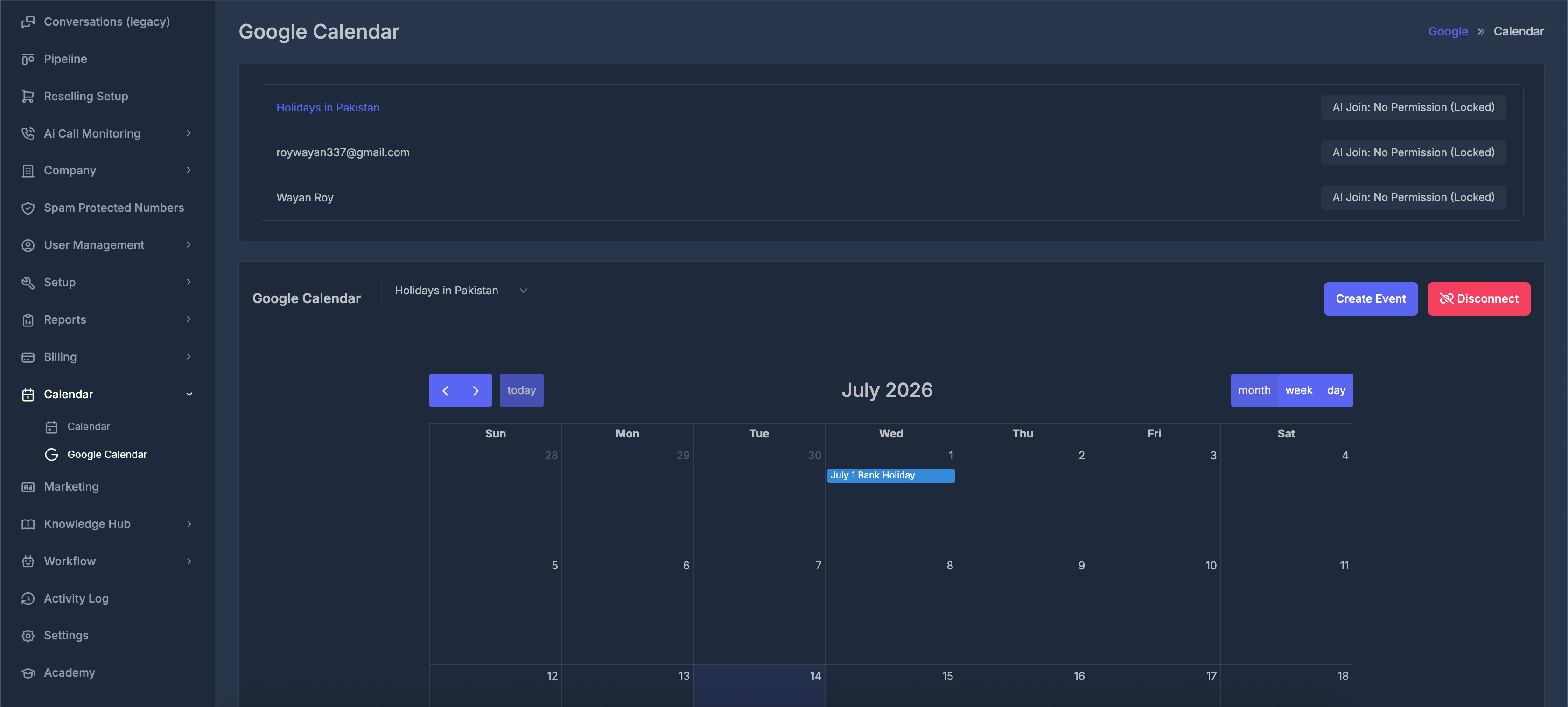
- You can choose which calendars are used for scheduling.
- Any meetings or appointments added via RizzDial will appear on your Google Calendar.
- Changes you make in Google Calendar will stay in sync with RizzDial, keeping everything up to date.