Emails to leads go out as your rep, from your business address, and replies go straight to them. About ten minutes, once.
When a rep emails a lead from the dialer, the Inbox or an automation, the lead
should see a real person at your company, not a platform address. Set up your
domain once and every email goes out like this:
You can sign in to wherever your domain is managed: GoDaddy, Cloudflare,
Namecheap, Google, Squarespace or similar. If someone else manages it,
send them the three records from step 2.
Your domain is a business domain. Gmail, Yahoo, Outlook and other free
addresses can’t be used.
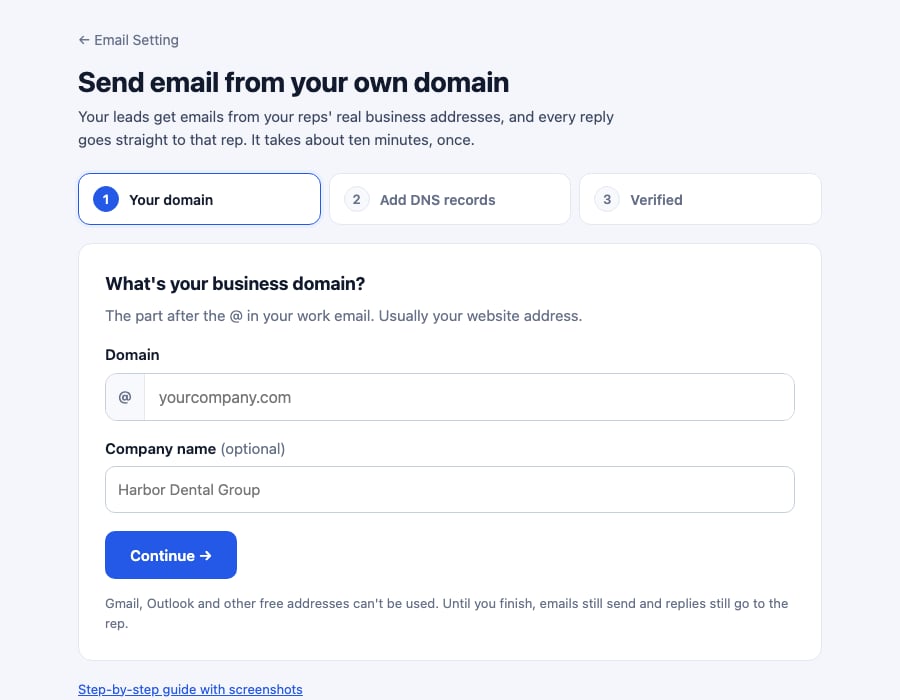
Go to Settings → Email Setting and click Set up your domain on the
Send from your own domain card. Type your domain, like harbordental.com,
and click Continue →.
Enter just the domain: the part after the @ in your business email.
2
Add the three records to your DNS
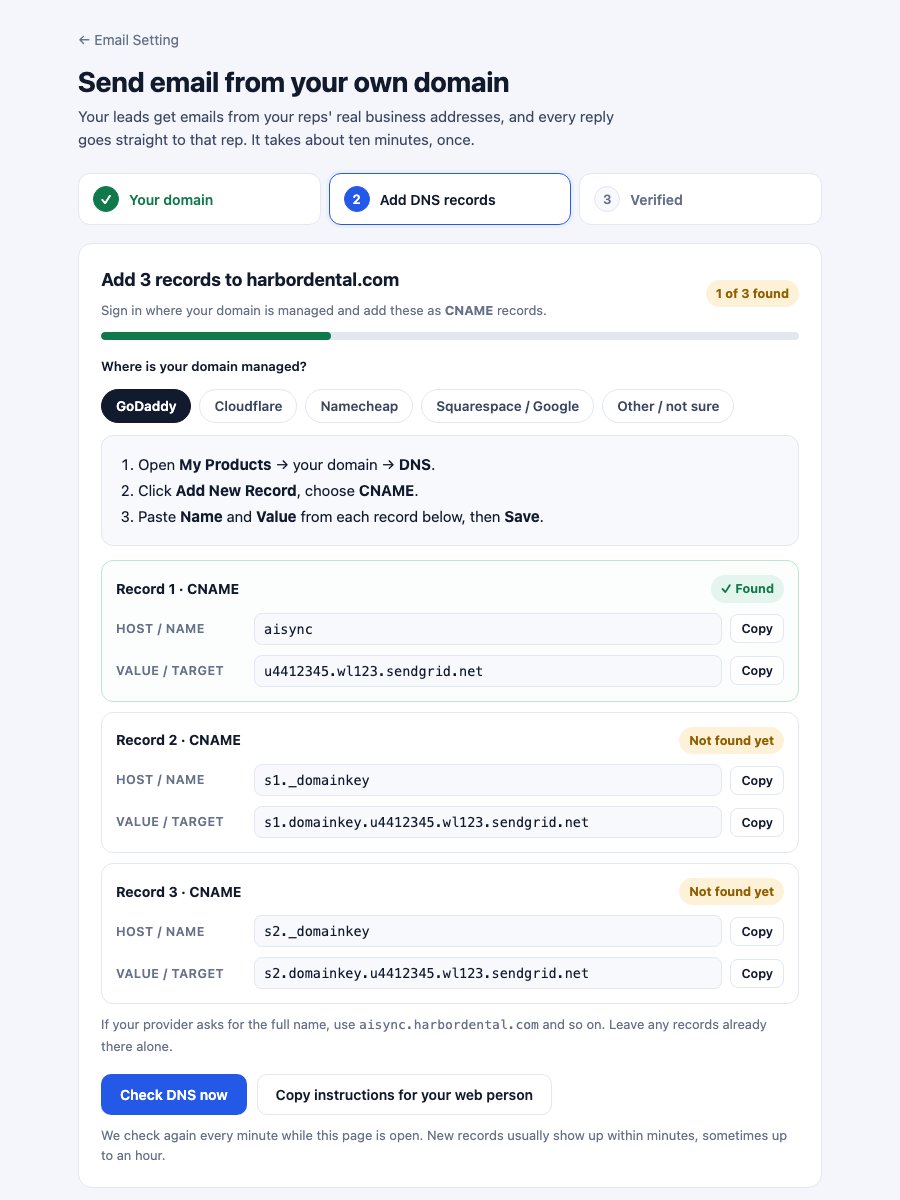
AI Sync shows three CNAME records. Pick where your domain is managed and
the page shows exactly where to click there. Add each record with the Copy
buttons so nothing is mistyped.Someone else runs your website? Click Copy instructions for your web
person and paste it into an email to them.
Three CNAME records. The Status column updates each time you check. Sample data.
Provider
Where
Host / Name field
Value field
Watch out
GoDaddy
My Products → domain → DNS → Add New Record
Name: aisync
Value
Cloudflare
domain → DNS → Records → Add record
Name: aisync
Target
Set Proxy status to DNS only (grey cloud)
Namecheap
Domain List → Manage → Advanced DNS
Host: aisync
Value
Click the green ✓ to save
Squarespace / Google
Domains → domain → DNS
Host: aisync
Data
Other
DNS settings where the domain is registered or hosted
The short name
The value
If it asks for the full name, use aisync.yourdomain.com
The table shows record 1. Records 2 and 3 work the same way with
s1._domainkey and s2._domainkey. Don’t change or delete any records that
are already there.
3
Click Check DNS
Click Check DNS now. Leave the page open and it checks again every minute
by itself. New records usually show up within a few minutes, sometimes up to
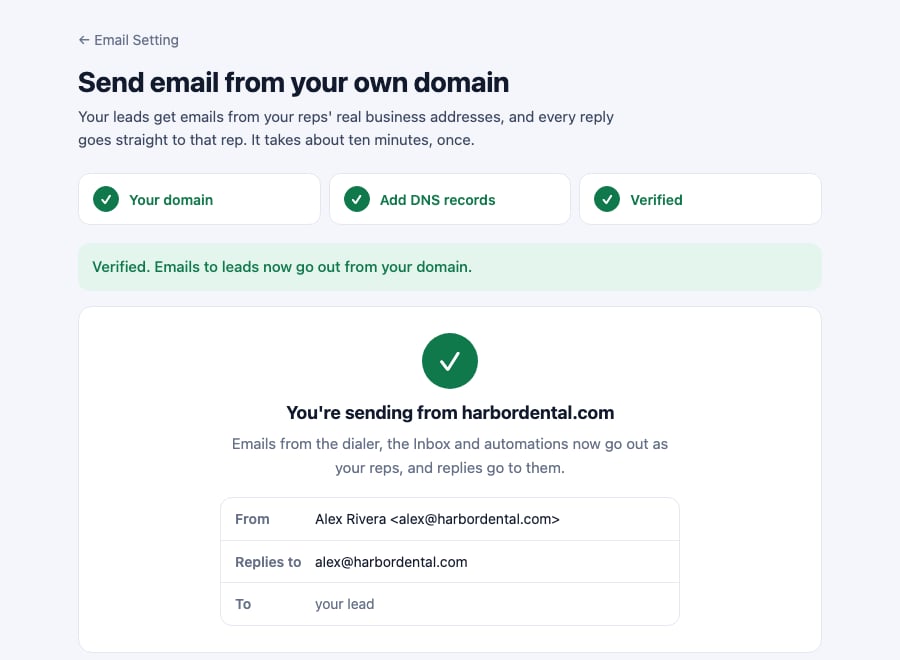
an hour. When all three say ✓ Found, you land on Verified, with a
preview of exactly what your leads will see.
Verified: emails to leads now go out from your domain.
4
Check who emails come from
Under Who emails come from, set the company address (for example hello)
and your company name. Click Save.
With Claude, ChatGPT or Codex connected to AI Sync (see
Connect MCP), paste this:
Set up my business email domain in AI Sync so emails to leads go out from myown domain. Use my AI Sync connection: look up the email domain setup, add mydomain if it isn't there yet, and show me the three DNS records in a simpletable with exactly what to type for my DNS provider. If you can reach my DNSprovider, add them for me (Cloudflare: proxy off). Then check DNS until it'sverified, and tell me in one line when it's done.
The same prompt is on the setup page, with a Copy prompt button.
Your assistant can reach your DNS (for example Cloudflare’s own
connector): it adds the records itself, and you just approve.
It can’t: it gives you a table of exactly what to type, then checks for
you.
For people building agents: the tools
Tool
What it does
email_domain_get
Status (not_set_up, pending, verified), the 3 records and a plain next_step
email_domain_setup
Add the domain; returns the records. Safe to repeat.
email_domain_check
Check DNS now. Wait a minute between checks.
email_domain_sender
Set the company address (e.g. hello) and name
email_domain_remove
Remove it. Confirm with the user first.
Each record has host (full name) and host_short (what most providers
want). Only the account owner can use these. The API behind them is
/api/settings/email-domain.
This covers the dialer’s Email tab, the Inbox and Send Email steps
in automations and workflows. For automations, “the rep” is whoever saved the
disposition.
Before your domain is verified, emails still send, from the AI Sync
address, and replies still go to the rep. Nothing breaks while you wait for
DNS.
Already using your own SendGrid account under Email Setting? That keeps
working exactly as before. A workflow step that names its own From address
also keeps it.
Check each record’s Host in your provider. The most common mistake is the
domain added twice, like aisync.harbordental.com.harbordental.com: enter
only the short name. On Cloudflare, the proxy must be off (grey cloud,
“DNS only”).
"Use your business domain"
Free addresses like Gmail or Outlook can’t be set up. Use the domain your
business email and website are on.
"That domain is already set up on another AI Sync account"
Another account already added it. Contact support to move it.
A rep's emails come from hello@ instead of their name@
Their AI Sync login email isn’t on your domain. Change their login email to
their work address in User Management, or leave it: replies still go to
them.
Emails land in spam
Make sure all three records say ✓ Found. Keep emails personal and short;
long promotional emails to people who didn’t ask for them get filtered
whatever the setup.
Switching back
Click Remove domain. Emails go out from the AI Sync address again at once,
with replies to the rep. You can delete the three records from your DNS
afterwards.
Lead replies don’t come into the dialer’s Inbox yet. They go to the rep’s
own email inbox. See Inbox.