💡 Intelligence Tab (User Guide)
The Intelligence tab controls how your agent listens, how quickly it speaks back, how it says specific words, whether it uses short natural acknowledgements during a call, and how it handles reminders and special word lists.📐 Layout of the screen
- Main (wider) column: Knowledge Base, Conversation Settings, Pronunciation Dictionary, Reminder Settings
- Side (narrow) column: AutoRizz, Smooth Talk, Boosted Keywords
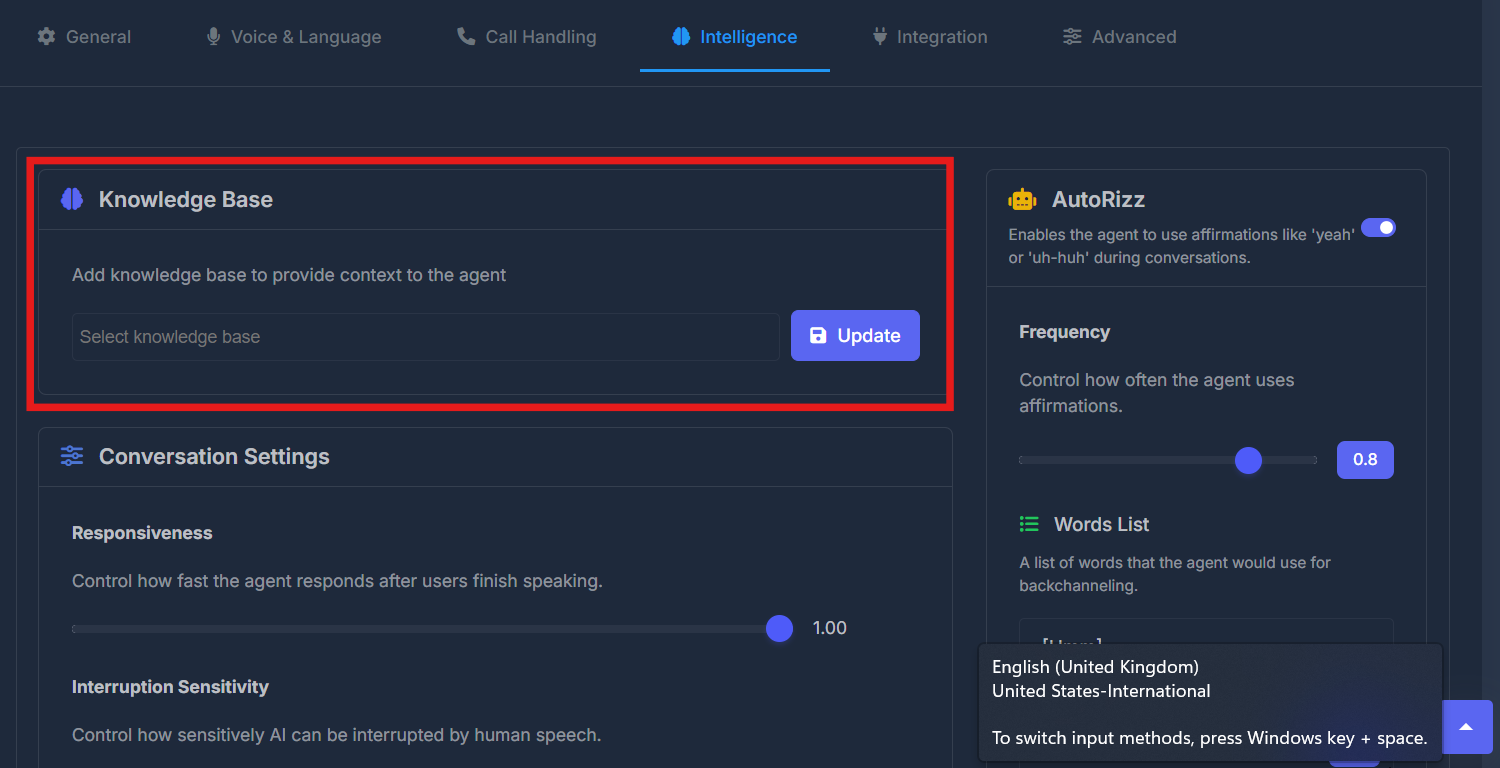
📚 Knowledge Base
PurposeConnect your agent to reference material so it can answer using the right context—your business facts, FAQs, or uploaded knowledge you have already created in your account. How to use it
- Read the short description under the title: it explains that a knowledge base gives the agent context.
- Use the dropdown list to select one or more knowledge bases (whatever your organization has already created).
- Click Update to apply your selection.
- Nothing is applied to the agent until you click Update.
If the list is empty, your team needs to create knowledge bases elsewhere in the product first. Only existing items appear here.
💬 Conversation Settings
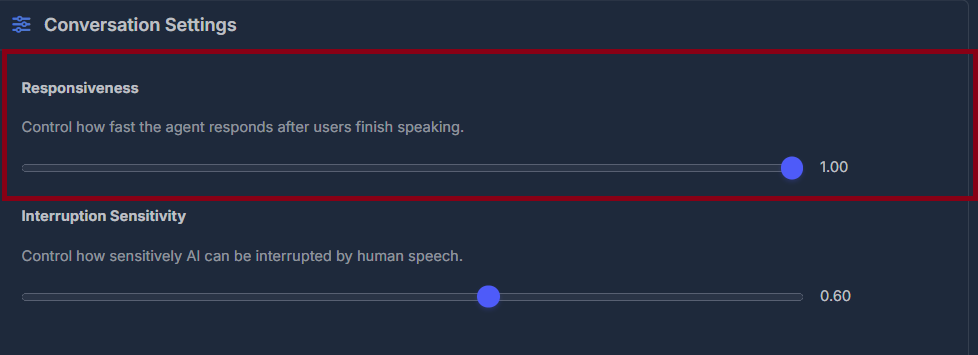
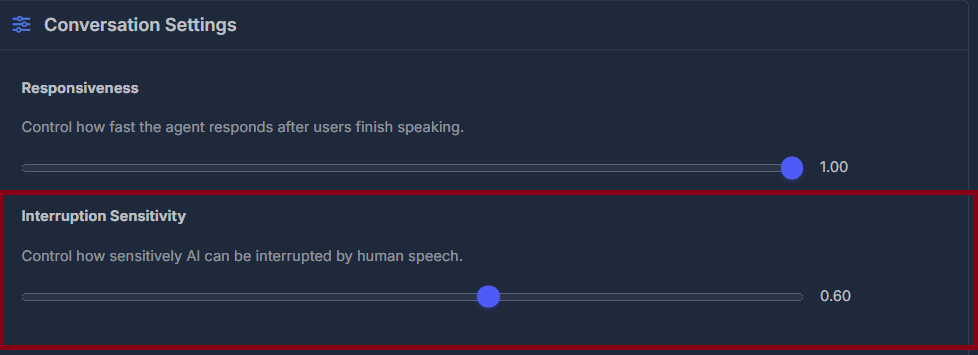
PurposeAdjust the agent’s behavior in live conversation—specifically, how quickly it responds after the caller finishes speaking and how sensitive it is to being interrupted. A small ? icon beside the section heading provides additional tooltips when you hover. Responsiveness sets how fast the agent replies following a pause from the caller. Use the slider to adjust; the adjacent number (rounded to two decimals) shows the current setting. The value saves as soon as you release the slider—no Save button is needed.
🗣️ Pronunciation Dictionary
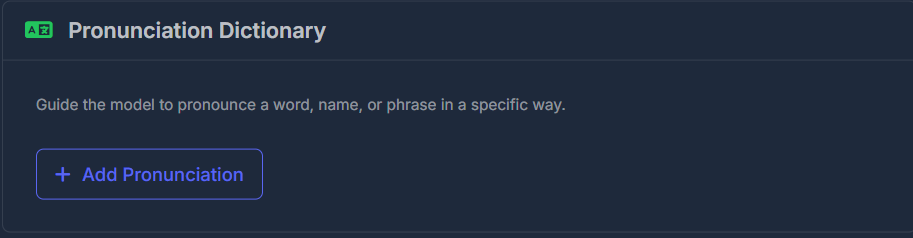
PurposeEnsure the agent pronounces names, brands, or technical terms correctly by specifying custom pronunciations. List Interface:
Each entry in the list covers a single word or phrase. Use the Edit (pencil) button to change an entry, or Delete (trash) to remove it (with confirmation). To add a new pronunciation, click Add Pronunciation. The form includes:
Click Save to add or update an entry, or Cancel to exit without changes. When editing, the form will populate with the selected entry’s current details.
⏰ Reminder Settings
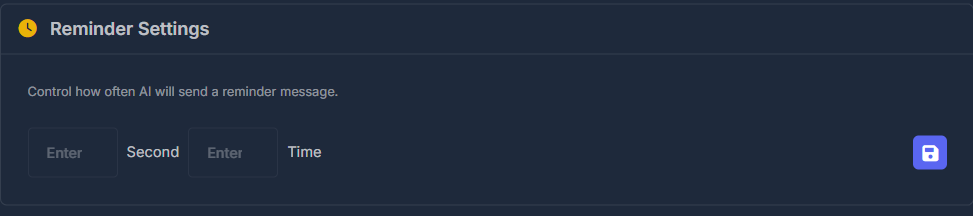
PurposeConfigure how the agent issues reminders during a call, for example if silence from the caller exceeds a threshold. Fields:
- Seconds: Sets the minimum time before a reminder is triggered (i.e., time gap between reminders).
- Times: Defines the maximum number of reminders the agent can send per call.
⚡ AutoRizz
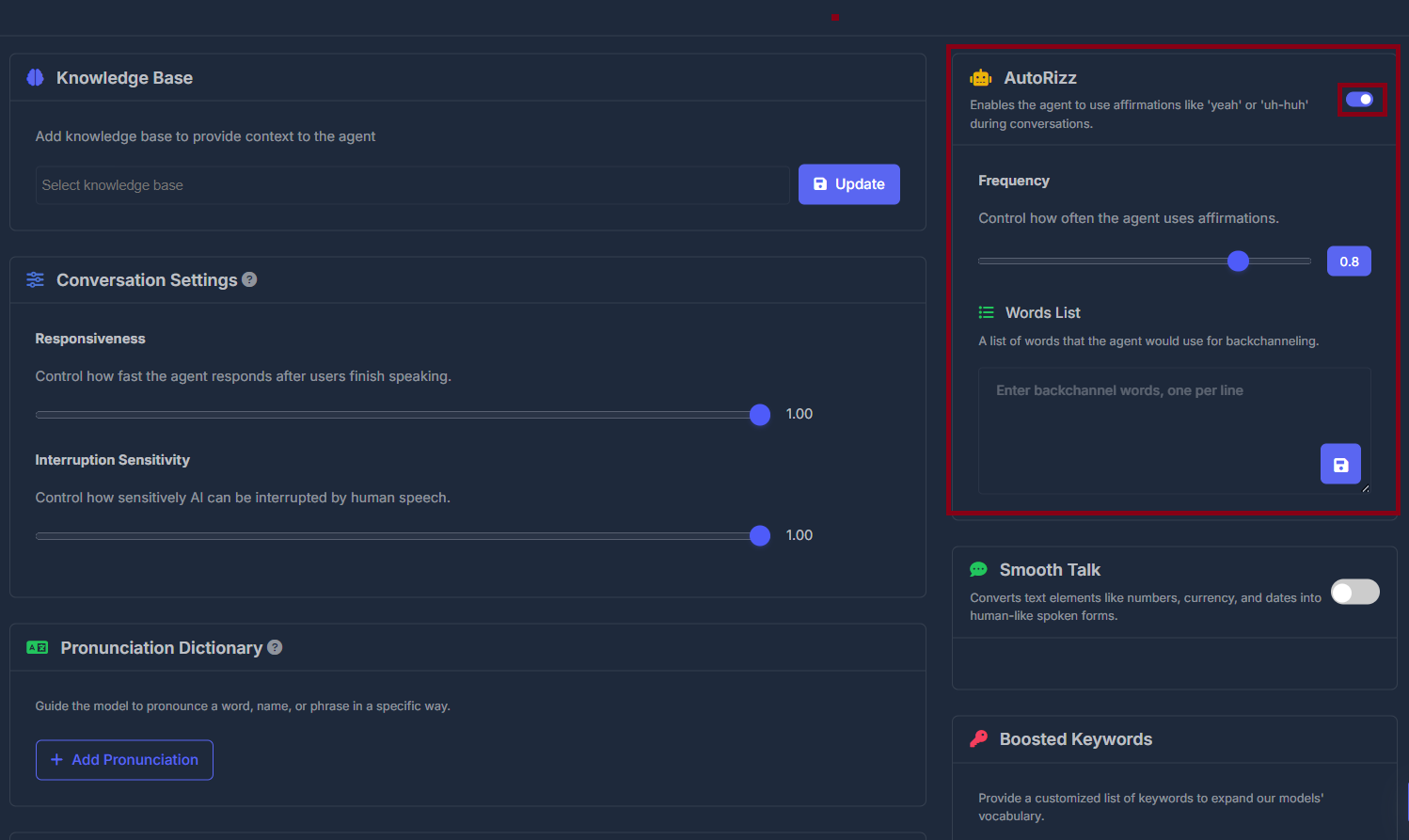
PurposeAllows the agent to naturally insert short acknowledgement phrases (like “yeah,” “uh-huh,” or “hmm”) during calls to sound more conversational.
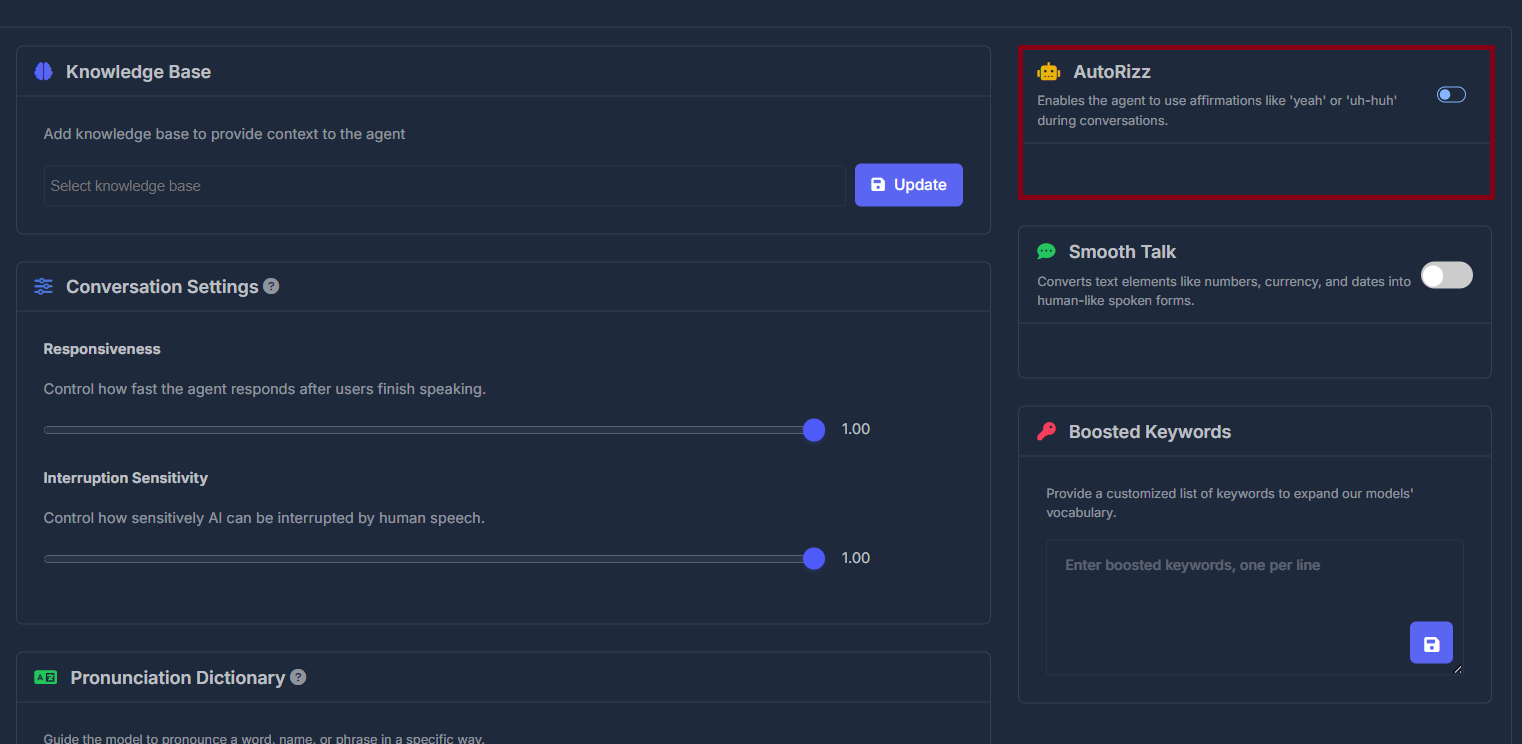
Switching AutoRizz On reveals the Frequency slider and the Words List box; switching Off hides these and disables the feature. Frequency adjusts how often the agent uses acknowledgements (slider, with a live value badge). The updated value is stored when the slider is released.
✨ Smooth Talk
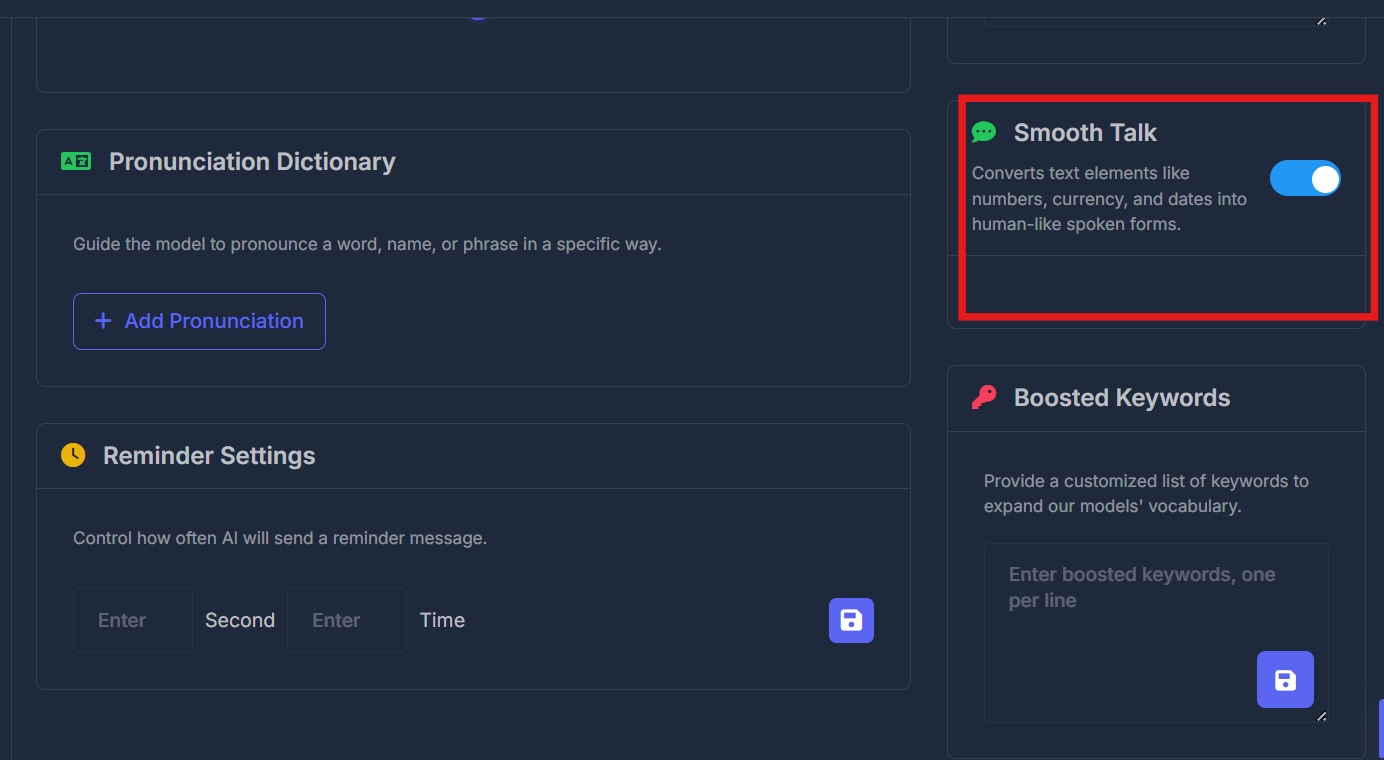
PurposeWhen enabled, Smooth Talk makes the agent read out numbers, currencies, and dates in a more natural, conversational way. There is just a simple On/Off switch; toggling it takes effect immediately. No extra configuration fields appear in this section.
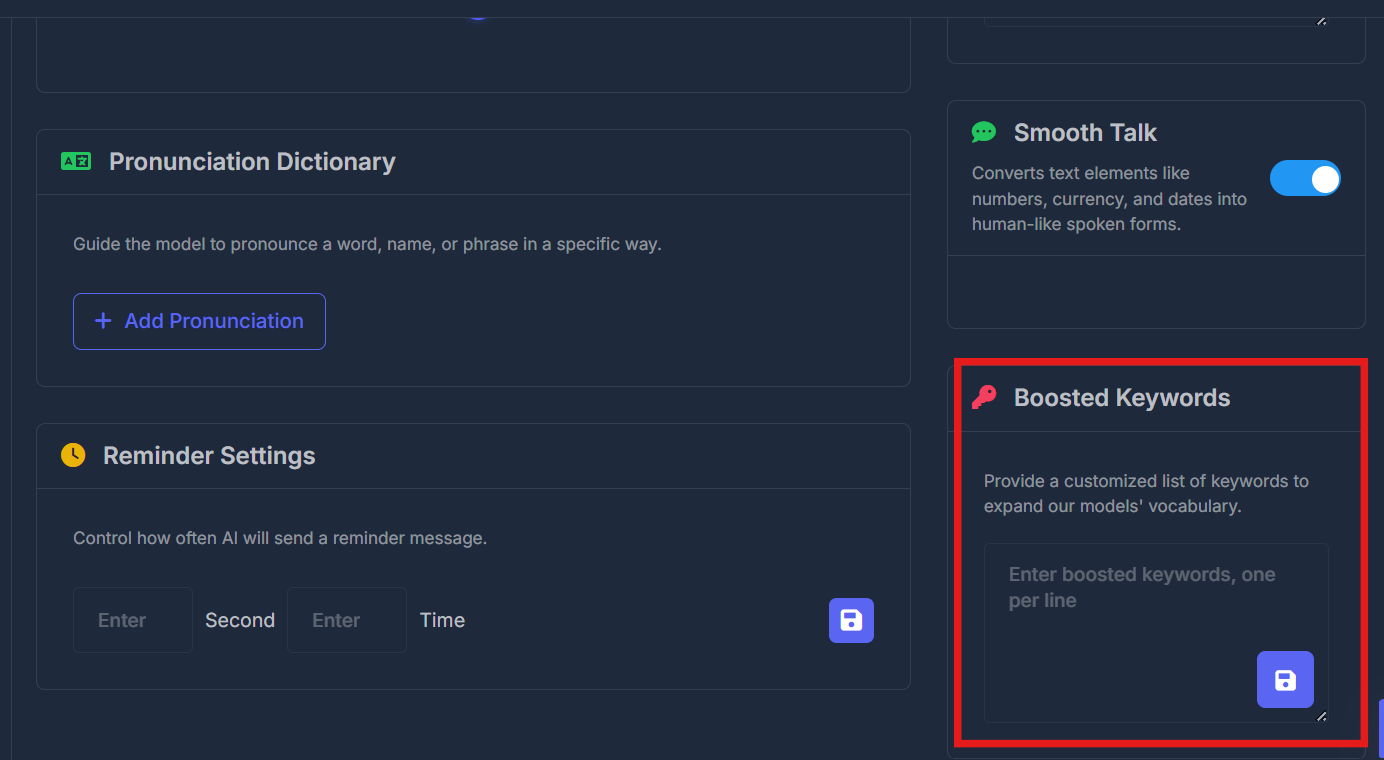
🔤 Boosted Keywords
PurposeProvide a custom list of high-priority words—such as important names or industry-specific terms—to improve the agent’s recognition and pronunciation. Enter one keyword per line in the input area. Click the Save icon below to apply your list. At least one keyword is required, or you’ll see a validation error.