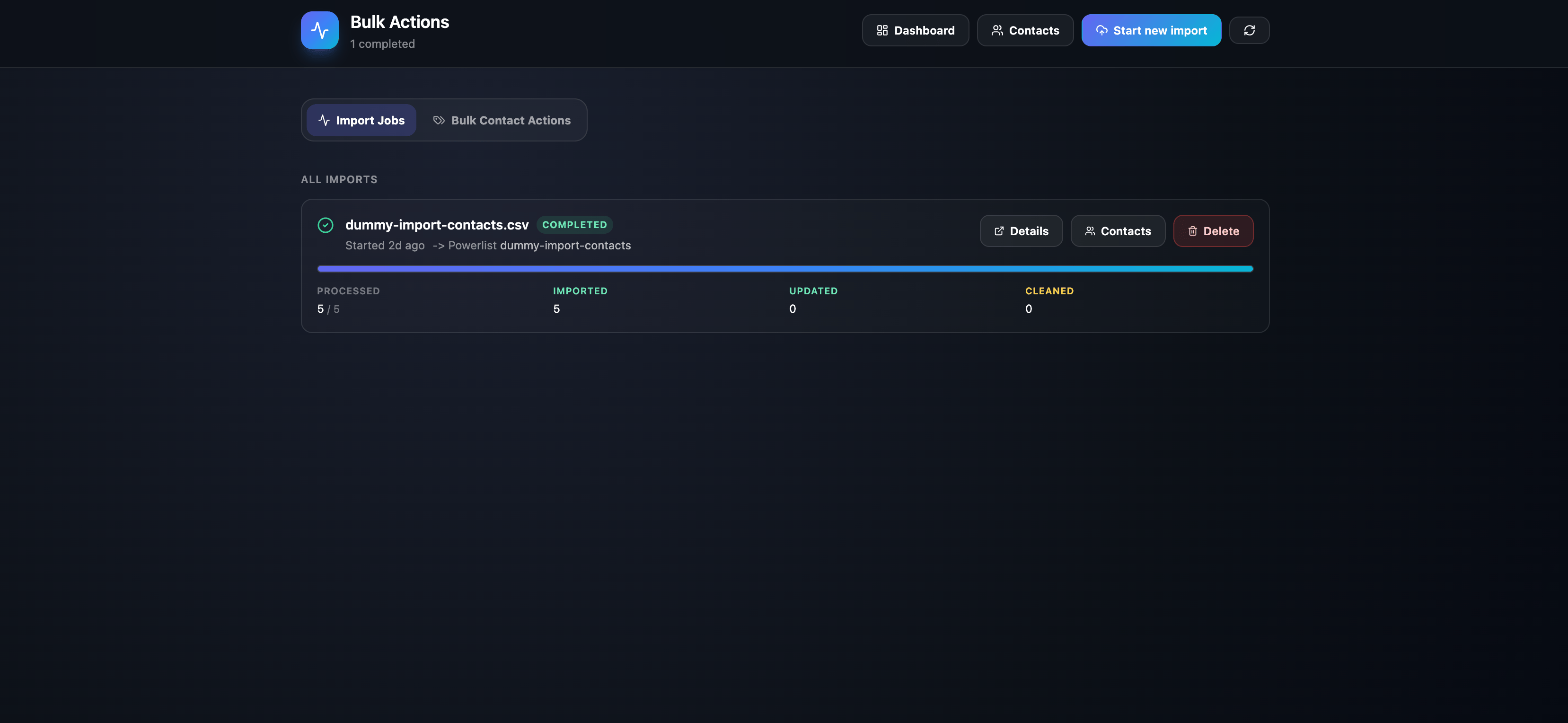
The Bulk Actions page is the control center for contact imports and large contact updates. It helps you watch CSV import progress, review import results, and safely apply changes to many contacts at once. Bulk Actions page with Import Jobs tab The page has two main areas:
  1. Import Jobs — running and completed contact imports.
  2. Bulk Contact Actions — select a group of contacts and run one action on all matching contacts.
Instead of editing contacts one by one, you can manage thousands of contacts from one screen.

📥 Import Jobs

The Import Jobs tab shows recent import activity with a clear status.
StatusMeaning
StartingThe import is being prepared.
RunningRows are actively being processed.
FinalizingThe import is finishing and saving final results.
CompletedThe import finished successfully.
FailedThe import stopped or could not complete.
Each job card shows:
  • File name or import ID.
  • Import status.
  • Linked powerlist, if one was created or selected.
  • Progress bar.
  • Processed row count.
  • Imported contact count.
  • Updated contact count.
  • Cleaned or skipped row count.
  • Cleanup breakdown for duplicate, missing phone, invalid phone, and no-consent rows.
Running imports refresh automatically every few seconds, so you can keep the page open and watch progress without manually refreshing.

📋 Import details

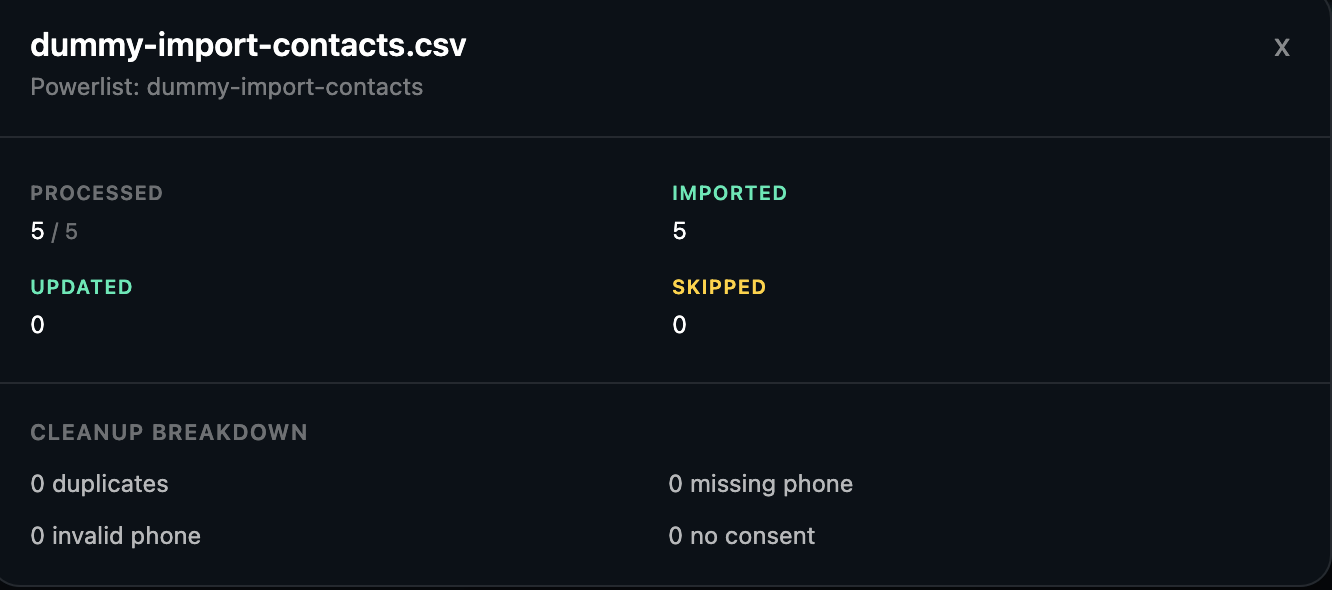
Click Details on a job to open a summary of that import. You can review:
  • Total processed rows.
  • Imported contacts.
  • Updated contacts.
  • Skipped contacts.
  • Cleanup breakdown.
  • Error message, if the import failed.
This gives you an audit-style view of what happened during the import. 🛑 Cancel running imports If an import is still running, you can cancel it. Canceling stops the remaining rows from being processed. Contacts that were already imported stay in the system. If the import created a new powerlist but no contacts were imported, the empty powerlist is cleaned up automatically. 🗑️ Delete import recordsx Completed or failed import records can be deleted from the Bulk Actions page. This only removes the import audit record from the import list. It does not delete contacts that were already imported.

⚡ Bulk Contact Actions

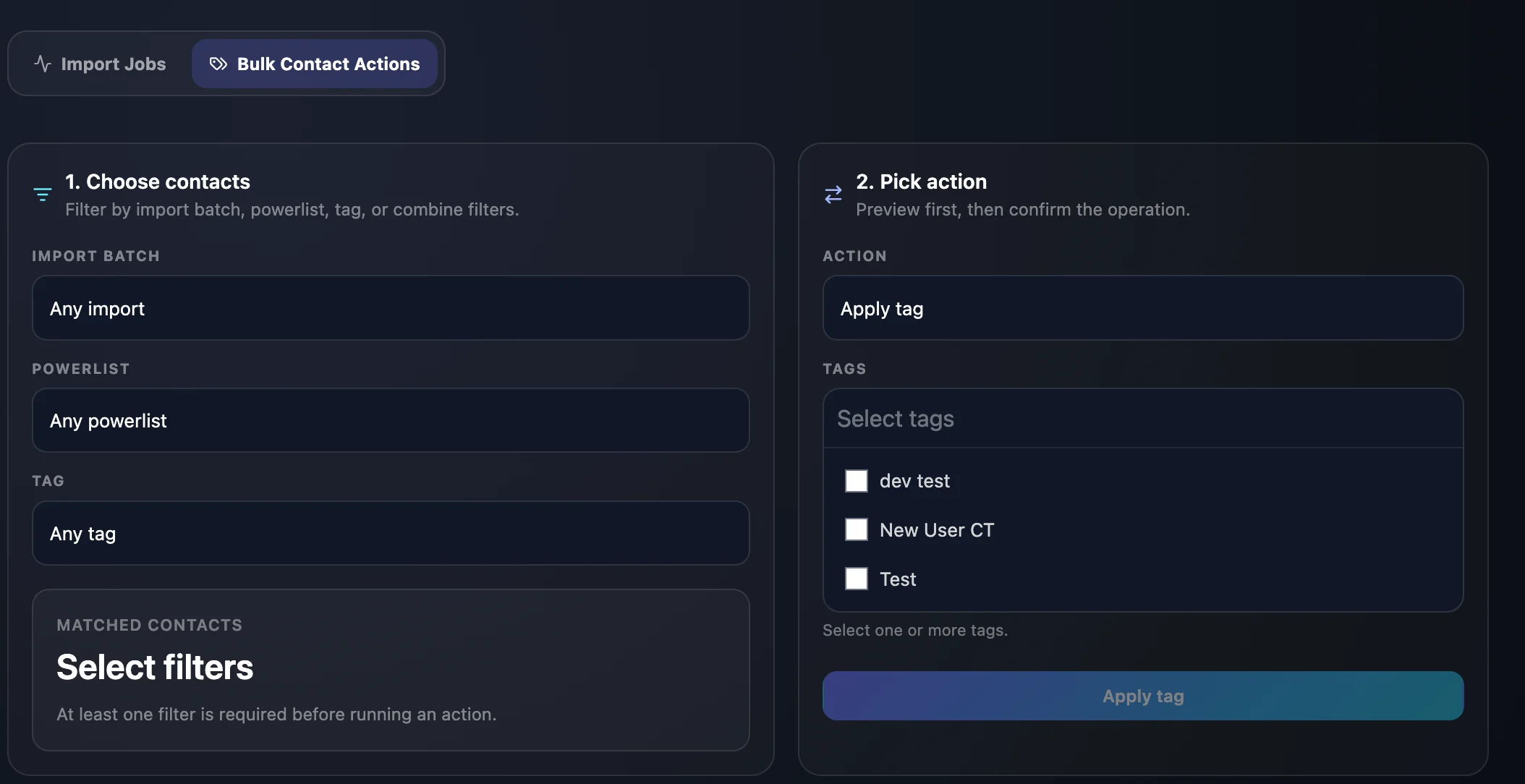
The Bulk Contact Actions tab lets you select contacts with filters and then apply an action. Bulk Contact Actions with contact filters and action picker

1️⃣ Step 1 — Choose contacts

Filter contacts by:
FilterWhat it matches
Import batchContacts from a completed import that is tied to a powerlist.
PowerlistContacts currently assigned to a selected powerlist.
TagContacts that already have a selected tag.
Filters can be combined. For example, you can select contacts from one powerlist that also have a specific tag. After filters are selected, the page previews how many contacts match. Check this count before running any action.

2️⃣ Step 2 — Pick an action

You can run one of these actions:
ActionWhat it does
Apply tagAdds one or more tags to all matching contacts.
Remove tagRemoves one or more tags from all matching contacts.
Move to powerlistMoves all matching contacts to another powerlist.
Delete contactsMarks matching contacts as deleted and hides them from the Contacts page.
Before the action runs, the page asks for confirmation and shows the matching contact count.