Google Ads lets you connect a Google Ads login, manage campaigns and ads, check performance, and send Lead Form submissions into AI Sync as contacts.
Open from Marketing → Google Ads, or Settings → Integrations → Google Ads → Manage.
This is not the same as Google Sign-In or Google Calendar. Connect Google Ads separately.
✨ What you can do#
- Connect Google Ads and sync ad accounts and Lead Forms
- Create a paused Search campaign, then Pause or Resume campaigns and ads
- Review spend, impressions, clicks, leads, and cost per lead
- Turn on lead delivery and send forms into PowerLists
📑 Tabs at a glance#
| Tab | Use it to… |
|---|---|
| Overview | See connected account, ad accounts, and Lead Forms |
| Ad Accounts | Pick which ad account to work on |
| Campaigns | Create paused campaigns; pause or resume |
| Ads | Pause or resume individual ads |
| Analytics | View last-7-day results by campaign |
| Lead Forms | Webhook URL, Leads On, PowerList, map fields |
🔌 Connect Google Ads#
Connect
Go to Marketing → Google Ads (or Settings → Integrations) → Connect Google Ads → sign in and approve access.
Sync
Click Sync Assets so account names and Lead Forms fill in.
Select account
Choose an Ad account from the top dropdown.
Set up leads
Open Lead Forms → paste the Webhook URL in Google Ads → turn Leads On → Map Fields.
Use a Google login with access to the Ads accounts you manage. A personal Gmail without Ads access may show an empty page.
🛠️ Top bar buttons#
| Button | When to use |
|---|---|
| Ad account | Switch which account you are managing |
| Sync Assets | Refresh accounts and forms from Google |
| Reconnect | Fix expired permissions |
| Disconnect | Unlink Google Ads from this workspace |
📝 Overview#
Quick snapshot of your Google Ads connection — not for editing ads.
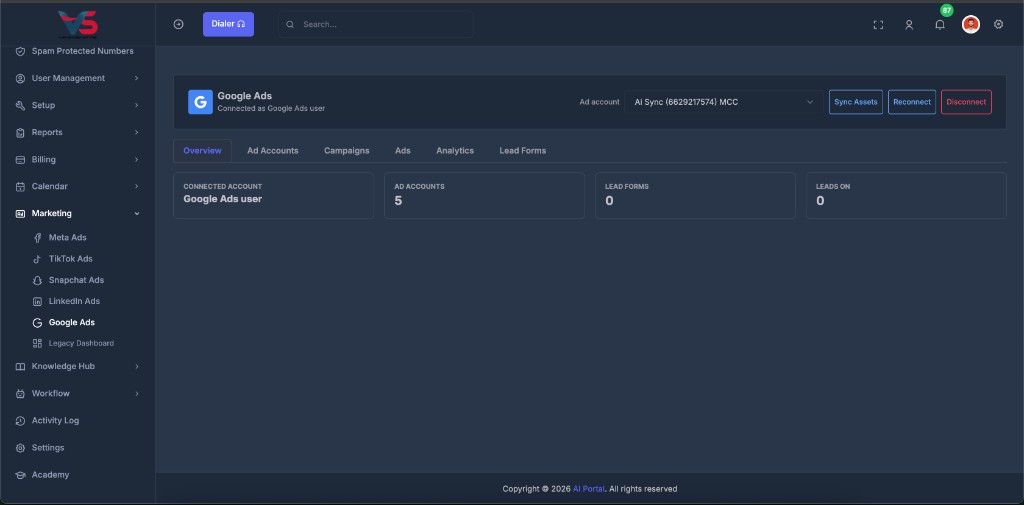
You will see:
- Connected Account — Google name on this connection
- Ad Accounts — how many accounts were found
- Lead Forms — how many forms were found
- Leads On — how many forms deliver into AI Sync
Numbers look wrong? Click Sync Assets.
💼 Ad Accounts#
Pick the ad account for campaigns, ads, and analytics.
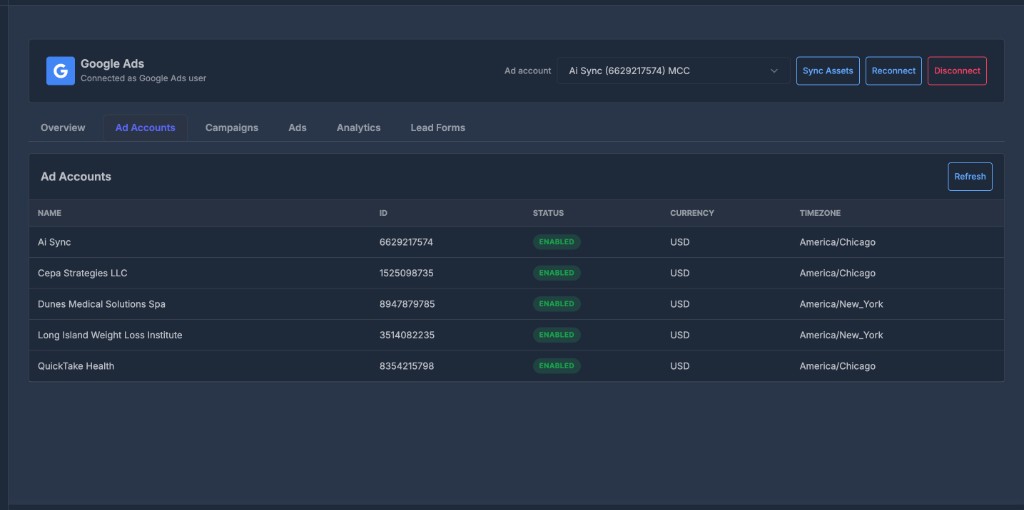
| Column | Meaning |
|---|---|
| Name | Ad account name |
| ID | Google Ads account ID |
| Status | Enabled, etc. |
| Currency / Timezone | Billing and reporting settings |
- Select the account in the top Ad account dropdown
- Click Refresh (or Sync Assets) to update the list
- Names still look like numbers? Click Sync Assets once
You do not create ad accounts in AI Sync. Create them in Google Ads.
📣 Campaigns#
Create and control campaigns for the selected ad account.
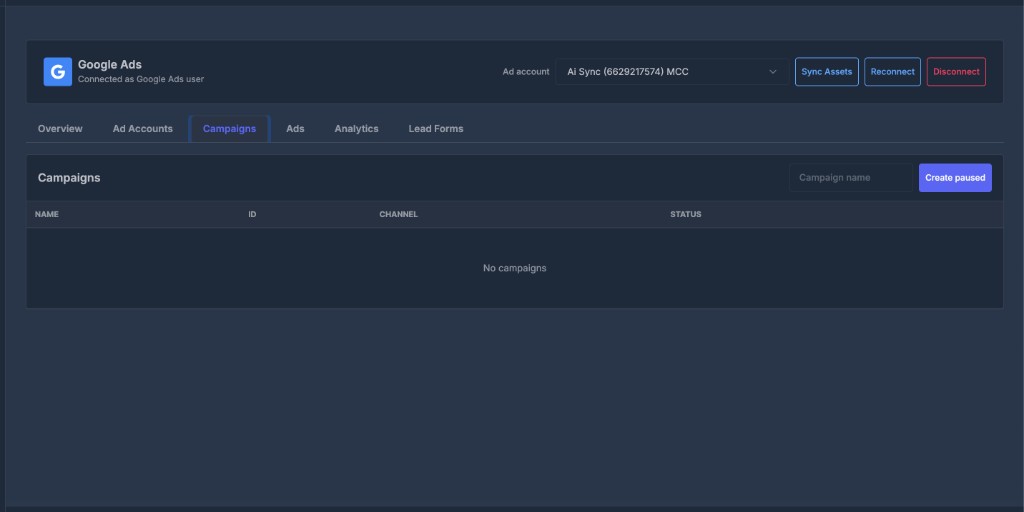
| Column | Meaning |
|---|---|
| Name | Campaign name |
| ID | Google campaign ID |
| Channel | Type (for example Search) |
| Status | Active or Paused |
| Actions | Pause or Resume |
Create a campaign
- Select ad account
- Type a Campaign name
- Click Create paused
New campaigns start Paused. Nothing spends until you click Resume.
This creates a paused Search campaign with a starter budget. Finish keywords, ads, and locations in Google Ads.
- Pause = stop spend fast
- Resume = may start delivery if ads, budget, and billing are ready
🖼️ Ads#
Pause or resume individual ads for the selected ad account.
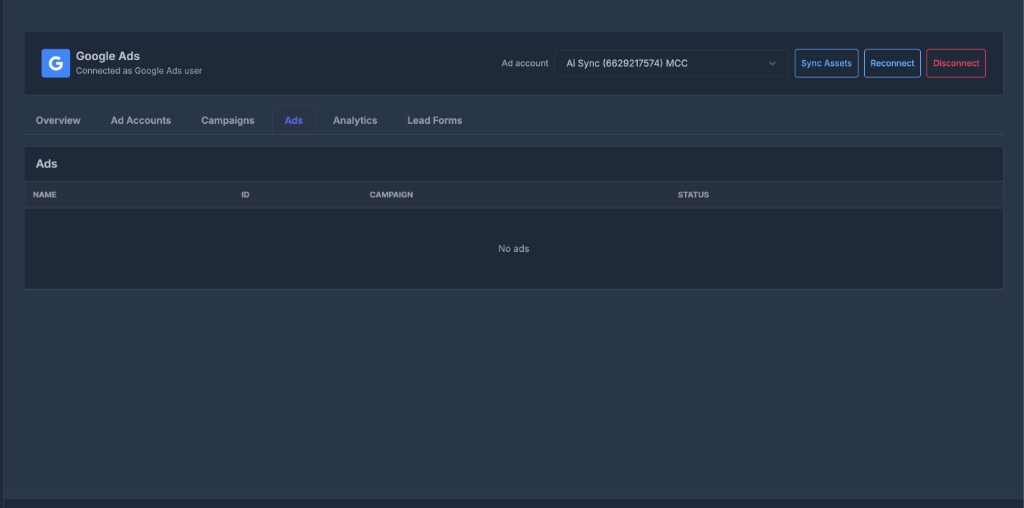
| Column | Meaning |
|---|---|
| Name | Ad name |
| ID | Google ad ID |
| Campaign | Parent campaign |
| Status | Active or Paused |
| Actions | Pause or Resume |
You can pause a single ad without pausing the whole campaign.
You do not create ads here. Build creatives in Google Ads, then pause or resume them on this tab.
📊 Analytics#
Performance for the selected ad account over the last 7 days.
| Column | Meaning |
|---|---|
| Campaign | Campaign name |
| Spend | Amount spent |
| Impr. | Impressions |
| Clicks | Clicks |
| Leads | Conversions Google reported |
| CPL | Cost per lead (when Google reported at least one lead) |
Currency follows the selected ad account.
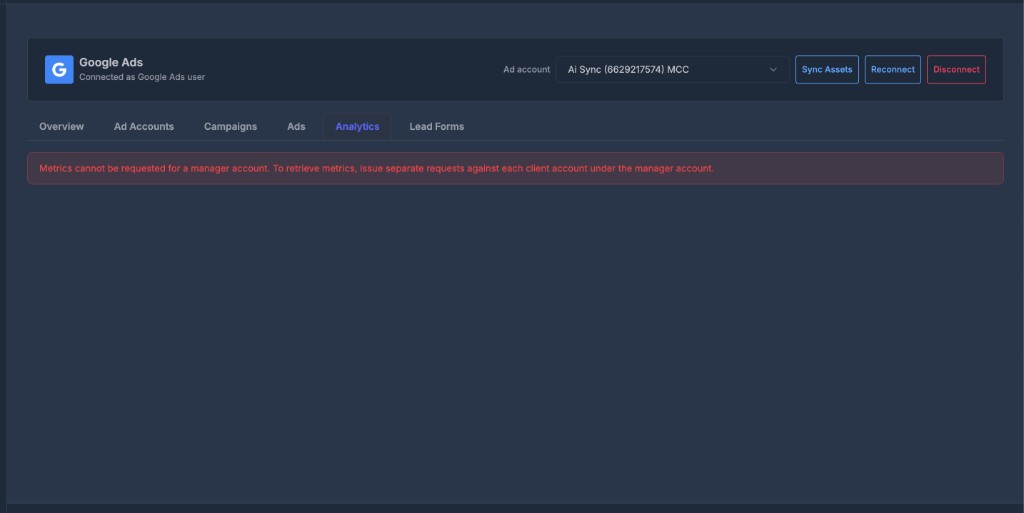
Metrics cannot be requested for a manager (MCC) account. Select a client ad account under the manager to load Analytics.
Use PowerLists for leads that actually arrived in AI Sync. Analytics shows what Google reported — they can differ.
📄 Lead Forms#
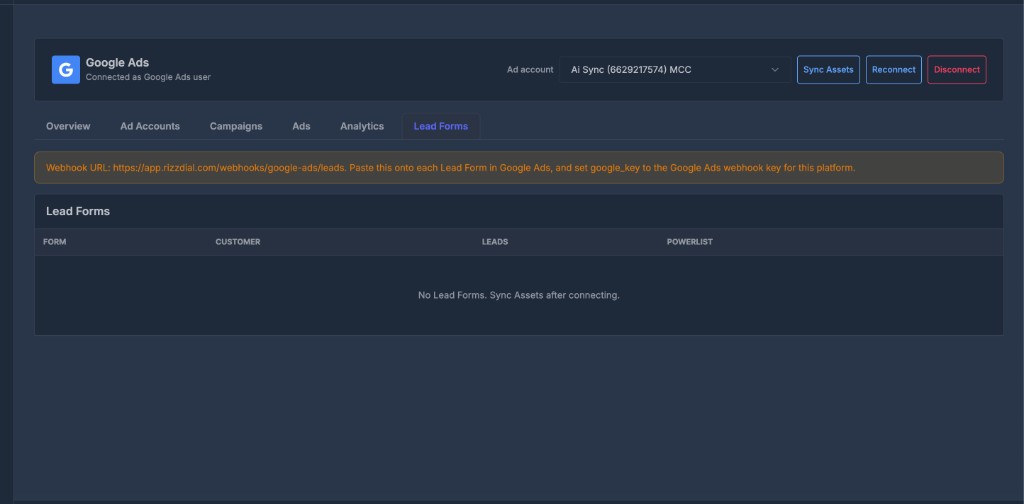
Turn Google form fills into contacts you can call or text.
| Column | Meaning |
|---|---|
| Form | Lead Form name |
| Customer | Related Google Ads customer / account |
| Leads | Lead delivery status |
| PowerList | Where new contacts are stored |
Empty list? Click Sync Assets. Create the form in Google Ads first if it still does not appear.
🔗 Webhook URL#
The yellow box shows your Webhook URL. AI Sync does not attach it for you.
- Copy the Webhook URL from this tab
- Open that Lead Form in Google Ads
- Paste the URL into the form’s webhook / lead delivery setting
- Enter the webhook key your AI Sync admin provided
Do this on each form you care about.
✅ Turn leads on#
| Status | Meaning |
|---|---|
| Leads On | AI Sync should accept leads from that form (after the URL is pasted in Google Ads) |
| Leads Off | New leads from that form will not be stored here |
If no PowerList is assigned, contacts go to the company Default PowerList.
🗺️ Map Fields#
- Click Map Fields on the form
- Match each Google question to an AI Sync contact field
- Choose skip for questions you do not want imported
- Click Save mapping
| Google question | Map to |
|---|---|
| Name / first / last | Name fields |
| Phone | Phone |
| City / State / Zip | Address fields |
Leads need: Sync Assets + Webhook URL pasted in Google Ads + Leads On + field mapping. Map phone and email for follow-up to work.