The DND Numbers module allows you to manage phone numbers that should not be contacted through certain communication channels. DND stands for Do Not Disturb — these are numbers where people have requested not to receive specific types of messages or calls. When you add a number to this list, the system remembers which channels to block, helping you respect preferences and stay compliant.
What are DND Numbers?Numbers on this list have one or more communication channels blocked (email, SMS, calls, voicemail, or inbound calls/SMS). The system uses this list to prevent sending messages or placing calls through blocked channels.
DND Numbers Overview

🎯 Overview

The DND Numbers module allows you to view, add, edit, and delete do-not-contact entries. You can filter by date range and DND status, and search the list by name, email, area code, or who added the entry.
  • 📋 Central List — See all DND numbers in one table with status badges
  • ➕ Add & Edit — Manage contact details and which channels to block
  • 🔍 Filter & Search — Narrow by date range, DND status, or free-text search
  • 🚦 Clear Status — Colored badges show at a glance which channels are blocked
  • ⚡ Immediate Updates — DND Status checkbox changes save as soon as you change them when editing

🚀 Accessing the DND Numbers Page

  1. Navigate to the DND Numbers section in your main menu
  2. Click on DND Numbers from the options
  3. The DND Numbers page will load showing all entries (default: numbers added today)

📋 DND Numbers List

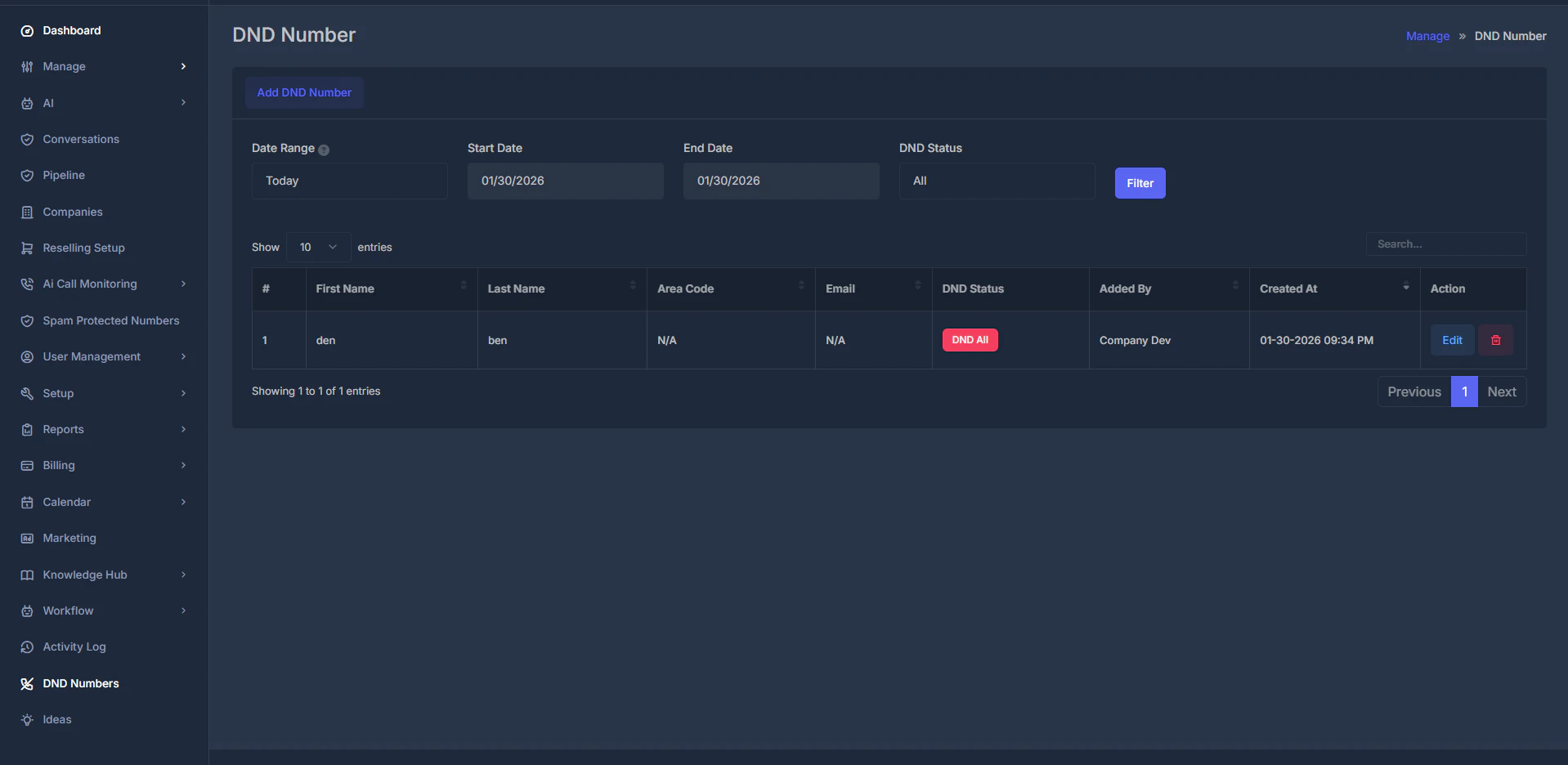
When you open the DND Numbers page, you see a table of all numbers on the DND list. Purpose: Display all DND entries with key contact and status information so you can manage and filter them. How it works:
  • The list shows entries based on your current date range and DND status filters
  • By default, the list shows entries from today; use the filters to change the range
  • Each row includes contact fields, DND Status badges, who added the number, and when it was created
  • Use the Action column to edit or delete an entry
DND Numbers List Table
FieldDescriptionPurpose
#Sequential row numberQuick reference and navigation
First NamePerson’s first name (if provided)Identification
Last NamePerson’s last name (if provided)Identification
Area CodePhone area code (if provided)Number context
EmailEmail address associated with the number (if provided)Contact and search
DND StatusColored badges for blocked channels (see below)See at a glance what is blocked
Added ByUser who added this numberAudit and filtering
Created AtDate and time when the number was addedSorting and date filter
ActionEdit and Delete buttonsManage the entry

🚦 Understanding DND Status

The DND Status column shows colored badges indicating which communication channels are blocked for each number. Each badge type has a distinct color; a single number can have multiple badges if multiple channels are blocked (e.g. both DND Email and DND SMS).
BadgeColorMeaning
DND AllRedDo not contact through any channel — no email, SMS, calls, or voicemail
DND EmailBlueDo not send emails
DND SMSGreenDo not send text messages
DND Call VoicemailYellowDo not place calls or leave voicemails
DND Inbound Call SMSLight blueDo not allow incoming calls and SMS

➕ Adding a New DND Number

Purpose: Add a phone number to the DND list and specify which communication channels to block. How it works:
  1. Click the “Add DND Number” button at the top of the page
  2. Fill in the form (phone number is required; name, area code, and email are optional)
  3. Select which channels to block under DND Status
  4. Click “Submit” to save; the number appears in the list and a success message is shown
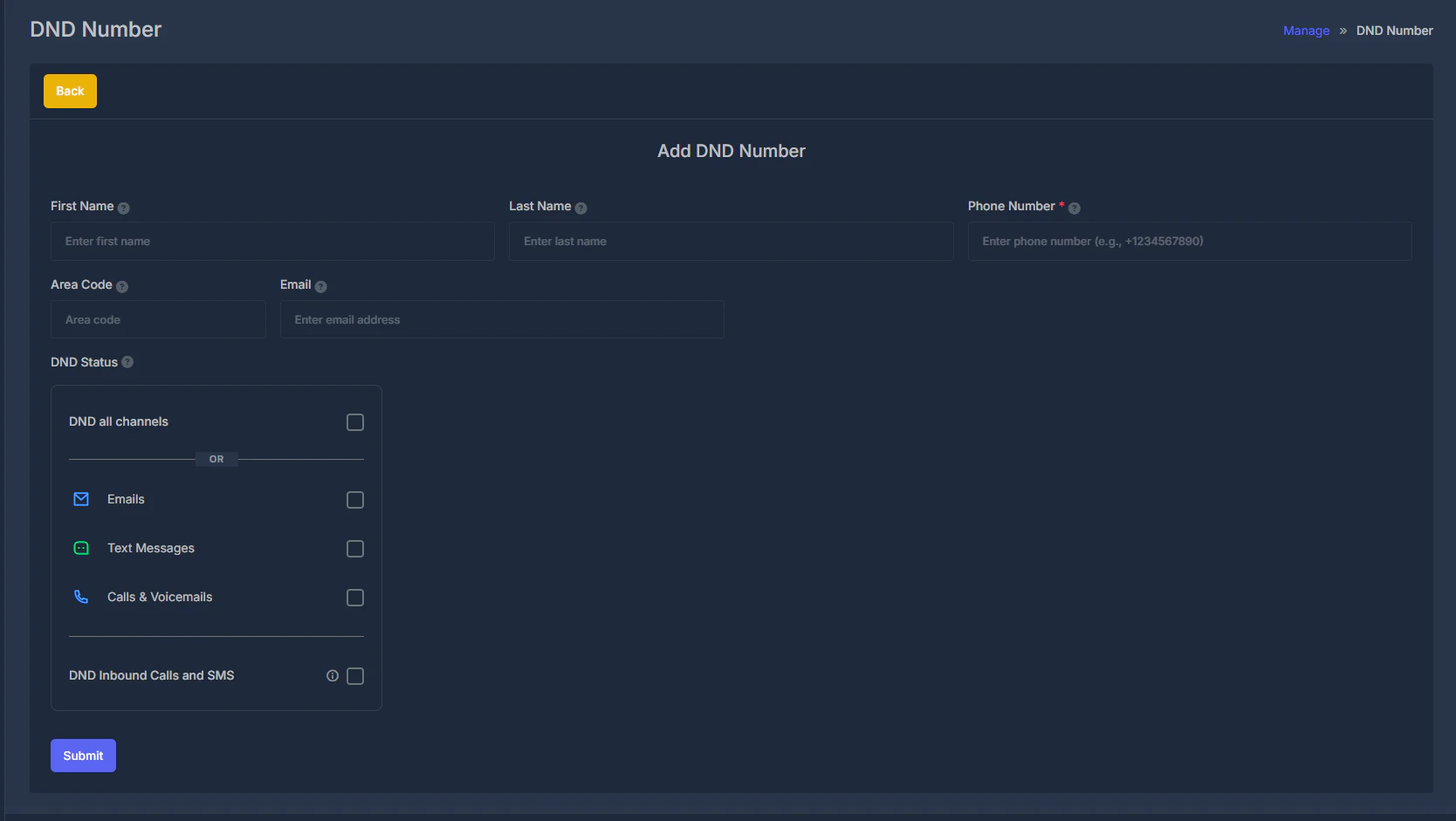
Add DND Number Form Required field: Phone Number — Enter in any format; the system will format it correctly. Optional fields: First Name (up to 20 characters), Last Name (up to 20 characters), Area Code (up to 5 characters), Email (up to 150 characters; must be valid). DND Status — choose which channels to block:
  • DND all channels — Blocks email, SMS, calls, and voicemail. When selected, you cannot select individual channels below.
  • Emails — Block email to this number
  • Text Messages — Block SMS to this number
  • Calls & Voicemails — Block calls and voicemail to this number
  • DND Inbound Calls and SMS — Block incoming calls and text messages (can be used alone or with others)
Important: If you select DND all channels, the individual channel options are disabled. If you select any individual channel, DND all channels is automatically unchecked.

✏️ Editing an Existing DND Number

Purpose: Update contact information or change which channels are blocked for a number already on the list. How it works:
  1. Find the number in the table and click “Edit” in the Action column
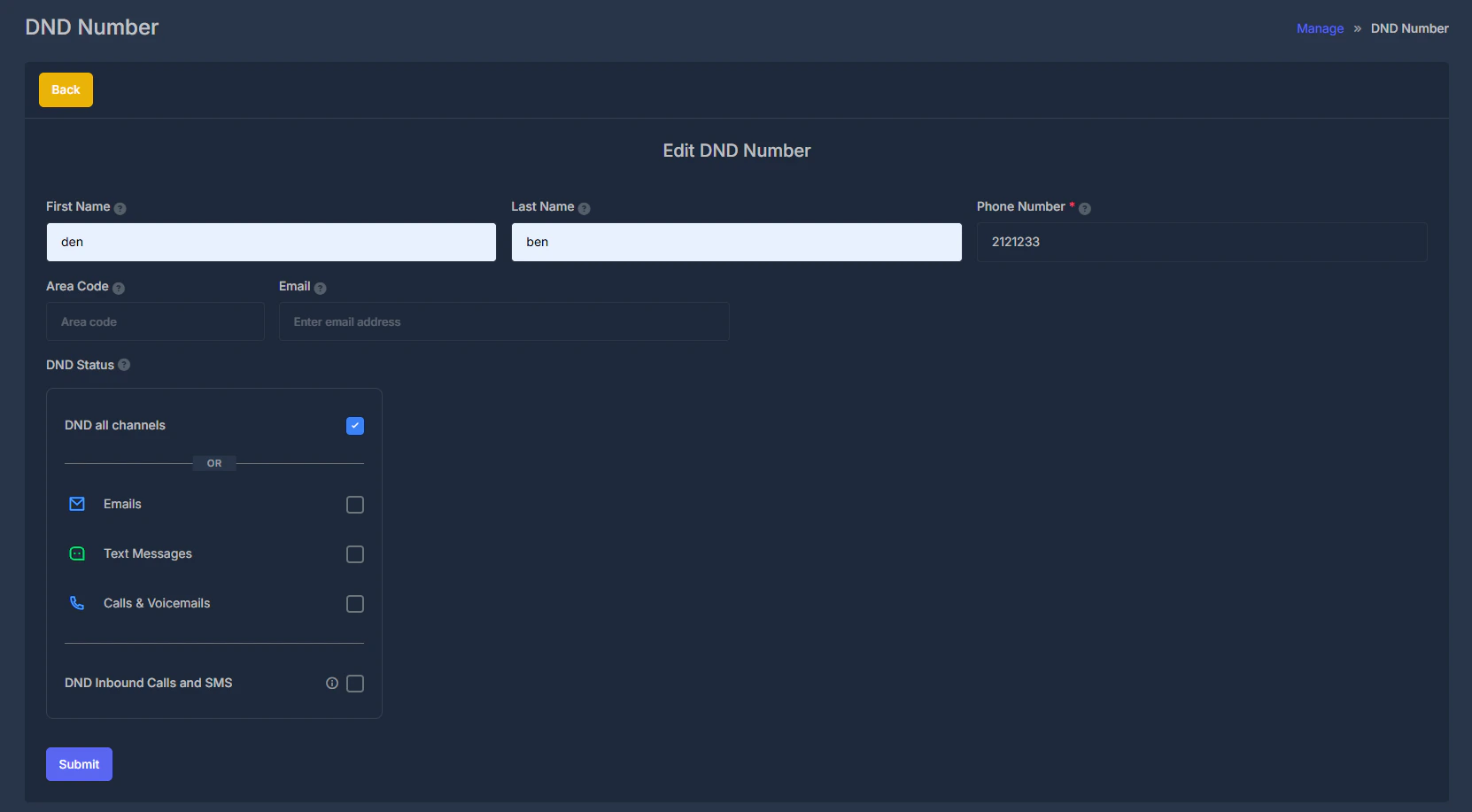
  2. The form opens with the current information; update any fields (first name, last name, area code, email, phone number, or DND Status)
  3. DND Status checkbox changes are saved immediately when you change them — you do not need to click Submit for those
  4. Click “Submit” to save all other changes; the form closes and the list updates with a success message
Edit DND Number Form Note: When editing, DND Status checkbox changes are saved right away. You can continue editing other fields and then click Submit to save the rest.

🗑️ Deleting a DND Number

Purpose: Remove a number from the DND list permanently. How it works:
  1. Find the number in the table and click the delete (trash) icon in the Action column
  2. A confirmation dialog appears asking “Are you sure?”
  3. Click OK to confirm deletion or Cancel to keep the number
  4. If you confirm, the number is removed from the list and a success message is shown
Warning: Deletion is permanent. To have the number on the list again, you must add it as a new entry.
Use the filters at the top of the page to narrow the list by date range and DND status; click “Filter” to apply. Use the search box above the table to find entries by first name, last name, area code, email, who added the entry, or created date — results update as you type (case-insensitive, partial matches supported). DND Numbers Filters Date range: Choose a predefined period (Today, Yesterday, This Week, Last 7 Days, Last 14 Days, This Month, Last 30 Days, Last Month, etc.) or Custom dates to pick your own start and end date. For Custom dates, the Start Date and End Date fields become active; click them to open the calendar. Click “Filter” to apply. Dates follow your account’s time zone.
OptionWhat it includes
Custom datesYour own start and end date
TodayNumbers added today only
YesterdayNumbers added yesterday
This Week (Sun - Today)From Sunday of current week to today
This Week (Mon - Today)From Monday of current week to today
Last 7 DaysPast 7 days including today
Last Week (Sun - Sat)Previous Sunday through Saturday
Last Week (Mon - Sun)Previous Monday through Sunday
Last Business Week (Mon - Fri)Previous Monday through Friday
Last 14 DaysPast 14 days including today
This MonthFirst day of current month to today
Last 30 DaysPast 30 days including today
Last MonthEntire previous month
DND status: Open the “DND Status” dropdown and select All, DND all channels, Emails, Text Messages, Calls & Voicemails, or DND Inbound Calls and SMS, then click “Filter” to show only entries matching that status.

⚙️ How the Module Works

When you add a number: The system stores all information you provide and your DND Status selections, records who added the number and when, and which company it belongs to. The number is immediately active and used to block the selected channels. When you edit: You can change any contact or DND fields. DND Status checkbox changes are saved immediately; clicking Submit saves the rest (name, phone, email, area code, etc.). DND status logic: DND all channels is the most restrictive and clears individual channel options. Individual options (Emails, Text Messages, Calls & Voicemails) can be combined. DND Inbound Calls and SMS is independent and can be combined with others or used alone. Selecting DND all channels clears individual channels; selecting an individual channel clears DND all channels. Phone number formatting: You can enter the number in any format (with or without dashes, spaces, or parentheses); the system converts it automatically. Time zone: All dates and times are shown in your account’s time zone. Company restrictions: Non-administrators see only their company’s DND numbers; administrators see all companies. The system tracks company per number automatically.

📋 Summary

With the DND Numbers module you can:
  • Add numbers with contact details and DND preferences
  • Edit entries to update information or DND settings (DND checkbox changes save immediately when editing)
  • Delete numbers when no longer needed (permanent; add again if required later)
  • Filter by date range and DND status, and search the table
  • See at a glance which channels are blocked for each number via colored status badges
The system handles phone formatting, time zones, and company assignment automatically so you can maintain an accurate do-not-contact list for each channel.