

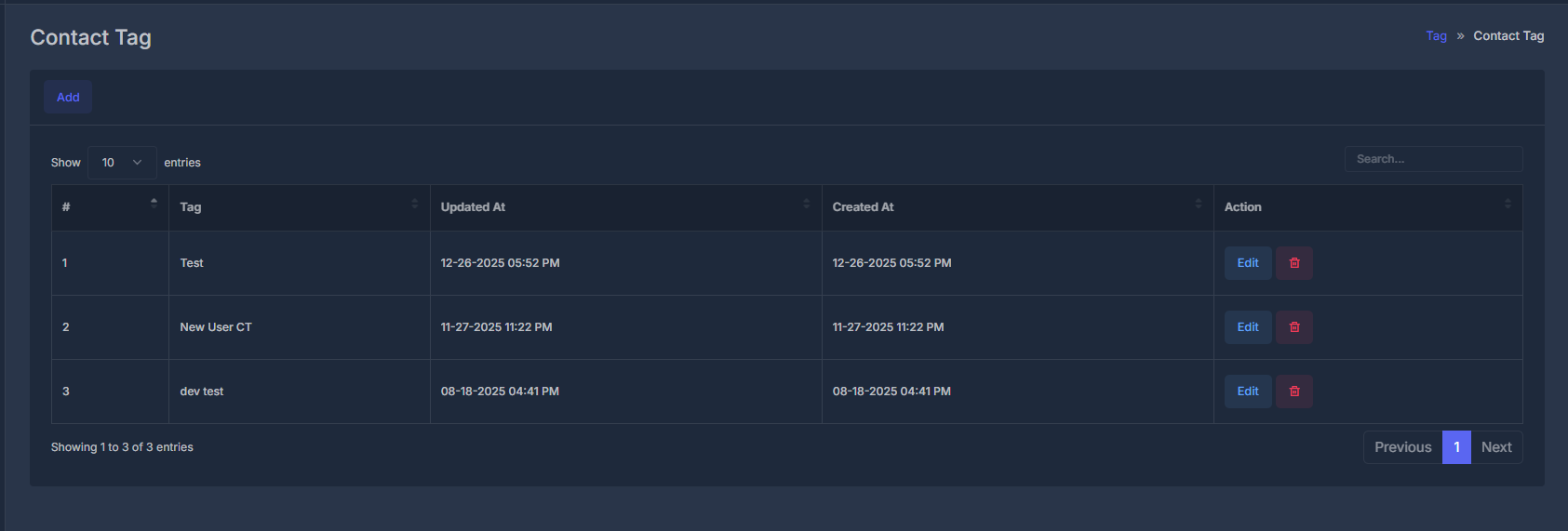
📋 The tag list
When you open this screen, you see a table of contact tags.⚙️ List controls
- Add opens the create form.
- Search filters table rows (placeholder usually
Search...). - Pagination keeps long lists manageable (commonly 10 rows per page by default).
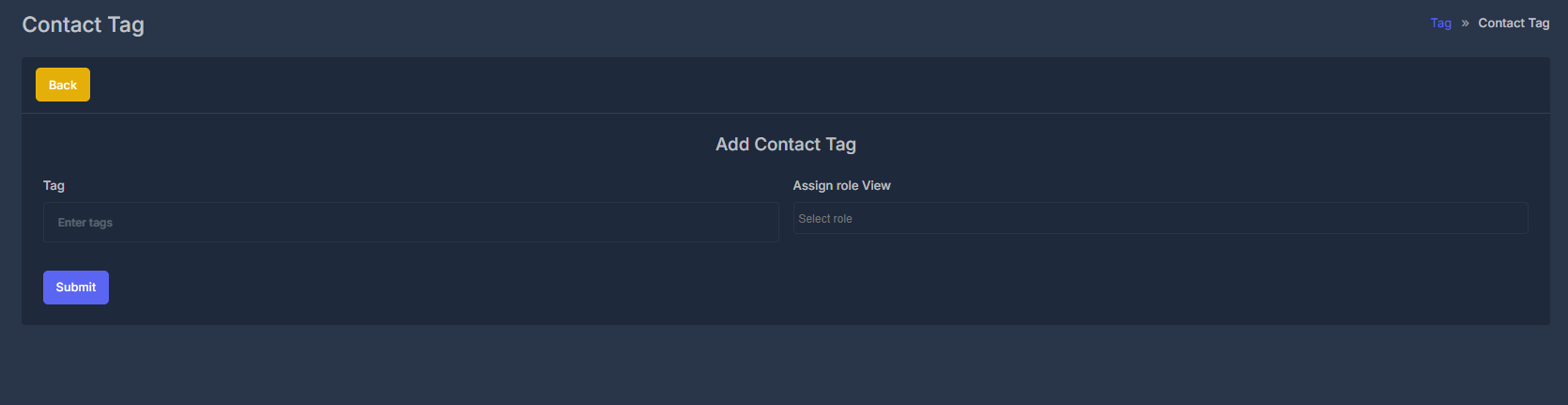
➕ Adding a new tag
- Click Add.
- The list hides and Add Contact Tag form opens.
- Fill required fields.
- Click Submit.
- On success, confirmation appears and list reloads with new tag.
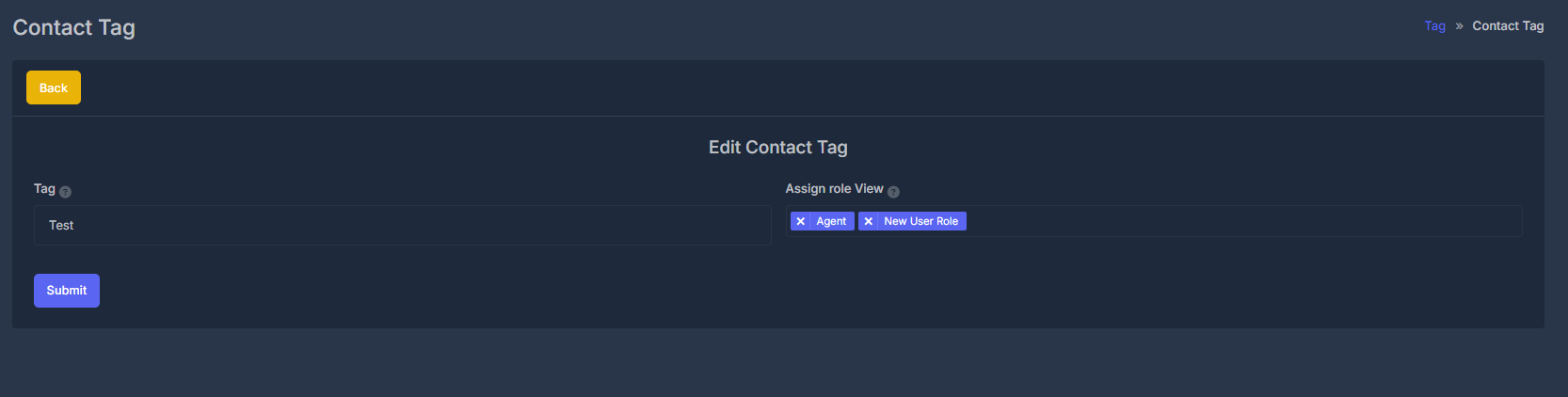
✏️ Editing a tag
- Click Edit in the row’s Action column.
- Edit Contact Tag form opens with existing values prefilled.
- Update fields and click Submit.
🗑️ Deleting a tag
- Click the row’s trash icon.
- Confirm when prompted.
- Tag is removed and a result message appears.
📝 Form fields (Add and Edit)
🏷️ Tag (required)- Purpose: User-facing tag name.
- Required: Yes.
- Placeholder: Usually
Enter tags. - Help text: Suggests using clear names like VIP, Prospects, Hot Leads.
- Purpose: Select which roles can view/use this tag.
- Selection: One or many roles.
- Control type: Searchable dropdown.
- Placeholder: Usually
Select role.
- On success: confirmation + return to list.
- On failure: error explains what to fix.