

The Activity Log feature allows you to track and monitor all important actions performed within the system. This helps maintain transparency, accountability, and provides a complete audit trail of changes across all modules of the application.
🎯 Overview
Activity Log is a comprehensive tracking system that automatically records user actions across all modules of the platform. Whether a user creates, updates, deletes, or performs any special action on any record, the system captures and stores this information for future reference.🔍 Accountability
Know who made what changes and when. Complete user tracking for every action.
👁️ Transparency
Full visibility into all system activities across every module and feature.
📜 Audit Trail
Complete history of changes for compliance and regulatory requirements.
🔧 Troubleshooting
Easily track down when and how changes were made to resolve issues quickly.
👥 Team Management
Monitor team activities within your organization and track performance.
📊 Complete History
Every action is logged with before/after values and detailed metadata.
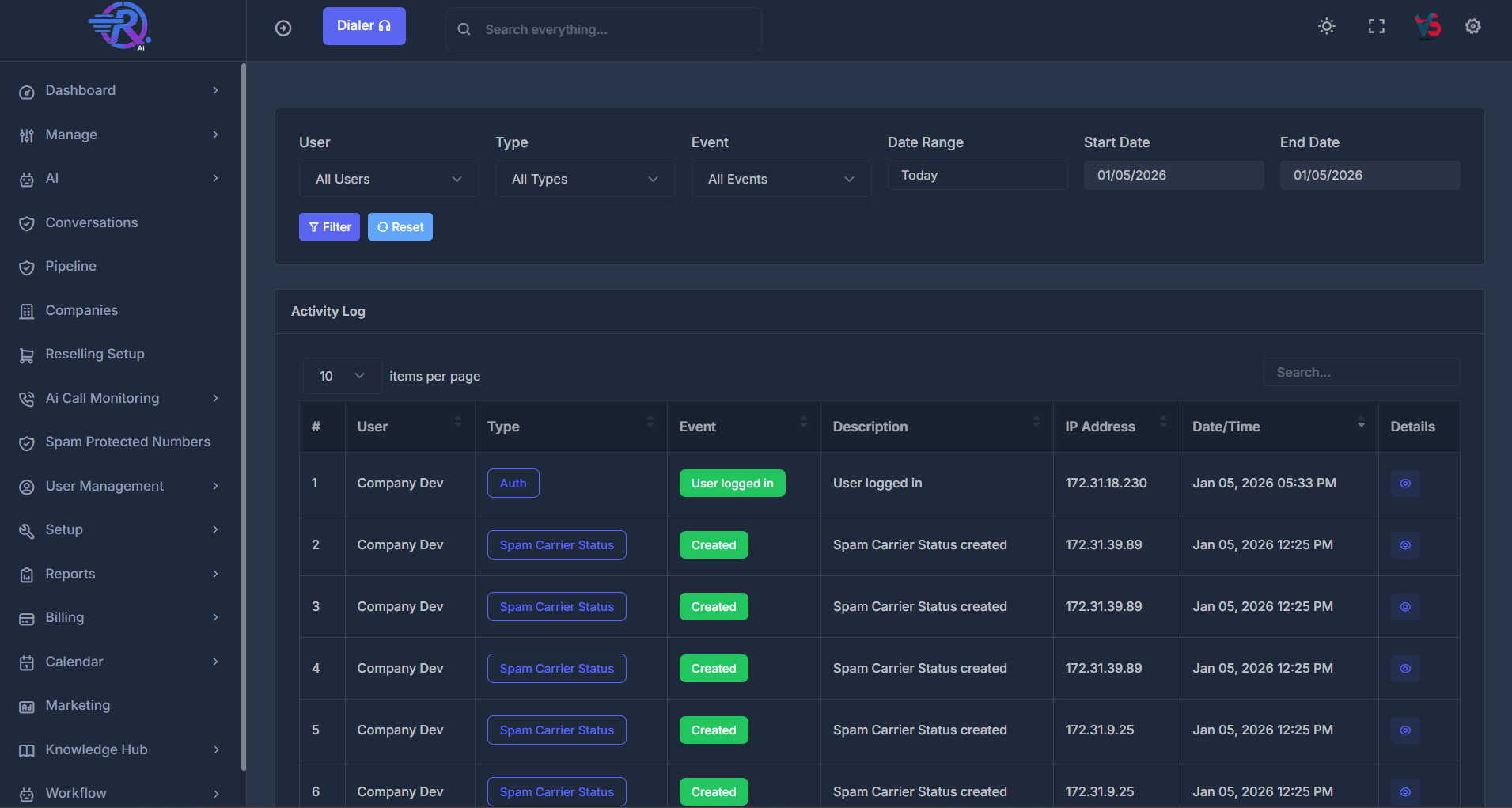
🚀 Accessing Activity Log
💡 Pro Tip: The page automatically loads with the most recent activities at the top, making it easy to see the latest changes first.
🖥️ Understanding Activity Log Interface
📊 Activity Log Table The main Activity Log interface displays a comprehensive table with all recorded activities. Each row represents a single activity entry with detailed information.| Column | Description | Visual Indicator |
|---|---|---|
| # | Sequential row number for easy reference | Numeric identifier |
| User | The name of the person who performed the action | User name display |
| Type | Which module or feature was affected | Colored tag badge |
| Event | The type of action performed (Created, Updated, Deleted, etc.) | Colored tag badge |
| Description | Detailed description of the event that occurred | Text description |
| IP Address | The IP address from which the action originated | IP address format |
| Date/Time | Exact date and time when the action occurred | Timestamp in local timezone |
| Details | Icon button to view complete activity details | Blue circle with target icon |
⚡ Table Features
🔄 Sortable Columns
Click on column headers (User, Type, Event, IP Address, Date/Time) to sort the data ascending or descending. Visual indicators show the current sort direction.
📄 Pagination
Navigate through multiple pages of activity records. Use the pagination controls at the bottom of the table.
📏 Items Per Page
Select how many records to display: 10, 25, 50, or 100 items per page. Choose based on your preference and screen size.
🔍 Search Functionality
Use the search box to find activities by entering keywords. Search works across all visible columns and updates in real-time.
📋 Activity Details Modal
For more detailed information about any activity, click on the Details icon (blue circle with target symbol) in any row. This opens a detailed modal showing complete information about the activity.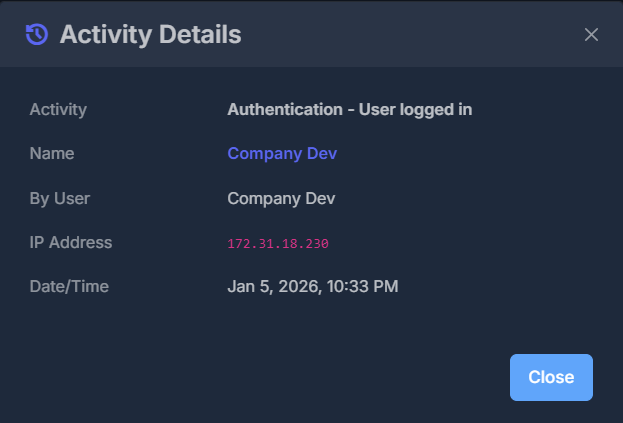
📝 Activity Type
The type of activity performed (e.g., “Authentication - User logged in”)
👤 Name
The name of the record or entity affected (displayed in blue, may be clickable)
🔐 By User
The user who performed the action
🌐 IP Address
The IP address from which the action originated (displayed in pink/magenta for visibility)
📅 Date/Time
The exact timestamp when the action occurred in your local timezone
❌ Close Button
Click to return to the main activity log view
🔍 Filtering and Searching Activities
The Activity Log provides powerful filtering options to help you find specific activities quickly. The filter section is located at the top of the Activity Log page. ** Filter Options**👥 User Filter
Purpose: Filter activities by specific user
- Select a specific user from the dropdown
- Shows only activities performed by that user
- Helpful for reviewing actions by a specific team member
- Default: “All Users” (shows all activities)
📦 Type Filter
Purpose: Filter by module or feature
- Narrow down to specific modules or features
- Focus on changes in particular areas of the system
- Tracks activities across all available modules
- Default: “All Types” (shows all activity types)
⚡ Event Filter
Purpose: Filter by action typeAvailable options:
- Created - New records added to the system
- Updated - Existing records modified
- Deleted - Records removed from the system
- Transferred - Records moved between entities
📅 Date Range Filter
Purpose: Filter by time periodPredefined options:
- Today - Today’s activities only
- Yesterday - Previous day’s activities
- This Week - Current week’s activities
- Last 7 Days - Past week
- Last 30 Days - Past month
- This Month - Current month
- Last Month - Previous month
- Custom dates - Your own date range
Set Start Date
Select the beginning date of your range using the calendar picker (e.g., 01/05/2026).
✅ Apply Filters
How to Apply:
- Set your filter preferences (User, Type, Event, Date Range)
- Click the Filter button (purple button with filter icon)
- The Activity Log table updates to show matching activities
- All filters work together - combine multiple filters for specific searches
💡 Tip: Filters are cumulative - each filter narrows down the results further.
🔄 Reset Filters
How to Reset:
- Click the Reset button (blue button with refresh icon)
- All filters return to their default values
- The Activity Log displays all activities again
💡 Tip: Use Reset when you want to start fresh with your filtering.
🔎 Search Functionality
In addition to filters, use the search box located above the Activity Log table:🔤 Keyword Search
Enter keywords to search through activity descriptions and related information
📊 Multi-Column
Search looks through all visible columns to find matching results
⚡ Real-Time
Results update as you type for instant feedback
🎯 Combining Filters
You can combine multiple filters together to create more specific searches: Example Combinations:- User + Event: Filter by a specific user AND a specific event type to see only records that user created
- Date Range + Type: Filter by a date range AND a specific type to see all activities in a module during a certain period
- Search + Filters: Use search AND filters together to find very specific activities
💡 Pro Tip: Start with broader filters and narrow down as needed. This helps you find exactly what you’re looking for without missing relevant results.
📝 What Gets Tracked
The Activity Log system monitors and records activities across all modules of the platform. Whenever any significant action is performed on any record in the system, it gets automatically logged.🎬 Types of Actions Tracked
➕ Record Creation
What’s Captured:When a new record is created, the activity log captures:
- All initial values that were set
- Complete configuration at creation time
- User who created the record
- Exact timestamp and IP address
✏️ Record Updates
What’s Captured:When a record is modified, the log captures:
- Previous values (before the change)
- New values (after the change)
- Only fields that were actually modified
- Complete before/after comparison
🗑️ Record Deletion
What’s Captured:When a record is deleted, the log preserves:
- Snapshot of all values before removal
- Complete record data for historical reference
- User who performed the deletion
- Timestamp and IP address
⭐ Special Actions
What’s Captured:Beyond basic CRUD operations, tracks:
- Feature activation/deactivation
- Item assignments to users/teams
- Ownership transfers
- Status changes (active/inactive, etc.)
- Authentication events (login, logout, password changes)
- Module-specific operations
🌐 Comprehensive Coverage
The activity tracking covers all major areas of the platform, ensuring complete visibility into system usage. Any module where users can create, modify, or delete records will have its activities logged automatically. Common Activity Types Include:🔐 Authentication
User login, logout, password changes
👥 User Management
User creation, updates, role changes
🛡️ Spam Protection
Spam Carrier Status creation and management
🏢 Company Management
Company profile updates and changes
🤖 AI Agent Management
Agent creation, configuration changes
📞 Dialer Activities
Campaign creation, powerlist management
📇 Contact Management
Contact creation, updates, deletions
📊 Pipeline Management
Stage changes, deal updates
➕ And More
Many more across all platform modules
🔬 Understanding Change Details
When you click on an activity to view its details, the information displayed varies based on the type of action:➕ For Created Records
When viewing details of a creation event, you will see:📋 All Field Values
Complete list of all values set during creation
👤 Creator Information
User who created the record
⏰ Creation Timestamp
Exact time when the record was created
🌐 IP Address
IP address from which creation occurred
✏️ For Updated Records
Update events show a comparison view with detailed change information:📊 Previous Value
Shows what each field contained before the change was made
🆕 New Value
Shows what each field was changed to
- Only modified fields are displayed (focus on what changed)
- Complete before/after comparison for all modified fields
- Side-by-side comparison for easy viewing
- Track configuration changes
- Understand data evolution
- Identify unintended modifications
- Audit system changes
🗑️ For Deleted Records
Deletion events preserve and display all the values the record contained at the time it was deleted:💾 Complete Snapshot
All field values from the deleted record
👤 Deletion Details
User who performed the deletion, timestamp, and IP address
- Compliance and audit requirements
- Data recovery if needed
- Understanding what was removed
- Historical reference
🔗 Related Information
Some activity logs include additional contextual information:- Related record names or identifiers
- Parent items or hierarchical relationships
- Associated entities or linked records
- Module-specific metadata
- Additional helpful details relevant to the activity
👁️ Visibility and Access Rules
The Activity Log implements visibility rules to ensure users only see activities relevant to them:🏢 Company Users
Visibility: All activities by any user within your companyCapabilities:
- Monitor and review team activities
- Ensure proper usage of the system
- Maintain oversight of all changes
- Track team performance and engagement
- Identify training needs or policy violations
👤 Regular Users
Visibility: Your own activities onlyCapabilities:
- Keep track of your personal actions
- Review your own history of changes
- Understand what actions you’ve taken
- Maintain personal accountability
🛡️ Administrators
Visibility: Own administrative activities onlySecurity Features:
- Admin activities kept private
- Not visible to company or regular users
- Protects system-level operations
- Maintains security boundaries
- Ensures proper access control