

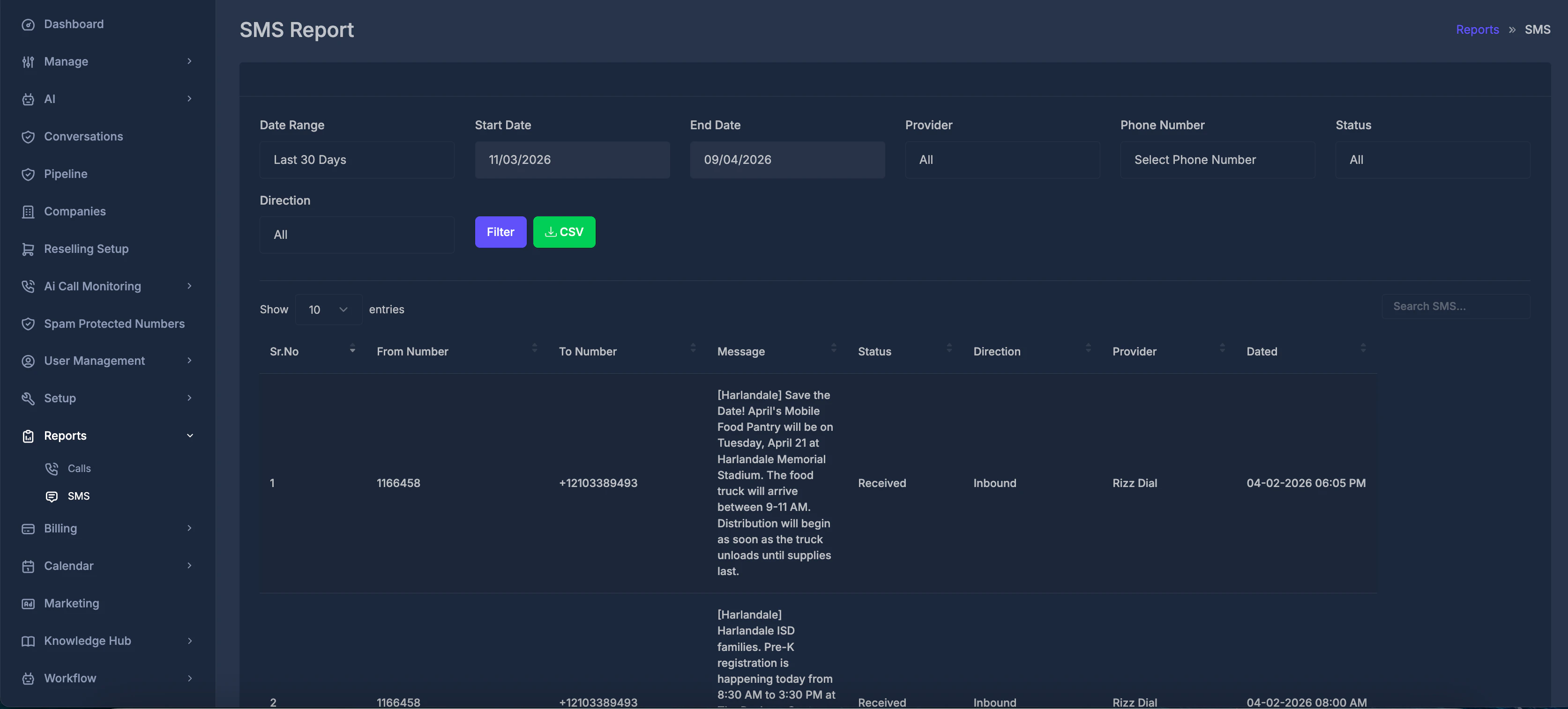
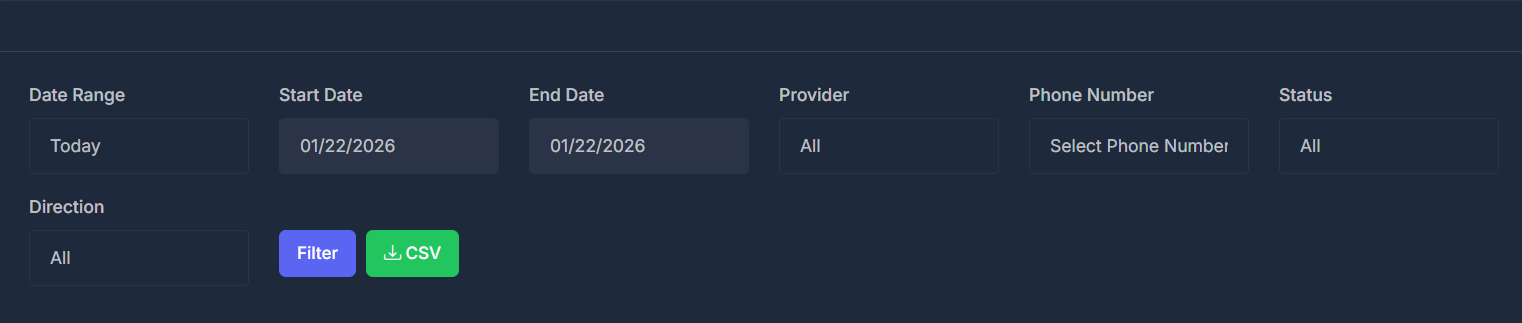
🗓️ Time period
Use Date Range to pick a preset or custom dates.- Custom dates — Unlocks Start Date and End Date so you can set the exact range yourself.
- Today — From the start of today through the end of today (this is the default when you open the report).
- Yesterday — The full previous calendar day.
- This Week (Sun – Today) or This Week (Mon – Today) — From the start of the chosen week through today.
- Last 7 Days — The seven days ending today.
- Last Week (Sun – Sat) or Last Week (Mon – Sun) — The last full week in that pattern.
- Last Business Week (Mon – Fri) — Monday through Friday of the previous business week.
- Last 14 Days — Fourteen days ending today.
- This Month — From the first day of the current month through today.
- Last 30 Days — Thirty days ending today.
- Last Month — The full previous calendar month.
📡 Carrier (Provider)
Provider limits the list to messages tied to numbers from a specific carrier, or shows everything.- All — Every carrier your organization uses (default).
- The first named option — Messages for numbers on the main phone service linked to your account (the label matches your product name).
- AI Sync — Messages for AI Sync numbers.
- The “AI Sync V2” option — Messages for numbers on the alternate phone service .
☎️ Phone number
Phone Number lists numbers from your organization that match the Provider setting. Pick one number to see only traffic involving that number (as sender or recipient), or leave Select Phone Number to include all numbers for the chosen carrier. The list updates when the carrier changes. After you pick a number, the table updates to match.🏷️ Status
Status filters by the reported state of the message.- All — No status filter (default).
- Sent — Marked as sent.
- Delivered — Marked as delivered.
- Queued — Waiting to send.
- Undelivered — Not delivered.
- Received — Received (often used for inbound items).
- Completed — Completed.
- Failed — Failed.
🔄 Direction
Direction separates inbound and outbound traffic.- All — Both directions (default).
- Inbound — Messages coming in to your numbers.
- Outbound — Messages going out from your numbers.
✅ How and when your filters update
- Filter — Click to refresh the table using your latest Date Range, Provider, Phone Number, Status, and Direction selections.
- Changing the Provider reloads the list of phone numbers and automatically updates the table with matches for that carrier.
- Changing the Phone Number, Status, or Direction instantly refreshes the table based on your new choice—no need to click Filter again.
📋 The message list (table)
Each row is one SMS record.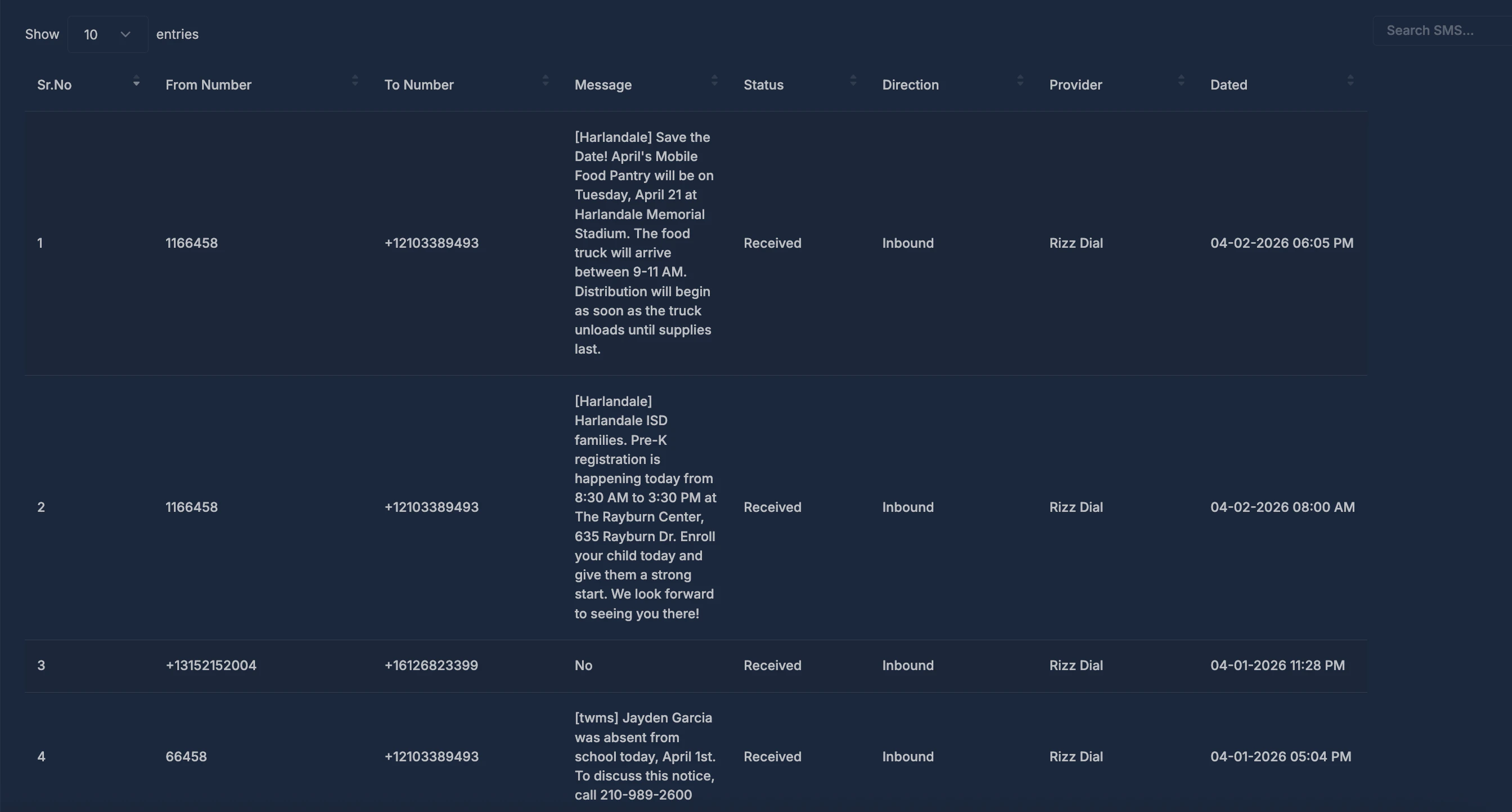
If something is missing in the data, you may see a dash instead of a value.
You can use the search box above the table to narrow rows by what appears in the columns (for example part of a number, a word in the message, or a status).