

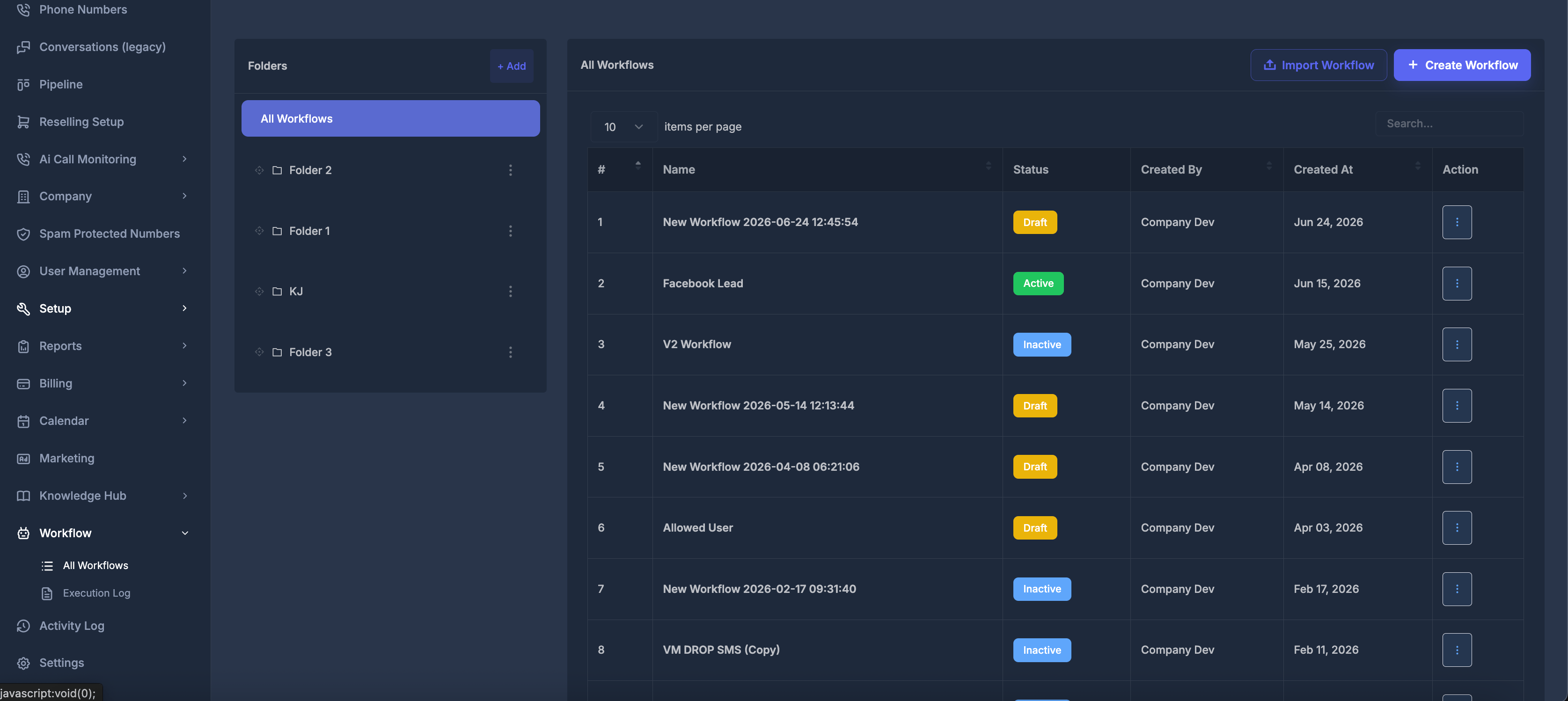
🎯 What This Page Is Used For
Use the Workflows page when you want to:- View all workflows in one place
- Create a new workflow
- Open an existing workflow for editing
- Organize workflows into folders
- Search and browse workflows
- Activate or deactivate workflows
- Duplicate an existing workflow
- Import a workflow from a JSON file
- Export a workflow as a JSON file
- Move a workflow into a different folder
- Delete workflows that are no longer needed
📋 Workflows Table
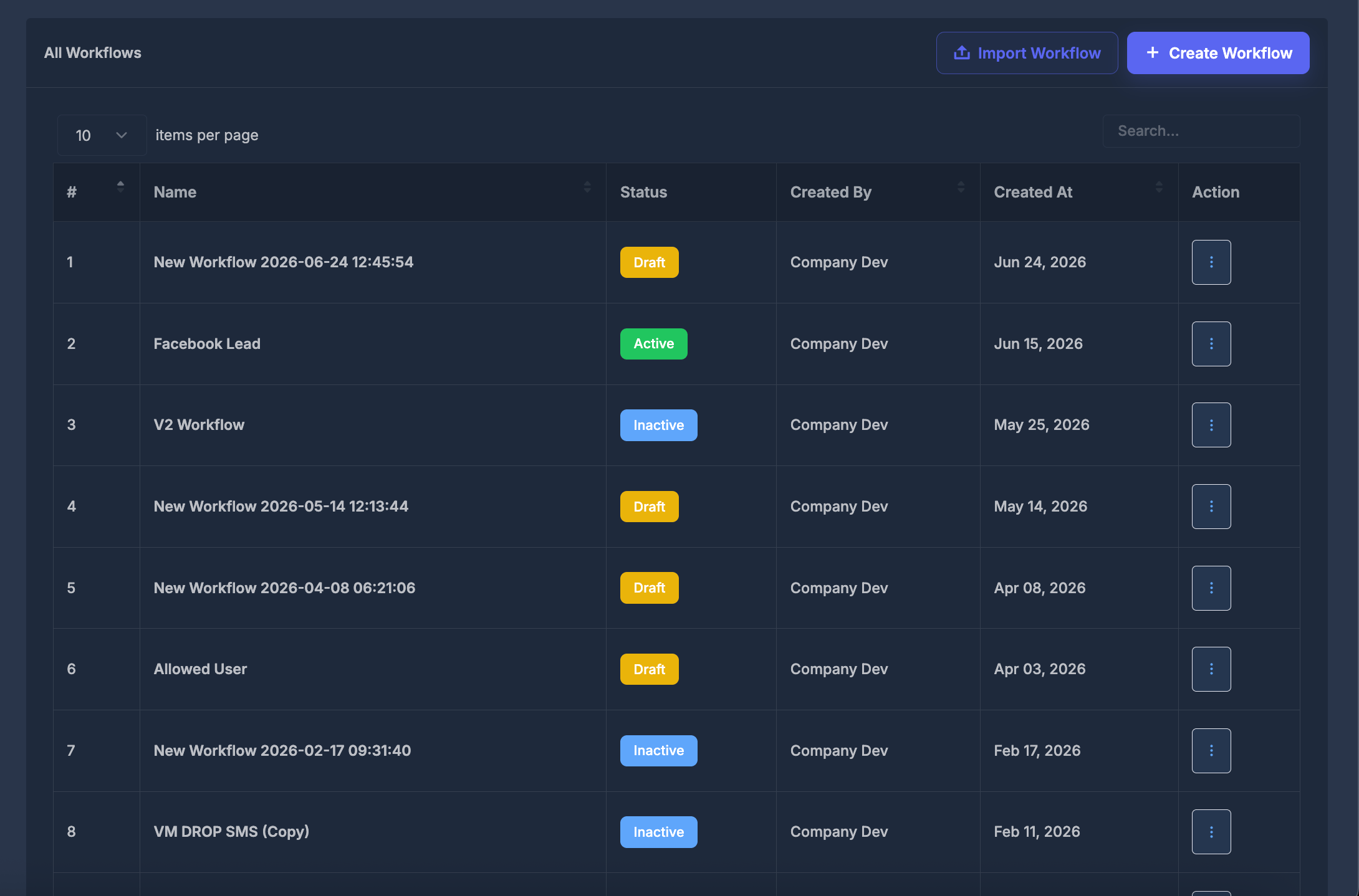
The right side shows the workflow list. Each workflow row includes:- Number
- Workflow name
- Status
- Created by
- Created date
- Action menu
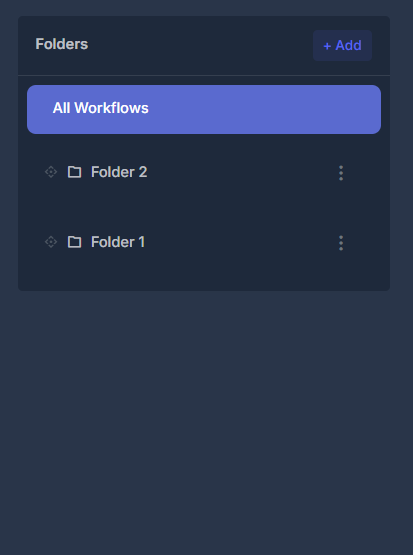
📁 Folders
Folders are optional, but they are useful when an account has many workflows.➕ Add a Folder
Click Add in the Folders panel. Enter a folder name, then click Save. After saving, the folder appears in the folder list.
✏️ Edit a Folder
Open the folder’s three-dot menu and choose Edit. Update the folder name, then save it.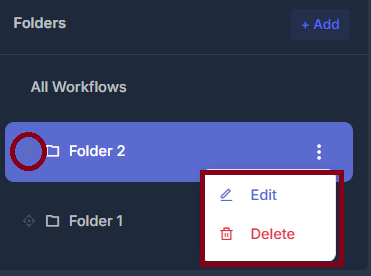
You can change a workflow’s status from the row action menu.
If a workflow is active, the action menu shows Deactivate. If it is inactive or draft, the action menu shows Activate.
➕ Creating a Workflow
Click Create Workflow to start a new workflow.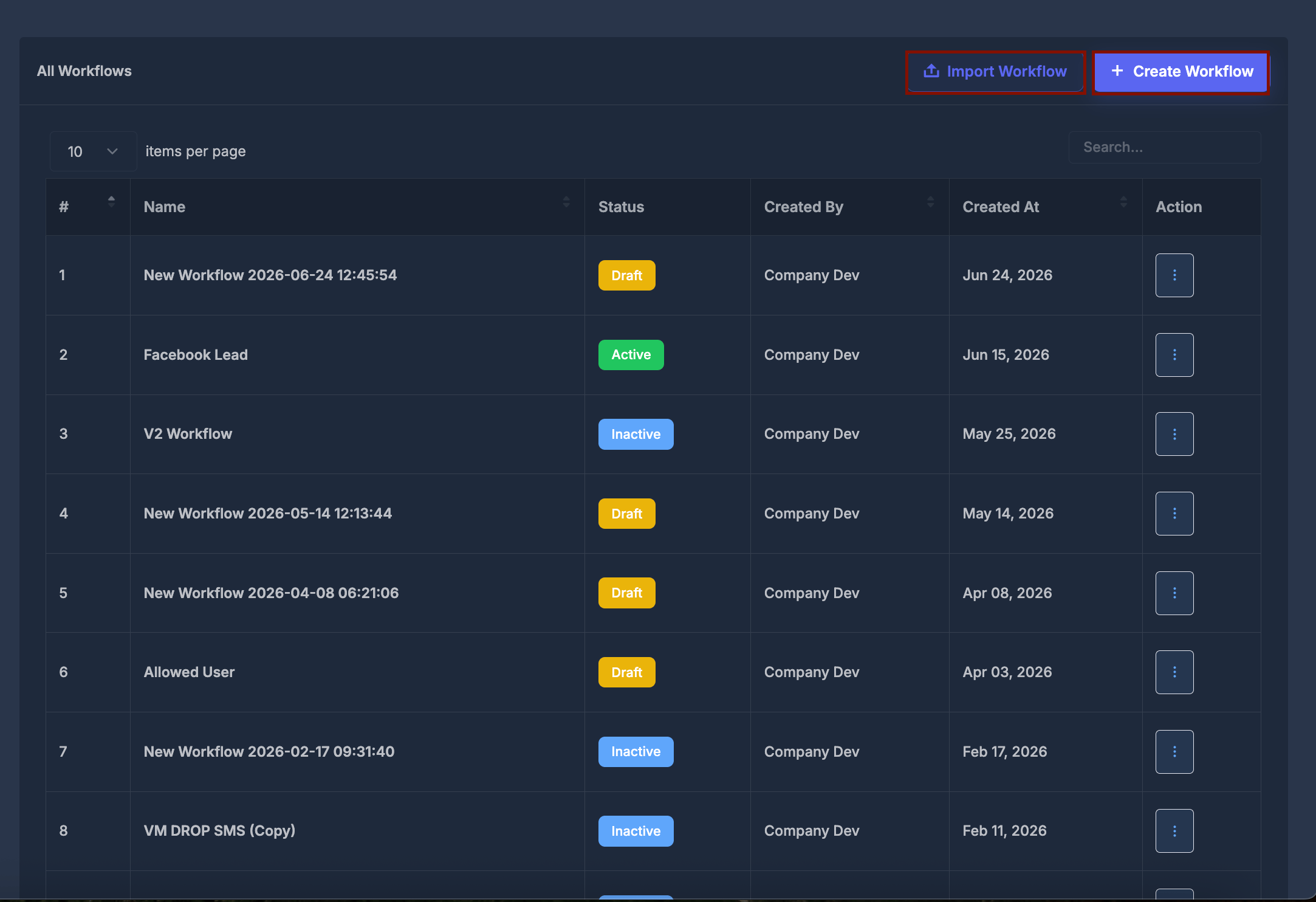
📥 Importing a Workflow
Click Import Workflow to upload a workflow JSON file.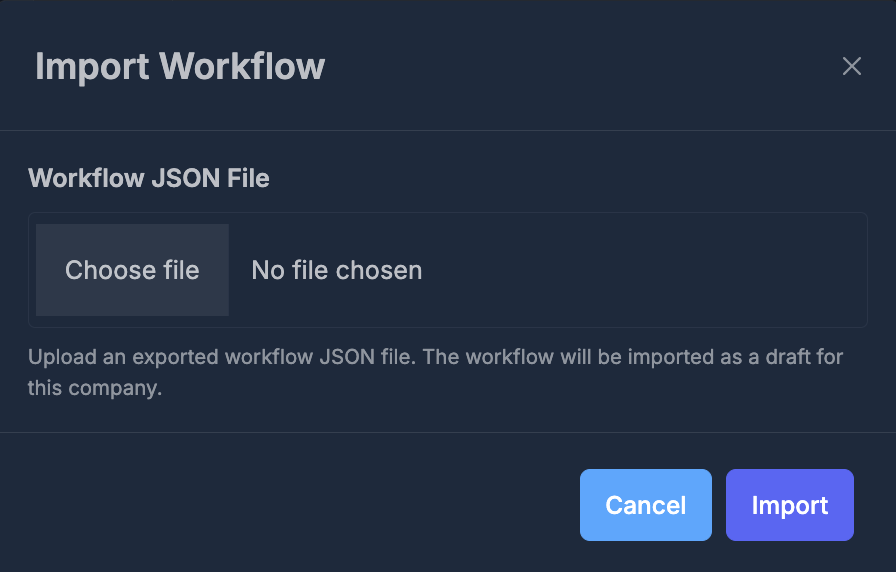
- Click Import Workflow
- Choose a valid workflow JSON file
- Click Import
- Wait for the import to finish
⚙️ Workflow Actions Menu
Each workflow row has a three-dot action menu. Available actions can include:- Edit
- Change Folder
- Activate or Deactivate
- Duplicate
- Export
- Delete
- No folders yet — no workflow folders have been created
- No workflows in selected folder — the selected folder does not contain workflows
- No matching search results — the search term does not match any workflow
🛠️ Workflow Builder
When you click Create Workflow, a workflow name, or Edit from the action menu, the Workflow Builder opens. This is where you design triggers, actions, and the full automation flow.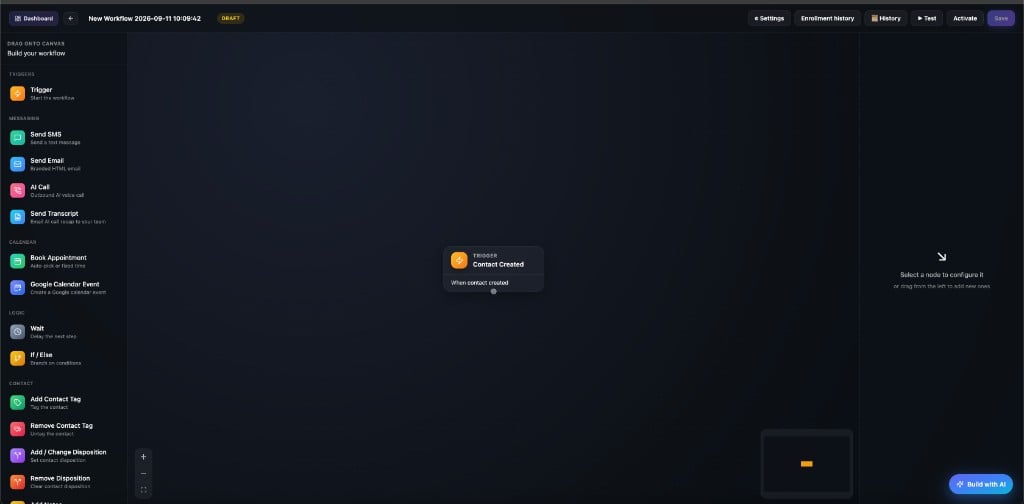
🎨 Builder Canvas
The builder has three main areas:- Left sidebar — drag triggers and actions onto the canvas
- Center canvas — visual grid where your workflow is built
- Right panel — configure the selected trigger or action
Triggers start the workflow. Actions run after a trigger fires. Use the + controls on the canvas to add more steps and connect them into a flow.
⚡ Available Triggers
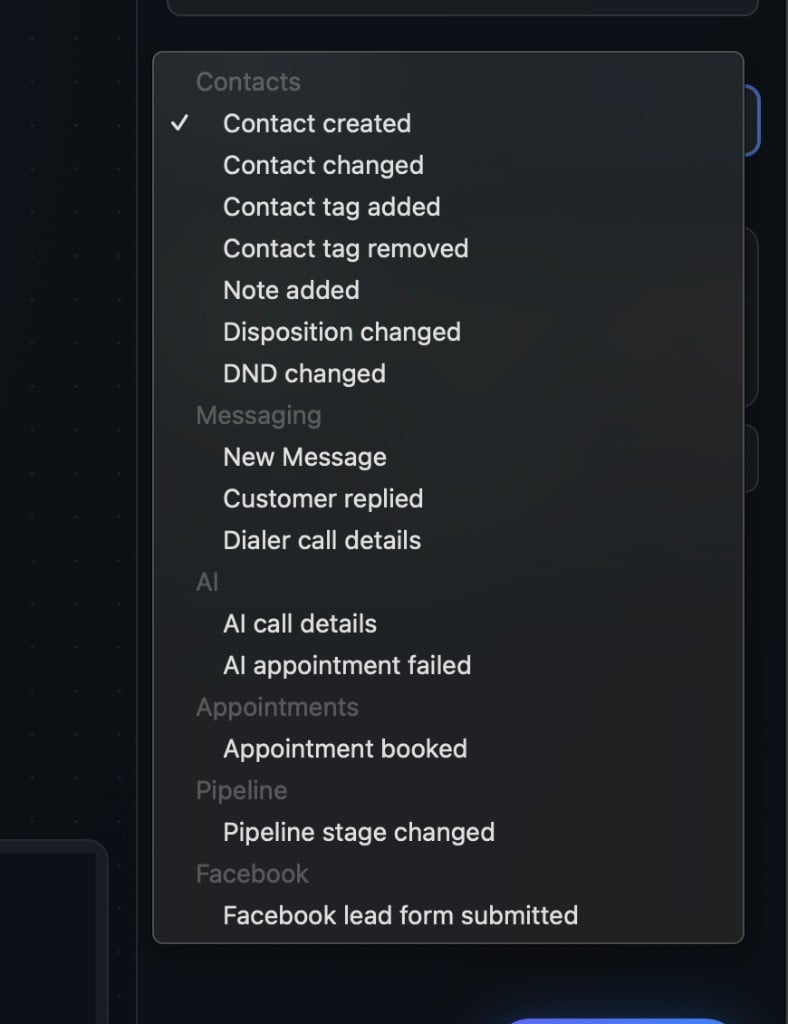
Drag a Trigger block from the left sidebar (TRIGGERS → Trigger) onto the canvas. Click it to open CONFIGURE trigger in the right panel, then choose a Trigger Event.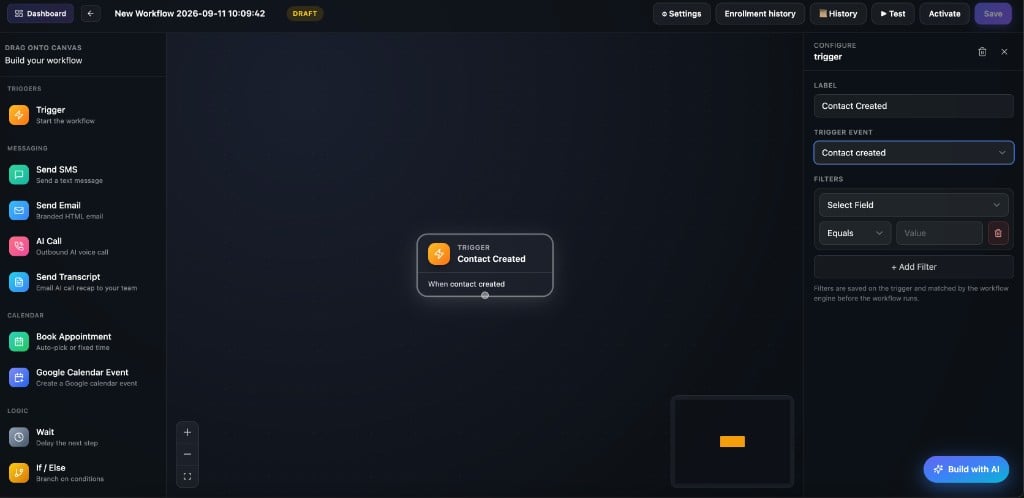
Filters are saved on the trigger and matched by the workflow engine before the workflow runs.
Trigger events
Open the Trigger Event dropdown to pick from these groups:
⚡ Configure a Trigger or Action
Click any block on the canvas to open its settings in the right panel. Update the label, choose the trigger event, add filters, or configure action-specific options.⚙️ Workflow Settings
Click Settings in the builder toolbar to open communication and timing options for the workflow.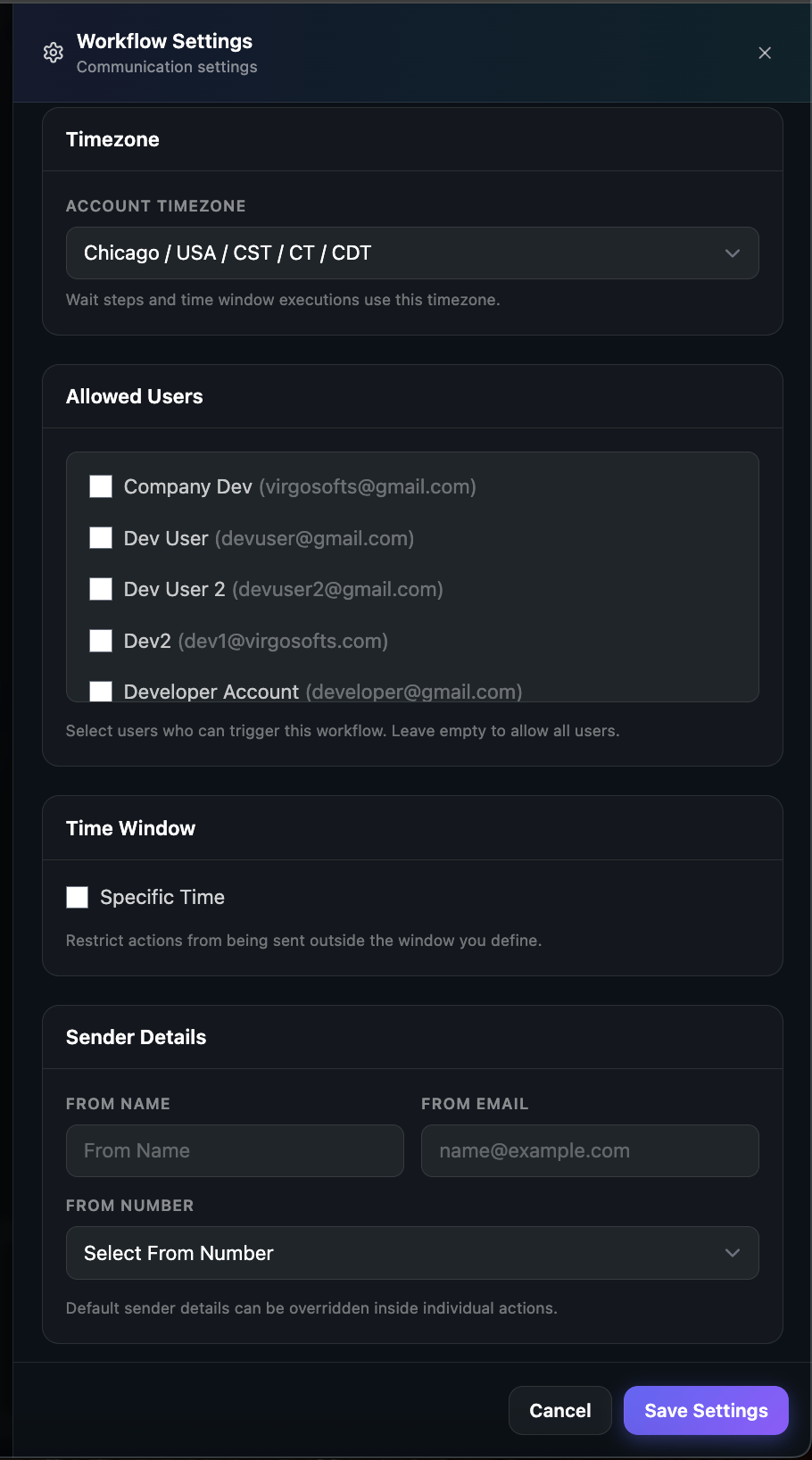
- Timezone — used for wait steps and time window rules
- Allowed Users — choose who can trigger this workflow; leave empty to allow all users
- Time Window — restrict when automated actions may run
- Sender Details — default From Name, From Email, and From Number for outgoing messages
🧪 Test, History, and Enrollment history
These three buttons sit in the builder header next to Settings, Activate, and Save. They apply to this workflow only — open the workflow first.- Test — practice run you start yourself
- History — log of runs (tests and live)
- Enrollment history — roster of contacts who entered this workflow
▶ Test
Use Test to walk the path on the canvas without waiting for a real-life event. What a test does- Runs this workflow for a contact you pick
- Steps light up on the canvas so you can see the path
- Wait steps finish immediately (no real delay)
- SMS, email, and similar messages are not actually sent — the test pretends they succeeded
- After a test, View Activity opens that contact’s activity timeline
- Add your trigger and actions on the canvas
- Click Save
- Click ▶ Test
- Choose Trigger to test if there is more than one trigger
- For a call-details trigger, also choose a Call status (for example No-answer)
- Under Phone / Contact, search and select a contact (required)
- Click ▶ Run test
- Add at least one node to the canvas
- Click Save if it is available
- Select a contact in the Test window
📜 History
History (panel title: Execution history) is the run log for this workflow. It shows the last 50 runs. Each row typically shows:- Contact name (or a run number)
- Steps finished vs total
- FAILED badge if any step failed
- Phone, trigger, and how long ago it ran
- Status icon: completed, failed, running, paused, or other
- Trigger and overall status
- Started and Completed times
- Each step in order with completed / failed / running
- Red error message if something failed
- Short execution log in time order
👥 Enrollment history
Enrollment history is the contact roster for this workflow (last 30 days).
Filters: Start / End date · Event · Contact search · refresh · Previous / Next
Remove appears only while the contact is still in progress. Confirm to stop them in this workflow — they are not deleted from your contacts list.
✨ Build with AI
Click Build with AI in the builder to describe a workflow in plain language. The AI lays out triggers and actions on the canvas based on your prompt.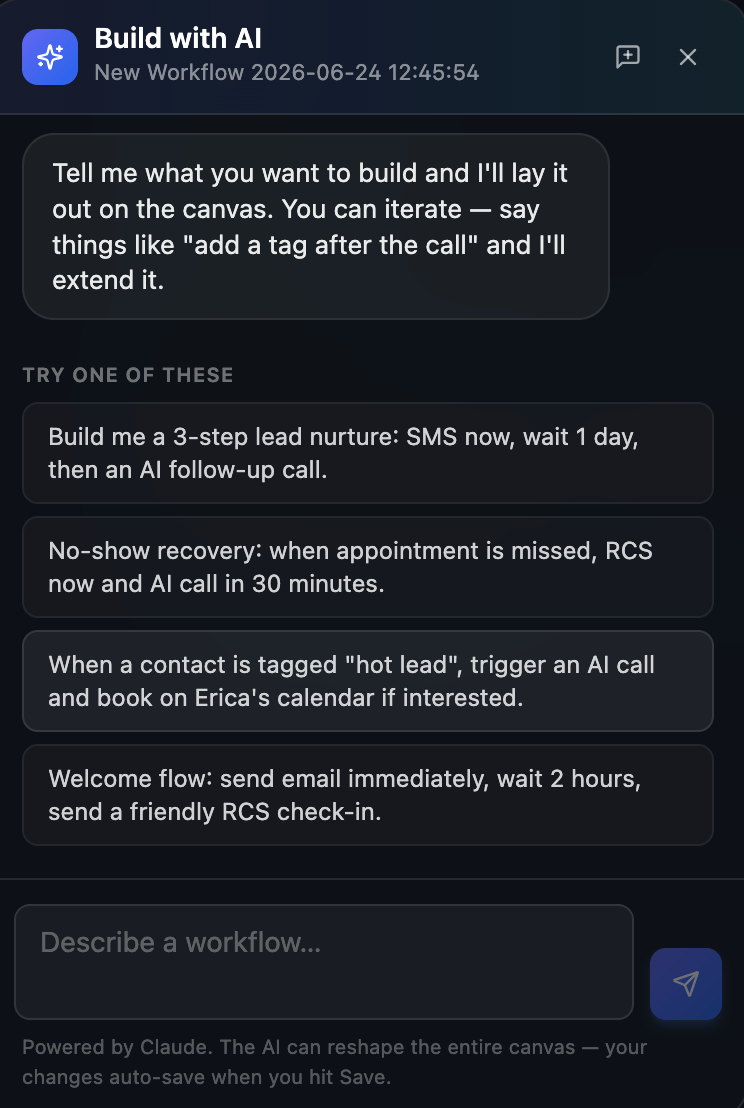
💾 Save and Activate
Use Save in the builder toolbar to store your design. Use Activate to turn the workflow on once it is ready. Use Back to return to the All Workflows list.
For organization-wide past runs, see Execution Logs.