You can sign in without your password. Ask for a 6-digit code, type it in, and you're in. The code comes by text to your verified phone, or by email if you'd rather. Your password keeps working too.
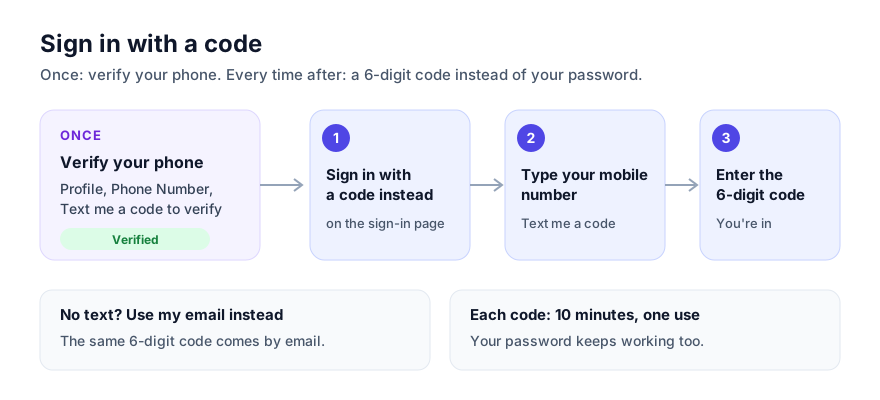
Step 1: Verify your phone (once)#
A code is only ever texted to a phone you verified yourself.
- Open your Profile.
- Under Personal Settings, check your mobile number in Phone Number.
- Click Text me a code to verify.
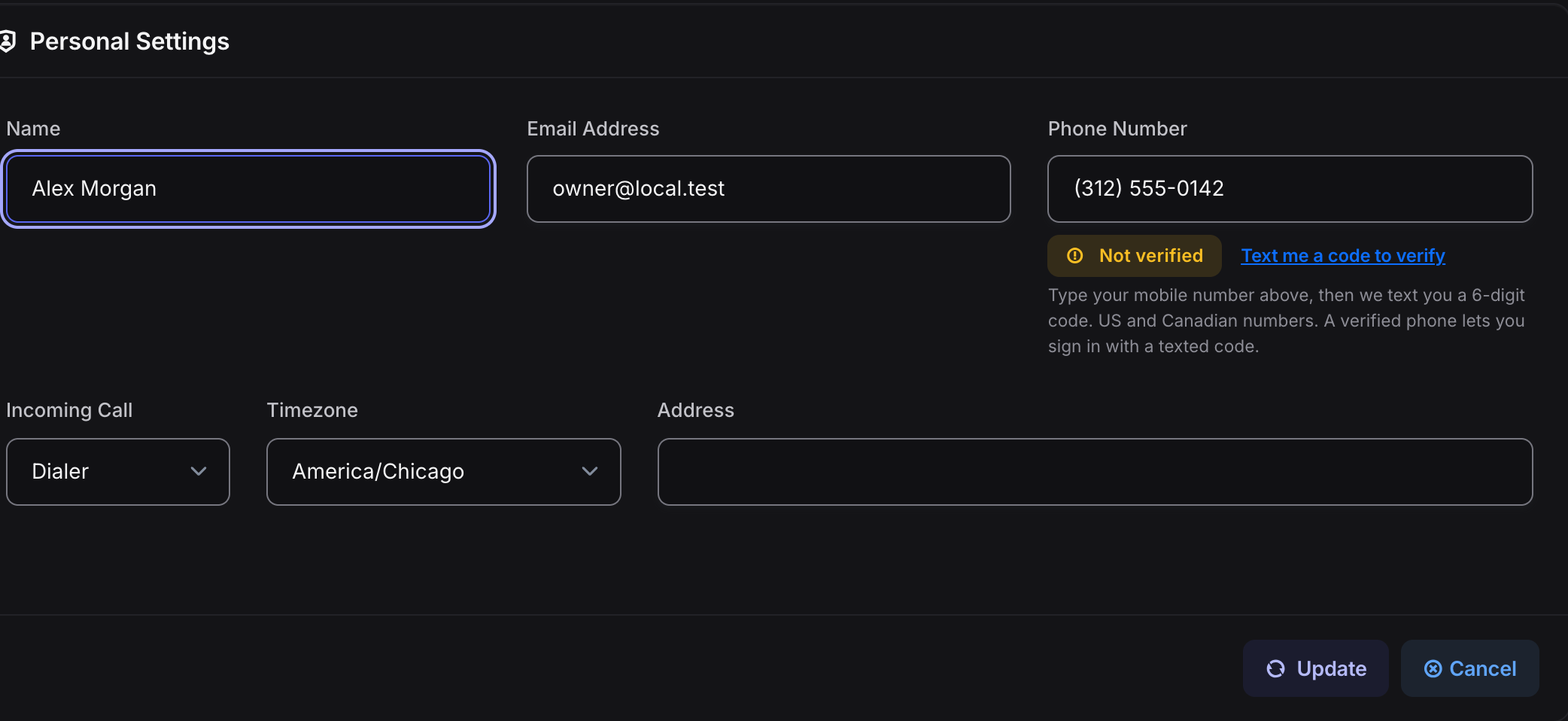
- Type the 6-digit code from the text and click Verify. No text? Click Send a new code.
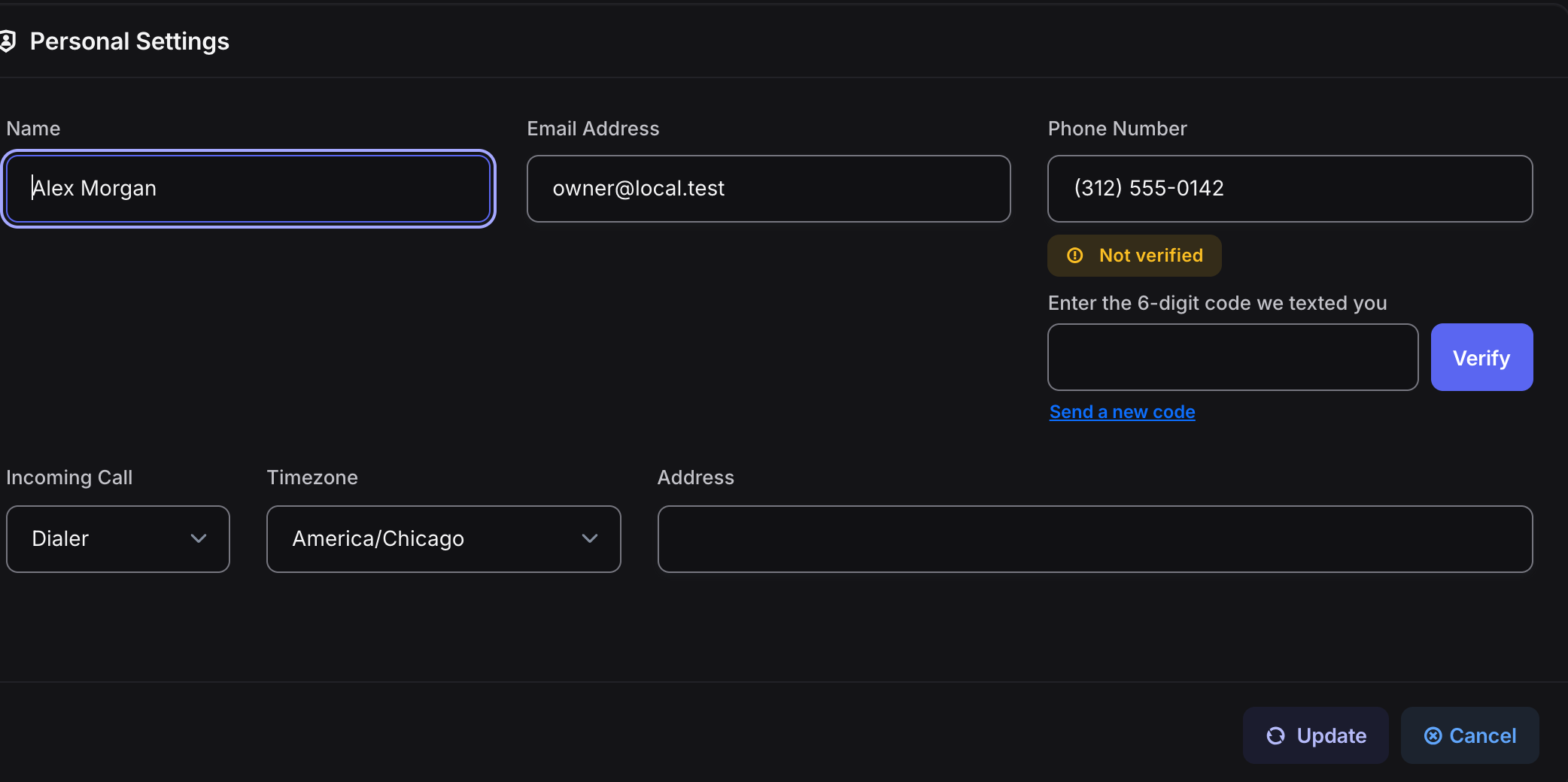
The badge changes to Verified · can receive sign-in codes.
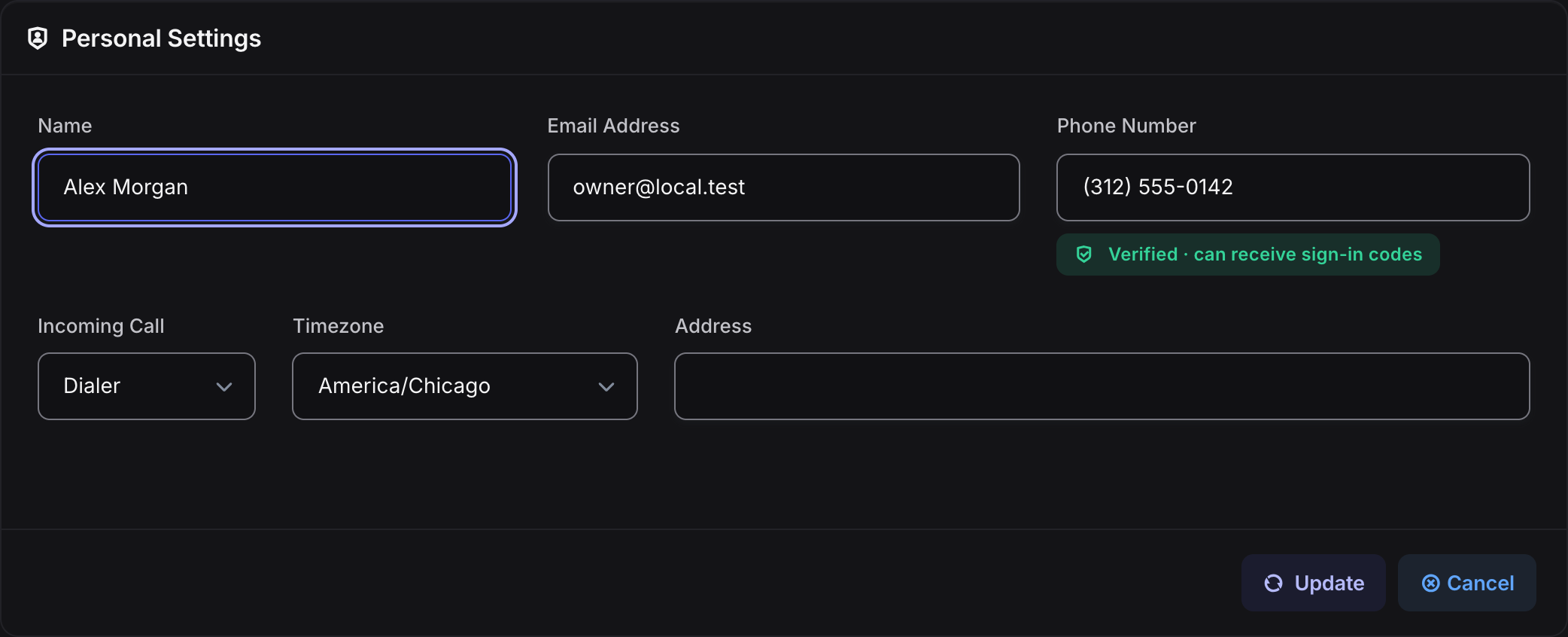
- Only US and Canadian mobile numbers can be verified.
- If you change your phone number, verify the new one. Codes stop going to the old number.
Step 2: Sign in with a code#
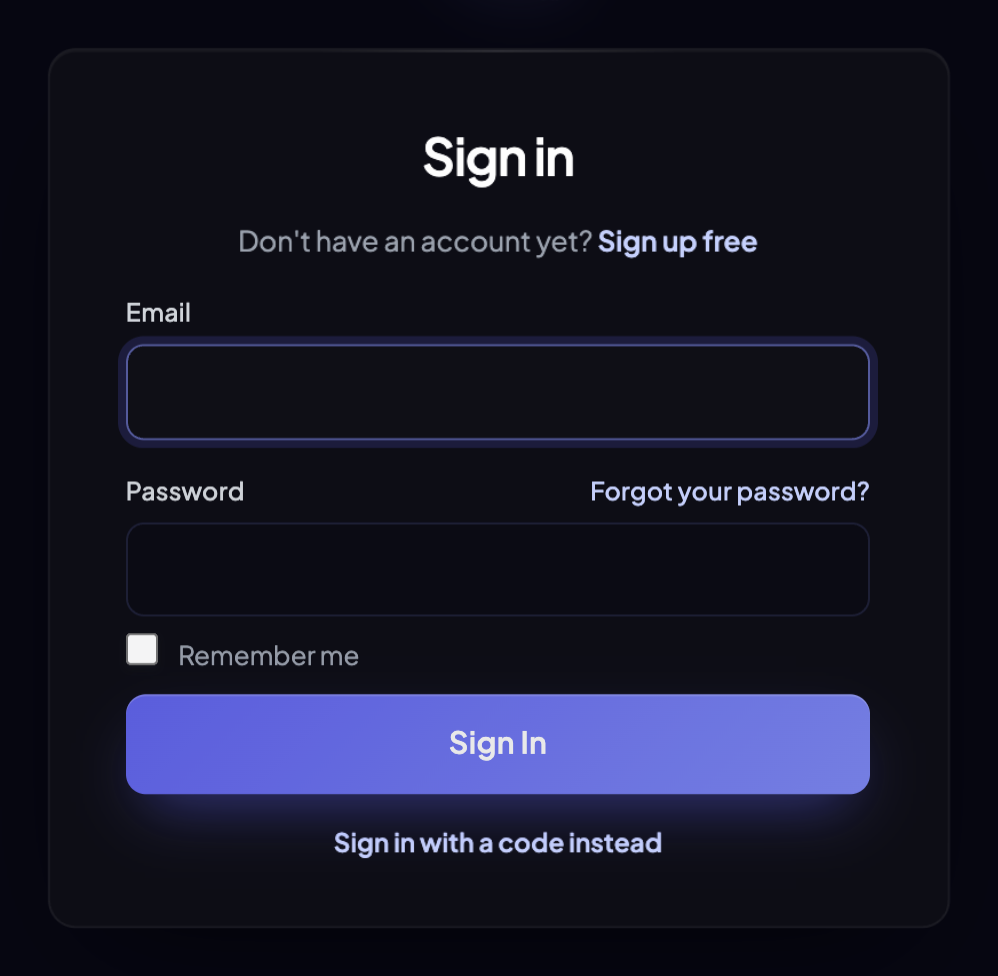
- On the sign-in page, click Sign in with a code instead.
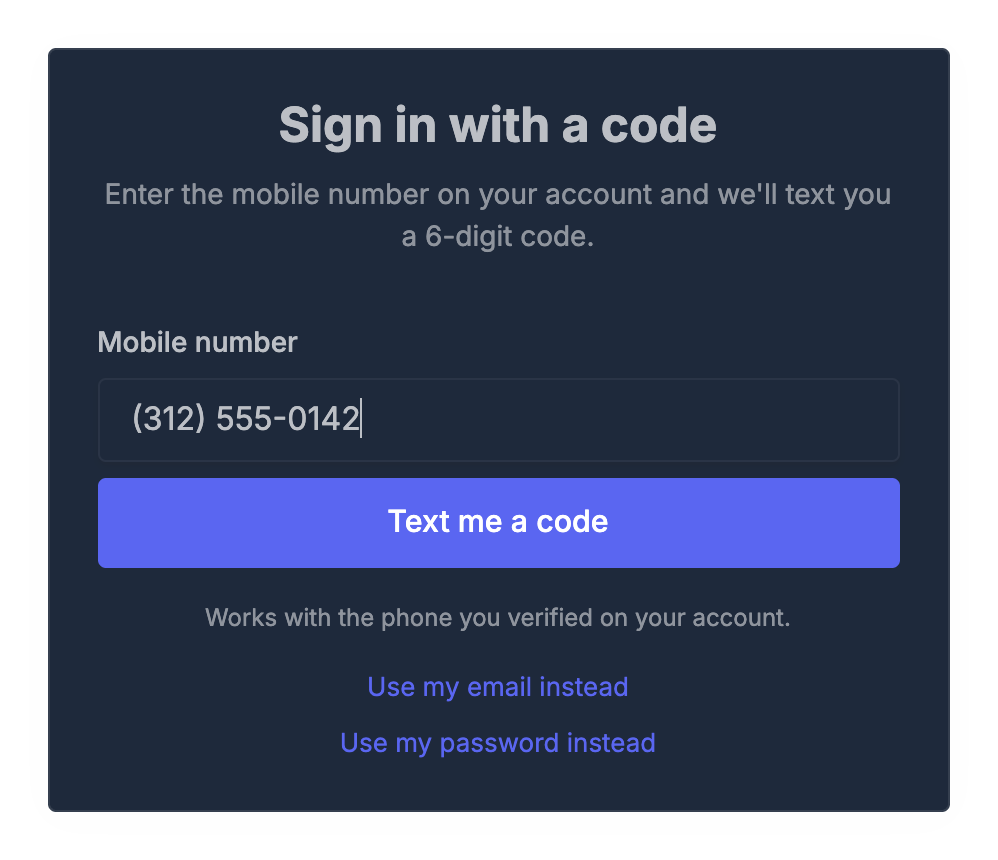
- Type your mobile number and click Text me a code.
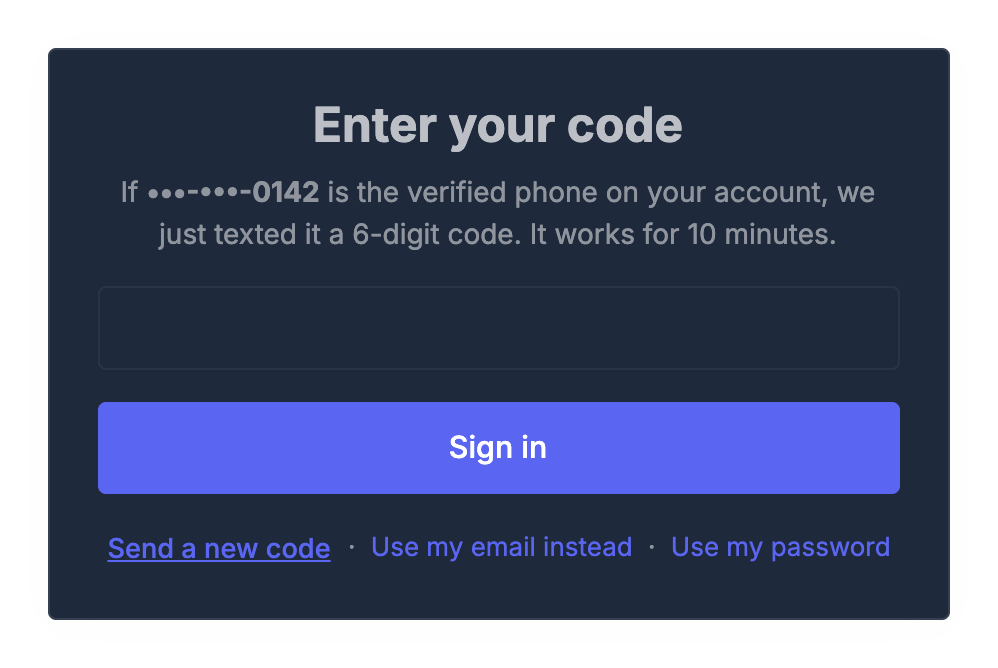
- Type the 6-digit code from the text and click Sign in.
After a sign-in by text, we email your account address to let you know.
No text? Use your email#
Click Use my email instead, type the email on your account and click Email me a code. The same kind of 6-digit code arrives by email. Use this when:
- you haven't verified your phone yet;
- the text doesn't arrive;
- the same phone number is verified on more than one account. A number shared by several accounts can't tell us who is signing in, so those people use their email.
About the codes#
- A code works for 10 minutes and only once.
- After 5 wrong tries the code stops working. Ask for a new one.
- You can ask for up to 3 codes every 10 minutes.
- The screens look the same whether or not an account or verified phone exists, so nobody can use them to find out who has an account.
Ask your AI assistant#
If your AI assistant is connected, ask it "Is my phone verified for sign-in codes?". It can tell you, but verifying your phone always happens in the app.