The Email section (in the menu next to Messages) is where you:
- see how your emails are doing: delivered, opened, clicked, bounced, marked as spam, unsubscribed
- build emails that look good on every phone and inbox, with no code
- pick those emails in any automation's Send email step
✅ Before you start#
Connect your own sending account and turn on tracking first: Send Email From Your Own Domain. Setting it up for a client? Follow Set up email for a client. Until then, emails still go out, but from a shared address and with no stats.
📊 Overview#
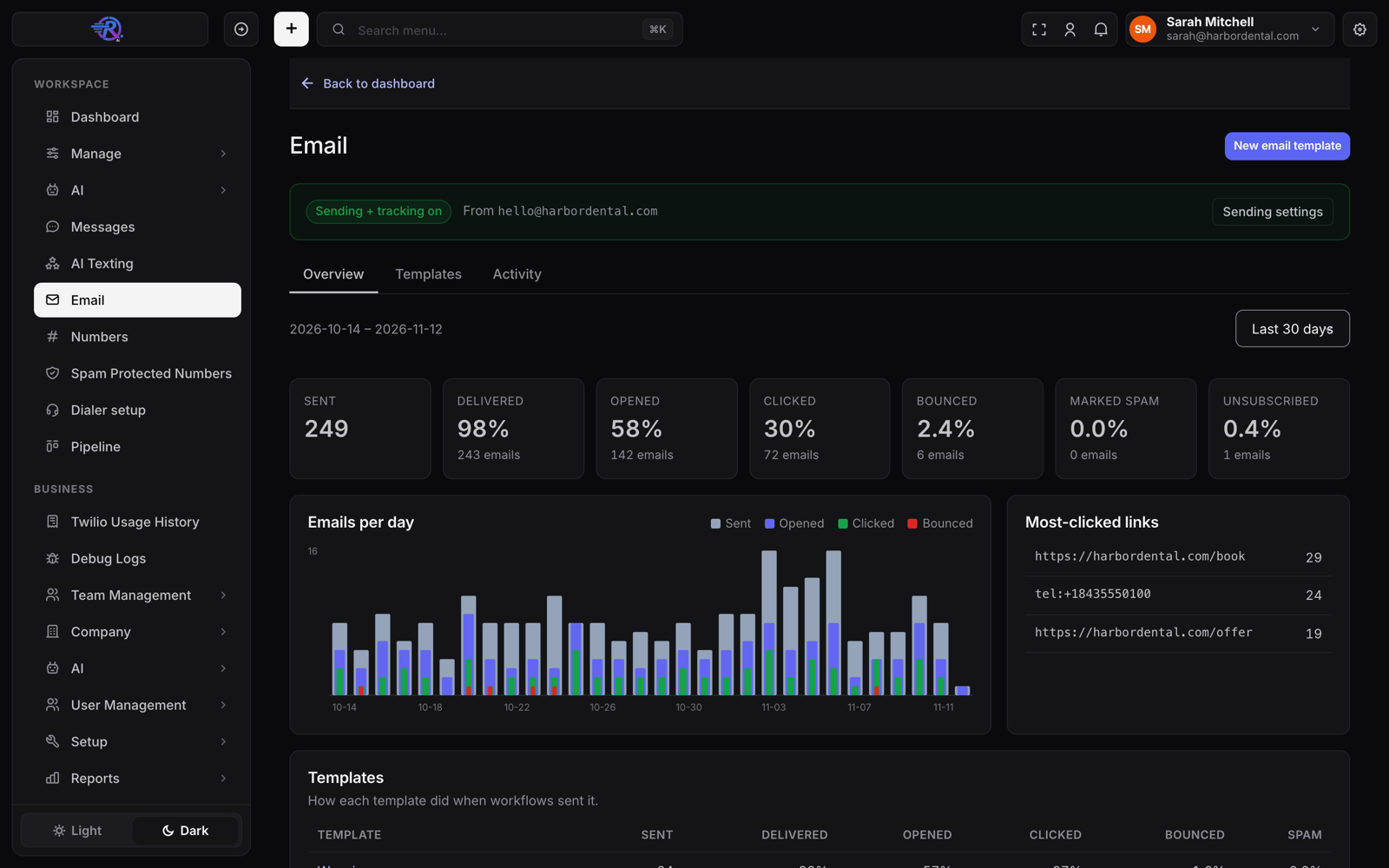
Pick a date range (7, 30 or 90 days) to see:
| Number | What it means |
|---|---|
| Sent | Emails that left for a lead |
| Delivered | The lead's email provider accepted it |
| Opened | The lead opened it (approximate, see below) |
| Clicked | The lead clicked a link in it |
| Bounced | The address doesn't work. The contact is set to Do not email |
| Marked spam | The lead reported it as spam. The contact is set to Do not email |
| Unsubscribed | The lead clicked Unsubscribe |
Below that: emails per day, your most-clicked links, and how each template did.
If bounces pass 5% or spam reports pass 0.3%, Gmail and Yahoo start blocking your emails. The Overview warns you before that happens. Send only to people who asked to hear from you, and clean old lists before a big send.
Opens are approximate: Apple Mail opens every email by itself to load the pictures. Clicks and replies are the real signal of interest.
🎨 Build an email template#
Start a template
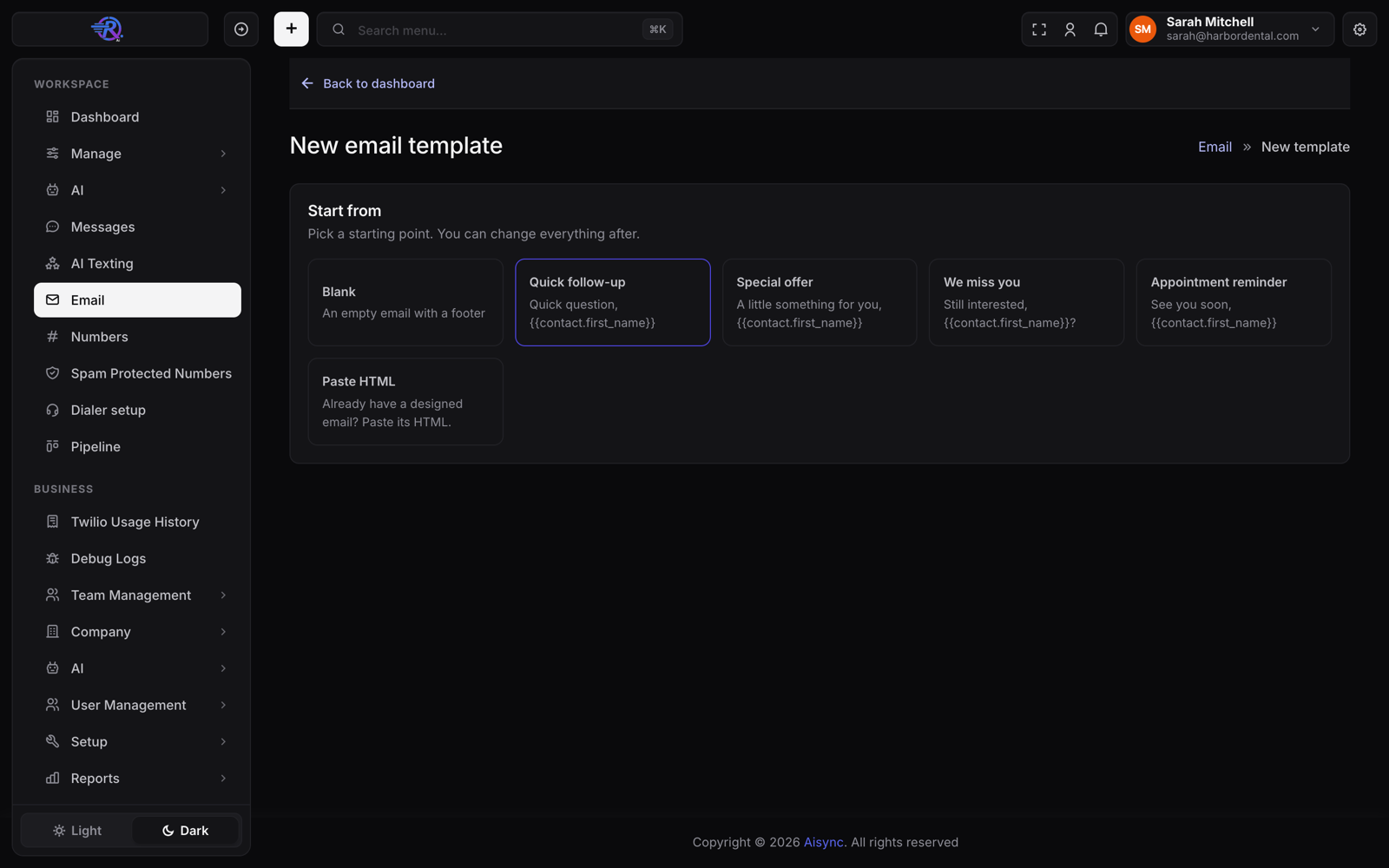
Open Email → Templates and click New template. Pick a starting point: Blank, Quick follow-up, Special offer, We miss you, Appointment reminder, or Paste HTML if you already have a designed email.
Name it and write the subject
Give it a name your team will recognize, a subject line, and a preview text (the grey line people see after the subject in their inbox).
Add and edit blocks
Click a block type to add it: Heading, Text, Button, Image, Divider, Space, HTML or Footer. Click a block to edit it. Drag ⠿ (or use the arrows) to reorder.
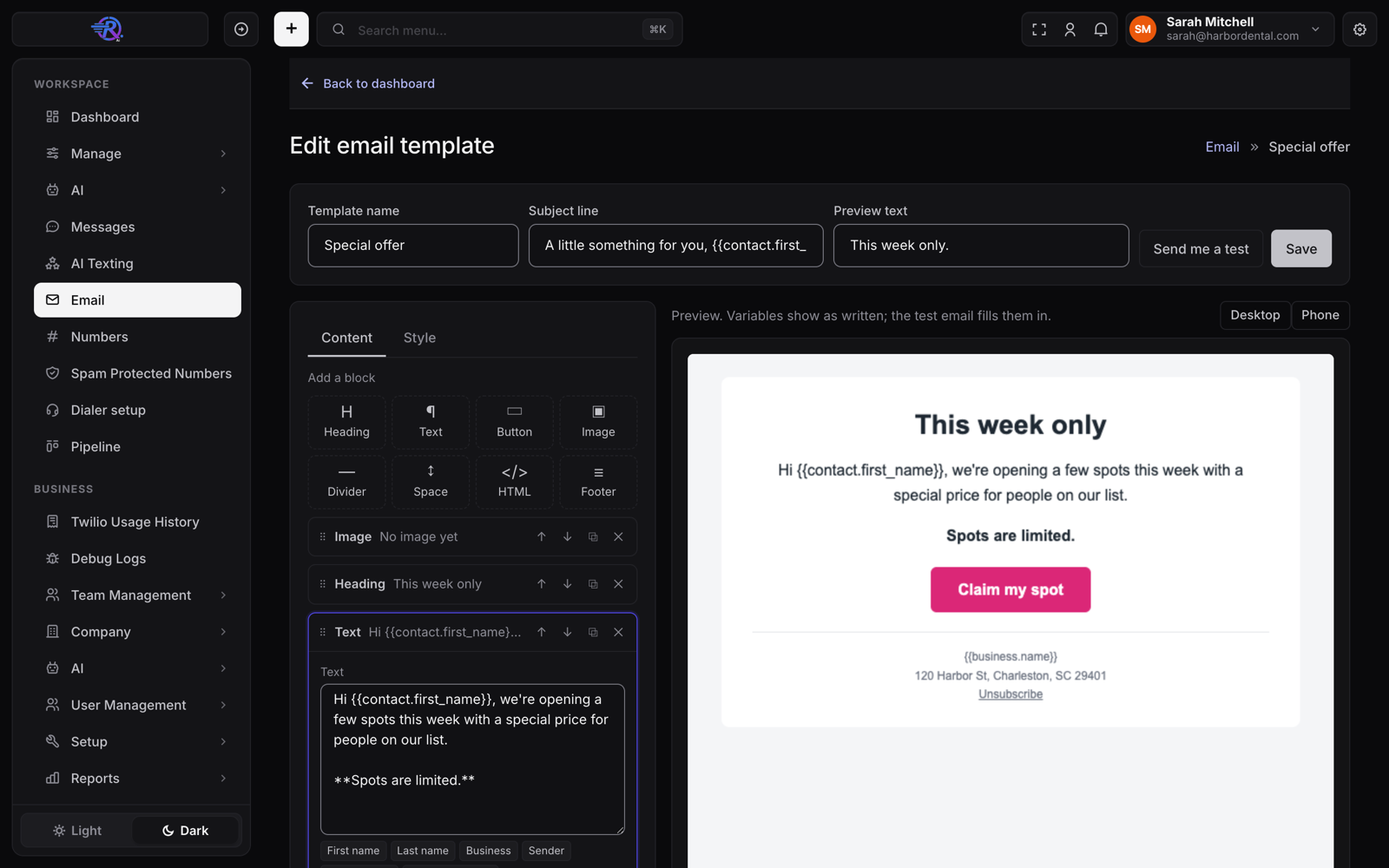
In text: **bold**, *italic*, and [link words](https://yoursite.com).
Click a variable button to insert the lead's first name, your business name, the sender's name, or the appointment time.
Images must already be online (your website, or a public share link) and start with https://.
Style it
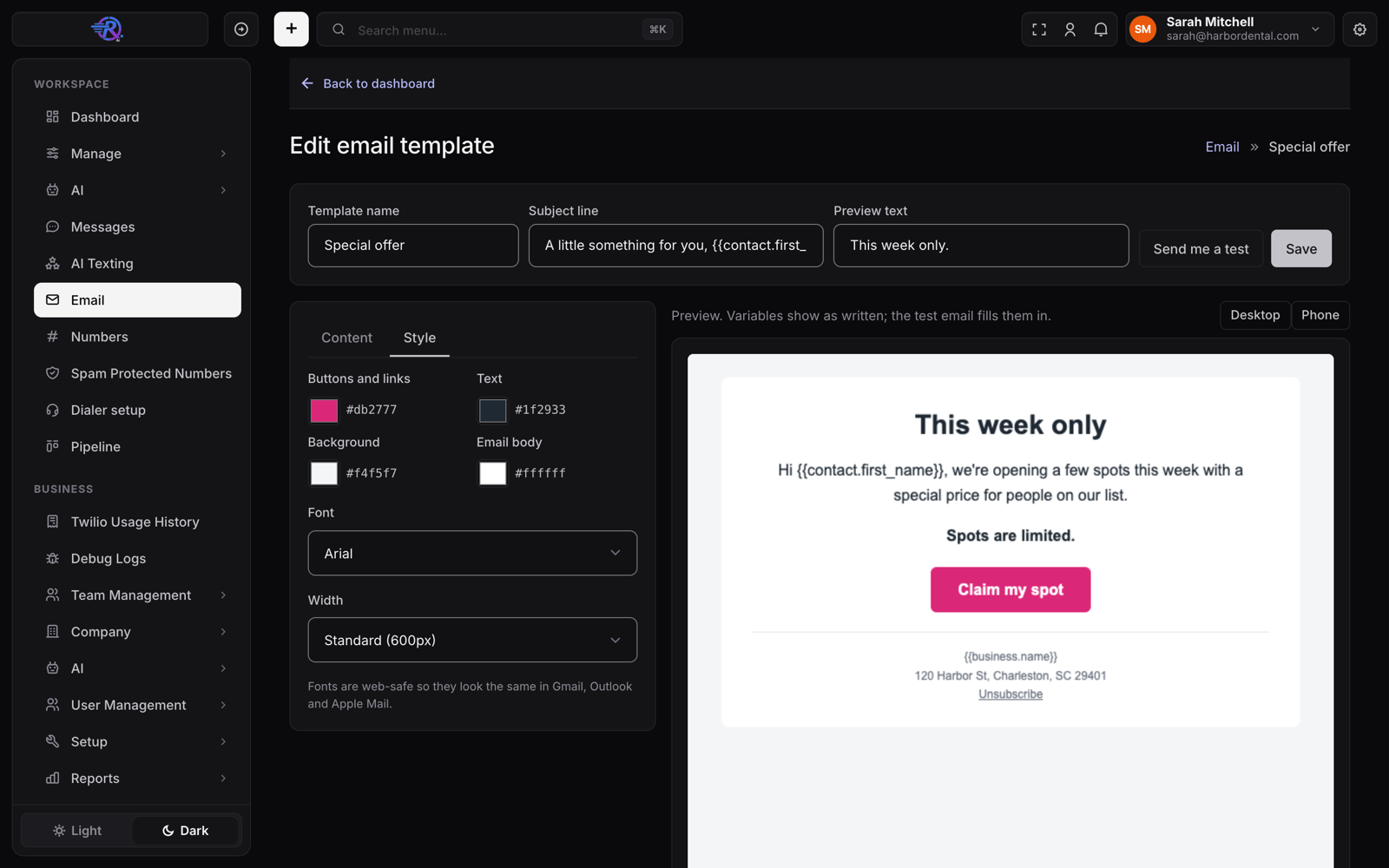
Open Style to set your button color, text and background colors, font and width. Every font is one that looks the same in Gmail, Outlook and Apple Mail.
Check it and save
Switch the preview between Desktop and Phone. Click Save, then Send me a test to get it in your own inbox with sample values filled in.
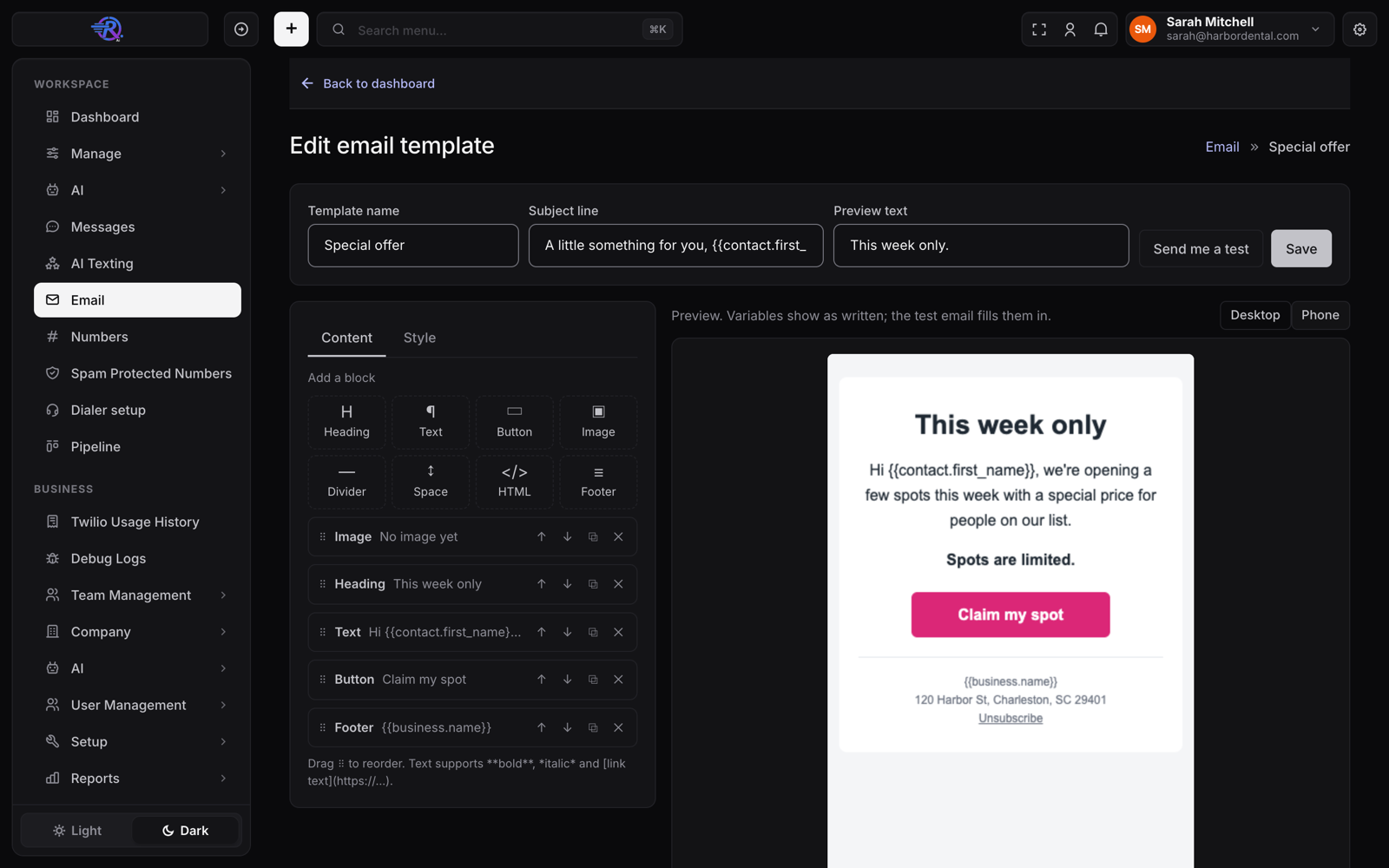
Keep the Footer block on marketing emails. It holds your business name, your postal address (US law requires it on marketing email) and the Unsubscribe link.
Variables you can use#
| Variable | Becomes |
|---|---|
{{contact.first_name}} | The lead's first name (any contact field works: {{contact.last_name}}, …) |
{{business.name}} | Your business name |
{{user.name}} | The name of the person the email is from |
{{appointment_time}} | The appointment time (in appointment automations) |
{{unsubscribe_link}} | The lead's own one-click unsubscribe link |
⚙️ Send a template from an automation#
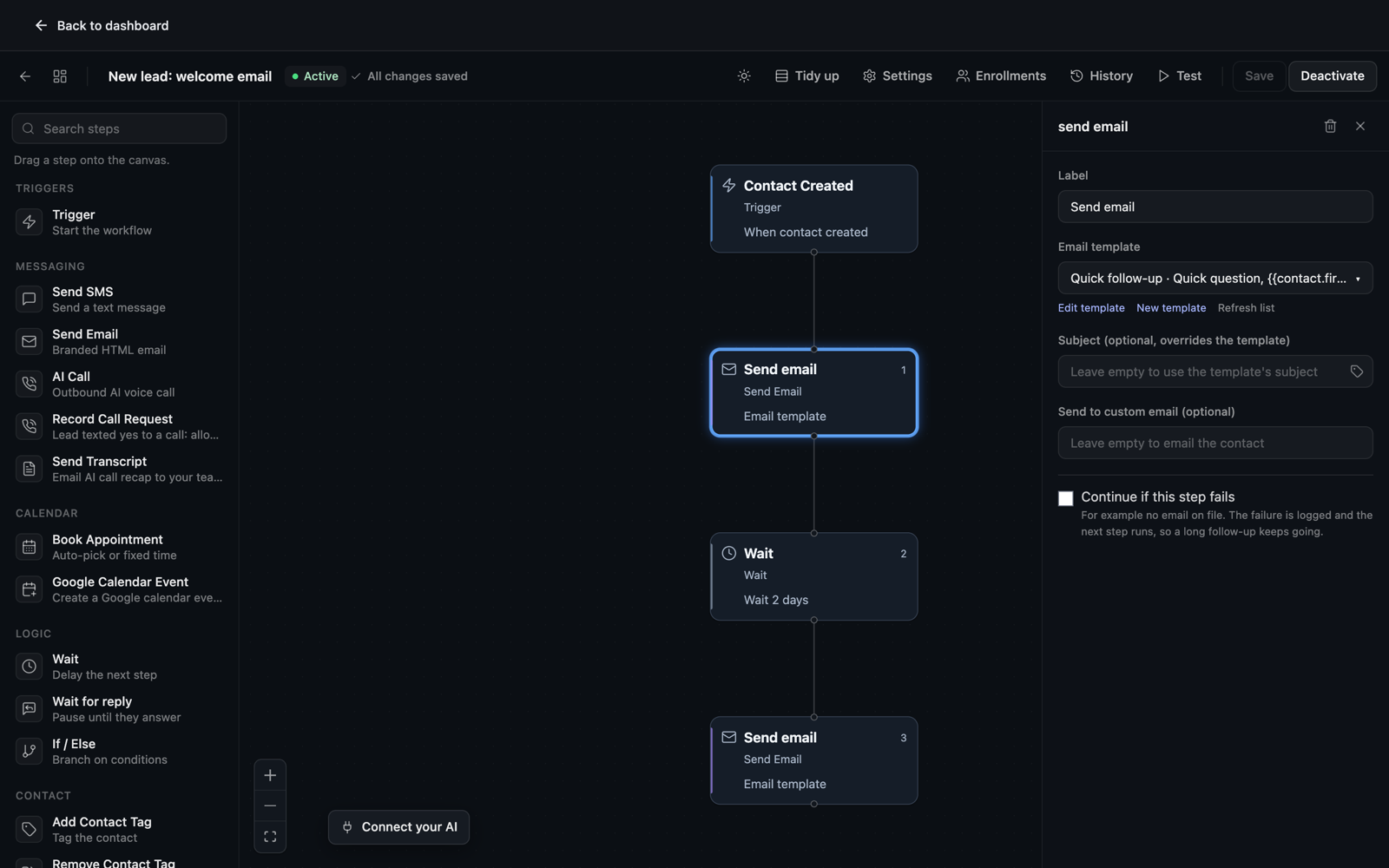
- Open the automation and click its Send email step.
- Under Email template, pick your template. The body box disappears because the template is the body.
- Leave Subject empty to use the template's subject, or type one to override it for this step.
Edit the template later and every automation using it sends the new version. You can't delete a template that an active automation uses without a warning first.
🎯 Follow up on email activity#
Use the Email activity trigger to start an automation when a lead:
| Event | Starts when |
|---|---|
| clicked | They click a link (first click on that email) |
| opened | They open it (first open on that email) |
| bounced | The address bounced |
| complained | They marked it as spam |
| unsubscribed | They clicked Unsubscribe |
Add a filter for the Email event, a Clicked link (for example
contains /book), or an Email template ID.
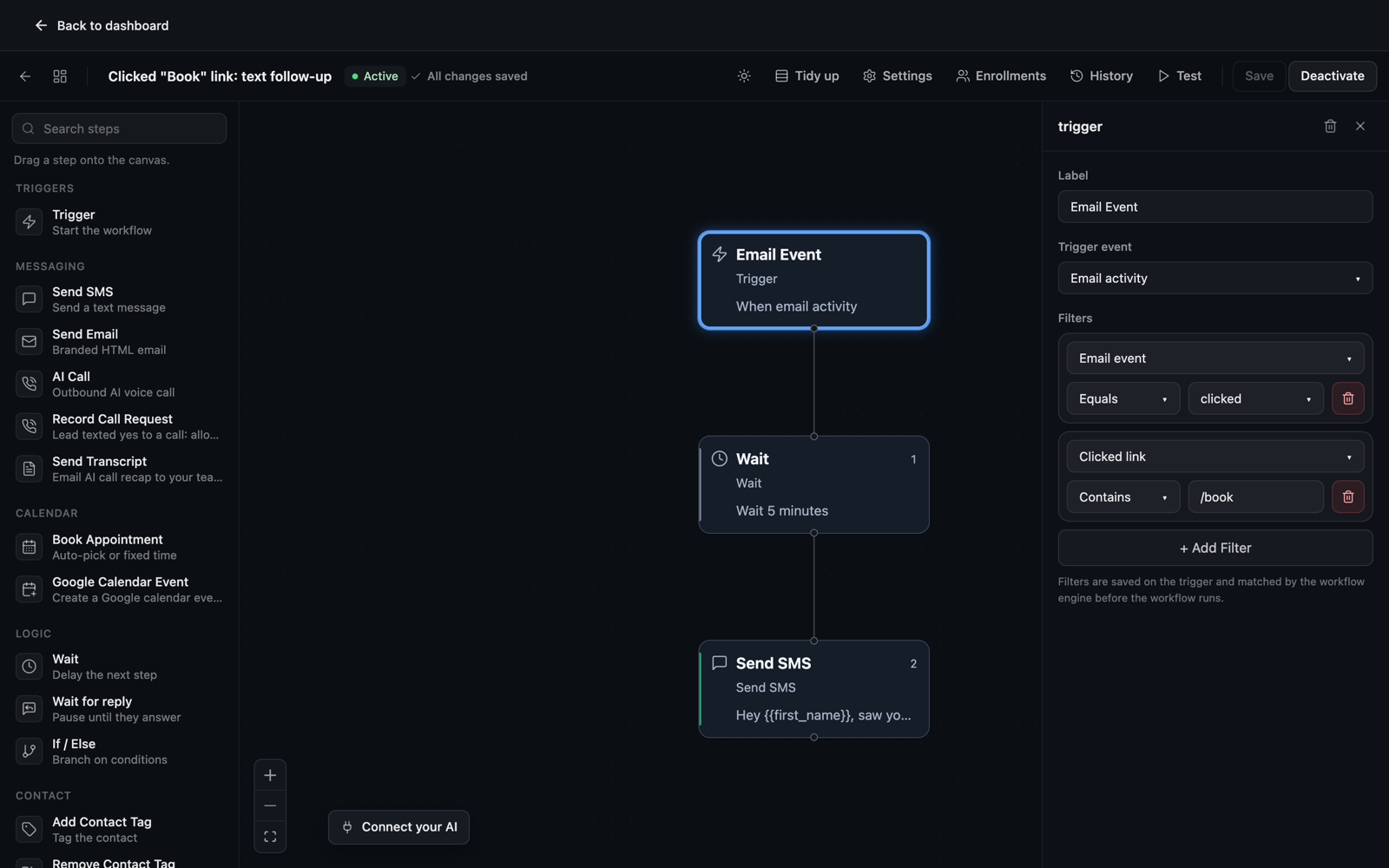
A strong play: Email activity → clicked with link contains /book, then
a text or AI call a few minutes later: "Saw you were checking out times. Want
me to grab one for you?"
📜 Activity#
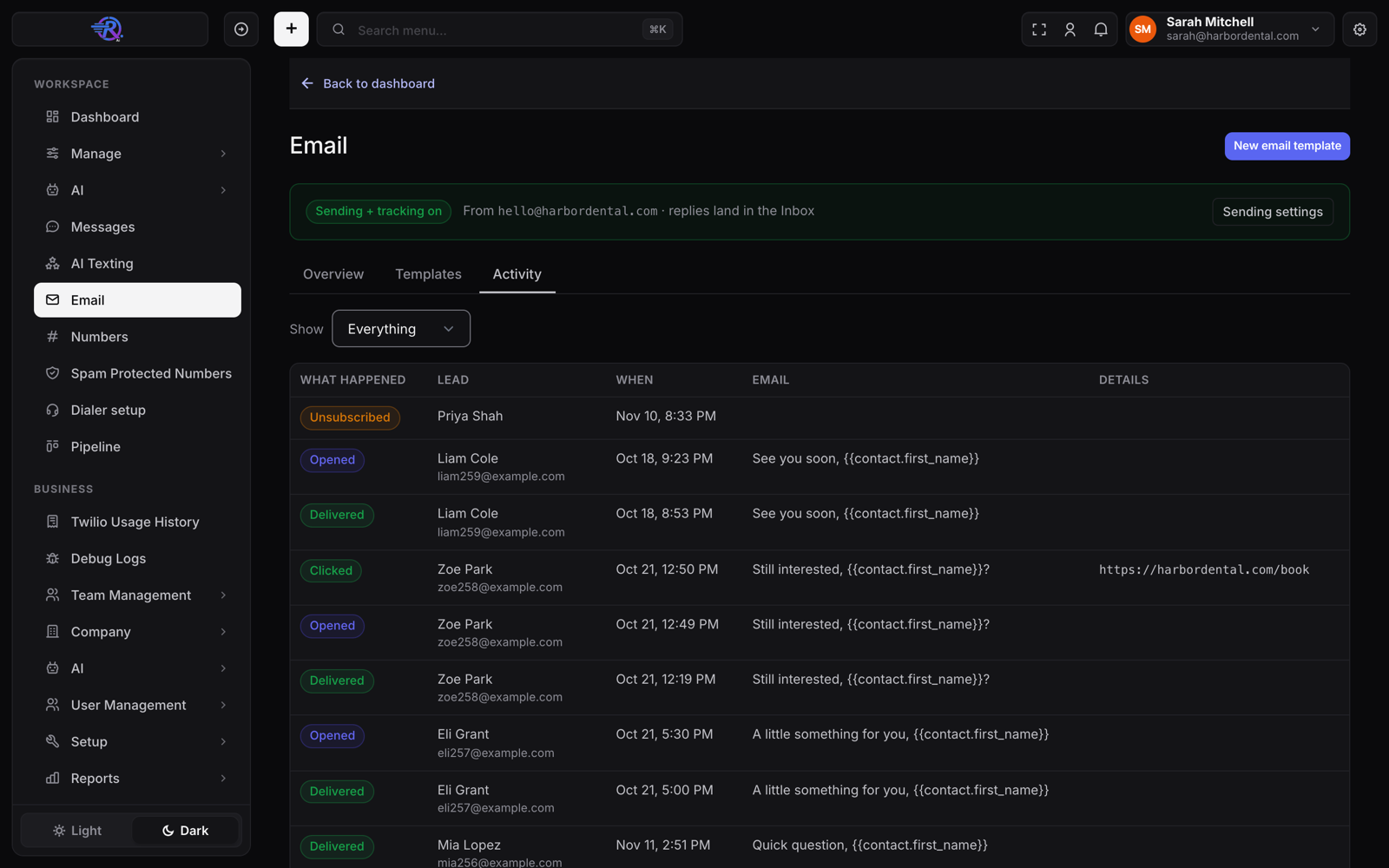
Email → Activity lists every delivered, opened, clicked, bounced, spam and unsubscribe event with the lead's name. Filter by type, for example Bounced, to see which addresses to clean up.
🤖 Do it with your AI assistant#
Everything here also works by asking your AI assistant (connected through MCP), for example:
- "Set up email for my account. Here's my Resend key."
- "Build a 'we miss you' email for old leads with a button to book."
- "Use that template in my reactivation automation."
- "How did my emails do this month? Which links got clicked?"