Your AI team is already built. Your agents are set up, your follow-up is in place, and the Lead Agent is waiting in Watch mode, so nothing goes out yet.
You only need to do three things:
- Connect GoHighLevel so the agents can see your leads.
- Connect Google Calendar so they book into real open times.
- Watch for a day, then switch to Live.
Connecting your AI assistant and editing your scripts are optional, but they make everything faster.
All screenshots on this page use made-up example data.
1. Connect GoHighLevel#
In RizzDial, GoHighLevel shows up under its other name, LeadConnector. Same thing.
Open Integrations
Click Settings at the bottom left, then Integrations. Click the CRM filter.
Open LeadConnector
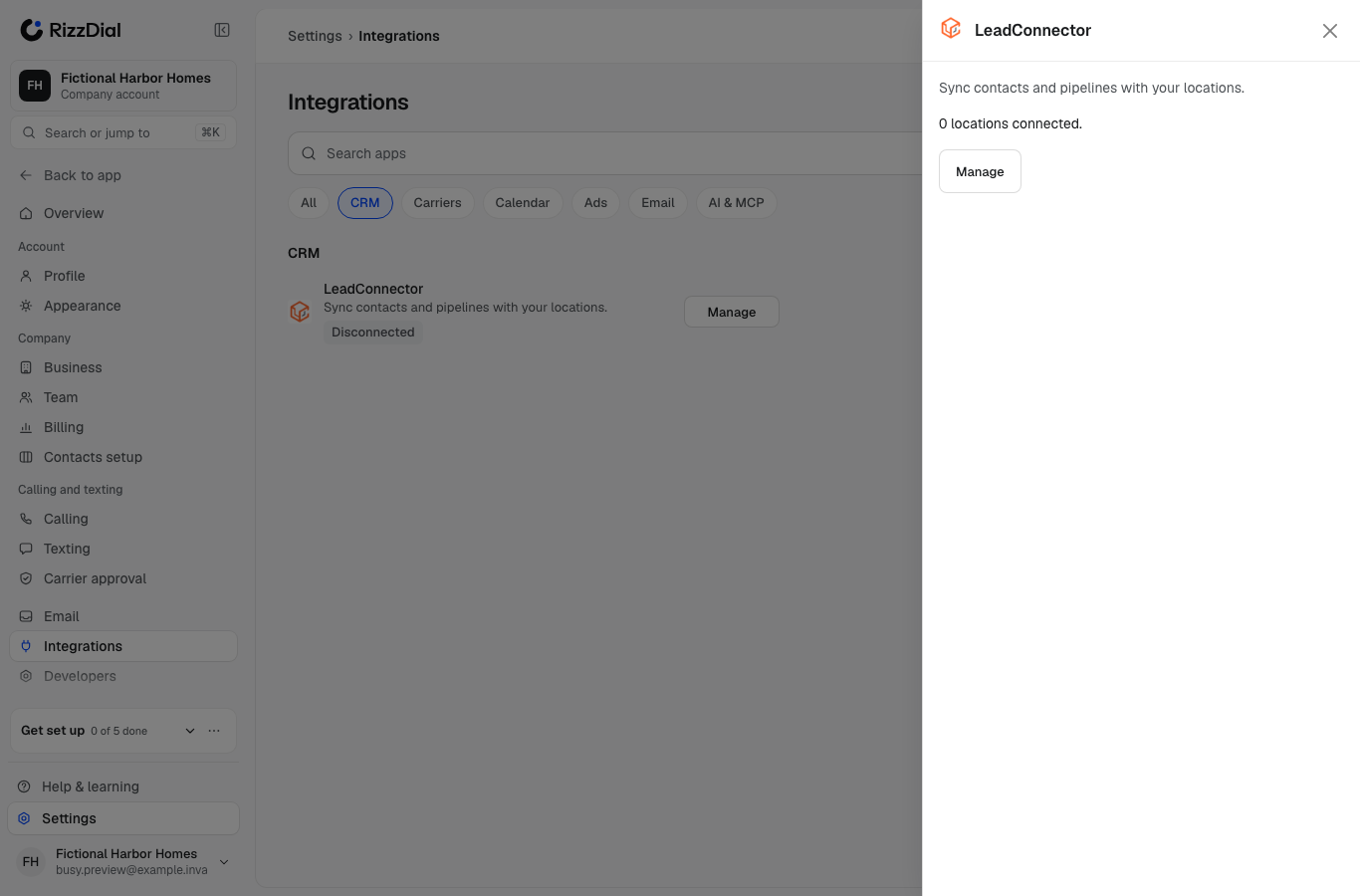
Click the LeadConnector row. A panel opens on the right. Click Manage.
Click Connect New
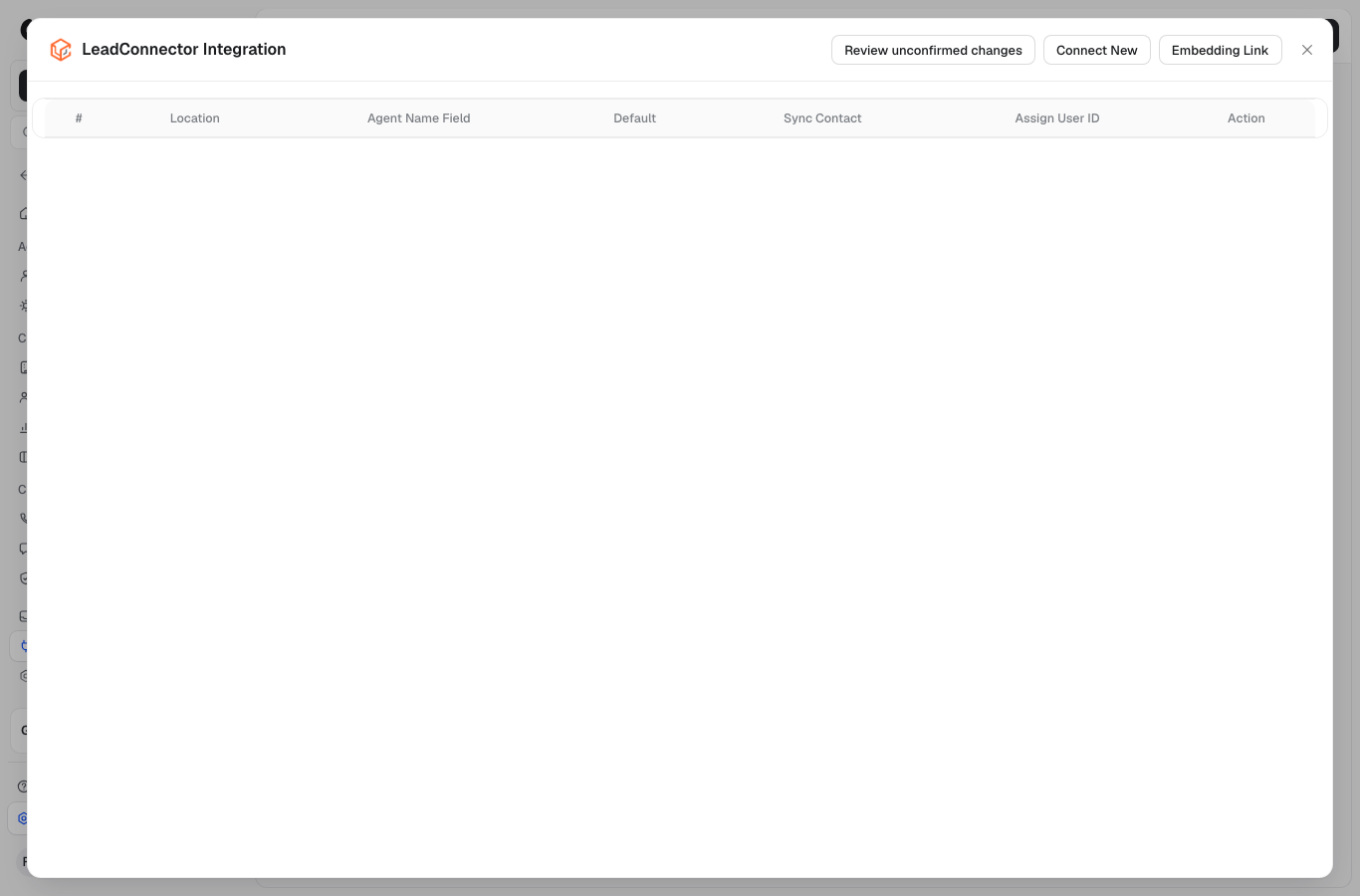
Click Connect New at the top. GoHighLevel opens in the same tab.
Pick your sub-account
Log in to GoHighLevel if it asks. Pick your business's sub-account (GoHighLevel calls it a location). Pick the sub-account, not the agency.
Approve every permission
GoHighLevel shows a list of permissions. Leave them all on and click Allow (or Proceed). If you turn some off, deal moves and pipeline updates won't work.
How to tell it worked#
You land back in RizzDial. The LeadConnector row now says Connected.
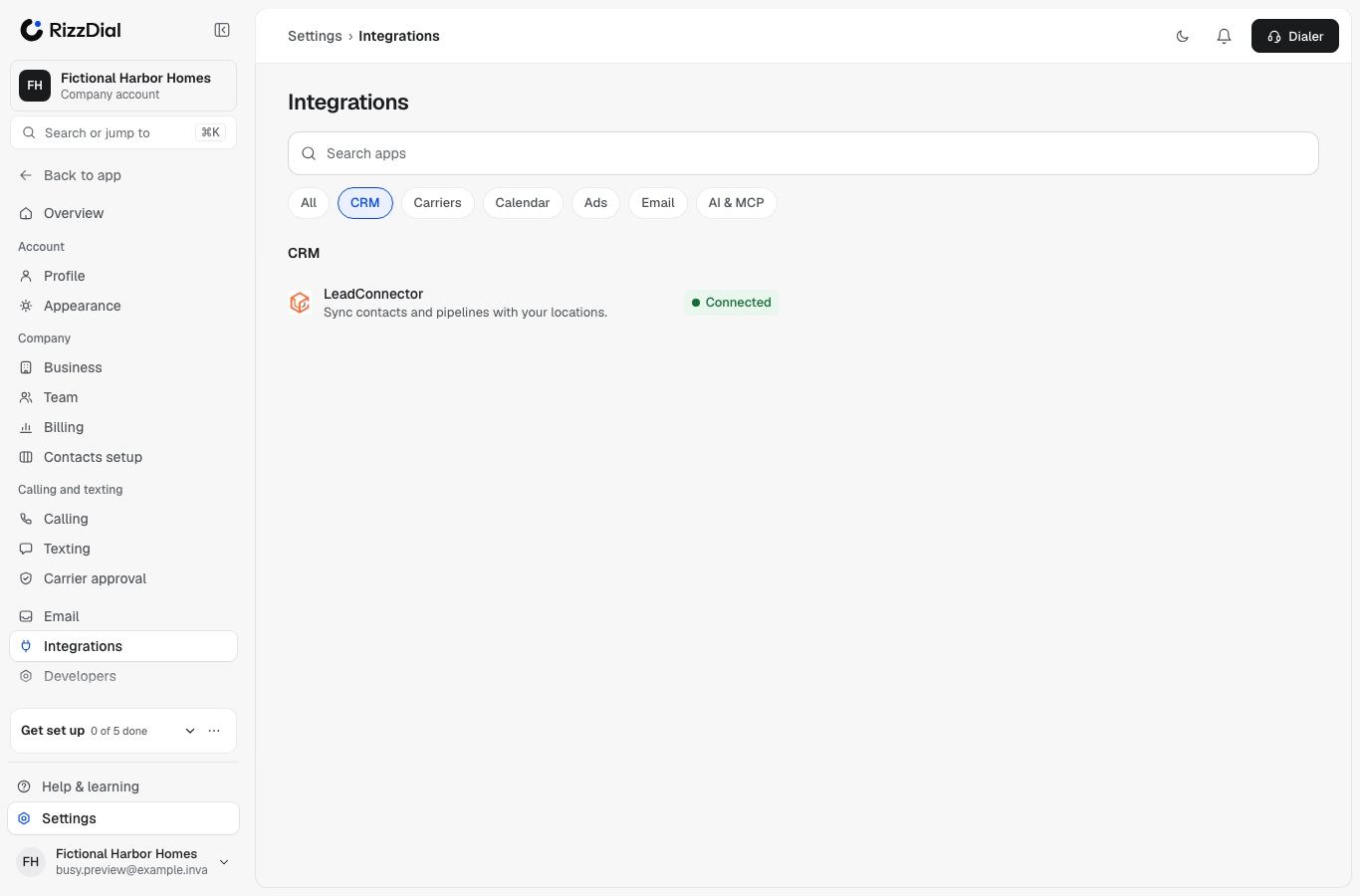
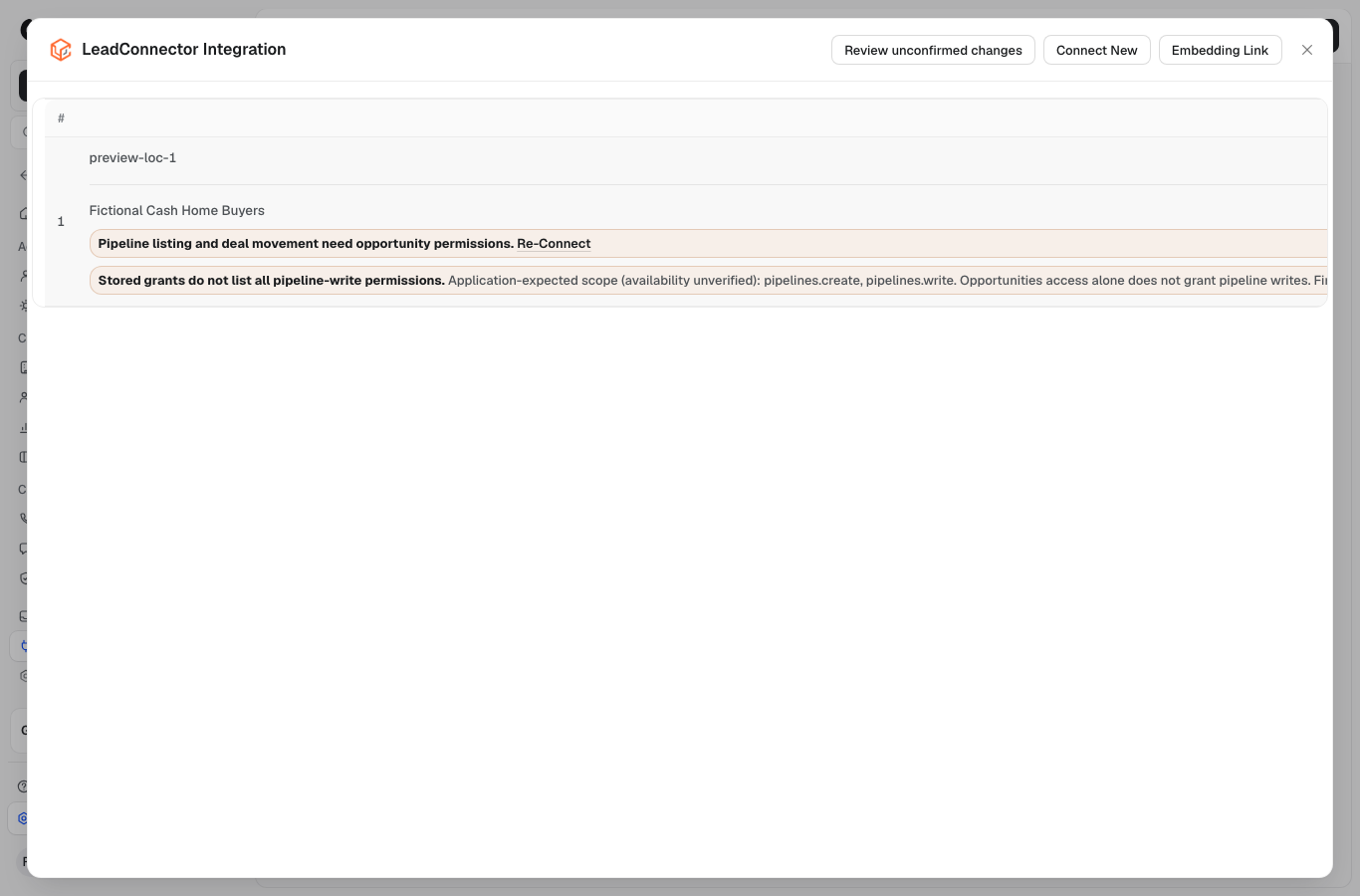
Open Manage again. Your sub-account is listed with no warnings under it. If you see an orange warning about missing permissions, like the one below, click Re-Connect and approve everything this time.
2. Connect Google Calendar to "Acquisitions call"#
This has two parts: connect your Google account, then tell the Acquisitions call calendar which Google calendar to use.
Connect your Google account
Go to Settings → Integrations, click the Calendar filter, click Google Calendar, then Connect. (Or open Calendar in the menu and click the Google calendar tab.)
Sign in with the Google account your team books on and click Allow.
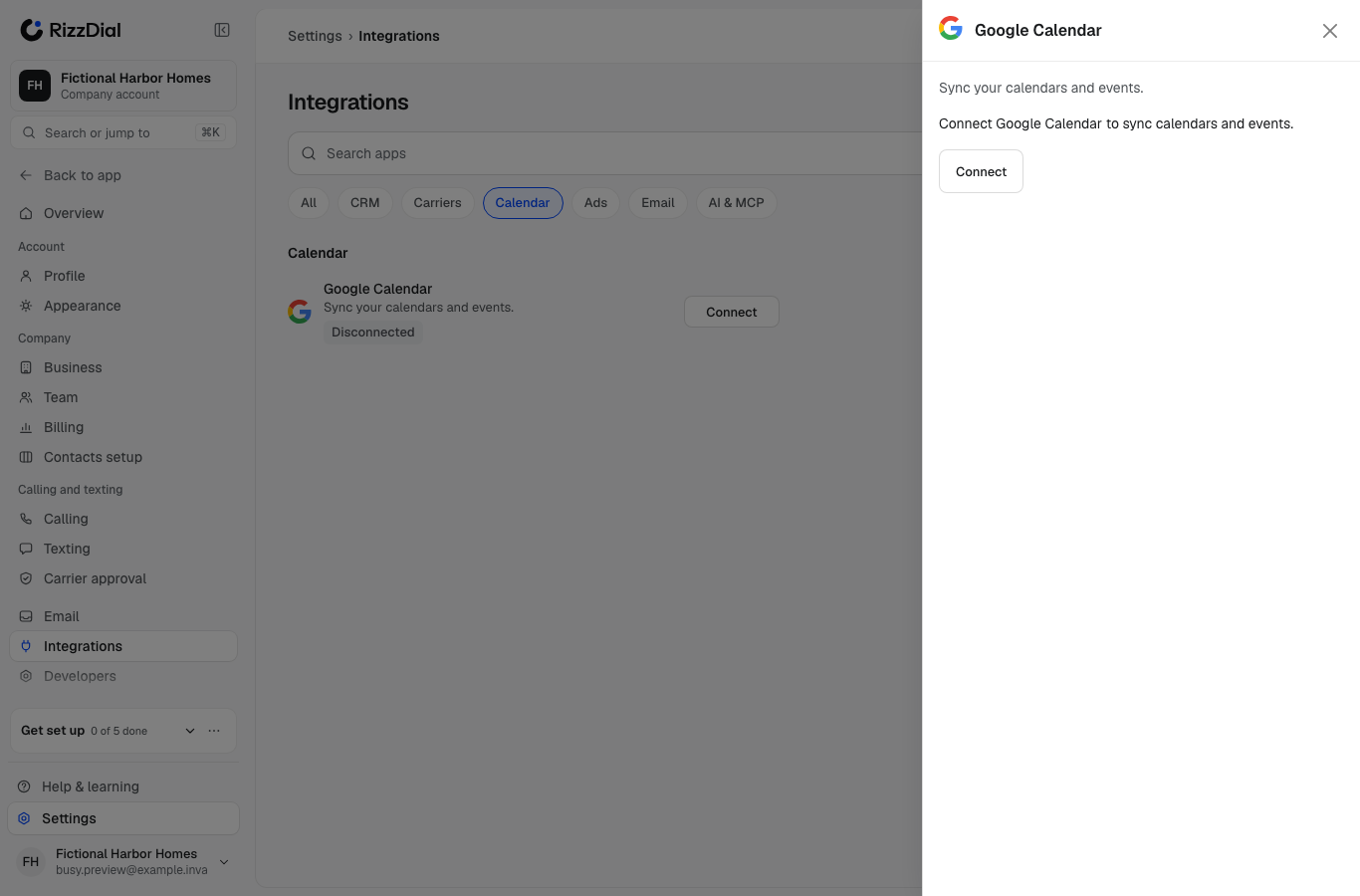
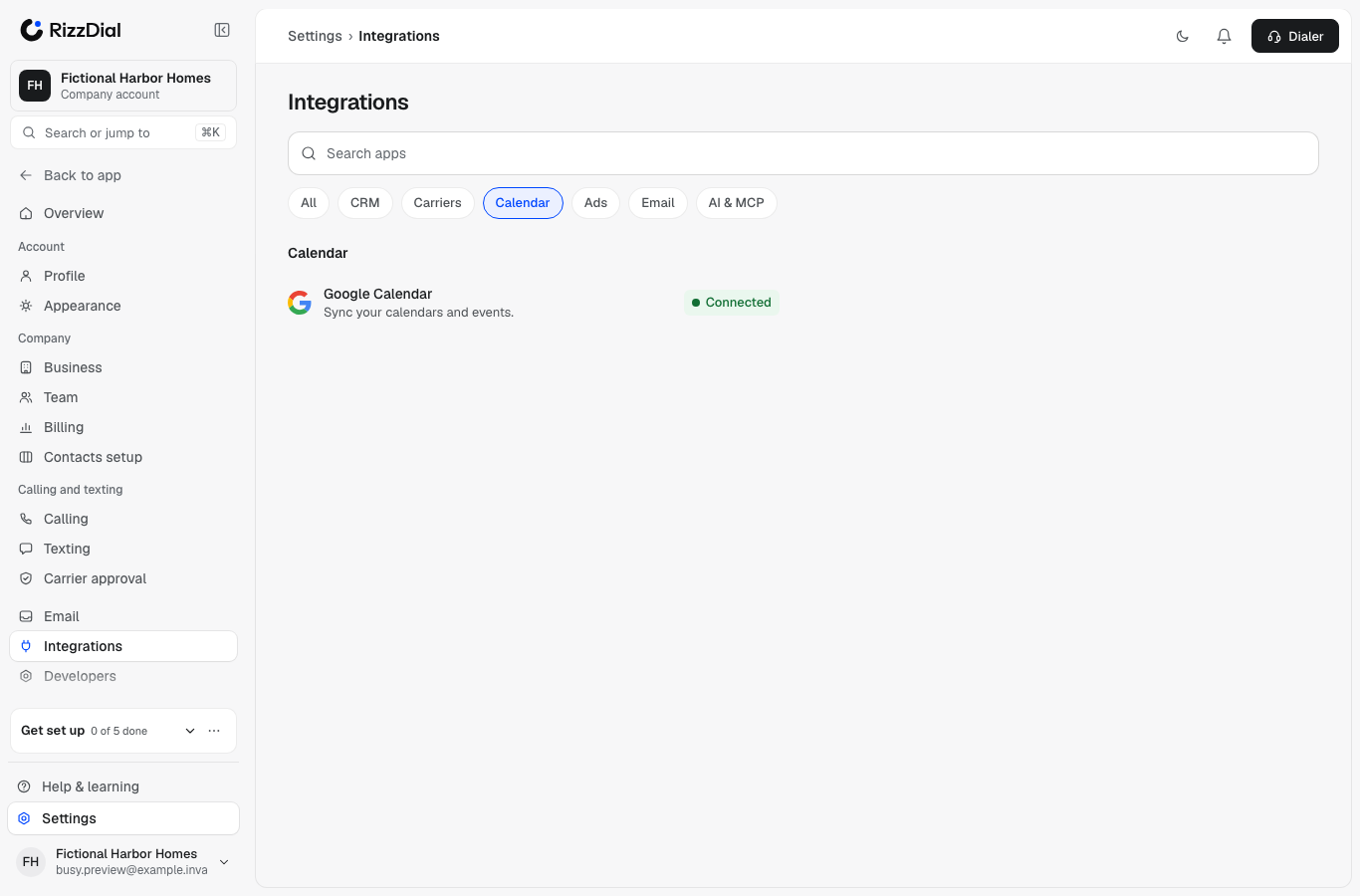
When you're back, the row says Connected.
Open the Acquisitions call calendar
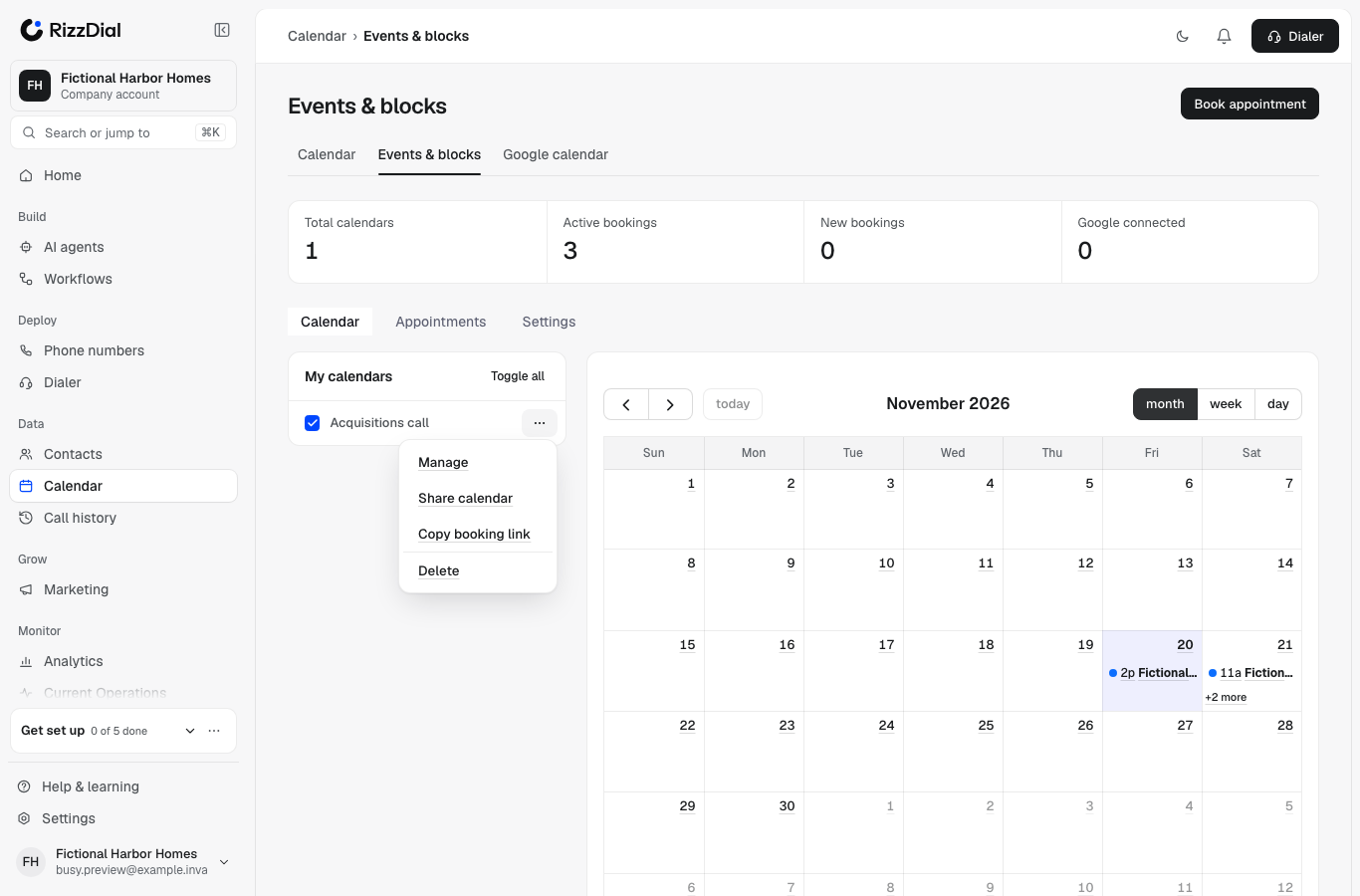
Click Calendar in the left menu. Under My calendars, click the ... next to Acquisitions call, then Manage.
Pick your Google calendar
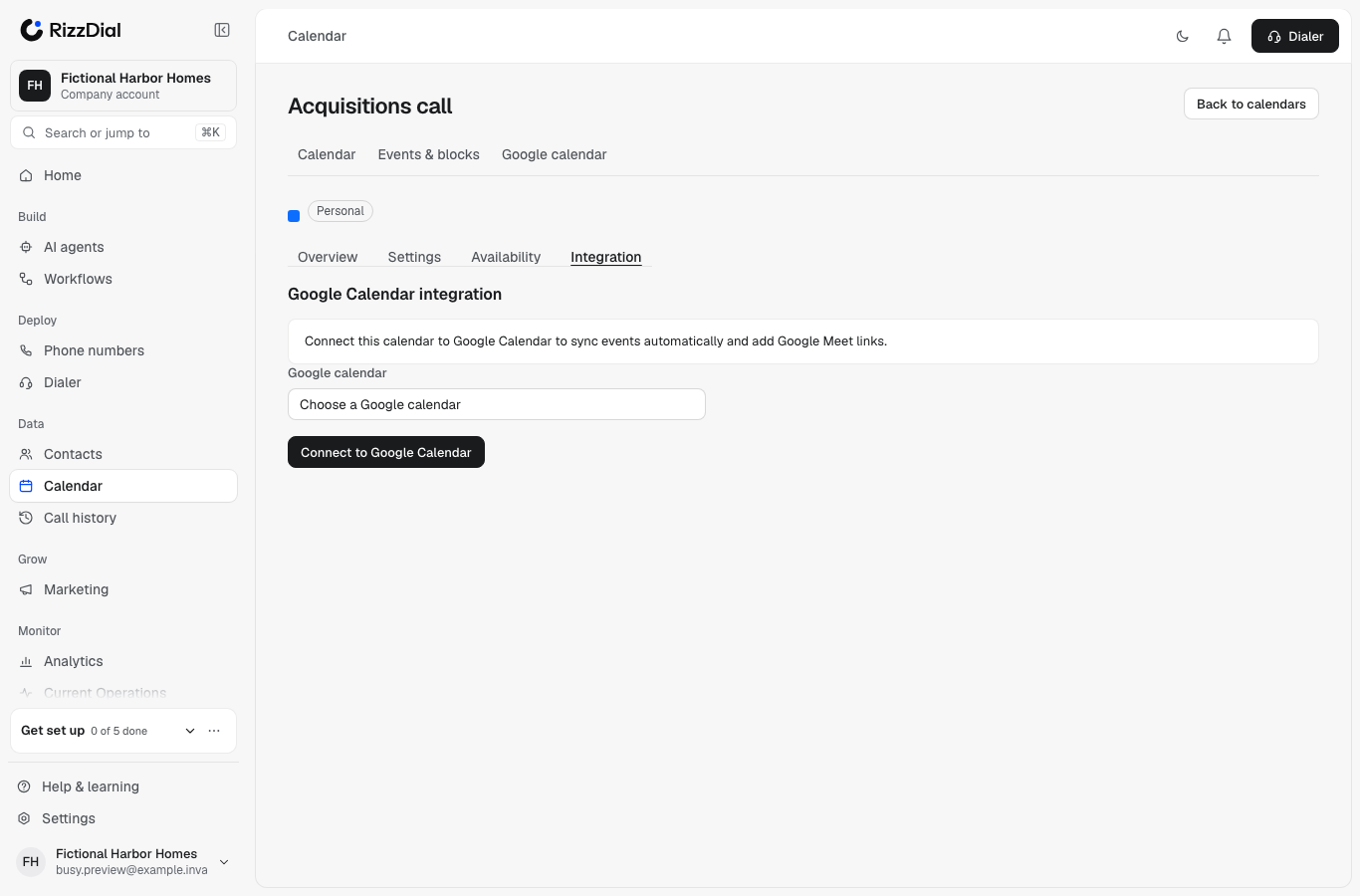
Click the Integration tab. In Google calendar, choose the calendar your team uses for acquisitions calls. Click Connect to Google Calendar.
How to check open times show#
- The Integration tab now says the calendar is connected to Google, and new bookings land in your Google calendar.
- Click the Availability tab and make sure the hours match when your team takes calls. The agents only offer times inside these hours.
- Book one test appointment with Book appointment on the Calendar page. It should show up in your Google calendar too. Delete it after.
- Or ask your AI assistant: "What open times does the Acquisitions call calendar have tomorrow?"
More detail: Google Calendar.
3. Connect your AI assistant (optional, saves time)#
Connect Claude to RizzDial and you can check on things and change things just by asking. It reads your real account, and it shows you a change before it saves it.
Follow the guide: Connect your AI assistant. It takes about two minutes. You can also start from Settings → Integrations → AI & MCP → AI assistant → Connect.
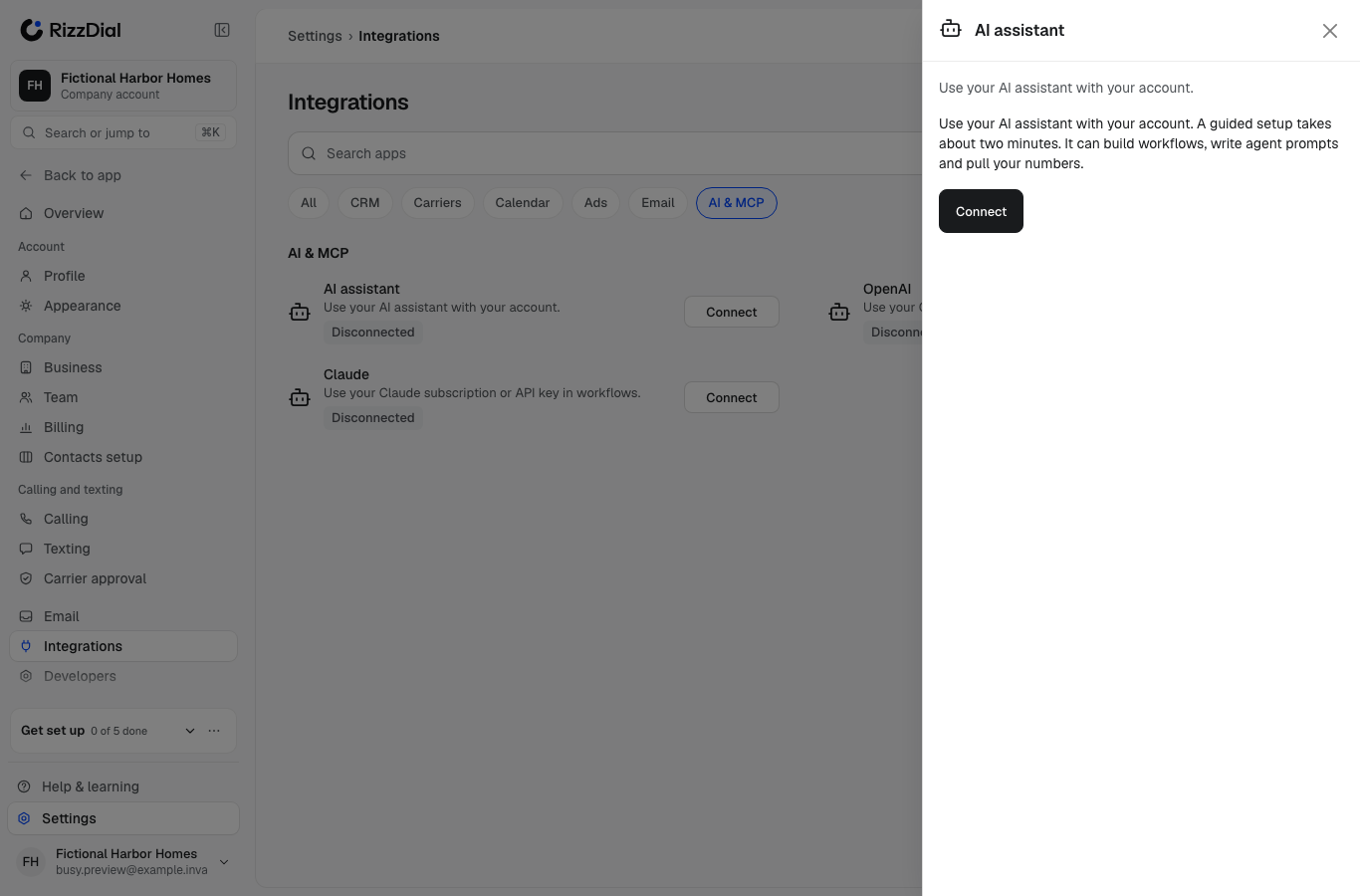
Once it's connected, try these:
| You want to | Say |
|---|---|
| See what the Lead Agent is doing | "Show me today's Lead Agent decisions" |
| See your follow-ups and callbacks | "What's on my Tasks list?" |
| Change how Aria opens a call | "Change Aria's opening line to: Hi, this is Aria, did I catch you at a bad time?" |
| See bookings | "Who did the Lead Agent book this week?" |
| Pause sending, keep deciding | "Turn the Lead Agent to Watch" |
| See what's left before going live | "What's left on my readiness check?" |
4. Edit your own scripts any time#
Your agents start on our proven baseline. You own them. Change Aria's script or the text agent's rules whenever you want.
In the app:
Open Aria
Click AI agents in the left menu, then click Aria.
Edit the prompt
Open Aria's Prompt (her instructions). Change what you want, then save.
Check the history
Click Versions to see every saved version and compare any two.
By chat: tell your assistant what to change, for example "Make Aria ask about the property's condition before the timeline" or "Change the text agent's rules so it never texts after 7 PM". It shows you the exact change, then saves it after you say yes.
Every change made by chat saves a new version you can roll back. Just say "Put Aria back to yesterday's version". Your assistant shows you what will change before it does it.
5. Go live: Watch for a day, then Live#
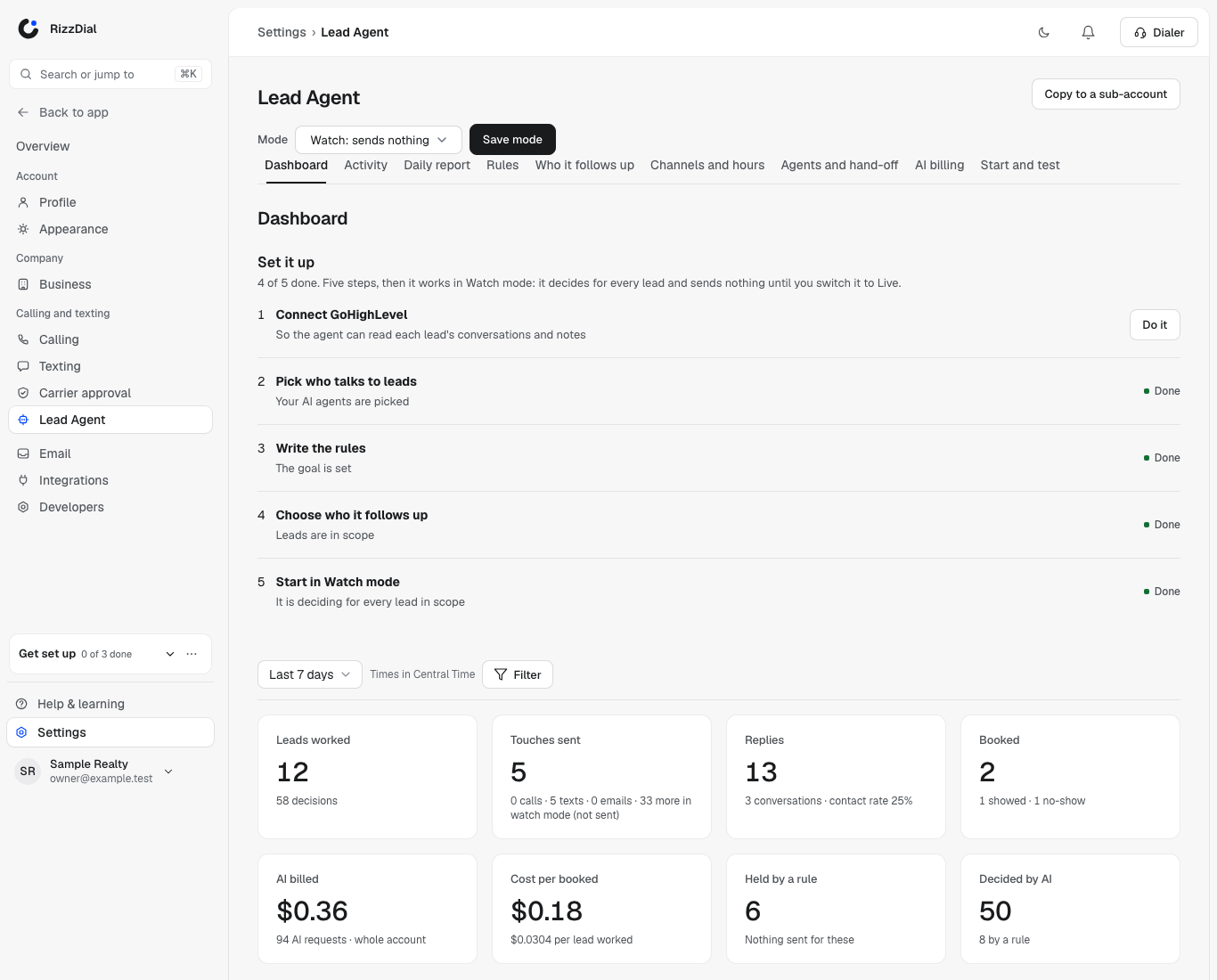
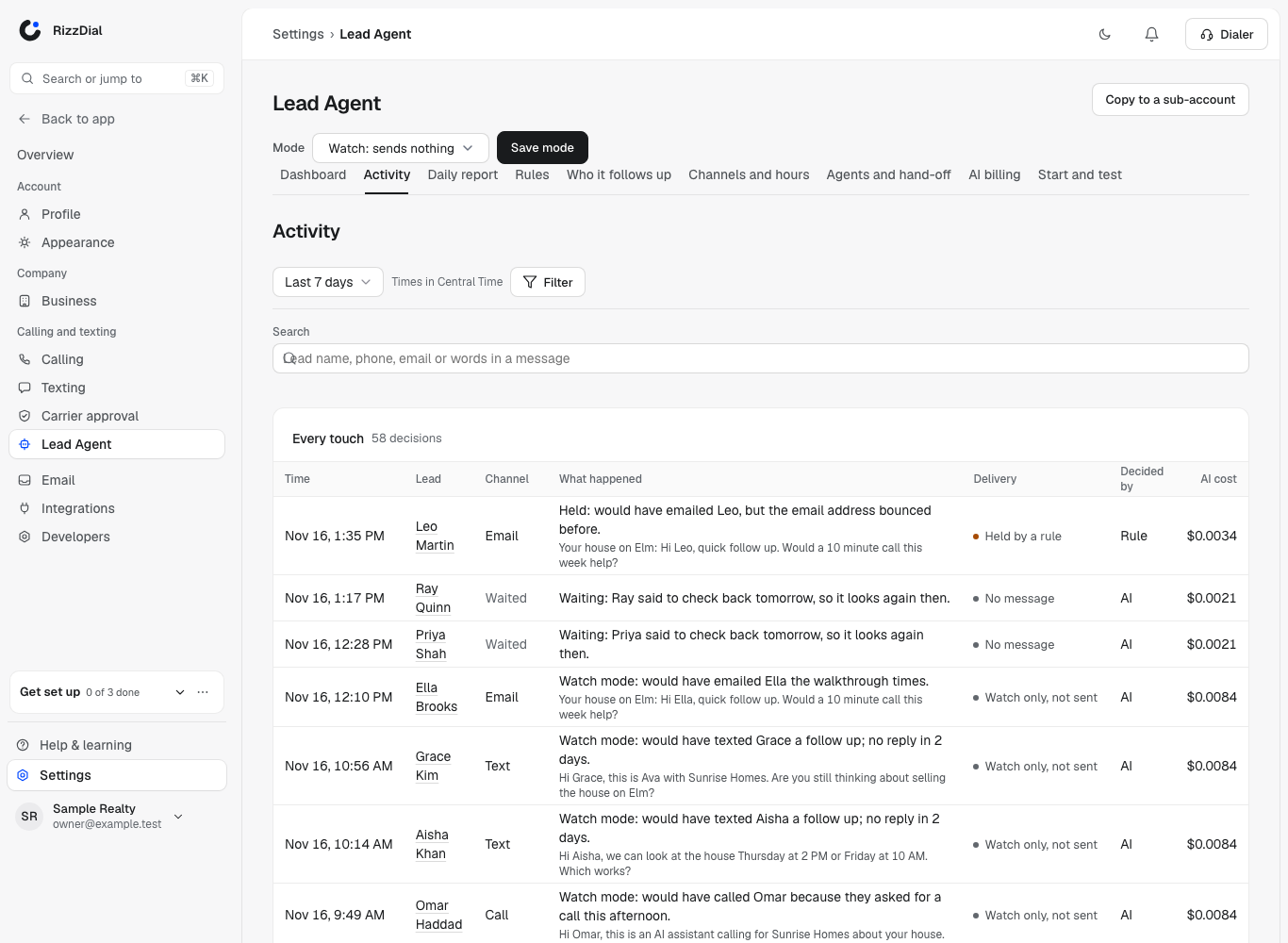
The Lead Agent is in Watch mode right now. It decides what to do for every lead and writes it down, but sends nothing.
Let it watch for one day
Open AI agents → More → Lead Agent. The mode at the top says Watch: sends nothing.
Review the Activity
Click the Activity tab. Read what it would have sent to each lead and why. If something's off, edit the rules or the script (step 4) and check again.
Switch to Live
In the mode menu at the top, choose Live and click Save mode. Do it during business hours so it can call.
Watch it work
Your Home page shows every call, text and booking as it happens.