The workspace uses a grouped menu, a shorter top bar and the same account data and permissions. The pages available to you depend on your plan and role.
Your workspace and menu#
The platform wordmark sits above the workspace card. The card shows the agency's published brand icon in an agency workspace, or the client's saved logo in a client workspace. It uses workspace initials when no image is available. Company owners can change their name, logo and accent in Settings → Business → Logo and name.
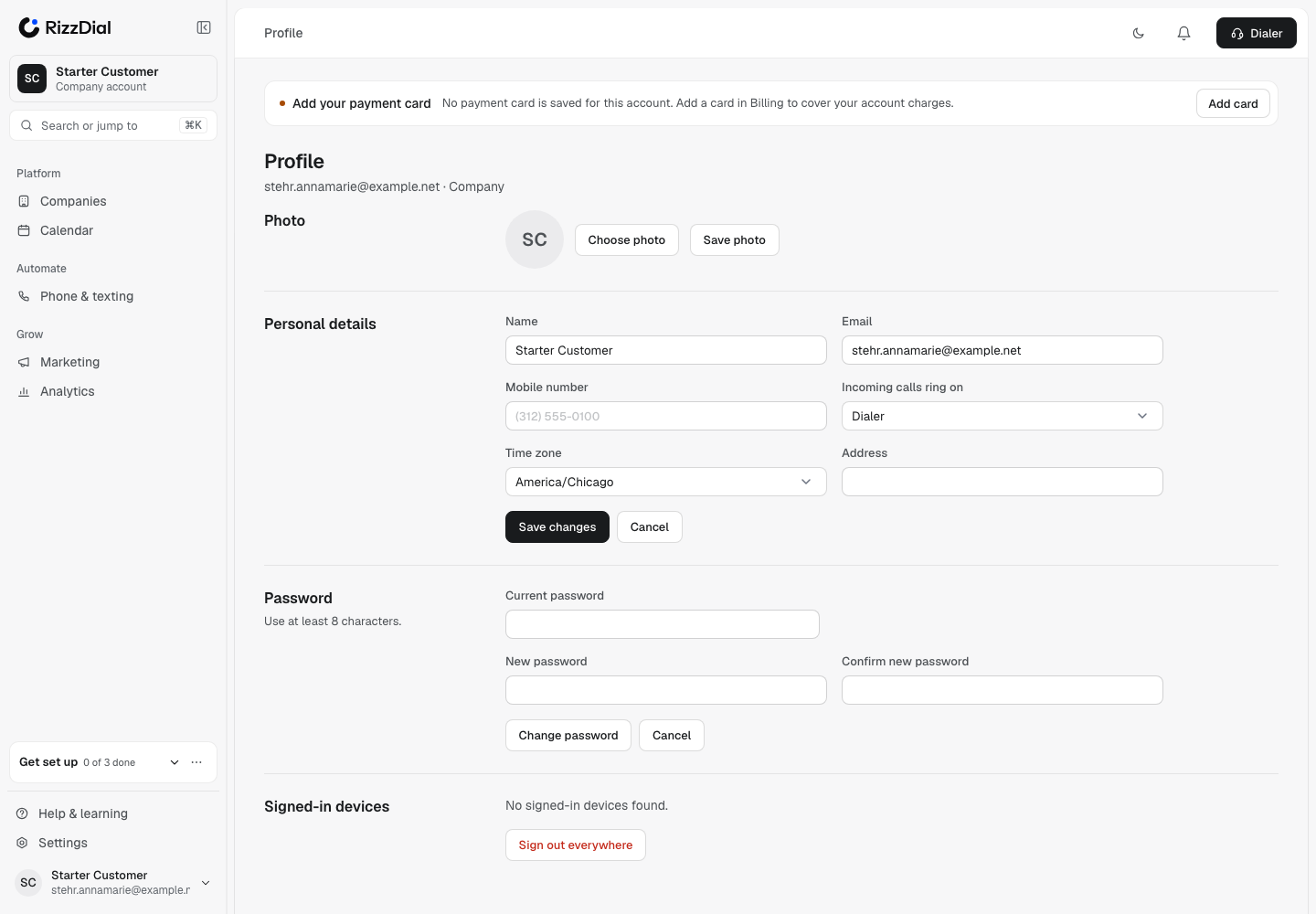
On a desktop, use Collapse sidebar beside the wordmark to make room for your work, and Expand sidebar to open it again. Hover over an icon, or focus it with the keyboard, to see its name. Your expanded width is kept when you collapse.
To resize the expanded menu, drag its right-edge grip. Tab focuses the divider, left and right arrows adjust it, and a double-click resets it. On a phone, use the menu button to open the drawer. Sidebar transitions respect your device’s reduced-motion setting.
See Company logo, name and accent or Agency white label.
Find a page quickly#
Choose Search or jump to, shown as Search in a narrow sidebar, or press ⌘K on a Mac or Ctrl+K on Windows. Type the page or action you need and choose a result. When a menu item holds several pages, those pages open as tabs across the top.
Settings is at the bottom of the menu. While you are in Settings, its sidebar lists the settings sections. Choose Back to app to return to the main menu. Agencies open Agency for their clients, plans and agency settings.
Light or dark#
Use the light/dark button in the top bar, or open Settings → Appearance and choose Light or Dark. The profile menu's Appearance popover offers the same two choices. They apply immediately and are saved in your browser.
Your personal appearance does not change your team's workspace accent. See Profile and appearance.
Notifications#
The top-bar bell shows your unread count. Open it to see recent notifications. Mark all read clears the unread count; See all notifications opens the full list. A count of 99+ means there are more than 99 unread notifications.
Get set up and Guide me#
The Get set up card at the bottom of the menu shows your setup progress. Choose a step to open its page. Steps mark themselves complete when the account is ready; there is no manual tick box. Choose the card title to fold it away or open it again.
For the full list, open Settings → Get set up. Optional steps can be skipped there. See the Setup checklist.
Where Guide me is offered, it walks through the current page one control at a time. The card's Listen button reads the step aloud, A+ enlarges its text, and × closes it. The guide points the way; you press the controls and save changes yourself.
Analytics#
Reports is called Analytics, under Grow in the menu. Choose a date range to see the overview, then open the report tab you need.
The overview brings together calls, AI agents, your team, leads and ads, and texting. Its main numbers show the change from the previous period. Available reports can include Calls, AI performance, Call history, Texts, Email, Call statistics and Activity log. Tabs and panels depend on your role and plan.
See Analytics.
Saved views#
On Contacts or Analytics → Call history, set your filters, open Views and choose Save current view. Give the view a name. Open Views again to return to it, rename it or delete it. Reusing a saved name offers to replace the existing view.
The Dialer's grouped menu#
Open the Dialer with the Dialer button in the top bar. On a wide window its side menu is grouped by job; narrower windows use tabs and More.
| Group | Examples |
|---|---|
| Calling | Dialer, Callbacks, Transfer lines, Voicemail |
| Lists | Contacts, Pipeline |
| People | Inbox, SMS, AI Texting, Team chat |
| Results | Stats, History, Calendar, Notes |
| Setup | Automations, Templates, Numbers, Setup, Connect CRM, Import leads |
The menu shows only the pages your role allows. Dashboard returns to your main workspace. The ? button opens the Dialer's step-by-step guide, and the light/dark button changes its appearance.
See Power Dialer for resizing, keyboard controls and Retry after a number is assigned, or Inbox for recording playback.