Build the Lead Agent once on one account, tune it, then copy it to each client. Most of the setup carries over. You only fill in what belongs to that client.
Copy a setup to a client#
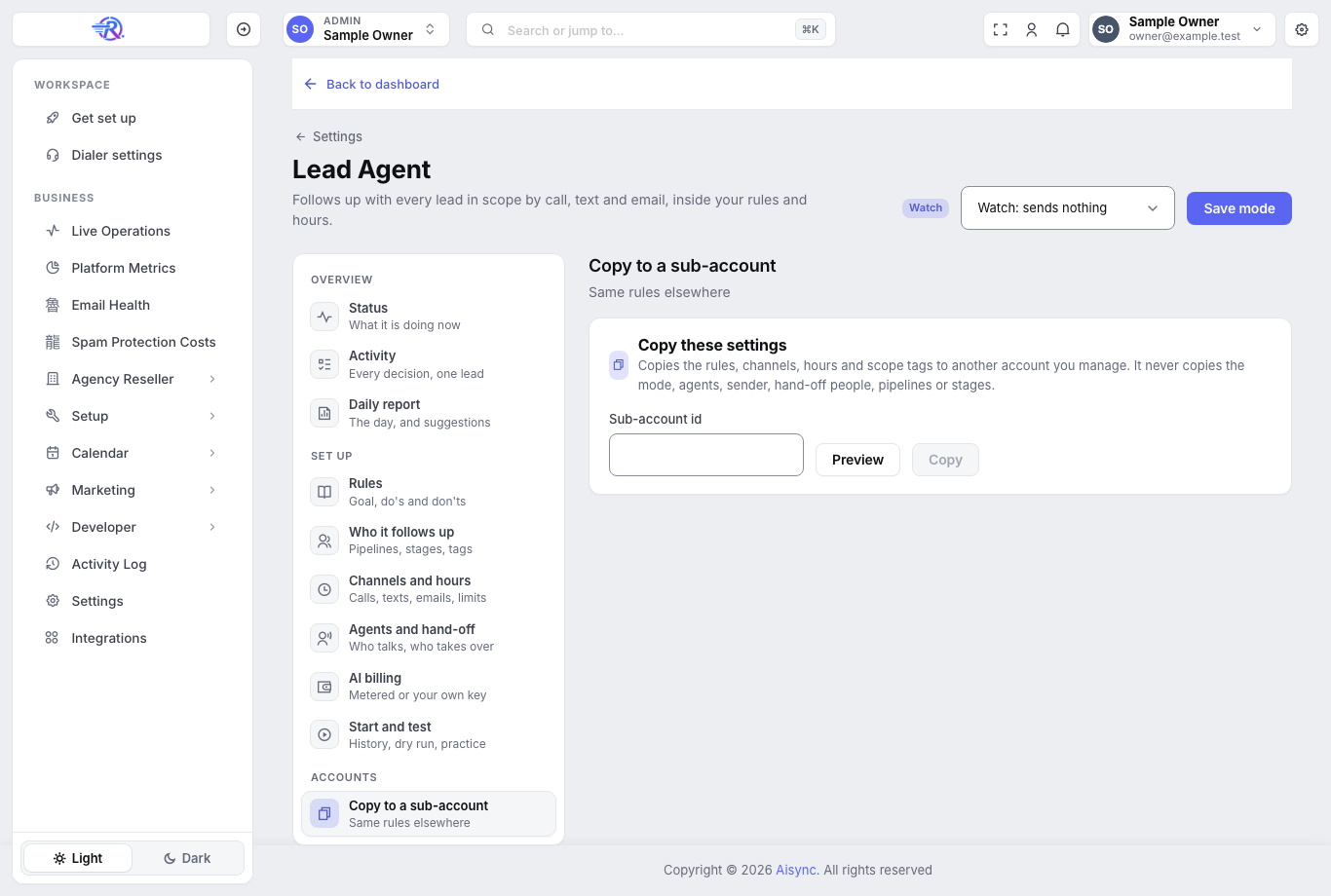
On the page: Settings → Lead Agent → Copy to a sub-account. Enter the client's Sub-account id, click Preview to see what would copy, then click Copy and confirm.
Or ask your AI assistant, signed in to your agency:
Copy my Lead Agent setup to Sunrise Home Buyers.Read the dry run
The first answer (or Preview on the page) is always a dry run. It lists what would be copied and what wouldn't. Nothing changes.
Say yes to copy
Only after your yes (or Copy on the page) does it copy. The client's mode stays as it is: a copy never switches a client on.
| Copied | Not copied (set these per client) |
|---|---|
| Goal, do's and don'ts | Mode (stays Off or as it was) |
| Wording per lead source or campaign | Voice agent and text agent |
| Channels, limits and hours | Email sender address |
| Scope tags and sources | Scope pipelines and stages (they're different in every account) |
| The "create a GoHighLevel task on hand-off" switch | Hand-off mobile number, Slack channel and task assignee |
Each client also needs its own: GoHighLevel connection, voice agent prompt with {{call_reason}} and {{agent_rules}}, text agent calendar, texting line, AI billing choice and booking alert.
It's a copy. Editing your original later doesn't change clients you already copied to.
Working inside a client#
You can run every Lead Agent tool inside a client account. Because the client pays for the outreach and the AI, these need your yes, like a spend:
- Watch or Live;
- any AI billing change;
- a real-AI test;
- adding leads for real;
- a real copy (a dry run needs none);
- resuming a lead;
- on a live agent, widening scope, limits, channels or hours.
A client's own OpenRouter key is added in the web app, in that client's Settings → Lead Agent → AI billing. Your AI assistant can't add, test or remove a key; it can only check whether one is connected and working.
Billing#
Each client chooses how its Lead Agent AI is paid for, in Settings → Lead Agent → AI billing.
Metered (default)#
| Who | Pays |
|---|---|
| RizzDial → your agency | The real AI cost, no markup |
| Your agency → your client | The real AI cost, times your plan's markup if the plan has Also mark up AI texts, AI memory and add-ons ticked. Otherwise your cost. |
It shows in usage history as Lead Agent AI. If you cover a client's usage, it works the same as for every other charge.
Metered needs money on both sides. The client's Lead Agent pauses when the client's balance is empty, and also when your agency balance is empty (unless you cover that client). It also needs the client to be on one of your plans: without a plan, metered AI can't run there.
Own key#
The client uses its own OpenRouter key. Neither RizzDial nor your agency bills the agent's AI.
Daily AI limit#
Every account has a daily AI limit, $25 by default, up to $1,000. It counts both billing choices and Watch mode. When it's reached, that client's agent stops using AI until midnight UTC.
A rollout plan for many clients#
- Tune it on one account until a day of Watch mode looks right and the first live week hits your contact-rate goal.
- Copy to the next client (dry run, then yes).
- Fill in that client's agents, hand-off person, scope, billing and calendar.
- Test and watch a day in that client.
- Go live on a small group, then widen.