The daily learning report#
Every morning at 7:30 AM Eastern, the Lead Agent writes a report on the day before, for every account where it's on. It's posted in the app and to your Slack channel, if you gave one for hand-offs.
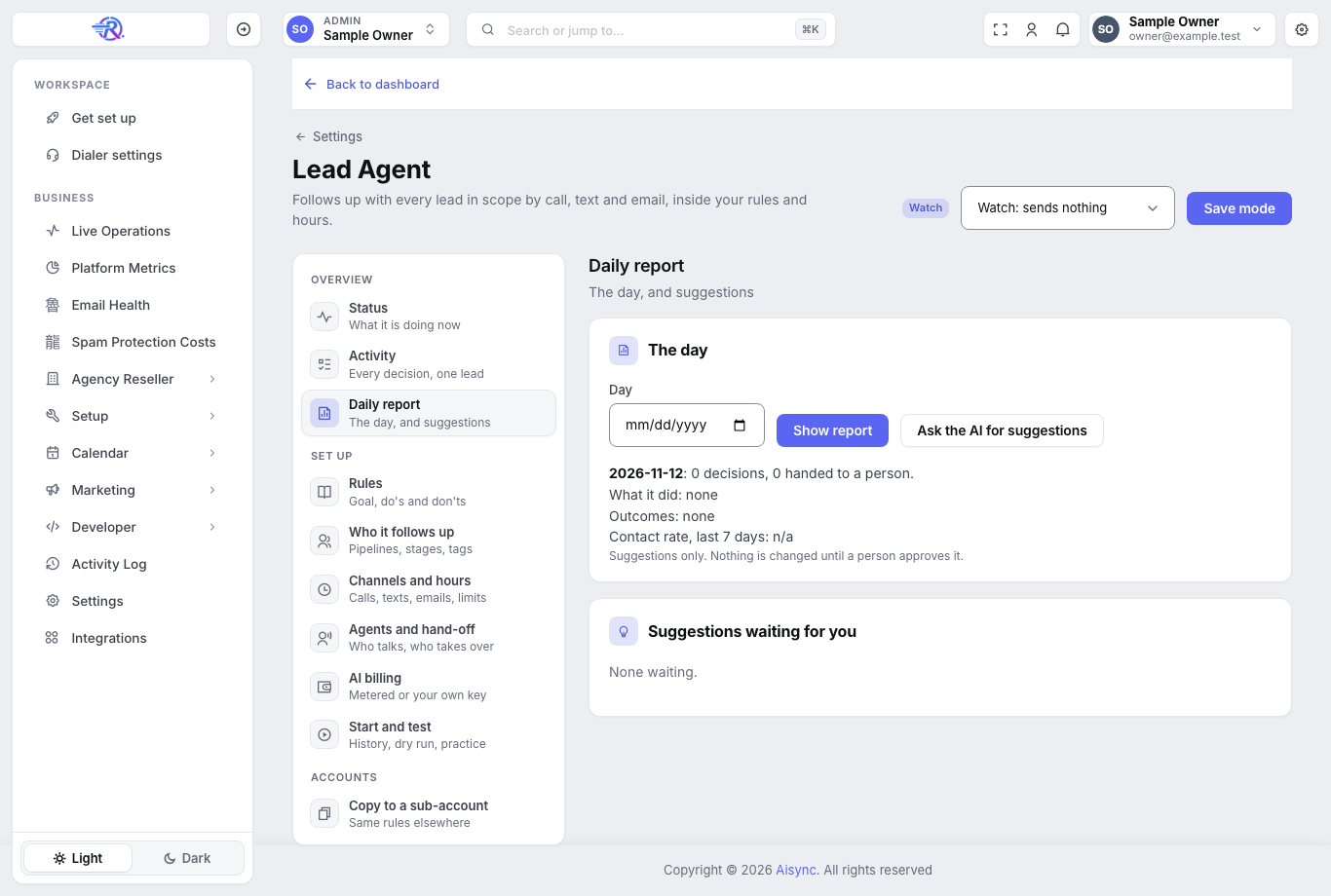
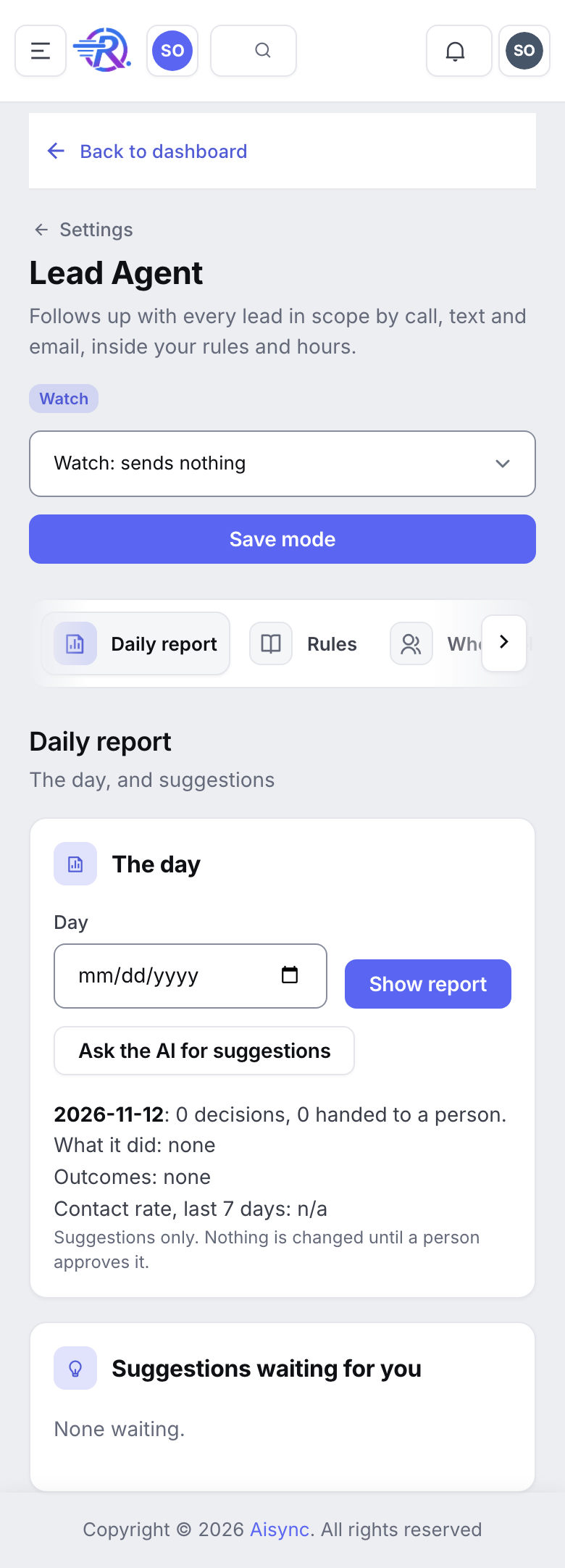
To read any day's report in the app: Settings → Lead Agent → Daily report. Pick the Day and click Show report. Click Ask the AI for suggestions for suggested changes (it uses a little AI, at most 5 times an hour).
It shows:
- how many decisions it made, by step (call, text, email, wait, hand off, stop) and by outcome;
- why sends were blocked (for example calling hours, limits, Do Not Disturb);
- hand-offs to your team, and stops by reason;
- problem decisions worth a look, each linked to the contact;
- contact rate for the day and the last 7 days;
- suggestions: changes the AI recommends, each with why and the decisions behind it.
Suggestions you approve#
Nothing is ever changed on its own. Each suggestion waits for you.
There are two kinds:
| Kind | Example | How to approve |
|---|---|---|
| Rules | "Add a don't: never mention price ranges. Two texts did." | Tell your assistant "Add that don't." It saves the rule. |
| Voice prompt | An exact edit to your voice agent's prompt, from reviewing that day's AI calls against it | Tell your assistant "Preview suggestion 12." It shows the before and after. Say yes and it applies it. A revision is kept, so it can be undone. |
To skip one, say "Dismiss suggestion 12." You can also handle them on the page, under Daily report → Suggestions waiting for you: preview a change (Preview ready. Nothing changes until you approve.), then apply it (Applied. The old version is kept.) or dismiss it.
You can also ask for a fresh report any time: "Show me yesterday's Lead Agent report with suggestions." (At most 5 times an hour.)
The Dashboard#
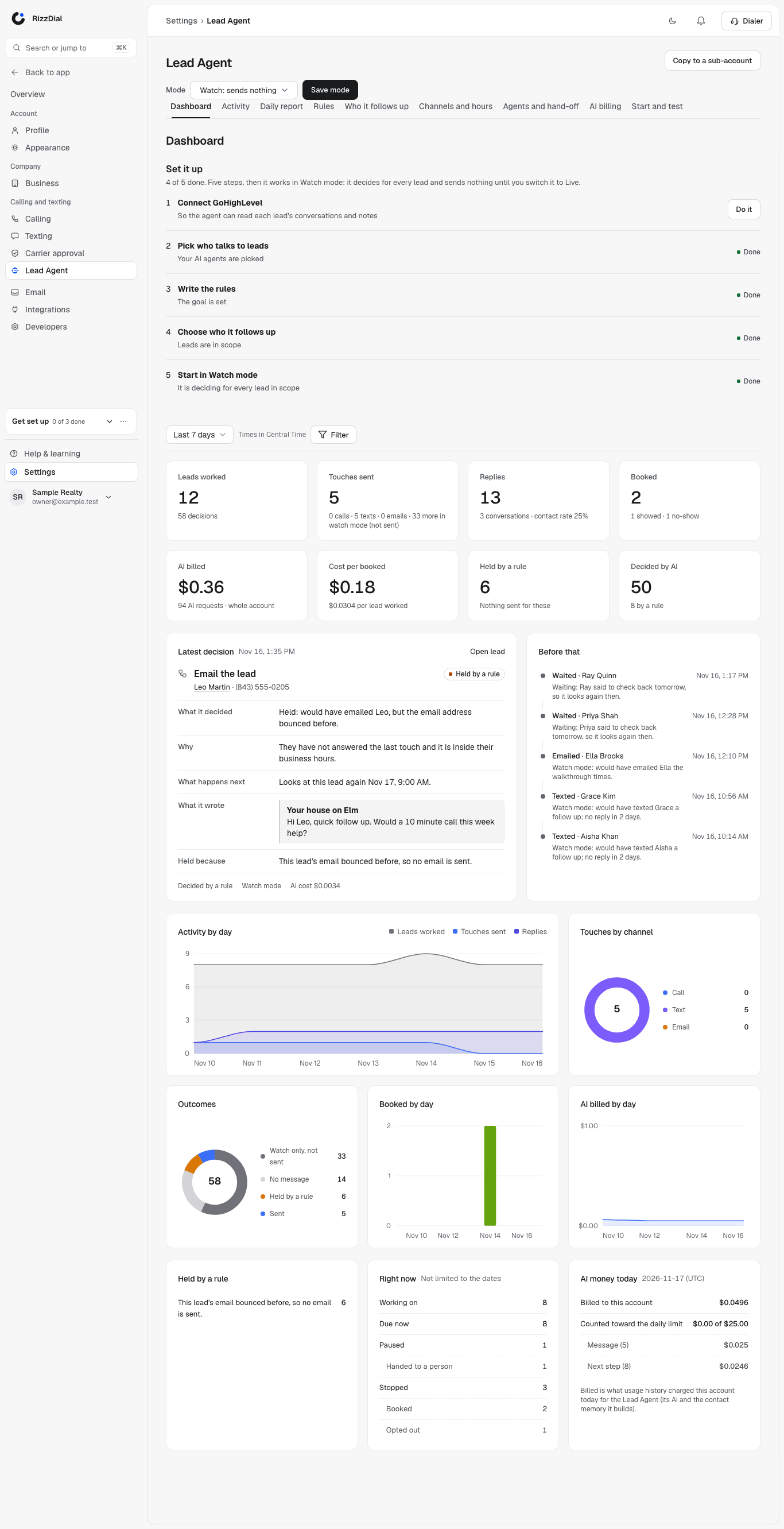
Settings → Lead Agent → Dashboard shows how the agent is doing in one screen. Pick the dates (last 7 days by default) and filter by lead source, channel or outcome.
- Set it up: the five setup steps and which are done.
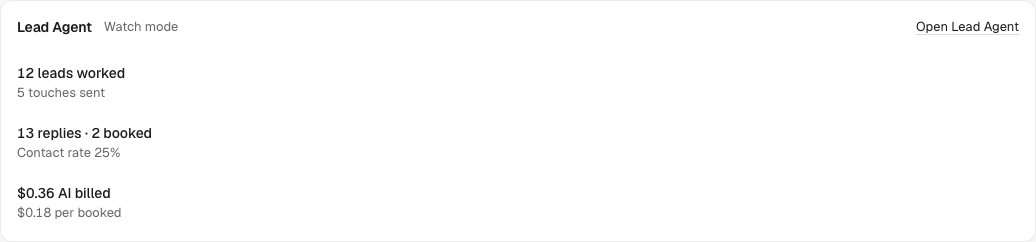
- The numbers: leads worked, touches sent (and what Watch mode would have sent), replies and contact rate, booked and showed, AI billed, cost per booked lead, touches held by a rule, and how many steps the AI decided versus a fixed rule.
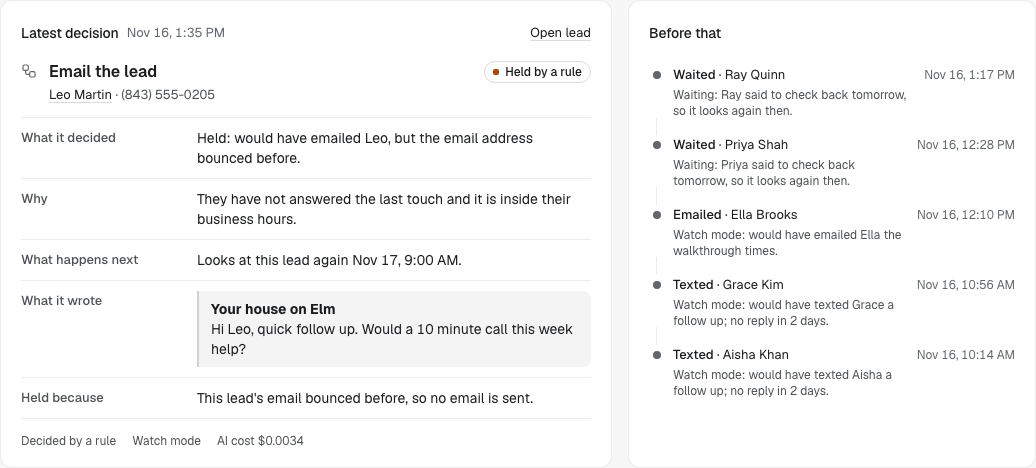
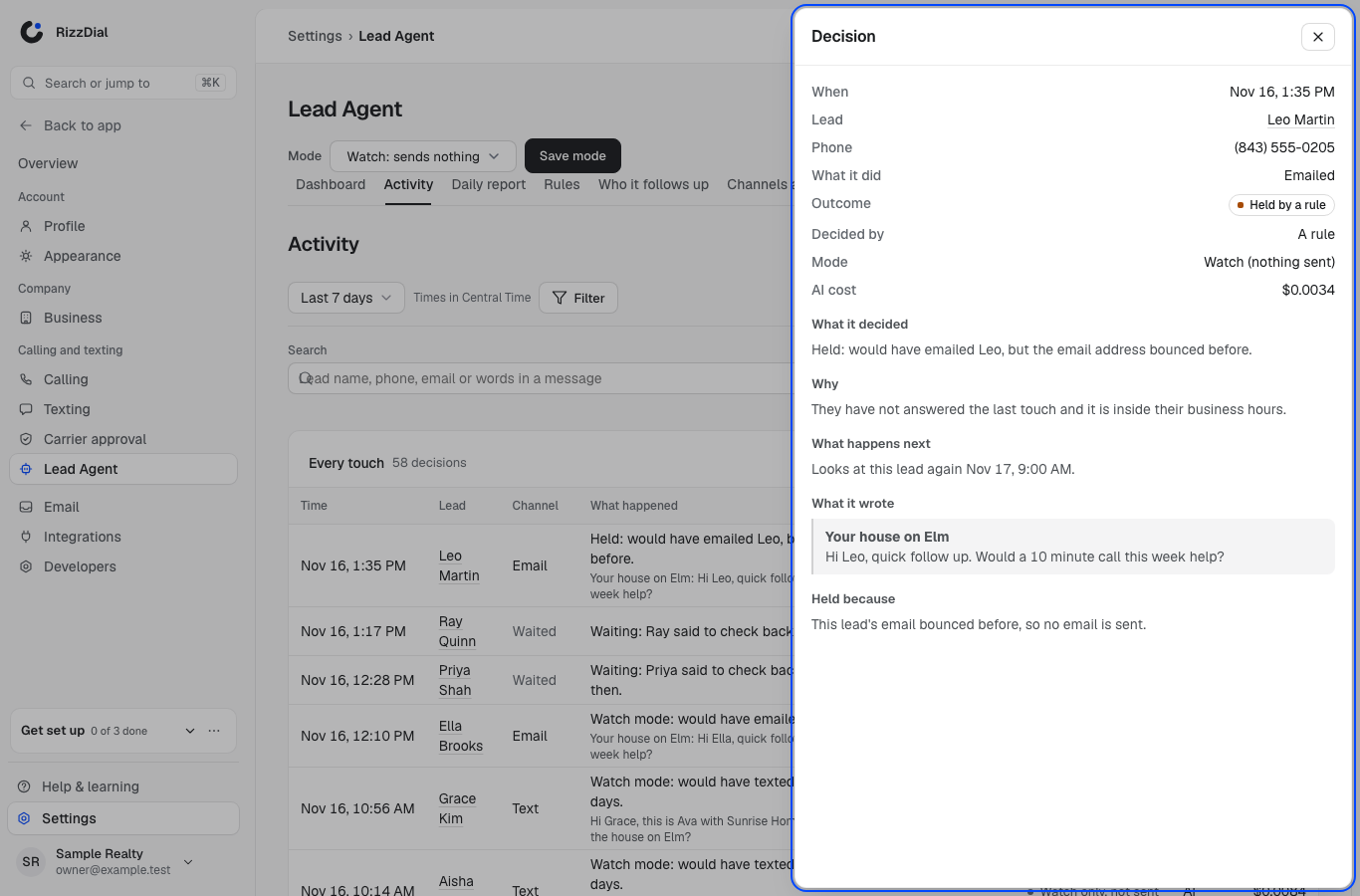
- Latest decision: the newest decision in full: what it decided, why, what happens next, the exact words it wrote, and anything that held it back.
- Charts: activity by day, touches by channel, outcomes, bookings by day and AI billed by day.
- Right now and AI money today: how many leads it's working, due, paused and stopped, and what the AI was billed today against your daily limit.
The same numbers sit on your Home page in a small Lead Agent card, with a link to the full dashboard.
Reading decisions#
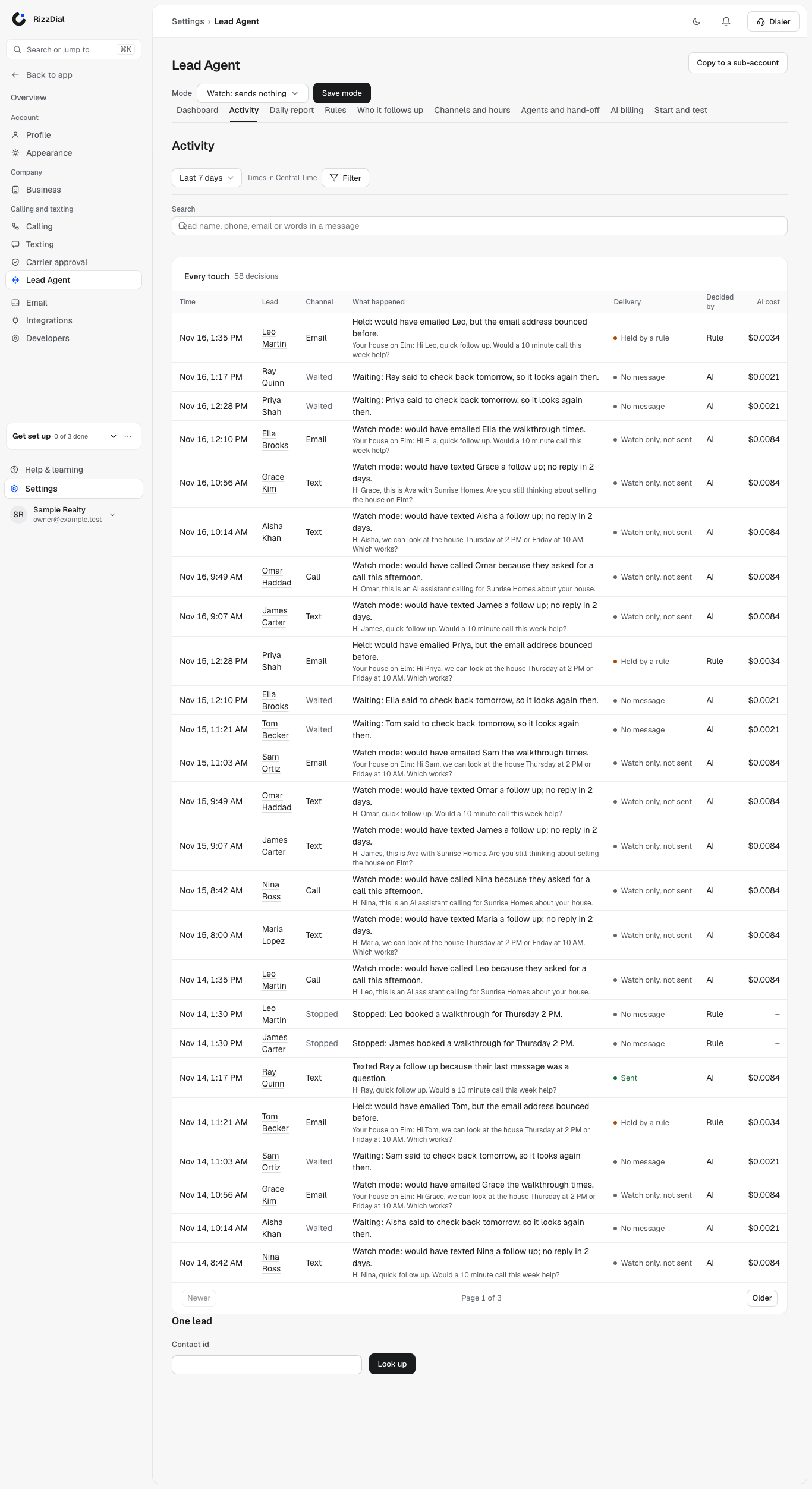
Every decision is one plain sentence, for example:
Lead agent texted because she asked about timing on Tuesday and hadn't heard back.
You can read them in four places:
- Settings → Lead Agent → Status → Latest decisions: the newest ones, with a link to each contact.
- Settings → Lead Agent → Activity: every touch and decision, newest first, 25 a page. Pick the dates, Filter by channel or outcome, or Search a lead's name, phone, email or words in a message. Click a row to open the full decision: what it did, the outcome, who decided (the AI or a rule), the AI cost, why, what happens next and the exact words. Under One lead, look up one contact's history and click Pause this lead or Resume this lead.
- The contact's timeline, under Changes: every decision for that lead.
- Your AI assistant: "Show me the last 20 Lead Agent decisions and why," or "What is the Lead Agent doing with Becky?" It can show the exact words it wrote and when it plans the next touch.
What the outcomes mean#
| Outcome on the page | Meaning |
|---|---|
| Sent | It really went out. |
| Watch only (not sent) | It would have gone out (Watch mode, or sending isn't switched on yet). |
| Held by a rule | A rule stopped it right before sending, for example the lead just opted out. |
| Skipped | The send was declined, for example the draft broke a rule. |
| Failed | The texting line or email sender refused it. |
| Error, nothing sent | Something went wrong. Nothing was sent. |
| No message | Nothing to send: a wait, a pause, a stop, or a touch planned for later. |
| Sending | Marked just before handing it off to be sent. |
| Not confirmed yet | The texting line or phone line never reported back. It is never retried. That channel waits until the contact's log shows what happened. |
| Not confirmed | Still unknown after 24 hours. The channel opens again. |
Your AI assistant uses the short codes for the same outcomes (sent, watch, blocked, skipped, failed, error, none, send_attempted, unknown, unconfirmed).
Contact rate#
Contact rate = leads who answered ÷ leads the agent reached out to, over a period.
- Reached out to: leads the agent really sent a call, text or email to (Live sends only).
- Answered: after the agent's first touch, the lead texted back, emailed back, called in, or had a real conversation on an AI call.
You see it:
- on Settings → Lead Agent → Status, as Contact rate, 7 days ("12 of 40 leads answered");
- in the daily report, for the day and the last 7 days;
- from your assistant, for today, 7 days and 30 days, split by call, text and email.
Contact rate reads n/a in Watch mode, because nothing was really sent.
What to look for in Watch mode#
Before you go live, read at least a day of decisions and check:
- No don't is broken. No price, no promises, nothing you ruled out.
- The timing is right. No calls at odd hours, no double touches.
- The channel makes sense. Texts for SMS-only lists, calls for hot leads.
- Hand-offs go to the right person.
- People your team is already talking to are paused, not contacted.
Fix the rule, keep watching, then go live on a small group first.