Do these steps in order. Each step is one thing to do and one thing to check. The agent stays Off the whole time, so nothing goes out until the very end.
Most of the setup can be done for you by your AI assistant: say "Set up my Lead Agent" and it walks you through the same steps. See Set it up from your AI assistant.
Who can do this: the account owner or an admin. Everyone on your team can open Settings → Lead Agent and see it, but only the owner and admins can change it.
Before you start#
You need:
- a GoHighLevel sub-account with your leads in it;
- an AI voice agent for calls (see Managing voice agents);
- an AI text agent and a texting line for texts (see AI Texting and Texting lines);
- a verified sending domain if you want email (see Email);
- a booking calendar with real open times (a GoHighLevel round-robin calendar works).
A channel that isn't ready can be left out for now and added later.
To find the page: open Settings, and under the AI group click Lead Agent.
How the page is laid out: the mode menu and Save mode are at the top right. The menu on the left has Status, Activity and Daily report (how it's doing), then Rules, Who it follows up, Channels and hours, Agents and hand-off, AI billing and Start and test (setting it up), and Copy to a sub-account. Each section has its own Save button. On a phone, that menu is a row you scroll sideways.
Part 1: Connect#
Step 1: Connect GoHighLevel#
Open Settings → Integrations
Click Connect on GoHighLevel, sign in as an admin of the sub-account, pick the sub-account where your leads live, and approve every permission. Full steps: GoHighLevel Two-Way Sync.
Check it
Open a contact in RizzDial that also exists in GoHighLevel. Its GoHighLevel contact ID should be filled in.
The Lead Agent needs this to read Do Not Disturb in GoHighLevel, create hand-off tasks, write booked tags and book on your GoHighLevel calendar.
Step 2: Turn on AI Memory#
Open AI Texting and find AI Memory
Read what it does and the price, tick I understand, and click Turn on.
Check it
The AI Memory switch shows On.
With it on, every call and text starts from what's already known about the lead. See AI Memory.
Part 2: Get your agents ready#
Step 3: Add two lines to your voice agent's prompt#
The Lead Agent tells your voice agent why it's calling and your rules through two placeholders. Without them, calls never see your do's and don'ts.
Open your voice agent's prompt
Go to AI Agents, open the voice agent you'll use for the Lead Agent, and open its prompt.
Paste these two lines near the top
Why you're calling: {{call_reason}}
Rules for this call: {{agent_rules}}
Save and check
Save the prompt, then open it again and check both lines are there exactly as written, with the double curly brackets.
{{call_reason}}holds the agent's reason for this call plus what's known about the lead (memory and research).{{agent_rules}}holds your do's and don'ts, up to 500 characters. Put the most important rules first.
Step 4: Give your voice agent a calendar#
Open the voice agent's Advanced tab
Find the Calendar Appointments card and click Configure.
Pick your GoHighLevel calendar
Choose GHL and the calendar to book on. For a team, pick your round-robin calendar. Save.
Full details: Calendar Appointments.
Step 5: Give your text agent the same calendar#
The Lead Agent books by text through your AI text agent. It needs to know which calendar to use.
Open AI Texting and edit your text agent
Under booking, set the AI agent whose calendar to use to the voice agent from Step 4. Save.
Check it
In the text agent's test chat, ask for an appointment. It should offer real open times. Test chats never text or book anyone.
Now calls and texts book on one calendar.
Step 6: Check your texting line#
Open Settings → Texting lines
Make sure at least one number shows as able to text (A2P linked, or an iMessage line).
Use a number that's only for leads. If a number also sends your own internal alerts (for example ad or PPC notifications to your team), keep it off your texting lines, or leads' replies and your alerts get mixed up.
Step 7: Make sure you get a text on every booking#
Ask your AI assistant: "Make sure I get a text on every new booking." It looks for an existing booking alert and, if there isn't one, shows you a simple workflow (trigger: appointment booked; action: text your mobile) and builds it after your yes. RizzDial support can set it up for you too.
Check it
Book a test appointment on your calendar. You should get the text within a minute or two.
Part 3: AI billing#
Step 8: Choose how the AI is paid for#
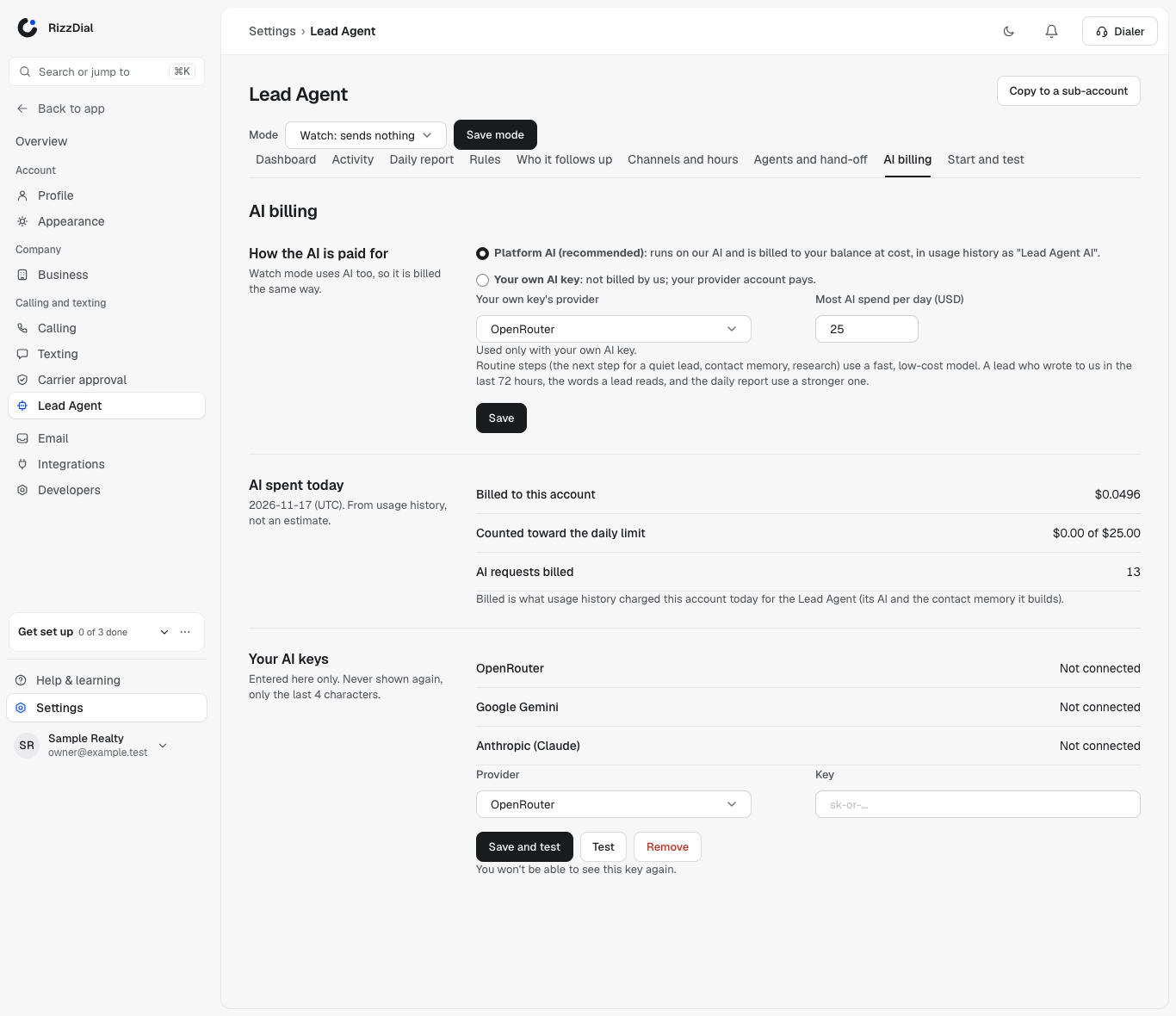
Every AI request the Lead Agent makes is billed: deciding, writing texts and emails, research, reports and tests. Watch mode is billed too.
Open Settings → Lead Agent → AI billing
Find the card How the AI is paid for.
Pick one
- Platform AI (recommended): charged to your balance at cost. It shows in usage history as Lead Agent AI. Keep your balance funded: an empty balance pauses the agent.
- Your own AI key: pick the provider (OpenRouter, Google Gemini or Anthropic) and your account with them pays. We bill nothing for the agent's AI.
Routine steps (the next step for a quiet lead, contact memory, research) use a fast, low-cost model. A lead who wrote to you in the last 72 hours, the words a lead reads, and the daily report use a stronger one. AI spent today on the same tab shows what was really billed today, from usage history.
Set the daily limit
Most AI spend per day (USD) defaults to $25. When it's reached, the agent stops using AI until midnight UTC. Click Save.
If you chose your own key:
In AI billing, under Your AI keys, pick the provider and paste the key
Choose OpenRouter, Google Gemini or Anthropic (Claude), paste the key and click Save and test. A key that doesn't work isn't saved. Then pick the same provider under Your own key's provider and choose Your own AI key.
Check it
The card shows Connected, ending in your key's last 4 characters.
- Your key is stored encrypted and never shown again. Never paste it into a chat with an AI assistant; it only goes in this box.
- If your provider refuses your key, the agent pauses and you get one alert. It never falls back to our key. Fix the key and click Test, or switch to Metered.
- Lead research doesn't include a web search on your own key.
Part 4: Your rules#
Step 9: Write your rules#
You can do this in two places. Both save to the same settings, so use whichever is easier:
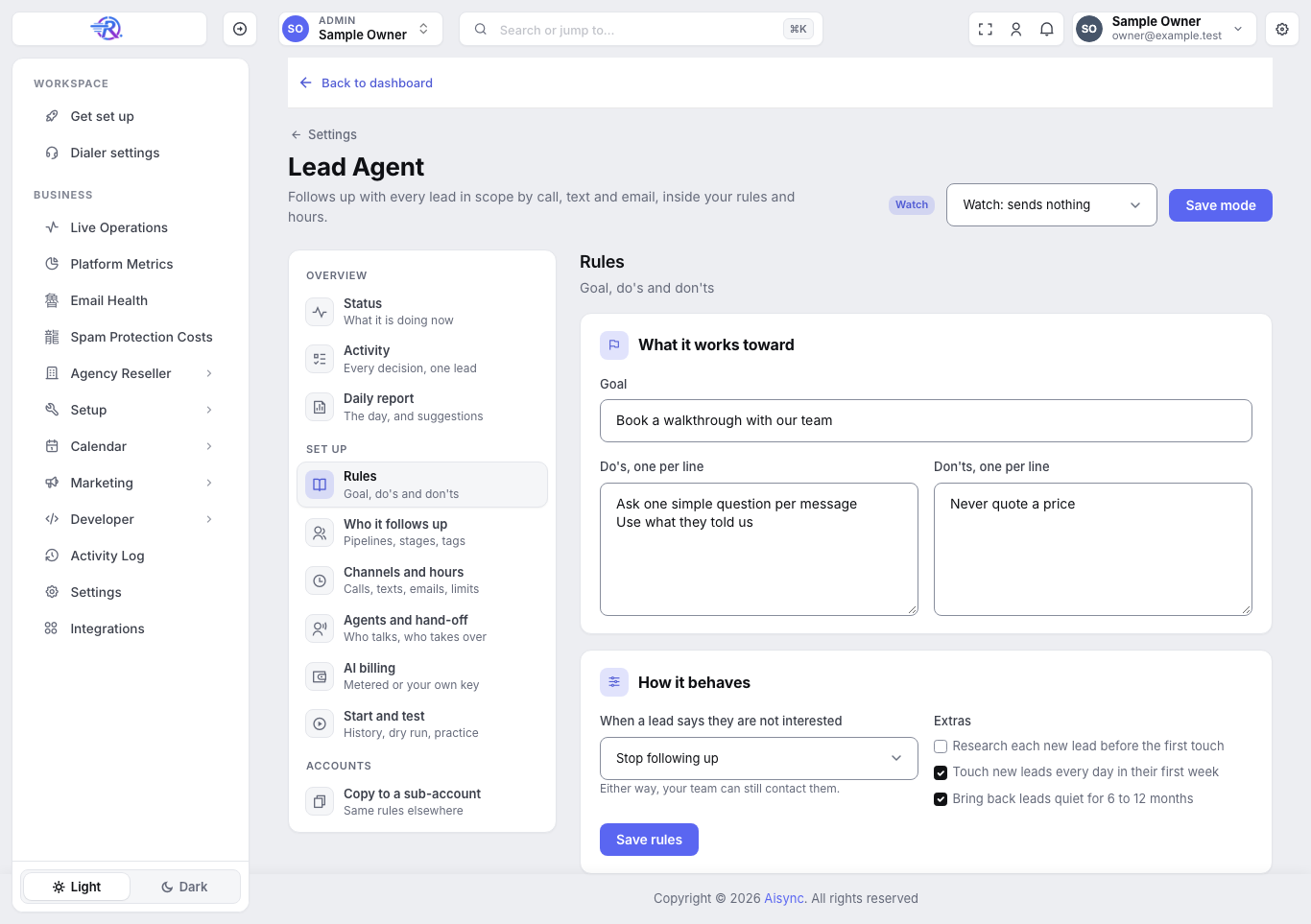
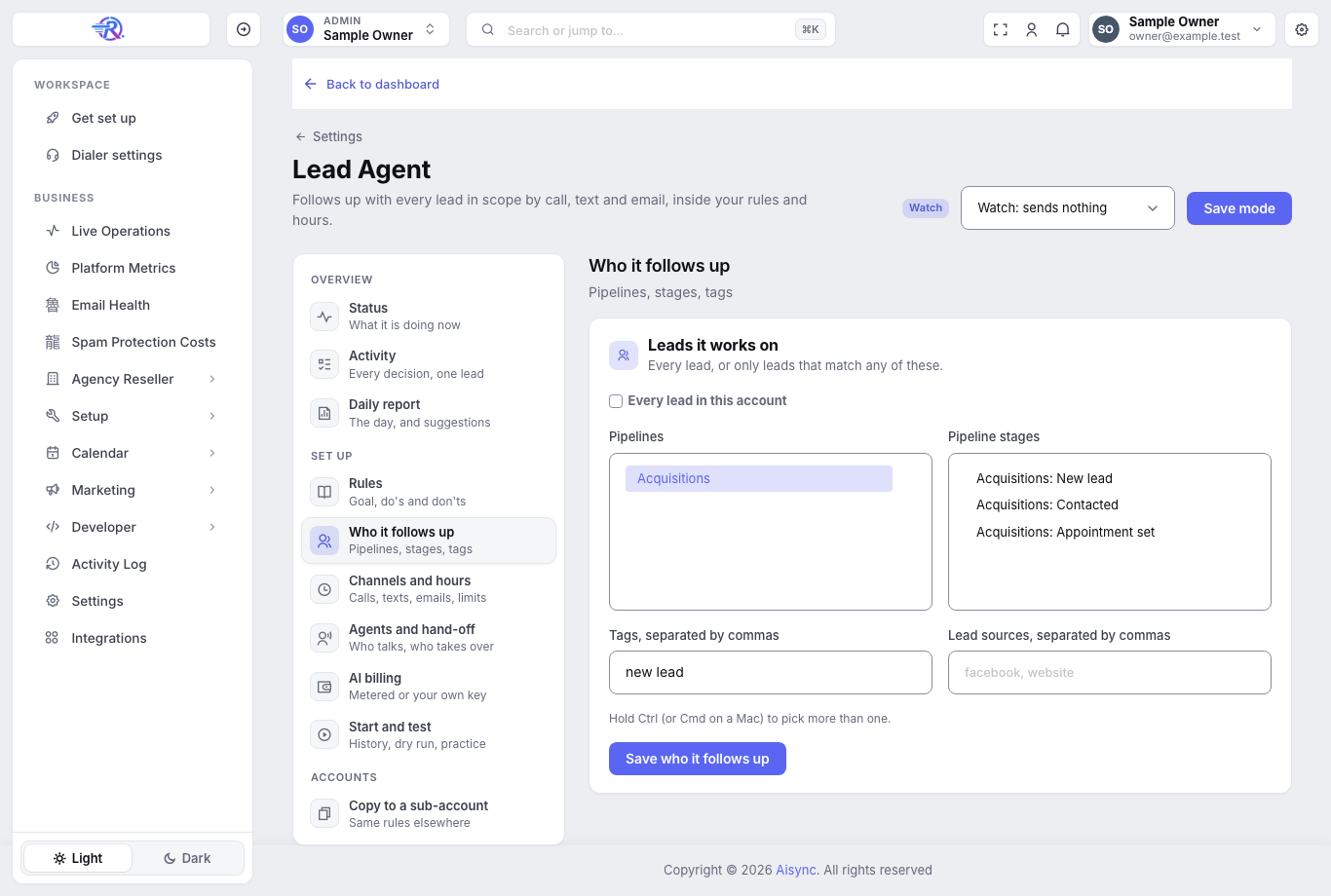
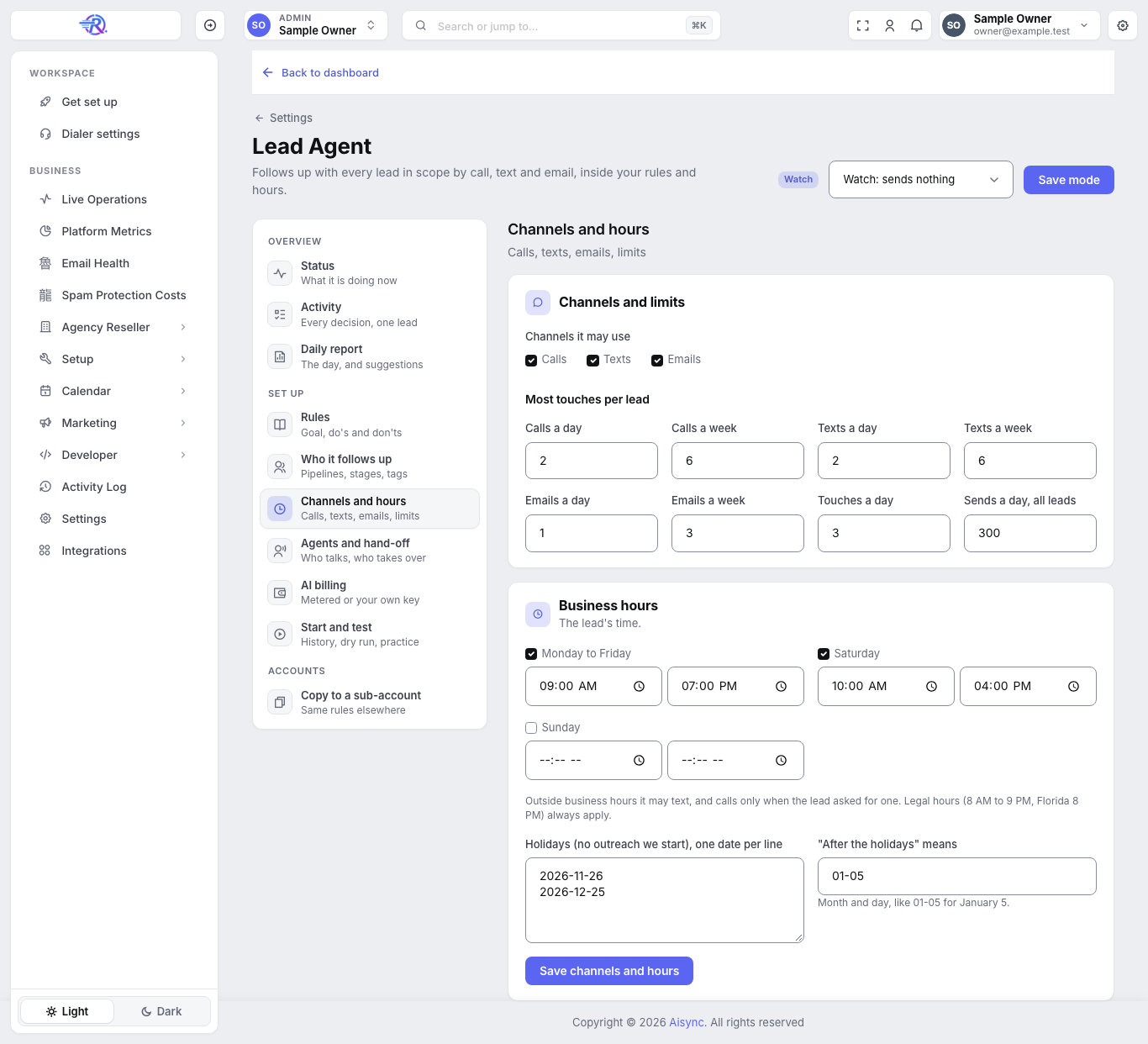
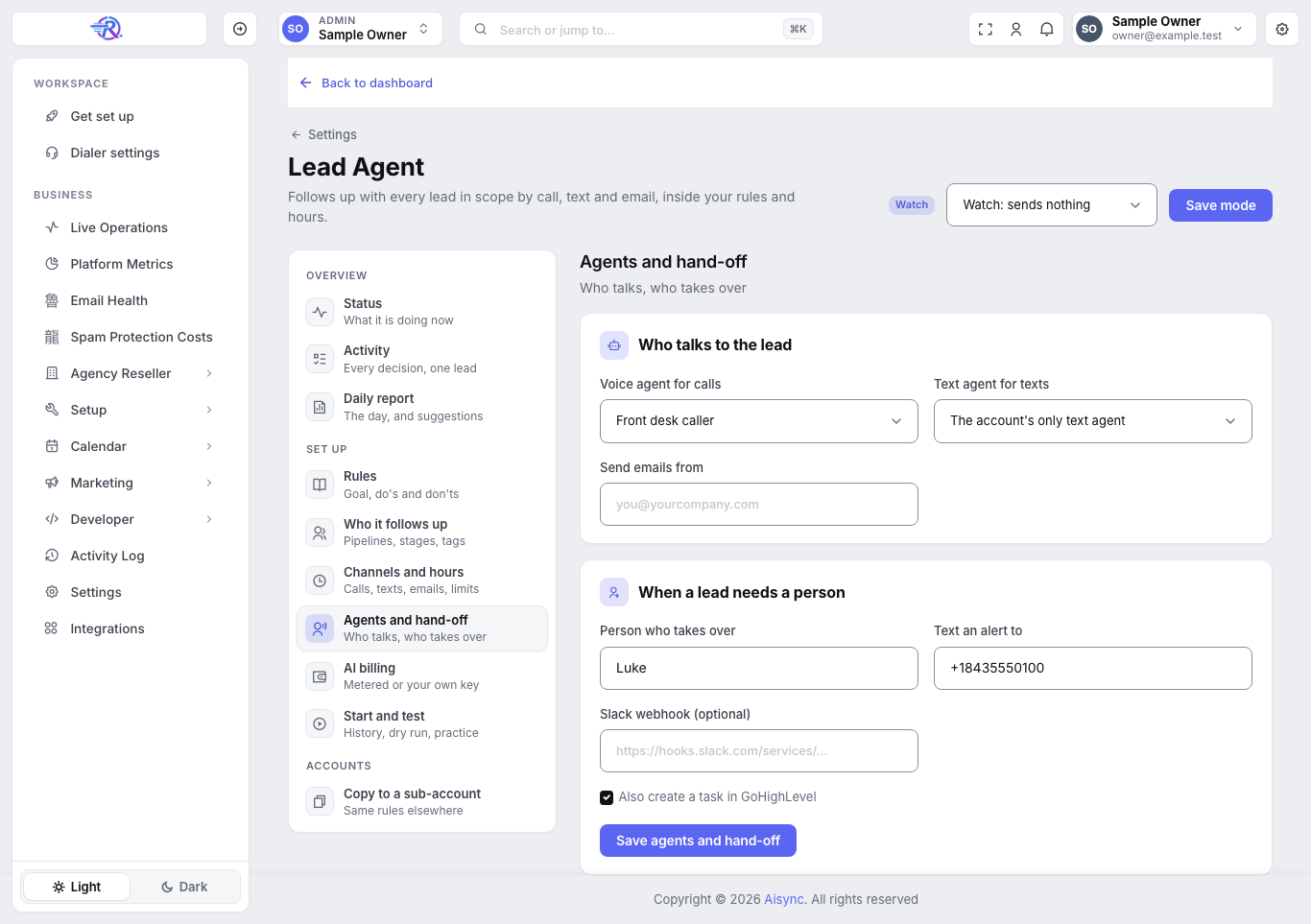
- On the page: Settings → Lead Agent, in the Rules, Who it follows up, Channels and hours and Agents and hand-off sections. The table below says where each answer goes. Click that section's Save button (for example Save rules) before you move on.
- From your AI assistant: say "Set up my Lead Agent." It asks one question at a time and repeats back what each answer becomes. Or change one thing at a time, for example "Set my Lead Agent goal to booking a call with an acquisitions manager." See Set it up from Claude for the exact things to type.
Have these answers ready:
| Decide | Where on the page | Example | Default |
|---|---|---|---|
| Goal | Rules → Goal | "Book a call with an acquisitions manager" | none |
| Don'ts | Rules → Don'ts, one per line | "Never discuss offer numbers or price. Never promise a closing date." | none |
| Do's | Rules → Do's, one per line | "Ask one qualifying question at a time: motivation, then timeline, then condition." | none |
| Leads who already got an offer | Rules → Do's, or ask your assistant to make it a stop tag | A do: "If the lead has the offer-made tag, never restate the number. Ask if they had a chance to look it over, then offer a call with the team." Or a stop tag so your team handles them by hand. | none |
| "Not interested" | Rules → When a lead says they are not interested | Stop following up, or Stop and turn on Do Not Disturb. Either way, your team can still contact them. | Stop following up |
| Priorities | Rules → Extras | Touch new leads every day in their first week and Bring back leads quiet for 6 to 12 months | both on |
| Research | Rules → Extras → Research each new lead before the first touch | Uses AI on every new lead | off |
| Who's in scope | Who it follows up | Every lead in this account, or some Pipelines, Pipeline stages, Tags or Lead sources | nobody (you must choose) |
| Channels | Channels and hours → Channels it may use | Calls, texts, emails | all three |
| Limits per lead | Channels and hours → Most touches per lead | Calls 2 a day, 6 a week; texts 2 a day, 6 a week; emails 1 a day, 3 a week; 3 touches a day | as shown |
| Account limit | Channels and hours → Sends a day, all leads | Calls, texts and emails per day, for the whole account | 300 (up to 20,000) |
| Business hours | Channels and hours → Business hours (the lead's time) | Outside them it may text, and calls only when the lead asked for one | Mon to Fri 9 to 7, Sat 10 to 4, Sun closed |
| Days off | Channels and hours → Holidays, one date per line, and "After the holidays" means | 2026-12-25; after the holidays = 01-05 | Thanksgiving, Christmas |
| Who talks | Agents and hand-off → Voice agent for calls, Text agent for texts, Send emails from | Your voice agent from Step 3, your text agent from Step 5, an address on your verified domain | your only text agent; no calls until a voice agent is picked |
| Hand-off person | Agents and hand-off → Person who takes over, Text an alert to, Slack webhook (optional), Also create a task in GoHighLevel | Luke, his mobile, your Slack channel | GoHighLevel task on |
| Different wording per source | Ask your assistant | Facebook leads: texts only. PPC leads: call first. | one setup for all |
| Call hours and quiet hours | Ask your assistant | "Calls 9 to 7, no texts or emails after 8 PM" | none (business hours apply) |
| Field mapping | Ask your assistant | Write the lead's motivation, timeline, property details and booking channel into your GoHighLevel custom fields | off |
| Off tag | Ask your assistant | The tag that pauses one lead | ai-off |
Write don'ts in your own words, short and plain. The do's and don'ts shape every text and email directly, and reach calls through {{agent_rules}} (Step 3).
Field mapping works in Live mode only, fills a field only when the value changes, and uses one small AI request per new reply.
Hand-off task assignee: to assign the GoHighLevel task to one person, the agent needs that person's GoHighLevel user ID. If you don't know it, ask RizzDial support and we'll look it up. Without it, the task is created unassigned.
The workflow builder has a different "Lead agent" step. That's an older test step, and its goal, do's and don'ts fields don't change the always-on Lead Agent. Set your rules here, on Settings → Lead Agent, or through your assistant.
Step 10: Pull your GoHighLevel history#
Before the agent adds your existing leads, it reads your GoHighLevel conversations and notes (the last 365 days) so it knows who already said STOP, "wrong number" or "not interested."
Start it one of two ways:
- On the page: Settings → Lead Agent → Start and test. Next to Pull GoHighLevel history, click Pull history. The page says History pull started. It shows on the Status tab when it is done.
- From your AI assistant: say "Pull my GoHighLevel history for the Lead Agent." It tells you what it will read and starts after your yes.
Check it
It runs in the background and can take a while for a large account. Its progress shows on Settings → Lead Agent → Status, as GoHighLevel history: running and then done, with how many conversations and notes it read. Or ask your assistant "Is my GoHighLevel history pull done?"
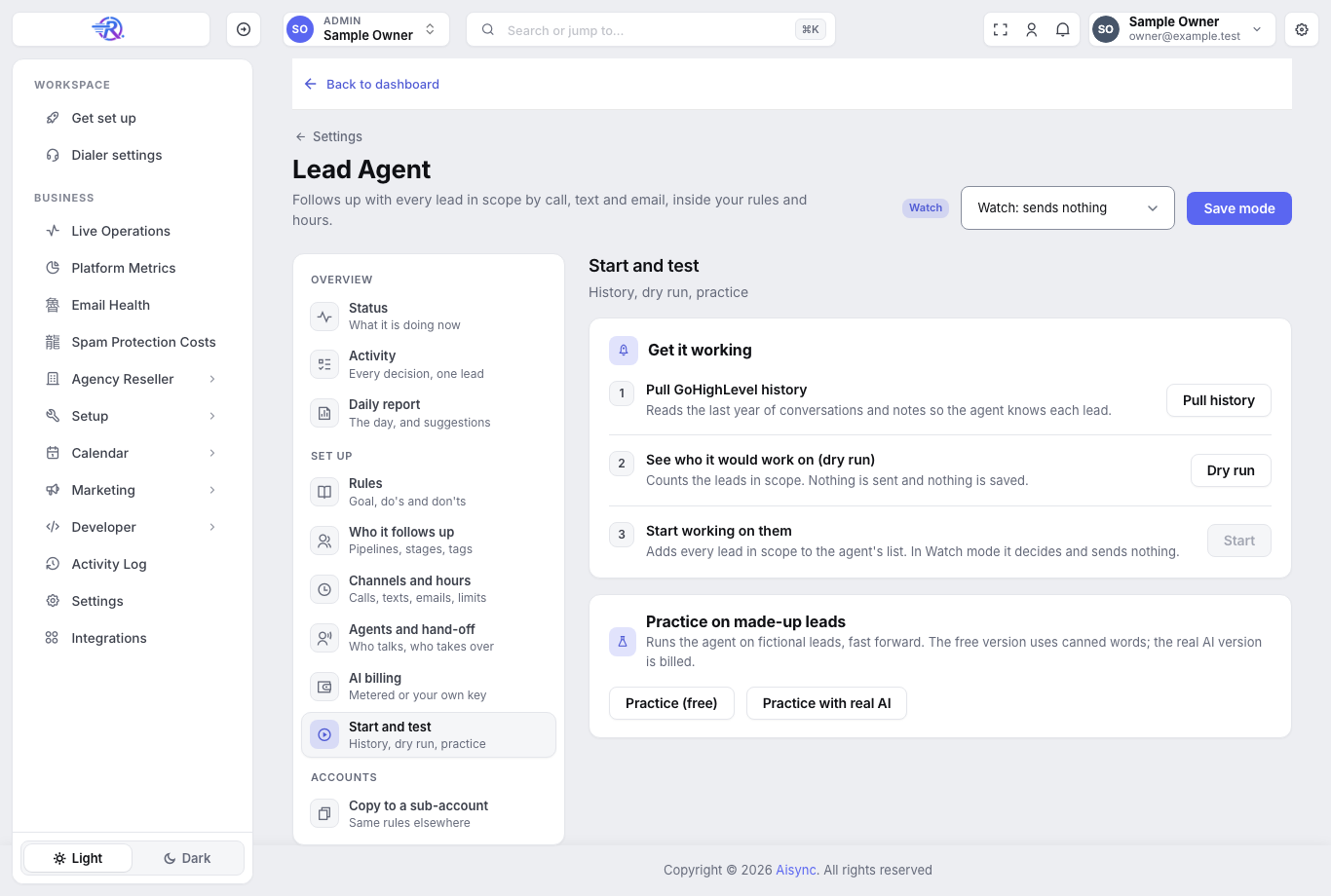
Adding leads for real (Step 13) waits until the pull for your current scope is done. If you change the scope, pull again.
Part 5: Test, watch, go live#
Step 11: Run a test on fictional leads#
On the page: Start and test → Practice on made-up leads. Practice (free) uses canned words and costs nothing, so it checks the plumbing. Practice with real AI tests your real rules; it's billed, so the page asks first. While it runs, the page says Still running. Check back in a few minutes.
Or ask your assistant: "Run the Lead Agent simulation." Either way, it runs your exact settings against fictional leads (a cold seller, a hot seller, one who got an offer, an angry one, one who says STOP, one who says "call me at 2") on fast-forward, and scores each one against your rules.
- It contacts nobody and never touches your real contacts. Everything is labeled SIMULATION.
- The real-AI run is billed, and the page or your assistant asks before it runs.
- At most 2 runs an hour. A full run can take up to 30 minutes.
Fix anything that breaks a rule, and run it again until nothing does. For the full test plan, including a test with your own phone, see Testing before go-live.
Step 12: Switch to Watch#
Choose a scope first (Step 9). With no scope, the agent works nobody and the page says No leads are in scope yet, so the agent works on nobody. The Follow up with every lead button next to that message sets the scope to everyone in one click.
Open Settings → Lead Agent
In the mode menu at the top right, choose Watch: sends nothing and click Save mode.
Check it
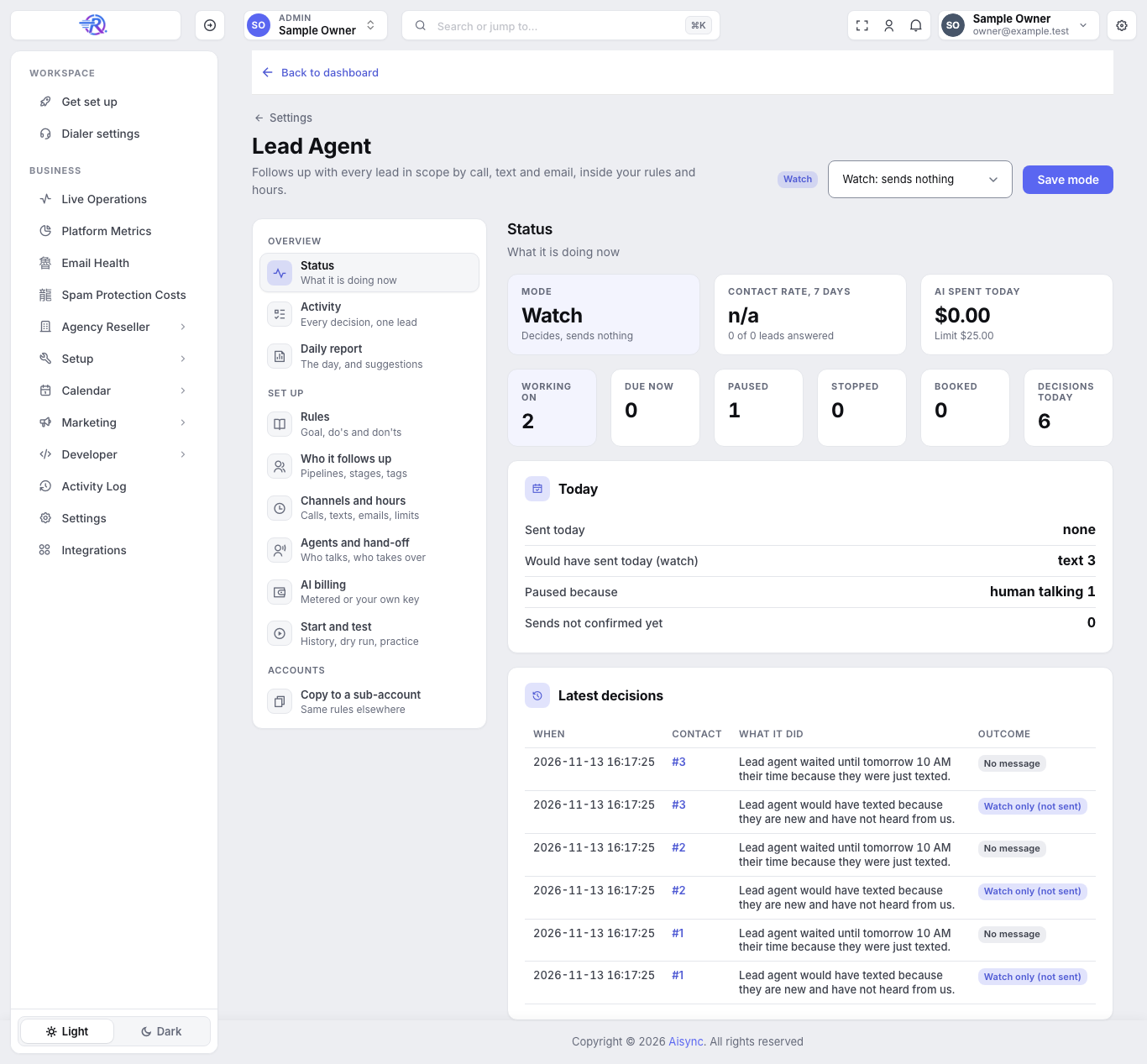
The badge next to the menu reads Watch, and on Status the Mode card reads Watch (Decides, sends nothing).
Step 13: Add your existing leads (dry run, then for real)#
On the page: Start and test. Click Dry run next to See who it would work on (dry run); press it again a minute later for the result. Then click Start next to Start working on them and confirm. Leads are added over the next hour.
Or ask your assistant: "Add my leads to the Lead Agent. Dry run first."
Read the dry run
It shows how many leads are in scope, how many it would add, how many it found had already said STOP, "wrong number" or "not interested," and when the first looks would land. Nothing changes.
Start, or say yes to add them
Only after you click Start (or say yes) are they added for real. First looks are spread out (200 an hour by default, between 9 AM and 7 PM), new leads first.
Past STOPs and wrong numbers are stopped for good and recorded as Do Not Disturb. A plain past "not interested" is paused for 180 days, then worked again. Replies like "not interested in a lowball offer" aren't counted as a no.
Step 14: Review a day of Watch mode#
Let it run in Watch for at least a day. Then read what it would have done:
- Settings → Lead Agent → Status, under Latest decisions: the newest decisions in plain sentences.
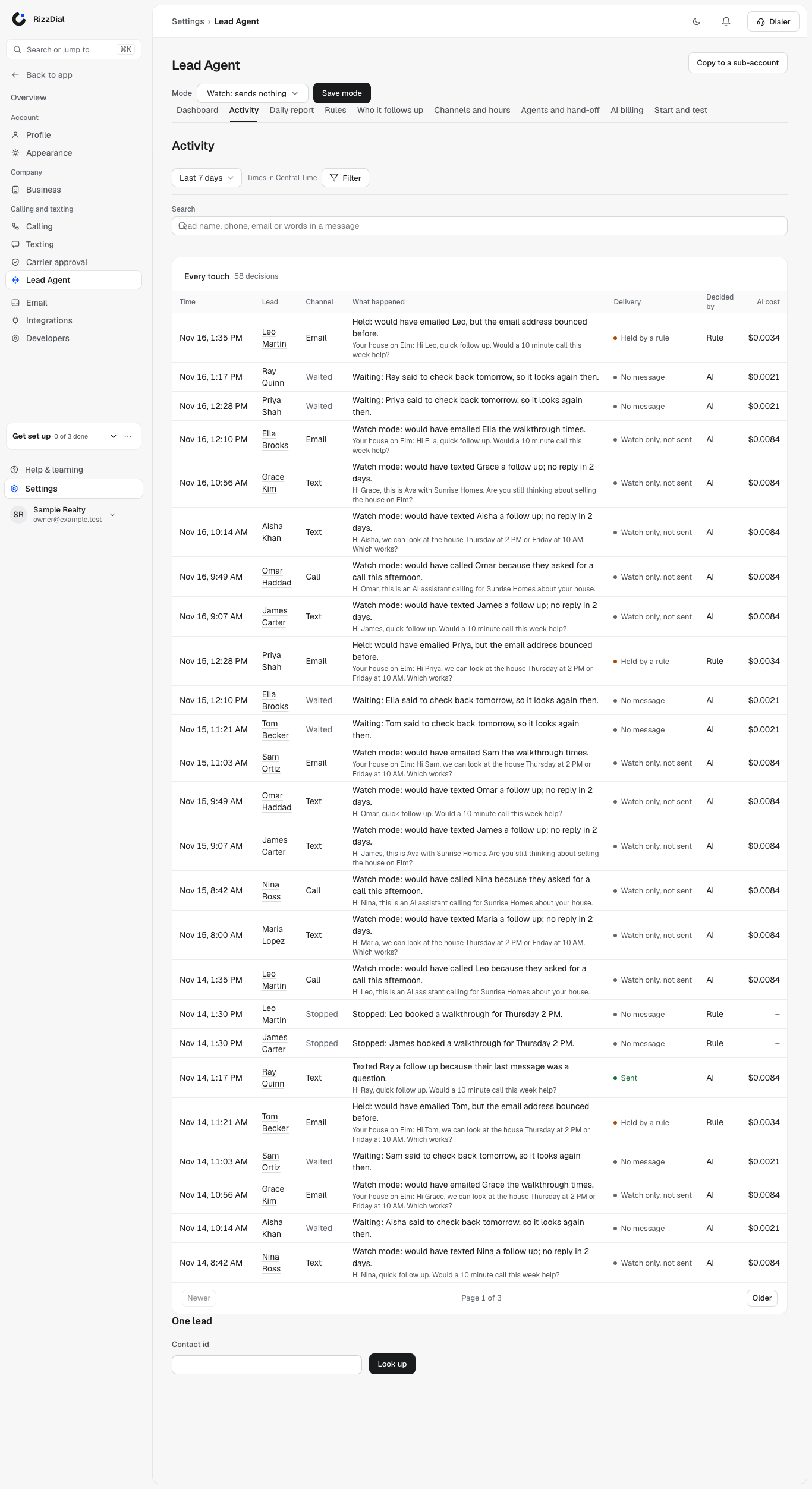
- Settings → Lead Agent → Activity, under Decision log: every decision, with From and To dates, a What it did filter and a Contact id box. Click Show, then Newer and Older to page. Under One lead, enter a contact id and click Look up for that lead's history.
- A contact's timeline, under Changes: every decision for that lead.
- Your assistant: "Show me yesterday's decisions."
Look for anything that breaks a don't, the wrong time, or the wrong channel. Fix the rule and keep watching until you're happy. See Daily report and decisions.
Step 15: Go live#
Start small: set the scope to one tag or one stage first.
Open Settings → Lead Agent
In the mode menu at the top right, choose Live and click Save mode.
Check it
The badge reads Live. Later that day, check that real sends show in Latest decisions with the outcome Sent.
Real sending is switched on for your account by RizzDial after a real-phone test (see Testing before go-live). Until then, the page says Live is saved but sending is off for this account: ask support. Until then it works like watch mode and sends nothing. and decisions show Watch only (not sent).
If you go live from your AI assistant, it shows you exactly what will start and waits for your yes.
Once it's working on the small group, widen the scope.
Pause or stop it#
| To stop | Do this | Takes effect |
|---|---|---|
| One lead | Add the tag ai-off to the contact in RizzDial or GoHighLevel. Remove it to resume. Or on Activity → One lead, enter the contact id, click Look up, then Pause this lead. Or ask your assistant: "Pause the Lead Agent for Becky." | Next decision |
| Everything on your account | Settings → Lead Agent, mode menu → Off → Save mode | At once: every send checks the mode again right before it goes out |
RizzDial support can also pause all outbound on your account, and RizzDial has an emergency stop for the whole platform that stops every Lead Agent call, text and email at once.