On Companies, enter a name or email in Search users and companies. Suggestions show separate Companies and Users groups. User suggestions include their company. Choose a suggestion or select Search to see both sets of results. Use the page controls under the list you want to browse. In Classic, use Find user.
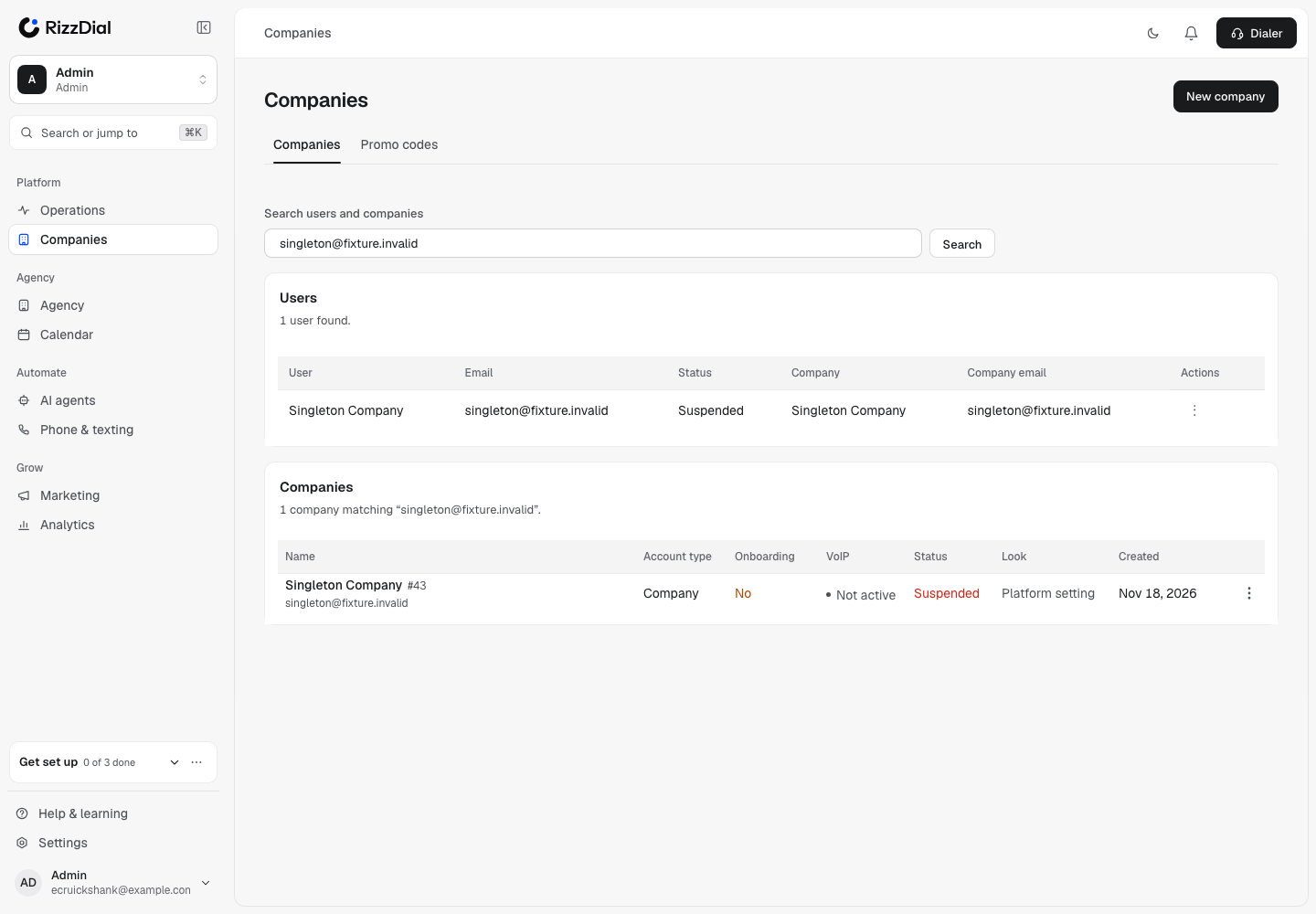
Open the action menu on the right of the matching user row.
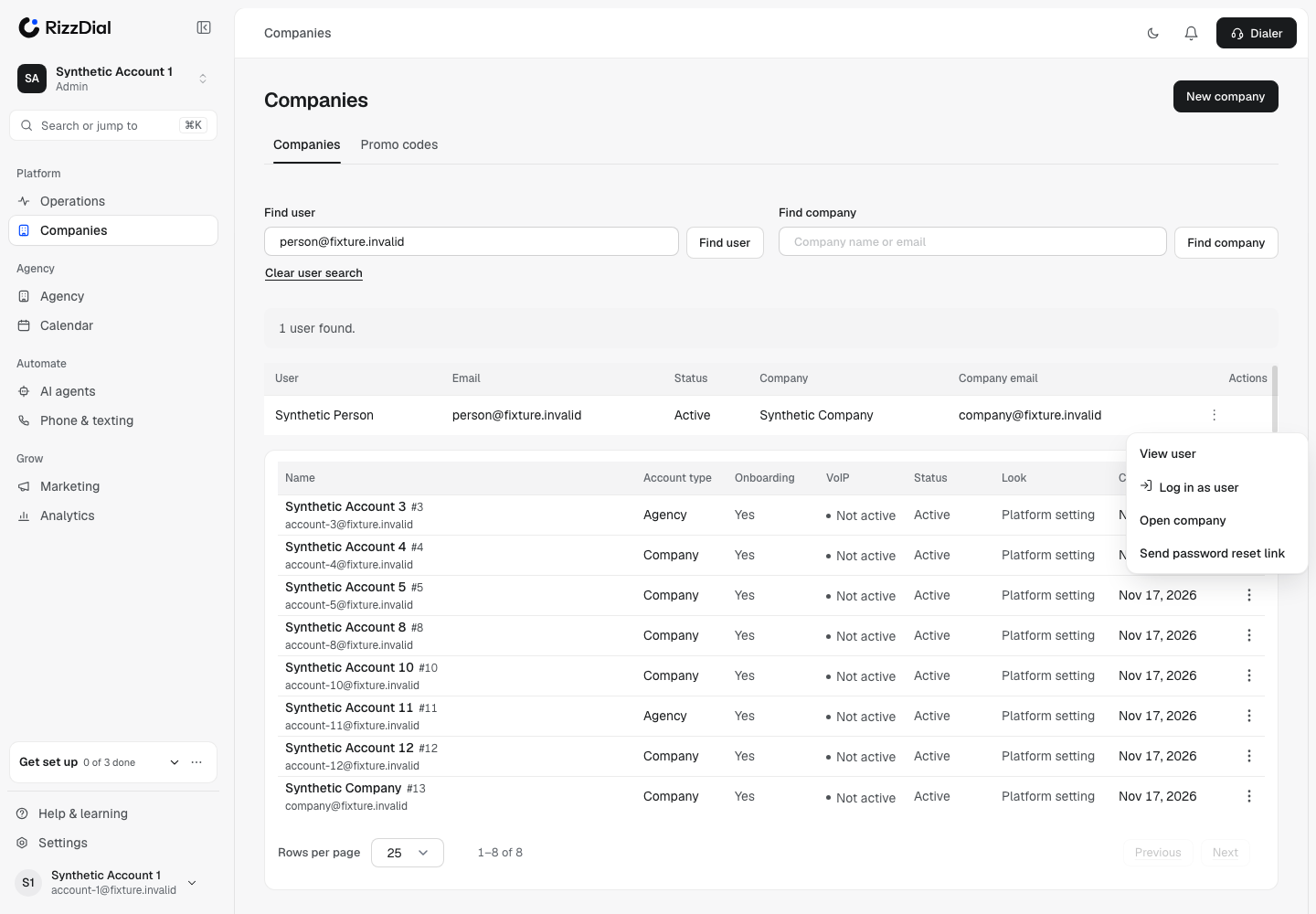
| Action | What happens |
|---|---|
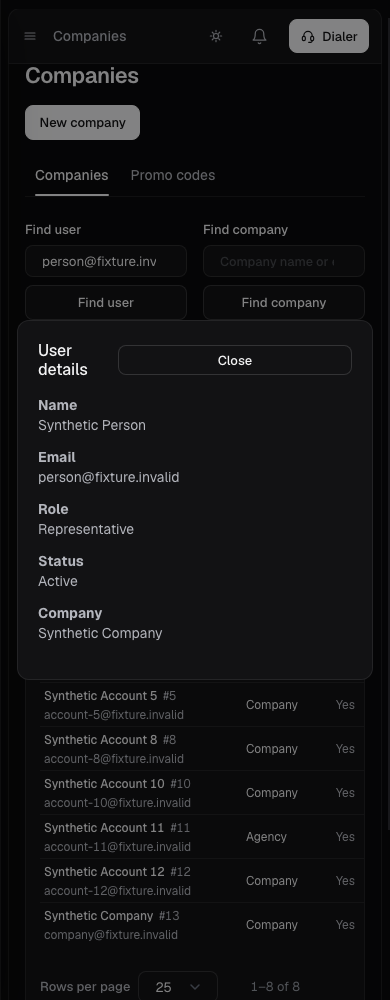
| View user | Opens a read-only card with name, email, role, status and company |
| Log in as user | Asks for confirmation, then uses the existing account switcher |
| Open company | Opens Companies with a filter for that user's company |
| Send password reset link | Asks for confirmation, then emails an expiring link to the user's saved email |
Who can use the support actions#
These support actions require a platform account with permission to view Companies. Sending a reset link also requires permission to edit Companies. Existing platform-administrator access still applies. A customer's Admin role or agency ownership does not grant these support permissions.
Only users in companies visible to the current account are available. While viewing a customer account through the switcher, that customer's permissions apply to these support actions. Return to your platform account to use your platform permissions.
The existing agency account switcher continues to offer its permitted Login action.
Help with account recovery#
Check the user's name and saved email in the confirmation before sending a reset link. Staff cannot choose a destination or view or set the user's password. Sending the link does not itself change their password, status or sessions.
If a recent request is refused, wait before requesting another link. If your role cannot perform the action, ask a platform administrator for help.
When using a connected assistant, ask it to find the user and show the details first. Review the reset preview before confirming. Browser Login still uses the existing account switcher.