"Copy our playbook" sets up a full lead follow-up system in a client account in about 10 minutes:
- the follow-up workflows (new lead, booked, reminders, no-show, cancelled, callbacks, owner alerts)
- tags and a sales pipeline
- a booking calendar
- a text assistant
- the Lead Agent in Watch mode
Everything is filled in with the client's own words and installs turned off. Nothing contacts a lead until you switch it on.
Who can use it: agencies (on their own client accounts) and platform admins. Installing twice never adds anything twice, and anything already in the account is left exactly as it is.
Before you start#
Get these from the client:
- business name, owner's name, and who meets the leads
- what leads ask about, and what the appointment is called (for example "free 20-minute consult")
- how the appointment happens: phone, video or in person
- their booking link, and a free offer for leads who say "not now"
- 1 to 3 real results (only true ones; the assistant repeats them word for word)
- 2 to 5 questions the assistant should ask first
- the owner's cell phone, for new-booking and upset-lead alerts
It helps if the account already has a main phone line, a second line for owner alerts, and the AI voice agent you want to use. If not, you can install anyway; anything missing is listed for you to finish later.
Open the card
Go to Agency → Clients, open the client, and find Copy our playbook. Or switch into the client account and open Get set up. Click Start.
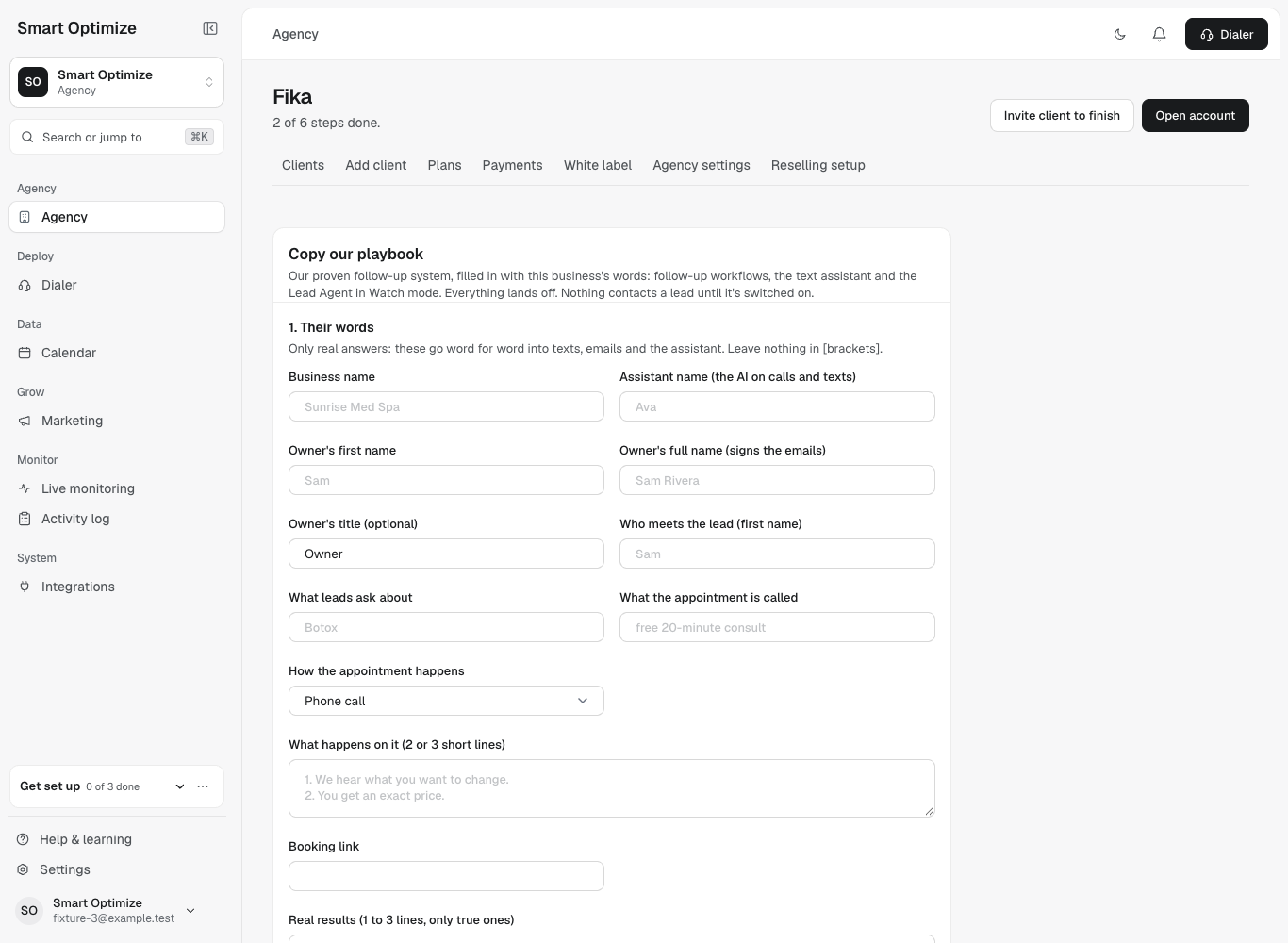
Fill in their words
Answer the questions the way a lead should read them. The form won't let you install with a blank answer, anything left in [BRACKETS], or an example link.
Pick the pipeline stages, once
Either add a new sales pipeline with 9 ready stages, or use the client's own pipeline and say which stage means New lead, Contacted, Replied, Booked, Showed, No-show, Cancelled, Sold and Not a fit. Every workflow is wired to those stages for you.
Pick the calendar, agents and numbers
- Booking calendar: the client's own, or add a new one.
- AI voice agent: pick theirs. No new voice agent is built, so there is no agent charge.
- Text assistant: use theirs, or add one (it installs turned off).
- Main line and alert line: two different numbers.
Preview
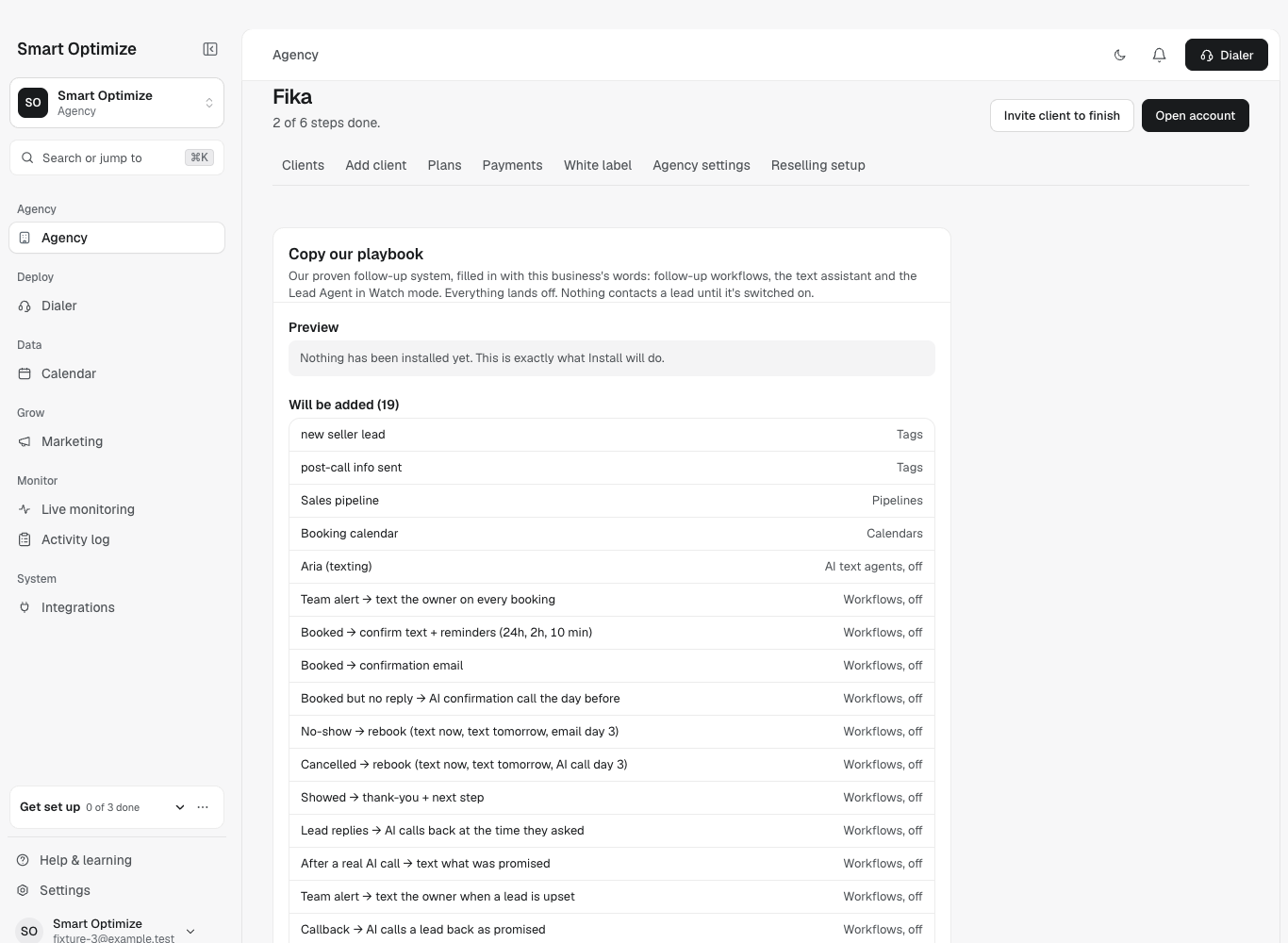
Click Preview. Nothing is installed yet. You see exactly what will be added, what is already there and will be skipped, and what is left for you to pick.
Install
Click Install as drafts. Then open Get set up in the client account.
Finish the readiness check
Each line says why it matters and the one thing to do:
- CRM connected (if they use GoHighLevel)
- Phone numbers: a main line and a separate alert line
- Texting registration for the main line
- Open times in the next 48 hours on the booking calendar
- Email from the client's domain is verified
- Facebook lead form connected (if they run lead ads)
- AI Memory accepted (only the account owner can accept it)
- A test call booked a real slot
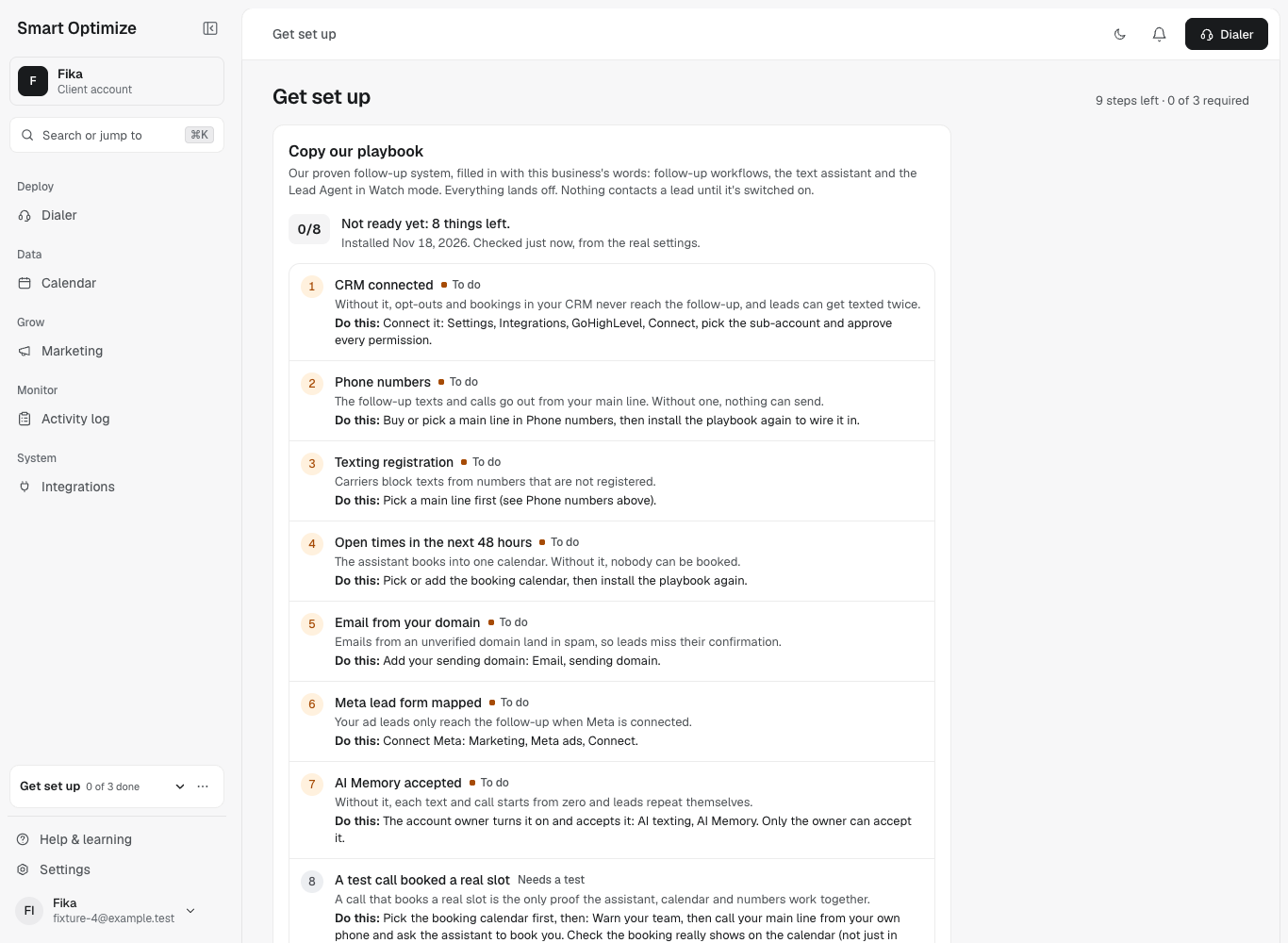
The last item is never run for you. Warn the team, call the main line from your own phone, and ask the assistant to book you. It passes only when the booking really shows on the calendar.
Go live
When the check says Ready:
- Turn on the workflows, the new-lead one last.
- Turn on the text assistant. Start on Suggest, and move to Autopilot when its drafts look right.
- Leave the Lead Agent in Watch for a day and read its decisions before moving leads to it. Don't put the same leads in the new-lead workflow and the Lead Agent at once.
- Check every reply, booking and "call me back" by hand for the first week.
Do it by chat#
If your AI assistant is connected (see Work in clients by chat), you can say:
- "Show me the playbook form for my client Bright Smile Ortho."
- "Preview the playbook for Bright Smile Ortho with these answers: …"
- "Install it." It always previews first and asks you to confirm.
- "What's left on Bright Smile Ortho's readiness check?"
Good to know#
- The Lead Agent installs in Watch mode: it decides and writes down what it would do, and sends nothing. Watch mode uses AI, billed per use, up to $25 a day. You can turn it off at any time.
- If the client already has a Lead Agent set up, it is kept exactly as it is.
- Next: Set up the Lead Agent and Tasks & callbacks.